Modern Web Guidance 1.0 の legacy-scan で既存アプリを AI エージェントにモダナイズさせる
Modern Web Guidance 1.0 に追加された legacy-scan は、既存プロジェクトの古い Web 実装パターンをローカルの静的解析で検出し、公式ガイドと組み合わせて AI エージェントにモダナイズさせる仕組みです。この記事では、古い書き方を含むサンプルアプリを用意し、legacy-scan で洗い出された 9 ガイド・12 件の問題を AI エージェントが最新の Web 標準へ書き換えるまでの流れとセッションログ上のポイントを紹介します。
開発の現場ではゼロから新規アプリを作るよりも、既存のコードベースに手を入れる場面のほうが多いでしょう。長年運用されたプロジェクトには、現在のブラウザがネイティブに解決できる古い回避策が積み重なりがちです。例えば従来は <textarea> の高さを JavaScript で scrollHeight を監視して自動リサイズしていましたが、現在は CSS の field-sizing: content で同じことができます。
こうした古い回避策は表面上は動いているため、なかなか改善の優先度が上がらず放置されがちというのが実情です。しかし古い書き方の保守コストが積み重なったり、ブラウザネイティブの機能を使わないことで JavaScript のバンドルサイズが増えるといった問題が潜んでいます。さらに AI コーディングエージェントを使うと、エージェント自身が古い学習データと周辺のコードに引きずられ、新機能にも同じ古いパターンを増殖させてしまう問題があります。
Google Chrome チームが Microsoft Edge、Mozilla Firefox、MDN チームと共同で 2026 年 11 月に安定版をリリースした Modern Web Guidance 1.0 では、既存コードベースを安全にモダン化するためのモダナイズワークフローと
legacy-scan コマンドが追加されました。
この記事では、意図的に古い書き方を含む小さな Web アプリを用意し、legacy-scan でどのような問題が洗い出されるかを確認します。さらに、AI エージェント(Antigravity)に実際のモダナイズを任せ、セッションログから見えた判断プロセスや Before / After の差分を紹介します。
Modern Web Guidance 1.0 と legacy-scan の仕組み
Modern Web Guidance は、AI コーディングエージェントに最新の Web 標準、ベストプラクティス、Baseline のブラウザ互換性データを提供するオープンソースのスキルセットです。1.0 時点では 200 を超える専門家レビュー済みのガイドが収録されており、プロジェクトには次のコマンドで導入できます。
npx modern-web-guidance@latest install対話形式のウィザードに加えて、npx skills add GoogleChrome/modern-web-guidance や、Claude Code・Codex・Cursor・Antigravity CLI などのプラグイン機能からも導入できます。エージェントはタスクに応じて search と retrieve コマンドで必要なガイドだけを取得して実装します。
既存コードの改善に向けて 1.0 で追加されたのが、検出用の CLI コマンドである legacy-scan と、スキルに組み込まれた 4 段階のモダナイズワークフロー(検出 → 検証 → 報告 → 修正)です。プロジェクトのモダナイズを依頼すると、エージェントがこのスキルの手順に従って自律的に作業を進めます。
legacy-scan の設計には、いくつかの特徴があります。
- HTML・CSS・JavaScript / TypeScript・フレームワークのコンポーネント・
package.jsonを、AST・DOM・CSS パーサーを使ってローカルで静的解析する。スキャン中に LLM を呼び出さないため、トークンを消費しない - 信頼性が高いルールだけに絞っている。静的マッチャーの精度が 80% 以上、エージェントによる検証後の精度が 90% 以上のルールだけが採用されており、対象は約 200 あるガイドのうち約 20% にとどまる
- 各検出項目に検証基準(
keepWhen/dropWhen)が付く。keepWhenは修正対象として残す条件、dropWhenは誤検知として除外する条件を表す検証ルール
静的解析は構文の形を高速に見つけられる一方、コードの意図や用途までは判別できません。たとえば <input type="password"> であっても、ログイン用のパスワード欄なら autocomplete="current-password" を付けるべきですが、Webhook のシークレットや API キーを入力する設定欄なら対象外です。このように構文だけでは誤検知になりやすい箇所を AI エージェントが文脈から除外できるようにしています。
公式の Modernization workflow では、legacy-scan にあえて --fix フラグを用意していない理由が説明されています。一見単純に見えるモダナイズでも、JavaScript のイベントリスナーや外部パッケージを削除して HTML 属性や CSS へ移すようなレイヤー横断のリファクタリングになることが多く、微妙な挙動差やブラウザ互換性の判断が伴うためです。検出を高速な静的解析に任せ、文脈判断と修正を AI エージェントへ委ねる役割分担になっています。
古い書き方を含むサンプルアプリを用意する
legacy-scan がどのような問題を洗い出し、AI エージェントがそれをどう書き換えるのかを確かめるため、HTML・CSS・JavaScript で作った小さなメモアプリ「Team Memo Board」を用意しました。
このアプリには、既存プロジェクトでよく見かける次のような古い書き方を意図的に含めています。
- フォームのバリデーションで
:invalidを直接使っており、ページを開いた直後から未入力の入力欄が赤枠になる - 使い方パネルのアコーディオン開閉に
max-height: 0とmax-height: 9999pxのトランジションを使っている - メモ一覧のスクロールバー装飾に
::-webkit-scrollbarだけを使っている <textarea>の自動リサイズをinputイベントとscrollHeightで毎回計算している- Enter キー送信の
keydownハンドラに IME 変換中チェックがなく、日本語変換の確定で誤送信が起きる <dialog>の開閉をaddEventListener('click', ...)で書いており、背景クリックによる閉じる判定がevent.target === loginDialogで行われている- ログインフォームのパスワード欄に
autocomplete属性がない - データのディープコピーに
JSON.parse(JSON.stringify(...))、子要素の全削除にwhile (memoList.firstChild) memoList.removeChild(...)を使っている
サンプルアプリは index.html・styles.css・app.js の 3 ファイルで構成しています。コード全文は以下から確認できます。
`index.html`
<!doctype html>
<html lang="ja">
  <head>
    <meta charset="UTF-8" />
    <meta name="viewport" content="width=device-width, initial-scale=1.0" />
    <title>Team Memo Board</title>
    <link rel="stylesheet" href="./styles.css" />
  </head>
  <body>
    <header class="app-header">
      <h1>Team Memo Board</h1>
      <div class="header-actions">
        <button id="open-login-btn" type="button">ログイン</button>
      </div>
    </header>

    <main class="container">
      <section class="composer-card">
        <h2>新しいメモを追加</h2>
        <form id="memo-form" novalidate>
          <div class="field">
            <label for="memo-title">タイトル(必須)</label>
            <input
              id="memo-title"
              name="title"
              type="text"
              required
              minlength="2"
              placeholder="例: 来週のリリース準備"
            />
          </div>

          <div class="field">
            <label for="memo-body">本文(Enter で送信 / Shift+Enter で改行)</label>
            <textarea
              id="memo-body"
              name="body"
              rows="2"
              required
              placeholder="メモを入力してください..."
            ></textarea>
          </div>

          <div class="form-footer">
            <button type="submit">メモを投稿</button>
          </div>
        </form>
      </section>

      <section class="memo-section">
        <div class="section-header">
          <h2>メモ一覧</h2>
          <button id="toggle-tips-btn" type="button" aria-expanded="false">
            使い方を表示
          </button>
        </div>

        <div id="tips-panel" class="accordion-panel">
          <p>
            タイトルと本文を入力して Enter キーを押すとメモを追加できます。右上のログインボタンからアカウント認証モーダルを開けます。
          </p>
        </div>

        <ul id="memo-list" class="memo-list"></ul>
      </section>
    </main>

    <dialog id="login-dialog" class="login-dialog">
      <form id="login-form" method="dialog">
        <h2>チームアカウントにログイン</h2>
        <div class="field">
          <label for="login-email">メールアドレス</label>
          <input id="login-email" name="email" type="email" required />
        </div>
        <div class="field">
          <label for="login-password">パスワード</label>
          <input id="login-password" name="password" type="password" required />
        </div>
        <div class="dialog-actions">
          <button id="cancel-login-btn" type="button">キャンセル</button>
          <button type="submit">ログイン</button>
        </div>
      </form>
    </dialog>

    <script type="module" src="./app.js"></script>
  </body>
</html>
`styles.css`
:root {
  color-scheme: light;
  --bg: #f6f7f9;
  --surface: #ffffff;
  --text: #1f2937;
  --muted: #6b7280;
  --border: #d1d5db;
  --accent: #2563eb;
  --danger: #dc2626;
}

* {
  box-sizing: border-box;
}

body {
  margin: 0;
  font-family: system-ui, -apple-system, sans-serif;
  background: var(--bg);
  color: var(--text);
  line-height: 1.5;
}

.app-header {
  display: flex;
  justify-content: space-between;
  align-items: center;
  padding: 1rem 1.5rem;
  background: var(--surface);
  border-bottom: 1px solid var(--border);
}

.app-header h1 {
  margin: 0;
  font-size: 1.25rem;
}

.container {
  max-width: 720px;
  margin: 1.5rem auto;
  padding: 0 1rem;
  display: grid;
  gap: 1.5rem;
}

.composer-card,
.memo-section {
  background: var(--surface);
  border: 1px solid var(--border);
  border-radius: 8px;
  padding: 1.25rem;
}

.field {
  display: grid;
  gap: 0.35rem;
  margin-bottom: 1rem;
}

input,
textarea {
  width: 100%;
  padding: 0.6rem 0.75rem;
  border: 1px solid var(--border);
  border-radius: 6px;
  font: inherit;
}

textarea {
  resize: none;
  overflow-y: hidden;
  min-height: 4rem;
}

input:invalid,
textarea:invalid {
  border-color: var(--danger);
  background-color: #fef2f2;
}

button {
  padding: 0.5rem 1rem;
  border: 1px solid var(--accent);
  border-radius: 6px;
  background: var(--accent);
  color: #ffffff;
  font: inherit;
  cursor: pointer;
}

button[type="button"] {
  background: var(--surface);
  color: var(--text);
  border-color: var(--border);
}

.section-header {
  display: flex;
  justify-content: space-between;
  align-items: center;
  margin-bottom: 0.75rem;
}

.accordion-panel {
  max-height: 0;
  overflow: hidden;
  transition: max-height 0.3s ease;
  color: var(--muted);
}

.accordion-panel.is-open {
  max-height: 9999px;
}

.memo-list {
  list-style: none;
  margin: 0;
  padding: 0;
  max-height: 260px;
  overflow-y: auto;
  display: grid;
  gap: 0.75rem;
}

.memo-list::-webkit-scrollbar {
  width: 8px;
}

.memo-list::-webkit-scrollbar-track {
  background: #f3f4f6;
}

.memo-list::-webkit-scrollbar-thumb {
  background-color: #9ca3af;
  border-radius: 4px;
}

.memo-item {
  border: 1px solid var(--border);
  border-radius: 6px;
  padding: 0.75rem;
}

.memo-item h3 {
  margin: 0 0 0.25rem;
  font-size: 1rem;
}

.memo-item p {
  margin: 0;
  white-space: pre-wrap;
  color: var(--muted);
}

.login-dialog {
  width: min(420px, 90vw);
  border: 1px solid var(--border);
  border-radius: 10px;
  padding: 1.5rem;
}

.login-dialog::backdrop {
  background: rgba(15, 23, 42, 0.45);
}

.dialog-actions {
  display: flex;
  justify-content: flex-end;
  gap: 0.5rem;
}
`app.js`
const memoForm = document.getElementById('memo-form');
const memoTitle = document.getElementById('memo-title');
const memoBody = document.getElementById('memo-body');
const memoList = document.getElementById('memo-list');
const toggleTipsBtn = document.getElementById('toggle-tips-btn');
const tipsPanel = document.getElementById('tips-panel');
const openLoginBtn = document.getElementById('open-login-btn');
const cancelLoginBtn = document.getElementById('cancel-login-btn');
const loginDialog = document.getElementById('login-dialog');

const initialMemos = [
  {
    id: 1,
    title: 'スプリント振り返り',
    body: '金曜日の 15:00 から会議室 A で実施します。',
  },
  {
    id: 2,
    title: 'デザインレビュー',
    body: 'フォームのバリデーション表示タイミングを見直す。',
  },
  {
    id: 3,
    title: 'モーダル改善タスク',
    body: '背景クリックで閉じるときの挙動を確認する。',
  },
  {
    id: 4,
    title: '日本語入力の不具合調査',
    body: '変換確定時の Enter キーで意図せず送信されないようにする。',
  },
];

let memos = JSON.parse(JSON.stringify(initialMemos));

function renderMemos() {
  while (memoList.firstChild) {
    memoList.removeChild(memoList.firstChild);
  }

  for (const memo of memos) {
    const li = document.createElement('li');
    li.className = 'memo-item';

    const title = document.createElement('h3');
    title.textContent = memo.title;

    const body = document.createElement('p');
    body.textContent = memo.body;

    li.append(title, body);
    memoList.appendChild(li);
  }
}

function addMemo() {
  const title = memoTitle.value.trim();
  const body = memoBody.value.trim();
  if (!title || !body) {
    memoForm.reportValidity();
    return;
  }

  const nextMemo = JSON.parse(
    JSON.stringify({
      id: Date.now(),
      title,
      body,
    }),
  );

  memos = [nextMemo, ...memos];
  memoTitle.value = '';
  memoBody.value = '';
  memoBody.style.height = 'auto';
  renderMemos();
}

memoBody.addEventListener('input', () => {
  memoBody.style.height = 'auto';
  memoBody.style.height = `${memoBody.scrollHeight}px`;
});

memoBody.addEventListener('keydown', (event) => {
  if (event.key === 'Enter' && !event.shiftKey) {
    event.preventDefault();
    addMemo();
  }
});

memoForm.addEventListener('submit', (event) => {
  event.preventDefault();
  addMemo();
});

toggleTipsBtn.addEventListener('click', () => {
  const isOpen = tipsPanel.classList.toggle('is-open');
  toggleTipsBtn.setAttribute('aria-expanded', String(isOpen));
  toggleTipsBtn.textContent = isOpen ? '使い方を隠す' : '使い方を表示';
});

openLoginBtn.addEventListener('click', () => {
  loginDialog.showModal();
});

cancelLoginBtn.addEventListener('click', () => {
  loginDialog.close();
});

loginDialog.addEventListener('click', (event) => {
  if (event.target === loginDialog) {
    loginDialog.close();
  }
});

renderMemos();
このモダナイズ前のアプリをブラウザで開いた初期画面を見てみましょう。
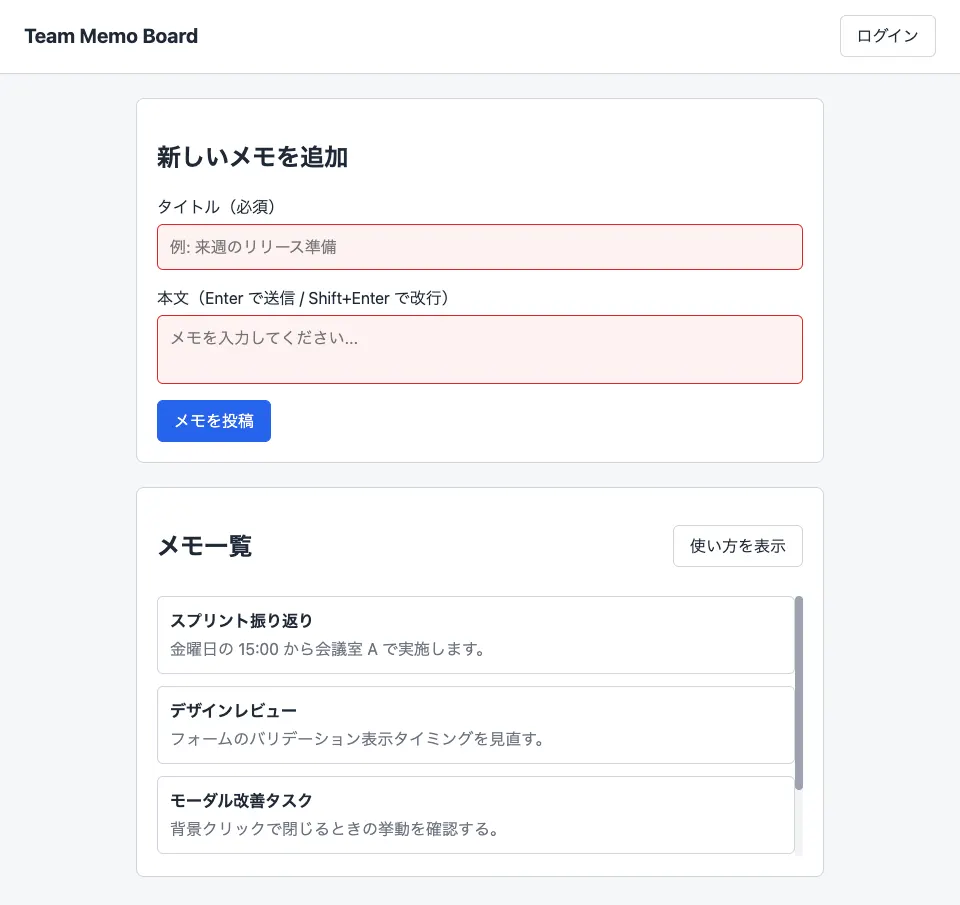
まだユーザーが何も入力していないにもかかわらず、:invalid セレクタによってタイトル欄と本文欄が赤枠と薄い赤背景になっています。また、メモ一覧右端のスクロールバーは非標準の ::-webkit-scrollbar のみで装飾されており、Firefox ではスタイルが反映されない状態です。機能自体は動作しますが、フォームの体験やアクセシビリティ、パフォーマンスの面で改善の余地が多く残っています。
legacy-scan で問題を洗い出す
作成したプロジェクトのディレクトリで legacy-scan を実行し、どのような問題が検出されるか確認しましょう。
npx -y [email protected] legacy-scan .実行すると、HTML・CSS・JavaScript の 3 ファイルから 9 ガイド・12 件のモダナイズ候補が検出されました。
Modern Web Guidance Analyzer — .
Found 12 modernization opportunities across 9 guides (scanned 38 guides with deterministic rules; ~20% of the guidance corpus):
Note: Static analysis results are provisional — verify against the Keep/Drop criteria below.

* animate-to-intrinsic-sizes (1 finding)
  CSS transition on max-height simulates intrinsic size animation; modernize with interpolate-size: allow-keywords or calc-size().
  Keep when: The CSS rule animates or transitions max-height (or transitions all alongside a max-height declaration) to si…
  Drop when: The container is a scrollable panel with overflow: scroll or overflow: auto where max-height defines a legiti…
  - styles.css:104
    .accordion-panel {

* autofill-sign-in-form (1 finding)
  Password input in sign-in or credential form should specify autocomplete="current-password" or autocomplete="new-password".
  Keep when: The password input is part of a user-facing authentication, current-password verification, or sign-in form; T…
  Drop when: The password input is disabled, readonly, hidden, or a non-interactive display widget; The password input alr…
  - index.html:77
    <input id="login-password" name="password" type="password" required />

* customize-scrollbar-color-and-thickness (2 findings)
  Vendor ::-webkit-scrollbar pseudo-elements customize or hide scrollbars; use standard scrollbar-color and scrollbar-width (including scrollbar-width: none) instead.
  Keep when: The CSS rule uses vendor pseudo-elements (::-webkit-scrollbar or ::-webkit-scrollbar-thumb) to customize scro…
  Drop when: The stylesheet already defines standard scrollbar-width or scrollbar-color properties; The rule only resets s…
  - styles.css:125
    .memo-list::-webkit-scrollbar {
  - styles.css:133
    .memo-list::-webkit-scrollbar-thumb {

* declarative-dialog-popover-control (1 finding)
  Detect pure JS click event listeners that only call showModal(), close(), showPopover(), hidePopover(), or togglePopover().
  Keep when: A click event listener is attached to a button solely to call 0-argument `.showModal()`, `.close()`, `.showPo…
  Drop when: The click listener performs additional logic (validation, network requests, analytics, classList or state upd…
  - app.js:103
    loginDialog.showModal();

* dialog (1 finding)
  Manual backdrop click listeners dismissing <dialog> should be modernized with declarative <dialog closedby="any">.
  Keep when: A click event listener attached to a <dialog> or modal checks event.target === dialog, event.target === event…
  Drop when: The listener is guarded by "closedBy" in HTMLDialogElement.prototype for progressive enhancement; The click h…
  - app.js:110
    loginDialog.addEventListener('click', (event) => {

* form-fields-automatically-fit-contents (1 finding)
  Imperative JavaScript auto-resizing of textareas and inputs using scrollHeight or autosize() should be replaced with CSS field-sizing: content.
  Keep when: A keyup, input, change, or keydown event listener dynamically recalculates a textarea or text input height/wi…
  Drop when: The code is guarded by a feature query checking CSS.supports("field-sizing", "content") or field-sizing suppo…
  - app.js:81
    memoBody.style.height = `${memoBody.scrollHeight}px`;

* ime-safe-enter-submit (1 finding)
  Flag keydown event listeners on inputs or textareas intercepting Enter (event.key or event.code "Enter") to submit forms, send messages, or trigger actions without checking event.isComposing or event.keyCode === 229, breaking IME input in CJK languages.
  Keep when: Keydown event listeners on inputs or textareas checking event.key === "Enter" or event.code === "Enter" to tr…
  Drop when: Keyup or keypress event listeners (composition has already ended by keyup); Handlers that check event.isCompo…
  - app.js:85
    if (event.key === 'Enter' && !event.shiftKey) {

* js (3 findings across 2 rules)

  js/replace-children (1 finding)
    Replace loops that remove all child nodes one by one (including forward live-collection loops that skip every other child) with el.replaceChildren().
    Keep when: The loop unconditionally removes all direct children of a DOM ParentNode (Element, Document, or DocumentFragm…
    Drop when: The receiver is a non-DOM object, custom tree or scene-graph wrapper, mock, or plain JavaScript object implem…
    - app.js:37
      while (memoList.firstChild) {

  js/structured-clone (2 findings)
    Replace JSON.parse(JSON.stringify(x)) deep-copy workarounds with structuredClone(x).
    Keep when: JSON.parse(JSON.stringify(x)) is used to create an independent deep copy of plain objects, arrays, or plain d…
    Drop when: The snippet shows direct evidence that the cloned value is a Proxy wrapper or framework reactive state (such…
    - app.js:34
      let memos = JSON.parse(JSON.stringify(initialMemos));
    - app.js:64
      const nextMemo = JSON.parse(

* validate-input-after-interaction (1 finding)
  CSS input:invalid and textarea:invalid error-styling rules (including :not(:focus):invalid and :not(:placeholder-shown):invalid workarounds) without :user-invalid should be modernized with :user-invalid so error feedback appears only after user interaction.
  Keep when: A CSS rule uses input:invalid or textarea:invalid (or :not(:focus):invalid / :not(:placeholder-shown):invalid…
  Drop when: The stylesheet already uses :user-invalid or guards :invalid inside @supports not selector(:user-invalid); Th…
  - styles.css:75
    input:invalid,

Retrieve a guide: npx modern-web-guidance retrieve <guide-id>
検出された主なルールは次のとおりです。
form-fields-automatically-fit-contents:scrollHeightで<textarea>の高さを JavaScript から自動調整する処理を検出し、CSS のfield-sizing: contentへの移行を提案するdeclarative-dialog-popover-control: クリック時にshowModal()などを呼ぶだけのイベントリスナーを検出し、commandfor/command属性(Invoker Commands API)による宣言的な制御への置き換えを提案するdialog:event.target === dialogのような手動の背景クリック判定を検出し、<dialog closedby="any">への移行を提案するvalidate-input-after-interaction: 入力前からエラー表示になる:invalidセレクタを検出し、操作後にのみ適用される:user-invalidへの置き換えを提案するime-safe-enter-submit: Enter 送信のkeydownハンドラに IME 変換中チェックがない箇所を検出し、event.isComposingとevent.keyCode === 229による誤送信防止を提案するautofill-sign-in-form: ログインフォームのパスワード入力欄にautocomplete属性がない箇所を検出し、autocomplete="current-password"などの付与を提案する
AI エージェント向けには --json オプションを付けて実行します。
npx -y [email protected] legacy-scan . --jsonJSON 出力には、各ルールの完全な検証基準とガイド取得用の retrieveCommand が含まれます。autofill-sign-in-form の抜粋は次のとおりです。
{
  "guideId": "autofill-sign-in-form",
  "retrieveCommand": "npx modern-web-guidance retrieve autofill-sign-in-form",
  "count": 1,
  "rules": [
    {
      "ruleId": "autofill-sign-in-form",
      "summary": "Password input in sign-in or credential form should specify autocomplete=\"current-password\" or autocomplete=\"new-password\".",
      "verifierRubric": {
        "keepWhen": [
          "The password input is part of a user-facing authentication, current-password verification, or sign-in form.",
          "The password input lacks an autocomplete attribute or specifies autocomplete=\"off\" on credentials, preventing browser password manager autofill."
        ],
        "dropWhen": [
          "The password input is disabled, readonly, hidden, or a non-interactive display widget.",
          "The password input already provides a valid credential autocomplete token (such as \"current-password\", \"new-password\", or \"one-time-code\").",
          "The password input is for creating or confirming a new password (owned by autofill-sign-up-form).",
          "The password input is for external service, infrastructure, or device configuration (such as database connections, proxy credentials, SMTP settings, webhooks, or API keys/tokens).",
          "The input is not contained within a form or form-like authentication context.",
          "The component receives its autocomplete attribute dynamically via props, context, or JSX spread."
        ]
      },
      "count": 1,
      "findings": [
        {
          "file": "index.html",
          "line": 77,
          "message": "Password input inside sign-in or credential form lacks autocomplete=\"current-password\".",
          "lineContent": "<input id=\"login-password\" name=\"password\" type=\"password\" required />"
        }
      ]
    }
  ]
}
たとえば dropWhen には、Webhook のシークレットや API キー入力欄のような外部設定用のパスワード欄は対象外と明記されています。静的解析で候補を広く拾ったうえで、文脈の判定をエージェントに委ねる仕組みが JSON のデータ構造からも読み取れます。
AI エージェントがモダナイズを実行する流れ
続いて、Modern Web Guidance 1.0 の SKILL.md を配置した状態で、Antigravity エージェントにモダナイズを依頼しました。セッションログを時系列で追うと、エージェントは SKILL.md に定義された手順どおりに次の流れで作業を進めました。
- スキルと対象プロジェクトの把握: まず
SKILL.mdとindex.html・styles.css・app.js・package.jsonを読み込み、アプリ全体の構造を把握した legacy-scan --jsonの実行と文脈検証:npx -y modern-web-guidance@latest legacy-scan <対象パス> --jsonを実行し、検出された 9 ガイド・12 件について、それぞれのkeepWhen/dropWhenを実際のコードと突き合わせた。今回はすべて妥当な検出(KEEP)と判定された- 9 ガイドの一括
retrieveと全文読み込み: エージェントは検出された 9 つのガイド ID をカンマ区切りで渡して一度に取得した
npx -y modern-web-guidance@latest retrieve animate-to-intrinsic-sizes,autofill-sign-in-form,customize-scrollbar-color-and-thickness,declarative-dialog-popover-control,dialog,form-fields-automatically-fit-contents,ime-safe-enter-submit,js,validate-input-after-interactionここでセッションログ上に興味深い挙動が記録されていました。9 ガイド分の出力が大きすぎたため、CLI 側が標準出力の切り詰めを防ぐために一時ファイルへ自動で書き出し、エージェントへ次のように案内しています。
Output (99.2 KB, 1779 lines) saved to /var/folders/.../mwg-guide-52082-1795225531086.md to prevent CLI stdout truncation.
Read /var/folders/.../mwg-guide-52082-1795225531086.md in full using your file-reading tool (1779 lines total)—do not use cat or head.
エージェントはこの案内と SKILL.md の指示に従って、read_file を 3 回に分けて呼び出しガイドの全文を読み込みました。大容量のガイドを扱う際にコンテキストの欠落を避ける工夫が CLI 側に組み込まれていることがわかります。
- Baseline 互換性とフォールバック要件を照合して編集: ガイドを読み終えたエージェントは、各機能が Baseline Widely available かどうかを確認し、フォールバックが必要な機能と不要な機能を仕分けしたうえで
index.html・styles.css・app.jsを編集した - 再スキャンと準拠確認・根拠の開示: 編集後のファイルを再読み込みしたうえで
legacy-scan --jsonを再実行し、totalFindings: 0を確認した。最後に適用した 9 ガイドそれぞれについて、ガイド本文からの原文引用を添えて変更理由を報告して完了した
主な修正内容と Before / After の差分
実際にどのように修正されたのか差分を見てみましょう。単に構文を新しい API へ置き換えるだけでなく、取得したガイドに記載された「陥りやすい罠」「アクセシビリティ要件」「ブラウザ互換性フォールバック」まで自動で反映されているという点に注目です。
1. scrollHeight 自動リサイズから CSS field-sizing: content への移行
JavaScript 側で input イベントごとに scrollHeight を計測していた処理が丸ごと削除され、CSS の field-sizing: content へ移行されました。
 textarea {
+  field-sizing: content;
+  width: 100%;
+  height: auto;
+  min-block-size: 4rem;
+  max-block-size: 14rem;
   resize: none;
-  overflow-y: hidden;
-  min-height: 4rem;
 }
+
+@supports not (field-sizing: content) {
+  textarea {
+    resize: vertical;
+  }
+}-memoBody.addEventListener('input', () => {
- memoBody.style.height = 'auto';
- memoBody.style.height = `${memoBody.scrollHeight}px`;
-});form-fields-automatically-fit-contents ガイドには「明示的な width や height は field-sizing: content を上書きする」という注意点があります。そのため、横幅は width: 100% で親要素いっぱいに固定しつつ、高さは height: auto で自動伸縮を妨げないようにしています。
field-sizing は 2026 年 6 月に Baseline Newly available になったばかりです。そのため、非対応ブラウザ向けに @supports not で手動リサイズを許可するフォールバックも追加されています。
2. ダイアログの宣言的制御・closedby="any"・サインインフォーム最適化
ログインモーダルには declarative-dialog-popover-control、dialog、autofill-sign-in-form の 3 つのガイドが適用されました。
-        <button id="open-login-btn" type="button">ログイン</button>
+        <button
+          id="open-login-btn"
+          type="button"
+          commandfor="login-dialog"
+          command="show-modal"
+        >
+          ログイン
+ </button>- <dialog id="login-dialog" class="login-dialog">
+ <dialog
+ id="login-dialog"
+ class="login-dialog"
+ closedby="any"
+ aria-labelledby="login-dialog-title"
+ >
<form id="login-form" method="dialog">
- <h2>チームアカウントにログイン</h2>
+ <h2 id="login-dialog-title">チームアカウントにログイン</h2>
...
- <input id="login-email" name="email" type="email" required />
+ <input
+ id="login-email"
+ name="email"
+ type="email"
+ autocomplete="username"
+ spellcheck="false"
+ enterkeyhint="next"
+ data-error="login-email-error"
+ autofocus
+ required
+ />
...
- <input id="login-password" name="password" type="password" required />
+ <input
+ id="login-password"
+ name="password"
+ type="password"
+ autocomplete="current-password"
+ enterkeyhint="done"
+ data-error="login-password-error"
+ required
+ />
...
- <button id="cancel-login-btn" type="button">キャンセル</button>
- <button type="submit">ログイン</button>
+ <button
+ id="cancel-login-btn"
+ class="btn-secondary"
+ type="submit"
+ value="cancel"
+ formnovalidate
+ >
+ キャンセル
+ </button>
+ <button type="submit" value="login">ログイン</button>ここでエージェントがガイドから汲み取った細かい判断が 4 つあります。
<form method="dialog">内のキャンセルボタンにcommand="close"を使わなかった:declarative-dialog-popover-controlガイドにある「<form method="dialog">内にcommand="close"を混在させず、どちらかの戦略に統一する」という指針に従い、type="submit" value="cancel" formnovalidateに変更して JavaScript のクリックリスナーを削除している- サインインフォームの入力属性を整えた:
autofill-sign-in-formガイドに従い、パスワード欄にautocomplete="current-password"とenterkeyhint="done"を追加しただけでなく、メールアドレス欄にもパスワードマネージャーが認識しやすいautocomplete="username"とspellcheck="false"・enterkeyhint="next"を補完している - 背景クリック閉じのフォールバックを書き直した:
closedby="any"は検証時点で Limited availability であるため、'closedBy' in HTMLDialogElement.prototypeによる機能検出フォールバックが残された。ただし、元のevent.target === loginDialogはパディングや子要素の隙間をクリックした際やドラッグ選択時に意図せず閉じる問題があるため、ガイドの指針に沿ってgetBoundingClientRect()とpointerdown/pointerupを使う実装へ書き換えられている - モーダル周辺の細かい UX 改善まで加えられた:
aria-labelledbyによるアクセシブルな名前の追加やモーダルを開いた時のautofocus、背景スクロール連鎖を防ぐdialog:modalと::backdropへのoverscroll-behavior: contain、closeイベントでのloginDialog.returnValue = ''リセットが組み込まれている
// Invoker Commands 非対応ブラウザのみポリフィルを動的読み込み
if (!('commandForElement' in HTMLButtonElement.prototype)) {
  import('https://esm.run/invokers-polyfill');
}

// <dialog closedby="any"> 非対応ブラウザ向けのフォールバック
if (!('closedBy' in HTMLDialogElement.prototype)) {
  const outside = (e, dialog) => {
    const r = dialog.getBoundingClientRect();
    return (
      e.clientX < r.left ||
      e.clientX > r.right ||
      e.clientY < r.top ||
      e.clientY > r.bottom
    );
  };
  for (const dialog of document.querySelectorAll('dialog[closedby="any"]')) {
    let pressedOutside = false;
    dialog.addEventListener('pointerdown', (e) => {
      pressedOutside = outside(e, dialog);
    });
    dialog.addEventListener('pointerup', (e) => {
      if (pressedOutside && outside(e, dialog)) {
        dialog.close();
      }
    });
  }
}
Invoker Commands API は Baseline Newly available、<dialog> の closedby 属性は Limited availability です。どちらも Widely available ではないため、上記のようにポリフィルやフォールバックが用意されています。
3. :user-invalid への移行と ARIA 属性の同期
フォームバリデーションは、CSS の :invalid を :user-invalid に変えただけではありませんでした。
-input:invalid,
-textarea:invalid {
+input:user-invalid,
+textarea:user-invalid {
   border-color: var(--danger);
   background-color: #fef2f2;
 }
+
+input:user-invalid + .error-msg,
+textarea:user-invalid + .error-msg {
+  display: block;
+}
validate-input-after-interaction ガイドには「ネイティブの :user-invalid は ARIA 属性と自動で同期しない」という注意が書かれています。エージェントはその指示に従い、色だけに頼らない .error-msg 要素とヒント文を HTML に追加したうえで、JavaScript 側に aria-invalid・aria-describedby・aria-live="polite" リージョンを同期する処理を実装しました。
4. スクロールバー標準化・IME ガード・アコーディオン・モダン JS
残りの 4 ガイドについても、ガイド固有の注意点が反映されています。
- スクロールバー(
customize-scrollbar-color-and-thickness): 標準のscrollbar-width: thinとscrollbar-colorを追加し、つまみの色を#9ca3afから WCAG 1.4.11(コントラスト比 3:1 以上)を満たす#6b7280へ調整した - アコーディオン(
animate-to-intrinsic-sizes)::rootにinterpolate-size: allow-keywordsを追加してblock-size: 0とautoのトランジションへ移行し、@media (prefers-reduced-motion: reduce)でアニメーションを無効化した。加えて、aria-controls="tips-panel"とhidden属性を追加し、閉じるときはgetAnimations()でCSSTransition完了後にhidden = trueを設定して支援技術ツリーと同期している - IME 安全な Enter 送信(
ime-safe-enter-submit):keydownハンドラにif (event.isComposing || event.keyCode === 229) return;を追加し、送信をmemoForm.requestSubmit()へ変更した - モダン JS(
js):JSON.parse(JSON.stringify(initialMemos))はstructuredClone(initialMemos)に、while (memoList.firstChild) memoList.removeChild(...)はmemoList.replaceChildren(...items)に置き換えられた
scrollbar-color は Baseline Newly available、interpolate-size は Limited availability です。interpolate-size に対応していないブラウザでは、アコーディオンがアニメーションせずに開閉するだけなので、段階的な機能強化として扱えます。
修正後の再スキャンとブラウザでの動作確認
修正完了後、エージェントが legacy-scan --json を再実行した結果、検出件数は 12 件から 0 件になりました。
{
  "targetDir": ".",
  "totalFindings": 0,
  "guides": [],
  "activeRuleCount": 52,
  "activeGuideCount": 38,
  "note": "No legacy patterns found across 38 guides (52 rules; ~20% of the guidance corpus). Use 'search <topic>' for feature-specific guidance."
}
さらに、修正後のアプリを Chrome 152 で実際に開いて動作を検証しました。
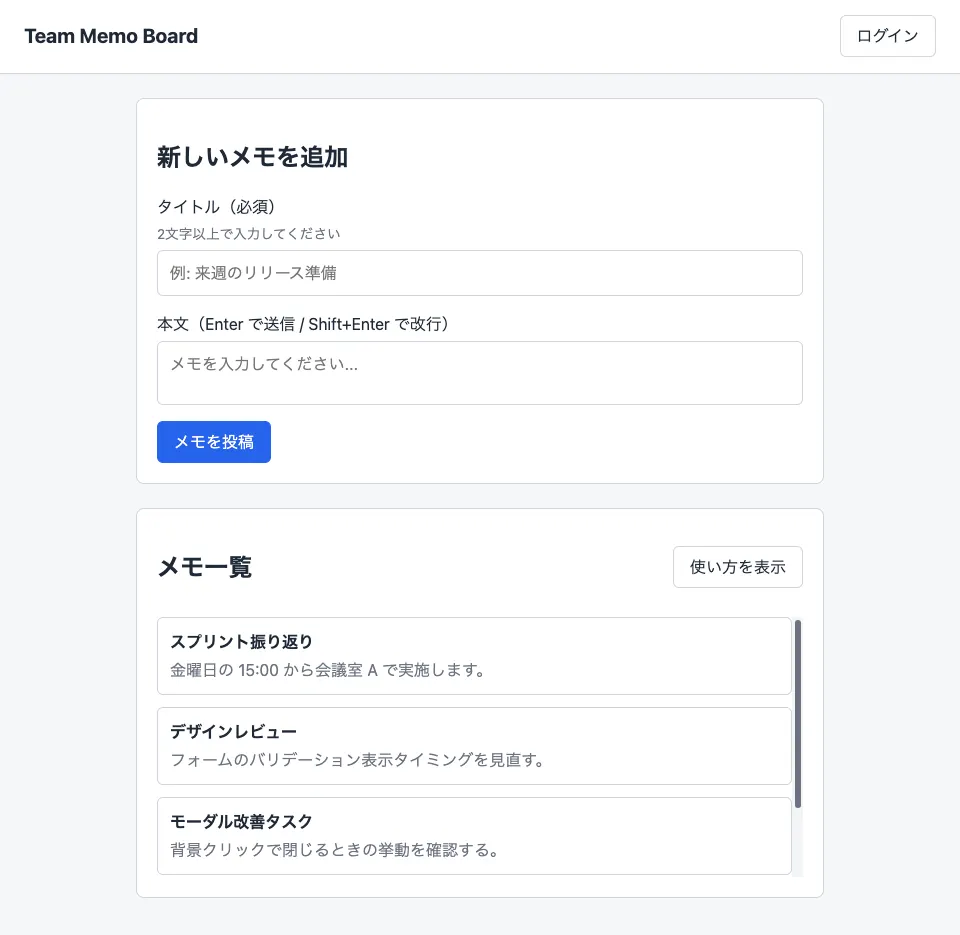
既存の機能がすべて維持されていることを確認できました。一方で単なるリファクタリングにとどまらず、ユーザーから見える UI や振る舞いまで変化している点はあまり好ましくない場合もあります。たとえば次のような変更は、依頼していないにもかかわらず加えられていました。
- タイトル欄に、2 文字以上の入力を求めるヒント文が追加された
- スクロールバーのつまみの色が
#9ca3afから#6b7280に変わった <textarea>にmax-block-size: 14remが設定され、元の実装にはなかった高さの上限ができた- キャンセルボタンが
type="button"からtype="submit"に変わった
またポリフィルを読み込むために CDN への動的 import() が追加されている点もセキュリティ上の観点から気になるところです。公式のワークフローでは、最後の段階でプロジェクトのテストを実行して挙動が変わっていないことを確かめる手順も含まれていますが、今回のサンプルにはテストがないため、この確認は行われていません。既存の振る舞いを維持するためには、プロジェクトの既存のテストが十分に整備されていることが望ましいでしょう。その他ガイドラインの指示を反映することを優先した結果、aria-live リージョンの追加や close イベントでの returnValue のリセットなど、このアプリの規模に対しては過剰な実装になってしまっている点も散見されました。
このあたりは必要に応じてプロンプトを調整したり、AGENTS.md に制約事項を追加するなどの工夫が必要そうだと感じました。修正前に計画を確認したい場合は、「コードを編集する前にモダナイズの計画を提示して」のように、プロンプトで明示的に指示する必要があるでしょう。
まとめ
- Modern Web Guidance 1.0 に追加された
legacy-scanは、HTML・CSS・JavaScript / TypeScript・フレームワークコンポーネント・package.jsonをローカルの静的解析でスキャンし、LLM のトークンを消費せずに古い Web 実装パターンを洗い出せる legacy-scanにはあえて--fixフラグがなく、静的解析で候補と検証基準(keepWhen/dropWhen)を出し、文脈判定・ガイド取得(retrieve)・レイヤー横断のリファクタリングを AI エージェントへ委ねる 4 段階のワークフローを採用している- 古い書き方を含むサンプルアプリで試したところ、9 ガイド・12 件が検出された。Antigravity は 99.2 KB のガイドを一時ファイル経由で全文読み込んだうえで、Baseline 互換性に応じたフォールバックや WCAG 1.4.11 のコントラスト比調整・
:user-invalidと ARIA 属性の同期まで反映して修正した