
In software development today, it has become routine to build things quickly and easily with coding agents like Claude Code, Codex, and Devin. These agents run in a terminal on an individual's machine, though, which means the conversation stays confined to that person's environment and makes sharing information across a team difficult.
For example, an exchange with a coding agent holds a wealth of context about why a particular design was chosen, or why another one was not. By the time the work reaches review, most of that context is gone, and reviewers can struggle to understand the intent behind the design. And even when an individual has figured out more effective ways to work with an agent, there has rarely been an opportunity to share that knowledge with the rest of the team.
Some teams have tried to address this by using coding agents in open spaces like Slack or Discord. I have tried the approach of mentioning an agent in Slack to kick off a session a number of times myself. There are real benefits: sessions are easy to start, and the whole team can see what is currently being worked on. But there were downsides too. Thread activity easily turns into noise, code diffs are hard to read inside Slack, and there is no good way for a team to review the resulting artifacts.
Slack Code offers a way to develop openly on Slack. Rather than working through DMs or threads, you create a special channel called a code channel and interact with a coding agent there. A code channel is not a one-on-one conversation with the agent; the whole team can work with it together. Slack-specific views such as code, Canvas, and HTML views also let the team review diffs and artifacts. You can check what the agent is currently working on from the sidebar.
This article covers my impressions from actually trying out Slack Code.
Installing an agent in Slack
To use Slack Code, you need to install a supported AI app or agent in Slack. Slack Code appears to support the following agents today.
Claude (this required
Claude Tag, which is only available on the Enterprise or Team plan)
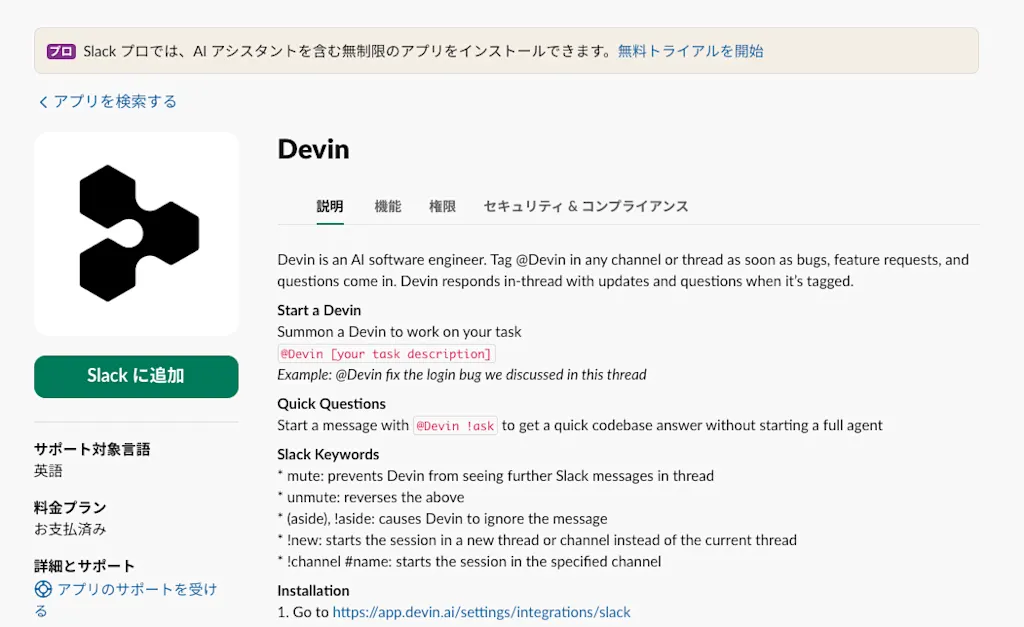
For this article I tried Slack Code with Devin. From the link above, click the "Add to Slack" button to install it into your Slack workspace.
Creating a code channel
Now let's actually create a code channel and try working with an agent. The documented way to create one is to "mention the agent with a specific request and the channel will be created automatically," but no matter how many times I tried, the agent never created a code channel for me. So I created one manually instead.
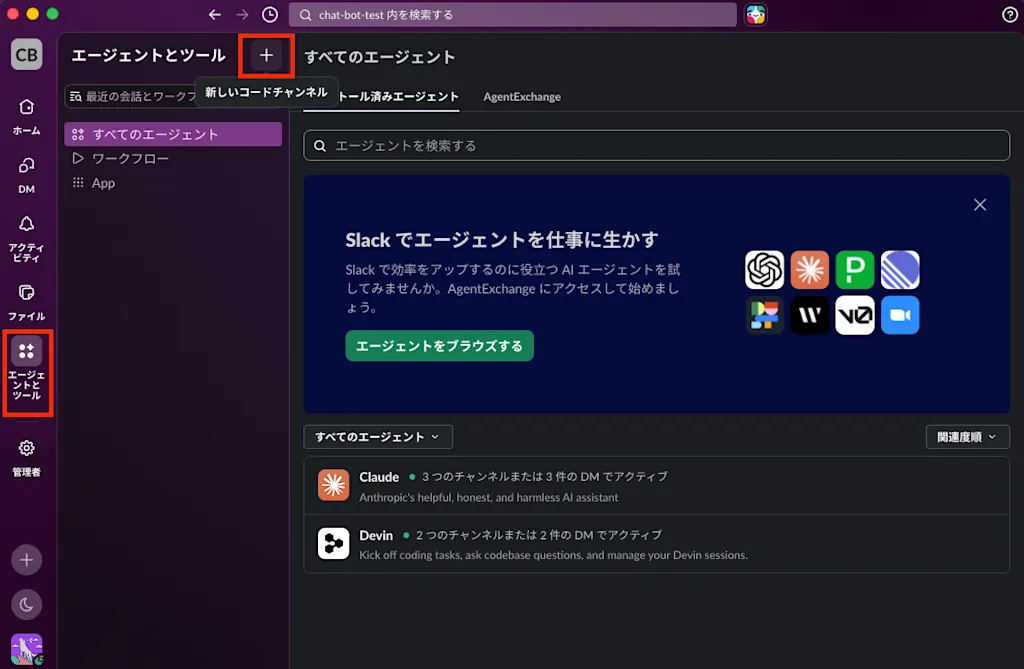
To create one manually, select "Agents and tools" in the sidebar and click the "+" button at the top.
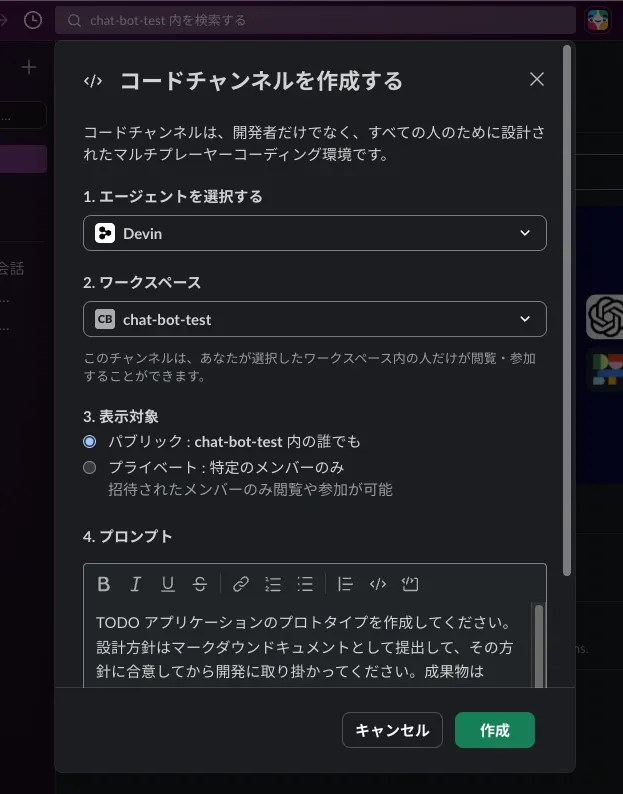
A modal for creating a code channel appears. Choose the agent and workspace, enter a prompt, and click the "Create" button.
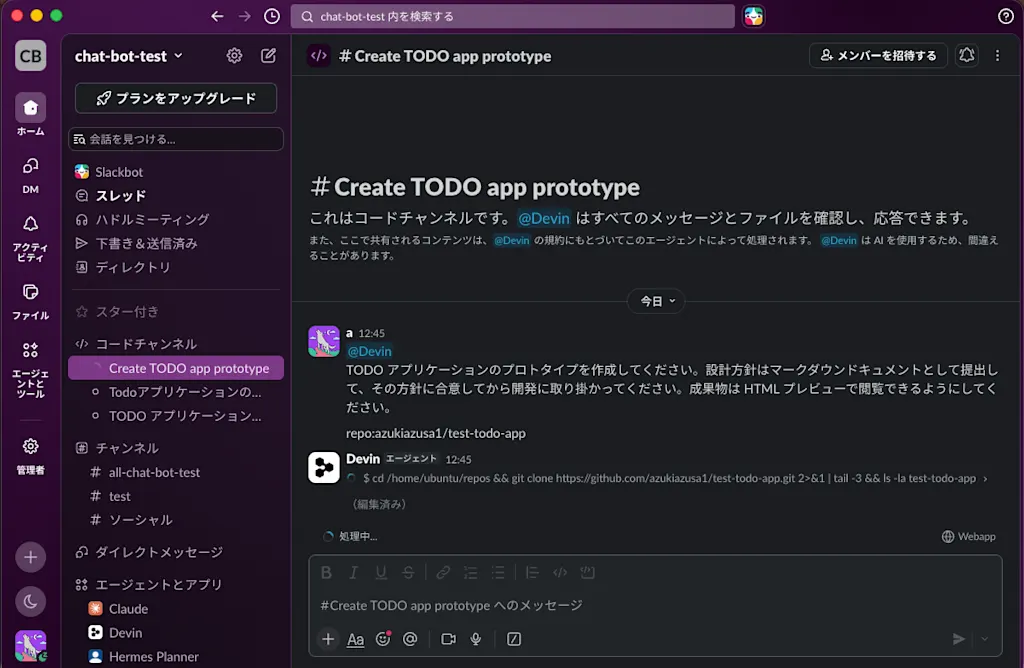
The moment the channel was created, a session with Devin began. The new channel shows up under the "Code channels" section in the sidebar, with a loading icon while Devin is working. The channel name appears to be generated automatically from the contents of the prompt, and the prompt you entered when creating the channel is posted as the channel's first message.
The first thing it did was attach its design approach as a Markdown file. Files created during a session seem to be added to an "Artifacts" tab. (I had hoped it would share them through Slack's Canvas feature, but Devin's tooling does not appear to support that yet.)
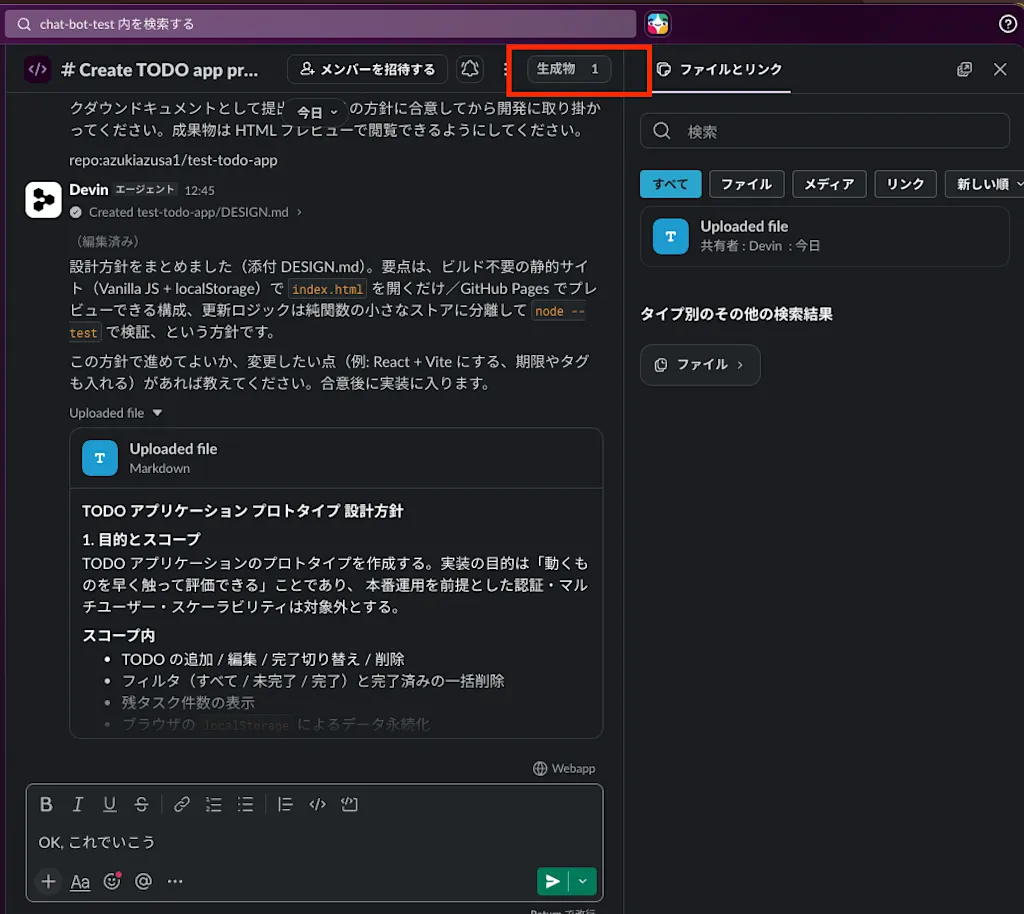
After a quick glance at the design file, I had it go straight to implementation. Once the work was done and a PR was created, the code diff was shared in the channel. You can read the code from within Slack and leave comments on the spot to give feedback.
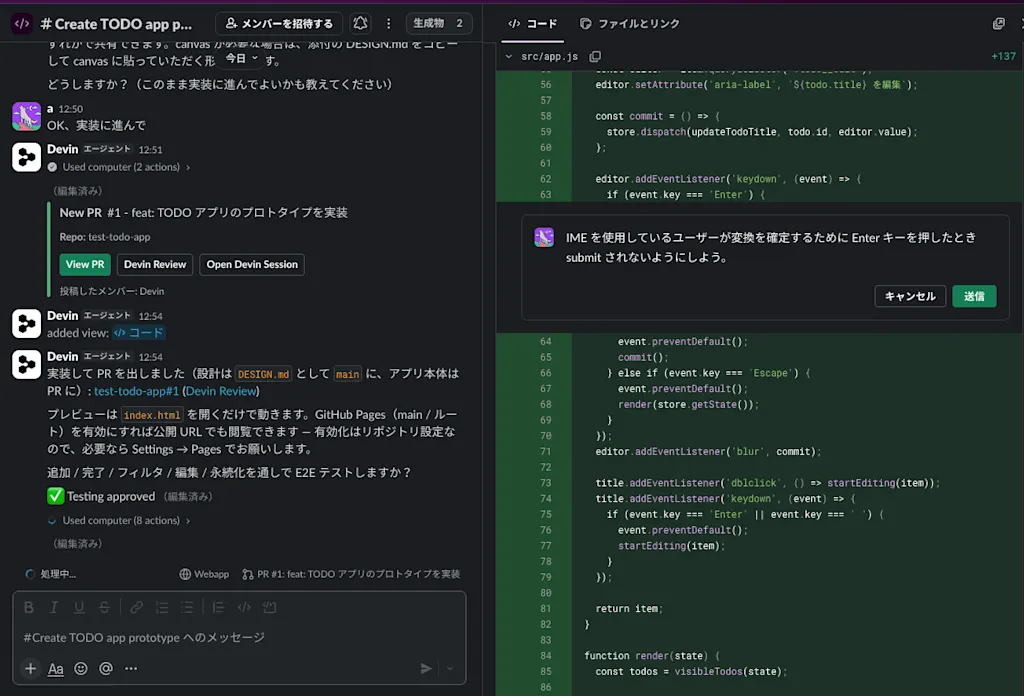
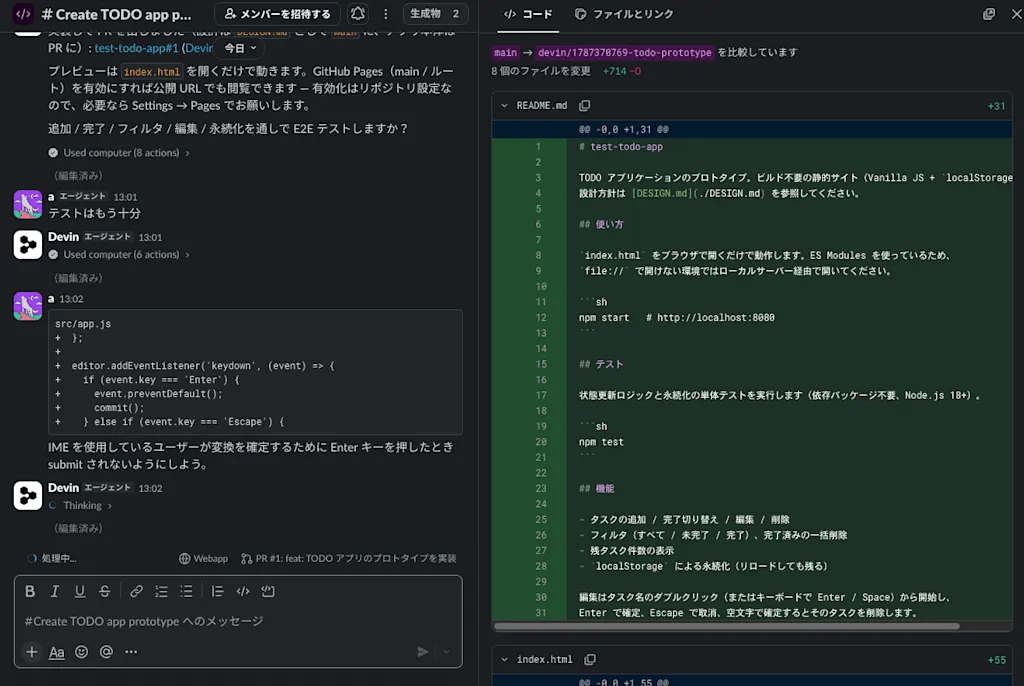
When I submitted a line comment, the surrounding lines and my comment were added to the message input box. It seems the idea is to start a new exchange from that state. Compared to a PR discussion on GitHub, comments are not persisted, so you cannot go back and revisit them later, which felt a little inconvenient.
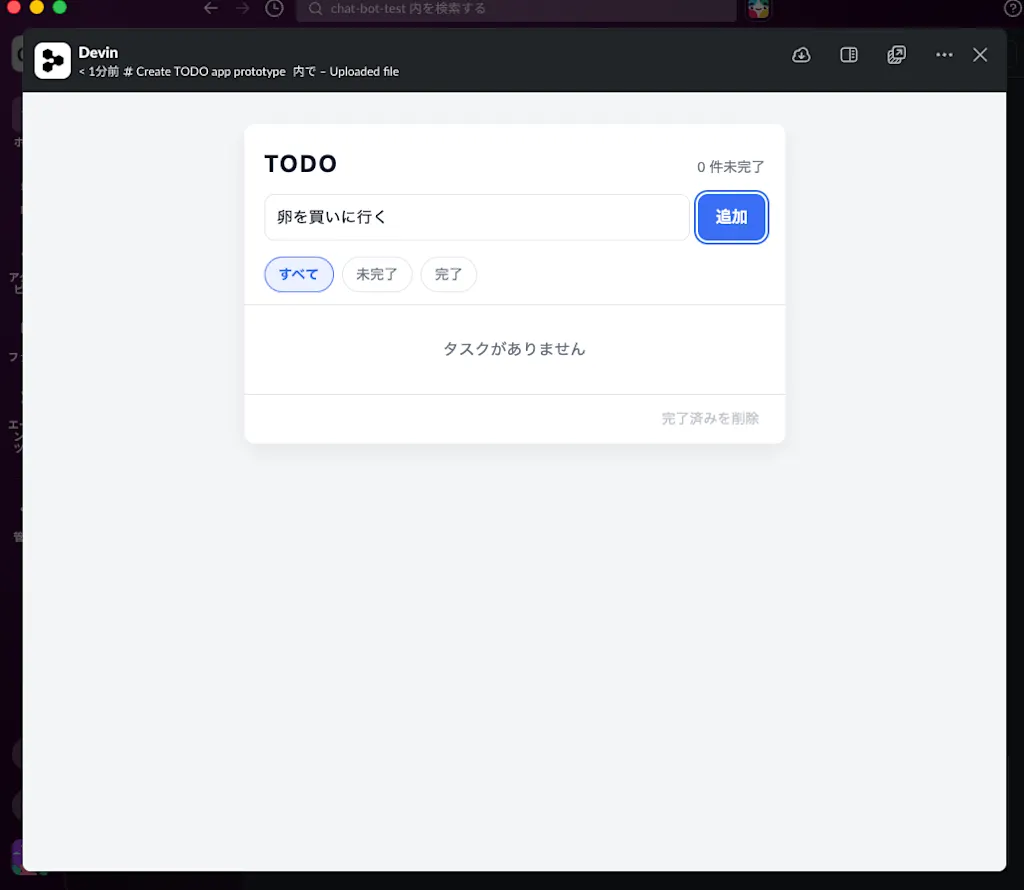
If you send a request like "make the artifact viewable as an HTML preview" and have it share an HTML file, you can use Slack's HTML preview feature to run the artifact right there. It is limited to static content, but you could imagine having an agent build an HTML prototype and using it to gather feedback from teammates.
Once a session is finished, you can hide it by clicking the "×" button in the sidebar, or archive the channel.
Summary
- Slack Code is a feature that provides a way to develop openly on Slack: you create a special channel called a code channel and the whole team can work with a coding agent there
- It supports agents such as Claude, Devin, GitHub Copilot, and Vercel
- Slack-specific views such as code, Canvas, and HTML views let a code channel double as a place for the team to review diffs and artifacts
- You can check what the agent is working on from the sidebar