
Switching My Editor to Zed
Zed is a native application written in Rust, known for its blazing-fast performance and lightweight design. In this article, I walk through how to install Zed and share the key features and impressions from my hands-on experience.
Looking back, since I started my career as an engineer, I spent the vast majority of my time writing code with Visual Studio Code as my companion. My first encounter with VS Code was nothing short of a shock — the impact was immeasurable. At the time, editors like Sublime Text and Atom were mainstream, yet VS Code occupied a perfect sweet spot between a full IDE and a lightweight editor, with snappy performance and a rich ecosystem of extensions — the very embodiment of what engineers had always wanted. Since then, VS Code became my home for writing code, and I spent countless hours customizing themes, keybindings, and trying out extension after extension to craft exactly the environment I wanted.
For engineers, an editor is something that goes beyond being called a mere tool. It's fair to say that I spent the majority of my day inside it. But in recent years, I've started to sense a shift in that dynamic. The catalyst is, without doubt, the rise of AI coding agents. Around 2026, as agent capabilities improved dramatically, the role of human developers seemed to shift away from writing code directly toward making judgments and giving instructions — activities like requirements definition, design, code review, and validation. The terminal and desktop apps used to direct agents are becoming the new home for coding time, and the editor is transforming from a place to write code into a place to read and understand it.
In this context, what's demanded of an editor has also changed. Rather than needing advanced features, what matters most is being lightweight and fast. VS Code is an excellent editor, but as an Electron-based application, I sometimes found startup and overall performance to be sluggish. That's when Zed started attracting attention as a new alternative. Zed is a native application written in Rust, boasting extremely fast performance and a lightweight design. I've recently made the switch to Zed, and I've been completely won over by its speed and clean interface.
In this article, I'll walk through how to install Zed and introduce the key features and impressions I gathered from using it.
Installation
On macOS, you can install Zed by downloading the installer from the download page or by using Homebrew.
brew install --cask zedTo install the preview version, run the following command.
brew install --cask zed@previewAfter installing via Homebrew, the zed command becomes available. If you've been using code . with VS Code or similar editors, you can likewise use zed . to open Zed.
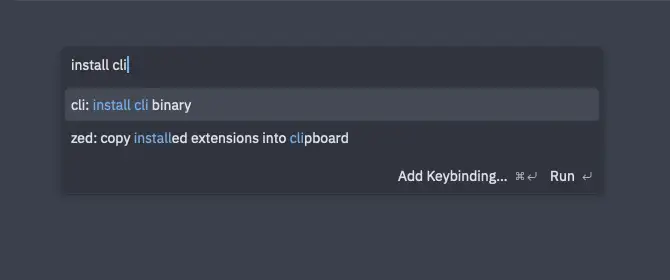
zed .If you installed via the installer, you can launch Zed from the Applications folder. To make the zed command available, open Zed, press cmd + shift + p to open the command palette, and select Install cli binary.
When opening a project for the first time, Zed displays a warning that it is starting in restricted mode for safety. In restricted mode, project settings aren't loaded and features like LSP and MCP servers are unavailable. If you trust the project, select "Trust and continue" to disable restricted mode and open the project.
Key Features
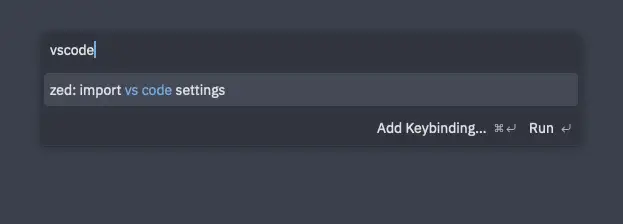
By selecting import vscode settings from the command palette, you can import your main VS Code settings into Zed. Keybindings are also configured to VS Code style, which made the transition from VS Code quite smooth.
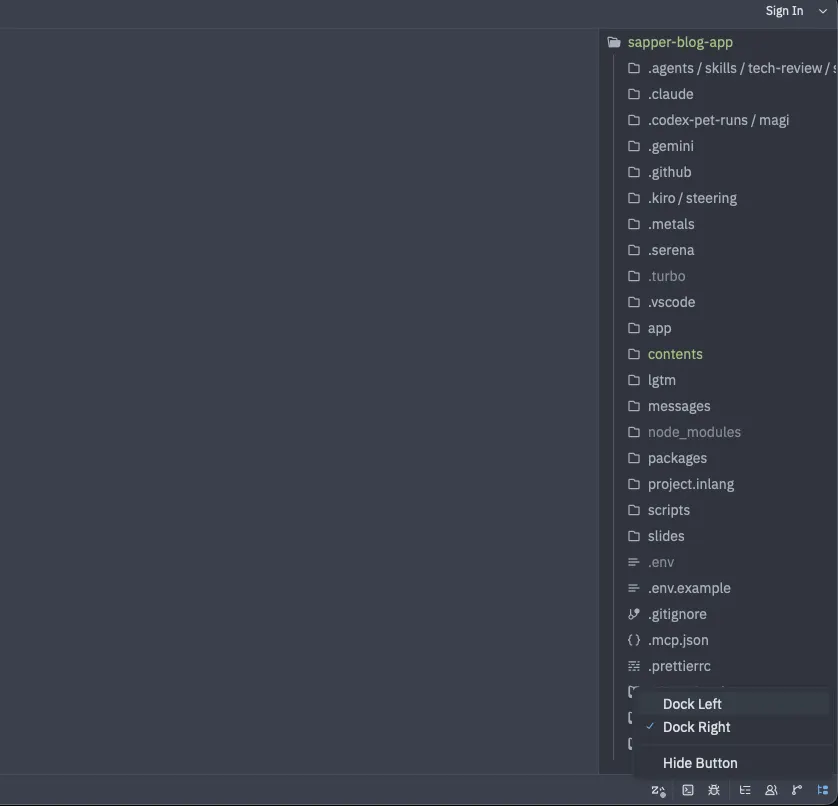
By default, the file explorer is displayed in the right sidebar. To get a layout closer to what I was used to in VS Code, I moved the file explorer to the left sidebar. You can do this by right-clicking the file explorer icon in the bottom bar (the one highlighted in blue) and selecting "Dock Left".
I also moved the Git Panel to the left sidebar. The Git Panel provides functionality similar to VS Code's Source Control panel, allowing you to view changed files, inspect diffs, and create commits.
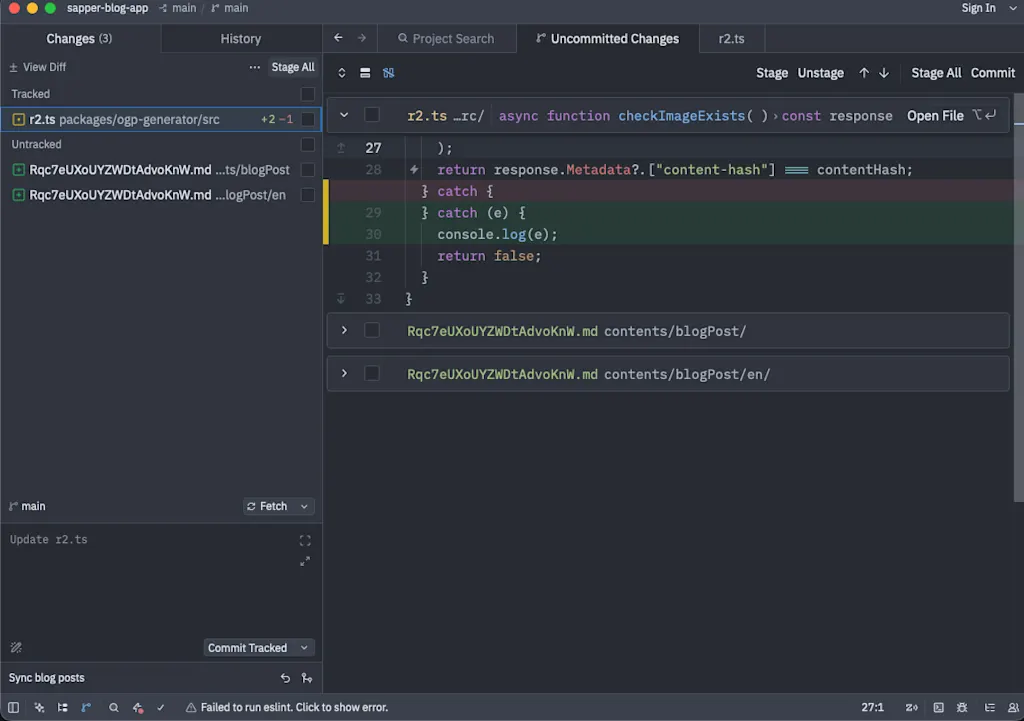
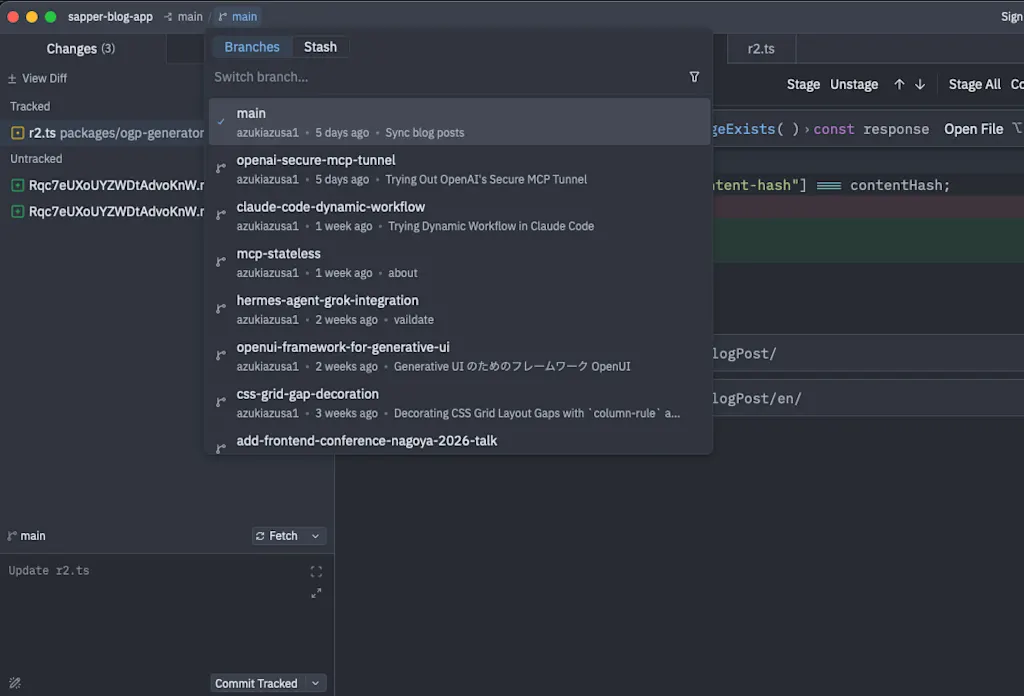
The current branch name is shown at the top of the screen. Clicking it lets you switch branches or create new ones.
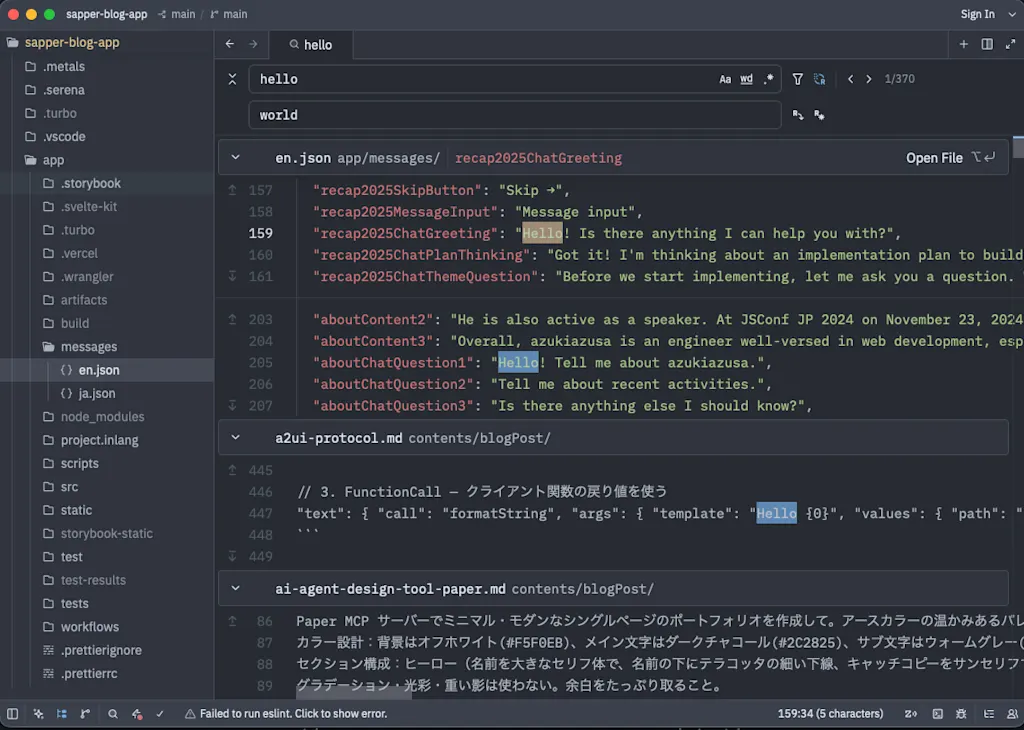
cmd + shift + f opens a project-wide search. Results aren't shown until you confirm the search — unlike VS Code's real-time results — but the display is remarkably fast, returning results instantly even on projects with thousands of files. You can also click "Toggle Replace" to perform a find-and-replace.
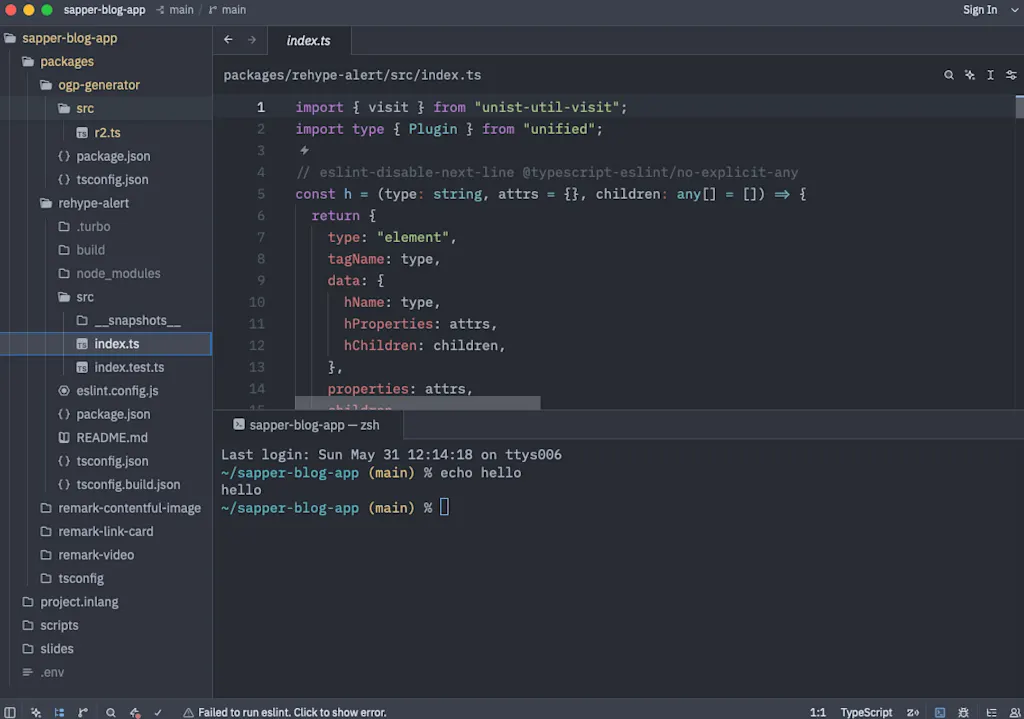
You can open a terminal with control + shift + @ or by clicking the icon in the bottom bar. The terminal appears at the bottom of the editor, and you can open multiple terminals and switch between them. The feel is quite similar to VS Code's integrated terminal.
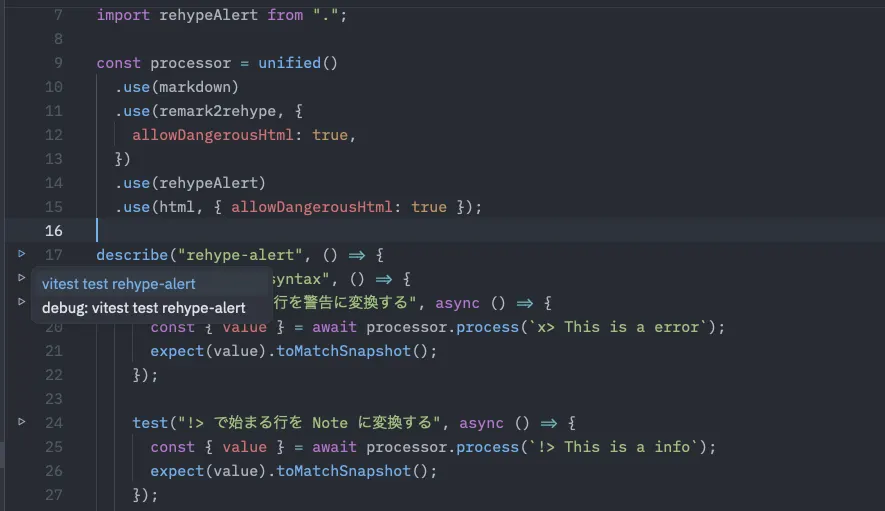
Even without installing any extensions, I was able to run Vitest tests directly from the code. A play icon appears to the left of the line numbers, and clicking it runs the test. Results are displayed in the terminal. Major test frameworks including Jest, Vitest, Bun, and Node appear to be supported.
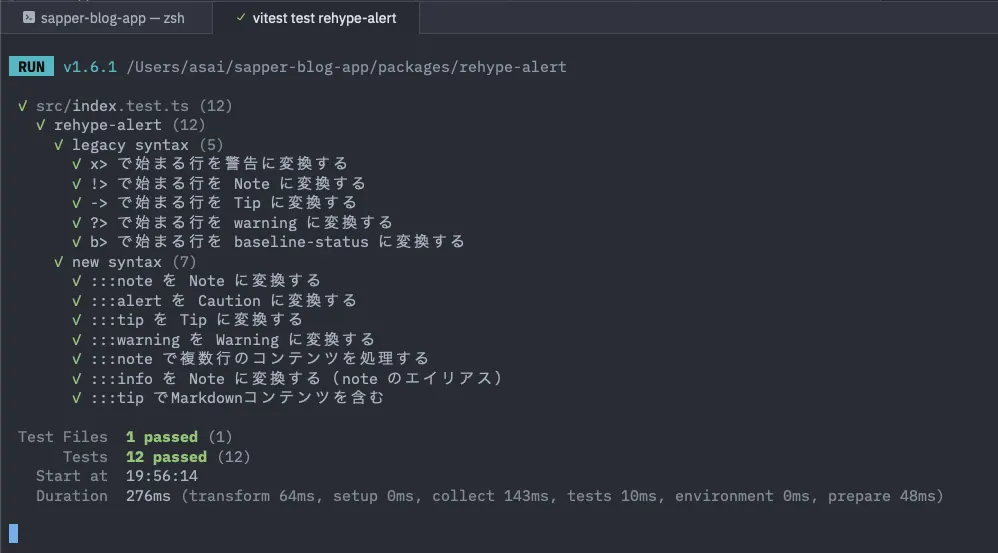
File formatting on save also appears to be supported out of the box. By default, TypeScript's built-in formatter is used, but many projects use formatters like Prettier or Oxlint. In those cases, add the following configuration to Zed's settings file. Project-specific settings are best placed in .zed/settings.json at the project root. You can open this file from the command palette by selecting zed: open project settings file.
{
  "languages": {
    "JavaScript": {
      "formatter": {
        "external": {
          "command": "prettier",
          "arguments": ["--stdin-filepath", "{buffer_path}"]
        }
      }
    }
  }
}
To run ESLint when saving a file, add the following configuration.
{
  "languages": {
    "JavaScript": {
      "code_actions_on_format": {
        "source.fixAll.eslint": true
      }
    }
  }
}
Zed and AI Agents
Zed appears to have built-in AI functionality, allowing you to issue instructions to agents that can read and write your project code from the agent panel, and to enable code completion. To use AI features, you can either use Zed's native Zed Agent or leverage third-party AI agents such as Claude Code, Codex, or GitHub Copilot. The ability to interact directly with third-party AI agents appears to be enabled by a protocol called
ACP (Agent Client Protocol). ACP is an open protocol developed by Zed to standardize communication between agents and editors.
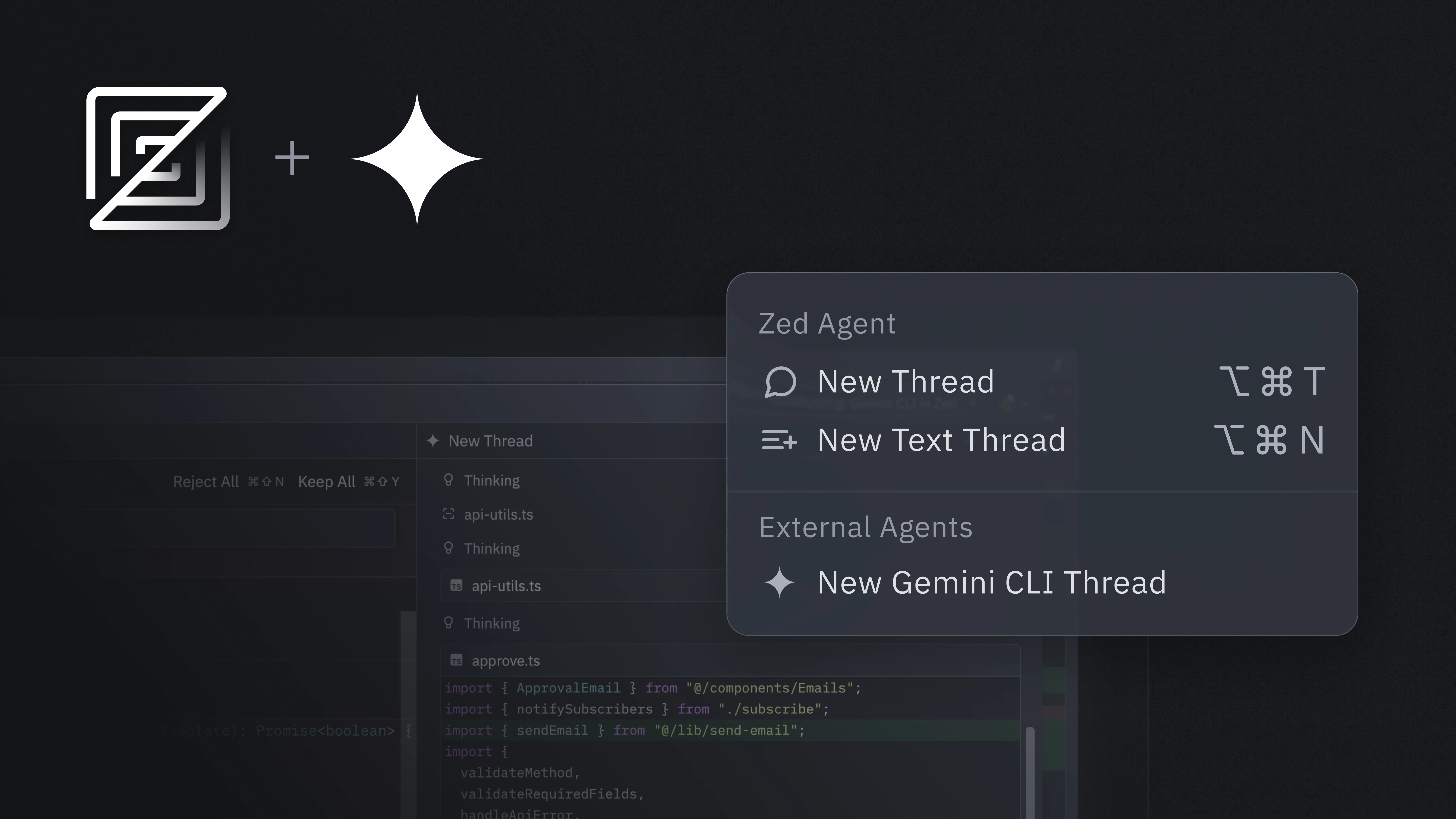
As a test, let's set up Claude to be callable from Zed's agent panel. Note that for Claude subscriptions, usage is counted differently depending on whether you use it through Anthropic's first-party tools or through third-party tools (claude -p). The former can be used freely within subscription limits, while the latter consumes from the monthly credit balance. Calling the Claude agent from Zed falls under the third-party usage category.
https://zed.dev/blog/anthropic-subscription-changes
To install third-party AI agents, using the ACP registry is the standard approach. Open the command palette and select zed: acp registry. From the list, select "Claude Agent" and click "Install".
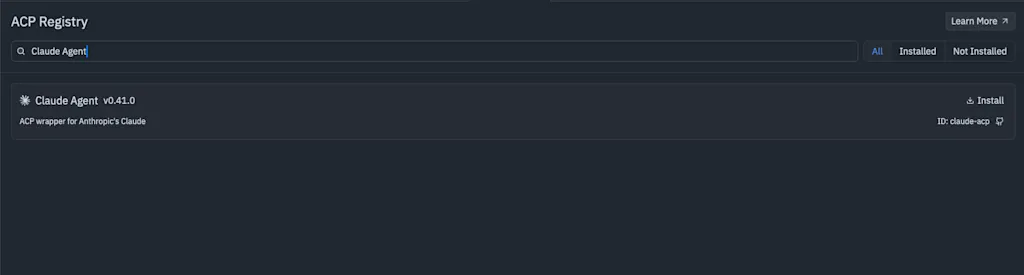
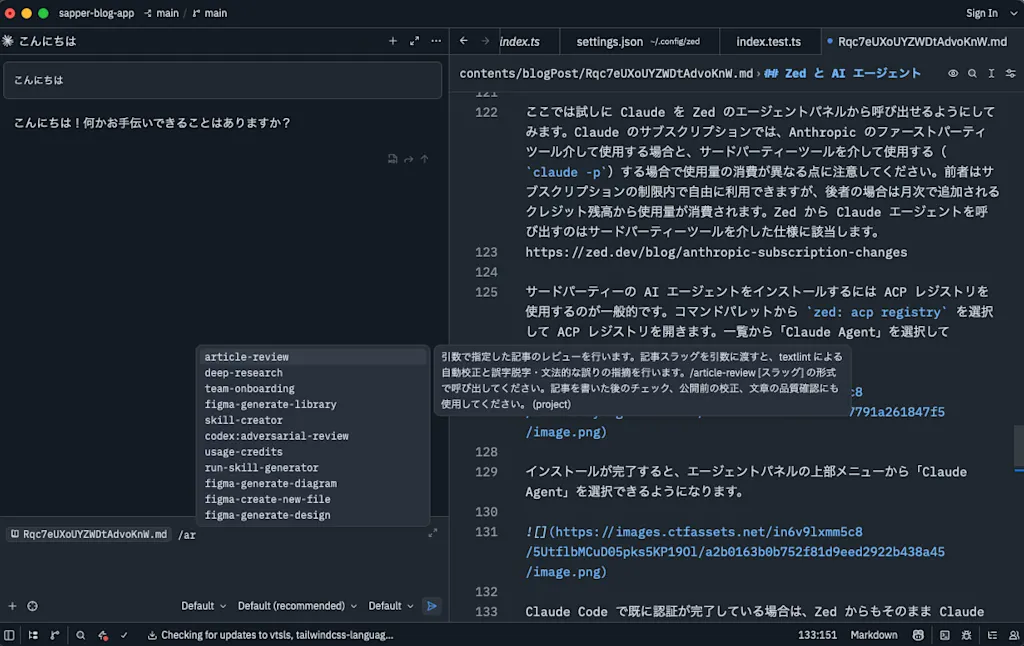
Once installation is complete, you can select "Claude Agent" from the top menu in the agent panel.
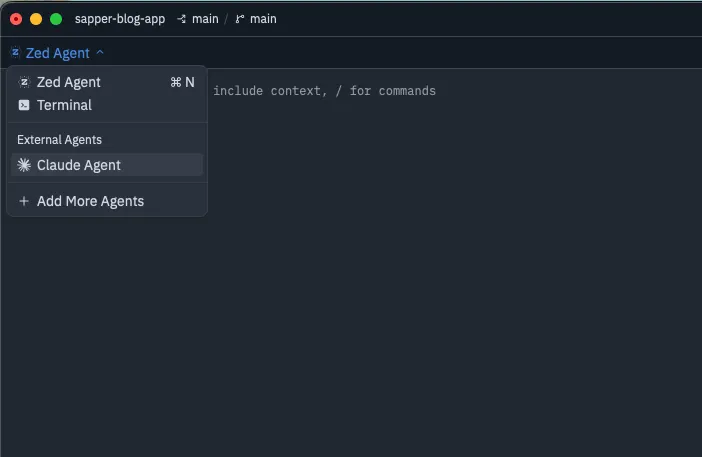
If you're already authenticated with Claude Code, you can immediately start interacting with Claude from Zed. The project's CLAUDE.md file is loaded, and skills and commands are available as well. You can also reference files using @ while giving instructions.
Enabling GitHub Copilot for Code Completion
Next, let's enable GitHub Copilot for code completion. First, open Zed's global settings file by running zed: open settings file from the command palette. This opens ~/.config/zed/settings.json. Add the following configuration and save.
{
  "edit_predictions": {
    "provider": "copilot"
  }
}
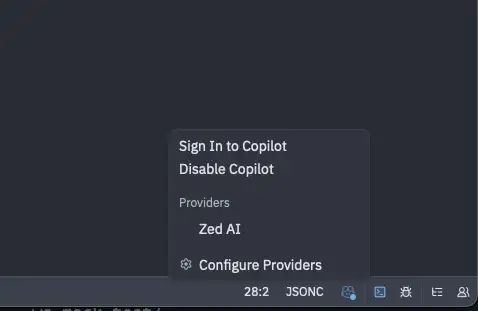
After adding this setting, the GitHub Copilot icon will appear in the bottom bar. Click the icon and select "Sign in to Copilot".
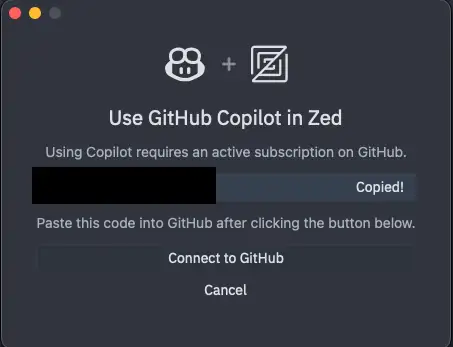
A dialog will display an authentication code. Copy the code and click "Connect to GitHub".
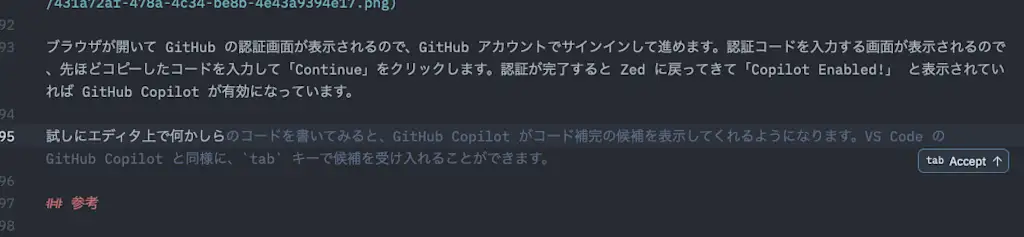
Your browser will open to GitHub's authentication page. Sign in with your GitHub account and proceed. When prompted to enter the authentication code, paste the code you copied earlier and click "Continue". Once authentication is complete, if you see "Copilot Enabled!" back in Zed, GitHub Copilot is now active.
Try writing some code in the editor and GitHub Copilot will start showing completion suggestions. Just like GitHub Copilot in VS Code, you can accept suggestions with the tab key.
Installing Extensions
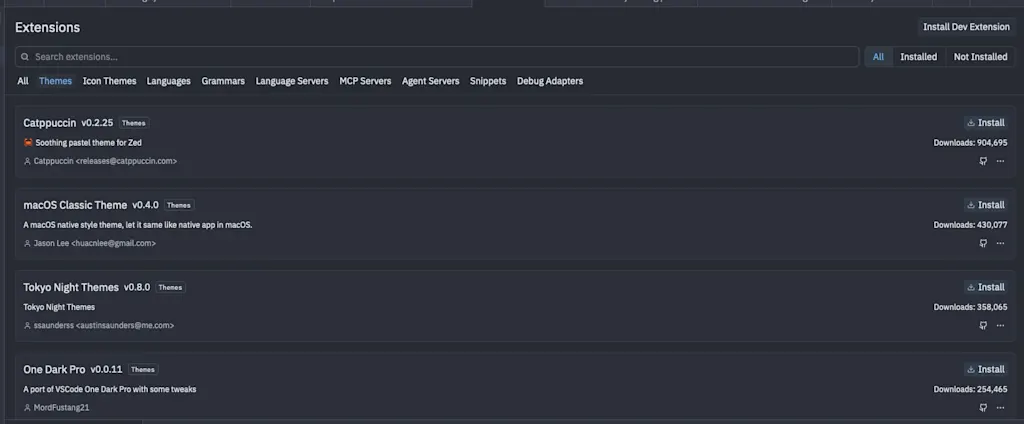
Like VS Code, Zed lets you add functionality by installing extensions. That said, I personally find that I need fewer advanced editor features these days, and given the growing trend of supply chain attacks, I feel it's best not to install too many extensions. You can browse available extensions by selecting zed: extensions from the command palette, and click "Install" to install one.
If you want to build your own extension, you'll need to develop it in Rust and publish it to a GitHub repository. The repository must be linked as a submodule of zed-industries/extensions. For more details, refer to the
Developing Extensions documentation.