Managing Multiple Coding Agents at Scale with Cline Kanban
Cline Kanban is a tool by Cline for staying sane while managing dozens of agents. It provides a kanban-style view where each card represents a running agent, letting you see at a glance which agents are running, blocked, or done.
Entering 2026, development with coding agents has crossed the chasm and is becoming a standard part of the development process. Running multiple coding agents in parallel with Git worktrees is no longer unusual. And yet, everyone is starting to realize that humans have become the bottleneck. Many developers have experienced situations like an agent sitting idle waiting for approval while you were away switching between terminal windows, or realizing an hour later that a task had already finished long ago.
The growing cognitive load of managing multiple agents simultaneously is also a problem. Coding tasks finish so quickly that engineers now have to supervise an unprecedented volume of work. The cost of context switching is not trivial. Humans are not naturally good at multitasking. We pay a hidden cost every time we switch tasks, and as that cost accumulates, mental fatigue builds up. Many people may have started noticing a level of exhaustion at the end of a workday that they never felt before.
Cline Kanban is a tool developed by Cline as one answer to the question: how do you stay sane when managing dozens of agents at once? It provides a kanban-style view where each card represents a running agent, giving you an at-a-glance picture of which agents are running, which are blocked, and which have completed their work. The cognitive load that comes with parallel work doesn't disappear entirely, but the need to jump between terminals to check agent status is gone, and the working memory required to mentally track agent states is reduced — the result should be a significant reduction in psychological burden.
Cline Kanban works not just with Cline, but also with other coding agents such as Claude Code and Codex. This is grounded in Cline's original design philosophy of being a model-agnostic tool.
In this article, I'll walk through how to use Cline Kanban to run multiple coding agents in parallel. As a hands-on example, we'll split up the work for building a household budget app and assign it across several agents.
Setting Up Cline Kanban
Cline Kanban is distributed as a CLI tool called kanban. Install it with the following command.
npm install -g kanbanOnce installed, the kanban command should be available.
$ kanban -v
0.1.50
Running the kanban command starts a local Kanban server and opens the Kanban board in your browser.
$ kanban
Cline Kanban running at http://127.0.0.1:3484/<project-name>
Press Ctrl+C to stop.
A dialog will appear asking you to select the coding agent you want to use. I chose Claude Code here.
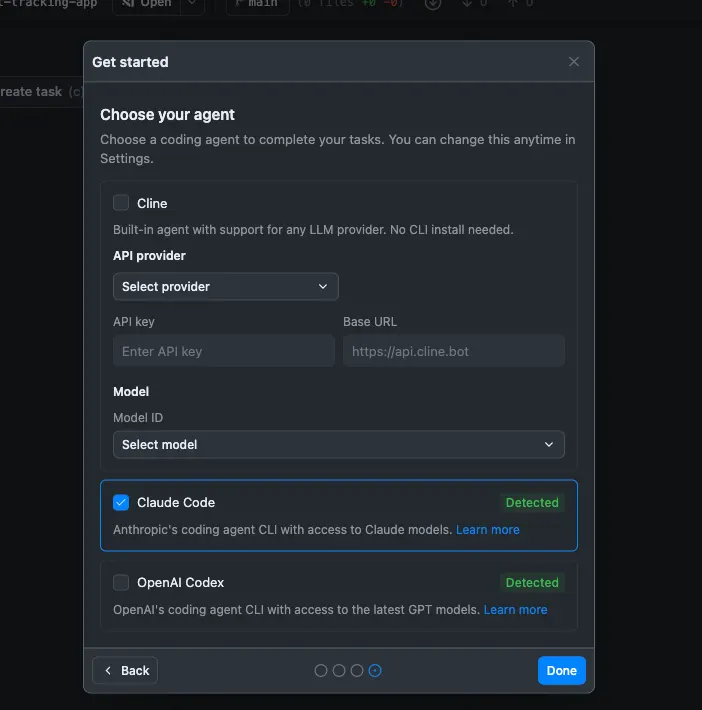
By default, the bypass permissions flag (agentAutonomousModeEnabled in the config file) is enabled, meaning no user approval is required for any action. If you have security concerns, disable it as needed. You can change this from the settings button in the top-right corner of the screen, or directly in ~/.cline/kanban/config.json.
{
  "selectedAgentId": "claude",
  "agentAutonomousModeEnabled": false
}
Adding Tasks
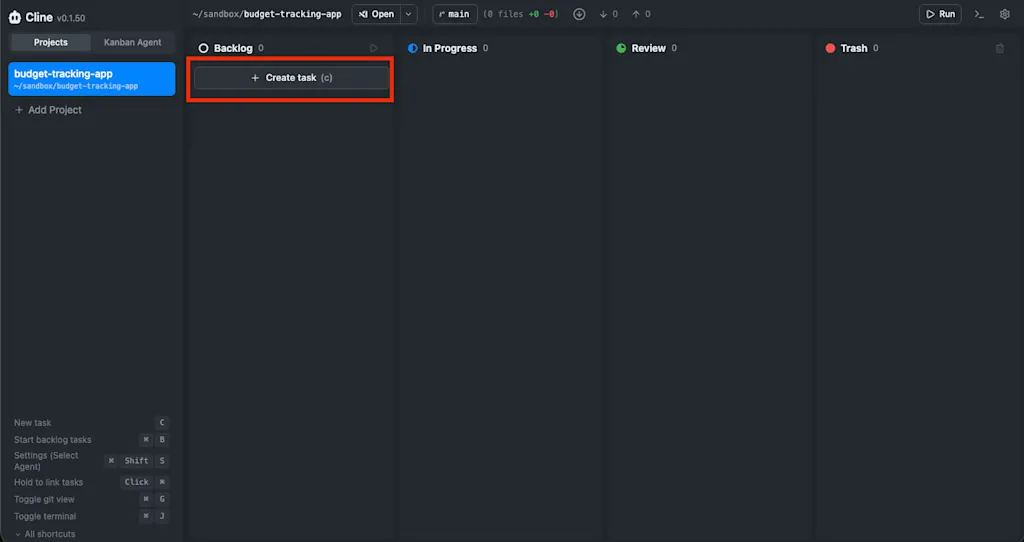
In the initial project state, four columns are available: "Backlog", "In Progress", "Review", and "Trash". To add a task, click the "Add Task" button in the "Backlog" column. You can also use the shortcut key c to add a task.
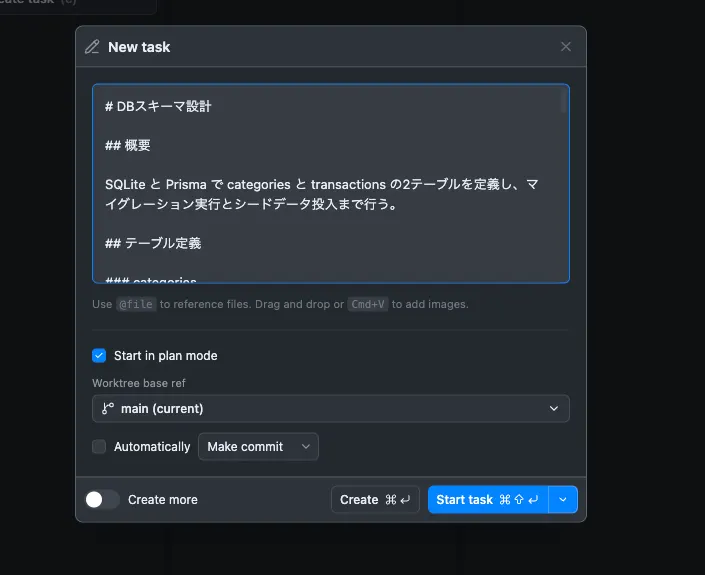
A modal will appear for adding a task. Enter the task description and click either "Create" or "Start Task". As a general best practice when working with coding agents, it is recommended to break work into small, well-defined tasks. For example, rather than immediately adding a task like "implement a feature to record daily expenses," something at the granularity of "set up the database" is more appropriate. Even "database" is ambiguous, so it's also important to communicate requirements as concisely as possible — something like "use SQLite and Prisma to..." or "create the categories and transactions tables." If your project already has a ticket template, using that format for tasks works well too.
Checking "Start in plan mode" will start the task in Plan mode, where the agent first presents an execution plan before proceeding.
I ended up adding 11 tickets in total. At this point, the agents have not yet started running — tasks have only been added.
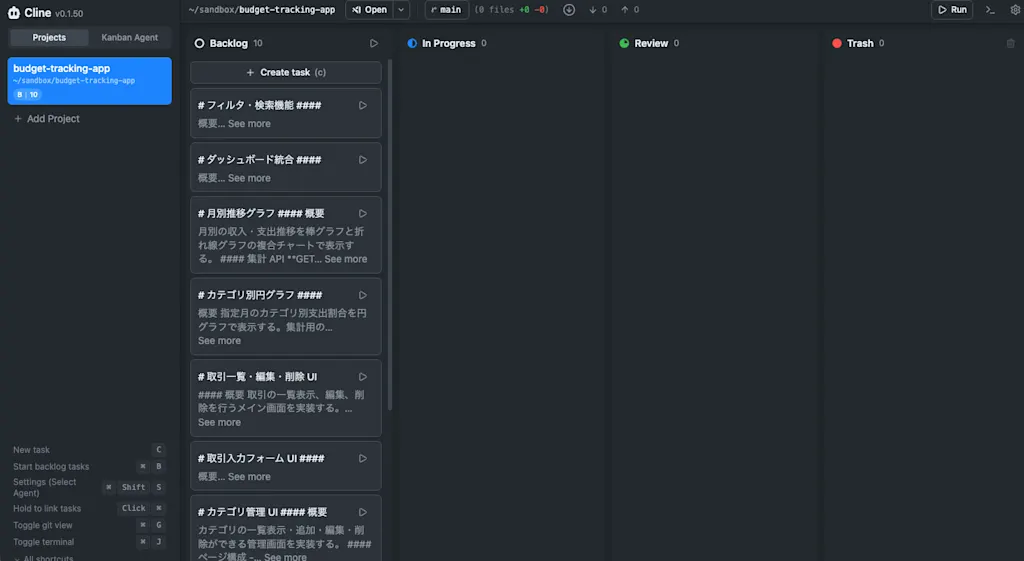
Added tasks are saved as a JSON file at ~/.cline/kanban/workspaces/<project-name>/boards.json on your local machine.
{
  "columns": [
    {
      "id": "backlog",
      "title": "Backlog",
      "cards": [
        {
          "id": "91ebd",
          "prompt": "# Filter & Search\n\n",
          "startInPlanMode": false,
          "autoReviewEnabled": false,
          "autoReviewMode": "commit",
          "baseRef": "main",
          "createdAt": 1774672842329,
          "updatedAt": 1774673005471
        }
      ]
    },
    { "id": "in-progress", "title": "In Progress", "cards": [] },
    { "id": "review", "title": "Review", "cards": [] },
    { "id": "trash", "title": "Trash", "cards": [] }
  ],
  "dependencies": []
}
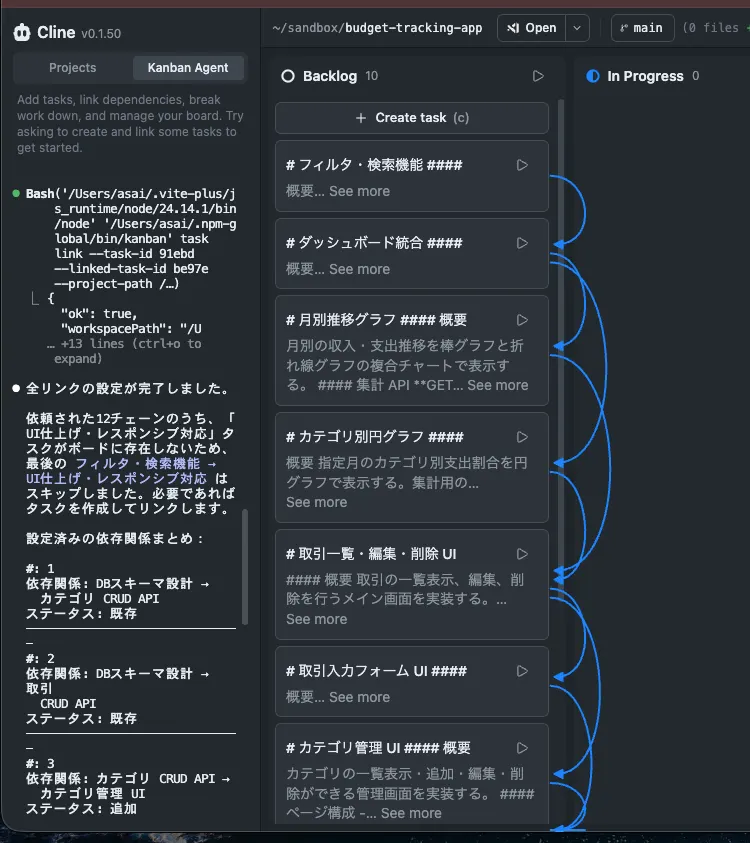
Let's configure task dependencies. You can set dependencies by holding ⌘ and dragging one task card onto another. Since the database setup must be completed before all other tasks, I set the other tasks to depend on the database setup task.
Alternatively, you can give instructions to the "Kanban Agent" in the left sidebar to add tasks and set dependencies. I used the following prompt:
Please link the dependencies in the following order.
"A → B" means "B can start once A is complete."

- DB Schema Design → Category CRUD API
- DB Schema Design → Transaction CRUD API
- Category CRUD API → Category Management UI
- Transaction CRUD API → Transaction Input Form UI
- Category Management UI → Transaction List/Edit/Delete UI
- Transaction Input Form UI → Transaction List/Edit/Delete UI
- Transaction List/Edit/Delete UI → Category Pie Chart
- Transaction List/Edit/Delete UI → Monthly Trend Graph
- Category Pie Chart → Dashboard Integration
- Monthly Trend Graph → Dashboard Integration
- Dashboard Integration → Filter & Search
- Filter & Search → UI Polish & Responsive Design
Internally, the Kanban Agent retrieves the task list using the kanban task list command to identify task IDs, then sets dependencies with commands like kanban task link --task-id 64699 --linked-task-id 94b13. These commands can also be run directly by the user from a terminal.
Running Tasks
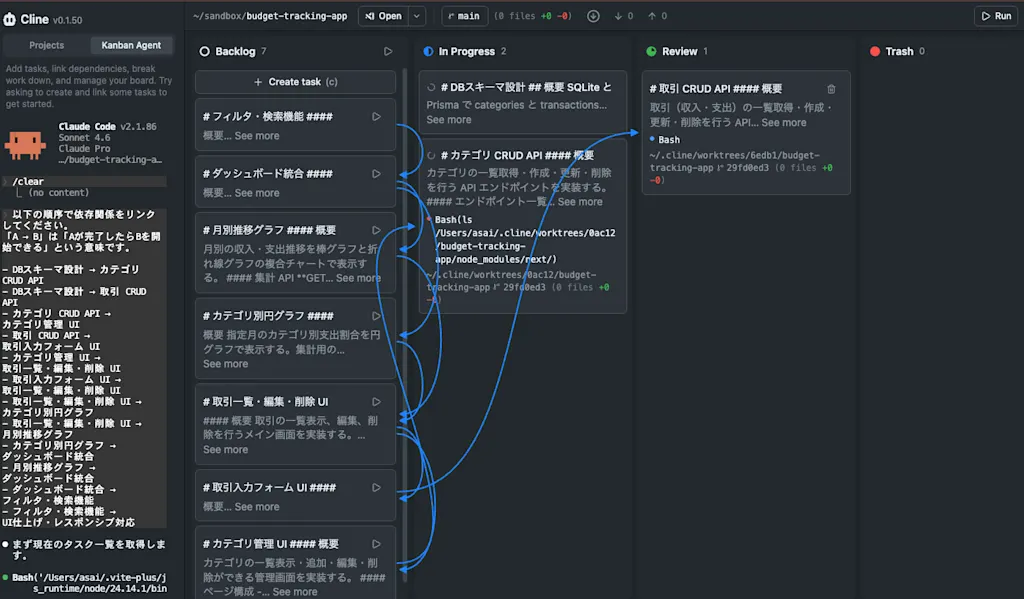
Once dependencies are configured, it's time to run the tasks. Click the "▶️" button on a task card, or click the "▶️" button in the "Backlog" column to start execution. Each task runs on a Git worktree, so work progresses on a separate branch for each task.
When dependencies are set, a task will not run until all the tasks it depends on have completed. Tasks currently being worked on move to the "In Progress" column. The "Review" column shows two types of tasks: those blocked waiting for user approval, and those that have completed and are awaiting review. Each task card displays real-time information about what command the agent is currently executing.
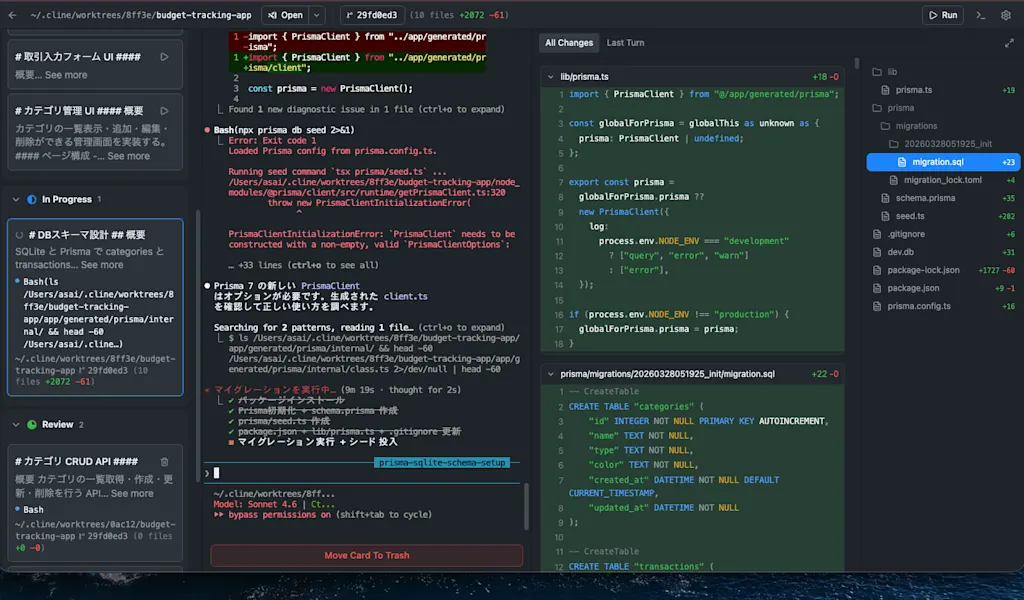
Clicking a card lets you view the agent's conversation history in a TUI and inspect the code changes. In the diff view, you can leave line-by-line comments just like in a PR. Submitting a comment sends it as feedback to the agent.
Completed tasks move from the "In Progress" column to the "Review" column. Unlike tasks blocked waiting for user approval, completed tasks display actions such as "Commit" and "Open PR". After reviewing the task, if everything looks good, click the "Commit" button to commit the changes.
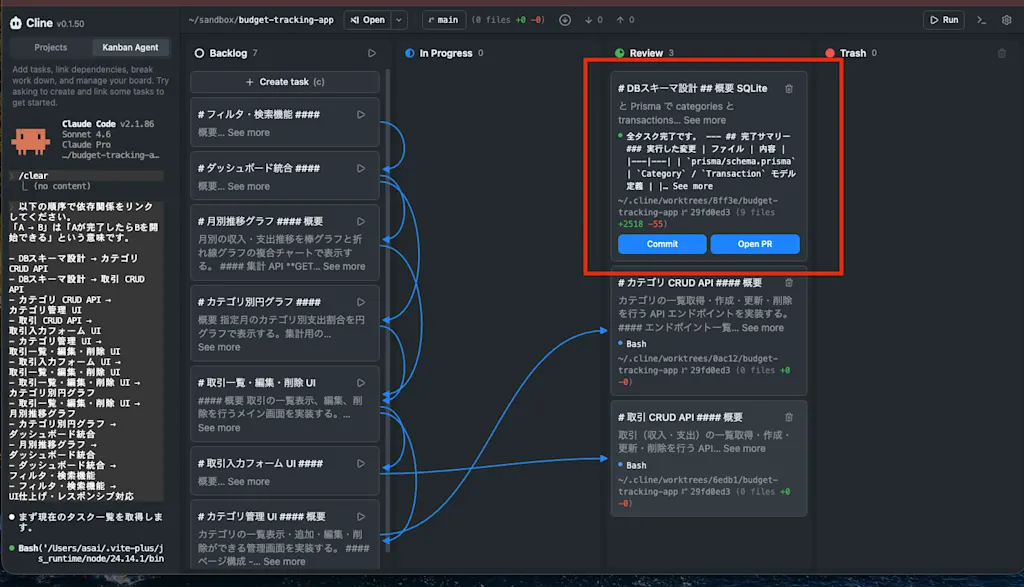
Clicking "Commit" moves the task back to "In Progress" and the agent begins the commit process. Once the commit is done, the task moves to "Review" and the changes are reflected in the main branch. When you're satisfied, click the trash icon on the card to move it to "Trash" and mark the task as complete. The "Trash" column acts as an archive for completed tasks, and when a card is moved there, the Git worktree used for that task is automatically cleaned up.
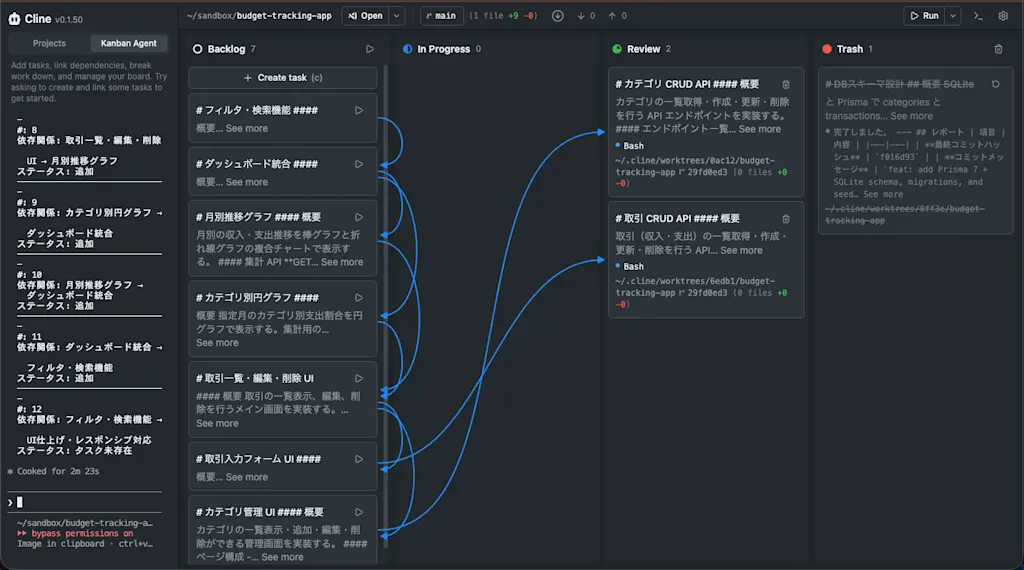
When a blocking task completes, any tasks that depend on it will automatically start running. With the API implementation tasks finished, the UI implementation tasks are now able to begin.
Summary
- Cline Kanban is a tool that provides a kanban-style view for running multiple coding agents in parallel
- It works not only with Cline, but also with other coding agents like Claude Code and Codex
- You can use it by starting a local Kanban server with the
kanbancommand - From the web UI, you can add tasks, configure dependencies, run tasks, and perform reviews. In addition to managing tasks manually, you can also delegate task creation and dependency configuration to the Kanban Agent
- When a task starts, its card moves to the "In Progress" column and the task runs on a Git worktree. If it gets blocked waiting for user approval, it moves to "Review". Each task card displays real-time information about what command the agent is currently running
- Once a task finishes, you can review the code diff and decide whether to commit. Committed changes are merged into the main branch