
Vercel's AI SDK v7 adds support for MCP Apps. MCP Apps is an extension to the Model Context Protocol (MCP) that lets tools return an interactive UI instead of plain text. When a tool the AI model calls as usual is linked to a
ui:// resource, the application can render that UI in a sandboxed environment. This makes it possible for users to view data as a chart, or view a list of restaurants as cards and click a reservation button, and so on.
Applications that support MCP Apps need to handle their own iframe communication and security constraints for sandboxing, but AI SDK provides convenient APIs for MCP Apps support, making the application-side implementation relatively easy. This post walks through trying out AI SDK's MCP Apps support.
Trying Out AI SDK with MCP Apps Support
AI SDK provides the following two helpers for building MCP Apps.
@ai-sdk/mcp: lets the MCP host declare MCP Apps support, separate tools visible to the model from tools visible to the app, and readui://resourcesexperimental_MCPAppRenderer: a component for rendering the MCP Apps UI on the React application side. It renders the UI inside a sandboxed iframe and handles communication between the iframe and the host application
First, let's build the foundation for rendering an LLM-generated response as a UI using AI SDK. We'll create a Next.js application and install the AI SDK and MCP SDK related packages.
npx create-next-app@latest my-ai-sdk-app
cd my-ai-sdk-app
npm install ai @ai-sdk/react @ai-sdk/openai @ai-sdk/mcp zod @modelcontextprotocol/sdk
@ai-sdk/openai is the package for using the OpenAI API. Install the package for whichever LLM provider you use as needed. Next, set the OpenAI API key as an environment variable.
OPENAI_API_KEY=your_openai_api_keyThe overall project structure looks like this, made up of 6 main components.
src/
├── lib/mcp-client.ts              # Helper for connecting to the MCP server
└── app/
    ├── page.tsx                   # Chat UI (renders the iframe with MCPAppRenderer)
    └── api/
        ├── chat/route.ts          # Chat API that passes tools to streamText
        └── mcp/
            ├── server/route.ts    # The MCP server itself (tools + ui:// resource)
            ├── sandbox/route.ts   # Sandbox proxy for the double iframe
            └── host/route.ts      # Bridge from iframe to server
Building the MCP Server
First, let's implement an MCP server with a tool and a ui:// resource. This part isn't specific to AI SDK — it's the same as building a regular MCP Apps server.
To implement the MCP server at /api/mcp/server, create app/api/mcp/server/route.ts. Here we implement a tool that shows a dashboard, and an app-only tool that refreshes the dashboard's data. The app-only tool isn't visible to the model, and can only be called from JavaScript inside the iframe.
import { McpServer } from "@modelcontextprotocol/sdk/server/mcp.js";
import { WebStandardStreamableHTTPServerTransport } from "@modelcontextprotocol/sdk/server/webStandardStreamableHttp.js";
import { z } from "zod";
// MCP_APP_MIME_TYPE is a constant representing the MIME type "text/html;profile=mcp-app".
// The MIME type is defined by the MCP Apps spec, and this MIME type must be returned when serving MCP Apps resources.
import { MCP_APP_MIME_TYPE } from "@ai-sdk/mcp";

// The URI identifying the MCP resource. Per the MCP Apps spec, it's represented by a URI starting with ui://.
const DASHBOARD_RESOURCE_URI = "ui://ai-sdk-mcp-apps-example/dashboard";

function createDashboardHtml() {
  // An example of the HTML rendered in the MCP Apps sandbox. You could also use a framework like React or Vue and return the built HTML.
  // We'll show a full implementation later, so this is skipped here.
  return `<!doctype html>
  </html>`;
}

// Function that creates the MCP server.
// Registers resources and tools.
function createServer() {
  const server = new McpServer(
    { name: "AI SDK MCP Apps Example Server", version: "1.0.0" },
    { capabilities: { resources: {}, tools: {} } },
  );

  // 1. Register the ui:// resource.
  server.registerResource(
    "dashboard-app",
    DASHBOARD_RESOURCE_URI,
    {
      description: "An interactive dashboard rendered by an MCP Apps host.",
      mimeType: MCP_APP_MIME_TYPE,
    },
    async () => ({
      contents: [
        {
          uri: DASHBOARD_RESOURCE_URI,
          mimeType: MCP_APP_MIME_TYPE,
          text: createDashboardHtml(),
        },
      ],
    }),
  );

  // 2. The tool that shows the dashboard.
  //    Linking the tool to the ui:// resource via _meta.ui.resourceUri
  //    lets an MCP Apps-capable host render the tool's result inside a sandboxed iframe.
  server.registerTool(
    "showDashboard",
    {
      title: "Show Dashboard",
      description:
        "Shows an interactive dashboard for the given topic.",
      inputSchema: {
        topic: z
          .string()
          .describe("The dashboard topic to display (e.g. usage, weather)"),
      },
      _meta: {
        ui: {
          resourceUri: DASHBOARD_RESOURCE_URI,
          // Setting visibility: ["model", "app"] makes the tool visible to both the model and the app.
          visibility: ["model", "app"],
        },
      },
    },
    async ({ topic }) => ({
      content: [
        {
          type: "text" as const,
          text: `Showed the dashboard for "${topic}".`,
        },
      ],
      // The value returned by the tool can be referenced from the resource's UI. Here, we return dashboard card info as an example.
      structuredContent: {
        topic,
        cards: [
          { label: "Requests", value: 128 },
          { label: "Latency", value: "42ms" },
          { label: "Status", value: "Healthy" },
        ],
      },
      _meta: { ui: { resourceUri: DASHBOARD_RESOURCE_URI } },
    }),
  );

  // 3. An app-only tool. Since visibility: ["app"], the model can't call this tool.
  //    It can only be called from JavaScript inside the iframe.
  server.registerTool(
    "refreshDashboardData",
    {
      title: "Refresh Dashboard Data",
      description:
        "Refreshes the dashboard's displayed data. Intended for the app only, not the model.",
      inputSchema: { reason: z.string().optional() },
      _meta: {
        ui: { resourceUri: DASHBOARD_RESOURCE_URI, visibility: ["app"] },
      },
    },
    async ({ reason }) => ({
      content: [
        {
          type: "text" as const,
          text: `Refreshed the dashboard data${reason ? ` (reason: ${reason})` : ""}.`,
        },
      ],
      structuredContent: {
        refreshedAt: new Date().toISOString(),
        cards: [
          { label: "Requests", value: 143 },
          { label: "Latency", value: "39ms" },
          { label: "Status", value: "Healthy" },
        ],
      },
    }),
  );
  return server;
}

// Expose the MCP server via a Next.js API route
async function requestHandler(req: Request) {
  if (req.method === "GET" || req.method === "DELETE") {
    return Response.json(
      {
        jsonrpc: "2.0",
        error: { code: -32000, message: "Method not allowed." },
        id: null,
      },
      { status: 405 },
    );
  }

  const server = createServer();
  // WebStandardStreamableHTTPServerTransport is a transport that communicates with the MCP server using the Web-standard Request/Response.
  const transport = new WebStandardStreamableHTTPServerTransport({
    sessionIdGenerator: undefined,
  });

  await server.connect(transport);
  return transport.handleRequest(req);
}

// Use the same requestHandler for the GET, POST, and DELETE methods.
export {
  requestHandler as DELETE,
  requestHandler as GET,
  requestHandler as POST,
};
We build the MCP server using the MCP TypeScript SDK. Inside the createServer function, new McpServer(...) creates the MCP server, and resources and tools are registered on it. Resources are registered with the registerResource method. The first argument is the resource's name, and the second is its URI. Per the MCP Apps spec, resource URIs must start with ui://. Since the URI is used later to link the resource to a tool, we store it in the DASHBOARD_RESOURCE_URI variable. The third argument is the resource's metadata. What to specify for the MIME type is defined by the MCP Apps spec, and the MCP_APP_MIME_TYPE constant is provided for that purpose. This MIME type has the value "text/html;profile=mcp-app". The fourth argument is a function that returns the resource's content. Here, the createDashboardHtml function generates and returns the HTML. We'll cover the HTML in detail later.
server.registerResource(
  "dashboard-app",
  DASHBOARD_RESOURCE_URI,
  {
    description: "An interactive dashboard rendered by an MCP Apps host.",
    mimeType: MCP_APP_MIME_TYPE,
  },
  async () => ({
    contents: [
      {
        uri: DASHBOARD_RESOURCE_URI,
        mimeType: MCP_APP_MIME_TYPE,
        text: createDashboardHtml(),
      },
    ],
  }),
);
Tools are registered with the registerTool method. The key point is specifying the previously registered resource's URI via ._meta.ui.resourceUri. This lets an MCP Apps-capable host render the tool's result inside a sandboxed iframe. For a host that doesn't support MCP Apps, the tool's result is returned as plain text as usual. _meta.ui.visibility lets you specify the tool's visibility. "model" means the tool is callable by the LLM, same as a regular tool. "app" means the tool is callable from JavaScript inside the UI rendered by MCP Apps. If _meta.ui.visibility is omitted, it defaults to ["model", "app"].
MCP Apps enables interactive UI operations, where a user pressing a button or filling in a form can call an MCP server tool from JavaScript inside the iframe. In this example, we've implemented an app-only tool, refreshDashboardData, for refreshing the dashboard's data. A tool like refreshDashboardData exists to be called from the UI, and if such a tool were visible to the LLM, it could bloat the tool list's context, or confuse the LLM about whether to call showDashboard or refreshDashboardData. That's why refreshDashboardData's _meta.ui.visibility is set to "app" only. Note that visibility is merely a hint declared by the server — regardless of its value, tools/list returns all tools to the client (filtering happens on the client side). So visibility by itself isn't access control; what actually restricts tool calls is the allowlist in the host-side bridge, which we'll cover later.
server.registerTool(
  "showDashboard",
  {
    title: "Show Dashboard",
    description:
      "Shows an interactive dashboard for the given topic.",
    inputSchema: {
      topic: z
        .string()
        .describe("The dashboard topic to display (e.g. usage, weather)"),
    },
    _meta: {
      ui: {
        resourceUri: DASHBOARD_RESOURCE_URI,
        // Setting visibility: ["model", "app"] makes the tool visible to both the model and the app.
        visibility: ["model", "app"],
      },
    },
  },
  async ({ topic }) => ({
    content: [
      {
        type: "text" as const,
        text: `Showed the dashboard for "${topic}".`,
      },
    ],
    // The value returned by the tool can be referenced from the resource's UI. Here, we return dashboard card info as an example.
    structuredContent: {
      topic,
      cards: [
        { label: "Requests", value: 128 },
        { label: "Latency", value: "42ms" },
        { label: "Status", value: "Healthy" },
      ],
    },
    _meta: { ui: { resourceUri: DASHBOARD_RESOURCE_URI } },
  }),
);

server.registerTool(
  "refreshDashboardData",
  {
    title: "Refresh Dashboard Data",
    description:
      "Refreshes the dashboard's displayed data. Intended for the app only, not the model.",
    inputSchema: { reason: z.string().optional() },
    _meta: {
      ui: { resourceUri: DASHBOARD_RESOURCE_URI, visibility: ["app"] },
    },
  },
  async ({ reason }) => ({
    content: [
      {
        type: "text" as const,
        text: `Refreshed the dashboard data${reason ? ` (reason: ${reason})` : ""}.`,
      },
    ],
    structuredContent: {
      refreshedAt: new Date().toISOString(),
      cards: [
        { label: "Requests", value: 143 },
        { label: "Latency", value: "39ms" },
        { label: "Status", value: "Healthy" },
      ],
    },
  }),
);
Finally, we expose the MCP server through a Next.js API route. WebStandardStreamableHTTPServerTransport is a transport that communicates with the MCP server using the Web-standard Request/Response.
// Expose the MCP server via a Next.js API route
async function requestHandler(req: Request) {
  if (req.method === "GET" || req.method === "DELETE") {
    return Response.json(
      {
        jsonrpc: "2.0",
        error: { code: -32000, message: "Method not allowed." },
        id: null,
      },
      { status: 405 },
    );
  }

  const server = createServer();
  // WebStandardStreamableHTTPServerTransport is a transport that communicates with the MCP server using the Web-standard Request/Response.
  const transport = new WebStandardStreamableHTTPServerTransport({
    sessionIdGenerator: undefined,
  });

  await server.connect(transport);
  return transport.handleRequest(req);
}

// Use the same requestHandler for the GET, POST, and DELETE methods.
export {
  requestHandler as DELETE,
  requestHandler as GET,
  requestHandler as POST,
};
Creating the MCP Apps HTML
The createDashboardHtml function needs to return the HTML rendered in the MCP Apps sandbox. Here we write the HTML directly, but in practice it's common to use a framework like React or Vue and return the built HTML.
<!doctype html>
<html lang="en">
  <head>
    <meta charset="utf-8" />
    <meta name="viewport" content="width=device-width, initial-scale=1" />
    <style>
        body { margin: 0; padding: 16px; font-family: system-ui, sans-serif; }
        .card { border: 1px solid #d4d4d4; border-radius: 12px; padding: 16px; background: #fafafa; }
        .grid { display: grid; grid-template-columns: repeat(3, minmax(0, 1fr)); gap: 8px; margin: 16px 0; }
        .metric { border: 1px solid #d4d4d4; border-radius: 8px; padding: 10px; background: #fff; }
        .label { color: #525252; font-size: 12px; }
        .value { margin-top: 4px; font-size: 18px; font-weight: 600; }
        button { border: 1px solid #d4d4d4; border-radius: 8px; padding: 8px 12px; background: #fff; cursor: pointer; }
    </style>
  </head>
  <body>
    <main class="card">
      <h1 style="margin:0;font-size:20px;">Dashboard</h1>
      <div class="grid" id="cards">
        <!-- Values get overwritten by the tool result -->
        <div class="metric"><div class="label">Requests</div><div class="value">—</div></div>
        <div class="metric"><div class="label">Latency</div><div class="value">—</div></div>
        <div class="metric"><div class="label">Status</div><div class="value">—</div></div>
      </div>
      <button id="refresh">Refresh</button>
      <p style="color:#525252;font-size:12px;" id="status">Connecting to host...</p>
    </main>

    <!-- Script covered later -->
    <script>
    </script>
  </body>
</html>
MCP Apps requires returning a full HTML document rather than an HTML fragment. Since rendering the iframe uses the srcdoc attribute, styles need to be written inline inside a style tag, and scripts inline inside a script tag. As we'll see below, the default CSP restricts loading sources to 'self' and inline, so writing everything inline is basically required. Note that specifying allowed origins in the resource's _meta.ui.csp also makes it possible to load external scripts and resources.
The dashboard displays "Requests," "Latency," and "Status" as cards. Since the UI can reference the result of the tool linked to the resource (showDashboard), we update the card values whenever a tool result arrives. We also make pressing the button call refreshDashboardData to refresh the dashboard's data.
Let's also look at the script implementation. First, we define helper functions sendRequest and sendNotification for communicating with the host. MCP Apps communicates with the host using the iframe's postMessage function, following the JSON-RPC 2.0 spec. sendRequest is a function that sends a request expecting a response, by specifying an id. sendNotification sends a notification with no id and no expected response.
const cards = document.getElementById("cards");
const status = document.getElementById("status");
let nextId = 1;
const pendingRequests = new Map();

// The iframe and the host (parent window) exchange JSON-RPC-style messages via postMessage.
function sendRequest(method, params) {
  const id = nextId++;
  pendingRequests.set(id, method);
  window.parent.postMessage({ jsonrpc: "2.0", id, method, params }, "*");
}
function sendNotification(method, params) {
  window.parent.postMessage({ jsonrpc: "2.0", method, params }, "*");
}
During initialization, we send a ui/initialize request for the handshake. This method tells the host what features the UI supports.
sendRequest("ui/initialize", {
  protocolVersion: "2026-01-26",
  appCapabilities: { availableDisplayModes: ["inline", "fullscreen"] },
  appInfo: { name: "ai-sdk-mcp-apps-example", version: "1.0.0" },
});
Messages are received via window.addEventListener("message", ...). In postMessage exchanges, multiple requests can be in flight at once, and responses and notifications arrive on the same channel, so we need the id-keyed Map to match up which response corresponds to which request.
window.addEventListener("message", (event) => {
  const message = event.data;
  // Check that it conforms to the JSON-RPC 2.0 spec
  if (!message || message.jsonrpc !== "2.0") return;

  // A response to a request we sent
  if (message.id != null && pendingRequests.has(message.id)) {
    const method = pendingRequests.get(message.id);
    pendingRequests.delete(message.id);
    if (method === "ui/initialize") {
      status.textContent = "Connected to host.";
      sendNotification("ui/notifications/initialized");
    } else if (method === "tools/call") {
      status.textContent = "Updated via tool call.";
      renderCards(message.result);
    }
    return;
  }

  // A notification pushed unilaterally from the host
  // The tool call result (`structuredContent`) arrives here
  if (message.method === "ui/notifications/tool-result") {
    renderCards(message.params);
  }
});
When message.id is present, it's a response to a request we sent. We use message.id to look up which request it corresponds to via pendingRequests. Then we use message.method to determine how to handle it. ui/initialize means the connection to the host has been established, and to complete the handshake we need to send back ui/notifications/initialized. As a result of ui/initialize, the host returns a hostContext containing information such as the theme (light or dark mode), and hostCapabilities indicating which features the host supports — but we omit using them here. tools/call means a tool call's result has come back. The tool's result is stored in message.result, and the renderCards function updates the card values.
Among the notifications pushed unilaterally from the host is "ui/notifications/tool-result". This method includes the tool call's result, so we use that value to update the card values via the renderCards function.
The renderCards function references the tool result's structuredContent to update the card values.
function renderCards(result) {
  const nextCards = result && result.structuredContent && result.structuredContent.cards;
  if (!Array.isArray(nextCards)) return;

  cards.textContent = ""; // Clear all existing cards
  for (const card of nextCards) {
    const metric = document.createElement("div");
    metric.className = "metric";
    const label = document.createElement("div");
    label.className = "label";
    label.textContent = String(card.label);
    const value = document.createElement("div");
    value.className = "value";
    value.textContent = String(card.value);
    metric.append(label, value);
    cards.append(metric);
  }
}
The refresh button's click handler sends a tools/call request to call the refreshDashboardData tool.
  document.getElementById("refresh").addEventListener("click", () => {
    sendRequest("tools/call", {
      name: "refreshDashboardData",
      arguments: { reason: "User pressed refresh inside the iframe" },
    });
  });
Building the Sandbox
Since the HTML returned by MCP Apps is untrusted content, it can't be embedded directly into the chat screen. The MCP Apps spec requires (MUST) using a double iframe for sandboxing. Here, we nest an iframe for the sandbox proxy and an iframe for the app that renders the HTML returned by the MCP server, both underneath the host, which is the chat screen, to achieve sandboxing.
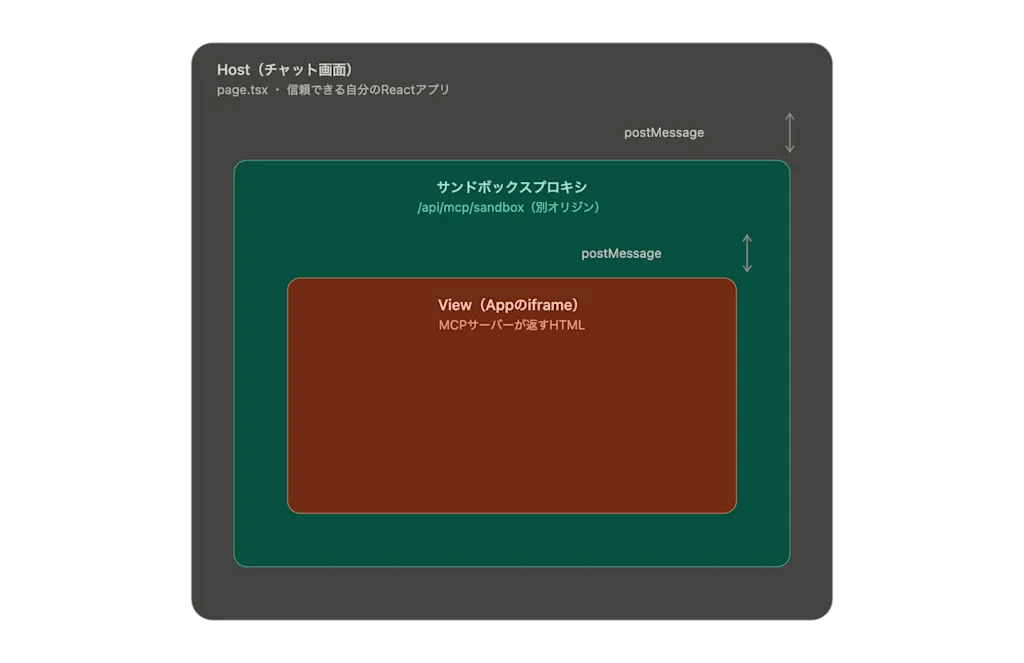
We implement an API at src/app/api/mcp/sandbox/route.ts that returns the sandbox HTML. When the Next.js API route receives a GET request, it returns the HTML via Response. This HTML is meant to be specified in the iframe's src attribute.
The MCP Apps spec explicitly states that the host and sandbox iframes must (MUST) be on different origins. Here, we implement them on the same origin to keep things simple, but in a real application you need to serve the iframe on a different origin. Since an origin is the combination of scheme, host, and port, using a different port works too, not just a different domain.
const sandboxProxyHtml = `<!doctype html>
<html>
<head>
<meta charset="utf-8" />
<meta name="viewport" content="width=device-width, initial-scale=1" />
<style>
html, body, iframe {
width: 100%;
height: 100%;
margin: 0;
border: 0;
background: transparent;
}
</style>
</head>
<body>
<script>
let appFrame;
function isJsonRpc(value) {
return value && value.jsonrpc === '2.0';
}
function injectCSP(html, csp) {
if (!csp) return html;
const meta = '<meta http-equiv="Content-Security-Policy" content="' +
csp.replaceAll('"', '"') + '">';
return html.includes('<head>')
? html.replace('<head>', '<head>' + meta)
: meta + html;
}
function createAppFrame(params) {
appFrame?.remove();
appFrame = document.createElement('iframe');
appFrame.sandbox = params.sandbox || 'allow-scripts allow-forms';
if (params.allow) {
appFrame.allow = params.allow;
}
appFrame.srcdoc = injectCSP(params.html, params.csp);
document.body.appendChild(appFrame);
}
window.addEventListener('message', event => {
const data = event.data;
// Once we receive ui/notifications/sandbox-resource-ready, run createAppFrame to
// create the iframe that renders the MCP Apps HTML.
if (
isJsonRpc(data) &&
data.method === 'ui/notifications/sandbox-resource-ready' &&
event.source === window.parent
) {
createAppFrame(data.params || {});
return;
}
if (isJsonRpc(data) && appFrame && event.source === window.parent) {
appFrame.contentWindow.postMessage(data, '*');
} else if (isJsonRpc(data) && event.source === appFrame?.contentWindow) {
window.parent.postMessage(data, '*');
}
});
window.parent.postMessage({
  jsonrpc: '2.0',
  method: 'ui/notifications/sandbox-proxy-ready'
}, '*');
</script>
</body>
</html>`;
export function GET() {
return new Response(sandboxProxyHtml, {
headers: { "content-type": "text/html; charset=utf-8" },
});
}Let's look at the sandbox implementation in more detail. Most of the HTML consists of CSS styles for displaying the iframe full-screen, and a script for sandboxing the iframe. For the handshake, we follow the JSON-RPC 2.0 spec and send a ui/notifications/sandbox-proxy-ready notification to the host. We use the postMessage function to communicate with the host.
window.parent.postMessage({
jsonrpc: '2.0',
method: 'ui/notifications/sandbox-proxy-ready'
}, '*');Once the host receives ui/notifications/sandbox-proxy-ready, it sends a ui/notifications/sandbox-resource-ready notification to the sandbox. Upon receiving this notification, the sandbox creates the iframe that renders the MCP Apps HTML via the createAppFrame function.
// A function to check whether a value conforms to JSON-RPC 2.0, for simplicity
function isJsonRpc(value) {
  return value && value.jsonrpc === '2.0';
}

// Once we receive sandbox-resource-ready, run createAppFrame
if (
  isJsonRpc(data) &&
  data.method === 'ui/notifications/sandbox-resource-ready' &&
  event.source === window.parent
) {
  createAppFrame(data.params || {});
  return;
}
Here, event.source === window.parent confirms that the sender of the message is the parent window (the host). Without this check, an untrusted iframe could send a message like window.parent.postMessage({method: 'ui/notifications/sandbox-resource-ready', params: {sandbox: 'allow-scripts allow-same-origin', html: '...'}}, '*') to the sandbox proxy — which is its own window.parent — triggering createAppFrame and having itself recreated with allow-same-origin, completing an attack.
The createAppFrame function creates an iframe with the sandbox and srcdoc attributes specified. This iframe's sandbox and allow attributes use the values specified by the host in the ui/notifications/sandbox-resource-ready notification. In practice, it's most often set to 'allow-scripts allow-forms', which is AI SDK's internal default (internal constant MCP_APP_DEFAULT_INNER_SANDBOX). The allow attribute controls the Permissions Policy for things like camera, microphone, and geolocation.
function createAppFrame(params) {
  appFrame?.remove();
  appFrame = document.createElement('iframe');
  appFrame.sandbox = params.sandbox || 'allow-scripts allow-forms';
  if (params.allow) {
    appFrame.allow = params.allow;
  }
  appFrame.srcdoc = injectCSP(params.html, params.csp);
  document.body.appendChild(appFrame);
}
The srcdoc attribute specifies the MCP Apps HTML. Since the MCP Apps HTML is stored in params.html of the ui/notifications/sandbox-resource-ready notification, we use that. The injectCSP function embeds a Content Security Policy into the HTML as a <meta> tag. The source of the CSP is the ui:// resource's _meta.ui.csp, which isn't a CSP string itself but rather an object holding a list of allowed origins, like { connectDomains: [...], resourceDomains: [...] }. The host builds a CSP string from this object and passes it as params.csp in the sandbox-resource-ready notification. When no CSP is specified, the following default CSP defined by the spec applies.
const RESTRICTIVE_DEFAULT_CSP = "default-src 'none'; script-src 'self' 'unsafe-inline'; style-src 'self' 'unsafe-inline'; img-src 'self' data:; media-src 'self' data:; connect-src 'none';";
function injectCSP(html, csp) {
const cspValue = csp || RESTRICTIVE_DEFAULT_CSP;
const meta = '<meta http-equiv="Content-Security-Policy" content="' +
cspValue.replaceAll('"', '"') + '">';
return html.includes('<head>')
? html.replace('<head>', '<head>' + meta)
: meta + html;
}Finally, window.addEventListener('message', event => { ... }) relays messages between the host and the MCP Apps iframe. Only sandbox-proxy-ready and sandbox-resource-ready messages get special treatment; everything else is relayed as-is, after determining the sender via event.source.
window.addEventListener('message', event => {
  const data = event.data;

  // Handling for receiving sandbox-resource-ready and running createAppFrame
  // ...

  if (isJsonRpc(data) && appFrame && event.source === window.parent) {
    appFrame.contentWindow.postMessage(data, '*');
  } else if (isJsonRpc(data) && event.source === appFrame?.contentWindow) {
    window.parent.postMessage(data, '*');
  }
}
Creating the MCP Client
We create an MCP Client by specifying the URL of the MCP server we built. Since the MCP Client is invoked from two places — the chat API and the iframe-host bridge — we create a shared MCP Client in src/lib/mcp-client.ts.
import { createMCPClient, mcpAppClientCapabilities } from "@ai-sdk/mcp";
import { StreamableHTTPClientTransport } from "@modelcontextprotocol/sdk/client/streamableHttp.js";

export function createLocalMCPAppsClient(origin: string) {
  return createMCPClient({
    transport: new StreamableHTTPClientTransport(
      new URL("/api/mcp/server", origin),
    ),
    clientName: "ai-sdk-mcp-apps-example",
    capabilities: mcpAppClientCapabilities,
  });
}
Specifying the MCP server's URL in the StreamableHTTPClientTransport constructor lets the MCP Client communicate with the MCP server. The key point here is specifying mcpAppClientCapabilities for capabilities. Its value is { extensions: { "io.modelcontextprotocol/ui": { mimeTypes: ["text/html;profile=mcp-app"] } } }, which indicates that the MCP Client supports MCP Apps.
Implementing the Chat API with AI SDK
We implement the chat API at src/app/api/chat/route.ts. Using streamText to stream back the LLM's response is the same as a regular AI SDK chat API implementation.
import { openai } from "@ai-sdk/openai";
import { splitMCPAppTools } from "@ai-sdk/mcp";
import {
  convertToModelMessages,
  createUIMessageStreamResponse,
  isStepCount,
  streamText,
  toUIMessageStream,
  type UIMessage,
} from "ai";
import { createLocalMCPAppsClient } from "@/lib/mcp-client";

export const maxDuration = 30;

export async function POST(req: Request) {
  const requestUrl = new URL(req.url);
  const { messages }: { messages: UIMessage[] } = await req.json();

  const client = await createLocalMCPAppsClient(requestUrl.origin);

  try {
    // Fetch the tool list from the MCP server and narrow it down to those visible to the model.
    // Tools with visibility: ["app"] are excluded here
    const { modelVisible } = splitMCPAppTools(await client.listTools());
    const tools = client.toolsFromDefinitions(modelVisible);

    const result = streamText({
      model: openai("gpt-5-nano"),
      system: "You are a helpful, concise assistant.",
      tools,
      stopWhen: isStepCount(5),
      messages: await convertToModelMessages(messages),
      onEnd: async () => {
        await client.close();
      },
    });

    return createUIMessageStreamResponse({
      stream: toUIMessageStream({ stream: result.stream }),
    });
  } catch (error) {
    await client.close();
    throw error;
  }
}
We use the MCP Client we created earlier to fetch the tool list from the MCP server. The key point is using splitMCPAppTools to narrow it down to only the tools that should be visible to the model. This excludes tools with visibility: ["app"] from the list passed to streamText.
Specifying stopWhen: isStepCount(5) is another important point. By default, generation stops after 1 step, so the model won't generate any follow-up text after calling a tool. Specifying stopWhen lets the model continue generating a response that takes the tool call's result into account. Note also that in AI SDK v7, streamText's onFinish callback is deprecated in favor of onEnd.
The iframe-to-Host Bridge
For security reasons, JavaScript inside the iframe can't send requests directly to the MCP server to call a tool or read a resource (tools/call or resources/read) — requests from the iframe need to be relayed through the host. Here, we implement the host's bridge at the endpoint app/api/mcp/host/route.ts. We use several AI SDK helper functions to safely relay tool calls.
import { readMCPAppResource, splitMCPAppTools } from "@ai-sdk/mcp";
import { isJSONObject, type JSONObject } from "@ai-sdk/provider";
import { safeParseJSON } from "@ai-sdk/provider-utils";
import { createLocalMCPAppsClient } from "@/lib/mcp-client";

export async function POST(req: Request) {
  const requestUrl = new URL(req.url);
  const bodyResult = await safeParseJSON({ text: await req.text() });

  if (!bodyResult.success) {
    return Response.json({ error: "Invalid JSON" }, { status: 400 });
  }

  const body = isJSONObject(bodyResult.value) ? bodyResult.value : undefined;
  const method = body?.method;
  const params = isJSONObject(body?.params) ? body.params : undefined;

  if (typeof method !== "string") {
    return Response.json({ error: "Missing method" }, { status: 400 });
  }

  const client = await createLocalMCPAppsClient(requestUrl.origin);

  try {
    switch (method) {
      // Fetching a ui:// resource (the HTML body).
      case "mcp-apps/read-resource": {
        if (typeof params?.uri !== "string") {
          return Response.json({ error: "Missing uri" }, { status: 400 });
        }
        return Response.json(
          await readMCPAppResource({ client, uri: params.uri }),
        );
      }

      case "resources/read": {
        if (typeof params?.uri !== "string") {
          return Response.json({ error: "Missing uri" }, { status: 400 });
        }
        return Response.json(await client.readResource({ uri: params.uri }));
      }

      // A "I want to call a tool" request from JavaScript inside the iframe.
      // Only tools exposed to the app (visibility: ["app"]) are allowed; everything else is rejected.
      case "tools/call": {
        if (typeof params?.name !== "string") {
          return Response.json({ error: "Missing tool name" }, { status: 400 });
        }

        const { appVisible } = splitMCPAppTools(await client.listTools());
        const isAllowed = appVisible.tools.some(
          (tool) => tool.name === params.name,
        );

        if (!isAllowed) {
          return Response.json(
            { error: "Tool is not app-visible" },
            { status: 403 },
          );
        }

        const toolArguments: JSONObject = isJSONObject(params.arguments)
          ? params.arguments
          : {};

        return Response.json(
          await client.callTool({
            name: params.name,
            arguments: toolArguments,
          }),
        );
      }

      default:
        return Response.json({ error: "Unsupported method" }, { status: 400 });
    }
  } finally {
    await client.close();
  }
}
First, we parse the request body's JSON to get method and params. Here, instead of using req.json(), we take the following approach: get the text via req.text(), then parse it as JSON using safeParseJSON.
const bodyResult = await safeParseJSON({ text: await req.text() });

if (!bodyResult.success) {
  return Response.json({ error: "Invalid JSON" }, { status: 400 });
}
safeParseJSON is a helper function that returns a Result type instead of throwing an exception when JSON parsing fails.
type ParseResult<T> =
  | { success: true; value: T; rawValue: unknown }
  | { success: false; error: JSONParseError | TypeValidationError; rawValue: unknown };
We further use isJSONObject to check whether the parsed value is a JSON object, and then verify that method exists and is a string.
const body = isJSONObject(bodyResult.value) ? bodyResult.value : undefined;
const method = body?.method;
const params = isJSONObject(body?.params) ? body.params : undefined;

if (typeof method !== "string") {
  return Response.json({ error: "Missing method" }, { status: 400 });
}
Once validation is complete, we branch based on method. First, we connect to the MCP server using the MCP Client we created earlier.
const client = await createLocalMCPAppsClient(requestUrl.origin);mcp-apps/read-resource is a method for fetching the ui:// resource linked to a tool. The resource is specified by URI. Note that while tools/call and resources/read are method names that come from the MCP spec, mcp-apps/read-resource and this bridge API itself are internal APIs that this application defines on its own — they aren't defined by the MCP Apps spec. Reading the resource is done using AI SDK's readMCPAppResource. readMCPAppResource verifies whether the URI starts with ui:// and whether the MIME type is text/html;profile=mcp-app, decodes it, and normalizes it into a unified shape: { uri, mimeType, html, meta }.
try {
  switch (method) {
    // Fetching a ui:// resource (the HTML body)
    case "mcp-apps/read-resource": {
      if (typeof params?.uri !== "string") {
        return Response.json({ error: "Missing uri" }, { status: 400 });
      }
      return Response.json(
        await readMCPAppResource({ client, uri: params.uri }),
      );
    }
resources/read is a plain resource read. Unlike readMCPAppResource, it doesn't verify whether the resource is a ui:// resource.
case "resources/read": {
  if (typeof params?.uri !== "string") {
    return Response.json({ error: "Missing uri" }, { status: 400 });
  }
  return Response.json(await client.readResource({ uri: params.uri }));
}tools/call, the tool call handler, is a "I want to call a tool" request from JavaScript inside the iframe. Here, among the tools registered on the MCP server, we only allow tools with visibility: ["app"] and reject everything else. This step is the critical security boundary. Just as in the chat API, we use splitMCPAppTools to narrow it down to only the tools exposed to the app.
case "tools/call": {
  if (typeof params?.name !== "string") {
    return Response.json({ error: "Missing tool name" }, { status: 400 });
  }

  const { appVisible } = splitMCPAppTools(await client.listTools());
  const isAllowed = appVisible.tools.some(
    (tool) => tool.name === params.name,
  );

  if (!isAllowed) {
    return Response.json(
      { error: "Tool is not app-visible" },
      { status: 403 },
    );
  }

  const toolArguments: JSONObject = isJSONObject(params.arguments)
    ? params.arguments
    : {};

  return Response.json(
    await client.callTool({
      name: params.name,
      arguments: toolArguments,
    }),
  );
}
Rendering MCP Apps in a React Application
Finally, let's implement the frontend chat UI. We use AI SDK's useChat to handle communication with the chat API. We manage the user's input with useState, and when the send button is pressed, we call sendMessage to send a request to the chat API. Since the response is streamed back, it's appended incrementally to the messages array.
"use client";

import { useChat } from "@ai-sdk/react";
import { DefaultChatTransport, isToolUIPart } from "ai";
import { useState } from "react";

export default function Home() {
  const [input, setInput] = useState("");
  const { messages, sendMessage, status, error } = useChat({
    transport: new DefaultChatTransport({ api: "/api/chat" }),
  });

  const isLoading = status === "submitted" || status === "streaming";

  const handleSubmit = (e: React.SubmitEvent) => {
    e.preventDefault();
    if (!input.trim() || isLoading) return;
    sendMessage({ text: input });
    setInput("");
  };

  return (
    <div className="flex min-h-screen flex-col items-center bg-zinc-50 font-sans dark:bg-black">
      <main className="flex w-full max-w-2xl flex-1 flex-col px-4 py-8">
        <div className="flex-1 space-y-4 overflow-y-auto pb-4">
          {messages.map((message) => (
            <div
              key={message.id}
              className={
                message.role === "user"
                  ? "ml-auto max-w-[80%] rounded-2xl bg-blue-600 px-4 py-2 text-white"
                  : "mr-auto w-full space-y-2"
              }
            >
              {/* For a text response, render it as usual */}
              {message.parts.map((part, i) => {
                if (part.type === "text") {
                  return (
                    <span
                      key={i}
                      className={
                        message.role === "assistant"
                          ? "block max-w-[80%] rounded-2xl bg-zinc-200 px-4 py-2 text-zinc-900 dark:bg-zinc-800 dark:text-zinc-50"
                          : undefined
                      }
                    >
                      {part.text}
                    </span>
                  );
                }
                // A tool call response comes back as a part meant for MCP Apps rendering, so render it with MCPAppRenderer
                // <MCPAppTool>'s implementation follows later
                if (isToolUIPart(part)) {
                  return <MCPAppTool key={part.toolCallId} part={part} />;
                }
                return null;
              })}
            </div>
          ))}
          {isLoading && (
            <p className="mr-auto text-sm text-zinc-500 dark:text-zinc-400">
              Thinking…
            </p>
          )}
          {error && (
            <p className="mr-auto max-w-[80%] rounded-2xl bg-red-100 px-4 py-2 text-sm text-red-700 dark:bg-red-950 dark:text-red-300">
              An error occurred: {error.message}
            </p>
          )}
        </div>

        <form onSubmit={handleSubmit} className="mt-4 flex gap-2">
          <input
            className="flex-1 rounded-full border border-zinc-300 bg-white px-4 py-2 text-zinc-900 outline-none focus:border-blue-500 dark:border-zinc-700 dark:bg-zinc-900 dark:text-zinc-50"
            value={input}
            placeholder="Type a message..."
            onChange={(e) => setInput(e.target.value)}
            disabled={isLoading}
          />
          <button
            type="submit"
            className="rounded-full bg-blue-600 px-5 py-2 font-medium text-white disabled:opacity-50"
            disabled={isLoading || !input.trim()}
          >
            Send
          </button>
        </form>
      </main>
    </div>
  );
}
We use messages[].parts[].type, part of the AI's response, to determine whether it's a regular text response or a tool call response. Since a tool call response comes back as a part meant for MCP Apps rendering, we render it with MCPAppRenderer.
Here's the implementation of the MCPAppTool component, which uses MCPAppRenderer internally. MCPAppRenderer renders nothing for a regular tool call, and only when the tool returns an MCP Apps resource starting with ui:// does it load that resource, set up the sandbox bridge, and render it. It's responsible for notifying the iframe of the tool's input and call result, and forwarding tool calls made inside the iframe through handlers.
"use client";

import {
  experimental_MCPAppRenderer as MCPAppRenderer,
  useChat,
  type MCPAppBridgeHandlers,
  type MCPAppMetadata,
  type MCPAppRendererProps,
  type MCPAppResource,
  type MCPAppSandboxConfig,
} from "@ai-sdk/react";
import { DefaultChatTransport, isToolUIPart } from "ai";
import { useState } from "react";

const mcpAppSandbox = {
  // The URL of the sandbox iframe. Specify the API implemented at `src/mcp/sandbox/route.ts`.
  url: "/api/mcp/sandbox",
  className: "block h-80 w-full overflow-hidden rounded-lg border",
} satisfies MCPAppSandboxConfig;

// A helper function to call the bridge via fetch
function callMCPAppHost(method: string, params: unknown) {
  return fetch("/api/mcp/host", {
    method: "POST",
    body: JSON.stringify({ method, params }),
  }).then((r) => r.json());
}

const mcpAppHandlers: MCPAppBridgeHandlers = {
  // Prevent unintended tool calls by allowlisting which tools can be called
  allowedTools: ["refreshDashboardData"],
  // Forward tool calls made inside the iframe to the bridge
  callTool: (params) => callMCPAppHost("tools/call", params),
  readResource: (params) => callMCPAppHost("resources/read", params),
  // Handling for link clicks inside the iframe
  openLink: ({ url }) => { window.open(url, "_blank", "noopener,noreferrer"); return {}; },
};

function MCPAppTool({ part }: { part: MCPAppRendererProps["part"] }) {
  return (
    <MCPAppRenderer
      part={part}
      loadResource={(app) => callMCPAppHost("mcp-apps/read-resource", { uri: app.resourceUri })}
      handlers={mcpAppHandlers}
      sandbox={mcpAppSandbox}
      fallback={<div>Loading MCP App...</div>}
    />
  );
}
<MCPAppRenderer> accepts loadResource, a function for loading the resource. Here, we send a request to /api/mcp/host to call the MCP server's readResource. handlers specifies the bridge's handlers. Here, we implement handling for tool calls, resource reads, and link clicks. sandbox specifies the sandbox configuration. The sandbox must be specified by URL — here, we specify the API route /api/mcp/sandbox we created earlier.
Once this implementation is complete, let's try sending a message from the chat UI and confirm that the MCP Apps dashboard is displayed. Sending a message like "Show me the dashboard" calls the MCP server's showDashboard tool, and the dashboard is displayed. Pressing the refresh button calls the refreshDashboardData tool, and the dashboard's data is refreshed.
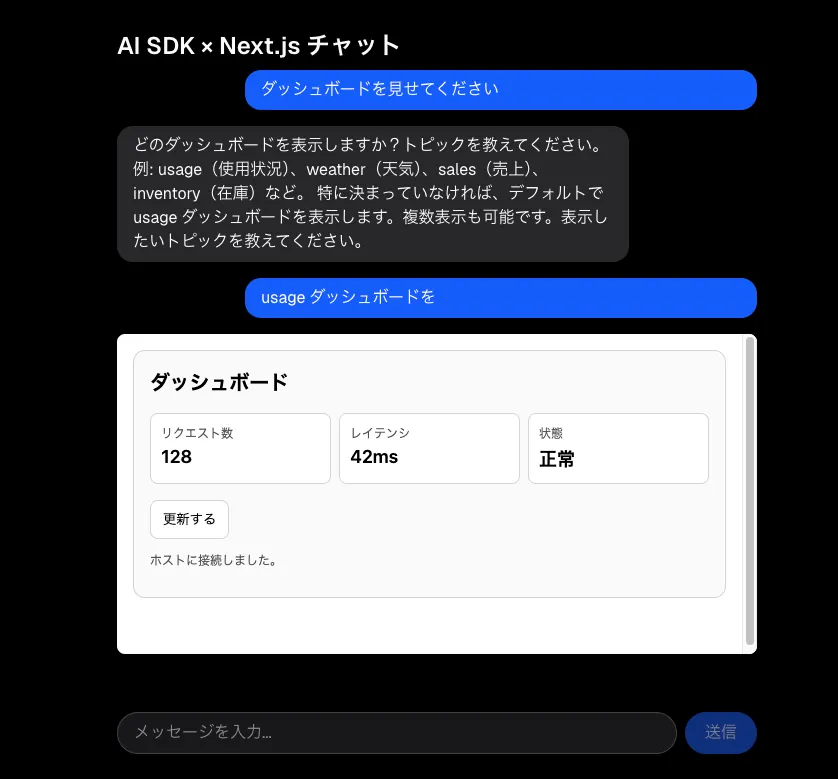
Summary
- AI SDK v7 adds MCP Apps support, and using its two helpers —
@ai-sdk/mcpandexperimental_MCPAppRenderer— you can now render a tool's result as an interactive UI - On the MCP server side, registering a
ui://resource and linking it to a tool via_meta.ui.resourceUrilets the host render an interactive UI - Setting
_meta.ui.visibilityto"app"lets you define app-only tools that the model can't call and that are callable only from JavaScript inside the iframe, preventing the tool list passed to the model from growing bloated - The MCP Apps spec requires nesting a sandbox proxy iframe and an app iframe underneath the host, so that untrusted HTML is never embedded directly — and verifying the
postMessagesender viaevent.sourceis critical for security - Since JavaScript inside the iframe can't send requests directly to the MCP server, you need a bridge API on the host side that relays requests while allowing only the tools exposed to the app
- Using the helpers AI SDK provides (
splitMCPAppTools,readMCPAppResource,MCPAppRenderer, and so on), we were able to build an MCP Apps-compatible application with relatively less effort than building all of this from scratch