An approach called "Generative UI" is gaining attention as a way for AI agents to generate UI. It means dynamically generating UI during an interaction between an AI and a user, then using that UI as part of the response. This is promising because it can express information visually when text alone is not enough, and it can provide interfaces users can interact with. For example, when ordering food, an AI could generate UI that includes a photo of the dish and an order button. That is much easier to understand than a text-only explanation of the dish, and choosing by tapping a card is more intuitive than replying with text.
However, there are several challenges in safely rendering UI generated by AI. For example, generated UI might contain a malicious <script>, so security risks must be considered. Guidelines are also needed to keep the quality and consistency of AI-generated UI under control.
Google's "A2UI" addresses the problem of whether an AI agent can safely send rich UI across trust boundaries. Instead of returning a text response, an AI agent returns declarative component definitions, allowing the client to safely render UI with native widgets. The component definition itself contains no executable code; it is simply JSON data that follows the specification. When generating this JSON, the agent selects and uses components from a predefined "catalog", which helps reduce security risks.
A2UI is a protocol for safely rendering UI generated by AI agents, and it is not tied to a specific platform. It can be used not only in web browsers, but also in mobile apps, desktop apps, and many other environments.
In this article, we will look at how to use A2UI to let an AI agent generate UI and let a client render it safely.
How A2UI Works
A2UI is based on the following concepts:
- Surface: A canvas for displaying components
- Component: A building block of UI, such as a button, text, or card
- Data model: Represents application state. Components are bound to this state
- Catalog: Definitions of available components
- Message: A JSON object containing commands such as
createSurface,updateComponents, andupdateDataModel
A typical workflow looks like this:
- The user sends a question or request to the AI agent: for example, "I want to order curry rice. Can you recommend a restaurant?"
- The AI agent processes the request and generates messages that include component definitions for rendering the UI: it selects components from a preapproved catalog and returns them as JSON
- The messages are streamed to the client: because streaming often uses JSON Lines, the client can update the UI as soon as it receives partial data
- The client uses a renderer for a framework such as React, Angular, or Flutter to render the UI based on the received component definitions: it renders native widgets rather than an iframe
- When the user interacts with the UI, the client-side data model is updated. When an action such as a button click fires, the necessary values are sent to the server
- The AI agent sends new JSON messages to the client as needed
For example, if the AI agent generates an order card for curry rice, it sends JSONL like the following to the client. In A2UI v0.9, there are four server-to-client message types: createSurface, updateComponents, updateDataModel, and deleteSurface.
{"version":"v0.9","createSurface":{"surfaceId":"main","catalogId":"https://a2ui.org/specification/v0_9/basic_catalog.json"}}
{"version":"v0.9","updateDataModel":{"surfaceId":"main","path":"/order","value":{"quantity":1}}}
{"version":"v0.9","updateComponents":{"surfaceId":"main","components":[{"id":"root","component":"Card","child":"content"},{"id":"content","component":"Column","children":["header","quantity","submit"]},{"id":"header","component":"Text","text":"美味しいカレー屋さん","variant":"h2"},{"id":"quantity","component":"TextField","label":"注文数","value":{"path":"/order/quantity"},"variant":"number"},{"id":"submitLabel","component":"Text","text":"注文する"},{"id":"submit","component":"Button","child":"submitLabel","variant":"primary","action":{"event":{"name":"confirm","context":{"details":{"path":"/order"}}}}}]}}
The createSurface message creates the surface specified by surfaceId. The updateDataModel message initializes or updates the surface's data model. The updateComponents message defines which components to place and how. In this example, a text field and a button are placed inside a card component.
Each component is defined as an object with id, component, and component-specific properties at the same level. Child components of cards and columns are referenced by specifying component IDs in child or children. This flat structure is used because it is difficult for an LLM to progressively stream a deeply nested structure.
The value of the text field is bound to /order/quantity in the data model. This form of specifying a path to a particular value is called JSON Pointer and is defined in RFC 6901. When the user types into the text field, the local client-side data model is updated immediately. This input alone does not trigger server communication; when an action such as a button click fires, the values referenced by
action.event.context are sent to the server.
The submit button component defines an action named confirm. When the user clicks this button, the current order content under /order in the data model is sent. The action sent from the client to the server looks like this:
{
  "action": {
    "name": "confirm",
    "surfaceId": "main",
    "sourceComponentId": "submit",
    "timestamp": "2026-04-26T15:52:00+09:00",
    "context": {
      "details": {
        "quantity": 1
      }
    }
  }
}
Trying A2UI with CopilotKit
Now let's try implementing A2UI and see the UI update in real time. There are several ways to implement A2UI, but here we will use CopilotKit, which makes it easy to try in a Node.js environment. CopilotKit supports
AG-UI and A2UI, and it was a launch partner for Google's official A2UI release. CopilotKit renders A2UI messages as React components.
Create a Next.js project with the following command:
npx create-next-app@latest my-copilot-appOnce the project has been created, install the CopilotKit packages:
npm install @copilotkit/react-core @copilotkit/react-ui @copilotkit/runtimeCreate a .env file and configure the API key for the LLM you want to use. If you use Claude, configure it as follows:
ANTHROPIC_API_KEY=your_anthropic_api_key
Next, create an API route for calling the AI agent. Create a file named app/api/copilotkit/route.ts and add the following code. By specifying a2ui: { injectA2UITool: true } in the CopilotRuntime options, A2UI support is enabled.
import {
  CopilotRuntime,
  copilotRuntimeNextJSAppRouterEndpoint,
} from "@copilotkit/runtime";
import { BuiltInAgent } from "@copilotkit/runtime/v2";
import { NextRequest } from "next/server";

const builtInAgent = new BuiltInAgent({
  model: "anthropic:claude-sonnet-4-5",
});

const runtime = new CopilotRuntime({
  agents: { default: builtInAgent },
  a2ui: {
    injectA2UITool: true,
  },
});

export const POST = async (req: NextRequest) => {
  const { handleRequest } = copilotRuntimeNextJSAppRouterEndpoint({
    runtime,
    endpoint: "/api/copilotkit",
  });

  return handleRequest(req);
};
Edit app/layout.tsx and wrap the entire app with the <CopilotKit> provider. Specify the API route you just created as runtimeUrl.
import { CopilotKit } from "@copilotkit/react-core";
import "@copilotkit/react-ui/v2/styles.css";
import "./globals.css";
// ...
export default function RootLayout({
  children,
}: {
  children: React.ReactNode;
}) {
  return (
    <html lang="en">
      <body>
        <CopilotKit runtimeUrl="/api/copilotkit">{children}</CopilotKit>
      </body>
    </html>
  );
}
Finally, edit app/page.tsx and add a component for displaying responses from the AI agent.
import { CopilotChat } from "@copilotkit/react-core/v2";

export default function Page() {
  return (
    <main>
      <h1>Your App</h1>
      <CopilotChat />
    </main>
  );
}
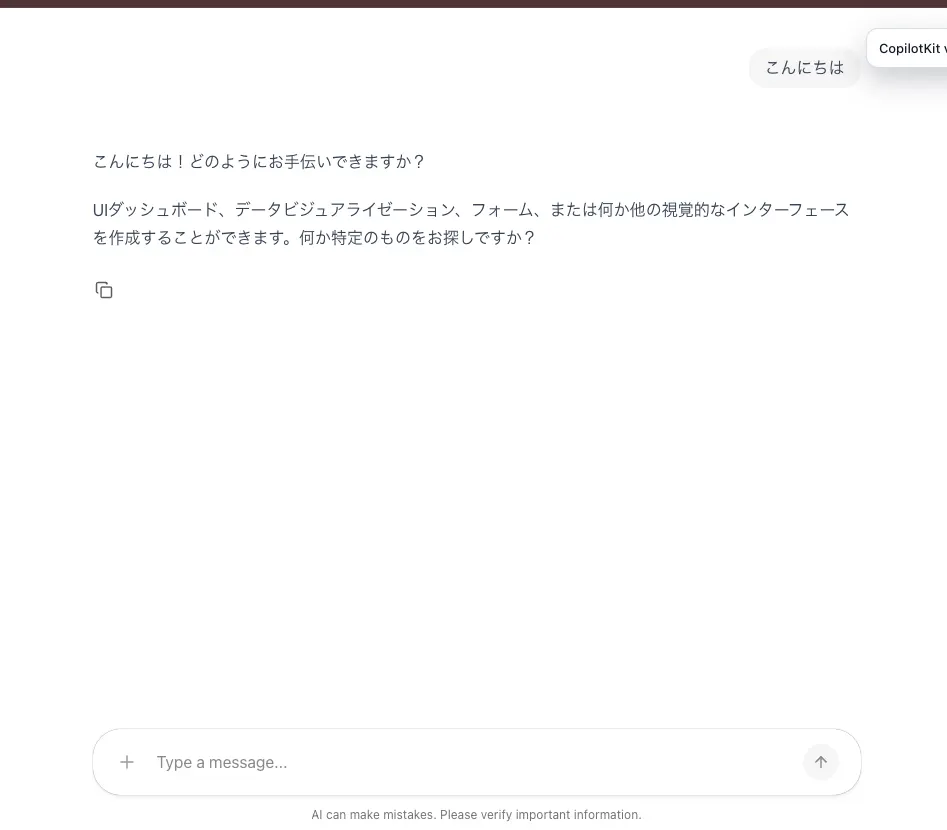
At this point, the chat interface is displayed. When I sent the message "Hello", it responded that it could create a visual interface. This is because A2UI is enabled on the server side, so the system prompt for the AI to generate UI is included.
As an example, let's enter "Show a reservation system". By default, A2UI uses components from the prebuilt catalog. The AI agent selected components from this catalog and generated a reservation form.
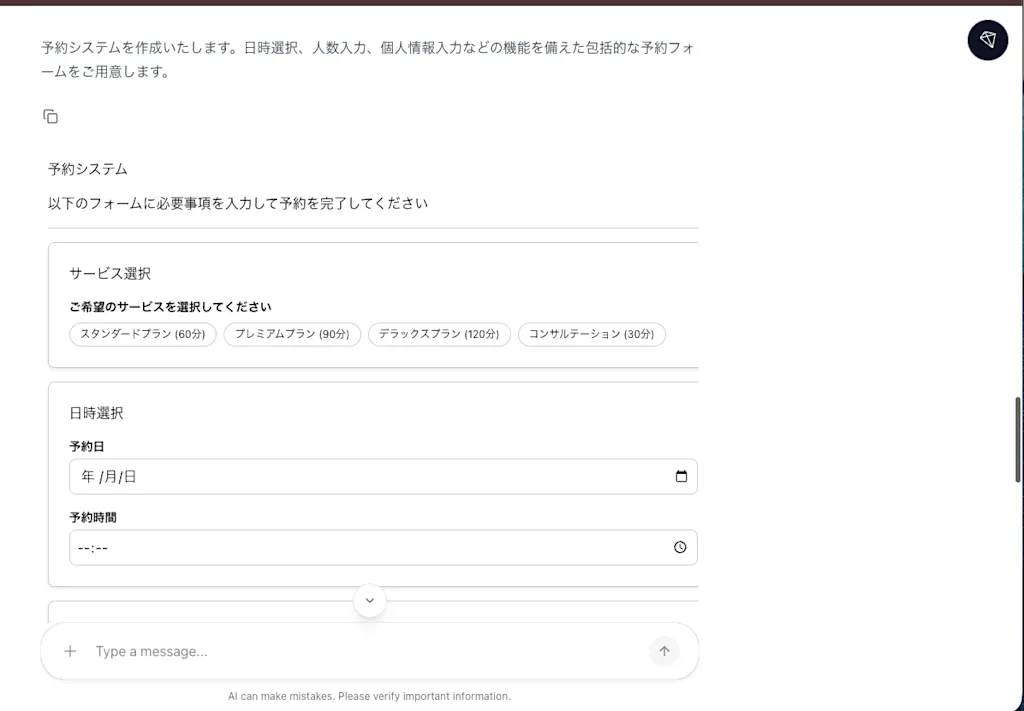
Using the CopilotKit inspector, which is the black icon in the upper right of the screen, you can inspect the A2UI messages generated by the AI agent.
{
  "surfaceId": "reservation-system",
  "catalogId": "https://a2ui.org/specification/v0_9/basic_catalog.json",
  "components": [
    {
      "id": "root",
      "component": "Column",
      "children": [
        "header",
        "divider1",
        "form-content",
        "divider2",
        "submit-section"
      ]
    },
    ...
        {
      "id": "service-picker",
      "component": "ChoicePicker",
      "label": "ご希望のサービスを選択してください",
      "variant": "mutuallyExclusive",
      "displayStyle": "chips",
      "options": [
        {
          "label": "スタンダードプラン (60分)",
          "value": "standard"
        },
        {
          "label": "プレミアムプラン (90分)",
          "value": "premium"
        },
        {
          "label": "デラックスプラン (120分)",
          "value": "deluxe"
        },
        {
          "label": "コンサルテーション (30分)",
          "value": "consultation"
        }
      ],
      "value": {
        "path": "/reservation/service"
      }
    },
  ]
}
When you click the button to confirm the reservation, the user's selected values are sent to the AI agent, and a response from the AI is returned.
Implementing A2UI with the @a2ui/react Package
CopilotKit makes it easy to try an A2UI implementation, but the implementation details remain hidden. For learning purposes, let's try a lower-level implementation using the @a2ui/react package provided by Google. @a2ui/react is an A2UI renderer for React. It receives A2UI messages and renders them as React components.
Creating a Catalog
The CopilotKit implementation used the prebuilt catalog, but in real projects you will often create a custom catalog tailored to the product's design system. A catalog is defined with JSON Schema and declares the available components and their properties. The following is an excerpt from the basic A2UI catalog.
{
  "$schema": "https://json-schema.org/draft/2020-12/schema",
  "$id": "https://a2ui.org/specification/v0_9/basic_catalog.json",
  "title": "A2UI Basic Catalog",
  "description": "Unified catalog of basic A2UI components and functions.",
  "catalogId": "https://a2ui.org/specification/v0_9/basic_catalog.json",
  "components": {
    "Button": {
      "type": "object",
      "allOf": [
        {
          "type": "object",
          "properties": {
            "component": {
              "const": "Button"
            },
            "child": {
              "$ref": "common_types.json#/$defs/ComponentId",
              "description": "The ID of the child component. Use a 'Text' component for a labeled button. Only use an 'Icon' if the requirements explicitly ask for an icon-only button. Do NOT define the child component inline."
            },
            "variant": {
              "type": "string",
              "description": "A hint for the button style. If omitted, a default button style is used. 'primary' indicates this is the main call-to-action button. 'borderless' means the button has no visual border or background, making its child content appear like a clickable link.",
              "enum": ["default", "primary", "borderless"],
              "default": "default"
            },
            "action": {
              "$ref": "common_types.json#/$defs/Action"
            }
          },
          "required": ["component", "child", "action"]
        }
      ],
      "unevaluatedProperties": false
    }
  }
}
A catalog not only defines component types and properties, but also provides usage guidelines. For example, the Button component definition above says that the child component should always be Text, and that icon-only buttons should be used only when explicitly required.
You can write JSON Schema directly, but generating a catalog from code is probably more common. In TypeScript, you can define a catalog with Zod schemas, which makes the catalog more type-safe.
First, install the necessary packages. We will continue using the Next.js project.
# Install zod v3, not v4, to match @a2ui/web_core
npm install @a2ui/web_core @a2ui/react zod@3
Define objects that satisfy the ComponentApi type and create the catalog. Create a file named lib/catalog.ts and add the following code. Here we define four components: MyColumn, Text, Button, and TextField.
import { z } from "zod";
import {
  ComponentApi,
  ChildListSchema,
  ActionSchema,
  ComponentIdSchema,
  CheckableSchema,
  DynamicStringSchema,
} from "@a2ui/web_core/v0_9";

/**
 * A component tree must have a root component with id: "root".
 * Typically, a container component such as Column / Row / Card with multiple children is used.
 */
export const MyColumnApi = {
  name: "MyColumn",
  schema: z
    .object({
      children: ChildListSchema.describe(
        "An array of child component IDs to render vertically. Children must be referenced by ID only — do NOT define components inline.",
      ),
      gap: z
        .enum(["none", "small", "medium", "large"])
        .default("medium")
        .describe(
          "The spacing between children. 'none' for no gap, 'small'/'medium'/'large' for predefined spacings.",
        )
        .optional(),
    })
    .strict()
    .describe(
      "A vertical layout container. Use this as the root component when displaying multiple elements (e.g., a form with several fields).",
    ),
} satisfies ComponentApi;


export const MyTextApi = {
  name: "MyText",
  schema: z
    .object({
      text: DynamicStringSchema.describe(
        "The text content to display. Simple Markdown formatting is supported, but prefer dedicated UI components for richer presentation.",
      ),
      variant: z
        .enum(["h1", "h2", "h3", "h4", "h5", "caption", "body"])
        .default("body")
        .describe(
          "A hint for the base text style. Use 'h1'–'h5' for headings, 'caption' for small supplementary text, and 'body' for regular content.",
        )
        .optional(),
    })
    .strict(),
} satisfies ComponentApi;

export const MyButtonApi = {
  name: "MyButton",
  schema: z
    .object({
      child: ComponentIdSchema.describe(
        "The ID of the child component. Use a 'Text' component for a labeled button. Do NOT define the child component inline.",
      ),
      variant: z
        .enum(["primary", "secondary", "tertiary"])
        .default("primary")
        .describe(
          "The visual style of the button. 'primary' is used for the main action, 'secondary' for less important actions, and 'tertiary' for the least important actions.",
        ),
      action: ActionSchema,
      checks: CheckableSchema.shape.checks,
    })
    .strict(),
} satisfies ComponentApi;

export const MyTextFieldApi = {
  name: "MyTextField",
  schema: z
    .object({
      label: DynamicStringSchema.describe(
        "The text label for the input field.",
      ),
      value: DynamicStringSchema.describe(
        "The current value of the text field. Bind this to a string in the data model.",
      ).optional(),
      variant: z
        .enum(["longText", "number", "shortText", "obscured"])
        .default("shortText")
        .describe(
          "The type of input field to display. 'shortText' is for single-line text, 'longText' for multi-line, 'number' for numeric input, and 'obscured' for passwords.",
        )
        .optional(),
      validationRegexp: z
        .string()
        .describe(
          "A regular expression used for client-side validation of the input.",
        )
        .optional(),
      checks: CheckableSchema.shape.checks,
    })
    .strict(),
} satisfies ComponentApi;
The schema property defines the component property schema with Zod's z.object. You can add descriptions to each property with the describe method. These descriptions help the AI agent understand how to use each component. Some parts also use common schemas defined in @a2ui/web_core.
DynamicStringSchema is a special schema that can express not only simple string literals, but also paths to values in the data model and conditional expressions. For example, it can express string literals, data model paths, and function calls as follows:
// 1. Literal — a fixed value displayed as-is
"text": "こんにちは"

// 2. DataBinding — references a value in the data model
"text": { "path": "/user/name" }

// 3. FunctionCall — uses the return value of a client function
"text": { "call": "formatString", "args": { "template": "Hello {0}", "values": { "path": "/user/name" } }, "returnType": "string" }
ComponentIdSchema is just a string, but it is used to indicate that the value should reference another component by ID. For example, properties such as child and children often use ComponentIdSchema to define references to other components.
ActionSchema defines what action the AI agent receives in response to a user interaction. An action includes a name and context.
CheckableSchema defines what checks a component should perform in response to user interactions. For example, you can define checks so that input validation or condition checks are performed on the client side. If you want to validate the format of an email address, the AI agent can define validation checks like this:
{
  "id": "email-field",
  "component": "TextField",
  "label": "メールアドレス",
  "value": { "path": "/form/email" },
  "checks": [
    {
      "condition": {
        "call": "isNotEmpty",
        "args": { "value": { "path": "/form/email" } },
        "returnType": "boolean"
      },
      "message": "メールアドレスを入力してください"
    }
  ]
}
Mapping the Catalog to Components
Next, you need to map the catalog you created to actual React components. The catalog-to-component mapping is done with the createComponentImplementation function. Here is an implementation example for a Button component. Props can be obtained in a type-safe way.
import { createComponentImplementation } from "@a2ui/react/v0_9";
import { MyButtonApi } from "../lib/catalog";

export const Button = createComponentImplementation(
  MyButtonApi,
  ({ props, buildChild }) => {
    const primary = "bg-blue-500 text-white";
    const secondary = "bg-gray-500 text-white";
    const tertiary = "bg-transparent text-gray-500 border border-gray-500";

    const variantClass =
      props.variant === "secondary"
        ? secondary
        : props.variant === "tertiary"
          ? tertiary
          : primary;

    return (
      <button
        className={`px-4 py-2 rounded ${variantClass} disabled:opacity-50`}
        onClick={props.action}
        disabled={props.isValid === false}
      >
        {props.child ? buildChild(props.child) : null}
      </button>
    );
  },
);
When the schema defines an action property, props contains an action function. When the user clicks this button, the action function is called and an action is sent to the AI agent. When the schema defines checks, props includes isValid and validationErrors. By defining checks on the Button component, you can disable the button when validation for the entire form fails.
The buildChild function renders child components.
Assembling the Catalog
Now add the components you created to a catalog. Catalog assembly is done with the Catalog class. The Catalog constructor receives the following elements:
catalogId: The catalog ID. A URL is recommended as a unique stringcomponents: The component definitions included in the catalog. Each component definition must be an object that satisfies theComponentApicreated abovefunctions(optional): Functions defined by JSON Schema, such as anisValidEmailfunction that validates email addresses. The server can refer to these client functions by name, avoiding the need to send executable codethemeSchema(optional): The theme definition
Add the following code to lib/catalog.ts to assemble the catalog.
import {
  Catalog,
  createFunctionImplementation,
} from "@a2ui/web_core/v0_9";

export const CATALOG_ID = "urn:a2ui:my-catalog:v1";

// Example function schema passed to catalog functions
const EmailApi = {
  name: "email" as const,
  returnType: "boolean" as const,
  schema: z.object({
    value: z.preprocess(
      (v) => (v === undefined ? undefined : String(v)),
      z.string(),
    ),
  }),
};

// Example function implementation
const EmailImplementation = createFunctionImplementation(
  EmailApi,
  (args) => {
    // Simple validation logic for this example
    const emailRegex = /^[^\s@]+@[^\s@]+\.[^\s@]+$/;
    return emailRegex.test(args.value);
  },
);

export const MyCatalog = new Catalog(
  CATALOG_ID,
  [MyColumnApi, MyTextApi, MyButtonApi, MyTextFieldApi],
  [EmailImplementation],
);
The MyCatalog created here will be used later on both the server and client.
Implementing the Backend Server
Now let's implement the backend server that generates A2UI messages. We will use the Vercel AI SDK as the AI agent SDK. Install it with the following command. Change
@ai-sdk/anthropic as appropriate for the AI model you use.
npm install ai @ai-sdk/anthropicCreate an API route in a file named app/api/a2ui/route.ts and add the following code. Here, the AI agent's system prompt instructs it to respond in JSON according to the A2UI specification. It also passes the catalog created earlier to the AI agent so that the agent can understand what components are available.
To pass the catalog in JSON Schema format, instantiate the MessageProcessor class with the catalog and call processor.getClientCapabilities({includeInlineCatalogs: true}). This converts the Zod schema into JSON Schema.
// app/api/a2ui/route.ts
import { anthropic } from "@ai-sdk/anthropic";
import { streamText } from "ai";
import { MessageProcessor } from "@a2ui/web_core/v0_9";
import { MyCatalog } from "@/lib/catalog";

export async function POST(req: Request) {
  const { messages } = await req.json();

  const processor = new MessageProcessor([MyCatalog]);

  // Get capabilities with inlineCatalogs
  // The Zod schema is automatically converted into JSON Schema
  const capabilities = processor.getClientCapabilities({
    includeInlineCatalogs: true,
  });

  const result = streamText({
    model: anthropic("claude-haiku-4-5"),
    system: buildSystemPrompt(capabilities),
    messages,
  });

  // application/x-ndjson is data made of JSON values separated by newline characters
  return result.toTextStreamResponse({
    headers: { "Content-Type": "application/x-ndjson" },
  });
}A2UI v0.9 is a prompt-first design that asks an LLM to generate JSON. In a real application, you should not stream JSONL generated by the LLM directly to the client. Instead, validate it against the A2UI schema and catalog. If validation fails, send the error details back to the LLM and ask it to regenerate the output. Adding this prompt → generate → validate loop helps prevent UI containing nonexistent components or invalid properties from being rendered. This article simplifies validation to make the implementation flow easier to understand.
Define the buildSystemPrompt function as follows:
function buildSystemPrompt(caps: A2uiClientCapabilities): string {
  const v09 = caps["v0.9"];
  const catalogId = v09.supportedCatalogIds[0];
  const catalog = v09.inlineCatalogs?.[0];

  // Format component names and required properties for readability
  const componentDocs = catalog?.components
    ? Object.entries(catalog.components)
        .map(([name, schema]: [string, any]) => {
          const inner = schema.allOf?.[1] ?? schema;
          const props = inner.properties ?? {};
          const required: string[] = inner.required ?? [];
          const propLines = Object.entries(props)
            .filter(([k]) => k !== "component")
            .map(([k, v]: [string, any]) => {
              const req = required.includes(k) ? "(required)" : "(optional)";
              const type = v.type ?? (v.enum ? v.enum.join("|") : "any");
              return `  - ${k} ${req}: ${type}`;
            })
            .join("\n");
          return `### ${name}\n${propLines}`;
        })
        .join("\n\n")
    : "";

  return `
You are an AI agent generating A2UI v0.9 JSONL messages.
Output ONLY raw JSONL — one JSON object per line, no markdown.
Every message MUST include "version": "v0.9".

## Catalog ID (use this in createSurface)
${catalogId}

## Available Components
${componentDocs}

## Component object format (CRITICAL)
Every component object MUST include BOTH:
  - "id": a unique string identifier
  - "component": the component type name (one of those listed above)
NEVER emit a component object without a "component" field. A component without a type will be rejected.

## Root component rules (CRITICAL)
- Exactly one component MUST have "id":"root".
- The "root" component MUST also have a valid "component" type.
- If the UI has multiple top-level elements (e.g., a form with several fields and a button), the root MUST be a container component (use "MyColumn") that lists the children by ID.
- If the UI has a single element, the root MAY be that element directly (e.g., a single MyText).

## Children references
- "children" is an array of component ID strings: ["id1","id2","id3"]
- "child" is a single component ID string: "id1"
- Children are referenced by ID only — NEVER define child components inline. Each child must be a separate entry in the components array with its own "id" and "component".

## Data binding (CRITICAL — required for any user input)
Any property whose value the user can change at runtime (e.g., MyTextField.value) MUST be a data binding object, NOT a literal string.
A data binding looks like: {"path": "/data/<key>"}
- A literal string for "value" makes the field read-only — typed characters are silently dropped.
- The path MUST point inside the surface's data model (typically under "/data").

You MUST also send an updateDataModel message that initializes every bound path BEFORE the user can interact with the component (initialize with empty string, 0, false, etc., as appropriate). The recommended order is:
  createSurface → updateDataModel(initial values) → updateComponents

When the form is submitted, reference the same paths inside the button's action so the server receives the current values.

## Action format
"action" uses one of these two shapes:
- Server-side event: {"event":{"name":"<eventName>","context":{"<key>":{"path":"/data/<key>"}, ...}}}
- Client-side function call: {"functionCall":{"call":"<fnName>","args":{...},"returnType":"void"}}
Do NOT invent other action shapes (no "type":"deferredAction").

## Message sequence
1. {"version":"v0.9","createSurface":{"surfaceId":"main","catalogId":"${catalogId}"}}
2. {"version":"v0.9","updateDataModel":{"surfaceId":"main","path":"/data","value":{<initial values for every bound field>}}}
3. {"version":"v0.9","updateComponents":{"surfaceId":"main","components":[...]}}
   - Use ONLY the components listed above.
   - Every component object includes "id" AND "component".
   - One of them has "id":"root" (with a valid "component" type, typically "MyColumn" for multi-element UIs).
   - Every input field's "value" is a data binding object (see above).

## Example (sign-up form with working state)
{"version":"v0.9","createSurface":{"surfaceId":"main","catalogId":"${catalogId}"}}
{"version":"v0.9","updateDataModel":{"surfaceId":"main","path":"/data","value":{"email":"","password":""}}}
{"version":"v0.9","updateComponents":{"surfaceId":"main","components":[{"id":"root","component":"MyColumn","children":["title","email","password","submit"]},{"id":"title","component":"MyText","text":"Sign up","variant":"h2"},{"id":"email","component":"MyTextField","label":"Email","value":{"path":"/data/email"}},{"id":"password","component":"MyTextField","label":"Password","variant":"obscured","value":{"path":"/data/password"}},{"id":"submitLabel","component":"MyText","text":"Submit"},{"id":"submit","component":"MyButton","child":"submitLabel","variant":"primary","action":{"event":{"name":"submit","context":{"email":{"path":"/data/email"},"password":{"path":"/data/password"}}}}}]}}
`;
}
Implementing the Frontend Client
Finally, let's implement the frontend client so that it can receive and render A2UI messages generated by the AI agent. First, edit lib/catalog.ts and create a catalog that includes mappings to React implementations. The catalog used on the server only contains component API definitions, to avoid increasing the bundle size unnecessarily.
export const MyReactCatalog: Catalog<ReactComponentImplementation> =
  new Catalog(CATALOG_ID, [Column, Text, Button, TextField]);
Edit app/page.tsx and add code to manage the Surface state, process messages from the AI agent, and render the UI. Instantiate the MessageProcessor class with the catalog to create a processor instance. When messages are received from the server, call processor.processMessages to process them.
When createSurface or deleteSurface messages are received, the processor.onSurfaceCreated and processor.onSurfaceDeleted event handlers are called. In these event handlers, call processor.getSurfaceState to retrieve the current Surface state and store it in React state.
In the React rendering section, pass the stored Surface state to the <A2uiSurface> component.
When an action is executed, the event handler subscribed with processor.model.onAction.subscribe is called. Here you can inspect the action and send a request to the server if needed.
"use client";

import { useCallback, useEffect, useRef, useState } from "react";
import { MessageProcessor } from "@a2ui/web_core/v0_9";
import type { SurfaceModel, A2uiMessage } from "@a2ui/web_core/v0_9";
import {
  A2uiSurface,
  type ReactComponentImplementation,
} from "@a2ui/react/v0_9";
import { MyReactCatalog } from "@/lib/catalog-react";

type Turn = {
  role: "user" | "assistant";
  content: string;
};

export default function Page() {
  // Chat history shown as left/right aligned bubbles.
  const [turns, setTurns] = useState<Turn[]>([]);
  const [surface, setSurface] =
    useState<SurfaceModel<ReactComponentImplementation> | null>(null);
  const [input, setInput] = useState("");
  const [isStreaming, setIsStreaming] = useState(false);

  // Create MessageProcessor only once on mount with useState.
  const [processor] = useState(() => {
    const p = new MessageProcessor([MyReactCatalog]);
    return p;
  });

  // Send both user input and action results to the server through this function.
  // It has four responsibilities: (1) update UI state, (2) clean up the existing surface,
  // (3) issue fetch, and (4) parse the NDJSON stream and pass it to MessageProcessor.
  const sendToBackend = useCallback(
    async (userText: string, role: "user" | "action" = "user") => {
      setIsStreaming(true);
      if (role === "user") {
        setTurns((prev) => [...prev, { role: "user", content: userText }]);
      }

      // In A2UI, sending createSurface twice for the same surfaceId causes a state error.
      // Explicitly delete the old surface before starting a new turn.
      // Passing deleteSurface to processMessages also fires onSurfaceDeleted, and the useEffect above
      // calls setSurface(null), so it disappears from the screen as well.
      if (processor.model.getSurface("main")) {
        processor.processMessages([
          { version: "v0.9", deleteSurface: { surfaceId: "main" } },
        ]);
      }

      try {
        const res = await fetch("/api/a2ui", {
          method: "POST",
          headers: { "Content-Type": "application/json" },
          body: JSON.stringify({
            messages: [
              ...turns.map((t) => ({ role: t.role, content: t.content })),
              { role: "user", content: userText },
            ],
          }),
        });

        const reader = res.body!.getReader();
        const decoder = new TextDecoder();
        let buf = "";

        while (true) {
          const { done, value } = await reader.read();
          if (done) break;
          buf += decoder.decode(value, { stream: true });
          const lines = buf.split("\n");
          buf = lines.pop() ?? "";
          const batch: A2uiMessage[] = [];
          for (const line of lines) {
            if (!line.trim()) continue;
            try {
              batch.push(JSON.parse(line));
            } catch {}
          }
          // The processor applies messages in the order createSurface → updateDataModel → updateComponents.
          if (batch.length > 0) processor.processMessages(batch);
        }
      } finally {
        setIsStreaming(false);
      }
    },
    [processor, turns],
  );

  // Bridge from processor to React state.
  // When a createSurface message arrives, a SurfaceModel is created and onSurfaceCreated fires,
  // so pass it to setSurface to re-render <A2uiSurface>.
  // When deleteSurface is received, clear the state and return to the empty input-ready state.
  useEffect(() => {
    const createdSub = processor.onSurfaceCreated((s) => setSurface(s));
    const deletedSub = processor.onSurfaceDeleted(() => setSurface(null));
    return () => {
      createdSub.unsubscribe();
      deletedSub.unsubscribe();
    };
  }, [processor]);

  // Subscribe to A2UI actions
  useEffect(() => {
    const sub = processor.model.onAction.subscribe((action) => {
      console.log("Received action:", action);
      // In a real app, this should be POSTed to the backend server, but it is omitted here
    });
    return () => sub.unsubscribe();
  }, [processor]);

  // Submit from the input field. Guard against empty input and active streaming before sending to the server.
  const handleSubmit = () => {
    if (!input.trim() || isStreaming) return;
    sendToBackend(input.trim());
    setInput("");
  };

  console.log("Current surface:", surface);

  return (
    <div className="flex flex-col h-screen max-w-3xl mx-auto">
      <div className="flex-1 overflow-y-auto p-4 space-y-4">
        {turns.map((turn, i) => (
          <div
            key={i}
            className={`flex ${turn.role === "user" ? "justify-end" : "justify-start"}`}
          >
            <div
              className={`rounded-2xl px-4 py-2 max-w-sm text-sm ${
                turn.role === "user"
                  ? "bg-blue-600 text-white"
                  : "bg-gray-100 text-gray-800"
              }`}
            >
              {turn.content}
            </div>
          </div>
        ))}

        {surface && (
          <div className="w-full">
            <A2uiSurface surface={surface} />
          </div>
        )}

        {isStreaming && !surface && (
          <p className="text-sm text-gray-400 animate-pulse">生成中...</p>
        )}
      </div>

      <form
        className="border-t p-4 flex gap-2"
        onSubmit={(e) => {
          e.preventDefault();
          handleSubmit();
        }}
      >
        <input
          className="flex-1 rounded-xl border px-4 py-2 text-sm outline-none focus:ring-2 focus:ring-blue-500"
          placeholder="メッセージを入力..."
          value={input}
          onChange={(e) => setInput(e.target.value)}
          disabled={isStreaming}
        />
        <button
          className="px-4 py-2 bg-blue-600 text-white rounded-xl text-sm disabled:opacity-40"
          disabled={isStreaming || !input.trim()}
        >
          送信
        </button>
      </form>
    </div>
  );
}
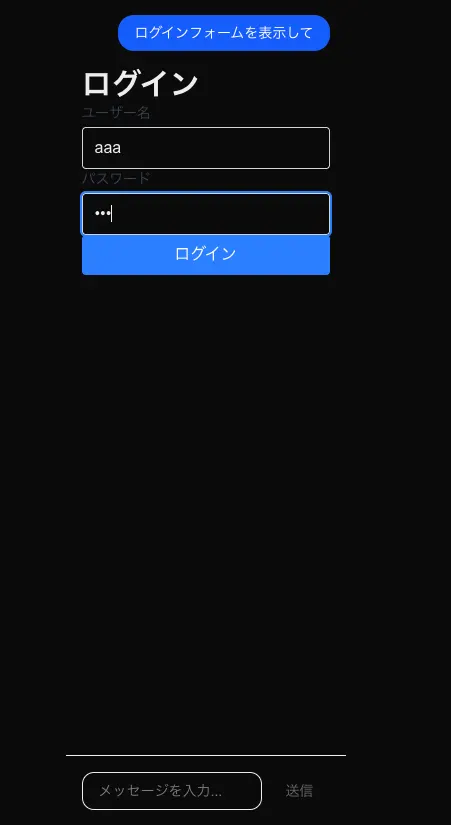
Send the message "Show a login form". The server returned the following A2UI messages:
```json
{"version":"v0.9","createSurface":{"surfaceId":"main","catalogId":"urn:a2ui:my-catalog:v1"}}
{"version":"v0.9","updateDataModel":{"surfaceId":"main","path":"/data","value":{"username":"","password":""}}}
{"version":"v0.9","updateComponents":{"surfaceId":"main","components":[{"id":"root","component":"MyColumn","children":["title","username","password","submit"],"gap":"16px"},{"id":"title","component":"MyText","text":"ログイン","variant":"h2"},{"id":"username","component":"MyTextField","label":"ユーザー名","value":{"path":"/data/username"}},{"id":"password","component":"MyTextField","label":"パスワード","variant":"obscured","value":{"path":"/data/password"}},{"id":"submitLabel","component":"MyText","text":"ログイン"},{"id":"submit","component":"MyButton","child":"submitLabel","variant":"primary","action":{"event":{"name":"login","context":{"username":{"path":"/data/username"},"password":{"path":"/data/password"}}}}}]}}
A UI was rendered with text fields where you can enter an email address and password, plus a login button. I confirmed that the form accepts input. When the login button was clicked, the action was called and a log was printed to the console.
Summary
- A2UI is a specification for defining UI generated by AI agents. It can define component catalogs in JSON Schema format, allowing AI agents to generate UI in a safe and predictable way
- After creating a catalog, map it to actual React components
- On the backend server, pass the catalog and A2UI specification into the system prompt so that the AI agent generates messages in the correct format
- On the frontend client, pass messages from the AI agent to
processor.processMessages, then store the Surface state in React state and render it