
OpenUI: A Framework for Generative UI
OpenUI is a framework for building Generative UI. It provides a new approach where the AI is instructed to construct UIs using a dedicated declarative language called OpenUI Language. This article walks through how to build Generative UI with OpenUI.
Generative UI — a field where AI agents generate UIs within their chat responses — is drawing growing attention. Traditionally, interactions with AI agents have been text-centric. For example, when asked "plan a trip to Kyoto," an AI might try to describe the location of sightseeing spots or the appearance of landmarks in text. But humans are better at understanding visual information; a map or photo is often easier to grasp than a lengthy textual description.
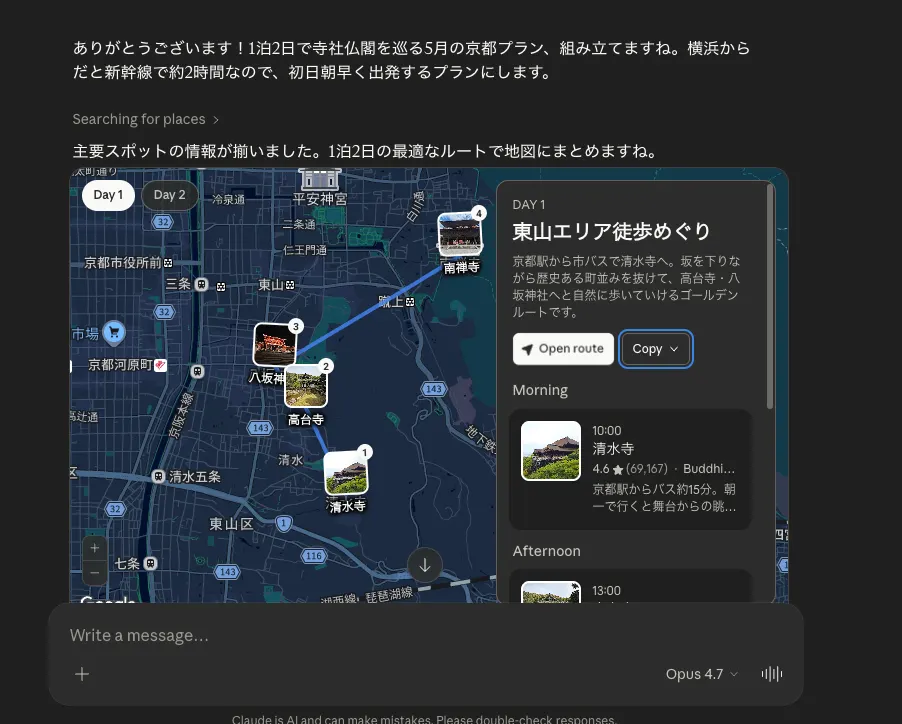
Generative UI refers to the broad category of features where an AI agent generates a UI inside its chat response to help users understand the content or provide an interaction. Claude, for example, can generate a map within its chat response so the user can locate sightseeing spots visually.
However, implementing Generative UI comes with several challenges. The AI has to generate UIs whose structure, elements, and layout change every time based on user intent — but giving it too much freedom can break brand consistency or confuse users. There are also security concerns, such as the possibility of generating dangerous scripts. Several specifications and frameworks have been proposed to address these challenges.
For instance, MCP Apps defines UIs as resources following the MCP specification and uses iframe sandboxing to render them safely.
A2UI and
json-render have the AI generate JSON based on a predefined UI catalog, providing flexibility within strict constraints.
OpenUI takes a different approach from these frameworks. Instead of asking the AI to generate JSON or Markdown, OpenUI has it generate its own language called
OpenUI Language, which is mapped to client-side components for safe rendering. OpenUI Language was designed to solve the following problems inherent to JSON:
- Token efficiency: JSON has a verbose structure and consumes large amounts of tokens. OpenUI Language uses a concise positional syntax that is more token-efficient.
- Structure for streaming: OpenUI Language has a line-oriented structure designed so that the UI generated during streaming can be rendered incrementally by the client.
- Robustness: OpenUI Language validates the output, drops invalid portions, and renders only the valid parts.
In this article, we will look at how to build Generative UI with OpenUI.
Project Setup
Set up an OpenUI project with the following command:
npx @openuidev/cli@latest create --name my-openui-appWhen the command completes, you get an OpenUI project scaffolded on top of Next.js. The following packages are included to help you build with OpenUI:
@openuidev/react-lang: Core runtime. Contains component definitions, parser, renderer, and prompt generation.@openuidev/react-headless: Headless UI for managing chat state.@openuidev/react-ui: A library of predefined React components.
To launch the app, set your OpenAI API key in the OPENAI_API_KEY environment variable. We are using the OpenAI API here, but OpenUI supports other LLM providers as well.
echo "OPENAI_API_KEY=sk-your-key-here" > .envStart the app with the following command:
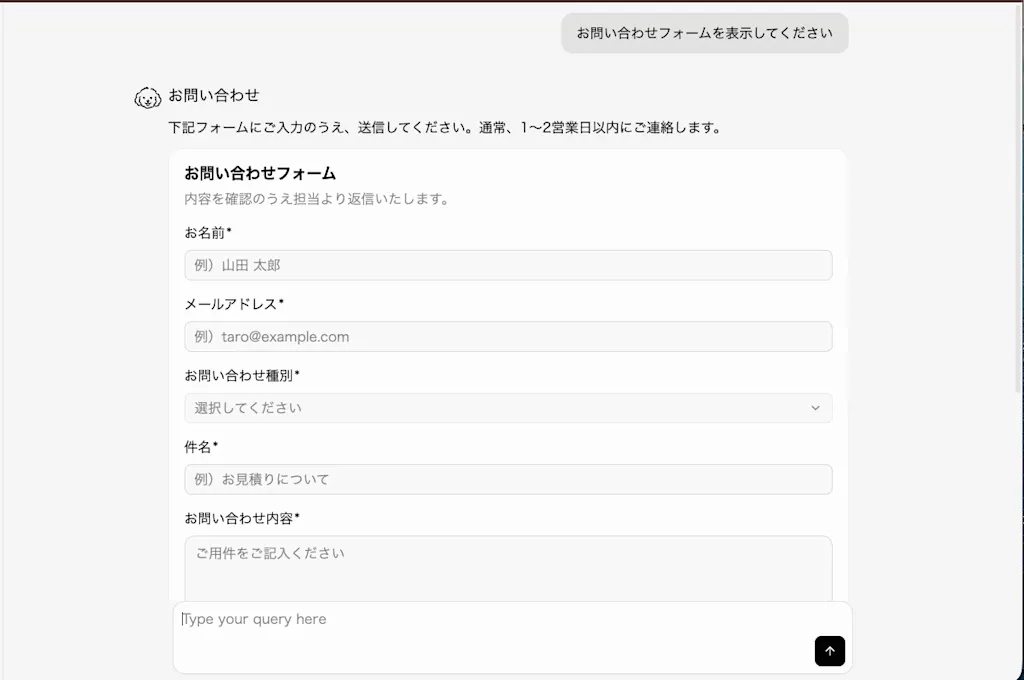
npm run devOpen http://localhost:3000 and you will see the OpenUI chat UI. Try entering a prompt such as "Show me a contact form." You can watch the UI being rendered piece by piece as each part of the response is completed.
Understanding the Project Code
Let's look at what kind of code actually implements OpenUI. The OpenUI chat UI lives in src/app/page.tsx. The directory structure is as follows:
src
├── app
│   ├── api
│   │   └── chat
│   │       └── route.ts # Backend endpoint that calls the OpenAI API
│   ├── globals.css
│   ├── layout.tsx
│   └── page.tsx # Chat UI implementation
└── library.ts # Component library
Chat UI Implementation
src/app/page.tsx uses the <FullScreen> component to render the chat UI. To convert AI output into a rendered UI, OpenUI uses the following four building blocks:
- Library: A library of UI components defined with Zod schemas and React components. It defines what components and properties the AI is allowed to use. Here we use the components predefined by OpenUI Language.
- Prompt Generator: Converts the library into a system prompt and instructs the AI to emit valid OpenUI Language.
- Parser: Converts the OpenUI Language output into a typed element tree. It uses the library's JSON schema to validate that the AI output sticks to valid components and properties.
- Renderer: Maps the element tree onto React components and renders them. It also renders elements incrementally during streaming. The
<FullScreen>component internally uses a<Renderer>component, which is responsible for mapping the element tree onto React components.
The actual code looks like this:
"use client";
import "@openuidev/react-ui/components.css";
import "@openuidev/react-ui/styles/index.css";
import {
  openAIMessageFormat,
  openAIReadableStreamAdapter,
} from "@openuidev/react-headless";
import { FullScreen } from "@openuidev/react-ui";
// Predefined component library and system prompt
import {
  openuiLibrary,
  openuiPromptOptions,
} from "@openuidev/react-ui/genui-lib";

// Generate the system prompt from the component library
const systemPrompt = openuiLibrary.prompt(openuiPromptOptions);

export default function Home() {
  return (
    <div className="h-screen w-screen overflow-hidden">
      <FullScreen
        // Function that generates a chat response based on user input.
        // Here we call the backend `/api/chat` endpoint.
        processMessage={async ({ messages, abortController }) => {
          return fetch("/api/chat", {
            method: "POST",
            headers: { "Content-Type": "application/json" },
            body: JSON.stringify({
              systemPrompt,
              messages: openAIMessageFormat.toApi(messages),
            }),
            signal: abortController.signal,
          });
        }}
        // Adapter that handles the streaming response from the OpenAI API
        streamProtocol={openAIReadableStreamAdapter()}
        // Pass the component library to the renderer
        componentLibrary={openuiLibrary}
        agentName="OpenUI Chat"
      />
    </div>
  );
}
openuiLibrary.prompt() generates a system prompt from the predefined component library. Passing this prompt to the AI instructs it to emit valid OpenUI Language. Let's look at an excerpt from the generated system prompt.
The prompt first explains the syntax rules of OpenUI Language:
You are an AI assistant that responds using openui-lang, a declarative UI language. Your ENTIRE response must be valid openui-lang code — no markdown, no explanations, just openui-lang.

## Syntax Rules

1. Each statement is on its own line: `identifier = Expression`
2. `root` is the entry point — every program must define `root = Stack(...)`
3. Expressions are: strings ("..."), numbers, booleans (true/false), null, arrays ([...]), objects ({...}), or component calls TypeName(arg1, arg2, ...)
4. Use references for readability: define `name = ...` on one line, then use `name` later
5. EVERY variable (except root) MUST be referenced by at least one other variable. Unreferenced variables are silently dropped and will NOT render. Always include defined variables in their parent's children/items array.
6. Arguments are POSITIONAL (order matters, not names). Write `Stack([children], "row", "l")` NOT `Stack([children], direction: "row", gap: "l")` — colon syntax is NOT supported and silently breaks
7. Optional arguments can be omitted from the end

* Use double quotes for strings, escape with backslash as needed
Next, based on the library, the prompt explains how to use each available component. For example, the description of the Tables component looks like this. It documents the props each component accepts and shows how to use them in OpenUI Language:
### Tables
Table(columns: Col[]) — Data table — column-oriented. Each Col holds its own data array.
Col(label: string, data: any, type?: "string" | "number" | "action") — Column definition — holds label + data array
- Table is COLUMN-oriented: Table([Col("Label", dataArray), Col("Count", countArray, "number")]). Use array pluck for data: data.rows.fieldName
- Col data can be component arrays for styled cells: Col("Status", @Each(data.rows, "item", Tag(item.status, null, "sm", item.status == "open" ? "success" : "danger")))
- Row actions: Col("Actions", @Each(data.rows, "t", Button("Edit", Action([@Set($showEdit, true), @Set($editId, t.id)]))))
- Sortable: sorted = @Sort(data.rows, $sortField, "desc"). Bind $sortField to Select. Use sorted.fieldName for Col data
- Searchable: filtered = @Filter(data.rows, "title", "contains", $search). Bind $search to Input
- Chain sort + filter: filtered = @Filter(...) then sorted = @Sort(filtered, ...) — use sorted for both Table and Charts
- Empty state: @Count(data.rows) > 0 ? Table([...]) : TextContent("No data yet")
A few example usages of various components are also included:
## Examples

Example 1 — Table (column-oriented):

root = Stack([title, tbl])
title = TextContent("Top Languages", "large-heavy")
tbl = Table([Col("Language", langs), Col("Users (M)", users), Col("Year", years)])
langs = ["Python", "JavaScript", "Java", "TypeScript", "Go"]
users = [15.7, 14.2, 12.1, 8.5, 5.2]
years = [1991, 1995, 1995, 2012, 2009]

Example 2 — Bar chart:

root = Stack([title, chart])
title = TextContent("Q4 Revenue", "large-heavy")
chart = BarChart(labels, [s1, s2], "grouped")
labels = ["Oct", "Nov", "Dec"]
s1 = Series("Product A", [120, 150, 180])
s2 = Series("Product B", [90, 110, 140])
Finally, the prompt closes with guidelines for self-validation:
## Final Validation

Before finishing, verify the following:

1. For optimal streaming, `root = Stack(...)` must be the first line.
2. Every referenced name must be defined. Every name defined outside of `root` must be reachable from `root`.

* For grid-like layouts, use a `Stack` with `direction` set to `"row"` and `wrap` set to `true`. Avoid `justify="between"` unless you specifically need large gaps.
* In forms, define one `FormControl` reference per field so controls can stream in progressively.
* In forms, always supply `Buttons(...)` as the second `Form` argument: `Form(name, buttons, fields)`.
* Do not nest `Form` inside another `Form`.
* To restore default values after form submission, use `@Reset($var1, $var2)` instead of `@Set($var, "")`.
* Multi-query update: `Action([@Run(mutation), @Run(query1), @Run(query2), @Reset(...)])`
* `$variables` are reactive. When changed via `Select` or `@Set`, every `Queries` and expression that references them is re-evaluated.
* Before inventing a custom show/hide pattern with ternary operators, use the existing components (`Tabs`, `Accordion`, `Modal`).
The actual interaction with the AI happens in the processMessage function passed to <FullScreen>. It calls the backend /api/chat endpoint based on the user's input and receives the AI response. The system prompt is passed as a parameter here. Because the AI response is streamed, openAIReadableStreamAdapter() is used to handle the streaming response.
<FullScreen
  processMessage={async ({ messages, abortController }) => {
    return fetch("/api/chat", {
      method: "POST",
      headers: { "Content-Type": "application/json" },
      body: JSON.stringify({
        systemPrompt,
        messages: openAIMessageFormat.toApi(messages),
      }),
      signal: abortController.signal,
    });
  }}
  streamProtocol={openAIReadableStreamAdapter()}
  componentLibrary={openuiLibrary}
  agentName="OpenUI Chat"
/>
Backend Implementation and an Example of OpenUI Language
The backend /api/chat endpoint is implemented in src/app/api/chat/route.ts. This part is simple: it calls the OpenAI API and streams the AI response back to the client. By forwarding the systemPrompt received from the client to the OpenAI API, the AI is instructed to emit valid OpenUI Language.
import { NextRequest } from "next/server";
import OpenAI from "openai";

const client = new OpenAI();

export async function POST(req: NextRequest) {
  try {
    const { messages, systemPrompt } = await req.json();

    const response = await client.chat.completions.create({
      model: "gpt-5.2",
      messages: [{ role: "system", content: systemPrompt }, ...messages],
      stream: true,
    });

    return new Response(response.toReadableStream(), {
      headers: {
        "Content-Type": "text/event-stream",
        "Cache-Control": "no-cache, no-transform",
        Connection: "keep-alive",
      },
    });
  } catch (err) {
    console.error(err);
    const message = err instanceof Error ? err.message : "Unknown error";
    return new Response(JSON.stringify({ error: message }), {
      status: 500,
      headers: { "Content-Type": "application/json" },
    });
  }
}
When you enter a prompt such as "Show me a todo list," the AI generates OpenUI Language like the following to build the todo list UI:
root = Stack([headerCard, listCard, actionsCard], "column", "l")
headerCard = Card([header])
header = CardHeader("Todo List", "Let's organize what to do today")

listCard = Card([listHeader, todoTable])
listHeader = CardHeader("Items", "Check priority, due date, and status")
todoTable = Table([colTitle, colPriority, colDue, colStatus])
colTitle = Col("Task", todoTitles, "string")
colPriority = Col("Priority", todoPriorities, "string")
colDue = Col("Due", todoDues, "string")
colStatus = Col("Status", todoStatuses, "string")

actionsCard = Card([actionsHeader, actionsButtons])
actionsHeader = CardHeader("Actions", "Tell me if you want to add or complete an item")
actionsButtons = Buttons([btnAdd, btnDone, btnShowOnlyOpen], "row")
btnAdd = Button("Add Todo", Action([@ToAssistant("I'd like to add a todo. Ask me for the content, due date, and priority (low/medium/high).")]), "primary")
btnDone = Button("Mark as Done", Action([@ToAssistant("Ask me the number (or task name) of the todo I want to mark as done.")]), "secondary")
btnShowOnlyOpen = Button("Show Open Only", Action([@ToAssistant("Filter the list to show only incomplete todos.")]), "tertiary")

todoTitles = ["Grocery: milk and eggs", "Reply: Company A quote", "Exercise: 30-minute walk", "Write: weekly report", "Tidy desk area"]
todoPriorities = ["medium", "high", "low", "high", "medium"]
todoDues = ["today", "today 17:00", "this week", "tomorrow 10:00", "this weekend"]
todoStatuses = ["open", "open", "open", "open", "done"]
Let's walk through this structure from the top. The language is based on v0.5. At its core, it consists of single-line assignments of the form
identifier = Expression. Writing one definition per line is what allows the client to render the UI in real time as the AI gradually builds it. The first thing defined is root, the root entry point. Without it, nothing is rendered.
Here, the Stack component is used to lay out three cards vertically. Inside the parentheses, the props that Stack accepts are listed positionally. The first argument is the array of children, the second argument is the layout direction, and the third argument is the gap between items.
root = Stack([headerCard, listCard, actionsCard], "column", "l")Stack is a component defined in the library, and headerCard, listCard, and actionsCard each refer to components defined in later lines. Forward references are allowed, so the order of definitions doesn't matter. headerCard uses Card and CardHeader to display the title and description of the todo list:
headerCard = Card([header])
header = CardHeader("Todo List", "Let's organize what to do today")
listCard uses the Table component to define the todo list table. The Col component represents a column and takes a label and a data array as arguments.
listCard = Card([listHeader, todoTable])
listHeader = CardHeader("Items", "Check priority, due date, and status")
todoTable = Table([colTitle, colPriority, colDue, colStatus])
colTitle = Col("Task", todoTitles, "string")
colPriority = Col("Priority", todoPriorities, "string")
colDue = Col("Due", todoDues, "string")
colStatus = Col("Status", todoStatuses, "string")
The data array passed to Col can also reference other variables produced by the AI. Here, the arrays todoTitles, todoPriorities, todoDues, and todoStatuses hold the title, priority, due date, and status of each task.
todoTitles = ["Grocery: milk and eggs", "Reply: Company A quote", "Exercise: 30-minute walk", "Write: weekly report", "Tidy desk area"]
todoPriorities = ["medium", "high", "low", "high", "medium"]
todoDues = ["today", "today 17:00", "this week", "tomorrow 10:00", "this weekend"]
todoStatuses = ["open", "open", "open", "open", "done"]
actionsCard uses the Buttons component to define buttons that let the user add or complete todos.
actionsCard = Card([actionsHeader, actionsButtons])
actionsHeader = CardHeader("Actions", "Tell me if you want to add or complete an item")
actionsButtons = Buttons([btnAdd, btnDone, btnShowOnlyOpen], "row")
btnAdd = Button("Add Todo", Action([@ToAssistant("I'd like to add a todo. Ask me for the content, due date, and priority (low/medium/high).")]), "primary")
btnDone = Button("Mark as Done", Action([@ToAssistant("Ask me the number (or task name) of the todo I want to mark as done.")]), "secondary")
btnShowOnlyOpen = Button("Show Open Only", Action([@ToAssistant("Filter the list to show only incomplete todos.")]), "tertiary")
The important part is the second argument passed to each button: Action. This is how component interactions are defined. @ToAssistant is the handler that runs when the action fires. @ToAssistant sends an instruction to the AI when the user clicks a button. For example, when the user clicks the "Add Todo" button, the instruction "I'd like to add a todo. Ask me for the content, due date, and priority (low/medium/high)." is sent to the AI.
OpenUI Language also supports bindings. A binding is defined by prefixing a variable name with $, and you can reference it inside component arguments and expressions. Bound variables are reactive: when their value changes, every component or expression that references them is re-evaluated. For example, you can define a bound variable $search and pass it to an Input component:
$search = ""
searchInput = Input("Search", $search)
Defining Custom Components
So far we've built UIs using the predefined components, but in a real product you will often want to define custom components to maintain brand consistency. OpenUI lets you define custom components using Zod schemas.
As an example, let's define an Alert component. The Alert component conveys important information to the user and takes two properties, message and type. type represents the alert variant and can be one of "success", "error", or "warning". Define the Alert component using the defineComponent function:
import { defineComponent, createLibrary } from "@openuidev/react-lang";
import { z } from "zod/v4";

const Alert = defineComponent({
  name: "Alert",
  description: "An alert component that conveys important information to the user",
  props: z.object({
    message: z.string().describe("The alert message"),
    type: z.enum(["success", "error", "warning"]).describe("The type of alert"),
  }),
  // Receive props in a type-safe way
  component: ({ props }) => {
    const { message, type } = props;
    const bgColor =
      type === "success"
        ? "bg-green-100"
        : type === "error"
          ? "bg-red-100"
          : "bg-yellow-100";
    const textColor =
      type === "success"
        ? "text-green-800"
        : type === "error"
          ? "text-red-800"
          : "text-yellow-800";
    return (
      <div className={`${bgColor} ${textColor} p-4 rounded`}>{message}</div>
    );
  },
});
The component you create is then added to a component library with createLibrary. The root field must be set to the component that the AI will use as the entry point. Here we extend openuiLibrary by adding the Alert component, and reuse openuiLibrary's root component as root:
import { defineComponent, createLibrary } from "@openuidev/react-lang";
import { openuiLibrary } from "@openuidev/react-ui/genui-lib";

export const myLibrary = createLibrary({
  root: openuiLibrary.root ?? "Stack",
  componentGroups: openuiLibrary.componentGroups,
  components: [...Object.values(openuiLibrary.components), Alert],
});
There are two reasons to specify root:
- It constrains the LLM, making the output more predictable and robust.
- During streaming, it guarantees that the root component is rendered, allowing the client to render the UI progressively.
Once you've defined components, you need to generate a system prompt so that the AI can use them correctly. There are several ways to generate the system prompt, but using the CLI is the recommended approach:
npx @openuidev/cli@latest generate ./src/library.tsx --out system-prompt.txtRunning this command produces a system-prompt.txt file. You can confirm that the file includes usage information for the newly added Alert component:
...

### Other
Alert(message: string, type: "success" | "error" | "warning") — An alert component that conveys important information to the user
The heading is Other because the Alert component doesn't belong to any of the predefined component groups. If desired, you can add the Alert component to an existing group. Grouping components helps the AI find related components more quickly. For example, you can collect Form and its related components into a Form group. Each group can also include notes documenting usage guidelines:
export const myLibrary = createLibrary({
  root: "Stack",
  componentGroups: [
    {
      name: "Forms",
      components: ["Form", "FormControl", "Input", "TextArea", "Select"],
      notes: [
        "- Define EACH FormControl as its own reference for progressive streaming.",
        "- NEVER nest Form inside Form.",
        "- Form requires explicit buttons: Form(name, buttons, fields).",
      ],
    },
  ],
  components: [...Object.values(openuiLibrary.components), Alert],
});
Pass the generated system prompt as systemPrompt where you call the OpenAI API in api/chat/route.ts:
import fs from "fs/promises";

export async function POST(req: NextRequest) {
  try {
    const { messages } = await req.json();
    const systemPrompt = await fs.readFile("system-prompt.txt", "utf-8");
    const response = await client.chat.completions.create({
      model: "gpt-5.2",
      messages: [{ role: "system", content: systemPrompt }, ...messages],
      stream: true,
    });
// ...
  } catch (err) {
    // ...
  }
}
Update the client code to use myLibrary:
import { myLibrary } from "../library";

<FullScreen
  // ...
  componentLibrary={myLibrary}
  // ...
/>
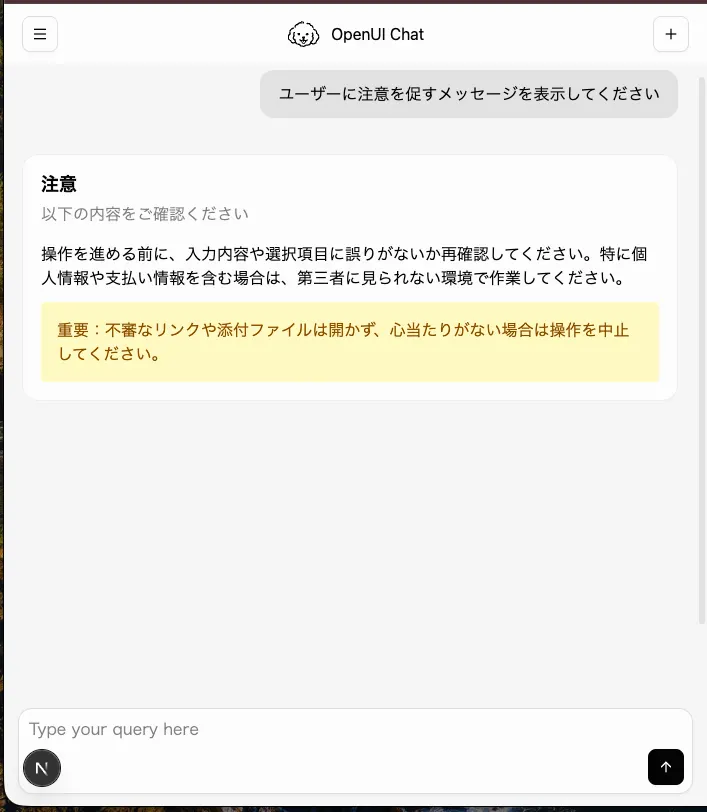
Let's try entering a prompt such as "Show me a message warning the user." The AI generates the following OpenUI Language:
root = Stack([alertCard], "column", "m")
alertCard = Card([alertHeader, alertBody], "card")
alertHeader = CardHeader("Warning", "Please confirm before continuing")
alertBody = Stack([alertMessage], "column", "s")
alertMessage = Alert("Before making important changes, please double-check the values you entered and the target data. If everything looks fine, proceed.", "warning")
If you check the actual rendered result, you can see that the defined Alert component is indeed being used.
Customizing UI Rendering with the <Renderer> Component
So far we've built the chat UI using the <FullScreen> component. <FullScreen> is a high-level component for building the entire chat UI with the least amount of code. It is suitable when you want to get a Generative UI chat running quickly. On the other hand, when you need more UI flexibility — such as your own header or sidebar, multi-conversation management, or a custom message format — using <Renderer> directly is the better choice. <Renderer> is only responsible for rendering AI output, so you have to implement the surrounding chat UI yourself.
Let's use the <Renderer> component directly to take finer control over UI rendering. <Renderer> accepts the following props:
response: The OpenUI Language output.library: The component library.isStreaming: A boolean indicating whether streaming is in progress.onAction: A callback invoked when the user interacts with a component.initialState: An initial state for restoring field values.onParseResult: A callback that receives the parser output, useful for debugging.toolProvider: An object that provides tools callable from interactions.queryLoader: A loading component shown while a query is being fetched.onError: A callback invoked when an error occurs.
<Renderer> is used purely to display AI output. Other parts of the chat UI (such as a form to capture user input, or components to display chat history) need to be implemented yourself. You can also use <ChatProvider> and useThread from the @openuidev/react-headless package to manage chat state (chat history, user input, etc.). <ChatProvider> is a context provider that manages chat state and exposes backend API interactions to child components. The useThread hook is used inside <ChatProvider> to access chat state — it exposes the message history along with functions for processing and canceling messages.
Here is an example of building a chat UI with the <Renderer> component:
"use client";
import "@openuidev/react-ui/styles/index.css";
import {
  ChatProvider,
  openAIMessageFormat,
  openAIReadableStreamAdapter,
  useThread,
} from "@openuidev/react-headless";
import { Renderer } from "@openuidev/react-lang";
import { myLibrary } from "@/library";
import { useState, useRef, useEffect } from "react";

function ChatUI() {
  // Manage chat state with the useThread hook
  const { messages, processMessage, cancelMessage, isRunning } = useThread();
  const [input, setInput] = useState("");
  const bottomRef = useRef<HTMLDivElement>(null);

  // Effect that scrolls to the bottom every time messages are updated
  useEffect(() => {
    bottomRef.current?.scrollIntoView({ behavior: "smooth" });
  }, [messages]);

  // Form submission handler.
  // Calls processMessage to send the user's input to the backend.
  const handleSend = () => {
    const text = input.trim();
    if (!text || isRunning) return;
    setInput("");
    processMessage({ role: "user", content: text });
  };

  return (
    <div className="flex flex-col h-screen bg-slate-50">
      <header className="flex items-center justify-between bg-white border-b border-slate-200 px-6 py-3 shadow-sm shrink-0">
        Generative UI
      </header>

      {/* The messages array contains the chat history — map over it to render the UI */}
      <div className="flex-1 overflow-y-auto px-4 py-8">
        {messages.length === 0 && (
          <div className="flex flex-col items-center justify-center h-full gap-3 pb-16">
            <p className="text-slate-400 text-sm">
              Send a message to start the conversation
            </p>
          </div>
        )}

        <div className="max-w-3xl mx-auto space-y-5">
          {/* For user messages, just show the text as-is */}
          {messages.map((message) => {
            if (message.role === "user") {
              const text =
                typeof message.content === "string"
                  ? message.content
                  : message.content
                      .filter(
                        (c): c is { type: "text"; text: string } =>
                          c.type === "text",
                      )
                      .map((c) => c.text)
                      .join("");
              return (
                <div key={message.id} className="flex justify-end">
                  <div className="bg-indigo-600 text-white rounded-2xl rounded-br-md px-4 py-2.5 max-w-[72%] text-sm leading-relaxed shadow-sm whitespace-pre-wrap">
                    {text}
                  </div>
                </div>
              );
            }

            // For AI messages, render the OpenUI Language with the <Renderer> component
            if (message.role === "assistant") {
              return (
                <div key={message.id} className="flex gap-2.5 items-start">
                  <div className="w-7 h-7 rounded-lg bg-indigo-600 flex items-center justify-center text-white text-xs font-bold shrink-0 mt-0.5 select-none">
                    AI
                  </div>
                  <div className="bg-white border border-slate-200 rounded-2xl rounded-tl-md px-4 py-3 max-w-[85%] shadow-sm text-sm text-slate-700 leading-relaxed">
                    <Renderer
                      response={message.content ?? null}
                      library={myLibrary}
                      isStreaming={isRunning}
                    />
                  </div>
                </div>
              );
            }

            return null;
          })}
        </div>

        <div ref={bottomRef} />
      </div>

      {/* Input form */}
      <div className="bg-white border-t border-slate-200 px-4 py-3 shrink-0">
        <div className="flex gap-2 items-end max-w-3xl mx-auto">
          <textarea
            className="flex-1 border border-slate-200 rounded-xl px-4 py-2.5 text-sm text-slate-800 placeholder:text-slate-400 resize-none focus:outline-none focus:ring-2 focus:ring-indigo-300 focus:border-indigo-400 min-h-11 max-h-32 transition-shadow disabled:bg-slate-50 disabled:text-slate-400"
            rows={1}
            value={input}
            onChange={(e) => setInput(e.target.value)}
            onKeyDown={(e) => {
              if (e.key === "Enter" && !e.shiftKey) {
                e.preventDefault();
                handleSend();
              }
            }}
            placeholder="Type a message… (Shift+Enter for newline)"
            disabled={isRunning}
          />
          {/* isRunning indicates whether the AI response is in progress; swap the send button for a stop button accordingly */}
          {isRunning ? (
            <button
              onClick={cancelMessage}
              className="shrink-0 border border-red-200 bg-red-50 hover:bg-red-100 text-red-600 rounded-xl px-4 py-2.5 text-sm font-medium transition-colors"
            >
              Stop
            </button>
          ) : (
            <button
              onClick={handleSend}
              disabled={!input.trim()}
              className="shrink-0 bg-indigo-600 hover:bg-indigo-700 disabled:bg-slate-200 disabled:text-slate-400 text-white rounded-xl px-4 py-2.5 text-sm font-semibold transition-colors"
            >
              Send
            </button>
          )}
        </div>
      </div>
    </div>
  );
}

export default function Home() {
  // <ChatProvider> manages chat state and exposes backend interactions
  return (
    <ChatProvider
      processMessage={async ({ messages, abortController }) => {
        return fetch("/api/chat", {
          method: "POST",
          headers: { "Content-Type": "application/json" },
          body: JSON.stringify({
            messages: openAIMessageFormat.toApi(messages),
          }),
          signal: abortController.signal,
        });
      }}
      // Adapter that converts the OpenAI streaming response into a format OpenUI understands
      streamProtocol={openAIReadableStreamAdapter()}
    >
      <ChatUI />
    </ChatProvider>
  );
}
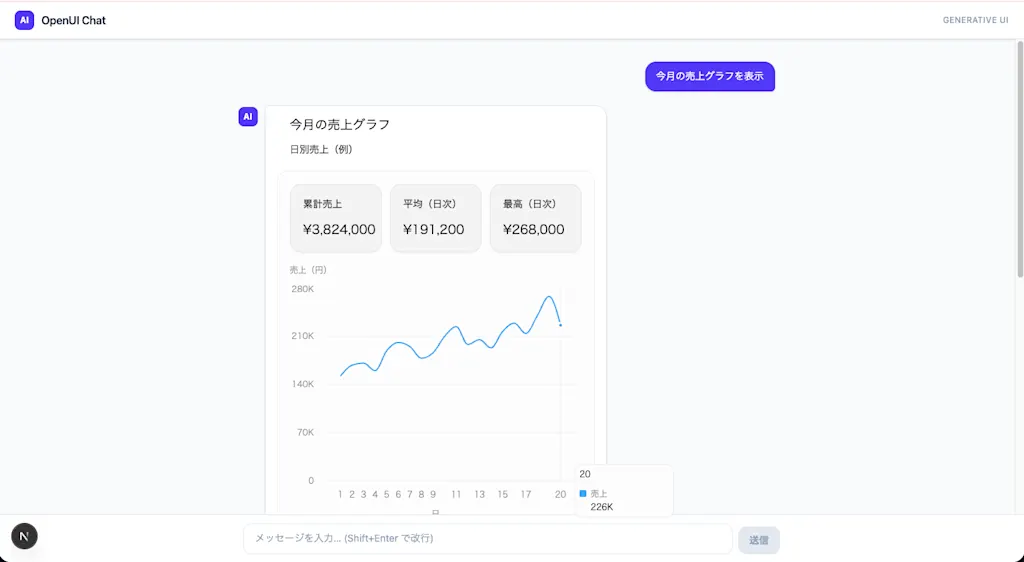
With this we have a custom chat UI of our own:
Interactions
Components defined in OpenUI Language can offer interactions with the user. By providing interactions, you can build more practical UIs — for instance, showing a list of restaurant dishes in cards and letting the user order one simply by clicking on it.
When an interaction fires, the onAction callback of the <Renderer> component is invoked. The callback receives an argument that tells you which action was triggered.
<Renderer
  // ...
  onAction={(action) => {
    // continue_conversation is the action type fired when @ToAssistant runs; it forwards the user's input to the AI
    if (action.type === "continue_conversation") {
      // Handler for @ToAssistant actions
      const userMessage = action.message;
      processMessage({ role: "user", content: userMessage });
    }
    // Other actions...
  }}
/>
Actions are defined inside OpenUI Language like this. When the button is clicked, the @ToAssistant action — which forwards the user's input to the AI — is invoked.
btnAdd = Button("Add Todo", Action([@ToAssistant("I'd like to add a todo. Ask me for the content, due date, and priority (low/medium/high).")]), "primary")There are several built-in action types:
continue_conversation: Fired when@ToAssistantruns; used to send user input to the AI.open_url: Fired when@OpenURLruns; used to open a URL.
The following actions are handled internally and will not appear in your onAction callback:
@Run(ref): Re-fetches a query or executes a mutation.@Set($var, value): Sets the value of a bound variable.@Reset($var1, $var2, ...): Resets bound variables to their initial values.
Queries and Mutations
The description of @Run introduced two new concepts: queries and mutations. These are the mechanisms for interacting with the backend through tools. When Query() or Mutation() is called, the AI emits statements to invoke a tool. The runtime executes the tool call, and the result is reflected back into the UI.
Let's think of a todo list example. Suppose there is a tool called list_todos for displaying the todos stored in the server's database. You can call list_todos from OpenUI Language via Query() and store the result in a variable called data:
data = Query("list_todos", {}, {items: []})The first argument of Query is the tool name, the second is the arguments passed to the tool (an empty object here), and the third is the default value. Before the tool is called, data holds the default value; after the call, data is updated with the tool's result. The AI can then reference data to build the UI.
Mutation() is the mechanism for invoking tools that modify data. You can define an addTodo variable that calls the add_todo tool to add a todo. Defining the variable alone does not invoke the tool — you need to call it via the @Run action in response to a user interaction. For example, you can invoke the add_todo mutation when the user clicks an "add todo" button.
When submitButton is clicked, it calls the add_todo tool, resets the form, and refetches the query:
addTodo = Mutation("add_todo", {title: $title})
submitButton = Button("Add Todo", Action([@Run(addTodo), @Run(todos), @Reset($title)]), "primary")
Now let's actually pass a toolProvider to the <Renderer> component to provide these tools. toolProvider accepts either an object whose keys are tool names and whose values are functions invoked when the tool is called, or an MCP client. In the example below, we pass a simple object that provides the list_todos query and the add_todo mutation:
<Renderer
  // ...
  toolProvider={{
    list_todos: async () => {
      const response = await fetch("/api/todos");
      const data = await response.json();
      return data;
    },
    add_todo: async ({ title }) => {
      await fetch("/api/todos", {
        method: "POST",
        headers: { "Content-Type": "application/json" },
        body: JSON.stringify({ title }),
      });
    },
  }}
/>
You also need to update the system prompt to enable tool invocation via queries and mutations. We add the tool definitions and enable the toolCalls feature flag. To do this, we need to generate the system prompt programmatically. Use the myLibrary.prompt() function to generate it. The tool definition schema follows the same shape as MCP tool definitions.
import { myLibrary } from "./library";
import { openuiPromptOptions } from "@openuidev/react-ui/genui-lib";

export const systemPrompt = myLibrary.prompt({
  ...openuiPromptOptions,
  tools: [
    {
      name: "list_todos",
      description: "A tool to fetch the current todo list",
      inputSchema: {},
      outputSchema: {
        items: {
          type: "array",
          description: "List of todo items",
          items: {
            type: "object",
            properties: {
              id: { type: "number", description: "Todo ID" },
              title: { type: "string", description: "Todo title" },
              completed: { type: "boolean", description: "Completion status" },
              createdAt: { type: "string", description: "Creation timestamp" },
            },
          },
        },
      },
      annotations: {
        readOnlyHint: true,
      },
    },
    {
      name: "add_todo",
      description: "A tool to add a new item to the todo list",
      inputSchema: {
        title: {
          type: "string",
          description: "Todo title",
        },
      },
      outputSchema: {},
    },
  ],
  toolExamples: [
    "todos = Query('list_todos', {}, {items: []})",
    "addTodo = Mutation('add_todo', {title: $title})",
  ],
  toolCalls: true,
});
Pass the generated systemPrompt to the system message where the OpenAI API is called in api/chat/route.ts. The source file behind openuiLibrary (which myLibrary extends) has a "use client" directive, so it cannot be imported directly from server-side runtimes — that's why we generate the systemPrompt on the client and forward it to the API.
"use client";
import { systemPrompt } from "../system-prompt";

// ...

export default function Home() {
  return (
    <ChatProvider
      processMessage={async ({ messages, abortController }) => {
        return fetch("/api/chat", {
          method: "POST",
          headers: { "Content-Type": "application/json" },
          body: JSON.stringify({
            messages: openAIMessageFormat.toApi(messages),
            // Include the system prompt in the API body
            systemPrompt: systemPrompt,
          }),
          signal: abortController.signal,
        });
      }}
      streamProtocol={openAIReadableStreamAdapter()}
    >
      <ChatUI />
    </ChatProvider>
  );
}
Let's also implement the /api/todos endpoint using a Next.js API route. For simplicity, we manage the todo list in server memory:
import { NextRequest, NextResponse } from "next/server";

type Todo = {
  id: number;
  title: string;
  completed: boolean;
  createdAt: string;
};

const todos: Todo[] = [
  {
    id: 1,
    title: "Buy milk",
    completed: false,
    createdAt: "2026-05-16T09:00:00.000Z",
  },
  {
    id: 2,
    title: "Submit the report",
    completed: true,
    createdAt: "2026-05-16T09:05:00.000Z",
  },
  {
    id: 3,
    title: "Book a dentist appointment",
    completed: false,
    createdAt: "2026-05-16T09:10:00.000Z",
  },
];
let nextId = 4;

export function GET() {
  console.log("[GET /api/todos] Returning todos:", todos);
  return NextResponse.json({ items: todos });
}

export async function POST(req: NextRequest) {
  console.log("[POST /api/todos] Received request");
  const body = await req.json().catch(() => null);

  if (!body || typeof body.title !== "string" || !body.title.trim()) {
    return NextResponse.json(
      { error: "title is required and must be a string" },
      { status: 400 },
    );
  }

  const todo: Todo = {
    id: nextId++,
    title: body.title.trim(),
    completed: false,
    createdAt: new Date().toISOString(),
  };

  todos.push(todo);
  return NextResponse.json(todo, { status: 201 });
}
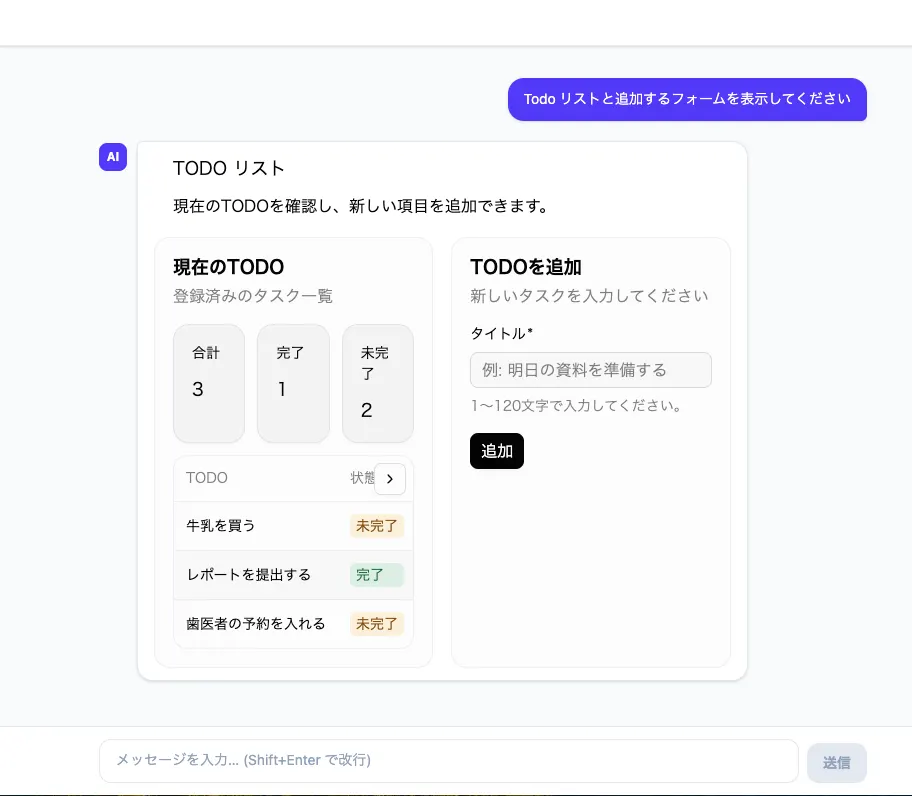
Once the tools are provided, let's confirm that the AI is invoking them. For example, enter a prompt like "Show me the todo list and a form to add a new item." The AI generates OpenUI Language like the following (the code block below is the AI output reproduced verbatim):
root = Stack([headerCard, contentRow, addStatus], "column", "l")

$title = ""
todos = Query("list_todos", {}, {items: []})
addTodo = Mutation("add_todo", {title: $title})

headerCard = Card([headerTitle, headerDescription], "clear")
headerTitle = TextContent("Todo List", "large-heavy")
headerDescription = TextContent("Check your current todos and add new ones.")

contentRow = Stack([listCard, formCard], "row", "l", "stretch", "start", true)
listCard = Card([listHeader, summaryRow, todoTable])
listHeader = CardHeader("Current Todos", "Your registered tasks")
summaryRow = Stack([totalCard, doneCard, remainingCard], "row", "m", "stretch", "start", true)
totalCard = Card([totalLabel, totalValue], "sunk")
totalLabel = TextContent("Total", "small")
totalValue = TextContent("" + @Count(todos.items), "large-heavy")

doneCard = Card([doneLabel, doneValue], "sunk")
doneLabel = TextContent("Done", "small")
doneValue = TextContent("" + @Count(@Filter(todos.items, "completed", "==", true)), "large-heavy")
remainingCard = Card([remainingLabel, remainingValue], "sunk")
remainingLabel = TextContent("Open", "small")
remainingValue = TextContent("" + (@Count(todos.items) - @Count(@Filter(todos.items, "completed", "==", true))), "large-heavy")

todoTable = @Count(todos.items) > 0 ? Table([todoTitleCol, todoStatusCol]) : emptyTodos
todoTitleCol = Col("Todo", todos.items.title)
todoStatusCol = Col("Status", @Each(todos.items, "todo", Tag(todo.completed == true ? "Done" : "Open", null, "sm", todo.completed == true ? "success" : "warning")))
emptyTodos = TextContent("No todos yet. Please add one from the form.")

formCard = Card([formHeader, addForm])
formHeader = CardHeader("Add Todo", "Enter a new task")
addForm = Form("addTodo", formButtons, [titleField])
titleField = FormControl("Title", Input("title", "e.g. Prepare slides for tomorrow", "text", {required: true, minLength: 1, maxLength: 120}, $title), "Enter between 1 and 120 characters.")
formButtons = Buttons([addButton])
addButton = Button("Add", Action([@Run(addTodo), @Run(todos), @Reset($title)]), "primary")

addStatus = addTodo.status == "loading" ? Callout("info", "Adding", "Adding the todo.") : addTodo.status == "success" ? Callout("success", "Added", "The todo list has been updated.") : addTodo.status == "error" ? Callout("error", "Failed to add", addTodo.error) : null
Let's walk through the highlights. First, the state definitions. The variable $title is defined to hold the form input. Variables prefixed with $ create a two-way binding, so values the user types into the form are stored in the variable. Next, the tools to invoke the list_todos query and add_todo mutation are defined.
$title = ""
todos = Query("list_todos", {}, {items: []})
addTodo = Mutation("add_todo", {title: $title})
To display the total count, @Count() is used to count the items in todos.items.
totalCard = Card([totalLabel, totalValue], "sunk")
totalLabel = TextContent("Total", "small")
totalValue = TextContent("" + @Count(todos.items), "large-heavy")
To count the completed items, @Filter() is used to filter todos.items for items whose completed property is true.
doneCard = Card([doneLabel, doneValue], "sunk")
doneLabel = TextContent("Done", "small")
doneValue = TextContent("" + @Count(@Filter(todos.items, "completed", "==", true)), "large-heavy")
A ternary expression renders a table when there are todo items, and shows the message "No todos yet. Please add one from the form." when the list is empty. To list each todo item, @Each() is used to generate a tag for every entry in todos.items.
todoTable = @Count(todos.items) > 0 ? Table([todoTitleCol, todoStatusCol]) : emptyTodos
todoTitleCol = Col("Todo", todos.items.title)
todoStatusCol = Col("Status", @Each(todos.items, "todo", Tag(todo.completed == true ? "Done" : "Open", null, "sm", todo.completed == true ? "success" : "warning")))
emptyTodos = TextContent("No todos yet. Please add one from the form.")
The form's Input component is bound to $title, so anything the user types is stored in $title. To invoke the add_todo mutation when the add button is clicked, the @Run(addTodo) action is used. Then, to refetch the todo list after adding a todo, @Run(todos) is used, and @Reset($title) is used to clear the form input.
titleField = FormControl("Title", Input("title", "e.g. Prepare slides for tomorrow", "text", {required: true, minLength: 1, maxLength: 120}, $title), "Enter between 1 and 120 characters.")
formButtons = Buttons([addButton])
addButton = Button("Add", Action([@Run(addTodo), @Run(todos), @Reset($title)]), "primary")
To show a status message depending on the mutation state, addTodo.status is referenced. A ternary expression selects a Callout component based on the state.
addStatus = addTodo.status == "loading" ? Callout("info", "Adding", "Adding the todo.") : addTodo.status == "success" ? Callout("success", "Added", "The todo list has been updated.") : addTodo.status == "error" ? Callout("error", "Failed to add", addTodo.error) : nullChecking the UI, you can see that the todo list is rendered from the result of the tool call, and that the form submission also works correctly.
Summary
- OpenUI is a framework for building Generative UI. It introduces a new approach where the AI is instructed via a dedicated declarative language called OpenUI Language to construct UIs.
- OpenUI consists of the following four main building blocks:
- Component library: Provides the definitions of components the AI can use to build UIs.
- Prompt generator: Generates the prompt given to the AI from the component library.
- Parser: Converts the AI output into the structured form defined by OpenUI Language.
- Renderer: Renders the parser output as the actual UI.
- Use the
defineComponent()function to define components used in OpenUI Language, and use thecreateLibrary()function to assemble a component library. - The
<Renderer>component converts AI output into a rendered UI. TheonActioncallback lets you implement behavior in response to user interactions. - The
@Runaction invokes tools. Tools support both queries and mutations, providing a mechanism for backend interactions.