Declaratively Requesting Camera and Microphone Permissions with the `<usermedia>` Element
Chrome 151 introduces the `<usermedia>` element, a new HTML control designed to address limitations of `getUserMedia()`. This article explains the proposal and verifies its behavior with hands-on examples.
As of August 2026, the <usermedia> element is available only in Chrome 151 and later. It is also still being standardized, so its specification may change in the future.
When using a web application that accesses a camera and microphone, such as a video conferencing or voice input application, you have probably seen a camera or microphone permission prompt like the one below. A browser must obtain the user's permission because allowing camera or microphone access without consent would create a risk of eavesdropping or covert recording.
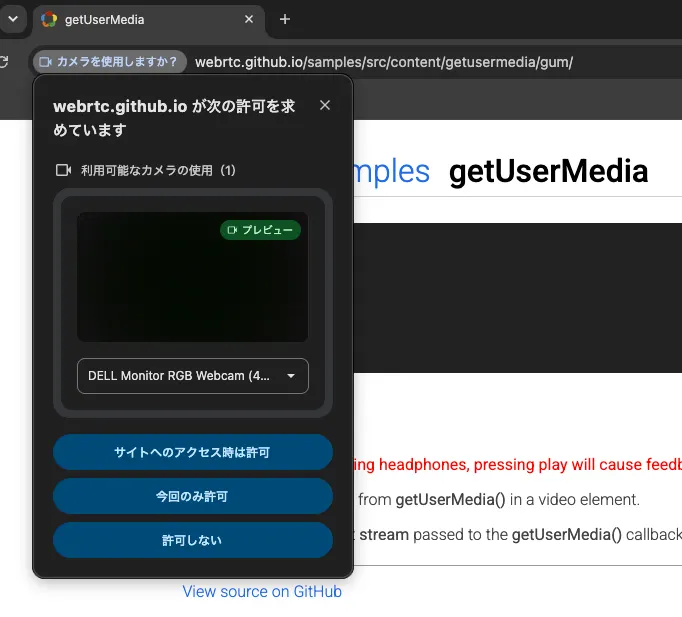
Problems arise when a user accidentally selects "Don't allow." Subsequent calls to getUserMedia() immediately fail with a NotAllowedError without displaying another prompt. The site can do little more than instruct the user to open the browser settings. Many of us have probably encountered a conversation like, "I accidentally blocked the permission, so I'll restart my browser..." The Explainer calls this situation a permission hole.
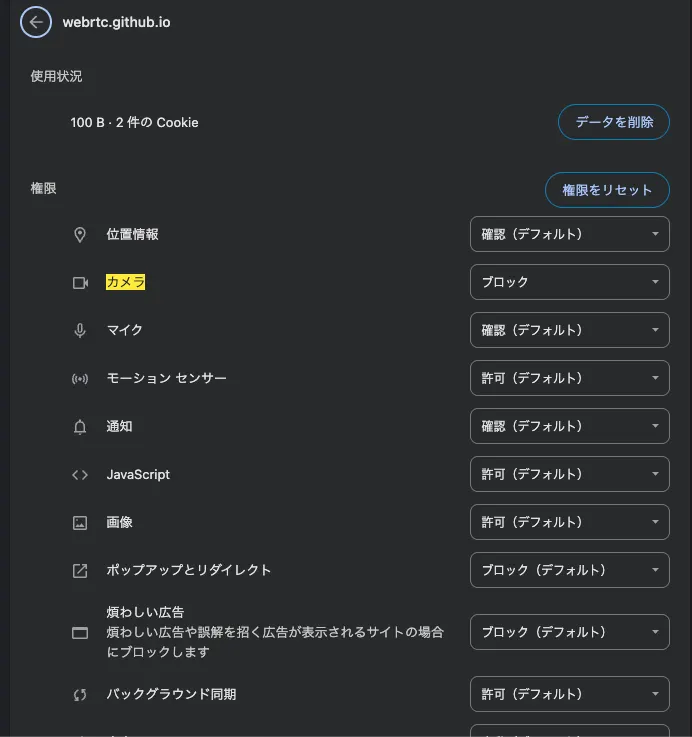
This is a structural problem caused by designing permission requests as JavaScript operations. The browser cannot tell whether the request was triggered when the user pressed a "Join call" button or whether a script initiated it on its own. If prompts continued appearing after a user blocked permission, a malicious site could repeatedly invoke the request from a script and display prompts indefinitely. Browsers therefore suppress script-initiated requests on sites where permission has already been blocked.
As a result, however, users who genuinely wanted to grant permission but blocked it by mistake lost an easy way to recover.
The <usermedia> element, available in Chrome 151, was proposed to address this problem. By requesting permission declaratively through an HTML element, it provides a natural recovery path for users who previously denied access.
This article provides an overview of <usermedia> and explores its behavior through hands-on testing.
Reviewing Permission Requests with getUserMedia()
Let's begin with a conventional getUserMedia() permission request. The following code calls navigator.mediaDevices.getUserMedia() to request camera and microphone access when the user presses the "Join call" button (#join). When access succeeds, it assigns the resulting MediaStream to a <video> element to show a preview.
const joinButton = document.querySelector("#join");
const preview = document.querySelector("#preview");

joinButton.addEventListener("click", async () => {
  try {
    const stream = await navigator.mediaDevices.getUserMedia({
      video: true,
      audio: true,
    });
    preview.srcObject = stream;
  } catch (error) {
    // There is no way to recover permission here after a NotAllowedError
    // The only option is to ask the user to open the browser settings
    showManualInstructions();
  }
});When the user presses the button, the browser displays a permission prompt, and the preview appears if the user grants access. If the user previously chose to block access, however, this getUserMedia() call immediately fails with a NotAllowedError. Because the permission prompt does not appear, the site has no option other than asking the user to open the browser settings.
What Is the <usermedia> Element?
The problem with calling getUserMedia() is that it is invoked from JavaScript, so the browser cannot know the user's intent. If the browser knew which button on the page the user pressed, it could make a better decision about whether to display a permission prompt.
The <usermedia> element was proposed to request permission declaratively. It appears as a browser-rendered button like the one below. Its internal text is localized according to the user's language.
When the user clicks the <usermedia> element, the browser displays a permission prompt when necessary. On success, it fires a stream event and assigns a MediaStream to the stream property. Assigning this MediaStream to a <video> element displays a preview.
<usermedia id="capture"></usermedia>
<video id="preview" autoplay playsinline muted></video>
const capture = document.getElementById("capture");
const preview = document.getElementById("preview");
// A stream becomes available after the user clicks the button and grants access
capture.addEventListener("stream", () => {
preview.srcObject = capture.stream;
});
// Handle errors
capture.addEventListener("error", () => {
console.error(capture.error);
});
// Handle dismissal of the permission prompt
capture.addEventListener("cancel", () => {
console.log("Permission prompt was dismissed by the user.");
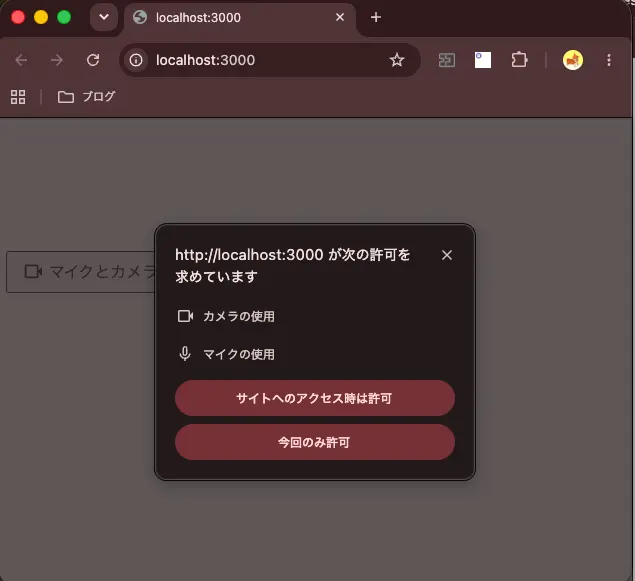
});Clicking the "Use microphone and camera" button shown below displays the permission prompt. If permission is granted, the preview appears. Even after dismissing the prompt once, clicking the button again displays it another time.
This element succeeds the <permission type="camera"> element proposed as part of PEPC (Page Embedded Permission Control). The proposal moved from a generic <permission> element to separate elements for individual capabilities. <geolocation> was implemented first, followed by <usermedia>.
Calling .setConstraints() before user interaction lets you specify constraints such as resolution and frame rate, similar to getUserMedia().
capture.setConstraints({
  video: { width: { ideal: 1280 }, height: { ideal: 720 } },
  audio: { echoCancellation: true },
});
The accepted constraints are not completely identical to those passed to getUserMedia(). Under the current draft specification, the user agent removes required constraints such as exact, min, and max, as well as advanced constraints. This prevents a request from failing silently when no matching device can be found.
Like getUserMedia(), the <usermedia> element works only in a secure context. It must be used on a page served over HTTPS or in a local environment such as localhost. In a non-secure context, the element displays its fallback content.
Script-Initiated click() Does Not Work
The key purpose of <usermedia> is to let the browser determine whether the user genuinely intended to make the request. It accomplishes this through a declarative button, but you might wonder whether JavaScript could simply force the button to be clicked. This avenue is accounted for: permission requests are not triggered by script-initiated clicks.
Let's verify this behavior with the following example.
const capture = document.getElementById("capture");
// Invoke click from a script after 500 ms
setTimeout(() => {
  capture.click();
}, 500);

capture.addEventListener("stream", () => {
  console.log("stream イベント。capture.stream =", capture.stream);
});
capture.addEventListener("error", () => {
  console.error("error イベント。error =", capture.error);
});
Running this code produces an InvalidStateError. The stream event does not fire, while the error event does.
InvalidStateError: The permission element activation must be triggered by a user gesture.Constraints for Browser-Trusted UI
If the browser treats an element as a trusted button, the page cannot be allowed to alter its appearance without restrictions. Otherwise, a page could make the button invisible or disguise it as an unrelated control. The <usermedia> element therefore has styling constraints.
According to Chrome's documentation, these styles are subject to the following restrictions:
- The contrast ratio between the text and background colors must be at least 3:1
opacitymust be 1- The width, height, and font size have upper and lower bounds
- Negative margins and
outline-offsetcannot be used transformis limited to 2D translation and proportional scaling
Let's try one of these restrictions. The following code applies font-size: 4px to the <usermedia> element to render a very small button.
<usermedia style="font-size: 4px;" id="capture"></usermedia>
Clicking the button in this state produces an InvalidStateError and fires the error event. The error message shows that the request failed because of the style constraints.
InvalidStateError: The permission element is disabled due to: invalid style.Meanwhile, the following opacity and transform declarations are not applied, preventing the control from being made transparent or moved offscreen.
<usermedia style="opacity: 0; transform: translateX(-1000px);" id="capture"></usermedia>
Waiting Until the Element Can Be Activated
The <usermedia> element may not be activated immediately after being inserted into the DOM or while its layout is changing. This prevents clickjacking in which an element is inserted or moved immediately before a user clicks so that it appears to be a different UI control.
Let's look at an example that dynamically inserts a <usermedia> element in response to pointer movement.
const mount = document.getElementById("mount");

mount.addEventListener(
  "pointerenter", () => {
    const capture = document.createElement("usermedia");
    capture.id = "capture";
    mount.appendChild(capture);
  },
  { once: true }
);
Clicking the newly displayed element quickly produced the following InvalidStateError.
InvalidStateError: The permission element is disabled due to: being recently attached to layout tree, intersection occluded or distorted, intersection with viewport changed.An error message can contain multiple reasons. In this example, the element had just been attached to the layout tree, and its intersection with the viewport had changed. You therefore need to wait briefly after the <usermedia> element appears before clicking it.
The Element Is Clipped
The <usermedia> element also cannot be activated when part of it is clipped by overflow: hidden or a similar mechanism. In the following example, the parent is narrower than the <usermedia> element, hiding its right side.
<div class="clip-container">
  <usermedia id="capture"></usermedia>
</div>

<style>
  .clip-container {
    width: 95px;
    height: 48px;
    overflow: hidden;
  }

  #capture {
    width: 220px;
  }
</style>
Clicking the visible portion of the button produced the following InvalidStateError.
InvalidStateError: The permission element is disabled due to: intersection out of viewport or clipped.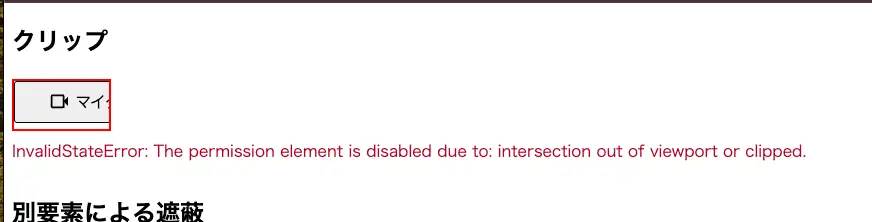
The Element Is Covered by Another Element
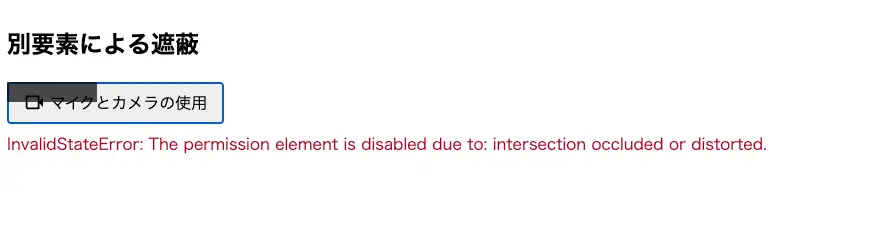
Activation is also rejected when another element covers <usermedia>, because this may indicate clickjacking. In the following example, a semitransparent element with pointer-events: none partially overlaps it. The click event still reaches <usermedia>, but the permission request does not run because part of the control is hidden.
<div class="capture-container">
  <usermedia id="capture"></usermedia>
  <div class="cover"></div>
</div>

<style>
  .capture-container {
    position: relative;
  }

  .cover {
    position: absolute;
    top: 0;
    left: 0;
    width: 90px;
    height: 20px;
    background: rgb(0 0 0 / 70%);
    pointer-events: none;
  }
</style>
Clicking an uncovered part in this state produced the following InvalidStateError.
InvalidStateError: The permission element is disabled due to: intersection occluded or distorted.Note that activation is rejected even when only part of the element is hidden or the covering element has pointer-events: none and does not block clicks.
The exact conditions and error messages depend on Chrome's implementation. The Media Capture and Streams Extensions specification requires user agents to reject at least untrusted events and recommends additional implementation-defined steps for determining whether an event can be trusted.
Supported Styles and Pseudo-classes
The appearance of <usermedia> can be customized within its constraints. Its internal text, however, cannot be changed.
Like a <button> element, <usermedia> supports pseudo-classes such as :hover and :active, allowing its appearance to change when hovered or pressed. It also provides the special :granted pseudo-class, which becomes active after permission is granted and a stream has been acquired.
usermedia {
  /* width and height must be auto for padding to take effect */
  width: auto;
  height: auto;
  padding: 0.6em 1.4em;

  background-color: #1a56db;
  color: #ffffff;
  font-size: 1rem;
  font-weight: 600;
  border: 2px solid #1a56db;
  border-radius: 999px;
  cursor: pointer;
}

usermedia:hover {
  background-color: #1e429f;
  border-color: #1e429f;
}

usermedia:active {
  background-color: #233876;
  border-color: #233876;
}

/* When permission is granted, use a white background and blue border */
usermedia:granted {
  background-color: #ffffff;
  color: #1a56db;
  border-color: #1a56db;
}
When changing colors, make sure every state maintains a contrast ratio of at least 3:1. If, for example, only the hover state uses a lighter color and its ratio falls below 3:1, the element becomes disabled in that state. The following images show the button with these styles applied.
Fallback
At present, only Chrome 151 and later support the element. If you use it in production, unsupported browsers need a fallback that calls getUserMedia() from a custom button as before.
Unsupported browsers treat <usermedia> as an unknown HTML element and display its children normally. You can therefore place a fallback button inside the element as follows. In supported browsers, the browser-rendered UI appears instead.
<usermedia id="capture">
  <button id="fallback-button" type="button">
    カメラとマイクを使用
  </button>
</usermedia>
<video id="preview" autoplay playsinline muted></video>
const preview = document.getElementById("preview");
if ("HTMLUserMediaElement" in window) {
const capture = document.getElementById("capture");
capture.setConstraints({
video: { width: { ideal: 1280 }, height: { ideal: 720 } },
audio: { echoCancellation: true },
});
capture.addEventListener("stream", () => {
preview.srcObject = capture.stream;
});
capture.addEventListener("error", () => {
showManualInstructions(capture.error);
});
} else {
// In unsupported browsers, call getUserMedia() from a custom button as before
document.getElementById("fallback-button").addEventListener("click", async () => {
try {
preview.srcObject = await navigator.mediaDevices.getUserMedia({
video: true,
audio: true,
});
} catch (error) {
showManualInstructions(error);
}
});
}Summary
- With the conventional
getUserMedia(), the site could not recover permission after the user blocked it. The declarative<usermedia>element was proposed to address this problem - Clicking the
<usermedia>element displays a permission prompt when necessary. On success, it fires astreamevent and provides aMediaStream - Calling
click()from a script does not obtain a stream and instead produces anInvalidStateError. The user must interact with the element itself - Styling constraints ensure that the element remains trusted browser UI. Values may be adjusted or activation rejected to prevent transparency or offscreen movement. Violating constraints such as contrast or size, clipping the element, or covering it with another element produces an
InvalidStateError - The
:grantedpseudo-class becomes active after permission is granted and a stream has been acquired
References
The
<usermedia>HTML element - Chrome for DevelopersMedia Capture and Streams Extensions - The usermedia HTML element
Media Capture Elements Explainer
<usermedia>,<camera>,<microphone>) and Explainer #168<usermedia>element · WICG/PEPC #62<usermedia>element (initial Explainer) · WICG/PEPC