
Trying Out Next.js Instant Navigations
Next.js 16.3 Preview introduces Instant Navigations, which detects navigations that cannot render immediately during development and encourages fixes. This article walks through trying it out.
Next.js 16.3 Preview introduces a new feature called Instant Navigations. When navigating to a page that fetches data on the server, the next page may not render until the server responds. From the user's perspective, this can make it feel as though nothing happened after they clicked a link. Many developers have likely used a library such as NProgress to display a progress bar that indicates navigation is in progress.
The conventional App Router already provides loading.tsx and <Suspense> fallbacks, and when component caching is enabled, it can display loading UI immediately after a click. Instant Navigations does not add capabilities like these; instead, it detects areas that cannot render immediately during development and encourages you to fix them.
As an example, let's try the conventional navigation behavior with the following code. We will prepare a page that displays a random number after waiting for three seconds.
const getRandomNumber = async () => {
  // Wait for 3 seconds before returning a random number
  await new Promise((resolve) => setTimeout(resolve, 3000));
  return Math.floor(Math.random() * 100);
};

export default async function NumberPage() {
  const number = await getRandomNumber();
  return (
    <div>
      <h1>{number}</h1>
    </div>
  );
}
When you click a link to the /number page, nothing happens for a while, and a random number appears after three seconds.
The key idea behind Instant Navigations is to guide you toward rendering the page shell first and filling in the content once the required data arrives, rather than requiring all data to be ready at navigation time. For dynamic data fetching, it recommends one of the following approaches:
- Use
<Suspense>to stream content as data arrives - Use
'use cache'to render cached UI immediately - Use
export const instant = falseto explicitly indicate that the destination page cannot render immediately
This article walks through trying out Instant Navigations in practice.
Enabling Instant Navigations
Instant Navigations requires Next.js 16.3 Preview. Create a Next.js project with @preview.
npx create-next-app@previewTo enable Instant Navigations, you need to add cacheComponents: true to next.config.ts.
import type { NextConfig } from "next";

const nextConfig: NextConfig = {
  cacheComponents: true,
};

export default nextConfig;
The cacheComponents: true option enables Next.js Cache Components mode. This lets you cache the output of components and functions that specify the 'use cache' directive. When you click the link to the /number page from earlier with cacheComponents enabled, the following warning appears in the Next.js Developer Tools after navigation completes. This mechanism for detecting slow page navigations during development is called Instant Insights, and it is one of the improvements provided by Instant Navigations.
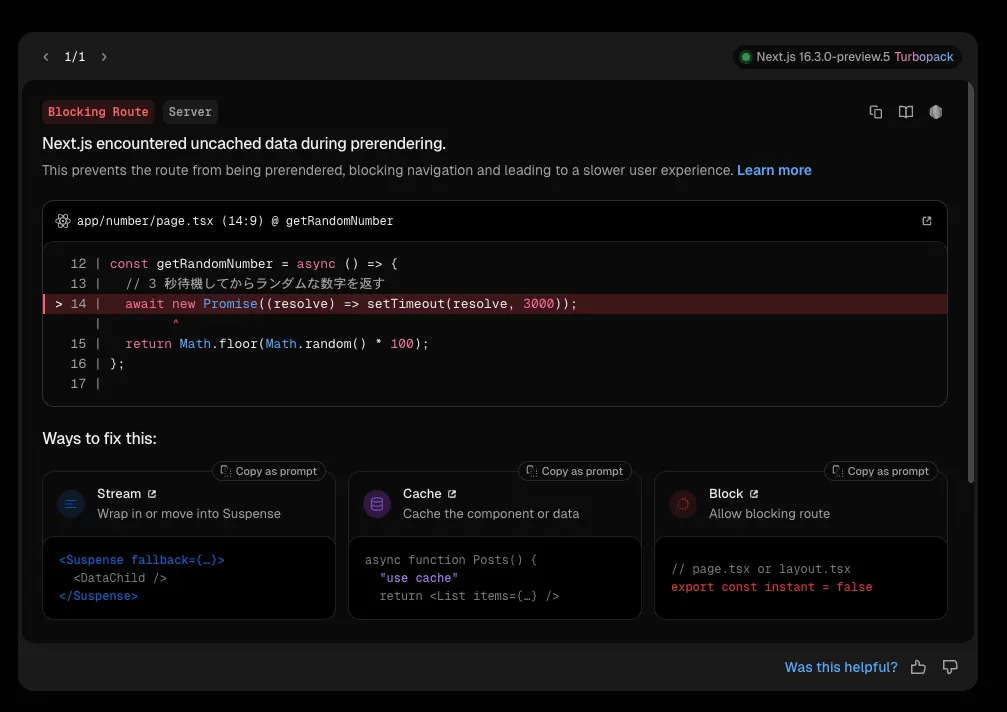
This warning indicates that Next.js detected uncached data during prerendering. The await new Promise((resolve) => setTimeout(resolve, 3000)); line in app/number/page.tsx is highlighted, making it clear which part of the code is fetching uncached data.
Blocking prerender dynamic | Next.js
The same warning is displayed when you build with next build, and the build fails.
$ npm run build

> [email protected] build
> next build

▲ Next.js 16.3.0-preview.5 (Turbopack)
- Cache Components enabled

Error: Route "/number": Next.js encountered uncached or runtime data during prerendering.

`fetch(...)`, `cookies()`, `headers()`, `params`, `searchParams`, or `connection()` accessed outside of `<Suspense>` prevents the route from being prerendered, blocking the page load and leading to a slower user experience.

Ways to fix this:
  - [stream] Provide a placeholder with `<Suspense fallback={...}>` around the data access
    https://nextjs.org/docs/messages/blocking-prerender-dynamic#wrap-in-or-move-into-suspense
  - [cache] For uncached data (`fetch`, database calls): cache the access with `"use cache"` (does not apply to `connection()`)
    https://nextjs.org/docs/messages/blocking-prerender-dynamic#cache-the-component-or-data
  - [block] Set `export const instant = false` to silence this warning and allow a blocking route
    https://nextjs.org/docs/messages/blocking-prerender-dynamic#allow-blocking-route
    at div (<anonymous>)
    at body (<anonymous>)
    at html (<anonymous>)
To get a more detailed stack trace and pinpoint the issue, try one of the following:
  - Start the app in development mode by running `next dev`, then open "/number" in your browser to investigate the error.
  - Rerun the production build with `next build --debug-prerender` to generate better stack traces.
Error occurred prerendering page "/number". Read more: https://nextjs.org/docs/messages/prerender-error
Export encountered an error on /number/page: /number, exiting the build.
⨯ Next.js build worker exited with code: 1 and signal: null
The following three approaches are suggested to resolve this warning. It is also interesting that you can copy prompts to have an agent apply the fixes.
- Wrap data fetching in
<Suspense> - Cache components or data with
'use cache' - Use
export const instant = falseto explicitly allow the route to wait
Let's look at each approach in more detail.
Wrapping data fetching in <Suspense>
<Suspense> can temporarily suspend the rendering of a component during asynchronous work and display fallback UI in its place. <Suspense> is well suited to building pages that combine static content, such as headers and layouts, with dynamic content that needs data fetching. On dashboard-like pages in particular, using multiple <Suspense> boundaries lets you render content as it arrives without having to wait for the slowest data fetch.
Update app/number/page.tsx as follows to wrap the data fetching portion in <Suspense>.
import { Suspense } from "react";

export default function NumberPage() {
  return (
    <div>
      <h1>ランダムな数字</h1>
      <Suspense
        fallback={<span>...</span>}
      >
        <RandomNumber />
      </Suspense>
    </div>
  );
}

const getRandomNumber = async () => {
  // Wait for 3 seconds before returning a random number
  await new Promise((resolve) => setTimeout(resolve, 3000));
  return Math.floor(Math.random() * 100);
};

async function RandomNumber() {
  const number = await getRandomNumber();
  return <span>{number}</span>;
}
We added a title in an <h1> element as static content. Rather than wrapping the entire page in <Suspense>, wrap only the smallest portion that needs to fetch data. Set the fallback of <Suspense> to the fallback UI to display while data is loading. Here, it displays the text ....
When you actually click the link to the /number page, navigation completes immediately and the fallback UI appears. After three seconds, a random number is displayed.
Caching components and data with 'use cache'
Next, let's try caching components and data with Cache Components. The
'use cache' directive lets you enable caching at the component or function level. Data is always fetched dynamically everywhere else.
Caching UI is suitable for content that does not change often over a short period, such as blog posts. UI that returns a random number on every request is not inherently suitable for caching, but it is useful for verifying whether caching is enabled—whether it returns the same number every time.
Update the portion of app/number/page.tsx that used <Suspense> as follows. Adding the 'use cache' directive at the beginning of the RandomNumber component enables caching for that component.
export default function NumberPage() {
  return (
    <div className="flex flex-1 flex-col items-center justify-center gap-4">
      <h1 className="text-2xl font-semibold">ランダムな数字</h1>
      <RandomNumber />
    </div>
  );
}

const getRandomNumber = async () => {
  // Wait for 3 seconds before returning a random number
  await new Promise((resolve) => setTimeout(resolve, 3000));
  return Math.floor(Math.random() * 100);
};

async function RandomNumber() {
  "use cache";
  const number = await getRandomNumber();
  return <span className="text-9xl font-bold tabular-nums">{number}</span>;
}
Here, we need to distinguish between server-side caching and browser-side prefetching. Because RandomNumber does not reference request-specific values such as cookies() or headers(), specifying 'use cache' executes it during prerendering and includes its output in the App Shell.
When the link enters the viewport, Next.js prefetches the App Shell and serialized RSC Payload to the browser and stores them in the Router Cache. In other words, prefetching does not itself create the server-side cache for RandomNumber; it delivers already-generated UI to the browser before the click. This is why a number can be displayed immediately when navigating to /number. The fact that the same number appears every time also confirms that the UI output is being reused.
Link prefetching occurs only in production mode (next build + next start). Although prefetching does not occur in the development server, similarly fast navigation can be observed because 'use cache' returns server-side cached UI immediately.
Additional note: Partial Prefetching
In Next.js, prefetching for a route begins when its link enters the viewport, and the result is stored in the browser's Router Cache. Link prefetching plays an important role in providing instant, SPA-like navigation. However, if every link that enters the viewport is prefetched, unnecessary resources may be fetched. Especially on pages with many links, you may have seen a large number of requests appear in the Network tab of Developer Tools every time you scroll. Even when multiple links point to the same page, prefetching can occur for all of them.
Partial Prefetching was introduced to revisit this behavior. Rather than prefetching per link, Partial Prefetching prefetches a reusable shell per route. As a result, even if multiple links point to the same route, once the first link has been prefetched, subsequent links are not prefetched. This behavior is similar to how SPAs split code by route.
To enable Partial Prefetching, add partialPrefetching: true to next.config.ts. In a future version of Next.js, partialPrefetching is expected to be enabled by default when cacheComponents is enabled.
import type { NextConfig } from "next";

const nextConfig: NextConfig = {
  cacheComponents: true,
  partialPrefetching: true,
};

export default nextConfig;
If you want to prefetch more content in addition to the shell, set the prefetch attribute of the <Link> component to true. Even in this case, the entire route is not prefetched; only static portions and portions cached with 'use cache' are eligible for prefetching.
<Link href="/number" prefetch={true}>
  ランダムな数字
</Link>
Explicitly allowing a route to wait
Not every page is suited to instant navigation. In those cases, you can explicitly indicate that a route should wait for the server response by specifying export const instant = false in its page or layout file. This prevents warnings from appearing during development and builds.
export const instant = false;

export default function NumberPage() {
  return (
    <div className="flex flex-1 flex-col items-center justify-center gap-4">
      <h1 className="text-2xl font-semibold">ランダムな数字</h1>
      <RandomNumber />
    </div>
  );
}

const getRandomNumber = async () => {
  // Wait for 3 seconds before returning a random number
  await new Promise((resolve) => setTimeout(resolve, 3000));
  return Math.floor(Math.random() * 100);
};

async function RandomNumber() {
  const number = await getRandomNumber();
  return <span className="text-9xl font-bold tabular-nums">{number}</span>;
}
Although navigation still completes three seconds after you click the link, as before, the warning no longer appears.
If you want warnings during development but do not want them to affect builds, you can specify level: 'warning' as follows.
export const instant = {
  level: 'warning',
}
Visualizing page loading with the Navigation Inspector in Next.js DevTools
In Next.js 16.3 Preview, you can use the Navigation Inspector in DevTools to pause page loading mid-navigation and check whether the appropriate fallback is displayed. Navigation Inspector is available only when cacheComponents is enabled. Click the “Next.js” icon in the bottom-left corner to open DevTools, then select the Navigation Inspector menu.
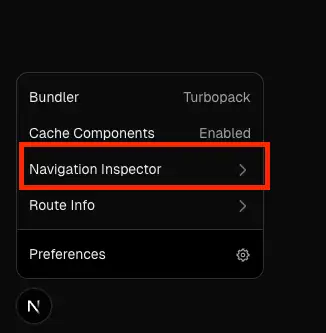
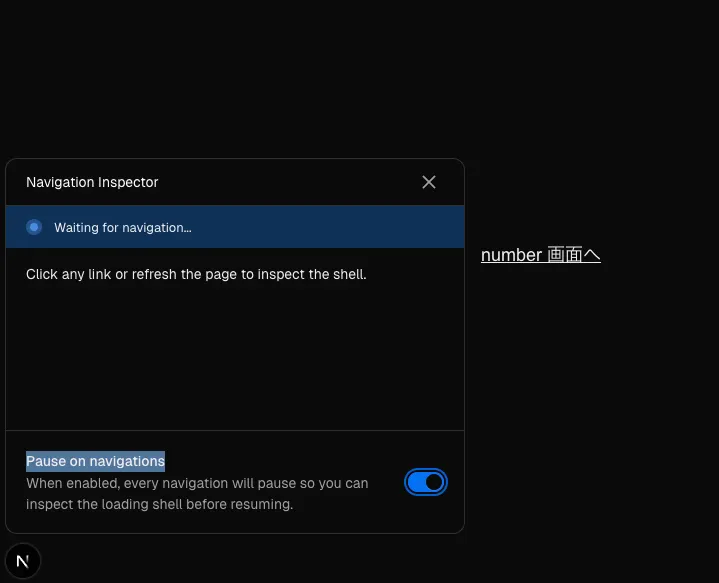
When you turn on the “Pause on navigations” switch, “Waiting for navigation...” appears and the tool begins waiting for navigation.
Click the link to navigate to the /number page, and the display changes to “Debugger paused.” In this state, you can confirm that the <Suspense> fallback UI is being displayed.

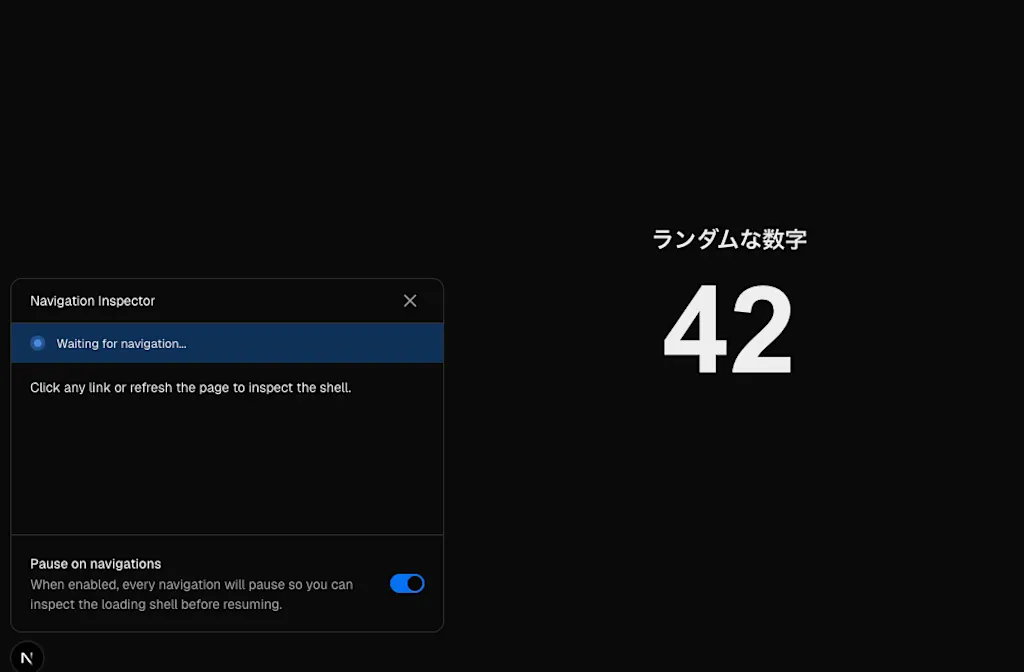
Click the “Resume” button to resume navigation; the fallback UI disappears, and a random number is displayed.
Testing Instant Navigations with Playwright
While validation with the Navigation Inspector in Next.js DevTools is well suited to checking a page's structure during development—for example, whether the expected fallback is displayed and whether the expected data appears after data fetching completes—it becomes difficult to manually check every page as a codebase grows. To verify that the correct data is obtained before and after data fetching, the instant helper function was added to the @next/playwright package.
First, install the following packages.
npm install -D @next/playwright@preview @playwright/testCreate the Playwright configuration file, playwright.config.ts. This example starts a development server with next dev and runs the tests against it.
import { defineConfig, devices } from "@playwright/test";
import path from "path";

const PORT = process.env.PORT || 3000;

const baseURL = `http://localhost:${PORT}`;

export default defineConfig({
  timeout: 30 * 1000,
  testDir: path.join(__dirname, "e2e"),
  retries: 2,
  outputDir: "test-results/",
  webServer: {
    command: "npm run dev",
    url: baseURL,
    timeout: 120 * 1000,
    reuseExistingServer: !process.env.CI,
  },

  use: {
    baseURL,
    trace: "retry-with-trace",
  },

  projects: [
    {
      name: "Desktop Chrome",
      use: {
        ...devices["Desktop Chrome"],
      },
    },
  ],
});
Create a Playwright test file such as e2e/number-navigation.spec.ts, and use the instant helper function to write a test like the following. Here, we first return to the version that uses <Suspense> and modify getRandomNumber to return a fixed value (42) rather than a random number so that we can run the test.
import { test, expect } from '@playwright/test'
import { instant } from '@next/playwright'

test('ランダムな数字が表示される', async ({ page }) => {
  await page.goto('/')

 // Using instant lets you verify that fallback UI is displayed immediately after the click
  await instant(page, async () => {
    await page.click('a[href="/number"]')
    // Static content is displayed immediately
    await expect(page.locator('h1')).toContainText('ランダムな数字')
    // Fallback UI is displayed
    await expect(page.locator('text=...')).toBeVisible()
  })

  // After instant completes, the data is displayed
  await expect(page.locator('text=42')).toBeVisible()
})
The instant helper function is asynchronous. Inside its callback, you can verify static content before data fetching completes. Once data fetching has completed (after three seconds), the instant function's Promise resolves, and you can verify that the data is displayed.
When you run npx playwright test, the test runs and you can confirm the expected behavior.
$ npx playwright test

Running 1 test using 1 worker

  ✓  1 [Desktop Chrome] › e2e/number-navigation.spec.ts:4:5 › ランダムな数字が表示される (4.2s)

  1 passed (7.1s)
Summary
- Instant Navigations renders the page shell before waiting for all data, delivering SPA-like perceived speed. It also enables slow page navigations to be detected during development.
- Render dynamic content by streaming it with
<Suspense>, or render cached UI immediately with'use cache'. - For routes where waiting is appropriate, you can specify
export const instant = false. This allows the route to wait for a server response without showing a warning. - The Navigation Inspector in Next.js DevTools can pause navigation to verify fallback UI and content displayed after data fetching completes.
- The Playwright
instanthelper can verify fallback UI immediately after a click and content displayed after data fetching completes. - Partial Prefetching prefetches a reusable shell per route, reducing unnecessary requests.