
Deno Can Now Build Desktop Apps
Starting with Deno v2.9.0, the `deno desktop` command can turn anything from a single TypeScript file to a Next.js project into a desktop app. This article explains how to build desktop apps with Deno.
Starting with Deno v2.9.0, the deno desktop command became available. The deno desktop command can turn anything from a single TypeScript file to a Next.js project into a desktop app. Frameworks such as Electron,
Tauri, and
Electrobun have already made it possible to build desktop apps with web technologies, but each comes with trade-offs. Electron uses Node.js, so you can take advantage of the Node.js ecosystem, but app size tends to become large. Tauri lets you use web technologies for the frontend, but because backend logic has to be written in Rust, you cannot directly use the Node.js (npm) server-side ecosystem as-is.
The deno desktop command is lightweight by default and has Node.js compatibility. It uses a WebView backend by default, keeping binary size small while still allowing you to use the Node.js ecosystem. On the other hand, with the WebView backend, each OS uses a different WebView, so visual differences can appear across platforms. Although the bundle size increases, using the Chromium backend lets you avoid visual differences between operating systems.
Another notable feature is that it uses in-process bindings instead of IPC (Inter-Process Communication). Electron and Tauri use IPC to communicate between the frontend and backend. Because IPC is inter-process communication, serialization and deserialization are required for each exchange, which can affect performance. With the deno desktop command, the runtime and frontend run in the same process, eliminating serialization and deserialization overhead and improving performance. It also supports cross-platform builds, allowing you to build for Windows, macOS, and Linux from a single machine.
This article introduces how to build desktop apps with Deno.
Your First Deno Desktop App
Let's build the simplest possible Deno desktop app. We will create an app that displays a simple HTML page using the Deno.serve() function.
Deno.serve(() =>
  new Response("<h1>Hello, desktop</h1>", {
    headers: { "content-type": "text/html" },
  })
);
In a Deno desktop app, you can use the Deno.serve() function to return HTML over local HTTP and display it in a WebView. Because HTML, CSS, and JavaScript are returned through HTTP requests, this requires one round trip, but this approach is used because it allows you to use the same code as a web app, such as fetch, websocket, and cookie. When the Deno runtime binary starts, it automatically selects an unused local port and listens on http://127.0.0.1:<port>. Once the listener is ready, the WebView opens automatically and displays the HTML returned by Deno.serve(). The server is never exposed externally.
Use the deno desktop command to convert the TypeScript file above into a desktop app.
deno desktop main.tsIf there was no deno.json file in the project root, the command behaved as if it kept walking up parent directories until it found one, and eventually failed to compile. Almost no configuration is required, but it is a good idea to create some kind of deno.json file.
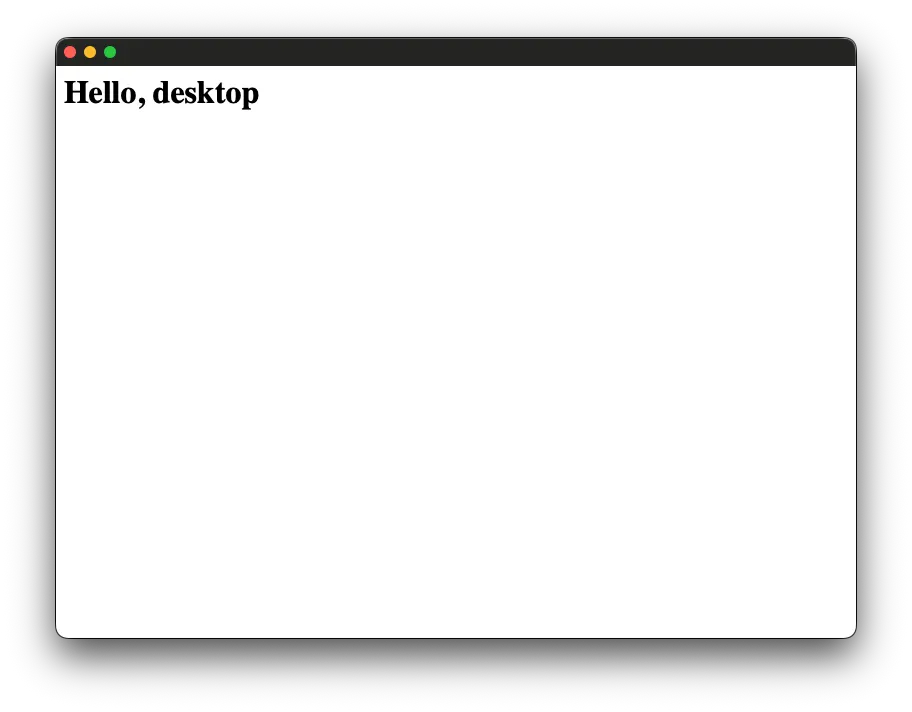
When compilation succeeds, macOS creates an application named deno-desktop-test.app (deno-desktop-test is the directory name). If you launch the application by double-clicking it, you can confirm that Hello, desktop is displayed.
By adding the --hmr option, you can reflect code changes while the application is still running.
deno desktop --hmr main.tsConverting a Next.js Project into a Desktop App
When you pass a directory to the deno desktop command, the framework is detected automatically, the appropriate entry point is selected, and the build output is converted into a binary. No code changes or special configuration are required to use a framework. Major frameworks such as Next.js, Astro, Fresh, Remix, Nuxt, SvelteKit, SolidStart, TanStack Start, and Vite are supported.
Here, we will create a Todo app with Next.js and convert it into a desktop app. First, create a Next.js project with Deno.
deno run -A npm:create-next-app@latestNext.js includes several packages that depend on CommonJS modules, so you need to add the following to deno.json for compatibility.
{
  "unstable": [
    "detect-cjs",
    "node-globals",
    "unsafe-proto",
    "sloppy-imports"
  ]
}
Next, install the dependencies.
deno install --allow-scriptsI created the simplest possible Todo app. Data is saved in localStorage.
app/page.tsx
"use client";

import { useEffect, useState } from "react";

type Todo = {
  id: number;
  text: string;
  done: boolean;
};

const STORAGE_KEY = "todos";

export default function Home() {
  const [todos, setTodos] = useState<Todo[]>([]);
  const [input, setInput] = useState("");

  // Restore from localStorage on the initial mount
  useEffect(() => {
    const saved = localStorage.getItem(STORAGE_KEY);
    if (saved) {
      setTodos(JSON.parse(saved));
    }
  }, []);

  // Save whenever todos changes
  useEffect(() => {
    localStorage.setItem(STORAGE_KEY, JSON.stringify(todos));
  }, [todos]);

  const addTodo = () => {
    const text = input.trim();
    if (!text) return;
    setTodos((prev) => [...prev, { id: Date.now(), text, done: false }]);
    setInput("");
  };

  const toggleTodo = (id: number) => {
    setTodos((prev) =>
      prev.map((t) => (t.id === id ? { ...t, done: !t.done } : t)),
    );
  };

  const deleteTodo = (id: number) => {
    const confirmed = confirm("Are you sure you want to delete this?");
    if (!confirmed) return;
    setTodos((prev) => prev.filter((t) => t.id !== id));
  };

  return (
    <div className="flex flex-1 justify-center bg-zinc-50 font-sans dark:bg-black">
      <main className="w-full max-w-md px-6 py-16">
        <h1 className="mb-8 text-3xl font-semibold tracking-tight text-black dark:text-zinc-50">
          Todo
        </h1>

        <form
          onSubmit={(e) => {
            e.preventDefault();
            addTodo();
          }}
          className="mb-6 flex gap-2"
        >
          <input
            type="text"
            value={input}
            onChange={(e) => setInput(e.target.value)}
            placeholder="Enter a task..."
            className="flex-1 rounded-lg border border-zinc-300 bg-white px-4 py-2 text-black outline-none focus:border-zinc-500 dark:border-zinc-700 dark:bg-zinc-900 dark:text-zinc-50"
          />
          <button
            type="submit"
            className="rounded-lg bg-foreground px-4 py-2 font-medium text-background transition-colors hover:bg-[#383838] dark:hover:bg-[#ccc]"
          >
            Add
          </button>
        </form>

        <ul className="flex flex-col gap-2">
          {todos.length === 0 && (
            <li className="py-4 text-center text-zinc-500 dark:text-zinc-400">
              No tasks
            </li>
          )}
          {todos.map((todo) => (
            <li
              key={todo.id}
              className="flex items-center gap-3 rounded-lg border border-zinc-200 bg-white px-4 py-3 dark:border-zinc-800 dark:bg-zinc-900"
            >
              <input
                type="checkbox"
                checked={todo.done}
                onChange={() => toggleTodo(todo.id)}
                className="h-4 w-4 cursor-pointer"
              />
              <span
                className={`flex-1 text-black dark:text-zinc-50 ${
                  todo.done
                    ? "text-zinc-400 line-through dark:text-zinc-600"
                    : ""
                }`}
              >
                {todo.text}
              </span>
              <button
                onClick={() => deleteTodo(todo.id)}
                className="text-sm text-zinc-400 transition-colors hover:text-red-500"
                aria-label="Delete"
              >
                Delete
              </button>
            </li>
          ))}
        </ul>
      </main>
    </div>
  );
}
Before running the deno desktop command, you need to run the build command for each framework. For Next.js, build with the following command.
In the case of Next.js, I had to add the --allow-env and --allow-sys options because it accesses the __NEXT_PRIVATE_CPU_PROFILE environment variable.
# The .next directory is created
npx next build
deno desktop --allow-env --allow-sys .
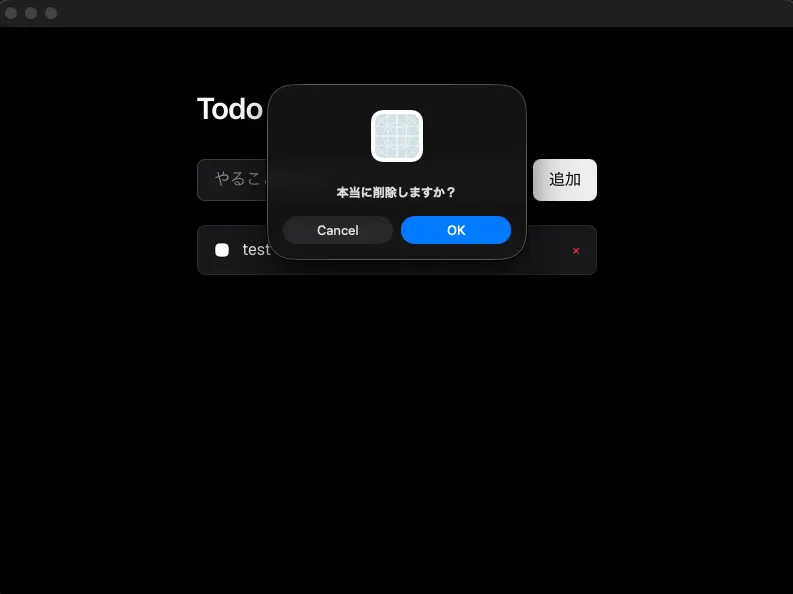
As the output, deno-desktop-next.app was created on macOS. Let's launch the application. When you double-click deno-desktop-next.app, you can confirm that the Todo app is displayed.
Menus
Desktop app menus include the application menu (the menu bar on macOS, or the menu at the top of the window on Windows) and context menus (menus shown by right-clicking). Both use the Deno.MenuItem type.
type MenuItem =
  // A clickable menu item.
  | {
    item: {
      label: string;
      id?: string; // id returned when clicked
      accelerator?: string; // e.g. "CmdOrCtrl+S", "F11"
      enabled: boolean;
    };
  }
  // A nested submenu
  | {
    submenu: {
      label: string;
      items: MenuItem[];
    };
  }
  // A separator
  | "separator"
  // A menu item with an OS-specific role. For example, "Services" or "Window" on macOS, and "Close" on Windows.
  | { role: { role: string } };
The application menu can be configured with the setApplicationMenu() method on the window created by new Deno.BrowserWindow({ title: "My App" });. The first new Deno.BrowserWindow() represents the initial window opened at startup, while the second and later instances create new windows. The setApplicationMenu() method accepts an array of Deno.MenuItem[]. The example below adds three menu items, New, Open, and Save, to the File menu.
You can receive events when a menu is clicked with the menuclick event.
const win = new Deno.BrowserWindow({ title: "My App" });

win.setApplicationMenu([
  {
    // On macOS, the top-level menu displays the application name, so this label is replaced.
    // Standard roles such as quit should be placed here.
    submenu: {
      label: "My App",
      items: [
        { role: { role: "about" } },
        {
          item: {
            label: "The label is displayed as a menu item",
            id: "custom-menu-item",
            enabled: true,
          },
        },
        { role: { role: "quit" } },
      ],
    },
  },
  {
    submenu: {
      label: "File",
      items: [
        {
          item: {
            label: "New",
            id: "new",
            accelerator: "CmdOrCtrl+N",
            enabled: true,
          },
        },
        {
          item: {
            label: "Open...",
            id: "open",
            // accelerator can set a keyboard shortcut.
            accelerator: "CmdOrCtrl+O",
            enabled: true,
          },
        },
        "separator",
        {
          item: {
            label: "Save",
            id: "save",
            accelerator: "CmdOrCtrl+S",
            enabled: true,
          },
        },
      ],
    },
  },
  {
    submenu: {
      label: "Edit",
      items: [
        { role: { role: "undo" } },
        { role: { role: "redo" } },
        "separator",
        { role: { role: "cut" } },
        { role: { role: "copy" } },
        { role: { role: "paste" } },
      ],
    },
  },
]);

win.addEventListener("menuclick", (e) => {
  switch (e.detail.id) {
    case "new":
      console.log("New menu item clicked");
      break;
    case "open":
      console.log("Open menu item clicked");
      break;
    case "save":
      console.log("Save menu item clicked");
      break;
    default:
      console.log("Unknown menu item clicked");
      break;
  }
});
Let's launch the application and check it. To see the output from console.log, you need to start it with the --inspect option.
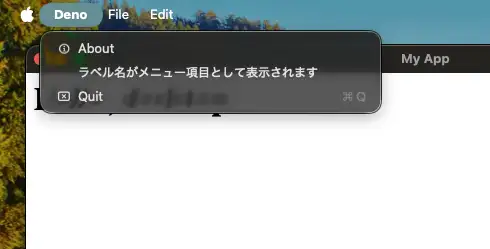
deno desktop --inspect main.tsYou can confirm that the configured menu is displayed.
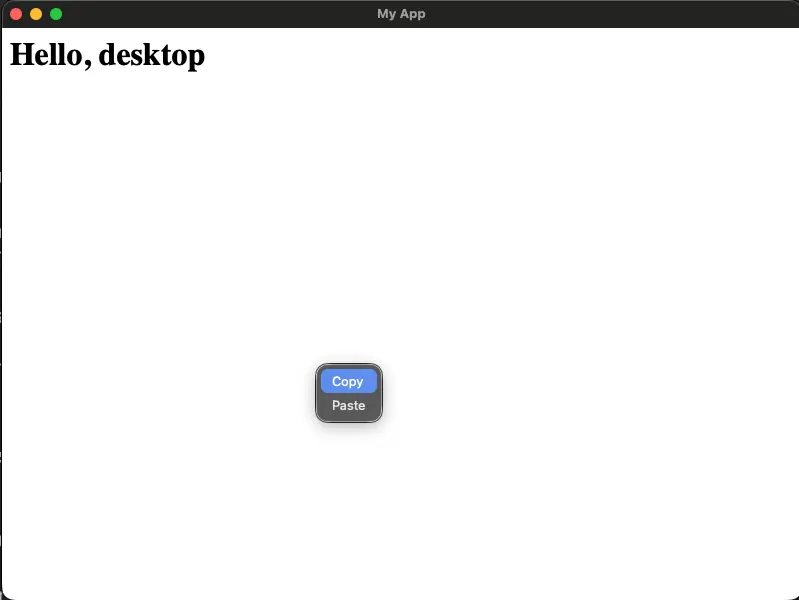
Context menus can be displayed with the win.showContextMenu() method. Context menus are generally shown on right-click, so you can detect a right-click with the window's mousedown event and display the menu.
const contextMenu: Deno.MenuItem[] = [
  {
    item: {
      label: "Copy",
      id: "copy",
      accelerator: "CmdOrCtrl+C",
      enabled: true,
    },
  },
  {
    item: {
      label: "Paste",
      id: "paste",
      accelerator: "CmdOrCtrl+V",
      enabled: true,
    },
  },
];

win.addEventListener("mousedown", (e) => {
  // e.button represents 0 for left click, 1 for middle click, and 2 for right click.
  if (e.button === 2) {
    // Show the context menu at the clicked position.
    win.showContextMenu(e.clientX, e.clientY, contextMenu);
  }
});

// Event fired when a context menu item is clicked
win.addEventListener("contextmenuclick", (e) => {
  if (e.detail.id === "copy") { /* ... */ }
  if (e.detail.id === "paste") { /* ... */ }
});
You can confirm that the context menu appears on right-click.
Notifications
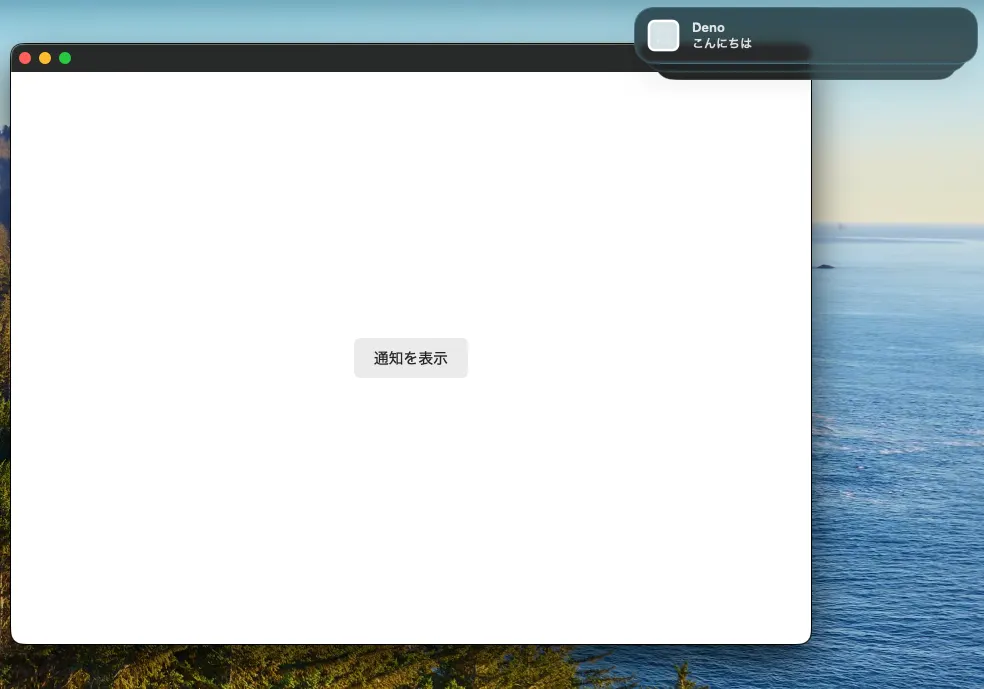
Notifications can be displayed using the browser-standard Notification API. In the example below, clicking a button displays a notification, and clicking the notification focuses the app. As with a web app, you can check whether notifications are allowed.
// The screen HTML displayed in the webview
const html = `<!DOCTYPE html>
<html>
  <head><meta charset="utf-8" /><title>Notification Demo</title>
  </head>
  <body>
    <button id="notify">Show notification</button>
    <script>
      document.getElementById("notify").addEventListener("click", async () => {
        // Call a Deno-side function from the webview
        await bindings.notify("Hello");
      });
    </script>
  </body>
</html>`;

// Get the startup window
const win = new Deno.BrowserWindow();

// Register a Deno-side function that can be called from the webview with bindings.notify(...)
win.bind("notify", async (title) => {
  // title is a BrowserWindowValue.
  const t = String(title ?? "");

  // Check notification permission. Request it if it has not been granted.
  if (Notification.permission !== "granted") {
    const permission = await Notification.requestPermission();
    if (permission !== "granted") return;
  }

  // Display a notification with new Notification(). Bring the window to the front when clicked.
  const n = new Notification(t);
  n.addEventListener("click", () => win.focus());
});

Deno.serve(
  () => new Response(html, { headers: { "content-type": "text/html" } }),
);
This uses a binding to call a function on the Deno side from HTML inside the WebView. When you register a binding with win.bind("notify", ...), it can be called from inside the WebView as bindings.notify(...). Bindings do not use IPC; they are called within the same process. This removes the need for inter-process communication.
The notify function registered on the Deno side displays a notification using the Notification API. It first checks whether the user has allowed notifications with Notification.permission, and if not, requests notification permission with Notification.requestPermission(). The notification is created with new Notification(), and win.focus() is called to focus the app when the notification is clicked.
On macOS, a desktop application needs a stable bundle ID to allow notifications. By default, ad hoc signing is used, and the ID may change with each build, so it is not stable. This is fine for testing notifications with a temporary ID, but you need to configure a stable bundle ID when distributing the app. When running with hot reload via --hmr, the cached ad hoc signature is reused.
Let's launch the application and confirm that the notification appears.
Summary
- Starting with Deno v2.9.0, the
deno desktopcommand became available - The
deno desktopcommand can convert anything from a single TypeScript file to a Next.js project into a desktop app - Because it uses the WebView backend by default, it can keep binary size small while still using the Node.js ecosystem
- Because it uses in-process bindings instead of IPC, there is no serialization and deserialization overhead, which improves performance
- It also supports cross-platform builds for Windows, macOS, and Linux from a single machine
- Desktop app menus include application menus and context menus, and both can be created with the
Deno.MenuItemtype - Notifications can be displayed using the browser-standard Notification API