
Letting AI Agents Inspect the React Component Tree with react-devtools-cdt-mcp
Chrome DevTools MCP lets AI agents drive a browser, but the DOM can't tell them which component rendered an element or why it is slow. react-devtools-cdt-mcp registers React inspection and profiling tools with it. Let's try it with Claude Code.
react-devtools-cdt-mcp is an experimental library. It is built on the experimental third-party developer tools API of Chrome DevTools MCP, so tool names and outputs may change between releases.
With Chrome DevTools MCP, an AI agent can open pages in a browser, click and type, and capture accessibility tree snapshots and console logs. When debugging a React app, however, the information you can get from the DOM is sometimes not enough. A snapshot only shows buttons and
<li> elements; it does not tell you which component rendered them. And when typing feels sluggish, it is hard for an agent to figure out, at the component level, which re-renders are taking the time from the output of Chrome DevTools MCP's performance traces.
Human developers check these things with the Components tab and the Profiler in React DevTools.
react-devtools-cdt-mcp is a library that hands the same information to AI agents. When you import it in your app's entry file, it registers 12 tools with Chrome DevTools MCP for inspecting the component tree and render timings.
In this article, I'll explain how react-devtools-cdt-mcp works and how to set it up. Then I'll ask Claude Code to "find out why typing is slow" and watch the agent use React's profiling tools to pin down the cause.
How react-devtools-cdt-mcp works
Despite its name, react-devtools-cdt-mcp is not an MCP server. It is a browser library that runs inside the page you are debugging. When Chrome DevTools MCP opens the page, it discovers the tools registered inside the page and exposes them.
A library inside the page can provide tools to the agent thanks to Chrome DevTools MCP's third-party developer tools mechanism. When Chrome DevTools MCP opens a page or the selected page changes, it dispatches a
devtoolstooldiscovery event on window. The page listens for this event and returns a list of tools with event.respondWith().
window.addEventListener("devtoolstooldiscovery", (event) => {
  event.respondWith({
    name: "My Library Tools",
    description: "Tools for inspecting internal library state",
    tools: [
      {
        name: "getInternalState",
        description: "Returns the current internal state of the framework.",
        inputSchema: {
          type: "object",
          properties: { componentId: { type: "string" } },
        },
        execute: async (input) => myFramework.getState(input.componentId),
      },
    ],
  });
});
Each tool has a name, a description, an input definition written in JSON Schema, and an execute function that runs inside the page. The agent uses the tools registered by the page through the following two Chrome DevTools MCP tools:
list_3p_developer_tools: returns the list of tools registered by the pageexecute_3p_developer_tool: takes a tool name and parameters as a JSON string, and runs the tool inside the page
According to the official Chrome blog, the goal of this mechanism is to give agents access to framework-internal state that never shows up in the DOM. The final rendered DOM is directly visible from DevTools, but the real state of an application lives inside the framework, in things like the component hierarchy and signals. The Angular team has also implemented tools for inspecting signal dependencies and the DI graph.
react-devtools-cdt-mcp is a library that registers React tools with this mechanism. The package itself contains no tool logic. Instead, it takes the tools from the react-devtools-facade package, which extracts the logic of React DevTools, converts them to the Chrome DevTools MCP format, and registers them.
Setup
Let's add react-devtools-cdt-mcp to a product list app built with Vite and React. First, install the package as a development dependency.
npm install --save-dev [email protected]Import react-devtools-cdt-mcp/register at the top of the entry file. react-devtools-cdt-mcp/register must come before react-dom/client.
import "react-devtools-cdt-mcp/register";

import { createRoot } from "react-dom/client";
import App from "./App";

createRoot(document.getElementById("root")).render(<App />);The react-devtools-cdt-mcp tools expose component props and Hooks values to the outside, so do not include it in your production bundle.
Next, configure Chrome DevTools MCP to start with the --categoryExperimentalThirdParty=true flag. Third-party developer tools are an experimental feature, so without this flag list_3p_developer_tools and execute_3p_developer_tool are not exposed. In Claude Code, add the server with the following command:
claude mcp add chrome-devtools -- npx chrome-devtools-mcp@latest --categoryExperimentalThirdParty=trueFor other MCP clients, add the flag to args in the configuration file.
{
  "mcpServers": {
    "chrome-devtools": {
      "command": "npx",
      "args": [
        "-y",
        "chrome-devtools-mcp@latest",
        "--categoryExperimentalThirdParty=true"
      ]
    }
  }
}
When you open the page served by the dev server with Chrome DevTools MCP's navigate_page, the list of React tools is appended to the end of the response.
## Third-party developer tools
react: Inspect and profile the running React app. Components are addressed by stable uids (e.g. "r5") from react_get_component_tree; pass a uid to the other tools.
Available tools:
name="react_get_component_tree", description="Snapshot of the React component tree as {nodes}, ...
name="react_get_component_by_uid", description="Detailed info for one component by uid: ...
...
The following 12 tools are registered in a tool group named react.
| Tool | Description |
|---|---|
react_get_component_tree |
Returns a snapshot of the component tree |
react_find_components |
Searches for components by partial name match |
react_get_component_by_uid |
Returns a component's props and Hooks |
react_get_component_by_dom_element |
Returns the React host component corresponding to a DOM element |
react_get_parent_stack |
Returns the parents in the tree |
react_get_owner_stack |
Returns the components that created this component in JSX |
react_get_owner_stack_trace |
Returns the owner chain as a stack-trace-style string |
react_get_component_source |
Returns where the component is defined |
react_start_profiling |
Starts recording render timings |
react_stop_profiling |
Stops recording render timings |
react_get_trace_overview |
Returns an overview of each recorded commit |
react_get_commit_report |
Returns the components rendered in a single commit and their timing |
Inspecting components
Let's see what each tool returns by calling them directly from an MCP client. The example is an app that shows a cart and a product list with a filter input.
import { useState } from "react";

const PRODUCTS = Array.from({ length: 200 }, (_, i) => ({
  id: i,
  name: "Product " + (i + 1),
  price: 10 + i,
}));

export default function App() {
  const [query, setQuery] = useState("");
  const visibleProducts = PRODUCTS.filter((product) =>
    product.name.toLowerCase().includes(query.toLowerCase()),
  );
  return (
    <main>
      <Cart />
      <input
        value={query}
        onChange={(e) => setQuery(e.target.value)}
        placeholder="Filter products"
      />
      <ProductList products={visibleProducts} />
    </main>
  );
}

function Cart() {
  const [count, setCount] = useState(0);
  return (
    <header>
      <CartBadge count={count} />
      <button onClick={() => setCount((c) => c + 1)}>Add to cart</button>
    </header>
  );
}

function CartBadge({ count }) {
  return <span className="badge">Cart: {count}</span>;
}

function ProductList({ products }) {
  return (
    <ul>
      {products.map((product) => (
        <ProductRow key={product.id} product={product} />
      ))}
    </ul>
  );
}

function ProductRow({ product }) {
  // Instead of heavy formatting work, keep the CPU busy for about 1ms per row
  const start = performance.now();
  while (performance.now() - start < 1) {}
  return (
    <li>
      {product.name} <b>${product.price}</b>
    </li>
  );
}
ProductRow keeps the CPU busy for about 1ms per row. Every time you type in the filter input, App re-renders, and ProductRow re-renders once for each remaining product, which makes typing sluggish. Later on, we'll have the agent investigate this.
Searching by name and viewing props and Hooks
react_find_components searches for components by partial name match. Pass the tool name and the parameters as a JSON string to execute_3p_developer_tool.
{
  "toolName": "react_find_components",
  "params": "{\"name\":\"Cart\"}"
}
Two results were found: Cart and CartBadge.
{
  "page": 1,
  "pageSize": 10,
  "totalCount": 2,
  "totalPages": 1,
  "results": [
    {
      "uid": "r0",
      "type": "function",
      "name": "Cart",
      "key": null,
      "firstChild": "r1",
      "nextSibling": null
    },
    {
      "uid": "r2",
      "type": "function",
      "name": "CartBadge",
      "key": null,
      "firstChild": "r3",
      "nextSibling": null
    }
  ]
}
A uid such as "r0" is an identifier used to specify a component in the other tools. It stays the same for a given component across re-renders, but is reassigned when the page reloads. firstChild and nextSibling represent a node's child and sibling in the tree by uid. react_get_component_tree also returns an array of nodes in the same shape.
If you pass a uid and "includeHooks": true to react_get_component_by_uid, Hooks values are returned as well.
{
  "toolName": "react_get_component_by_uid",
  "params": "{\"uid\":\"r0\",\"includeHooks\":true}"
}
{
"uid": "r0",
"type": "function",
"name": "Cart",
"hooks": [
{
"id": 0,
"name": "State",
"value": 0,
"subHooks": []
}
]
}You can see that Cart's useState holds 0. If the component has props, they are returned with children excluded and the values converted to a serializable form.
If the parameters don't match the inputSchema, Chrome DevTools MCP returns an error before calling the tool in the page. For example, calling react_get_component_by_uid without a uid produced the following error:
Error: Invalid parameters for tool react_get_component_by_uid: data should have required property 'uid'Tracing from a DOM element to React components
Agents usually interact with a page based on the accessibility tree captured with take_snapshot. Each element in the snapshot is assigned an ID like uid=1_14. With react_get_component_by_dom_element, you can get the corresponding React node from this ID.
## Latest page snapshot
uid=1_0 RootWebArea "react-devtools-cdt-mcp example" url="http://localhost:5173/"
  uid=1_1 main
    uid=1_2 "Cart: "
    uid=1_3 "0"
    uid=1_4 button "Add to cart"
    uid=1_5 textbox "Filter products"
    uid=1_6 "Product 1"
    ...
    uid=1_14 "Product 3"
Let's pass the snapshot ID to the element parameter in the form { "uid": "1_14" }.
{
  "toolName": "react_get_component_by_dom_element",
  "params": "{\"element\":{\"uid\":\"1_14\"}}"
}
{
"uid": "r7",
"type": "host",
"name": "li"
}The result is the host component representing the <li> element. Converting the snapshot ID into a DOM element reference is Chrome DevTools MCP's job, and the React tool simply receives that reference. To find out which function component rendered it, pass the returned uid to the following two tools.
react_get_parent_stack returns where the node is mounted in the tree, from the immediate parent up to the root.
[
  { "uid": "r28", "name": "ProductRow", "type": "function" },
  { "uid": "r13", "name": "ul", "type": "host" },
  { "uid": "r12", "name": "ProductList", "type": "function" },
  { "uid": "r6", "name": "main", "type": "host" },
  { "uid": "r5", "name": "App", "type": "function" },
  { "uid": "r4", "name": "createRoot()", "type": "root" }
]
react_get_owner_stack returns the components that created the element in JSX (its owners), starting from the immediate owner.
[
  { "uid": "r28", "name": "ProductRow", "type": "function" },
  { "uid": "r12", "name": "ProductList", "type": "function" },
  { "uid": "r5", "name": "App", "type": "function" }
]
react_get_parent_stack also includes host components such as <ul> and <main>, as well as the root. react_get_owner_stack, on the other hand, returns only the function components that wrote the JSX. For components that render elements received as children, the parent and the owner differ. In this example, both results show that "Product 3" on the screen was created in the order App → ProductList → ProductRow.
Finding where a component is defined
react_get_component_source returns where a component is defined.
{
  "source": {
    "name": "Cart",
    "fileName": "http://localhost:5173/src/App.jsx",
    "line": 44,
    "column": 28
  }
}
fileName is not a file path but the URL served by the dev server. line and column also pointed to a position in the code transformed and served by Vite, not in the original source. For an agent to edit the source, it needs to map the URL to a path in the project and use source maps to map the line number back to the original source.
Profiling renders
Render timings are recorded for commits between react_start_profiling and react_stop_profiling. You name the recording with traceName.
{
  "toolName": "react_start_profiling",
  "params": "{\"traceName\":\"filter\"}"
}
With recording started, use Chrome DevTools MCP's fill tool to type 1 into the filter input. Then calling react_stop_profiling returns the number of recorded commits.
{
  "status": "stopped",
  "traceName": "filter",
  "commits": 1
}
react_get_trace_overview returns an overview of each commit. Times are in milliseconds.
[
  {
    "commit": 0,
    "committedAt": 269,
    "renderDuration": 130.19999980926514,
    "layoutDuration": 0,
    "passiveDuration": 0,
    "componentsChanged": 367
  }
]
A single keystroke rendered 367 components and took about 130ms to render. If you pass a commit index to react_get_commit_report, it lists the components rendered in that commit, sorted by actualDuration (time including children) in descending order.
{
  "committedAt": 269,
  "priority": "Sync",
  "renderDuration": 130.19999980926514,
  "layoutDuration": 0,
  "passiveDuration": 0,
  "components": [
    {
      "uid": "r5",
      "name": "App",
      "type": "function",
      "actualDuration": 130.19999980926514,
      "selfDuration": 1.2000000476837158
    },
    // ... (host components such as main are omitted)
    {
      "uid": "r12",
      "name": "ProductList",
      "type": "function",
      "actualDuration": 128.69999980926514,
      "selfDuration": 2.799999952316284
    },
    // ... (ul is omitted)
    {
      "uid": "r176",
      "name": "ProductRow",
      "type": "function",
      "actualDuration": 1.5,
      "selfDuration": 1.3000001907348633
    }
    // ... (the remaining ProductRow entries are omitted)
  ]
}App's actualDuration is about 130ms, but its selfDuration (time spent in the component itself) is only about 1.2ms. From this result, you can tell that most of the time is spent in its child ProductList and below.
Letting the agent do the debugging
So far we've called the tools directly, but in practice you'd leave the tool calls to the agent itself. Let's give Claude Code the following prompt and see how it investigates.
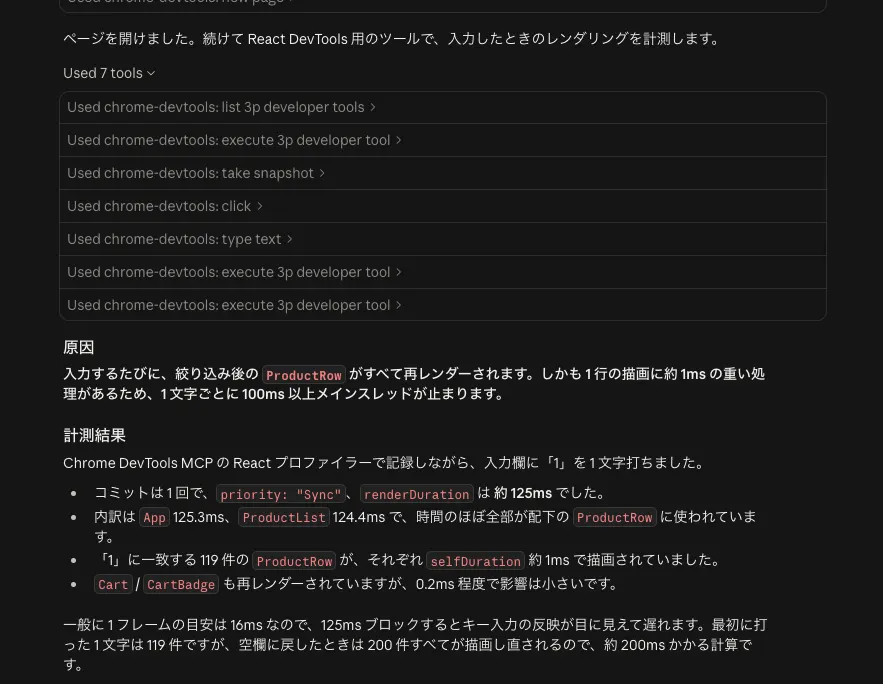
In the React app running at http://localhost:5173, typing into the product filter input becomes sluggish. Please find the cause. Do not modify the code.Claude Code first read src/App.jsx, then called the Chrome DevTools MCP tools in the following order:
- Open
http://localhost:5173withnavigate_page - Call
react_start_profilingviaexecute_3p_developer_tool - Look up the ID of the filter input (
1_5) withtake_snapshot - Type
1withtype_text - Call
react_stop_profiling,react_get_trace_overview, andreact_get_commit_reportin that order
As a result, it identified the cause: "every keystroke re-renders all of the remaining ProductRow components after filtering." It also backed this up with a concrete number: each keystroke takes about 125ms.
As directions for improvement, the agent suggested wrapping ProductRow in memo and using useDeferredValue.
Without the React tools, the agent would presumably have to cross-reference the call stacks in the browser's performance trace with the source code to find the functions taking up time. Since the React tools directly return the rendered components and their timings, they save the agent that cross-referencing work.
Summary
react-devtools-cdt-mcpis not an MCP server but a library that runs inside the page, registering React tools through Chrome DevTools MCP's third-party developer tools mechanism- Chrome DevTools MCP discovers the page's tools via the
devtoolstooldiscoveryevent, and the agent calls them withexecute_3p_developer_tool - To use it, start Chrome DevTools MCP with
--categoryExperimentalThirdParty=trueand importreact-devtools-cdt-mcp/registerat the top of the entry file, beforereact-dom react_get_component_by_dom_elementtakes an element ID from a snapshot, andreact_get_parent_stackandreact_get_owner_stacklet you trace back to the components that rendered that elementreact_get_commit_reportreturns the components rendered in a commit along with theiractualDurationandselfDuration, so the agent can identify re-rendering bottlenecks at the component level
References
react-devtools-cdt-mcp – React
[react-devtools-cdt-mcp] chrome-devtools-mcp integration · react/react#36600
Unlock runtime insights: Introducing third-party developer tools for Chrome DevTools for agents | Chrome for Developers