
Trying json-render, which lets AI generate predefined UIs
Generative UI is gaining attention, but AI output is unpredictable. json-render reduces that risk by making AI generate JSON from a predefined component and action catalog.
In interactions with AI, it is becoming increasingly common to show UI instead of only exchanging text. UI helps express information visually when text alone is not enough, and it can also provide interfaces that users can interact with. For example, when planning a trip, seeing a route on a map is easier to understand than receiving a plain text explanation of how to get to a destination. When ordering food, photos and prices make menu items easier to choose, and selecting an item by pressing a button is more user-friendly than replying with text.
In fact, if you ask Claude, "Tell me about sightseeing spots in Hakone," it does more than answer with text. It can show spots on a map and display photos and details for each spot as cards. This technique, where AI generates UI, is called Generative UI, and it has the potential to significantly improve the user experience.
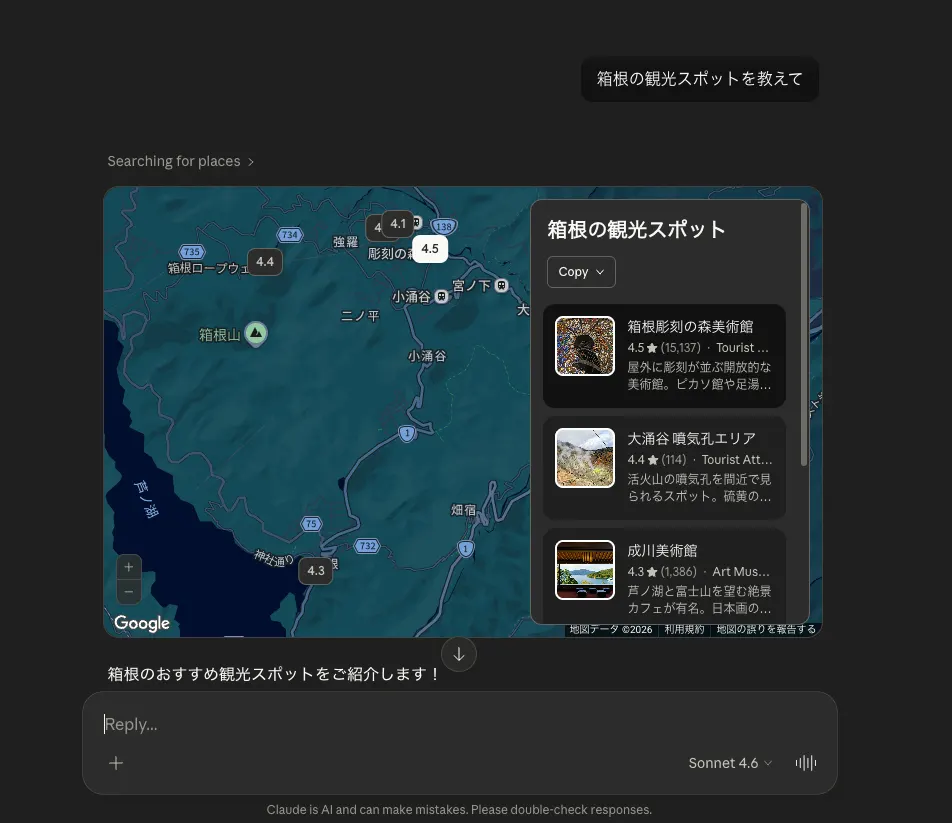
However, Generative UI also comes with several challenges. The root issue is that AI output is unpredictable. Usually, when AI generates UI, developers have it use predefined components or templates. Even so, the AI may use an incorrect component name and generate an unintended UI structure, or it may insert a <script> tag and create a risk of executing malicious code. If unintended UI is generated, it can damage the brand image, confuse users, and in the worst case, lead to security issues.
This is where json-render, a framework developed by Vercel Labs, addresses the problem. You define a "catalog" with components and actions in advance, then have AI generate JSON based on that catalog. When components are rendered, they follow JSON Schema constraints, which greatly reduces the risk of AI generating an invalid UI structure. Another characteristic is that the generated UI is mapped to actual components, so it can be naturally integrated as part of the application rather than being rendered inside a sandbox such as an iframe.
In this article, I will try json-render and introduce how it works.
Installing json-render
json-render is distributed as a core package plus renderers for each UI framework. Supported renderers include the following:
- React
- Vue
- Svelte
- Solid
- React Native
- shadcn (a React renderer based on shadcn/ui)
- remotion (a renderer for drawing video elements)
- ink (a renderer for terminals)
This time, we will try the React renderer. First, create a Next.js project.
npx create-next-app@latest json-render-sampleWe will also use AI SDK to call the AI model, so install it as well.
npm install @json-render/core @json-render/react ai @ai-sdk/anthropic zod1. Defining a catalog
First, create a catalog that defines the components AI can use. A catalog defines the following items:
- Components: UI elements generated by AI. They define structures such as props and slots
- Actions: Operations that AI can trigger, such as functions called when a user clicks a button
- Functions: Functions for defining custom validation and transformation logic
To define a catalog, use the defineCatalog function from @json-render/core. The schema passed as the first argument is provided by each renderer. Since we are using the React renderer here, import schema from @json-render/react/schema.
Here, let's define Button, Card, and Input as components. Button represents a clickable button, and Card represents a component that displays a title and content. Input is a component for user text input. We will define it so that clicking Button triggers an action named submitForm. The catalog can be defined in a type-safe way with Zod. You can also add descriptions to each component and action. This makes it easier for AI to understand how to use the components and actions.
import { defineCatalog } from "@json-render/core";
import { schema } from "@json-render/react/schema";
import { z } from "zod";
export const catalog = defineCatalog(schema, {
  components: {
    Button: {
      props: z.object({
        label: z.string(),
        variant: z.enum(["primary", "secondary"]).default("primary"),
      }),
      description:
        "クリック可能なボタンコンポーネントでアクションをトリガーするために使用されます。",
    },
    Card: {
      props: z.object({
        title: z.string(),
      }),
      // The default slot corresponds to where child elements are rendered
      slots: ["default"],
    },
    Input: {
      props: z.object({
        label: z.string().optional(),
        placeholder: z.string().optional(),
        type: z.enum(["text", "email", "password", "number"]).default("text"),
        value: z.string().optional(),
      }),
      description:
        "テキスト入力コンポーネントです。ユーザーがテキストを入力するために使用されます。",
    },
  },
  actions: {
    submitForm: {
      params: z.object({
        formData: z.object({
          name: z.string(),
        }),
      }),
      description:
        "フォームの送信を処理するアクションです。ユーザーがボタンをクリックしたときにトリガーされます。",
    },
  },
});
2. Defining components
Next, map the components defined in the catalog to actual React components. To do this, use the defineRegistry function from @json-render/react. By passing the catalog to defineRegistry, you can define components and actions in a type-safe way.
import { defineRegistry, useBoundProp } from "@json-render/react";
import { catalog } from "./catalog";

export const { registry, handlers } = defineRegistry(catalog, {
  components: {
    Button: ({ emit, props }) => {
      const primary = "bg-blue-500 text-white";
      const secondary = "bg-gray-500 text-white";
      return (
        <button
          className={`px-4 py-2 rounded ${props.variant === "primary" ? primary : secondary}`}
          onClick={() => emit("press")}
        >
          {props.label}
        </button>
      );
    },
    Card: ({ children, props }) => {
      return (
        <div className="p-4 border rounded">
          <h2 className="text-lg font-bold">{props.title}</h2>
          <div>{children}</div>
        </div>
      );
    },
    Input: ({ props, bindings }) => {
      // Use useBoundProp to get a two-way bound value
      const [value, setValue] = useBoundProp<string>(
        props.value,
        bindings?.value,
      );
      return (
        <div className="flex flex-col gap-1">
          {props.label && (
            <label className="text-sm font-medium">{props.label}</label>
          )}
          <input
            type={props.type}
            placeholder={props.placeholder}
            value={value ?? ""}
            onChange={(e) => setValue(e.target.value)}
            className="border p-2 rounded"
          />
        </div>
      );
    },
  },
  actions: {
    submitForm: async (params, setState) => {
      const name = params?.formData?.name;
      console.log("Form submitted with data:", name);
      const upperName = name ? name.toUpperCase() : "UNKNOWN";
      setState((prev) => ({
        ...prev,
        submitted: true,
        formData: { name: upperName },
      }));
    },
  },
});
Each component is defined as a function that receives the following arguments and returns JSX:
props: An object that follows the props type defined in the catalogchildren: Child elements corresponding to the default slotemit: A function for emitting events. It is used to emit simple eventson: A function for emitting events with metadata. Use it when you want to attach additional information to an eventloading: A flag that indicates whether the renderer is loadingbindings: An object used for custom two-way state binding with$bindStateand$bindItem
Action handlers receive the params and setState defined in the catalog. They can also receive state if needed. params are the arguments passed when the action is called, and they follow the schema defined in the catalog. setState is a function for updating state inside an action, and it can be used to reflect state changes in components.
3. Defining an API route
Now let's call an AI model and generate JSON based on the catalog. Create a Next.js API route and write code that calls the model with AI SDK. Here we use Claude's Haiku model, so set your API key in the ANTHROPIC_API_KEY environment variable.
ANTHROPIC_API_KEY=your_anthropic_api_key_hereCreate a file named app/api/generate/route.ts and define the /api/generate endpoint.
import { streamText } from "ai";
import { catalog } from "@/lib/catalog";
import { anthropic } from "@ai-sdk/anthropic";

export async function POST(req: Request) {
  const { prompt } = await req.json();

  // Generate a system prompt from the catalog
  const systemPrompt = catalog.prompt();

  const result = streamText({
    model: anthropic("claude-haiku-4-5"),
    system: systemPrompt,
    prompt,
  });

  return result.toTextStreamResponse();
}
Here, we generate a system prompt from the catalog and pass it to the AI model. The system prompt contains instructions that tell the AI to generate UI according to a JSON Schema, as shown below.
You are a UI generator that outputs JSON. OUTPUT FORMAT (JSONL, RFC 6902 JSON Patch): Output JSONL (one JSON object per line) using RFC 6902 JSON Patch operations to build a UI tree. Each line is a JSON patch operation (add, remove, replace). Start with /root, then stream /elements and /state patches interleaved so the UI fills in progressively as it streams. ... AVAILABLE COMPONENTS (3):
Button: { label: string, variant: "primary" | "secondary" } - クリック可能なボタンコンポーネントでアクションをトリガーするために使用されます。
Card: { title: string } [accepts children]
Input: props are label?: string, placeholder?: string, type: "text" | "email" | "password" | "number", value?: string - テキスト入力コンポーネントです。ユーザーがテキストを入力するために使用されます。$bindState でステートと双方向バインディングできます。 ... RULES:
- Output ONLY JSONL patches - one JSON object per line, no markdown, no code fences ...
4. Creating a renderer and displaying the UI
Finally, create a <Renderer> component and display the UI generated by AI. The AI model streams JSON Patch in JSONL format, and the useUIStream hook assembles the output received from the API route into a spec. This spec contains the structure of the UI to render. By passing spec to the <Renderer> component, you can render the AI-generated UI.
"use client";

import { useMemo, useRef, useState } from "react";
import {
  Renderer,
  StateProvider,
  ActionProvider,
  VisibilityProvider,
  ValidationProvider,
  useUIStream,
} from "@json-render/react";
import { registry, handlers } from "@/lib/registry";

export default function Home() {
  const [state, setState] = useState({});
  const { spec, isStreaming, send } = useUIStream({
    api: "/api/generate",
  });
  const handleSubmit = (e: React.FormEvent<HTMLFormElement>) => {
    e.preventDefault();
    const formData = new FormData(e.currentTarget);
    const prompt = formData.get("prompt") as string;
    send(prompt);
  };

  return (
    <StateProvider initialState={state}>
      <VisibilityProvider>
        <ActionProvider
          handlers={{
            submit: (params) => console.log("Submit:", params),
          }}
        >
          <ValidationProvider customFunctions={{}}>
            <form onSubmit={handleSubmit}>
              <input
                name="prompt"
                placeholder="UIの説明を入力してください..."
                className="border p-2 rounded"
              />
              <button type="submit" disabled={isStreaming}>
                生成
              </button>
            </form>

            <div className="mt-8">
              <Renderer spec={spec} registry={registry} loading={isStreaming} />
            </div>
          </ValidationProvider>
        </ActionProvider>
      </VisibilityProvider>
    </StateProvider>
  );
}
Each provider has the following role:
<StateProvider>: Manages state shared across the entire application. It centrally manages values referenced and updated by UI components, such as form input values and selected state. It can also be combined with any state management library<VisibilityProvider>: Manages showing and hiding UI elements. If the assembledspeccontains a condition such as{ visible: { $state: "/some/state/path" } }, this provider shows or hides the element based on the value of that state<ActionProvider>: Defines actions triggered by AI and registers and manages handlers for user actions such as button presses. When an action such assubmitFormis fired from AI-generated UI, the handler registered here is called<ValidationProvider>: Defines custom validation logic for the assembledspec. You can define custom validation functions with thecustomFunctionsprop<Renderer>: Renders the AI-generated UI. By passing the assembled UI structure to thespecprop and the component definitions to theregistryprop, it displays AI-generated UI as a naturally integrated part of the application
Generating UI based on a spec
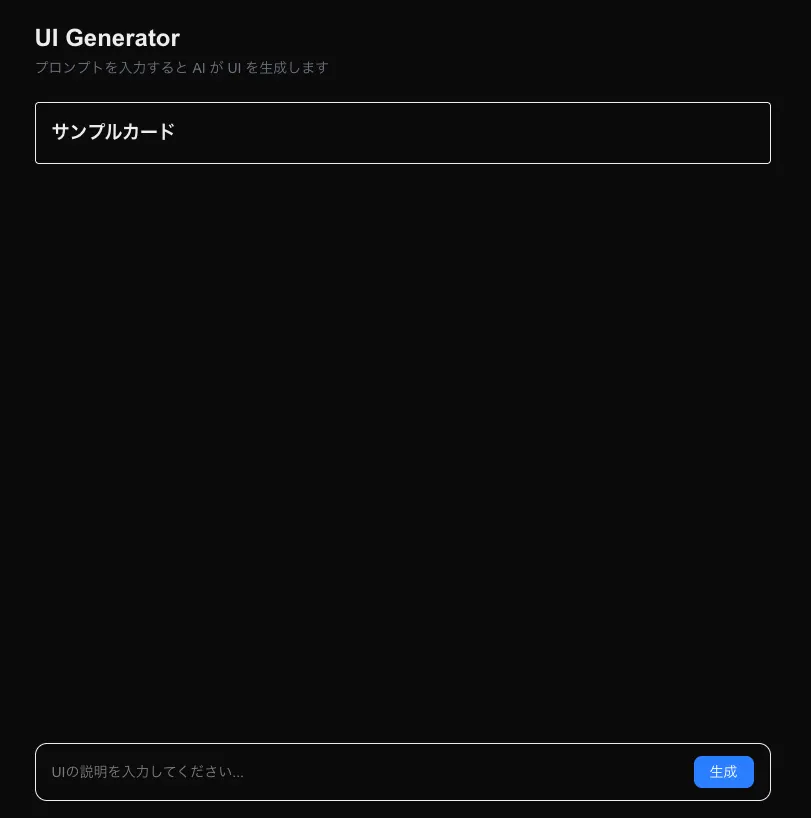
Now let's run the app and try it. For example, if you send the prompt "Show a card," the AI streams patches in JSONL format.
{"op":"add","path":"/root","value":"main"}
{"op":"add","path":"/elements/main","value":{"type":"Card","props":{"title":"サンプルカード"},"children":[]}}
useUIStream assembles that output into a spec like the following:
{
  "root": "main",
  "elements": {
    "main": {
      "type": "Card",
      "props": {
        "title": "サンプルカード"
      },
      "children": []
    }
  }
}
When you check the generated UI, you can see that the sample card is indeed displayed.
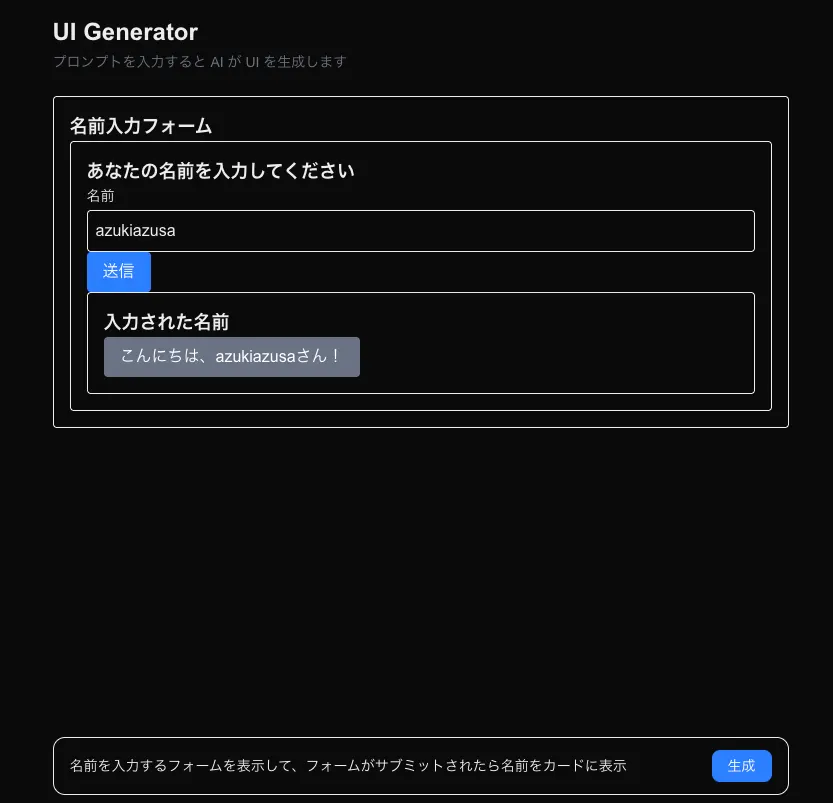
Let's also try an example that involves actions and state updates. If you send the prompt "Show a form for entering a name, and when the form is submitted, display the name in a card," a spec like the following is assembled from the AI output.
{
  "root": "main",
  "elements": {
    "main": {
      "type": "Card",
      "props": {
        "title": "名前入力フォーム"
      },
      "children": ["form-container"]
    },
    "form-container": {
      "type": "Card",
      "props": {
        "title": "あなたの名前を入力してください"
      },
      "children": ["name-input", "submit-button", "result-card"]
    },
    "name-input": {
      "type": "Input",
      "props": {
        "label": "名前",
        "placeholder": "名前を入力",
        "type": "text",
        "value": {
          "$bindState": "/form/name"
        }
      },
      "children": []
    },
    "submit-button": {
      "type": "Button",
      "props": {
        "label": "送信",
        "variant": "primary"
      },
      "on": {
        "press": {
          "action": "submitForm",
          "params": {
            "formData": {
              "name": {
                "$state": "/form/name"
              }
            }
          }
        }
      },
      "children": []
    },
    "result-card": {
      "type": "Card",
      "props": {
        "title": "入力された名前"
      },
      "visible": {
        "$state": "/submitted"
      },
      "children": ["result-text"]
    },
    "result-text": {
      "type": "Button",
      "props": {
        "label": {
          "$template": "こんにちは、${/formData/name}さん!"
        },
        "variant": "secondary"
      },
      "children": []
    }
  },
  "state": {
    "form": {
      "name": ""
    },
    "formData": {
      "name": ""
    },
    "submitted": false
  }
}
Compared with the previous card example, this spec includes an input form, a submit button, and a card for displaying the submitted name. Let's look at a few notable points. The value prop of the name-input component is bound to /form/name with $bindState, so the value entered by the user is reflected in state. You can also see that form/name is initialized inside the state object.
{
  "elements": {
    "name-input": {
      "type": "Input",
      "props": {
        "label": "名前",
        "placeholder": "名前を入力",
        "type": "text",
        "value": {
          "$bindState": "/form/name"
        }
      },
      "children": []
    }
  },
  "state": {
    "form": {
      "name": ""
    },
    "formData": {
      "name": ""
    },
    "submitted": false
  }
}
The on prop of the submit-button component defines a press event, and when the button is clicked, the submitForm action is called. The params use $state to pass the value of /form/name. The submitForm action converts the received name to uppercase, saves it to /formData/name, and updates /submitted to true. As a result, the condition in the visible prop of the result-card component is satisfied, and the card is displayed.
{
  "elements": {
    "submit-button": {
      "type": "Button",
      "props": {
        "label": "送信",
        "variant": "primary"
      },
      "on": {
        "press": {
          "action": "submitForm",
          "params": {
            "formData": {
              "name": {
                "$state": "/form/name"
              }
            }
          }
        }
      },
      "children": []
    },
    "result-card": {
      "type": "Card",
      "props": {
        "title": "入力された名前"
      },
      "visible": {
        "$state": "/submitted"
      },
      "children": ["result-text"]
    }
  }
}
When you interact with the rendered UI, you will notice that the "Entered Name" card is displayed only after you enter a name and click the submit button, and the text within it displays "Hello,
Summary
- Generative UI, where AI generates UI, is gaining attention. It is useful for visually expressing information that text alone cannot fully convey and for providing interfaces users can interact with
- However, because AI output is unpredictable, there is a risk that unintended UI will be generated
- json-render is a framework that reduces the risk of AI generating an incorrect UI structure by having AI generate JSON based on a predefined catalog of components and actions. It also provides UI that can be naturally integrated as part of an application
- By defining components and actions in a catalog and mapping them to actual components, you can render UI based on a spec assembled from AI output