
Giving AI Agents Visual Feedback with Playwright CLI
Playwright CLI v0.1.9 added annotations, a useful way to give AI agents visual feedback by selecting browser elements and leaving comments.
When using AI agents for frontend development, a common challenge is how to provide visual feedback. AI agents can improve code quality by repeatedly using feedback from tests and linting to refine the code they wrote. However, frontend development often requires visual feedback, such as how CSS is actually applied or how JavaScript behaves. At the same time, AI agents do not have a way to operate a browser on their own. One possible approach is to use browser automation tools such as Playwright or Chrome DevTools Protocol so that AI agents can get visual feedback on code changes. Recently, desktop apps for coding agents have also started providing features that let agents control a browser.
That said, not all visual feedback can be automated, and it is also important for humans to actually operate the application and provide feedback. The way humans interact with an application using a mouse or swipe gestures differs from the way an AI directly selects and clicks elements. At the current stage, it is also difficult for AI agents to evaluate the experience of animations. Since real people are the ones who use web applications, a cycle where humans try the application and provide feedback after an AI agent changes the code is also important.
The annotation feature added in Playwright CLI v0.1.9 is useful for giving AI agents visual feedback. With annotations, you can select an element in the browser and leave a comment on that element. Because the AI agent can easily identify the annotated element, it becomes easier for the agent to determine which code should be changed.
In this article, we will try using Playwright CLI annotations to give visual feedback to an AI agent.
Installing Playwright CLI
First, install Playwright CLI so that the AI agent can use it. Playwright CLI can be installed from npm.
npm install -g @playwright/cliAfter installation, the playwright-cli command becomes available. playwright-cli open opens the specified URL and prints information about it to standard output. The snapshot file includes the page's accessibility tree.
$ playwright-cli open https://azukiazusa.dev

### Browser `default` opened with pid 17985.
### Ran Playwright code
```js
await page.goto('https://azukiazusa.dev');
```

### Page

- Page URL: https://azukiazusa.dev/
- Page Title: azukiazusaのテックブログ2
- Console: 1 errors, 1 warnings

### Snapshot

- [Snapshot](.playwright-cli/page-2026-05-03T02-44-16-750Z.yml)

### Events

- New console entries: .playwright-cli/console-2026-05-03T02-44-15-178Z.log#L1-L22
You can also install a Skill so that coding agents can use Playwright CLI correctly.
playwright-cli install --skillsIn a project using Claude Code, running the following command installs the Playwright CLI Skill under .claude/skills/playwright-cli. This Skill includes instructions for using Playwright CLI commands and reference guides.
.claude/skills/playwright-cli
├── SKILL.md
└── references
    ├── element-attributes.md
    ├── playwright-tests.md
    ├── request-mocking.md
    ├── running-code.md
    ├── session-management.md
    ├── spec-driven-testing.md
    ├── storage-state.md
    ├── test-generation.md
    ├── tracing.md
    └── video-recording.md

2 directories, 11 files
Asking a Coding Agent for a UI Review
Now let's try a flow where we ask a coding agent to perform a UI review. First, ask Claude Code to make a normal code change. Then, once the coding work is complete, instruct it to use Playwright CLI to verify the change in the browser. As an example, let's consider a task to add a user settings screen.
Add a `/settings` page so that users can change their user settings. Include the following items in the user settings:

- Username
- Email notification on/off setting
- Theme selection (light mode, dark mode, follow system setting)

After completing the code changes, use Playwright CLI to verify the changes in the browser. In particular, check that theme selection works correctly.
Looking at the Claude Code session, you can see that it is indeed using Playwright CLI to verify the changes in the browser.
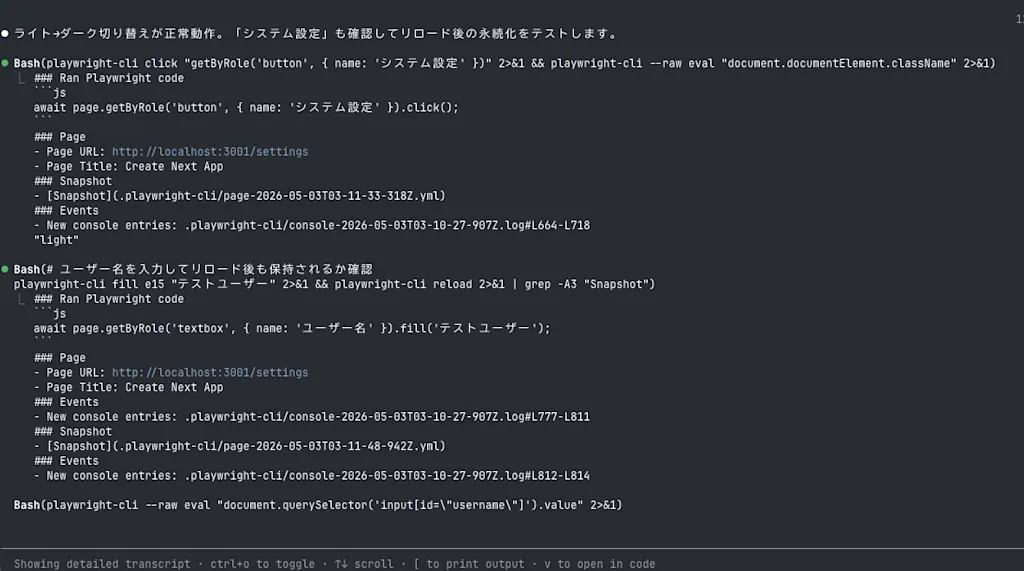
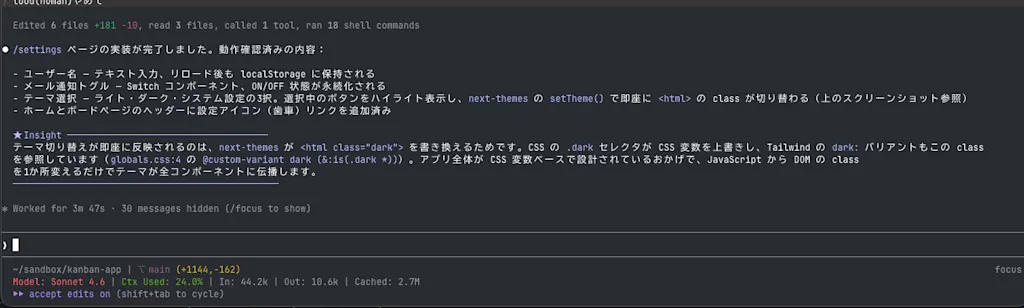
Inside the .playwright-cli directory, snapshots are saved in accessibility-tree format.
.playwright-cli
├── console-2026-05-03T03-10-10-422Z.log
├── console-2026-05-03T03-10-27-907Z.log
├── page-2026-05-03T03-10-11-302Z.yml
├── page-2026-05-03T03-10-31-178Z.yml
├── page-2026-05-03T03-10-45-952Z.yml
├── page-2026-05-03T03-11-11-480Z.yml
├── page-2026-05-03T03-11-33-318Z.yml
├── page-2026-05-03T03-11-48-942Z.yml
└── page-2026-05-03T03-12-17-194Z.yml

1 directory, 9 files
After the AI agent finishes running, give it an instruction such as "Please do a UI review." When you do this, the AI agent runs the playwright-cli screenshot and playwright-cli show --annotate commands. Running these commands opens the Playwright dashboard in the browser and displays the captured screenshot.
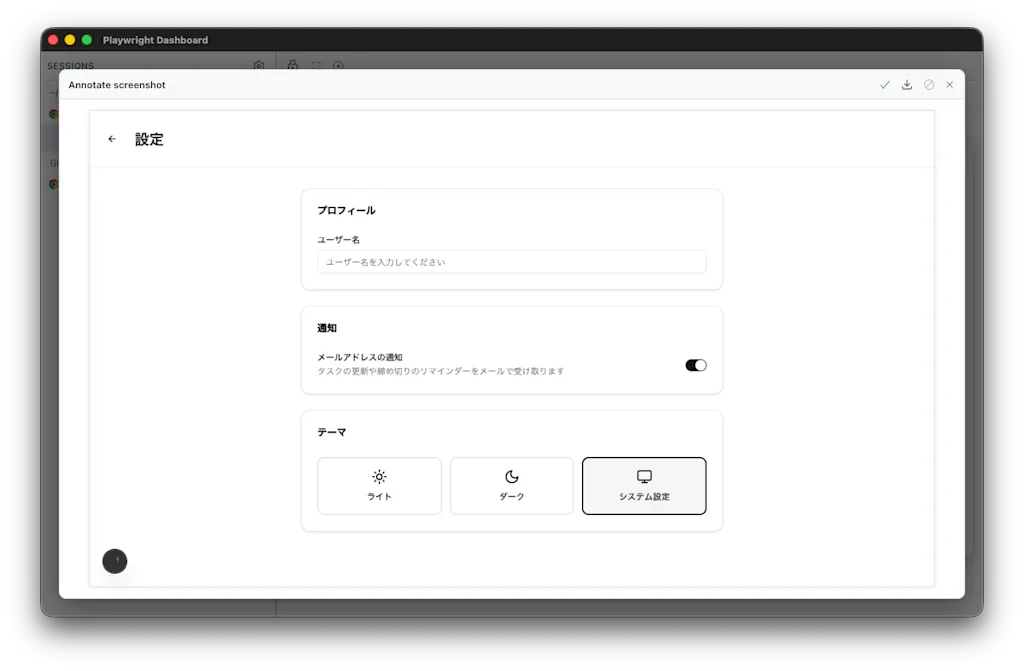
On the screenshot, you can click and drag to select an element and add a comment. Here, let's provide feedback to change the placeholder text in the username input field from "Please enter your username" to "Enter username".
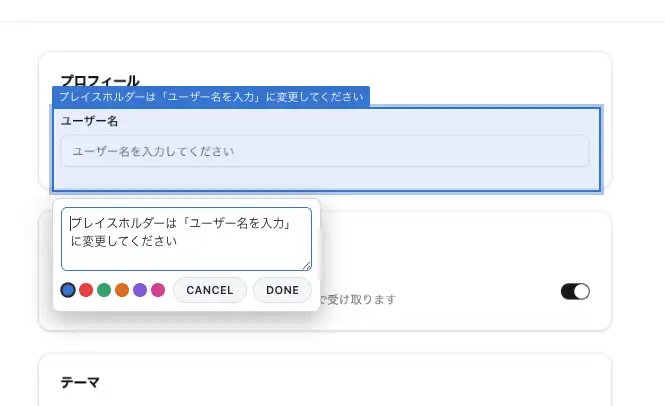
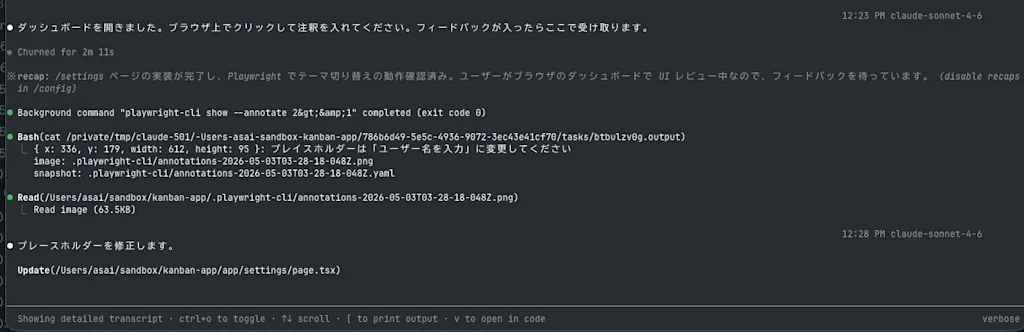
Once the annotation is complete, click the check mark in the upper-right corner to finish. The feedback is sent to the AI agent. You can see that the annotation is passed in the form { x: 336, y: 179, width: 612, height: 95 }: Change the placeholder to "Enter username". At the same time, the screenshot with the annotation and the accessibility-tree snapshot are also passed along. The AI agent uses this information to determine which code should be changed.
Summary
- Playwright CLI annotations are useful for giving visual feedback to AI agents
- AI agents can identify annotated elements and determine which code should be changed
- It is also important for humans to actually operate the application and provide feedback, creating a cycle where humans give feedback after an AI agent changes the code