Supporting Foldable Screens with the Device Posture API and Viewport Segments API
Safari 27.1 ships the Device Posture API and Viewport Segments API behind feature flags for foldables like iPhone Duo. This article explains how both APIs work, how they evolved, and how to build layouts that avoid the fold.
iPhone Duo is an iPhone with a foldable screen. When closed, it uses the outer display; when opened, it uses the larger inner display. According to WebKit Features for Safari 27.1, Safari's viewport width ranges from 382px when holding the outer display in portrait to 951px when holding the inner display in landscape.
Changes in width can be handled with ordinary responsive design. However, when the screen is folded about halfway, there are problems that responsive design alone cannot solve. For example, if a button or a block of text placed in the middle of the screen ends up on top of the fold, the button becomes hard to tap and the text becomes hard to read. For a page to avoid the fold, it needs two pieces of information:
- Whether the device is folded
- The position and size of each area separated by the fold
These two pieces of information are provided by the Device Posture API and the
Viewport Segments API. This article explains how the two APIs work and how they came to be, and then implements a layout that splits a list and its details into left and right panes, and a layout that splits a video and its controls into top and bottom areas.
As of October 26, 2026, the Device Posture API and Viewport Segments API in Safari 27.1 are developer previews and only work when their feature flags are enabled. Chrome and Edge have supported the Device Posture API since version 132 and the
Viewport Segments API since version 138. Firefox does not support them yet.
How the Two APIs Came to Be
Both APIs originated from the Foldables Explainer that Microsoft proposed in 2019 for dual-screen devices such as the Surface Duo. The
original explainer proposed a
spanning media feature and env(fold-*) environment variables representing the position of the fold. These have since been replaced by today's horizontal-viewport-segments / vertical-viewport-segments media features and env(viewport-segment-*) environment variables.
The JavaScript API has also changed shape several times. It was first proposed as a window.getWindowSegments() method, and in October 2021 it moved to a window.visualViewport.segments property. Later, the CSS Working Group discussed
Issue #9237 in June 2024 and resolved to create a new object on
window representing the layout viewport and to define segments on it.
The Device Posture API was originally called the Screen Fold API and could report the angle of the fold. In March 2021, the angle was removed from the specification, and the API was renamed to the Device Posture API at the same time. At the Devices and Sensors Working Group meeting in October 2021, the angle was explained as having been removed for privacy reasons. Today, only two values remain:
continuous and folded.
As this history shows, both APIs have been refined to expose only the minimum information needed for layout, rather than exposing the device's hardware in detail.
Detecting the Device Posture with the Device Posture API
The Device Posture API represents the posture of a device with one of two values:
| Value | State |
|---|---|
continuous |
The screen is flat. This includes regular smartphones, fully opened foldables, and fully closed devices |
folded |
The screen is partially folded, such as in the book or laptop posture |
Both the fully closed and the fully opened states are continuous. To tell whether the outer or inner display is in use, use a regular width media query rather than the Device Posture API.
In CSS, you can use the device-posture media feature to check whether the device is folded.
@media (device-posture: folded) {
  .layout {
    display: grid;
    grid-template-columns: 1fr 1fr;
  }
}
In JavaScript, navigator.devicePosture.type returns the current posture, and the change event notifies you when the posture changes. navigator.devicePosture is only available in secure contexts (HTTPS or localhost).
console.log(navigator.devicePosture.type); // "continuous" or "folded"

navigator.devicePosture.addEventListener("change", () => {
  console.log(navigator.devicePosture.type);
});
The Device Posture API only tells you whether the device is folded. It does not tell you where the fold is or which direction it runs. For that, you use the Viewport Segments API.
Finding the Fold with the Viewport Segments API
When the viewport is divided by a fold or a hinge (the part that connects two screens), the Viewport Segments API exposes each area as a segment. It consists of three parts: CSS media features, CSS environment variables, and a JavaScript API.
Media Features for Counting Segments
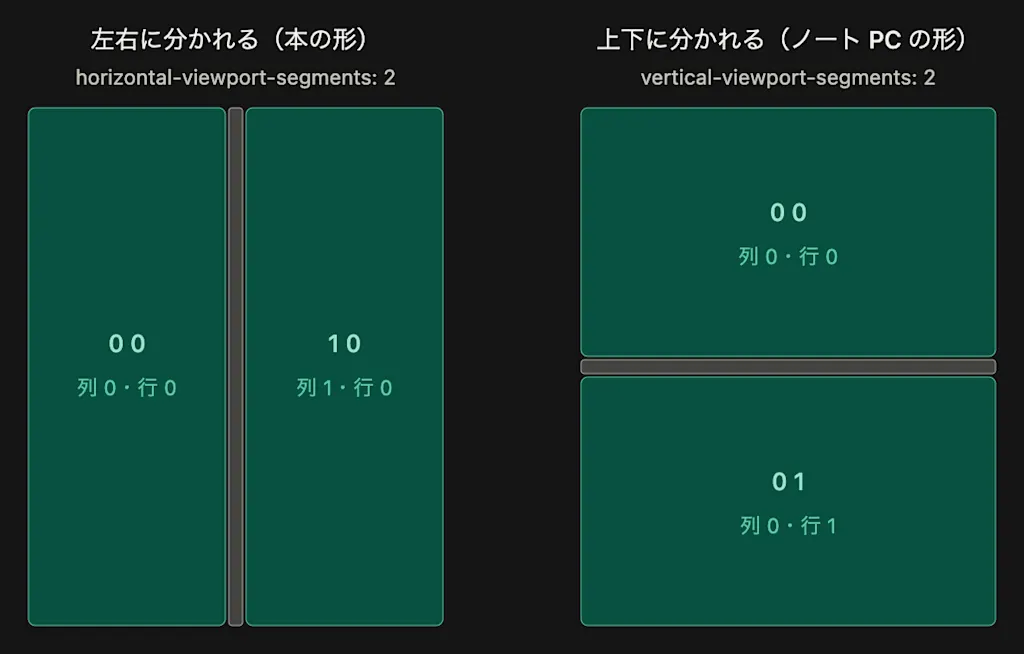
horizontal-viewport-segments represents the number of segments along the horizontal axis, and vertical-viewport-segments represents the number along the vertical axis. When the screen is split into left and right halves, as in the book posture, horizontal-viewport-segments: 2 matches. When it is split into top and bottom halves, as in the laptop posture, vertical-viewport-segments: 2 matches.
/* When there are two segments side by side */
@media (horizontal-viewport-segments: 2) {
}

/* When there are two segments stacked vertically */
@media (vertical-viewport-segments: 2) {
}
Environment Variables for Segment Position and Size
CSS Environment Variables defines six environment variables that represent the position and size of a segment:
viewport-segment-width/viewport-segment-height: The width and height of the segmentviewport-segment-top/viewport-segment-bottom: The position of the top and bottom edges of the segmentviewport-segment-left/viewport-segment-right: The position of the left and right edges of the segment
For each of them, you pass the segment's column and row indices, counted from 0, as arguments to env(). When the screen is split into left and right segments, the left one is 0 0 and the right one is 1 0. When it is split into top and bottom segments, the top one is 0 0 and the bottom one is 0 1.
.left-pane {
  width: env(viewport-segment-width 0 0, 50vw);
}
These environment variables are only defined when there are two or more segments. On devices that are not folded, or in browsers that do not support them, the fallback value passed as the third argument to env() is used.
There is no dedicated variable for the width of the fold itself, so you calculate it from the distance between the two segments. When the screen is split into left and right segments, the width of the fold is the left edge of the right segment minus the right edge of the left segment.
.hinge {
  width: calc(env(viewport-segment-left 1 0) - env(viewport-segment-right 0 0));
}
Getting Segments in JavaScript
window.viewport.segments returns an array of DOMRect objects, one for each segment. When the viewport is divided by a fold or a hinge, the array has two elements; otherwise, it has one. The posture (device-posture) and the number of segments are separate pieces of information, so some devices, such as dual-screen devices, have two segments while remaining continuous.
for (const segment of window.viewport.segments) {
  console.log(segment.x, segment.y, segment.width, segment.height);
}
Example 1: Splitting a List and Details into Left and Right Panes
Screens that show the details of an item selected on one side on the other side, such as mail apps or product listings, work well with the book posture. Here, we show the list in the left segment and the details in the right segment.
The HTML simply places the list and the details next to each other.
<div class="layout">
  <ul class="list">
    <li><button type="button" aria-current="true">Message 1</button></li>
    <li><button type="button">Message 2</button></li>
    <li><button type="button">Message 3</button></li>
  </ul>
  <article class="detail">
    <h1>Message 1</h1>
    <p>This is the body of Message 1.</p>
  </article>
</div>
In the CSS, we first apply ordinary responsive design and switch to two panes when the width is 640px or more.
body {
  margin: 0;
}

.layout {
  display: grid;
  grid-template-columns: 1fr;
  min-height: 100svh;
}

@media (min-width: 640px) {
  .layout {
    grid-template-columns: 280px 1fr;
  }
}
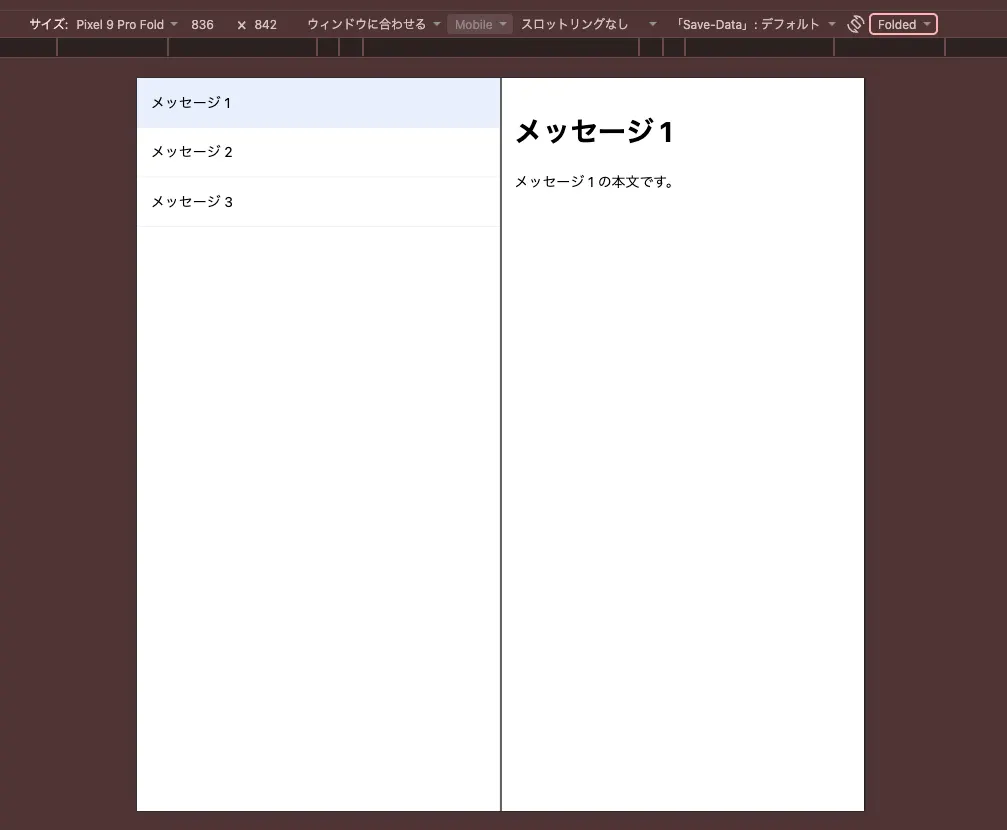
Because this is a plain two-column grid that ignores the position of the fold, the details may end up on top of the fold.
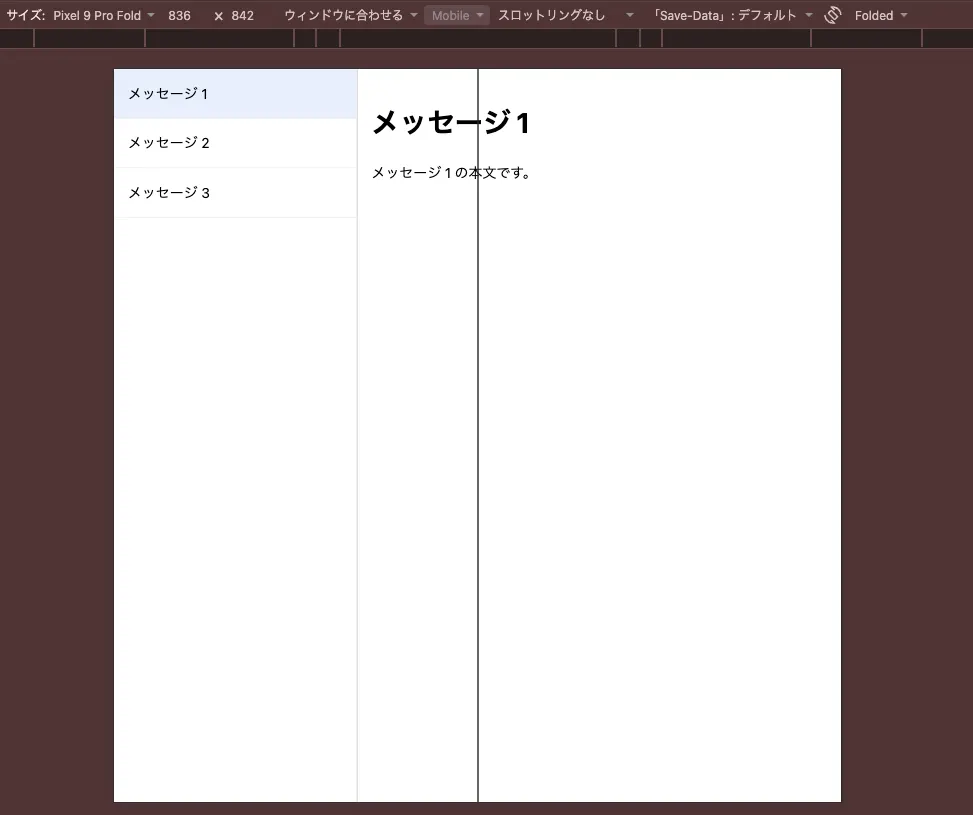
To fix this, switch to a three-column grid aligned with the segments, but only when there are two segments side by side.
@media (horizontal-viewport-segments: 2) {
  .layout {
    grid-template-columns:
      env(viewport-segment-width 0 0)
      calc(env(viewport-segment-left 1 0) - env(viewport-segment-right 0 0))
      env(viewport-segment-width 1 0);
  }

  .list {
    grid-column: 1;
  }

  .detail {
    grid-column: 3;
  }
}
@media (horizontal-viewport-segments: 2) matches when there are two segments separated by the fold. In grid-template-columns, the first column is the width of the left segment, the second is the width of the fold, and the third is the width of the right segment. The list goes in the first column and the details in the third, and nothing is placed in the second column, which corresponds to the fold, so no content overlaps the fold.
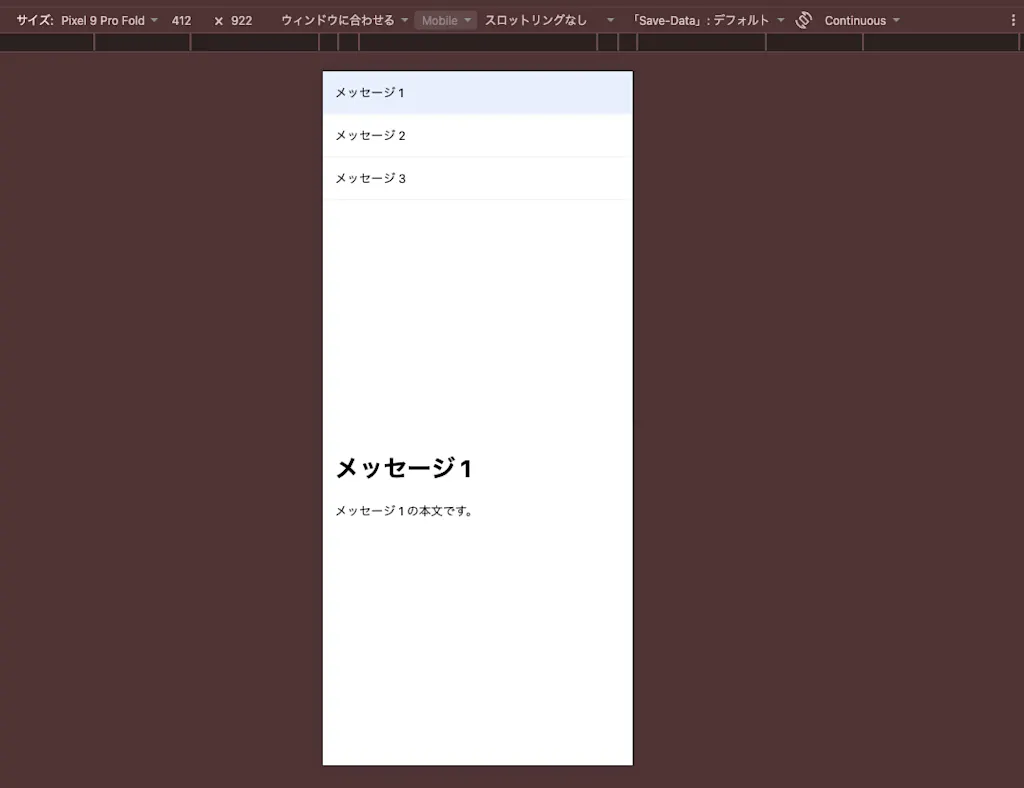
In Chrome DevTools, select "Galaxy Z Fold 5" or "Asus Zenbook Fold" from the device list, then choose Folded from the posture toggle (Continuous / Folded) that appears in the toolbar to simulate a folded device. The first screenshot shows Continuous and the second shows Folded. You can see that the list and the details do not overlap the fold and are displayed without straddling it.
Example 2: Splitting a Video and Its Controls into Top and Bottom Areas
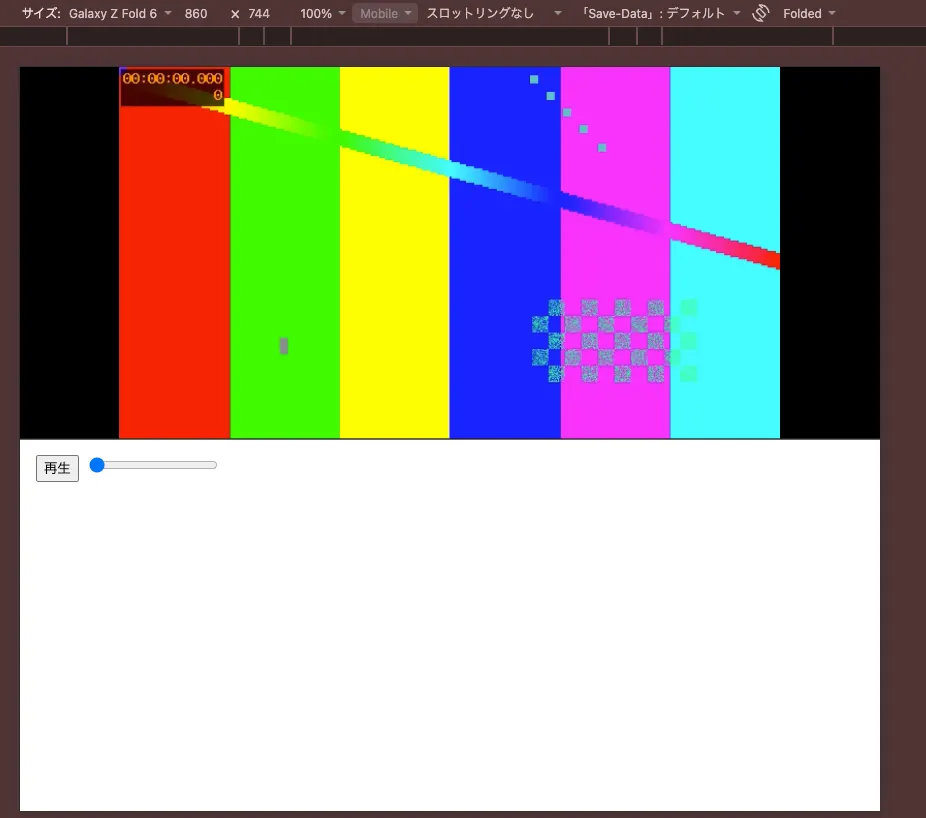
When you hold the device in landscape and fold it into the laptop posture, the top half acts like an upright screen and the bottom half sits like a keyboard on a desk. We'll build a layout where you watch the video on the top half and use the play button and seek bar on the bottom half.
<div class="player">
  <video src="sample.mp4" playsinline muted loop></video>
  <div class="controls">
    <button type="button" id="toggle">Play</button>
    <input type="range" id="seek" min="0" max="100" value="0" aria-label="Playback position" />
  </div>
</div>
When the screen is split into top and bottom segments, vertical-viewport-segments: 2 matches. The row heights are set with viewport-segment-height, and the height of the fold is calculated as the top edge of the bottom segment minus the bottom edge of the top segment.
body {
  margin: 0;
}

.player {
  display: grid;
  grid-template-rows: auto auto;
}

video {
  width: 100%;
  height: 100%;
  background: #000;
}

@media (vertical-viewport-segments: 2) {
  .player {
    height: 100dvh;
    grid-template-rows:
      env(viewport-segment-height 0 0)
      calc(env(viewport-segment-top 0 1) - env(viewport-segment-bottom 0 0))
      env(viewport-segment-height 0 1);
  }

  video {
    grid-row: 1;
    object-fit: contain;
  }

  .controls {
    grid-row: 3;
  }
}
By placing the video in the first row and the controls in the third row, the video fills the top half and the controls move to the half closest to your hands.
Summary
- The Device Posture API tells you whether the device is partially folded (
folded) or flat (continuous), through the CSSdevice-posturemedia feature andnavigator.devicePosture - Both the fully closed and fully opened states are
continuous, so usewidthmedia queries to determine the size of the display in use - The Viewport Segments API provides the number of areas separated by the fold through
horizontal-viewport-segments/vertical-viewport-segments, and their position and size throughenv(viewport-segment-*)andwindow.viewport.segments - The width of the fold is calculated with
calc()from the difference between the edges of adjacent segments - The fold angle was removed from the specification for privacy reasons, and the segments API settled on
window.viewport.segmentsafter going throughgetWindowSegments()andvisualViewport.segments - In Safari 27.1, the APIs only work when their feature flags are enabled. Chrome and Edge support both APIs