Removing Margins at a Container's Edges with CSS margin-trim
Card padding plus the margins of the first and last children can leave more space at the edges than intended. margin-trim removes margins at a container's edges while keeping the spacing between elements. Learn the basics through a card example.
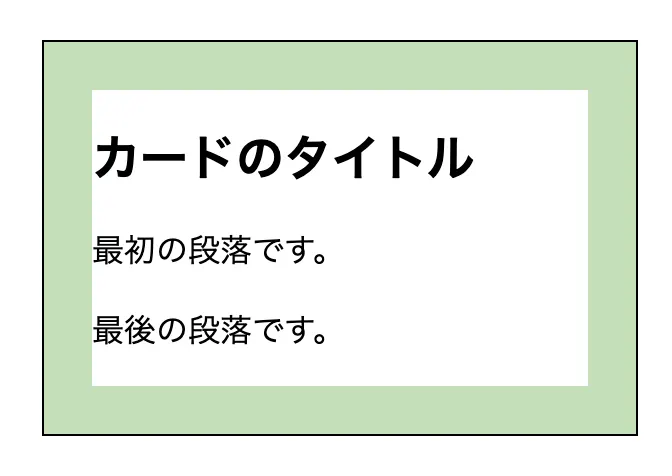
Suppose you set padding: 24px on a card to get even spacing on all sides. However, if the heading at the top of the card and the paragraph at the bottom also have a margin, the top and bottom spacing ends up larger than intended.
Traditionally, to remove these extra margins, you would select the target elements with :first-child or :last-child and set their margins to 0.
With the CSS margin-trim property, you can remove the margins at the edges by specifying it on the container. This article explains how to use margin-trim using a card with a heading and paragraphs as an example.
As of September 27, 2026, margin-trim is not available in all major browsers. It shipped in Safari 16.4, but Chromium and Firefox do not support it yet.
Extra Space at the Top and Bottom of a Card
First, let's look at the spacing without margin-trim. The following card has a heading and two paragraphs.
<article class="card">
  <h2>Card title</h2>
  <p>This is the first paragraph.</p>
  <p>This is the last paragraph.</p>
</article>
Give the card 24px of padding, and give the heading and paragraphs 16px of margin on the top and bottom.
.card {
  padding: 24px;
  border: 1px solid;
}

.card > h2,
.card > p {
  margin-block: 16px;
}
margin-block is a property that sets margins on both ends of the block direction. In normal horizontal writing, this corresponds to the top and bottom, so in this example it is equivalent to specifying margin-top: 16px and margin-bottom: 16px.
At the top edge of the card, the 24px padding and the heading's 16px top margin add up. The same happens at the bottom edge. As a result, the distance from the inside of the border to the boxes of the first and last elements unintentionally becomes 40px on each side.
On the other hand, the spacing between the heading and a paragraph, and between the paragraphs, is 16px. This is because in normal block layout, adjacent vertical margins combine into one, which is called "margin collapsing." When both values are positive, as in this example, the larger one is used. For details, see the definition of collapsing margins in CSS 2.
The Traditional Way to Remove the First and Last Margins
For this card, you can remove the margins by selecting only the first and last children, like this:
.card > :first-child {
  margin-block-start: 0;
}

.card > :last-child {
  margin-block-end: 0;
}
However, this approach only works when the children themselves have the margins. For example, if you wrap the paragraph in a div, .card > :first-child selects the wrapper div. The wrapper's margin becomes 0, but the margin of the paragraph inside it remains.
<article class="card">
  <div class="wrapper">
    <!-- This paragraph's margin cannot be removed with .card > :first-child -->
    <p>This is a paragraph.</p>
  </div>
</article>
To handle this, you need to make your selectors deeper, like .card > :first-child > :first-child, which makes your CSS tightly coupled to the HTML structure. Every time you change the HTML structure, you also have to update the CSS.
Specifying margin-trim on the Container
To use margin-trim, add margin-trim: block to the card instead of the earlier :first-child and :last-child rules.
.card {
  padding: 24px;
  border: 1px solid;
  margin-trim: block;
}

.card > h2,
.card > p {
  margin-block: 16px;
}
The key point is that you specify it on the container, .card, rather than on the heading or paragraphs that have the margins. block trims margins at both the start and end of the block direction.
The following image shows two cards with the same content side by side. The left card has no margin-trim, and only the right card has margin-trim: block. Compare the spacing at the top and bottom edges of the cards, as well as the spacing between the paragraphs.
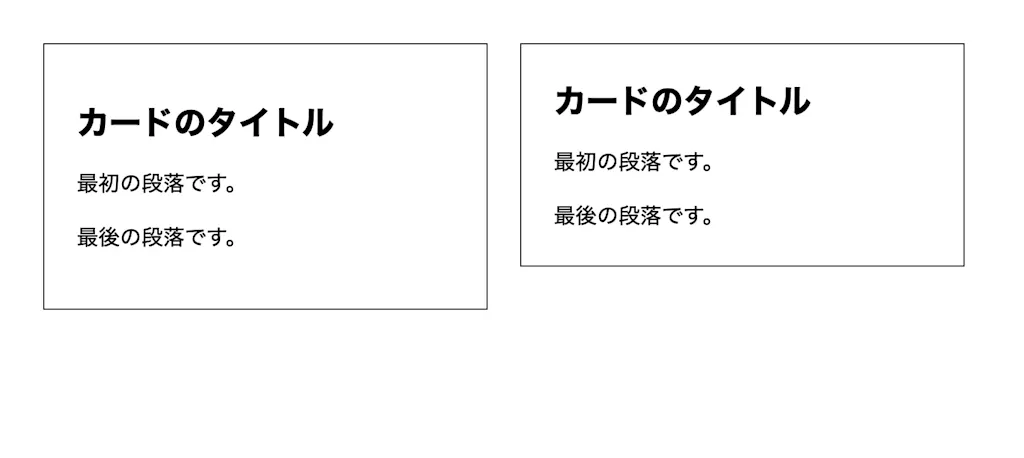
In the right card, the top margin of the first heading and the bottom margin of the last paragraph have been removed.
Specifying Which Edges to Trim
The current Editor's Draft defines the following values.
| Value | Behavior |
|---|---|
none |
Does not trim margins. The initial value |
block |
Trims at both the start and end of the block direction |
block-start |
Trims only at the start of the block direction |
block-end |
Trims only at the end of the block direction |
block-start block-end |
Trims at both ends, same as block |
For example, to adjust only the end of the card, specify the following:
.card {
  margin-trim: block-end;
}
With this, the top margin of the first heading remains, while the bottom margin of the last paragraph is removed.
How margin-trim Relates to Margin Collapsing
margin-trim does not set the margins of all descendants to 0. According to its definition for block containers, it trims the start margin of the first block-level child and the end margin of the last block-level child, as well as any margins that collapse with them.
For example, consider wrapping the paragraph in the card with a div.
<article class="card">
  <div class="wrapper">
    <p>This is a paragraph.</p>
  </div>
</article>
Give the card 24px of padding and the paragraph 16px of margin on the top and bottom. A div already has a margin of 0 by default, but to make the collapsing relationship clear, we explicitly set the wrapper's margin to 0.
.card {
  padding: 24px;
  border: 1px solid;
}

.wrapper {
  margin: 0;
}

.wrapper > p {
  margin-block: 16px;
}
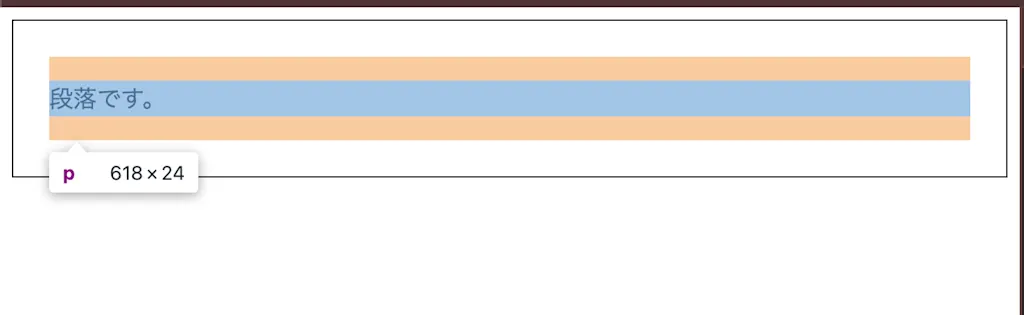
Since the wrapper has no padding or border, the paragraph's top and bottom margins collapse with the wrapper's top and bottom margins. When a 0 margin and a 16px margin collapse, 16px of space still remains. As a result, the distance from the inside of the card's border to the paragraph's box is 24px + 16px = 40px on both the top and bottom.
Now, add margin-trim: block to the card.
.card {
  margin-trim: block;
}
Because the paragraph's margins that collapse with the wrapper's edge margins are also targeted, margin-trim removes them. The padding remains, so the space at the top and bottom edges becomes 24px.

Summary
- Specifying
margin-trimon a container removes the margins of the children touching its edges margin-trim: blocktargets both ends of the block direction, keeping the container's padding and the margins between its inner elements- In block layout, it also trims margins of descendants that collapse with the edge margins