
What Is the GET /.well-known/appspecific/com.chrome.devtools.json Request You See During Local Development?
Chrome DevTools sends GET /.well-known/appspecific/com.chrome.devtools.json to detect your local project as a Workspace. This article covers why the 404 is harmless, what returning JSON enables, security notes, and support in Vite and Next.js.
If you do frontend development, you have probably noticed an unfamiliar request like this in your dev server logs:
GET /.well-known/appspecific/com.chrome.devtools.json 404This is a request Chrome DevTools sends to automatically detect your local project as a Workspace.
It is sent only when you open DevTools, returning 404 is the correct behavior for a dev server, and the request itself is harmless.
If your dev server returns valid JSON from /.well-known/appspecific/com.chrome.devtools.json, you can easily associate the Chrome DevTools Sources panel with your local project. Once associated, edits you make to HTML, CSS, and JavaScript in DevTools are saved back to your local files automatically.
In this article we'll look at why this request is sent, then actually return the JSON from a Node.js dev server and watch CSS edited in Chrome DevTools get written back to a local file. We'll also edit React components in Vite and Next.js from DevTools and confirm that the changes show up in the browser.
Automatic Workspace Folders is a Chrome-specific developer feature, not a web standard API.
What Is Automatic Workspace Detection in Chrome DevTools?
Automatic Workspace Folders is a feature where Chrome DevTools fetches project information from your local dev server and automatically shows a Workspace connection candidate.
When you view a localhost page with DevTools open, Chrome DevTools sends a request to the following URL on the same origin:
/.well-known/appspecific/com.chrome.devtools.jsonDevTools only attempts to fetch this JSON when the origin of the inspected page is localhost. It is a feature for local development, so Chrome will never send this request when you open a page on any other origin.
If your dev server doesn't handle this URL, it returns 404 just like any other nonexistent path. The Chrome DevTools troubleshooting guide also states that you can ignore this 404 if you don't use the feature.
/.well-known/ is a common location for retrieving well-defined metadata about an origin. RFC 8615 reserves paths beginning with
/.well-known/ for this purpose in HTTP and HTTPS URLs. Applications don't have to guess a URL, and name collisions are avoided.
appspecific is a suffix registered provisionally in the IANA Well-Known URI Registry so that individual applications can place their own files there. The
appspecific registration document requires that file names be based on a domain name the application controls.
com.chrome.devtools.json uses a namespace derived from reversing chrome.com. This makes collisions with other applications sharing the same appspecific directory unlikely.
Automatic Workspace Folders was added in Chrome 135. It initially required a flag because it was experimental, but fetching project settings became enabled by default in Chrome 136, and automatic file system connection in Chrome 137. The chrome://flags changes described in older articles are no longer necessary in current versions of Chrome.
The problem this feature solves is that the traditional Workspace setup was hard to discover, and you had to manually add and remove folders every time you opened a different project or another checkout. By having the dev server announce the current project, DevTools can connect the matching folder only while that page is open.
The Contents of com.chrome.devtools.json
Your dev server returns JSON in the following shape from that URL:
{
  "workspace": {
    "root": "/Users/yourname/path/to/project",
    "uuid": "9a78c0dd-00ed-4b52-8e49-19a8e5cd1543"
  }
}
workspace.root is an absolute path to the project root on the machine where Chrome is running. Relative paths do not work. If your dev server runs inside a container or WSL, you need to translate the path from the one inside the server to one Chrome can actually reach.
workspace.uuid is a valid UUID that identifies the project. The Chrome documentation recommends a randomly generated UUID v4.
You must not generate this UUID per request. The Chromium implementation stores the combination of the root and the UUID the user approved in the Chrome profile. When the same combination is returned again, it reconnects the Workspace using the stored permission. If the UUID changes every time, it is treated as a different project configuration and cannot be reconnected.
The intended usage is to generate a random value once per project and persist it somewhere like your dev server's cache.
Returning the JSON from a Node.js Dev Server
From here we'll verify the behavior using only Node.js standard APIs. The example below creates a dev server that serves HTML and CSS plus com.chrome.devtools.json.
import { createServer } from "node:http";
import { readFile } from "node:fs/promises";
import { dirname, join } from "node:path";
import { fileURLToPath } from "node:url";

// Resolve the absolute path to the project root
const projectRoot = dirname(fileURLToPath(import.meta.url));
// Use a fixed UUID so that it doesn't change on every dev server start
const workspaceUuid = "9a78c0dd-00ed-4b52-8e49-19a8e5cd1543";

const files = new Map([
  ["/", { path: "index.html", type: "text/html; charset=utf-8" }],
  ["/styles.css", { path: "styles.css", type: "text/css; charset=utf-8" }],
]);

const server = createServer(async (request, response) => {
  const url = new URL(request.url ?? "/", `http://${request.headers.host}`);

  console.log(`${request.method} ${url.pathname}`);

  // Return the JSON when the URL is /.well-known/appspecific/com.chrome.devtools.json
  if (
    url.pathname === "/.well-known/appspecific/com.chrome.devtools.json"
  ) {
    response.writeHead(200, { "Content-Type": "application/json" });
    response.end(
      JSON.stringify({
        workspace: {
          root: projectRoot,
          uuid: workspaceUuid,
        },
      }),
    );
    return;
  }

  // Return 404 for paths that don't exist
  const file = files.get(url.pathname);
  if (!file) {
    response.writeHead(404, { "Content-Type": "text/plain; charset=utf-8" });
    response.end("Not Found");
    return;
  }

  // Serve index.html or styles.css for regular requests
  const content = await readFile(join(projectRoot, file.path));
  response.writeHead(200, { "Content-Type": file.type });
  response.end(content);
});

server.listen(8000, "localhost", () => {
  console.log("Server running at http://localhost:8000");
});
When url.pathname is /.well-known/appspecific/com.chrome.devtools.json, the dev server returns the JSON. For workspace.root it returns the absolute path to the project root on the machine the dev server runs on, and for workspace.uuid it uses a fixed value that doesn't change between dev server starts.
if (
  url.pathname === "/.well-known/appspecific/com.chrome.devtools.json"
) {
  response.writeHead(200, { "Content-Type": "application/json" });
  response.end(
    JSON.stringify({
      workspace: {
        root: projectRoot,
        uuid: workspaceUuid,
      },
    }),
  );
  return;
}This endpoint should only be served during local development. DevTools only fetches the JSON on localhost pages, so the feature will never activate in production, but the file you place there can still be retrieved by anyone. Exposing it in production risks leaking unnecessary environment details, such as an absolute path containing the developer's username.
Editing Local Files from DevTools
Start the server, open http://localhost:8000 in Chrome, and then open DevTools.
node server.mjsAt this point the dev server logged the following requests. The last one is Chrome DevTools automatically detecting the Workspace.
GET /
GET /styles.css
GET /.well-known/appspecific/com.chrome.devtools.json
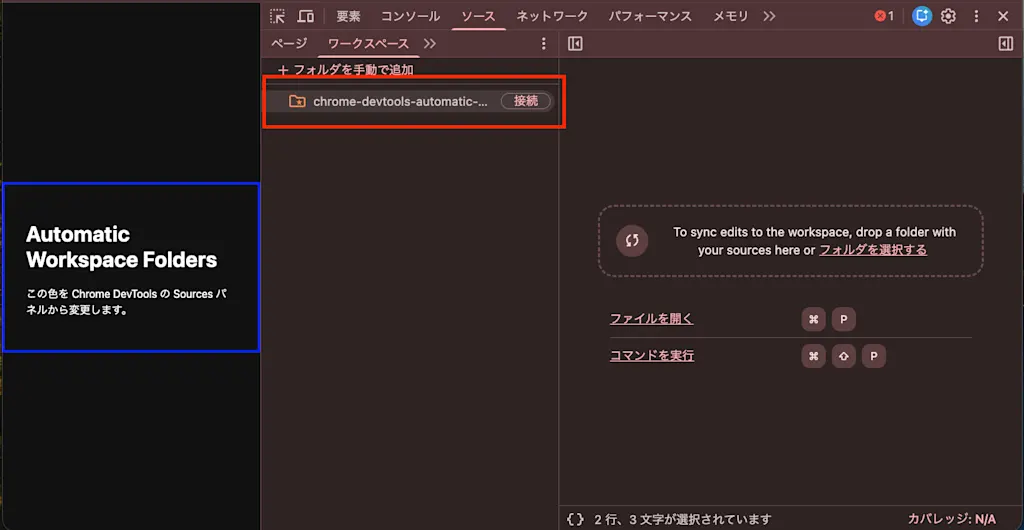
Opening Sources > Workspaces in DevTools showed a connection candidate named chrome-devtools-automatic-workspaces along with a button to connect the workspace.
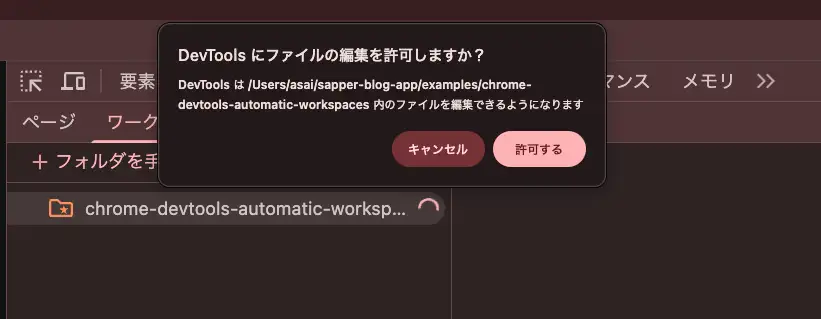
Clicking the connect button for chrome-devtools-automatic-workspaces brings up a dialog asking whether to allow DevTools to edit files.
Once you allow it, the files in the project appear in the Workspace. index.html and styles.css also show a green marker indicating that they have been mapped to network resources.
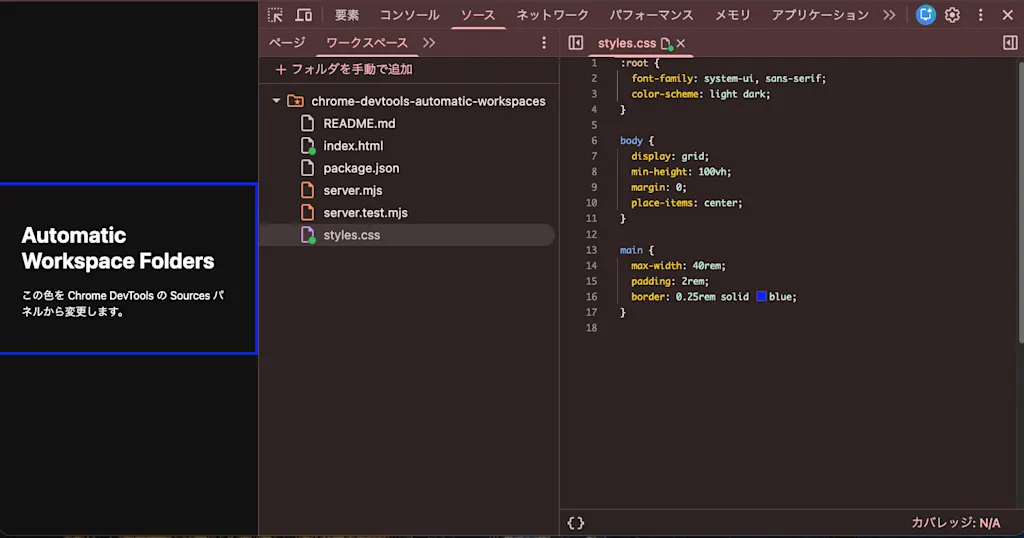
Open styles.css in the Workspace, change royalblue to tomato, and save with Cmd + S. Checking the file afterwards confirms that the contents of styles.css were updated exactly as edited in DevTools.
Note that what gets saved are edits to source files mapped into the Workspace. Rewriting the DOM directly in the Elements panel does not save changes back to the HTML file. When you're looking at code transformed by a build tool, DevTools will try to map back to the original source if a source map is available.
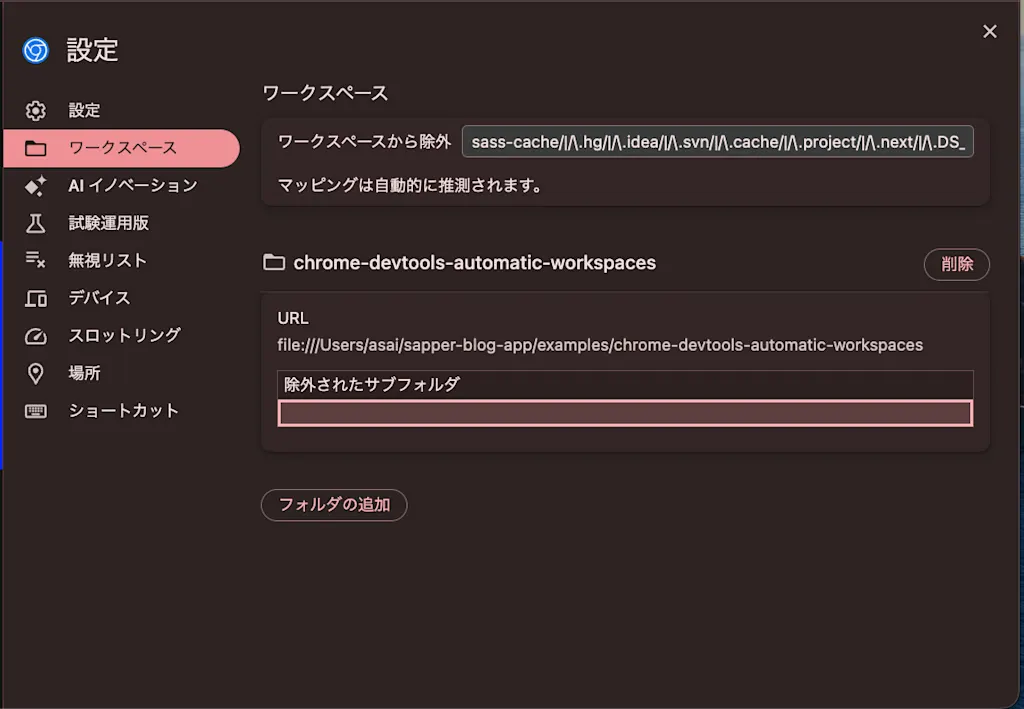
You can review the list of Workspaces you've allowed under Settings > Workspace in DevTools. If you no longer need one, you can remove it from the list to disconnect it.
Vite Requires a Plugin
As of August 29, 2026, Vite itself does not provide the com.chrome.devtools.json endpoint. You can use vite-plugin-devtools-json, published in the Chrome DevTools team's repository.
npm install -D vite-plugin-devtools-jsonAdd the plugin to your Vite config.
import { defineConfig } from "vite";
import react from "@vitejs/plugin-react";
import devtoolsJson from "vite-plugin-devtools-json";

export default defineConfig({
  plugins: [react(), devtoolsJson()],
});
By default the plugin returns Vite's config.root as workspace.root. The UUID is generated on first start and then persisted in Vite's cache. If the Vite root and the directory you want as your Workspace differ, as in a monorepo, you can specify an absolute path with the projectRoot option.
It also handles the container and WSL path problem mentioned earlier: the normalizeForWindowsContainer option, enabled by default, converts Linux-side paths into the UNC format that Chrome can reach.
Building this into Vite itself was also discussed. However, arguments in favor of a standalone plugin were raised, based on the concerns of shipping a Chrome-specific feature in core and on keeping future changes to the JSON manageable on the Chrome side. It is still provided as a plugin rather than part of Vite core today.
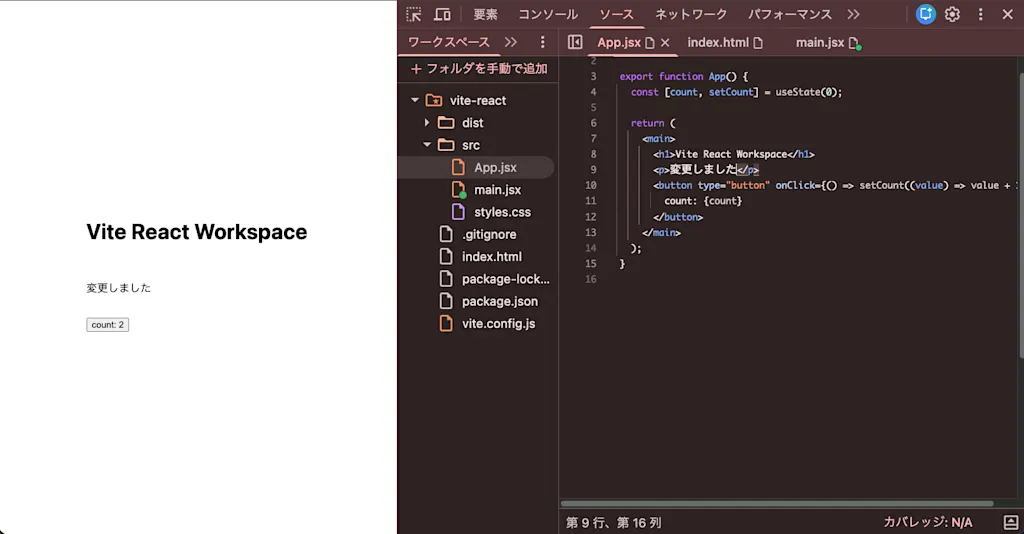
Let's confirm the behavior in practice. Start the dev server with npm run dev and connect to vite-react from Sources > Workspaces. Open src/App.jsx in the Workspace, change the text in the <p> element, and save: the real src/App.jsx is updated and the display switches over without a manual page reload. It's interesting to see changes reflected even for React source code like this.
Next.js Responds by Default in the Dev Server
Next.js added handling to return com.chrome.devtools.json from the dev server in PR #80260. The change landed in
15.4.0-canary.76 and is included in stable releases from 15.4.1 onward. Note that 15.4.0 was published before the PR was merged, so it does not have this endpoint.
With next dev, the JSON containing the project root and a UUID is returned without any extra configuration. The UUID is stored in a cache under .next, so the same value is used across page reloads. In contrast, the production server after next build returns 404 for this URL.
If you want to change the behavior, you can override the default by returning a response for the same path from the public directory or a Route Handler.
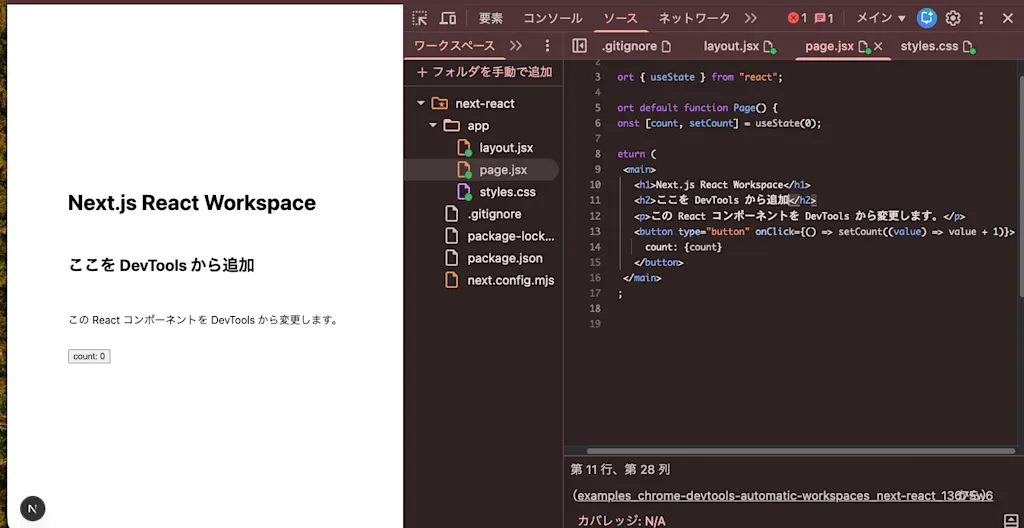
The same thing works with Next.js: editing a React component in DevTools and saving it caused the change to be detected and reflected in the browser.
Summary
GET /.well-known/appspecific/com.chrome.devtools.jsonis a request Chrome DevTools sends to automatically detect a Workspace for your local project- A dev server that doesn't use Workspaces can return 404; this is normally harmless and requires no action
- Returning a valid
rootand a stable UUID makes the Workspace connection candidate appear in DevTools - After the user grants permission, HTML, CSS, and JavaScript can be saved from DevTools back to local files
- Vite can use
vite-plugin-devtools-json, and Next.js dev servers from 15.4.1 onward provide the endpoint by default - To avoid leaking absolute paths, serve
com.chrome.devtools.jsononly during local development
References
Automatic Workspace connection in Chrome DevTools
Chromium DevTools Ecosystem Guide - Automatic Workspace Folders
devtools_file_helper.ccChromeDevTools/vite-plugin-devtools-json
/.well-known/appspecific/com.chrome.devtools.jsonendpoint in dev - vercel/next.js