
agent-desktop: A CLI That Lets AI Agents Operate Desktop Apps
agent-desktop is a Computer Use CLI for AI agents from Vercel Labs. It reads the OS accessibility tree instead of screenshots and operates apps through refs. This article covers the basics, then has Claude Code test a SwiftUI app and fix a bug.
When you have an AI agent build a web frontend, you can hand it agent-browser or
Playwright MCP, and it will open a browser and check its own work. Native apps built with SwiftUI or WinUI, on the other hand, have no API that agents can drive directly the way they drive a browser, so there are few ways to verify how they behave.
One way to operate desktop apps is the approach taken by Claude's Computer Use: take a screenshot and have the model estimate the coordinates to click. This approach can handle anything that appears on screen, but every action requires sending an image to the model, which then has to read the button positions from the image and decide on coordinates. As a result, it is slow and consumes a lot of tokens.
agent-desktop is a CLI that uses the OS accessibility tree instead of images. It reads buttons and text fields as structured data with roles and names, and the agent operates them by specifying the ref assigned to each element. It brings the same idea that Playwright MCP and agent-browser use for browsers, accessibility tree snapshots and refs, to desktop apps.
In this article, we'll go over the basics of agent-desktop, then hand off testing of a fictional expense app built with SwiftUI to Claude Code and watch the agent find and fix a bug.
The content of this article was verified on November 3, 2026, using macOS 26.6.2 and agent-desktop 1.0.2.
What is agent-desktop?
agent-desktop is a CLI and C library that lets AI agents read and operate desktop apps on macOS, Windows, and Linux. It is written in Rust and distributed as native binaries for each OS. It retrieves an app's UI through each OS's accessibility API.
| OS | API used |
|---|---|
| macOS | Accessibility API (AX) |
| Windows | UI Automation (UIA) |
| Linux | AT-SPI |
Accessibility APIs were originally designed for assistive technologies such as screen readers to read an app's UI. For a button, you can get its role ("button"), its name (such as "Add"), and its state (such as whether it is disabled). agent-desktop converts this into JSON and assigns a ref to each element that can be operated.
agent-desktop was originally published as a personal repository by lahfir. In the Show HN post, the author points out that most Computer Use performed by agents such as Codex and Claude Code relies on screenshots and estimating pixel coordinates. The author describes this approach as slow, token-hungry, and prone to breaking with even small UI changes. agent-browser is cited as the inspiration. After adding Linux support in 1.0.0 on October 28, 2026, the project was transferred to the vercel-labs organization on October 30.
Installation and permissions
agent-desktop is distributed as an npm package. It bundles native binaries for each OS and is started through a Node.js launcher.
npm install -g agent-desktop
agent-desktop version{"command":"version","data":{"os":"macos","target":"aarch64","version":"1.0.2"},"ok":true,"version":"2.5"}Every command prints a single JSON object like this. If ok is true, data contains the result; if it is false, error contains the reason for the failure. The trailing version is the version of the JSON format.
If install scripts are disabled in your npm configuration, the link to the native binary is not created and the CLI starts through the Node.js launcher. In that case, a notice is printed to stderr saying that each call adds about 125 ms of latency.
On macOS, the app that launches agent-desktop needs Accessibility permission. Running permissions --guide shows a guide that points to the relevant System Settings pane and tells you which app to add to the list.
agent-desktop permissions --guide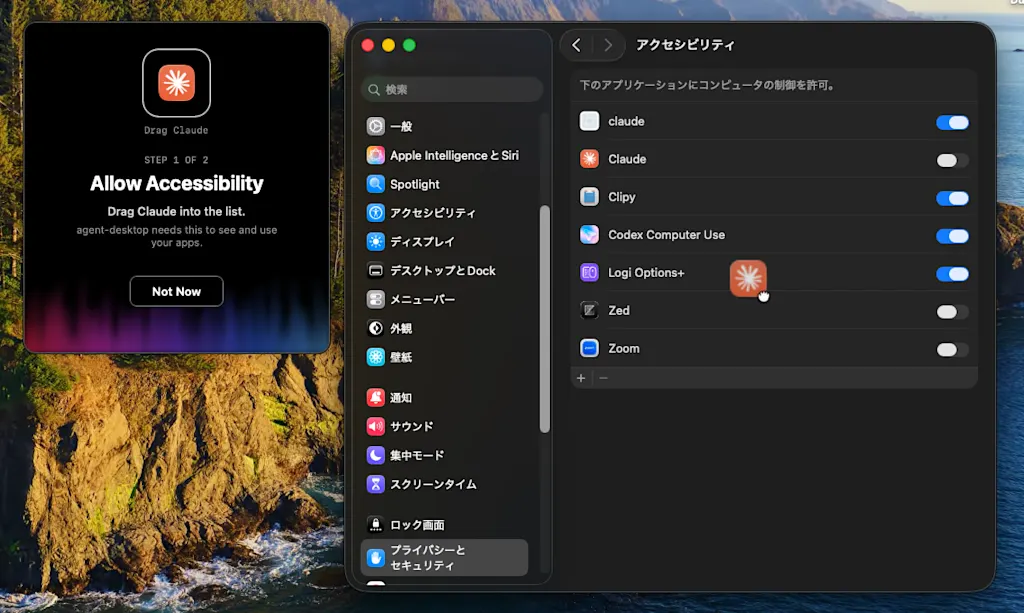
The permission goes to the app that launches agent-desktop. If you run it from a terminal, grant the permission to Terminal.app or iTerm2.
You can confirm that the permission is granted with agent-desktop status.
agent-desktop statusTrying the basic loop with Calculator
The basic way to use agent-desktop is a loop: observe the UI with a snapshot, act by specifying a ref, then take another snapshot to verify the result. Let's calculate 7 + 3 = in the macOS Calculator app.
The snapshot command retrieves an app's accessibility tree. The -i option limits the output to elements that can be operated.
agent-desktop launch Calculator
agent-desktop snapshot --app 計算機 -ilaunch accepts the app's English name or its bundle ID (com.apple.calculator), but --app takes the display name for the system's language setting. On a Japanese system, Calculator's display name is 「計算機」, which is why launch and --app use different names here. On an English system, you would use --app Calculator.
Here is an excerpt of the output.
{
  "command": "snapshot",
  "ok": true,
  "version": "2.5",
  "data": {
    "app": "計算機",
    "window": { "id": "w-170347", "title": "計算機" },
    "snapshot_id": "s2rvnrswp147na",
    "ref_count": 26,
    "complete": true,
    "tree": {
      "role": "window",
      "name": "計算機",
      "children": [
        { "role": "button", "name": "7", "ref_id": "@s2rvnrswp147na:e6", "native_id": { "kind": "ax_identifier", "value": "Seven" }, "available_actions": ["Click", "SetFocus"] },
        { "role": "button", "name": "加算", "ref_id": "@s2rvnrswp147na:e17", "native_id": { "kind": "ax_identifier", "value": "Add" }, "available_actions": ["Click", "SetFocus"] },
        { "role": "button", "name": "計算実行", "ref_id": "@s2rvnrswp147na:e21", "native_id": { "kind": "ax_identifier", "value": "Equals" }, "available_actions": ["Click", "SetFocus"] }
      ]
    }
  }
}
Each button has a role and a name, and is assigned a ref_id. In @s2rvnrswp147na:e6, s2rvnrswp147na is the snapshot ID and e6 is the element's number within that snapshot. available_actions lists the actions that can be performed on the element through the accessibility API.
A ref belongs only to its own snapshot. If the UI changes and the element a ref points to can no longer be found, the action is rejected with STALE_REF. If several elements match, the action is likewise rejected with AMBIGUOUS_TARGET, which prevents the wrong element from being operated by mistake. In either case, take a new snapshot and use its ref.
Run click with a ref.
agent-desktop click @s2rvnrswp147na:e6   # 7
agent-desktop click @s2rvnrswp147na:e17  # Add
agent-desktop click @s2rvnrswp147na:e16  # 3
agent-desktop click @s2rvnrswp147na:e21  # Equals
Each one returns the following result.
{"command":"click","data":{"disposition":{"delivery":"delivered_unverified","retry":"unsafe"}, ...},"ok":true,"version":"2.5"}disposition tells you whether the action reached the app and whether it is safe to retry. delivered_unverified means the click was sent but its effect was not confirmed. Since retry is unsafe, sending the same click again could press the button twice. Retrying is only allowed when delivery is not_delivered, meaning nothing was sent, and retry is safe. To check the result, take another snapshot.
agent-desktop snapshot --app 計算機The display area had changed as follows.
{ "role": "statictext", "name": "7+3", "value": "7+3" },
{ "role": "statictext", "name": "10", "value": "10" }You can see that 10 is displayed as the result of 7+3 ( is an invisible control character that indicates text direction).
All of the actions so far ran headlessly. Headless here does not mean the window is hidden; it means the UI is driven only through accessibility API calls, without physical input. Because click invokes the press action that the button exposes, the mouse cursor does not move and the Calculator window does not steal focus. You can keep working in other apps while the agent is operating.
Actions that require moving the cursor, such as double-clicking, dragging, and hovering, cannot be replaced by accessibility API calls, so they are only allowed when you pass the global --headed option. With --headed, even click and type first move focus to the target window and are then sent as real clicks and keystrokes. Re-running a failed headless action with --headed can cause unintended window switches or input, so the bundled documentation instructs agents not to switch to headed mode on their own.
Keihi, the app under test
Now let's have an agent use agent-desktop to test an actual app. We'll build a fictional expense note app called "Keihi" with SwiftUI and hand off its testing to Claude Code.
Keihi source code
// swift-tools-version: 6.0
import PackageDescription

let package = Package(
    name: "Keihi",
    platforms: [.macOS(.v15)],
    targets: [
        .executableTarget(name: "Keihi")
    ]
)import AppKit
import SwiftUI
struct Expense: Identifiable {
let id = UUID()
let name: String
let amount: Int
}
@main
struct KeihiApp: App {
init() {
// Show the executable built with swift build in the Dock and as a window, like a regular app
NSApplication.shared.setActivationPolicy(.regular)
}
var body: some Scene {
WindowGroup("Keihi") {
ContentView()
}
.windowResizability(.contentSize)
}
}
struct ContentView: View {
@State private var name = ""
@State private var amountText = ""
@State private var expenses: [Expense] = []
@State private var total = 0
private var amount: Int? {
Int(amountText)
}
var body: some View {
VStack(alignment: .leading, spacing: 12) {
HStack {
TextField("項目名", text: $name)
TextField("金額", text: $amountText)
.frame(width: 100)
Button("追加") {
guard let amount else { return }
expenses.append(Expense(name: name, amount: amount))
total += amount
name = ""
amountText = ""
}
.disabled(name.isEmpty || amount == nil)
}
List {
ForEach(expenses) { expense in
HStack {
Text(expense.name)
Spacer()
Text("¥\(expense.amount)")
Button("削除") {
expenses.removeAll { $0.id == expense.id }
}
.accessibilityLabel("\(expense.name)を削除")
}
}
}
.frame(height: 200)
Text("合計: ¥\(total)")
.font(.headline)
}
.padding()
.frame(width: 420)
}
}Each row's delete button is given a name such as 「交通費を削除」 ("Delete transportation") with accessibilityLabel. Since every row's visible label is the same 「削除」 ("Delete"), without a name there would be no way to tell in the accessibility tree which row a button belongs to. A UI that is clear to screen reader users is also a UI that is easy for agents to operate.
The specification goes in SPEC.md. It says that pressing Add adds an expense to the list, that Add is disabled when the item name is empty or the amount is not an integer, that the input fields are cleared after adding, that a row's Delete button removes that expense, and that the total is the sum of the listed expenses.
# Keihi の仕様

Keihi は経費をメモする macOS アプリです。

- 「項目名」と「金額」を入力して「追加」を押すと、一覧に経費が追加される
- 項目名が空、または金額が整数として解釈できない場合、「追加」ボタンは無効になる
- 追加すると入力欄は空に戻る
- 一覧の各行の「削除」ボタンを押すと、その経費が一覧から消える
- 「合計」には、一覧に表示されている経費の金額の和を表示する

## ビルドと起動

```bash
swift build
./.build/debug/Keihi &
```
When you build and launch it, the following window appears. Because the item name and amount are empty, the Add button is disabled.
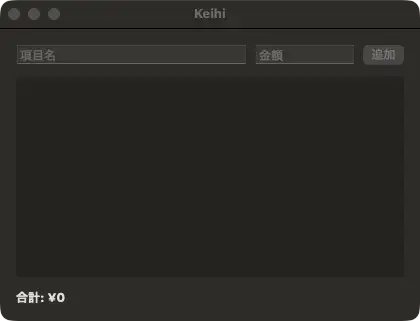
This app has one deliberately planted bug that deviates from the spec. Let's see whether Claude Code can find it.
Handing off testing to Claude Code
To teach Claude Code how to use agent-desktop, write the following in the project's CLAUDE.md. These two lines are taken verbatim from the For AI agents section of the agent-desktop README, where they are suggested as content to add to
AGENTS.md.
Use `agent-desktop` to see and operate desktop apps. Before the first use, run
`agent-desktop skills get desktop` and `agent-desktop skills get platform`, and follow them.
agent-desktop skills get prints agent-oriented documentation bundled with the binary. desktop covers the observe, act, and verify loop and how to handle refs, while platform explains caveats specific to the OS you are running on. Because the documentation ships with the same version as the binary, it prevents an agent that read outdated documentation from using options that do not exist. You can also install it as an agent skill from skills.sh with
npx skills add https://github.com/vercel-labs/agent-desktop --skill agent-desktop.
Run Claude Code in the Keihi directory. --allowedTools permits only agent-desktop, Swift builds, launching the app, and reading and writing files. The prompt asks Claude Code to build and launch the app, operate the UI with agent-desktop to check that it behaves as described in SPEC.md, fix the cause of any behavior that deviates from the spec, rebuild and recheck with the same steps, and finally report the operations it performed and their results.
claude -p 'Keihi は SwiftUI 製の macOS アプリです。SPEC.md の仕様どおりに動くか、アプリをビルドして起動し、agent-desktop で実際に UI を操作して確かめてください。仕様と異なる挙動があれば原因を修正し、再ビルドして同じ操作で再確認してください。最後に、確認した操作と結果を報告してください。' \
  --allowedTools "Bash(agent-desktop *)" "Bash(swift build*)" "Bash(./.build/debug/Keihi*)" \
    "Bash(pkill *)" "Bash(sleep *)" "Read" "Edit" "Glob" "Grep"
Claude Code finished everything from reproducing the bug to rechecking after the fix in 30 turns and about 130 seconds. Here are the agent-desktop commands Claude Code ran, extracted from the execution log.
# Read the skills
agent-desktop skills get desktop
agent-desktop skills get platform

# Observe the initial state
agent-desktop snapshot --app Keihi -i

# Confirm that "Add" is disabled when the amount is not an integer
agent-desktop focus @s1qowr2754q6t:e1 && agent-desktop type @s1qowr2754q6t:e1 "ランチ"
agent-desktop focus @s1qowr2754q6t:e2 && agent-desktop type @s1qowr2754q6t:e2 "abc"
agent-desktop snapshot --app Keihi -i --compact

# Fix the amount and add the expense
agent-desktop clear @s1dwnai59dp9id:e2
agent-desktop type @s1dwnai59dp9id:e2 "500"
# (omitted: retake snapshot)
agent-desktop click @s1l0qg3md6vyuz:e3
# (omitted: retake snapshot and add Coffee ¥300)

# Find the delete button by name, press it, and check the total
agent-desktop find --app Keihi --role button --name ランチを削除 --exact
agent-desktop click @sgi8v10b74mhf:e1
agent-desktop snapshot --app Keihi

# After the fix, quit the app and rebuild
agent-desktop close-app Keihi
swift build
find searches for elements by conditions such as role and name. Instead of scanning the whole snapshot for the target button, Claude Code uses --name ランチを削除 --exact ("Delete lunch") to receive only the matching element and its ref.
After adding 「ランチ ¥500」 (Lunch ¥500) and 「コーヒー ¥300」 (Coffee ¥300), the total became ¥800. But after pressing "Delete lunch", only the coffee row remained in the list while the total stayed at ¥800.
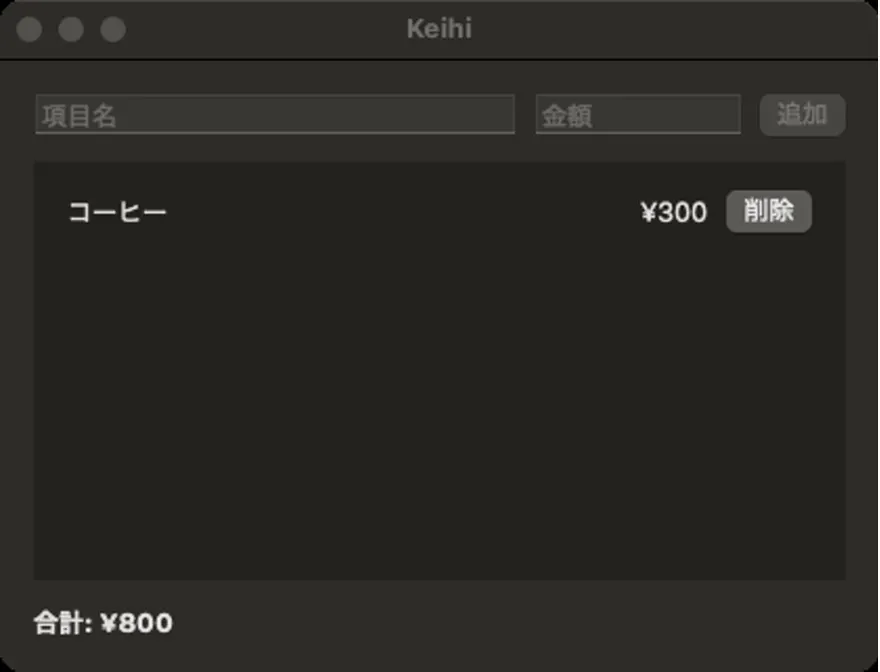
Claude Code determined that the cause was that "total is held in a separate @State and is only incremented when an expense is added," and changed total to a computed property derived from expenses.
     @State private var expenses: [Expense] = []
-    @State private var total = 0
+
+    private var total: Int {
+        expenses.reduce(0) { $0 + $1.amount }
+    }

     private var amount: Int? {
         Int(amountText)
} Button("追加") {
guard let amount else { return }
expenses.append(Expense(name: name, amount: amount))
- total += amount
name = ""
amountText = ""
}It then quit the app with close-app, rebuilt and relaunched it, and repeated the same steps. The total went from ¥800 to ¥300 after "Delete lunch," and then to ¥0 after "Delete coffee."
You can watch Claude Code operating the app in the following video.
Summary
- agent-desktop is a CLI for AI agents that retrieves a desktop app's UI as JSON through the OS accessibility API and operates it by specifying refs
- A ref has the form
@<snapshot ID>:e<number>, and if the UI changes and the element cannot be found, it returnsSTALE_REF - Ref actions run headlessly by default. Physical input requires
--headed - Claude Code used agent-desktop to test a SwiftUI app, fix a bug, and recheck the app after the fix