
Trying Out Record & Replay: Turning a Workflow into a Reusable Skill
Codex's Record & Replay turns your actions on macOS into a reusable skill by demonstration. You can record routine chores like filing expenses or entering work hours and hand them off to AI. This article walks through actually trying it out.
Codex's Record & Replay is a feature that turns your actions on macOS into a reusable skill by demonstration. Record & Replay shines when a workflow is routine and you repeat it frequently, or when showing the actual steps is easier to understand than describing them in a prompt. Examples include filing expense reports, clocking in or entering work hours on an attendance app, and producing regular reports. By recording these actions as a skill and combining it with Computer Use, you can expect to hand tedious, repetitive chores off to AI. Record & Replay is especially well suited to workflows whose steps are stable and whose success criteria are clear.
In this article, I'll walk through actually trying out Record & Replay. This time, I'll use a fictional attendance app called "TimePort" running locally to record a clock-in and work-hour entry workflow, and show an example of reusing it as a skill.
Getting Started with Record & Replay
As a prerequisite for using Record & Replay, you need the Codex App (the desktop app). It is also currently available only on macOS. Install the Codex App from the link below.

Once you've installed the Codex App, select "Plugins" from the sidebar. Type "Record" into the search box in the plugin list, and the Record & Replay plugin will appear. Click "Add plugin" to add the Record & Replay plugin.
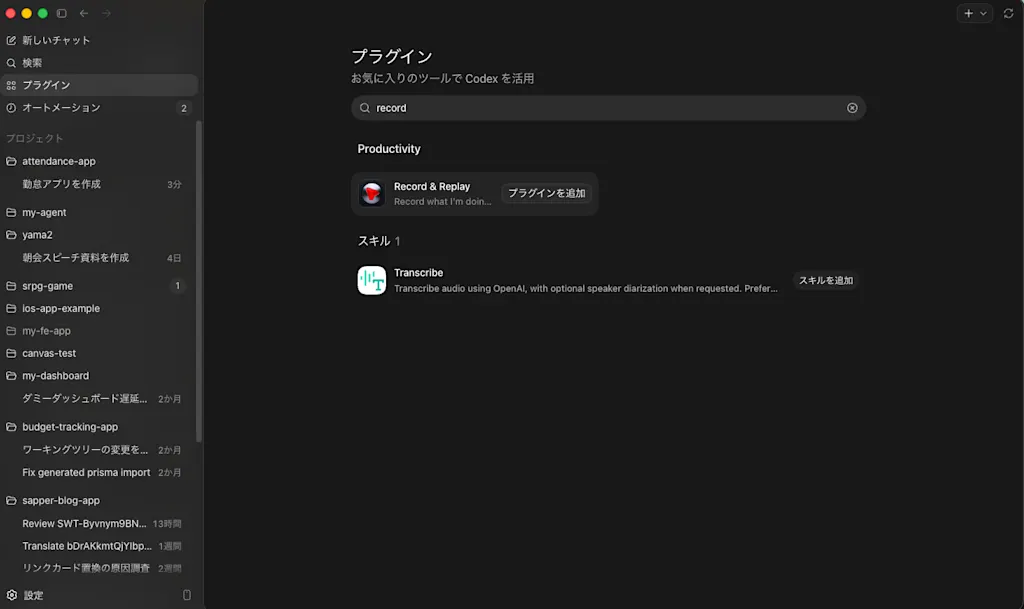
The plugin consists of the following two components.
- The
event-streamMCP server - The
record-and-replayskill
The event-stream MCP server provides tools that record the user's actions and save them as JSON files. The record-and-replay skill actually calls the event-stream MCP server to record the user's actions, and provides the procedure for creating a skill based on the recorded content.
The event-stream MCP server records the user's actions by combining macOS's accessibility API with input event monitoring. It exposes the lifecycle of starting, checking the status of, and stopping a recording as the following three main tools. Recording is built on top of the Computer Use machinery, so just like Computer Use, recording requires accessibility and screen recording permissions.
event_stream_start: Starts recording the user's actions. Confirmation is requested before recording begins. Once recording has started, it waits until the user signals that they have finished. Recording can last up to 30 minutes.event_stream_status: Checks the recording status and the paths to the generated metadata and event files.event_stream_stop: Stops recording the user's actions and returns results such as the save location.
The actions that get recorded include the following.
- Information about the apps and windows used
- Mouse and keyboard actions and their target elements
- Focused UI elements
- Selected text
- The accessibility tree and its changes
The recorded actions themselves are not returned directly as the MCP response; instead, they are saved as the following files. When the user finishes and event_stream_stop is called, the save paths are returned, so Codex reads those files to check their contents.
session.json: recording duration, end reason, and so onevents.jsonl: the actual action events
The contents of events.jsonl after recording an actual attendance-app session look like this.
{"timestamp":"2026-06-21T02:04:08Z","kind":"mouse.click","app":{"name":"Google Chrome"},"window":{"title":"TimePort | 勤怠管理","url":"http://localhost:5173/"},"mouse":{"button":"left","target":{"role":"AXButton","title":"月次工数"}}}
{"timestamp":"2026-06-21T02:04:14Z","kind":"mouse.click","app":{"name":"Google Chrome"},"window":{"title":"TimePort | 勤怠管理","url":"http://localhost:5173/"},"mouse":{"button":"left","target":{"description":"6/15(月)の工数を入力","role":"AXCheckBox","subrole":"AXToggleButton"}}}
{"timestamp":"2026-06-21T02:04:15Z","kind":"selection.changed","app":{"name":"Google Chrome"},"window":{"title":"TimePort | 勤怠管理","url":"http://localhost:5173/"},"selection":{"selectedItems":[{"role":"AXMenuItem","title":"社内業務"}],"target":{"role":"AXMenu"}}}
{"timestamp":"2026-06-21T02:04:16Z","kind":"selection.changed","app":{"name":"Google Chrome"},"window":{"title":"TimePort | 勤怠管理","url":"http://localhost:5173/"},"selection":{"selectedItems":[{"role":"AXMenuItem","title":"Web刷新"}],"target":{"role":"AXMenu"}}}
{"timestamp":"2026-06-21T02:04:20Z","kind":"keyboard.text_input","app":{"name":"Google Chrome"},"window":{"title":"TimePort | 勤怠管理","url":"http://localhost:5173/"},"keyboard":{"target":{"role":"AXTextArea","title":"作業内容","value":"画面実装"}}}
{"timestamp":"2026-06-21T02:04:24Z","kind":"keyboard.text_input","app":{"name":"Google Chrome"},"window":{"title":"TimePort | 勤怠管理","url":"http://localhost:5173/"},"keyboard":{"target":{"role":"AXIncrementor","title":"時間(0.25時間単位)","value":"5"}}}
{"timestamp":"2026-06-21T02:04:24Z","kind":"mouse.click","app":{"name":"Google Chrome"},"window":{"title":"TimePort | 勤怠管理","url":"http://localhost:5173/"},"mouse":{"button":"left","target":{"role":"AXButton","title":"保存する"}}}
{"timestamp":"2026-06-21T02:04:27Z","kind":"selection.changed","app":{"name":"Google Chrome"},"window":{"title":"TimePort | 勤怠管理","url":"http://localhost:5173/"},"selection":{"selectedItems":[{"role":"AXMenuItem","title":"顧客サポート"}],"target":{"role":"AXMenu"}}}
{"timestamp":"2026-06-21T02:04:32Z","kind":"keyboard.text_input","app":{"name":"Google Chrome"},"window":{"title":"TimePort | 勤怠管理","url":"http://localhost:5173/"},"keyboard":{"target":{"role":"AXTextArea","title":"作業内容","value":"問い合わせ調査"}}}
{"timestamp":"2026-06-21T02:04:38Z","kind":"keyboard.text_input","app":{"name":"Google Chrome"},"window":{"title":"TimePort | 勤怠管理","url":"http://localhost:5173/"},"keyboard":{"target":{"role":"AXIncrementor","title":"時間(0.25時間単位)","value":"3"}}}
{"timestamp":"2026-06-21T02:04:38Z","kind":"mouse.click","app":{"name":"Google Chrome"},"window":{"title":"TimePort | 勤怠管理","url":"http://localhost:5173/"},"mouse":{"button":"left","target":{"role":"AXButton","title":"保存する"}}}
As an example, let's look at the event for selecting the date of a work-hour entry.
{
  "timestamp": "2026-06-21T02:04:14Z",
  "kind": "mouse.click",
  "app": {
    "name": "Google Chrome"
  },
  "window": {
    "title": "TimePort | 勤怠管理",
    "url": "http://localhost:5173/"
  },
  "mouse": {
    "button": "left",
    "target": {
      "description": "6/15(月)の工数を入力",
      "role": "AXCheckBox",
      "subrole": "AXToggleButton"
    }
  }
}
kind is mouse.click, so we can tell the event was recorded as a mouse click. Since app.name is Google Chrome and window.title is TimePort | 勤怠管理, we can tell which app and which window the action took place in. The description of mouse.target, "6/15(月)の工数を入力" (Enter work hours for 6/15 (Mon)), indicates the purpose of the click. The role AXCheckBox and the subrole AXToggleButton indicate the kind of UI element under macOS's accessibility API. Because the action is stored as UI element information obtained from the accessibility API rather than as screen coordinates, the intent of the action can be understood and reproduced even if the screen layout changes.
The record-and-replay skill provides the procedure for creating a skill that reproduces a workflow based on recorded events like these. The full text of the skill is as follows.
Contents of the `record-and-replay` skill
---
name: record-and-replay
description: Record the user's actions on their Mac with Record & Replay, and turn it into a reusable Codex skill from the captured event stream.
---

# Record & Replay

Record & Replay lets Codex learn a user-demonstrated macOS workflow and turn it into a reusable skill. Use it when the user asks you to watch them perform a task, record a workflow, or create or refine a skill from their demonstration.

## Recording Workflow

- Use `event_stream_start` only when the user is ready to begin recording.
- Starting asks the user to confirm before capture begins.
- After `event_stream_start` succeeds, do not sleep, poll, or wait in a loop for the user to finish. End your turn and ask the user to tell you when they are done recording and tell them what the time limit is on recording.
- Use `event_stream_status` only when the user asks for status or returns after recording; do not use it to poll while waiting.
- Use `event_stream_stop` when recording is complete.
- When the user says they are done recording, read the returned `metadataPath` and `eventsPath` from disk with normal filesystem tools and inspect the captured events before responding.
- When the user says they cancelled recording, do not call `event_stream_stop` again or attempt to use the event stream. You may read `session.json` if needed to confirm that its `endReason` is `recording_controls_cancelled`; acknowledge the cancellation without creating or updating a skill.
- If the recording contains enough information to identify a reusable workflow, create or refine a skill for that workflow. Do this by default even if the user did not explicitly ask for a skill, and do not stop after providing a summary, replay plan, runbook, or suggestion to create one.
- If the recording does not contain enough information to identify the reusable workflow or create a useful skill, do not guess. Explain what is unclear and ask the user for the missing information needed to create the skill.
- The MCP server does not expose event-stream contents directly.

## Concurrent Recording

Record & Replay supports one active recording at a time. If `event_stream_start` reports an active recording, do not restart it. Explain that another recording is already in progress and ask whether the user wants to use that active recording or wait until it is stopped.

## Interpreting Events

- Treat `events.jsonl` as the primary evidence. `session.json` gives paths and session timing only.
- Each event has app/window attribution when available. Use those fields to understand where the event happened; AX payloads may be full trees or diffs for the relevant window.
- AX diff payloads use compact render syntax with ~, +, and - representing changed, added, and removed elements, respectively.
- Pay special attention to selection events, selected text, focused elements, and mouse & keyboard targets. If the user asks a question or refers to the content they are looking at on-screen, selected/focused/targeted content is often the best clue, though visible surrounding UI can also matter.
- Do not include sensitive information from recorded events in summaries or generated skills. Treat passwords, OTPs, API keys, SSNs/passports, financial account/card numbers, and private personal, medical, legal, or HR details as sensitive; use placeholders or generic descriptions when the workflow shape needs to mention them.

## Creating Skills

Before creating or refining a skill, read and follow the `skill-creator` skill for guidance on structure, reusable resources, and validation.

Create or refine an actual discoverable skill, not only a standalone Markdown runbook or replay-plan draft. Complete the skill-creator workflow, including validation, before reporting that the skill was created.

When creating a skill from a recording, treat the recording as evidence of the user's intended outcome, not a requirement to reproduce every UI action. Check whether an available connector or dedicated tool supports the task; prefer it for stable semantic operations such as creating a Google Doc or calendar event. Use Computer Use for unsupported UI interactions, visually dependent verification, or when manipulating the interface is itself the task. A skill may combine connectors and Computer Use. When using Computer Use, name it explicitly, describe stable app/window/control targets and interactions, include verification steps, and avoid coordinate-only replay unless the event stream gives no better target.
Translated and summarized into the original section structure, the content is as follows.
Recording Workflow
- Use
event_stream_startto begin recording when the user is ready. Once recording has started, do not poll or wait in a loop; wait until the user signals that they are done. - When recording is complete, use
event_stream_stopto end it, then read the returnedmetadataPathandeventsPathto inspect the recorded events.
Concurrent Recording
- Only one recording can run at a time. If one is already in progress, do not restart; ask the user whether to use that recording or wait for it to stop.
Interpreting Events
- Treat
events.jsonlas the primary evidence;session.jsononly provides paths and session timing. - Pay attention to selection, focus, and mouse/keyboard target elements. Do not include sensitive information such as passwords or API keys in summaries or generated skills.
Creating Skills
- When a reusable workflow can be identified, create a skill by default even if the user did not explicitly request one. If it cannot be identified, do not guess; ask the user for the missing information.
- When creating a skill, follow the
skill-creatorskill's procedure and complete the skill's structure, reusable resources, and validation.
Recording a Workflow and Turning It into a Skill
Now that we've reviewed what the plugin contains, let's try out how it actually works. Open a new session, click the "+" icon, and select the Record & Replay plugin.
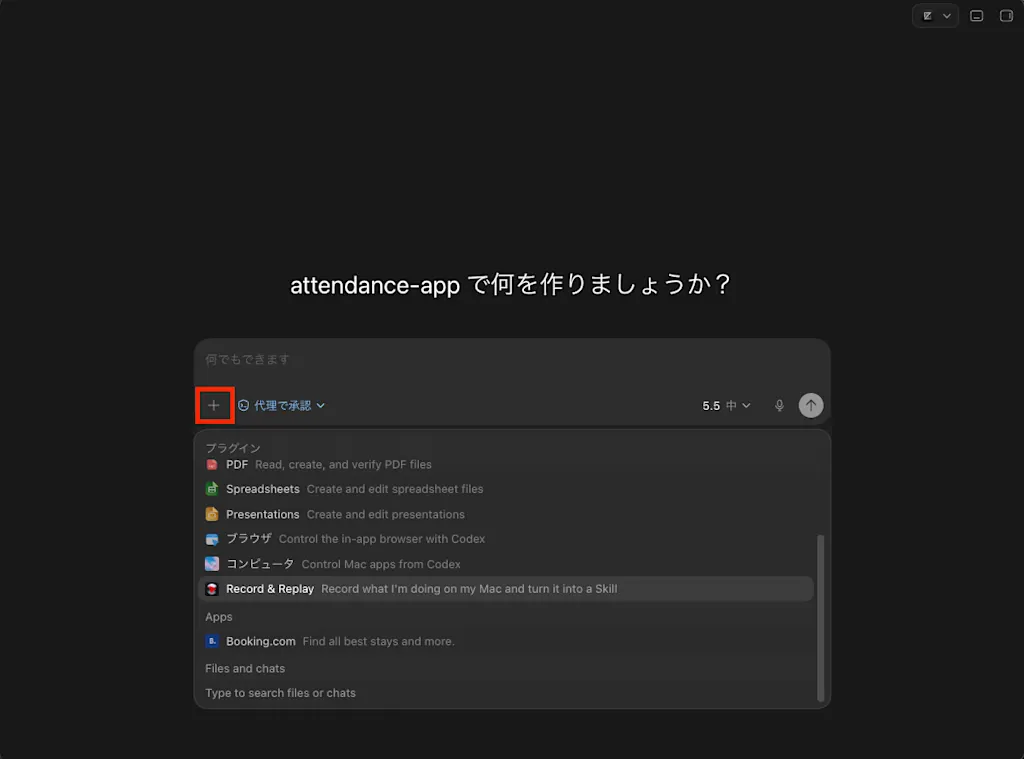
When you enter a prompt with the plugin selected, recording of the workflow begins. Here, I'll enter the prompt "Record me entering work hours in the attendance app so I can repeat the same actions in the future." Record & Replay then asks for approval to record the user's actions, so I click "Allow." From the moment you click, the user's actions start being recorded. Note that because Computer Use is used to record the user's actions, Computer Use must be available.
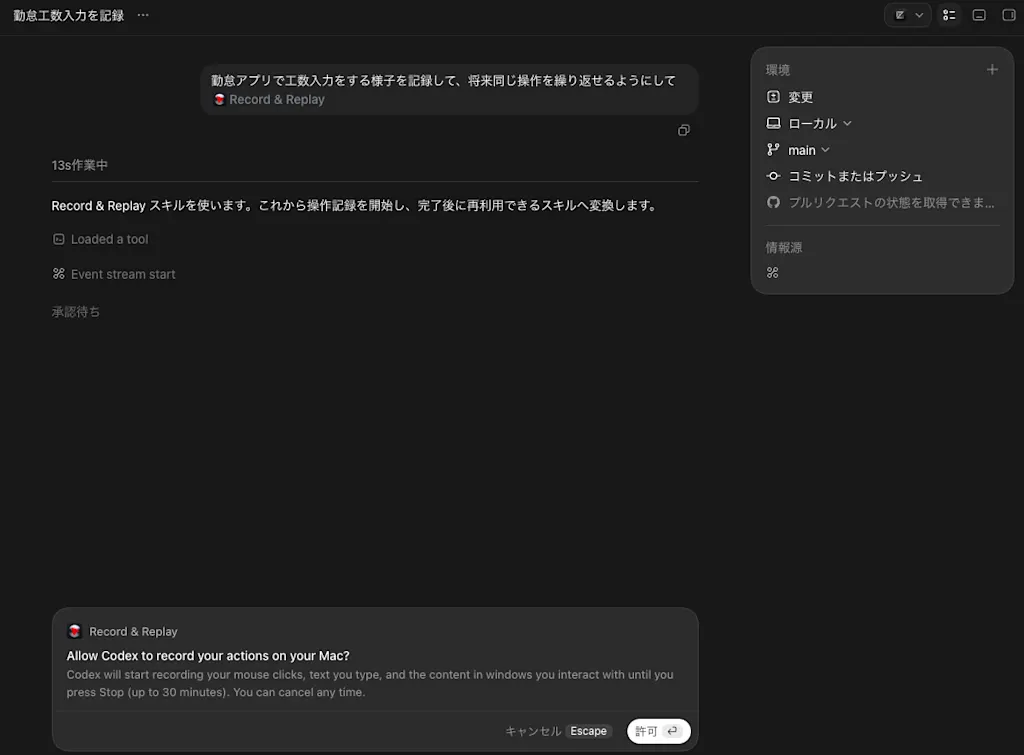
Now I actually perform the steps of entering work hours in the attendance app. I open the app, select a date, enter the hours, and carry out the whole sequence up to saving. Once the steps are complete, I return to the Record & Replay session and enter a prompt like "I'm done" to end recording.
Once recording is complete, the skill-creator skill is used to convert the recorded workflow into a skill. You're asked where to save the skill (the default is
~/.codex/skills), so specify any location you like. From here, the planning, creation, and validation of the skill proceed according to the skill-creator skill's procedure.
The skill was saved as enter-timeport-work-hours. Its contents are as follows.
Contents of the `enter-timeport-work-hours` skill
---
name: enter-timeport-work-hours
description: Enter one or more daily work-effort records in the local TimePort attendance application, including date, project or work category, task description, and time in 0.25-hour increments. Use when the user asks to enter, register, repeat, or correct monthly work hours or effort records in TimePort.
---

# Enter TimePort Work Hours

Enter work-effort rows in TimePort through its UI. Treat the recorded values as examples, not defaults.

## Collect Inputs

Obtain these values for every row before making changes:

- Target date
- Project or work category
- Task description
- Hours, in 0.25-hour increments

Ask only for values that are missing or ambiguous. Never infer a date, project, description, or duration from the recorded demonstration.

## Open TimePort

1. Prefer browser automation that can use the user's existing Chrome state when available. Otherwise use Computer Use explicitly.
2. Open the existing TimePort tab or navigate to `http://localhost:5173/`.
3. Confirm the page title is `TimePort | 勤怠管理` before editing data.
4. Select the `月次工数` view.

If the app is unavailable, stop and report the connection problem. Do not substitute another attendance system.

## Enter Rows

For each requested row:

1. Find the target date by its visible date label and activate the control whose accessible description identifies that date's work-effort entry, such as `6/15(月)の工数を入力`.
2. Select the requested project or work category by its visible option text.
3. Enter the task description in the `作業内容` text area.
4. Replace the value in `時間(0.25時間単位)` with the requested hours. Select all or otherwise clear the existing value before typing to avoid concatenating digits.
5. Confirm the displayed values match the request.
6. Activate `保存する` once.
7. Wait for the form or list to settle before entering another row.

Use accessible labels, roles, and visible text instead of screen coordinates. Refresh the UI state after navigation, dialog changes, or saving a row.

## Verify

After each save, confirm the target date shows a row with the requested project or category, task description, and hours. After all rows are saved, confirm the visible daily or monthly total changed consistently with the sum of the entered hours.

If validation fails or the UI shows an error, stop before retrying a save to avoid duplicate entries. Report which row is uncertain and what the UI currently shows.

## Safety

- Do not modify attendance times, leave requests, or unrelated work-effort rows.
- Do not delete or overwrite an existing row unless the user explicitly requested a correction.
- Never expose credentials or private personnel data in the response.
- Summarize only the dates, work categories, descriptions, and hours that were intentionally entered.
Translated and summarized, the skill works as follows.
- Confirm the work-hour entry details (target date, project, task description, work hours).
- Open the attendance app and display the "Monthly Work Hours" view. Prefer an existing Chrome session if available; otherwise operate via Computer Use.
- For each specified work-hour entry, perform the following actions:
- Find the target date among the displayed dates.
- Select "Enter work hours for ○/○".
- Select the specified project or work category.
- Enter the description in
作業内容. - Replace
時間(0.25時間単位)with the specified value. - Confirm the entered details and activate
保存するexactly once.
- Verify the result of saving. Confirm that the project, task description, and hours appear correctly in the target date's row. After all entries, also confirm that the daily or monthly total increased by the entered amount.
- As safety considerations: do not change attendance times, leave requests, or unrelated work-hour rows; do not delete or overwrite existing rows (except when the user explicitly requests a correction); do not include credentials or personal data in the response; and summarize only the dates, projects, task descriptions, and hours that were intentionally entered.
To invoke the skill, you use a prompt like the following.
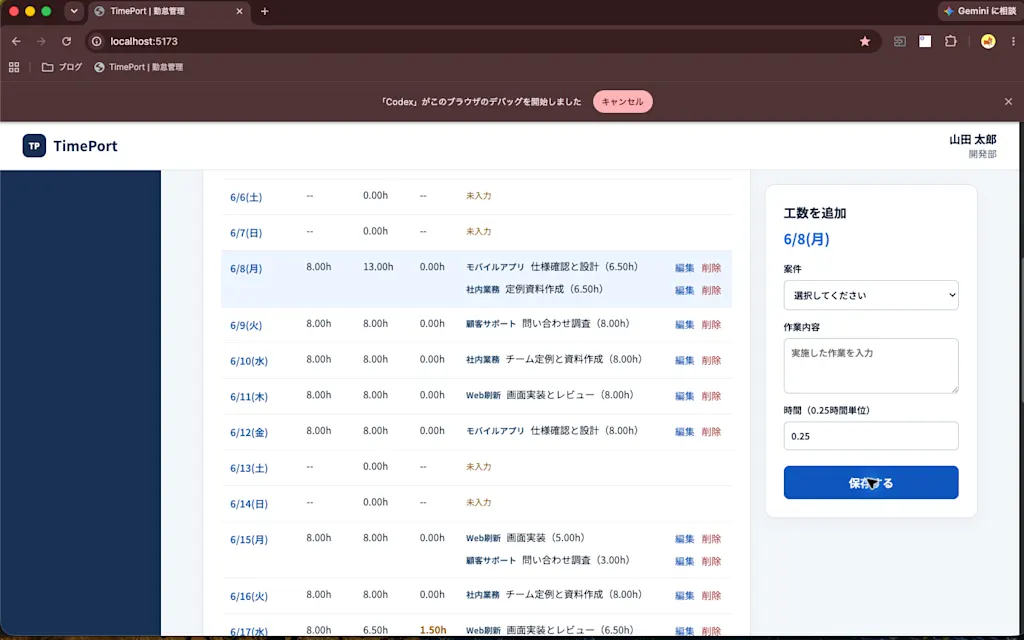
Using TimePort work-hour entry, register "Internal work / Regular materials prep" for 6.5 hours on June 8.When I invoked the skill, the work-hour entry workflow did indeed run, and the work hours were registered in the attendance app with the details I specified.
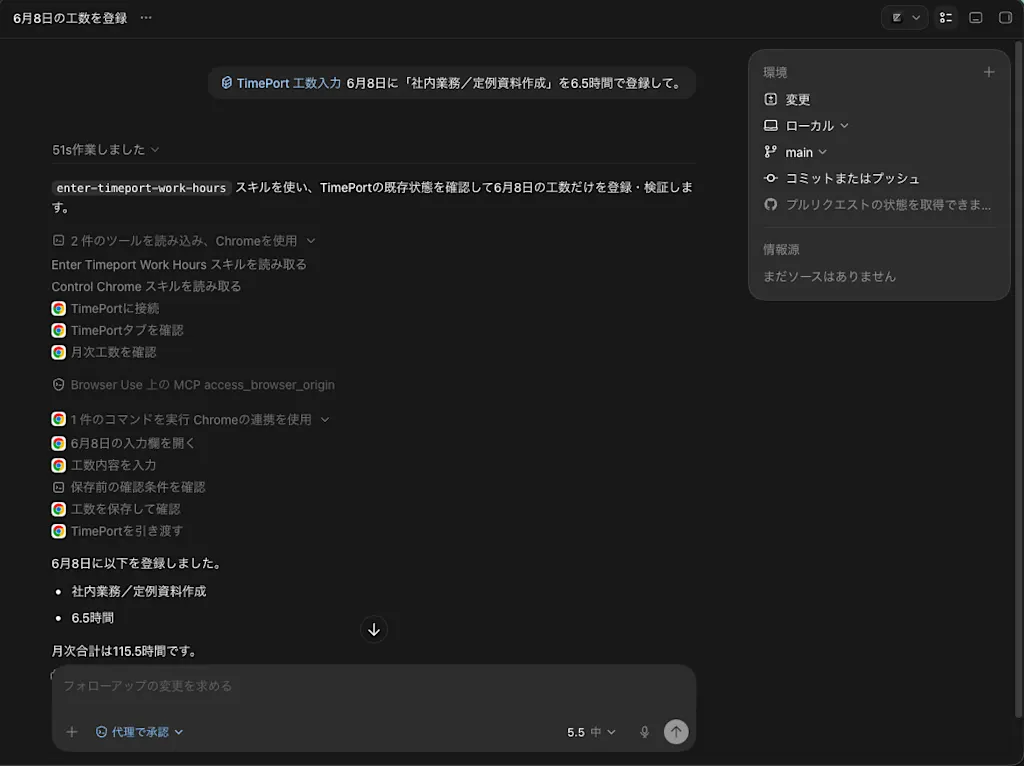
Opening the Chrome browser, you can see the actions being performed in real time.
Summary
- Record & Replay is a Codex feature that records your actions on macOS and turns them into a reusable skill.
- The plugin consists of two parts: the
event-streamMCP server that records actions, and therecord-and-replayskill that creates a skill from the recorded content. - Because actions are recorded as accessibility API information rather than screen coordinates, they can be reproduced with their intent intact even when the screen layout changes.
- The created skill runs in combination with Computer Use, and I was able to reproduce a routine task—entering work hours in the attendance app—from a natural-language prompt.
- It is most effective for workflows whose steps are stable and whose success criteria are clear, making it well suited to automating frequently repeated routine tasks.