
Managing Feature Flags with Vercel
Feature flags have become essential in modern application development. Vercel Flags makes it easy to add feature flags to applications hosted on Vercel. This article walks through how to set them up and use them.
Feature flags have become an essential tool in modern application development. A feature flag is a mechanism that lets you add a new feature to the codebase while enabling it only for specific users or environments. In code, it is commonly used with a conditional branch like this:
if (isFeatureEnabled('new-feature')) {
  return <NewFeatureComponent />;
} else {
  return <OldFeatureComponent />;
}
Feature flags offer the following benefits:
- They separate deployment to production from the release of a feature, allowing features to be released flexibly according to business requirements. For example, if you want to release a new feature at midnight, you can deploy the code in advance and simply turn on the flag at midnight. This reduces the risk associated with an unstable deployment.
- You can release a new feature only to specific users for user testing and feedback collection. Even if the feature has a defect, you can limit the affected users and mitigate the issue immediately by turning off the flag.
- You can merge incomplete features into the codebase, which supports a
trunk-based development workflow.
Feature flags also require operational care. Because flag-based behavior adds conditional branches to the codebase, too many flags can increase complexity and become a source of bugs. If flag states are not managed properly, obsolete flags can remain indefinitely and clutter the codebase. Using feature flags in a production application requires a dashboard for managing their states and a mechanism that applies changes immediately. Several SaaS providers offer feature flag services.
Vercel has released the Vercel Flags dashboard, providing feature flags for applications hosted on Vercel. These applications can manage flag states from the Vercel dashboard without relying on an external feature flag service. Keeping deployment and flag management on the same platform also reduces operational overhead.
From application code, the Flags SDK makes it easy to connect to the Vercel dashboard and retrieve flag states. Flags defined in code are automatically reflected in the Vercel dashboard, so you do not need to manually keep track of which flags are in use.
In this article, we will try adding feature flags to an application hosted on Vercel using Vercel Flags.
Adding Feature Flags with Vercel Flags
Let's use a Next.js application as an example. If you have not installed the vercel CLI, install it with the following commands:
npm install -g vercel
vercel login
First, host the Next.js application on Vercel.
# Create a Next.js application
npx create-next-app@latest flag-test-app
# Deploy to Vercel
cd flag-test-app
vercel deploy
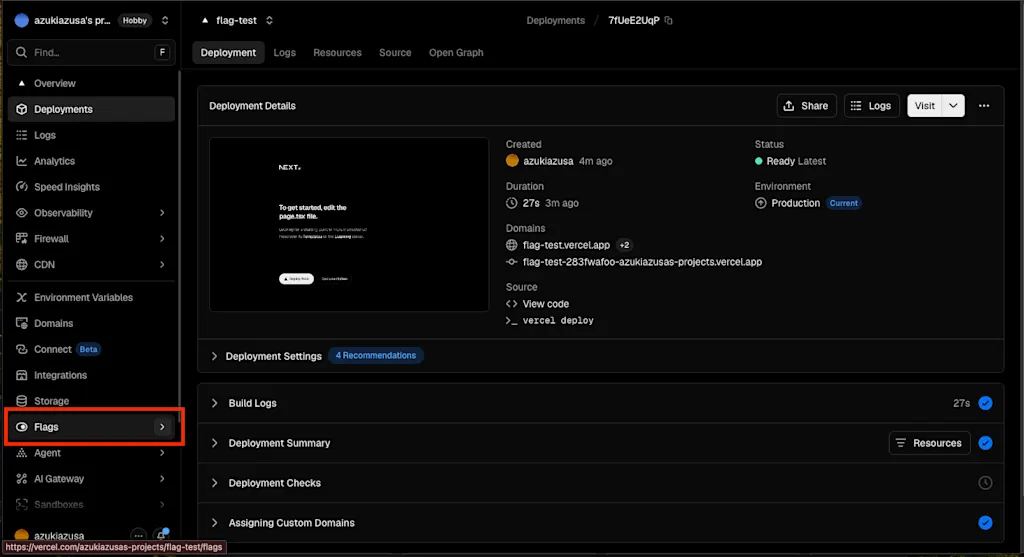
Next, create a feature flag from the Vercel dashboard. Open the dashboard, select the relevant project, and click "Flags" in the sidebar.
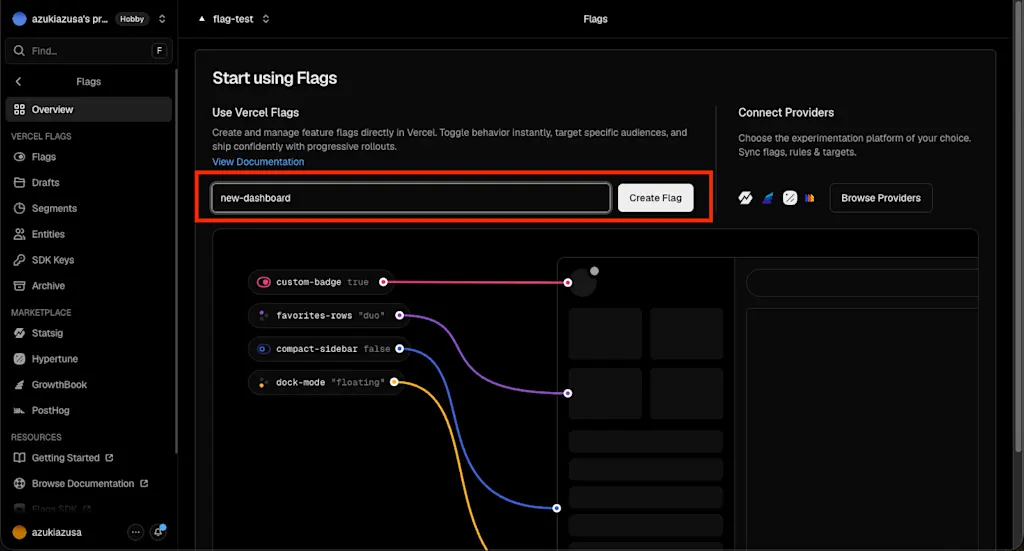
Let's create a flag from the Flags menu. Name the flag new-dashboard and click "Create Flag."
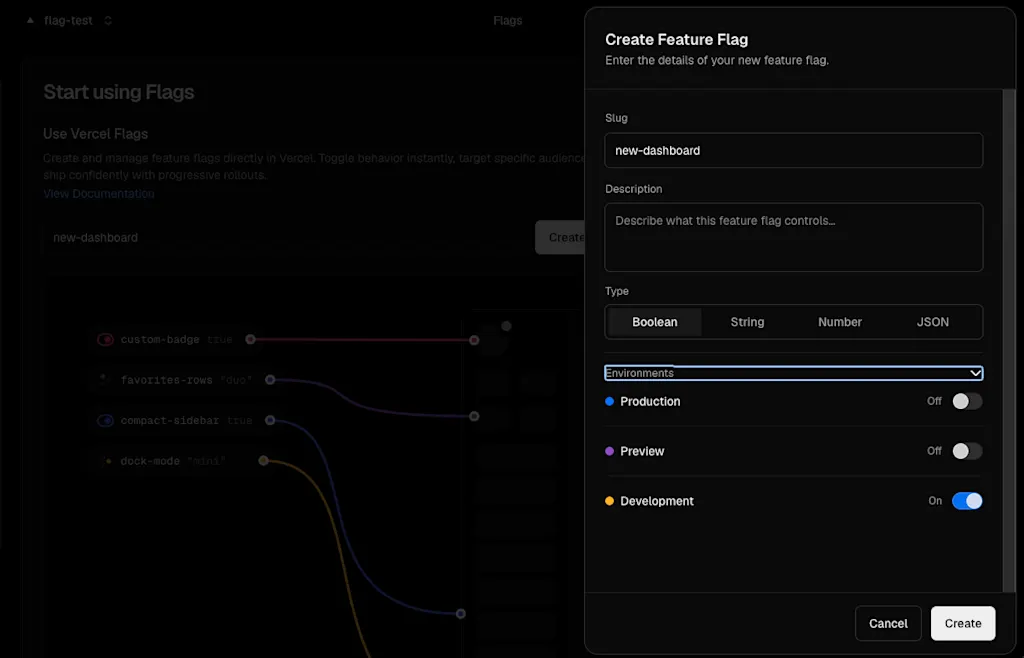
The Description field is optional. A flag can have a Boolean, String, Number, or JSON value. Select Boolean here and click "Create Flag."
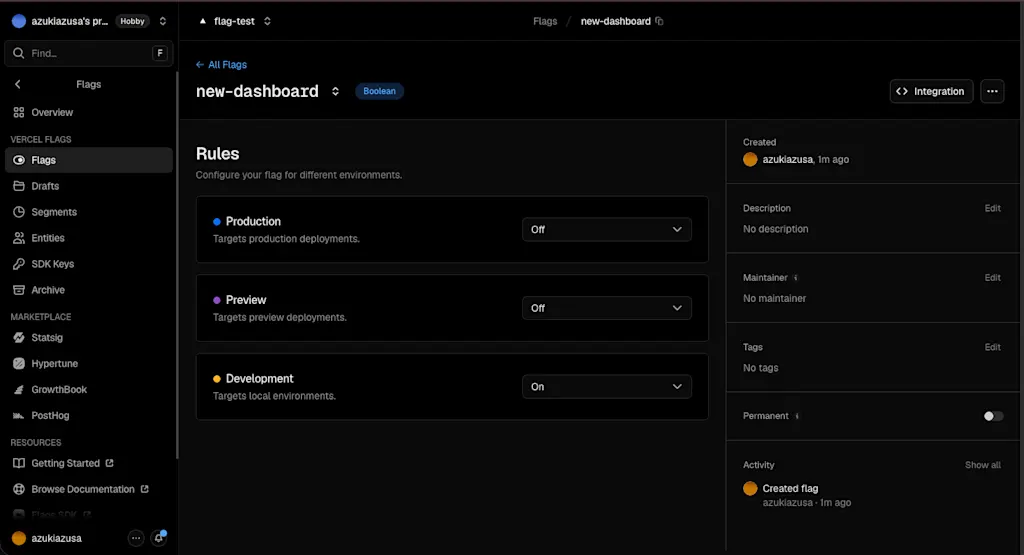
After creating the flag, you are taken to its details page, where you can manage its state. Notice that the flag can be turned on or off independently for each environment.
When the flag is created, the FLAGS_SECRET environment variable required by the SDK to connect to Vercel Flags is automatically added to the project. For local development, it is convenient to download the environment variables with this command:
vercel env pullRetrieving Flag States from Application Code
Install the SDK needed to retrieve flag states from the application. There are three options:
Flags SDK: A framework-native SDK optimized for frameworks such as Next.js and SvelteKit. It can also manage flags from various SaaS providers through adapters. When using Vercel Flags, use the
@flags-sdk/verceladapter.OpenFeature: A CNCF project that provides a vendor-neutral standard API for feature flags. It requires more code, but minimizes code changes if you switch from Vercel Flags to another provider.
@vercel/flags-core: Use the core library used internally by Flags SDK directly.
Here, we will use Flags SDK, which is optimized for Next.js applications. Install it with the following command:
npm install flags @flags-sdk/vercelCreate a file named flags.ts in the project root and define the feature flags there. Each flag key must match the key created in the Vercel dashboard.
import { flag } from 'flags/next';
import { vercelAdapter } from '@flags-sdk/vercel';

export const newDashboardFlag = flag<boolean>({
  key: "new-dashboard",
  adapter: vercelAdapter(),
});
vercelAdapter() automatically reads the FLAGS_SECRET environment variable and connects to Vercel Flags. Because flag states are retrieved on the server, they cannot be retrieved directly on the client. Let's write a server component that switches between the new and old dashboards. You can retrieve the flag state with await newDashboardFlag().
import { newDashboardFlag } from "../flags";

export default async function Home() {
  const isNewDashboardEnabled = await newDashboardFlag();

  return (
    <div>
      {isNewDashboardEnabled ? <h1>New Dashboard</h1> : <h1>Old Dashboard</h1>}
    </div>
  );
}
Start the application locally to check the result.
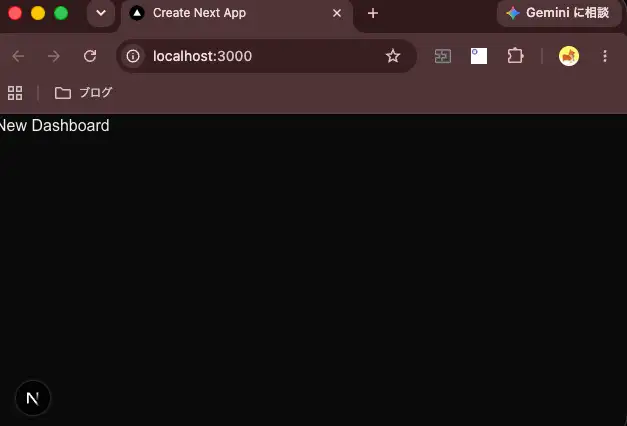
npm run devThe flag is on in the Development environment by default, so New Dashboard should be displayed.
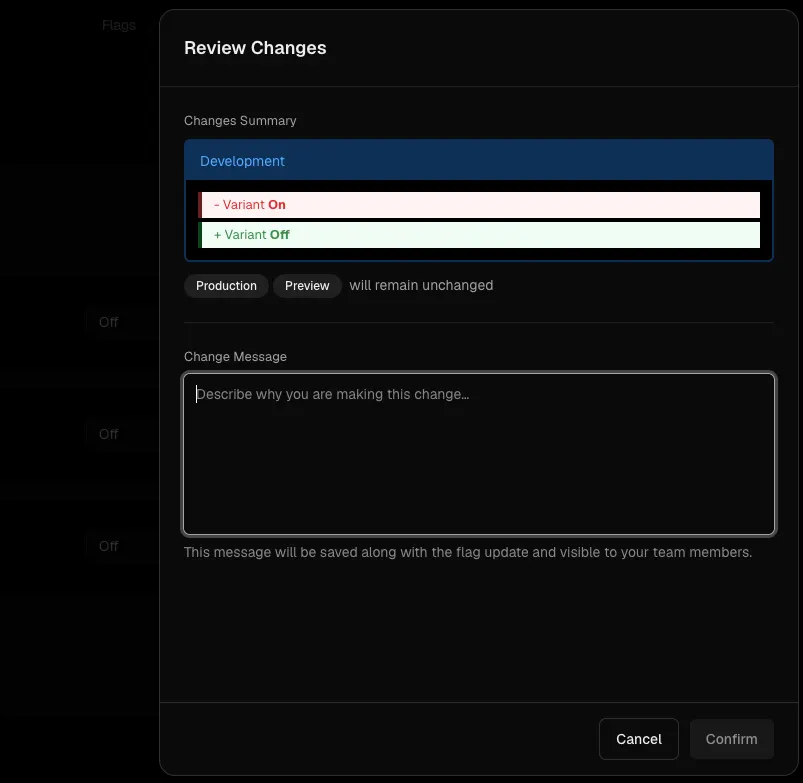
Now turn the flag off in the dashboard. When you attempt to change a flag, the dashboard displays the change and requires a reason before applying it. This is useful, and the history is recorded automatically so you can track who changed a flag and when.
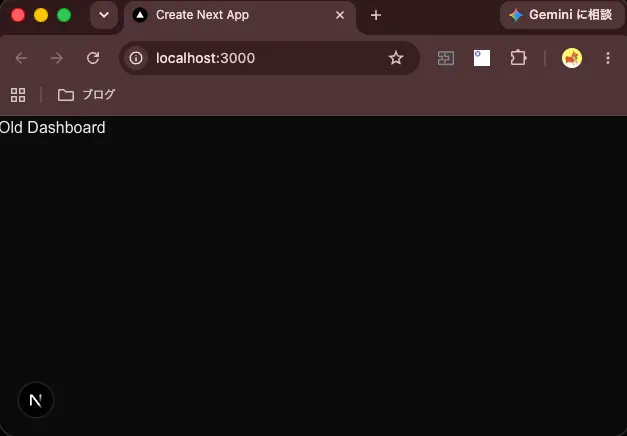
Reloading the local application now displays Old Dashboard.
Automatically Registering Flags
Flags Explorer lets you override application flags from the Vercel Toolbar, automatically add flags by synchronizing with application code, and identify dashboard flags that are no longer used by the application. When flags are managed manually, unused flags can remain in the code indefinitely, so synchronizing the code and dashboard states is useful.
Vercel Toolbar is available in preview environments by default, but enabling it in the local development environment is also convenient. Install the @vercel/toolbar package with the following command:
npm install @vercel/toolbar --save-devNext, run vercel link to link the local project with the project on Vercel.
vercel linkFor a Next.js project, add the following configuration to next.config.ts:
import type { NextConfig } from 'next';
import createWithVercelToolbar from '@vercel/toolbar/plugins/next';

const nextConfig: NextConfig = {
  // Config options here
};

const withVercelToolbar = createWithVercelToolbar();
export default withVercelToolbar(nextConfig);
Finally, add the following code to app/layout.tsx to integrate Vercel Toolbar into the application:
import { VercelToolbar } from '@vercel/toolbar/next';

export default function RootLayout({
  children,
}: {
  children: React.ReactNode;
}) {
  const shouldInjectToolbar = process.env.NODE_ENV === 'development';
  return (
    <html lang="en">
      <body>
        {children}
        {shouldInjectToolbar && <VercelToolbar />}
      </body>
    </html>
  );
}
To use automatic flag registration, you must then add a flag discovery endpoint (.well-known/vercel/flags) to the application. Vercel Flags sends an authenticated request to this endpoint to retrieve the flags defined in application code and register them in the dashboard.
In Next.js, create app/.well-known/vercel/flags/route.ts with the following code:
import { createFlagsDiscoveryEndpoint } from "flags/next";
import { getProviderData } from "@flags-sdk/vercel";
import * as flags from "../../../../flags";

export const GET = createFlagsDiscoveryEndpoint(() => getProviderData(flags));
As an example, remove newDashboardFlag from flags.ts and add a new flag named betaFeatureFlag. Flags detected from code are added in draft state when reflected in Vercel Flags. Because draft flags cannot be retrieved, specify a default value in the code.
  import { flag } from 'flags/next';
  import { vercelAdapter } from '@flags-sdk/vercel';

- export const newDashboardFlag = flag<boolean>({
-   key: "new-dashboard",
-   adapter: vercelAdapter(),
- });
+
+ export const betaFeatureFlag = flag<boolean>({
+   key: "beta-feature",
+   adapter: vercelAdapter(),
+   defaultValue: false,
+ });- import { newDashboardFlag } from "../flags";
+ import { betaFeatureFlag } from "../flags";
export default async function Home() {
- const isNewDashboardEnabled = await newDashboardFlag();
+ const isBetaFeatureEnabled = await betaFeatureFlag();
return (
<div>
- {isNewDashboardEnabled ? <h1>New Dashboard</h1> : <h1>Old Dashboard</h1>}
+ {isBetaFeatureEnabled ? <p>Beta feature is enabled!</p> : <p>Beta feature is disabled.</p>}
</div>
);
}Start the application in the development environment and check the flag state from "Flags Explorer" in Vercel Toolbar. You can see that the beta-feature flag has been added in draft state.
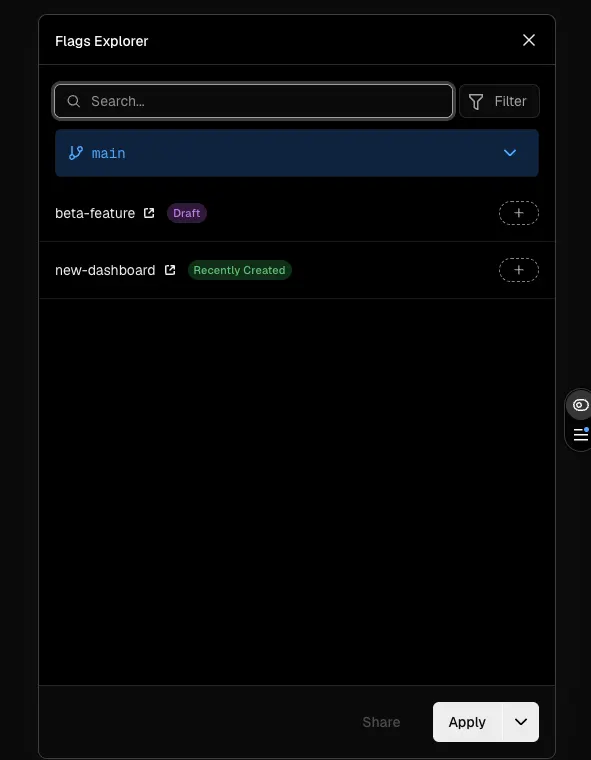
Change the state of this flag and reload the application. The content displayed in the local development environment changes according to the flag state.
Next, deploy the application to production with the vercel --prod command.
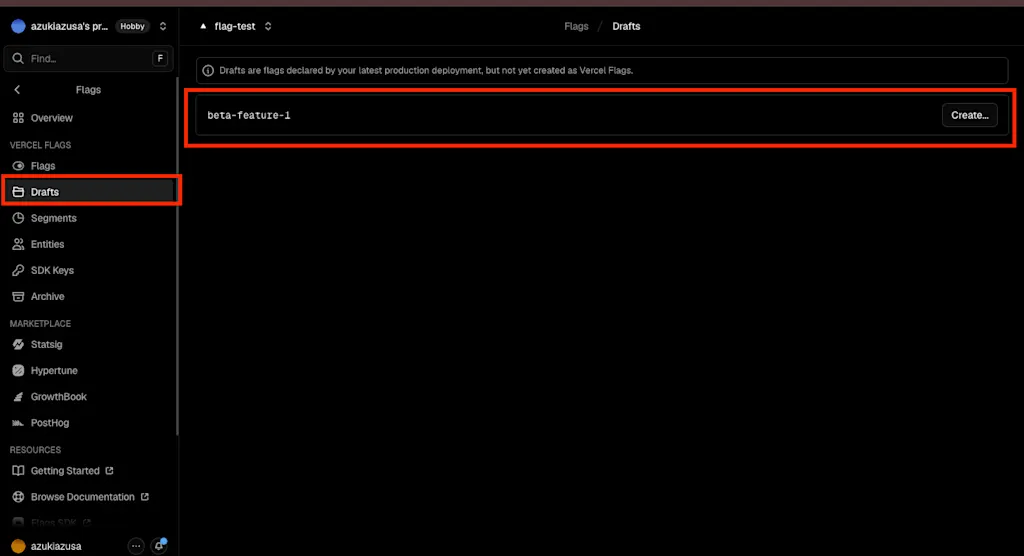
vercel --prodAfter deployment, the newly added beta-feature flag appears in draft state under the dashboard's "Drafts" section. You can also click "Create..." here to create the flag.
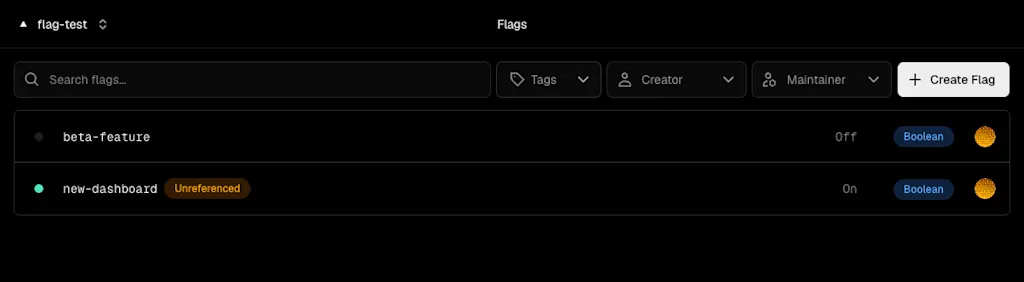
The new-dashboard flag, which is no longer referenced in the code, is marked "Unreferenced" in the dashboard.
Enabling a Flag Only for Specific Users
There are many situations where you may want to use feature flags to release a new feature only to specific users or tenants. For example, you might first release a feature only to internal users, verify that it works correctly, and then release it to everyone. Vercel Flags uses a concept called entities to enable flags only when specific conditions are met. An entity can be any object recognized by the application, such as a user, tenant, device, or request. Defining entities in the dashboard allows you to configure flag activation conditions flexibly.
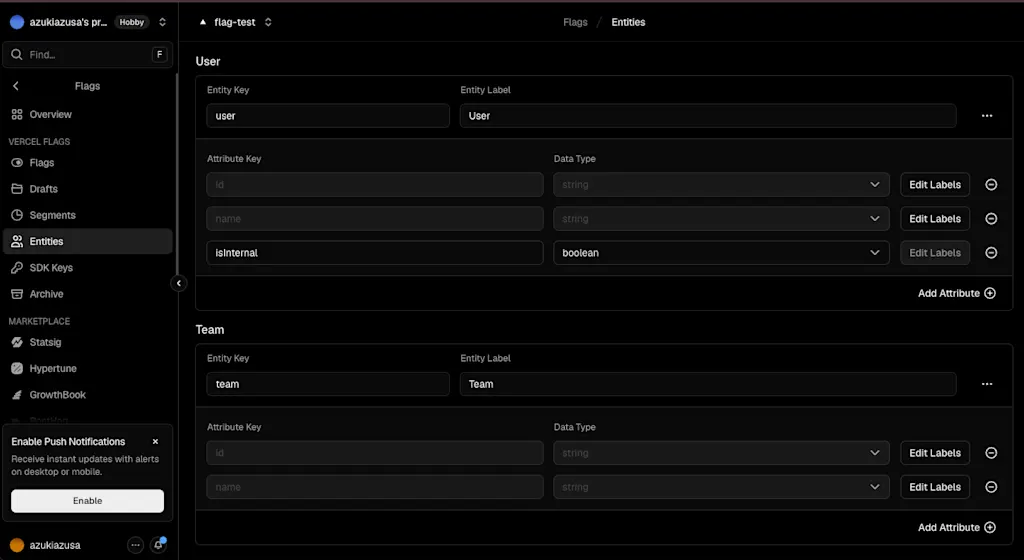
First, create an entity in the Vercel dashboard. Here, we will use an internal user's email address as an entity. You can create entities under "Flags" → "Entities." The User and Team entities are provided by default, so we will use User. Click "Add Attribute" and add a Boolean attribute named isInternal.
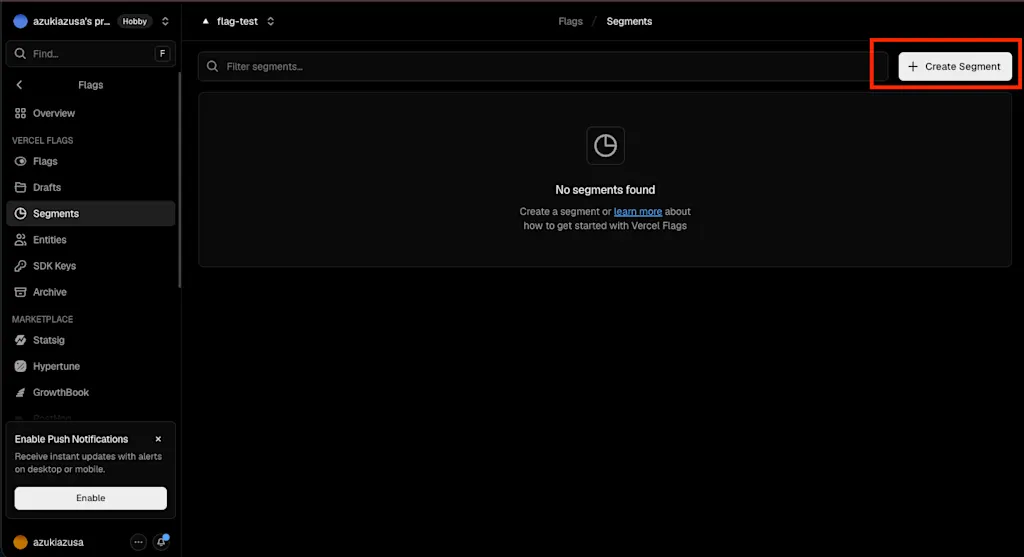
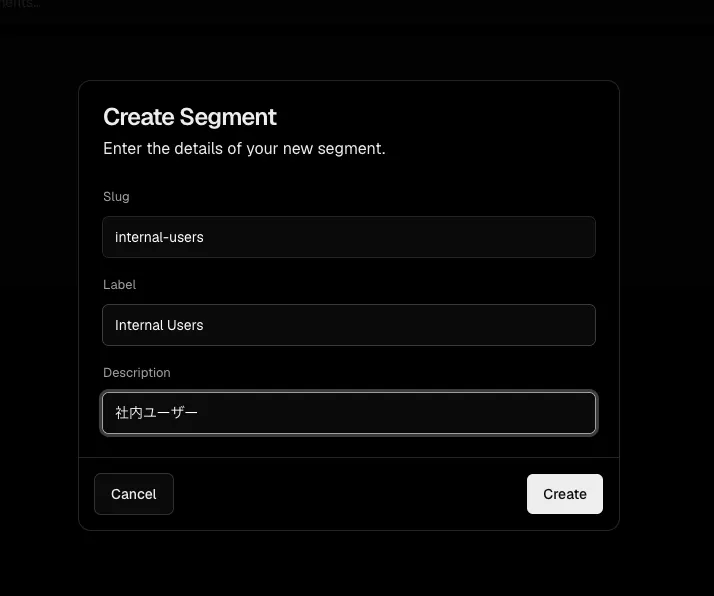
Next, create a segment, which is a reusable targeting configuration for feature flags. Click "Segments" in the sidebar and then click "Create Segment" to open a dialog. Create a segment with the slug internal-users and the name Internal Users.
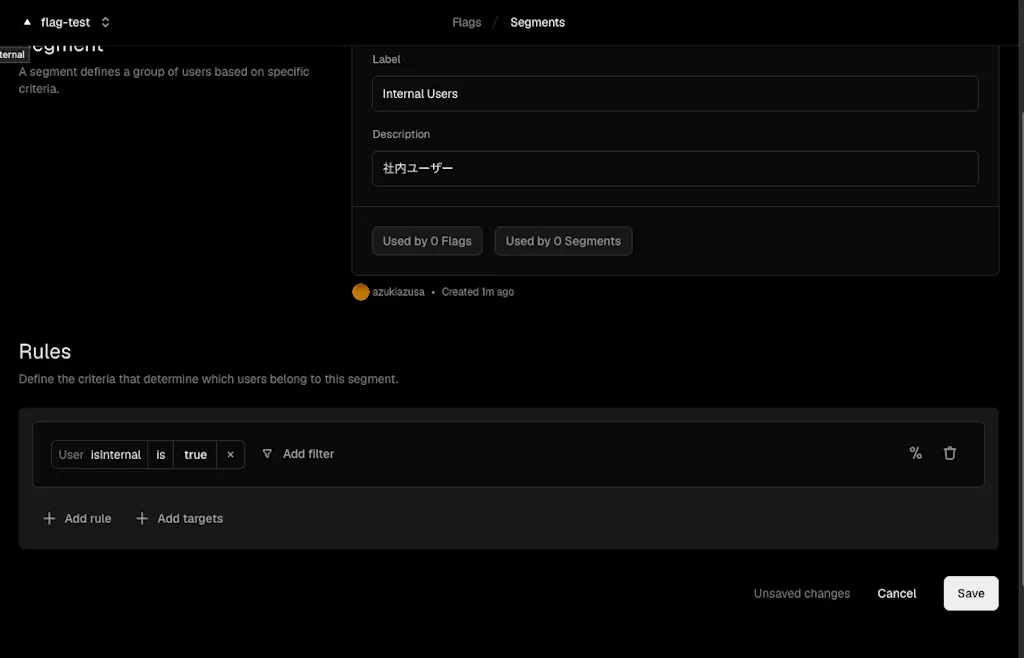
Open the segment's details page and click "Add Filter." Configure it so the flag is enabled only when the isInternal attribute of the User entity created earlier is true. Filter rules can express many conditions beyond a simple Boolean value, such as enabling the flag only when an email address ends in @example.com or when the role attribute is admin.
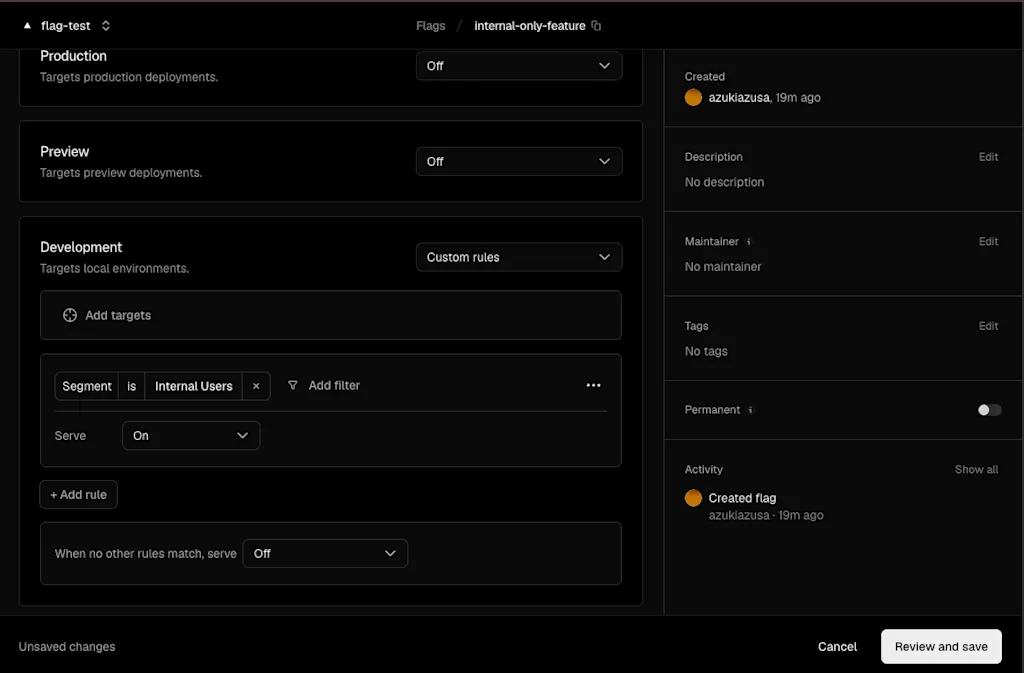
Next, create a flag named internal-only-feature and target the internal-users segment you just created. From the on/off selector on the flag details page, select "Custom Rules" and configure the condition. Click "Add Rules," select "Segment is Internal Users," and set the result to on when this condition is met. Set it to off otherwise.
Now update the code. Add internalFeatureFlag to flags.ts.
import { flag, dedupe } from "flags/next";
import { vercelAdapter } from "@flags-sdk/vercel";
import { getDummySession } from "./lib/auth";

type Entities = {
  user?: {
    id: string;
    name: string;
    isInternal: boolean;
  };
};

const identify = dedupe(async (): Promise<Entities> => {
  const session = await getDummySession();
  if (!session?.user) return {};

  return {
    user: {
      id: session.user.id,
      name: session.user.name,
      isInternal: session.user.isInternal,
    },
  };
});


export const internalFeatureFlag = flag<boolean, Entities>({
  key: "internal-only-feature",
  adapter: vercelAdapter(),
  defaultValue: false,
  identify,
});
The key point is to define the identify function and send entity information to Vercel Flags when retrieving the flag state. Here, the getDummySession() function retrieves the user's session information and determines whether the user is an internal user. In a real application, retrieve user attributes from authentication data and return them from the identify function. The dedupe function is a helper provided by Flags SDK. If identify is called multiple times within the same request, it caches and returns the result of the first call.
Try changing the isInternal flag directly in getDummySession and verify that the displayed content changes when you switch between an internal and external user.
export async function getDummySession() {
  return {
    user: {
      id: "user-1",
      name: "John Doe",
      isInternal: true, // Set to true for internal users and false for external users
    },
  };
}
Summary
- Vercel Flags makes it easy to add feature flags to applications hosted on Vercel.
- Flags SDK lets application code connect to Vercel Flags and retrieve flag states.
- Flags Explorer synchronizes application code with the dashboard. It can add flags defined in application code to the dashboard in draft state and show dashboard flags that are no longer used in code.
- Vercel Toolbar lets you inspect and override flag states in the local development environment.
- Entities let you enable flags only for specific users or tenants. Entity attributes provide flexible conditions for enabling flags.