
Design with AI Agents: Manipulating the Figma Canvas via MCP
In late March 2026, Figma's MCP server gained the `use_figma` tool — a general-purpose tool that runs JavaScript directly via the Figma Plugin API. This article explores how to use `use_figma` to manipulate the Figma canvas.
In late March 2026, Figma's MCP server gained the use_figma tool for directly manipulating the Figma canvas. The generate_figma_design tool was already available for capturing designs from web apps and converting them into Figma files, but while it could reproduce appearances, it couldn't generate structures like Variants or Components — making it difficult to integrate results directly into a design system.

What makes use_figma distinctive is that it is designed as a general-purpose tool that executes JavaScript directly on a Figma file via the Figma Plugin API. This means it can do far more than just create design files — it can define design tokens, create components and variants, configure Auto Layout, and perform virtually any operation possible in Figma. Since
use_figma itself provides only primitive operations, the intended usage is to execute specific workflows through skills. For example, installing the official Figma plugin gives you access to the following skills. Of course, you can also create your own skills to build custom workflows powered by use_figma.
figma-generate-library— Build a Figma design system (variables, tokens, component library) from a codebasefigma-generate-design— Generate UI designs in Figma from code or a design system
Additional skills leveraging use_figma are also published in the Figma Community, and more are expected to emerge over time.
In this article, we'll explore how to use the use_figma tool to manipulate the Figma canvas in practice.
The use_figma tool is currently in beta and free to use, but it is planned to become a paid feature based on usage in the future.
Installing Figma MCP
We'll proceed with Claude Code as the coding agent. First, install the Figma MCP into Claude Code. Installing the Figma plugin will also automatically install the MCP server. Run the following command:
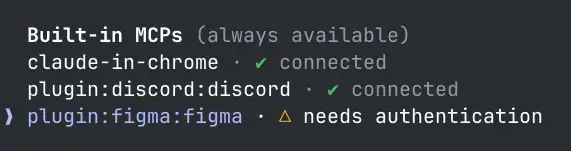
claude plugin install figma@claude-plugins-officialOnce the plugin is successfully installed, start Claude Code. Run the /mcp command to confirm that the Figma MCP server has been added. If this is your first time installing it, you should see "needs Authentication" — select plugin:figma:figma and complete the authentication.
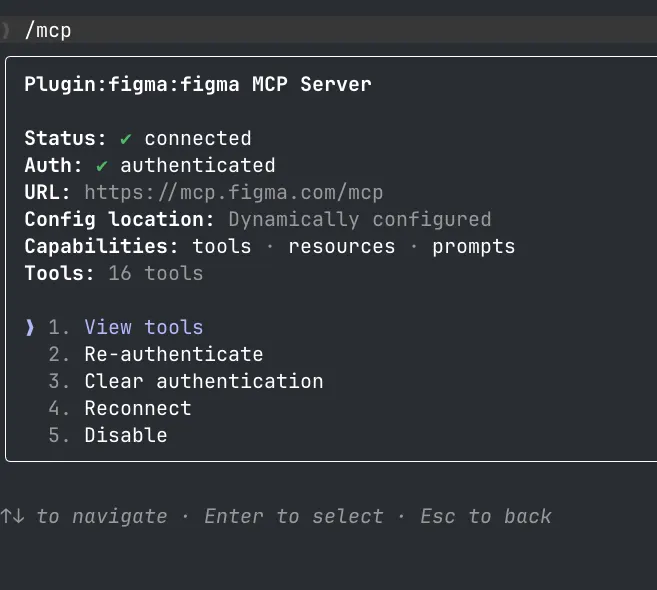
Once authentication succeeds, you'll see "✔ connected" and be able to view the MCP server details.
Building a Design System with the figma-generate-library Skill
Let's use the figma-generate-library skill to build a design system in Figma. We'll prepare a few design tokens and Storybook components in advance.
:root {
  /* Gray */
  --color-gray-0:   #ffffff;
  --color-gray-50:  #f9fafb;
  --color-gray-100: #f3f4f6;
  --color-gray-200: #e5e7eb;
  --color-gray-300: #d1d5db;
  --color-gray-400: #9ca3af;
  --color-gray-500: #6b7280;
  --color-gray-700: #374151;
  --color-gray-900: #111827;
  /* Other definitions... */
}import styles from "./Button.module.css";
export interface ButtonProps {
/**
* The visual style of the button.
* - `primary`: Used for main actions (form submission, confirmation)
* - `secondary`: Used for secondary actions (cancel, go back)
* - `danger`: Used for destructive operations (delete, reset)
*/
variant?: "primary" | "secondary" | "danger";
/**
* The size of the button.
* - `sm`: For compact UIs or toolbars
* - `md`: Standard button (default)
* - `lg`: For prominent CTA buttons
*/
size?: "sm" | "md" | "lg";
/** Disables the button. Click events will no longer fire. */
disabled?: boolean;
/** The button label text */
children: React.ReactNode;
/** Callback on click */
onClick?: () => void;
}
/**
* A basic button component for triggering interactive actions.
*
* For link navigation, use an `<a>` tag or React Router's `<Link>`.
* This component is intended exclusively for actions with side effects.
*/
export function Button({
variant = "primary",
size = "md",
disabled = false,
children,
onClick,
}: ButtonProps) {
/** Implementation omitted */
}Start Claude Code and run the /figma-generate-library command. The skill executes the following workflow:
- Analysis phase: Analyze the codebase to extract design token and component specifications. Inspect the Figma file to understand existing variables and components, then map them to the codebase.
- Token creation: Create variables in Figma, including both primitive variables and semantic tokens, mapped to the codebase tokens.
- Page scaffolding: Create pages for the design system and set up sections to organize tokens and components.
- Component creation: Reproduce Storybook components in Figma, with Variants and Auto Layout configured appropriately. Take a screenshot after each component to verify the result.
Phase 1: Analysis
The process begins with analyzing the codebase. You can see that the repository's styling approach, defined tokens, and component variant specifications are accurately extracted.
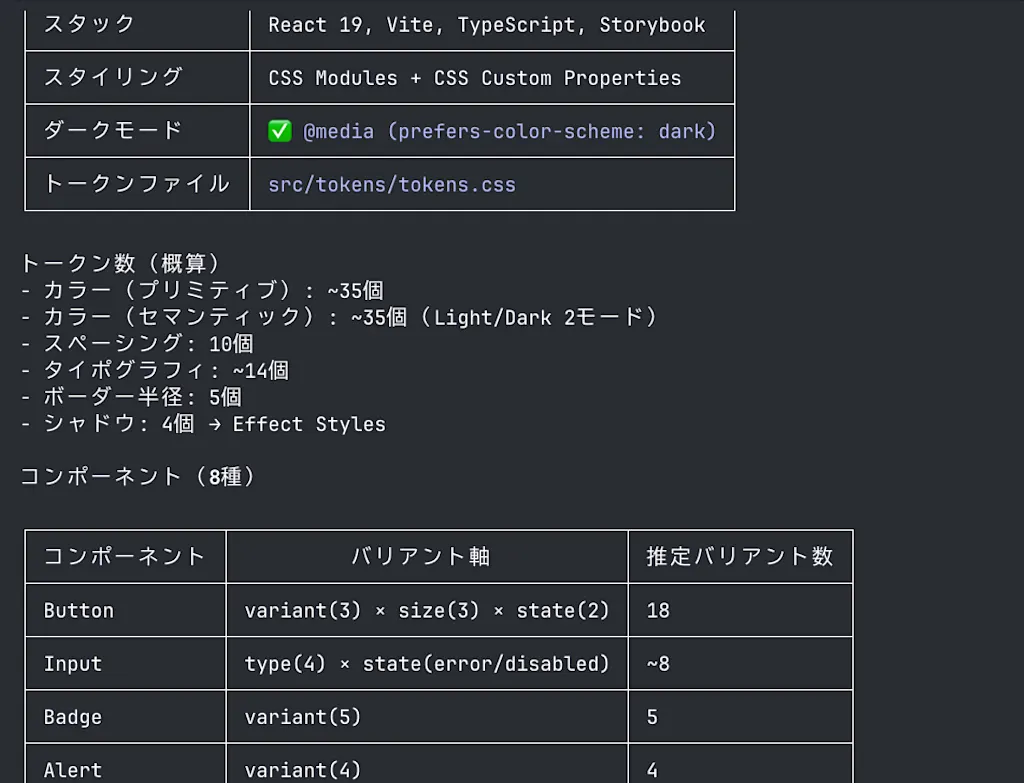
The skill asks for the Figma file URL, so I created a new file and entered its URL. You can also see the use_figma tool being used to inspect variables, components, and styles in the Figma file. The use_figma tool takes a fileKey identifying the Figma file and a JavaScript code string to execute.
// Phase 0b: Full inspection of the Figma file
const pages = figma.root.children.map((p, i) => ({
  index: i,
  name: p.name,
  id: p.id,
  childCount: p.children.length,
}));
const collections = await figma.variables.getLocalVariableCollectionsAsync();

// Continues with logic to extract variable and component info and map them to codebase tokens and components...
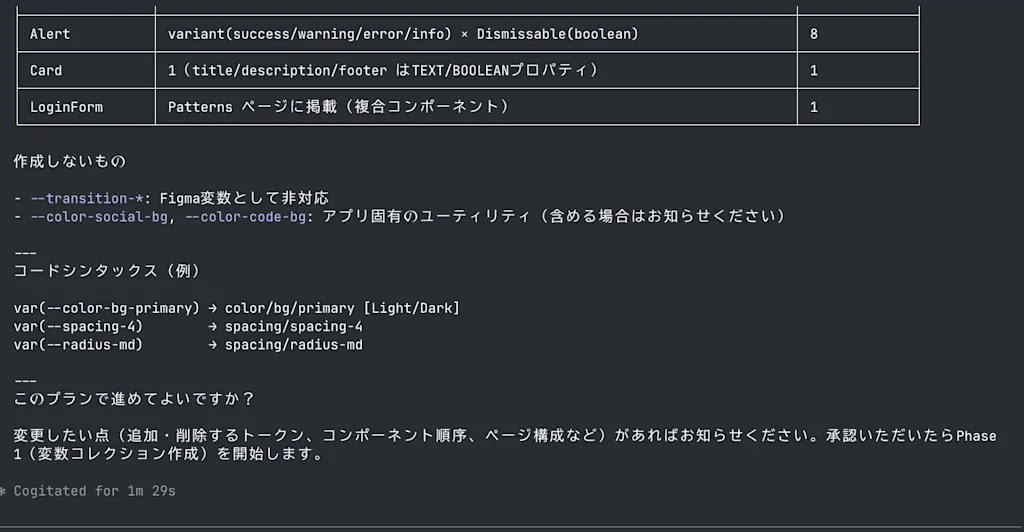
Other tools such as search_design_system and get_metadata are also used to gather information about the Figma file. Once analysis is complete, the skill presents a plan and asks for confirmation.
Phase 2: Token Creation
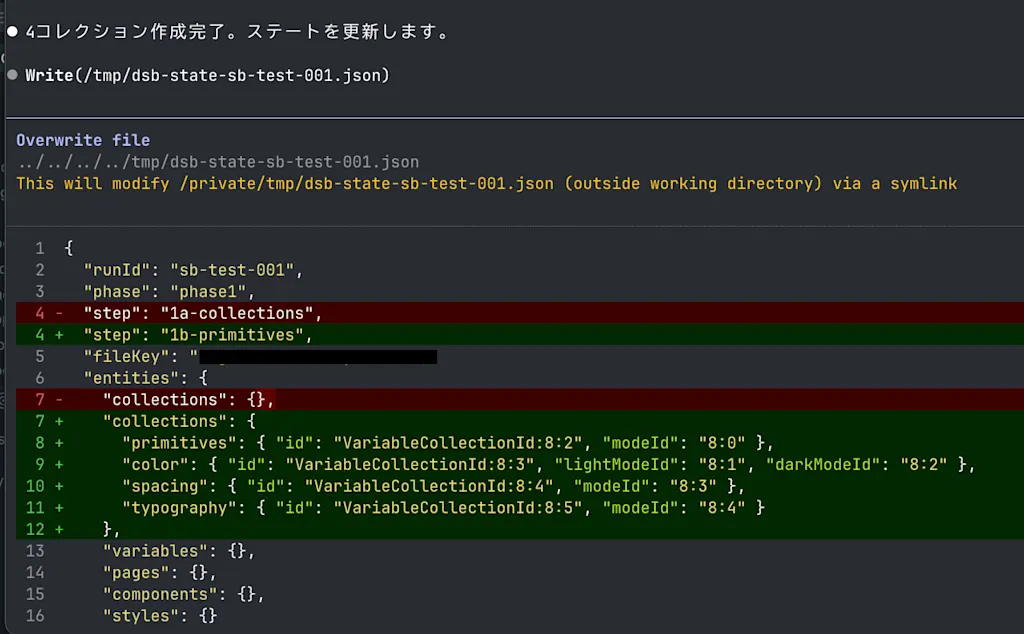
If the proposed plan looks good, approve it to move forward. The use_figma tool is called with code like figma.variables.createVariableCollection(...) to create variables in Figma. The figma-generate-library skill also saves its current state to /tmp/dsb-state-{RUN_ID}.json after each step, ensuring that conversation context is not lost during long workflows.
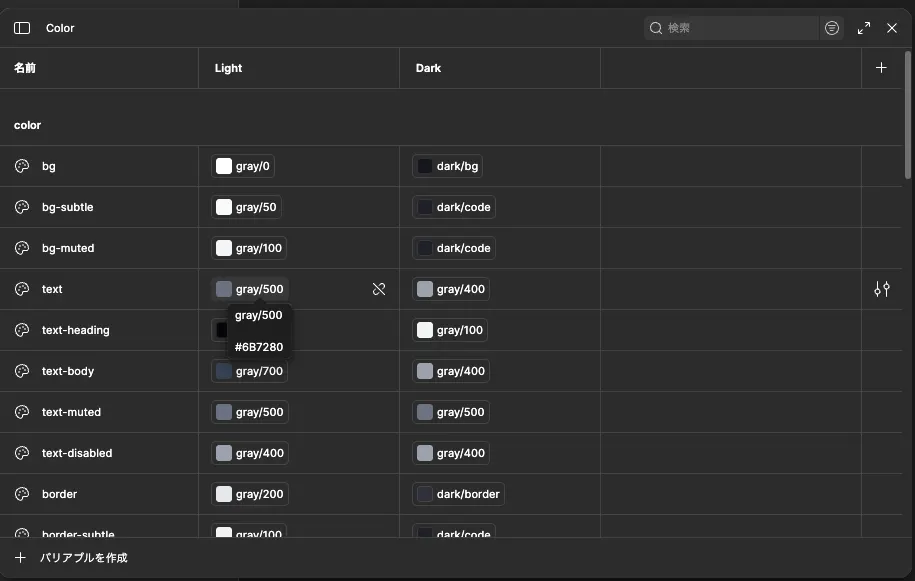
Opening "Variables" in the Figma file confirms that variables corresponding to the codebase tokens have been created. Checking the "Styles" section similarly shows that text styles and effect styles have been created as well.
Phase 3: Page Scaffolding
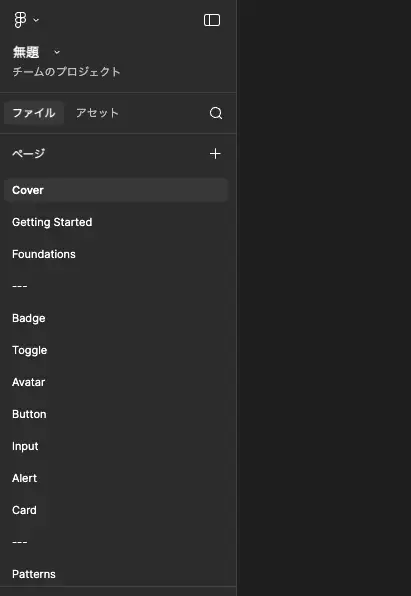
With variable generation complete, the page skeleton is next. Pages such as "Cover," "Getting Started," "Foundation," "Badge," and "Button" have been created. The content is still empty at this point, but components will be added in the next phase.
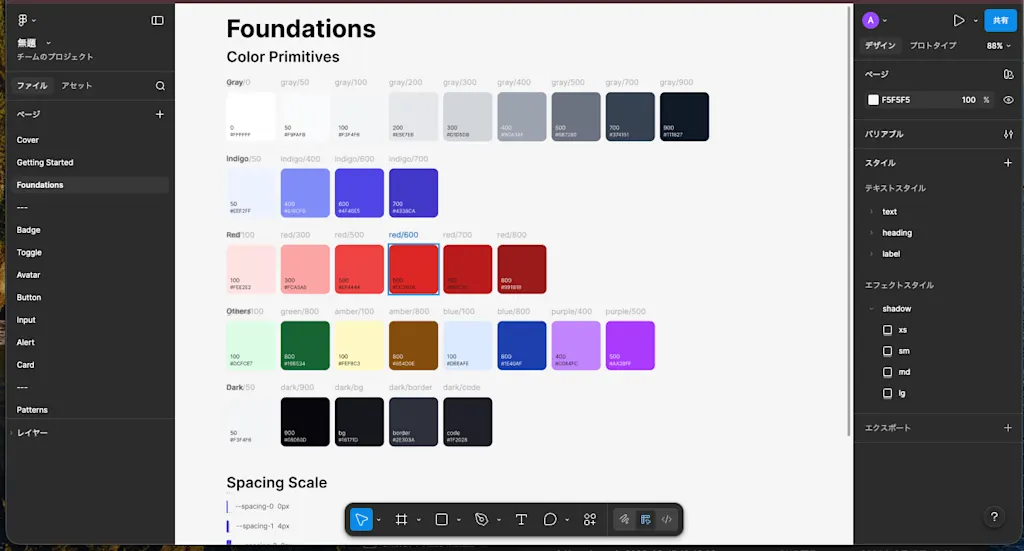
Once the Foundation page is ready, the get_screenshot tool takes a screenshot to verify that the page was created correctly. The resulting Foundation page is structured with "Color Primitives" and "Spacing Scale" sections, as shown below.
Phase 4: Component Creation
Next, the use_figma tool creates the components. For the Button component, 18 variants are created based on the combination of variant (primary/secondary/danger) × size (sm/md/lg) × state (default/disabled).

That said, the output isn't always perfect on the first pass. For example, the alert component had a frame that was too small, causing content to be clipped. When issues like this occur, you'll need to send feedback for corrections.
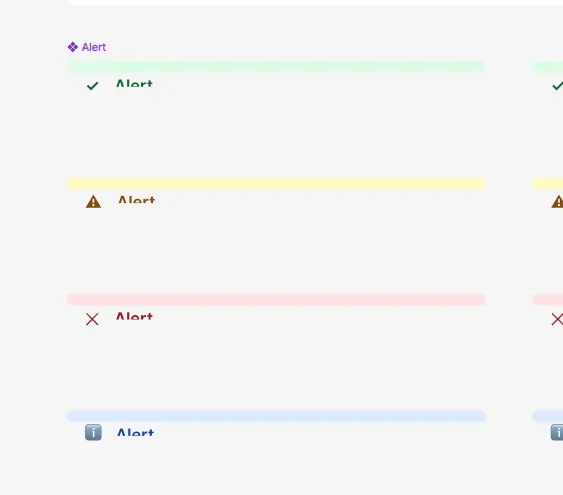
Overall, I found it extremely helpful to have the tedious work of extracting tokens and component variants automated. At the same time, leaving everything entirely to the agent can result in unintended design choices in subtle areas, so the ability to manually fix the design as needed remains important.
Generating a Design with the figma-generate-design Skill
Next, let's use the figma-generate-design skill to generate a UI design in Figma using the design system we just built. We'll have it create a user profile settings screen. I'll try passing a prompt with as detailed a specification as possible.
/figma-generate-design

Please create a user profile settings screen. The target Figma file is https://www.figma.com/file/xxxxxx/. Please meet the following requirements:
- Place a section at the top of the screen displaying the user's avatar and name
- Include "Name" and "Email Address" input fields in the form. Both should be text inputs with placeholders "Enter your name" and "Enter your email address" respectively
- Add a toggle switch that allows users to turn notifications on/off. The toggle label should be "Receive notifications"
- Place a "Save" button at the bottom of the form. The "Save" button should use the primary style and only be enabled when the form content has changed
The figma-generate-design skill workflow is as follows:
- Understanding the screen: If building from code, read the relevant source files to understand the page structure, sections, and components used. Survey the design system in Figma and list the key sections (Header, Hero, Footer, etc.) and UI components.
- Design system exploration: Search the Figma file for components, variables, and styles to understand available design resources.
- Create the page wrapper frame
- Create sections within the wrapper: The most important step — use the
use_figmatool section by section to build the layout. Import and use components, variables, and styles from the design system to avoid hardcoded values. Take a screenshot after completing each section to verify. - Take a full-page screenshot for a final review
First, information about the Figma file is gathered to understand the available components and tokens. The get_metadata and search_design_system tools are used to retrieve the list of available components and tokens. To meet the requirements in the prompt, searches are run for queries like button, input, avatar, and toggle to find usable components.
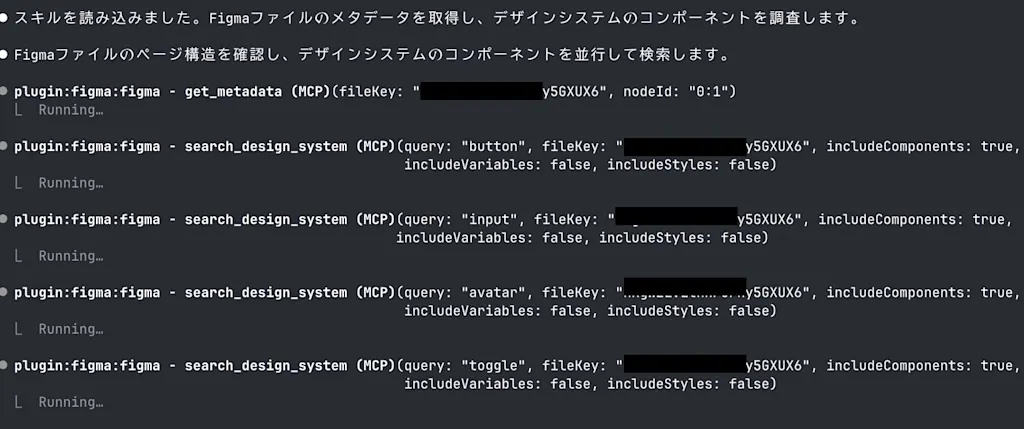
The agent further inspects component structures and verifies colors and variables to understand the design system. It continues using the use_figma tool to build the sections. The resulting output is a user profile settings screen that satisfies the requirements using components from the design system. However, I noticed that spacer frames were used instead of Auto Layout to handle spacing between sections — let's send feedback to fix that.
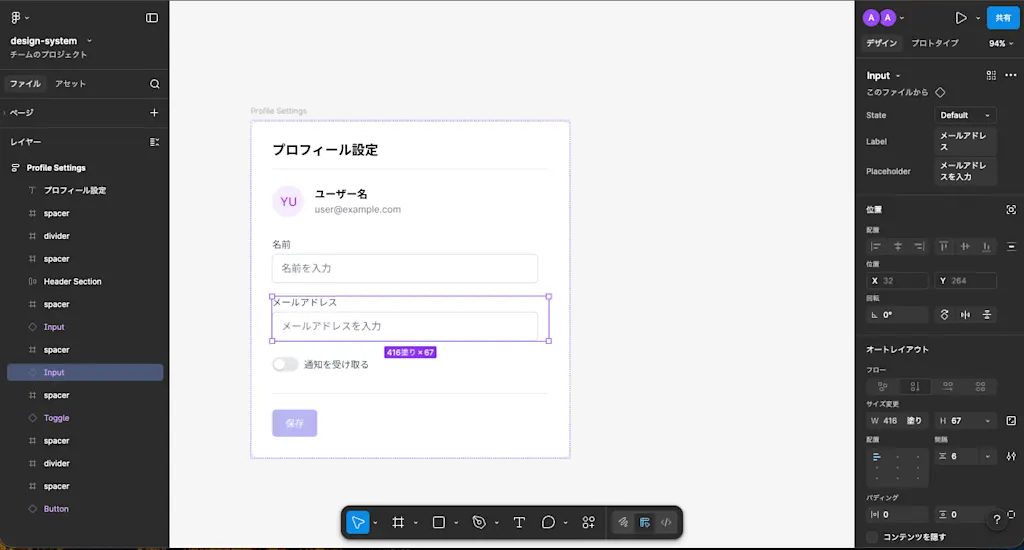
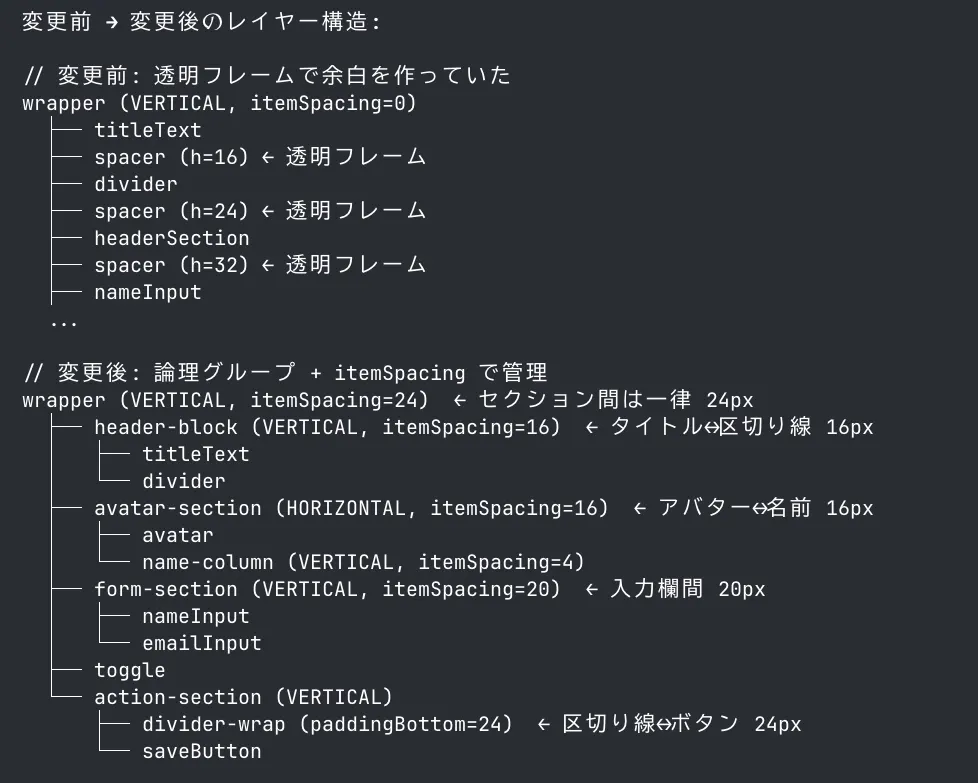
After sending feedback to use Auto Layout, the spacing between sections was updated from spacer frames to Auto Layout. This makes the section structure much more appropriate. That said — depending on the model — leaving everything to the agent can still result in unintended design choices in certain areas, so sending feedback for corrections as needed remains necessary.
The created design can also be reflected in the codebase directly with a prompt like the following:
Please implement the Profile Settings screen at https://www.figma.com/design/xxxx/design-system?node-id=79-2&t=SsXyQlm5GVPvtQYa-0.Here, the agent used get_design_context to retrieve design information from Figma, then used the Storybook MCP to check whether corresponding components exist in the codebase, and where they do, generated code using those components. The generated code is shown below — you can see that it uses components and tokens from the codebase.
import { useState } from "react";
import styles from "./ProfileSettings.module.css";
// Other imports omitted...

/**
 * Profile settings form component.
 *
 * Allows editing the user's name and email address, and toggling notification settings.
 * A form component combining Avatar, Input, Toggle, and Button.
 */
export function ProfileSettings({
  name,
  email,
  avatarSrc,
  onSave,
}: ProfileSettingsProps) {
  const [nameValue, setNameValue] = useState(name);
  const [emailValue, setEmailValue] = useState(email);
  const [notifications, setNotifications] = useState(false);

  const handleSave = () => {
    onSave?.({ name: nameValue, email: emailValue, notifications });
  };

  return (
    <div className={styles.container}>
      {/* Header */}
      <div className={styles.headerBlock}>
        <h2 className={styles.title}>Profile Settings</h2>
        <hr className={styles.divider} />
      </div>

      {/* Avatar section */}
      <div className={styles.avatarSection}>
        <Avatar name={name} src={avatarSrc} size="lg" />
        <div className={styles.nameColumn}>
          <p className={styles.userName}>{name}</p>
          <p className={styles.userEmail}>{email}</p>
        </div>
      </div>

      {/* Form section */}
      <div className={styles.formSection}>
        <Input
          label="Name"
          placeholder="Enter your name"
          value={nameValue}
          onChange={setNameValue}
        />
        <Input
          label="Email Address"
          placeholder="Enter your email address"
          type="email"
          value={emailValue}
          onChange={setEmailValue}
        />
      </div>

      {/* Notification toggle */}
      <Toggle
        label="Receive notifications"
        checked={notifications}
        onChange={setNotifications}
      />

      {/* Action section */}
      <div className={styles.actionSection}>
        <div className={styles.dividerWrap}>
          <hr className={styles.divider} />
        </div>
        <Button variant="primary" onClick={handleSave}>
          Save
        </Button>
      </div>
    </div>
  );
}.container {
background: var(--color-bg);
border: 1px solid var(--color-border);
border-radius: 12px;
padding: var(--spacing-8);
display: flex;
flex-direction: column;
gap: var(--spacing-6);
overflow: hidden;
max-width: 480px;
width: 100%;
}
/* Omitted... */Summary
- Using the
use_figmatool from Figma's MCP server, you can directly manipulate the Figma canvas to generate designs - Because
use_figmais a general-purpose tool that executes JavaScript directly via the Figma Plugin API, it can handle not just design file creation, but also defining design tokens, creating components and variants, configuring Auto Layout, and virtually any other operation available in Figma - Since
use_figmaitself provides only primitive operations, the intended usage is to run specific workflows through skills. Installing the official Figma plugin gives you access tofigma-generate-libraryfor building a Figma design system from a codebase, andfigma-generate-designfor generating UI designs in Figma from code or a design system - Using
figma-generate-library, you can extract token and component specifications from a codebase and build a design system in Figma. Through steps like token creation, page scaffolding, and component creation, Figma variables and components that correspond to codebase tokens and components are generated - Using
figma-generate-design, you can generate a UI design in Figma that meets requirements specified in a prompt. Through steps like understanding the screen, exploring the design system, creating the page wrapper frame, and building sections, a design using design system components that satisfies the requirements is produced - However, leaving everything entirely to the agent can result in unintended design choices in subtle areas, so sending feedback for corrections as needed remains necessary