
Enabling AI Agents to Control Safari with the Safari MCP Server
Real-browser testing matters for web development. Tools like Playwright CLI and chrome-devtools-mcp let agents drive browsers, but most depend on Chromium. Safari Technology Preview 247 adds an MCP server that connects agents to Safari.
The importance of providing agents with a proper feedback loop during development has been discussed at length. This is especially true for web application development, where verifying and debugging behavior in a real browser is essential. That's why tools like Playwright CLI,
agent-browser, and
chrome-devtools-mcp have emerged to let agents drive a browser.
However, most tools available today share a common limitation: they depend on Google Chrome or other Chromium-based browsers. Since web standards can be implemented or behave differently across browsers, and some APIs are only available in specific ones, it has long been standard practice to verify behavior across every browser you support. So even when an agent used a browser automation tool to check its work, it still couldn't accurately capture how the app would actually behave for users on other browsers.
The MCP server introduced in Safari Technology Preview 247 is expected to solve this problem. The Safari MCP server provides MCP tools that let an agent connect to Safari itself, emulating user interactions, retrieving page content, and inspecting network requests. This means agents can now verify behavior and debug directly in Safari on their own, giving them the environment they need to operate autonomously.
This article walks through how to enable the Safari MCP server and how to use its tools to let an agent control Safari.
Enabling the Safari MCP Server
The Safari MCP server only works with Safari Technology Preview on macOS. It isn't available on Windows, Linux, or other operating systems.
To use the Safari MCP server, you'll need Safari Technology Preview 247 or later. Safari Technology Preview is Apple's developer preview build of Safari, used for testing new features and improvements before they ship. Install the version matching your OS from the link below — look for the purple Safari icon.
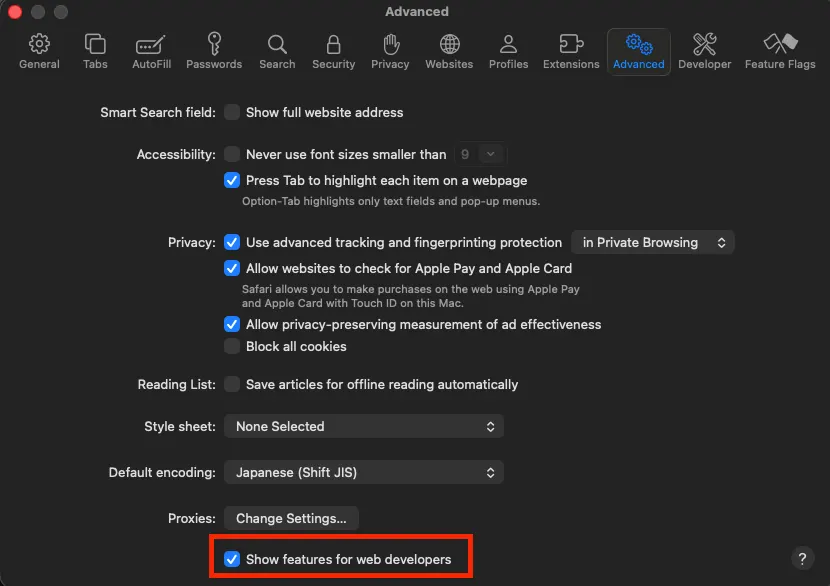
After installing, enable Settings > Advanced > Show features for web developer.
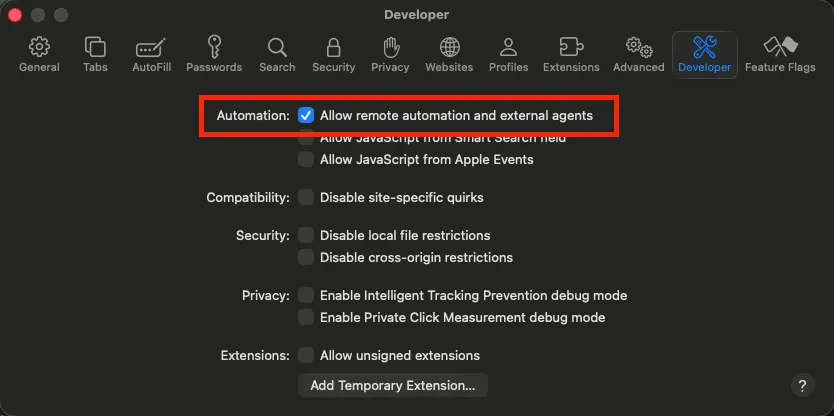
Once you enable Show features for web developer, a Develop menu appears in Safari's menu bar. Also enable Settings > Developer > Enable remote automation and external agents.
If you're using Claude Code, you can add the Safari MCP server with the following command:
claude mcp add safari-mcp-stp -- "/Applications/Safari Technology Preview.app/Contents/MacOS/safaridriver" --mcpIf you're using Codex, you can add it with a similar command:
codex mcp add safari-mcp-stp -- "/Applications/Safari Technology Preview.app/Contents/MacOS/safaridriver" --mcpFor other MCP-compatible agents, add an entry like this to your mcp.json, config.json, or equivalent configuration file:
{
  "safari-mcp-stp": {
    "command": "/Applications/Safari Technology Preview.app/Contents/MacOS/safaridriver",
    "args": ["--mcp"]
  }
}
The server name safari-mcp-stp is arbitrary, so you can rename it if you prefer.
safaridriver is the WebDriver implementation bundled with macOS by default — a CLI tool for controlling Safari through the WebDriver protocol (a standardized protocol for browser automation). The Safari MCP server works by launching safaridriver with the --mcp flag, which starts it as an MCP server instead of a WebDriver endpoint. Note that running plain safaridriver without this flag drives the regular Safari installation, so you need to point to the Safari Technology Preview binary specifically, as in "/Applications/Safari Technology Preview.app/Contents/MacOS/safaridriver".
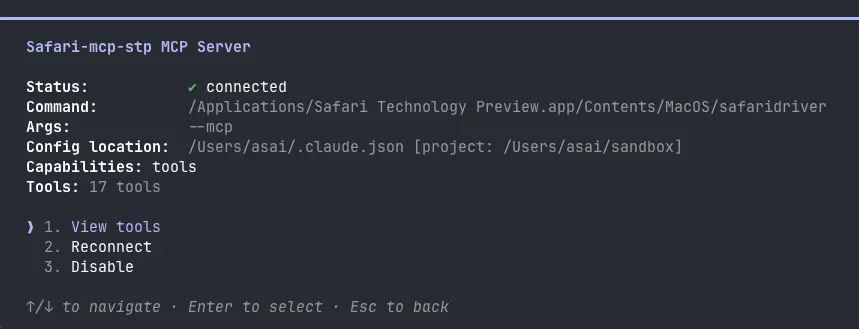
Let's confirm the Safari MCP server was added using the /mcp command.
Here's the full list of tools the Safari MCP server provides:
Tab management
- list_tabs — List all open tabs
- create_tab — Create a new tab (optionally opening a given URL)
- switch_tab — Switch to the tab with the given
handle(a unique identifier per tab) - close_tab — Close the tab with the given
handle
Navigation
- navigate_to_url — Navigate to a URL and retrieve the page content after it loads
- wait_for_navigation — Wait for the page to finish loading
- page_info — Get the current page's URL, title, and load state
Reading page content
- get_page_content — Extract page content using WebKit's text extraction (recommended over screenshots or DOM scraping)
- screenshot — Save a screenshot of the page as a PNG (recommended only when you need to check the visual appearance itself)
Interaction and execution
- page_interactions — Perform a batch of DOM operations such as clicking, typing, scrolling, or hovering
- evaluate_javascript — Run JavaScript on the page (for cases get_page_content can't handle)
Debugging and diagnostics
- browser_console_messages — Retrieve console logs
- list_network_requests / get_network_request — List or inspect network requests
- browser_dialogs — Check the state of browser dialogs (alert/confirm/prompt, etc.) and dismiss them as needed
Display settings
- set_viewport_size — Set the viewport size (in CSS pixels)
- set_emulated_media — Emulate a CSS media type (screen/print, etc.)
Letting an Agent Control Safari with the Safari MCP Server
As an example of an agent controlling Safari, let's try sending Claude the prompt: "Is azukiazusa.dev accessible in Safari?" First, the agent uses the navigate_to_url command from safari-mcp-stp to open azukiazusa.dev in Safari Technology Preview.
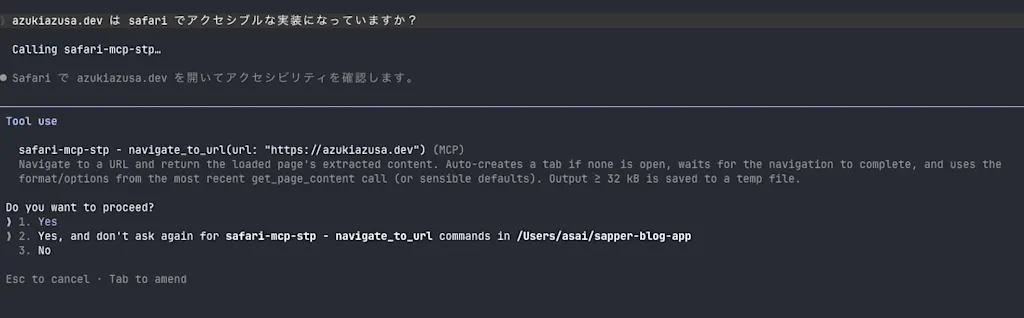
The agent automatically opens Safari and navigates to azukiazusa.dev.
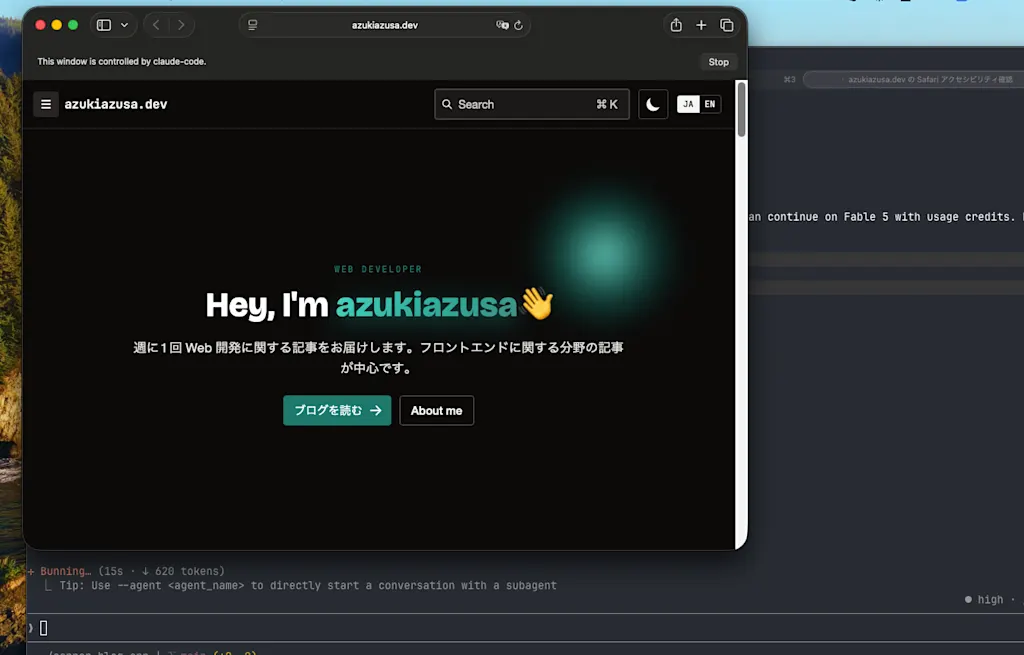
It then uses the get_page_content and evaluate_javascript tools to retrieve the page's content, and the page_interactions tool to check whether specific elements can receive focus.
For a second example, let's have the agent build a simple web app and then check that it works correctly in Safari. I had it build a bare-bones flight operations recovery dashboard in React.
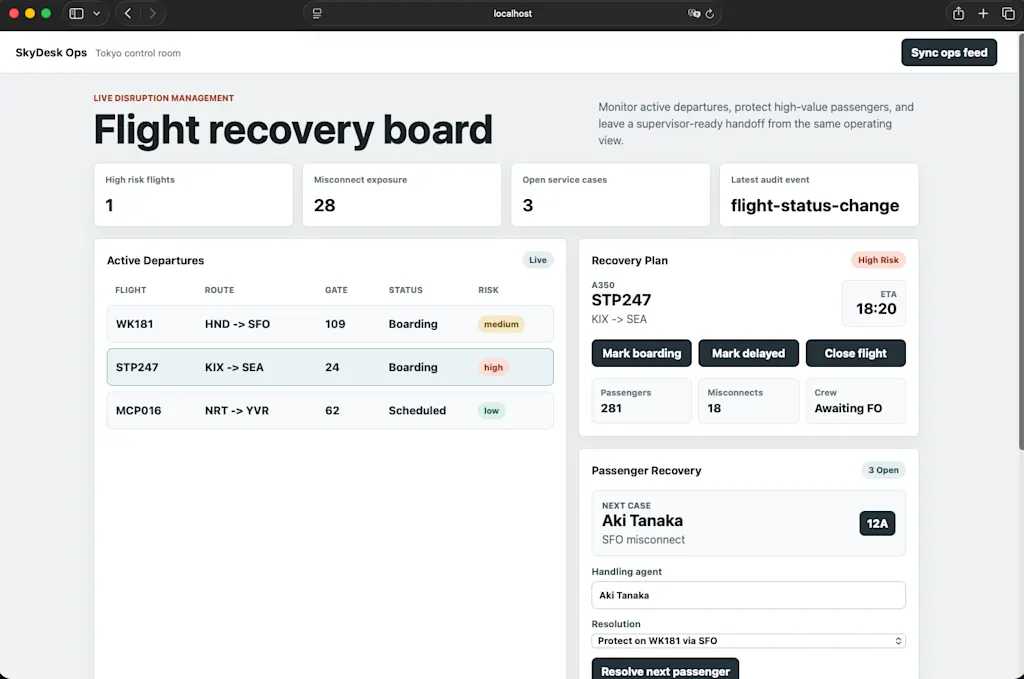
After the app was built, I sent the prompt: "Use the Safari MCP server to check that this application works correctly in Safari." The agent then drove Safari through the following steps to verify the app's behavior.
First, it uses navigate_to_url to open 127.0.0.1:5173, then page_info to get the page title and URL. Next, it uses get_page_content to retrieve the page content and check that form fields, buttons, and other elements are rendering correctly.
mcp_tool_call safari-mcp-stp.navigate_to_url
arguments: { "url": "http://127.0.0.1:5173/" }

mcp_tool_call safari-mcp-stp.page_info
arguments: {}
result: { "title": "SkyDesk Ops", "url": "http://127.0.0.1:5173/" }

mcp_tool_call safari-mcp-stp.get_page_content
arguments: {
  "format": "textTree",
  "region": "entire_page",
  "nodeIds": "interactive",
  "includeAccessibilityAttributes": true,
  "includeSelectOptions": true,
  "maxWordsPerParagraph": 50
}
Using the IDs it just retrieved, it then uses the page_interactions tool to fill in form fields automatically. In the example below, it selects flight WK181, marks it as delayed, and resolves the next passenger's case.
mcp_tool_call safari-mcp-stp.page_interactions
arguments: {
  "interactions": [
    { "type": "click", "node": "57", "purpose": "Select flight WK181 from Active Departures" },
    { "type": "click", "node": "61", "purpose": "Mark the selected WK181 flight delayed" },
    { "type": "click", "node": "228", "purpose": "Resolve the next passenger case for the selected flight" }
  ],
  "fullText": true
}
result:
- requested: 3
- successful: 3
- WK181 row changed to Delayed
- Open service cases changed from 3 to 2
The operations are specified together in the interactions array argument. The first operation clicks the element with node 57. node is the ID of a page element retrieved via the get_page_content tool, and it's used to target the exact element for each interaction. purpose is a string describing the intent of the operation, which helps the agent understand what each step is meant to accomplish.
You can actually watch the form get filled in automatically.
The agent also used the browser_console_messages tool to check console logs, and took a browser screenshot along the way.
mcp_tool_call safari-mcp-stp.browser_console_messages
result included:
- flight-selected
- flight-status-change
- passenger-resolution
mcp_tool_call safari-mcp-stp.screenshot
arguments: {
"savePath": "/Users/xxx/Documents/mcp-test/safari-mcp-project-mcp.png",
"full_page": true
}
result:
Saved screenshot to '/Users/xxx/Documents/mcp-test/safari-mcp-project-mcp.png' (99.3 kB)Summary
- The Safari MCP server, introduced in Safari Technology Preview 247, lets agents control Safari directly instead of relying on Chromium-based tooling
- Running
"/Applications/Safari Technology Preview.app/Contents/MacOS/safaridriver" --mcpstartssafaridriveras an MCP server, allowing an agent to connect to Safari - It provides a full set of MCP tools for real browser automation, covering tab management, navigation, page content retrieval, DOM interaction, debugging, and display settings
- We were able to have an agent check azukiazusa.dev's accessibility and verify that a self-built web app worked correctly in Safari