
Posting AI-Composed Cards to Slack with @json-render/chat
Instead of one tool per message shape, @json-render/chat lets an LLM compose a Spec from a catalog and converts it into a Chat SDK card, posted to Slack as Block Kit. This article builds a Slack bot that posts tables and charts.
To send a message containing tables or charts from a Slack bot, you need to build Block Kit JSON, which represents a Slack message as a combination of blocks. One way to delegate this to an LLM is to give it one tool per message shape, such as "a tool that posts a table" and "a tool that posts a chart." With this approach, though, you cannot combine elements in a single message in ways the tools did not anticipate. For example, if you want to show a table and a chart together, each tool has to post its own separate message.
json-render is a framework that lets AI pick parts from a predefined catalog of components and generate JSON (a Spec) describing the structure of the UI. I covered the idea of catalogs in Trying json-render, which lets AI generate predefined UI.
@json-render/chat, released on November 4, 2026, is a package for posting these Specs as Slack or Microsoft Teams messages. Because the model generates a single Spec that combines parts, you can put a table, a chart, and buttons into one message without having a tool for each shape.
In this article, I use @json-render/chat to build a Slack bot that responds to mentions by summarizing sales data in a card, and walk through how a rich message with tables and charts gets posted.
Overview of @json-render/chat
Rather than outputting Slack Block Kit directly, @json-render/chat outputs a CardElement, a platform-independent card representation defined by Vercel's Chat SDK. Chat SDK has adapters for Slack, Teams, Discord, Google Chat, and more, and each adapter converts the card into that platform's format. For example, it becomes Block Kit on Slack and Adaptive Cards on Teams.
@json-render/chat provides the following three things:
schemaandstandardComponentDefinitions: a schema for defining a chat-oriented catalog, and the standard component definitionstoCard(spec): a function that validates a completed Spec and converts it into aCardElementstreamCard(thread, textStream): a function that receives the model's output as a stream, posts a message, and keeps editing it
The standard components are Card as the root, plus Section, Text, Fields and Field, Table, Chart, Divider, Image, Actions, and Button/LinkButton. Each one is converted into the Chat SDK card element of the same name.
With @json-render/chat, you don't need a tool for each message shape: a single Spec composed by the model can bring tables and charts together in one message. And since the output is a Chat SDK card, the same Spec can be posted to both Slack and Teams.
Creating a Slack App
The bot connects to Slack using Socket Mode. In Socket Mode, the bot itself connects to Slack over a WebSocket, which makes it convenient for local development.
On api.slack.com/apps, choose "Create New App" → "From a manifest", select your workspace, and paste the following manifest as YAML.
display_information:
  name: shop-bot
  description: json-render と Chat SDK でカードを投稿するボット
features:
  bot_user:
    display_name: shop-bot
    always_online: true
oauth_config:
  scopes:
    bot:
      - app_mentions:read
      - channels:history
      - chat:write
      - users:read
settings:
  event_subscriptions:
    bot_events:
      - app_mention
  interactivity:
    is_enabled: true
  org_deploy_enabled: false
  socket_mode_enabled: true
  token_rotation_enabled: false
app_mention is for receiving mentions of the bot, and interactivity is for receiving button interactions on cards. In Socket Mode, neither requires a Request URL.
Once the app is created, obtain the following two tokens:
- Under "Basic Information" → "App-Level Tokens", choose "Generate Token and Scopes" and create a token with the
connections:writescope (it starts withxapp-) - Install the app to your workspace from "Install App" and copy the "Bot User OAuth Token" (it starts with
xoxb-)
Finally, invite the bot by running /invite @shop-bot in the channel where you want to use it.
Setting Up the Project
Install the required packages. chat is the Chat SDK core, @chat-adapter/slack is the Slack adapter, and @chat-adapter/state-memory is an adapter that stores thread state in memory. The AI SDK is used to call the model.
npm install @json-render/[email protected] @json-render/[email protected] [email protected] @chat-adapter/[email protected] @chat-adapter/[email protected] [email protected] [email protected]
npm install -D [email protected] [email protected] @types/[email protected]
Put the tokens and your Vercel AI Gateway API key in
.env. When you specify a model with a string like "openai/gpt-4.1", the AI SDK calls the model through AI Gateway using AI_GATEWAY_API_KEY. If you don't use AI Gateway, specify the model with a provider package such as @ai-sdk/openai. @chat-adapter/slack reads SLACK_BOT_TOKEN and SLACK_APP_TOKEN from environment variables.
AI_GATEWAY_API_KEY=...
SLACK_BOT_TOKEN=xoxb-...
SLACK_APP_TOKEN=xapp-...
Preparing Tools That Aggregate Data
As the subject for the bot to answer questions about, prepare the products of a fictional e-commerce shop and the number of units sold over the last 7 days.
// Data for a fictional e-commerce shop. A real bot would fetch this from a database or API
export const products = [
  { id: "p-001", name: "ドリップコーヒーセット", category: "コーヒー", price: 2480, stock: 42 },
  { id: "p-002", name: "カフェオレベース", category: "コーヒー", price: 1280, stock: 8 },
  { id: "p-003", name: "ほうじ茶ティーバッグ", category: "お茶", price: 980, stock: 120 },
  { id: "p-004", name: "抹茶パウダー", category: "お茶", price: 1980, stock: 3 },
  { id: "p-005", name: "ステンレスタンブラー", category: "雑貨", price: 3200, stock: 25 },
];

// Units sold per product over the last 7 days
export const dailySales = [
  { date: "11/01", units: { "p-001": 12, "p-002": 5, "p-003": 20, "p-004": 4, "p-005": 2 } },
  { date: "11/02", units: { "p-001": 15, "p-002": 7, "p-003": 18, "p-004": 6, "p-005": 3 } },
  { date: "11/03", units: { "p-001": 9, "p-002": 4, "p-003": 22, "p-004": 5, "p-005": 1 } },
  { date: "11/04", units: { "p-001": 11, "p-002": 6, "p-003": 19, "p-004": 8, "p-005": 4 } },
  { date: "11/05", units: { "p-001": 14, "p-002": 9, "p-003": 25, "p-004": 7, "p-005": 2 } },
  { date: "11/06", units: { "p-001": 18, "p-002": 8, "p-003": 21, "p-004": 9, "p-005": 5 } },
  { date: "11/07", units: { "p-001": 20, "p-002": 10, "p-003": 24, "p-004": 11, "p-005": 6 } },
];

// Aggregate in the tool before handing the data over
export function getWeeklySales() {
  const byProduct = products.map((product) => {
    const daily = dailySales.map((day) => ({
      date: day.date,
      units: day.units[product.id as keyof typeof day.units],
    }));
    const units = daily.reduce((sum, day) => sum + day.units, 0);
    return { ...product, units, revenue: units * product.price, daily };
  });
  return {
    period: "2026/11/01〜11/07",
    totalUnits: byProduct.reduce((sum, p) => sum + p.units, 0),
    totalRevenue: byProduct.reduce((sum, p) => sum + p.revenue, 0),
    byProduct,
  };
}
Defining the Catalog
In this article, the catalog is based on standardComponentDefinitions. standardComponentDefinitions is an object that bundles the definitions of the standard components provided by @json-render/chat (Card, Table, Chart, Button, and so on). Only Button gets its definition overridden, to restrict the id values the model can generate.
import { defineCatalog } from "@json-render/core";
import { schema, standardComponentDefinitions } from "@json-render/chat";
import { z } from "zod";
import { products } from "./data.ts";

// Slack doesn't allow duplicate action_id values within the same Actions block, so give each product its own id
export const productActionIds = products.map(
  (product) => `show-product:${product.id}`,
) as [string, ...string[]];

export const components = {
  ...standardComponentDefinitions,
  Button: {
    ...standardComponentDefinitions.Button,
    props: z.object({
      // Limit the ids the model can create to the ones the bot can handle in onAction
      id: z.enum(productActionIds),
      label: z.string(),
      style: z.enum(["default", "primary", "danger"]).nullish(),
    }),
    description:
      "商品の詳細を表示するボタン。id は show-product:<商品 ID> の形式で、存在する商品だけを指定できる。",
  },
};

export const catalog = defineCatalog(schema, { components });

// Slack's limits. Elements over these limits are silently replaced with ASCII tables instead of raising an error, so reject the whole Spec
export const slackLimits = {
  tables: 1,
  charts: 2,
  chartTitle: 50,
  chartLabel: 20,
};
A Button's id becomes the identifier for the onAction handler that Chat SDK calls when the button is pressed. In the standard definition it can be any string, so if the model generates an id the bot doesn't know about, you end up with a button that does nothing when pressed. Restricting id with z.enum() also makes the system prompt generated by catalog.prompt() list the candidates, like this:
- Button: { id: "show-product:p-001" | "show-product:p-002" | "show-product:p-003" | "show-product:p-004" | "show-product:p-005", label: string, style?: "default" | "primary" | "danger" } - 商品の詳細を表示するボタン。...If the model outputs an id that isn't among the candidates, it is rejected by the toCard() validation described later.
Posting Cards with Streaming
Next, write the code that calls the model and posts the card. From receiving a mention to posting the card, the following functions are called:
onNewMention
  → postGeneratedCard(thread, prompt)
      → generate(prompt): calls the model and yields the output JSONL text in order
      → streamCard(thread, text, options): builds a Spec from the text and posts/edits it as a card
First, define the system prompt, the tools, and generate() in src/generate.ts.
import {
  CardSpecError,
  streamCard,
  toCard,
  type CardMessage,
  type CardTarget,
} from "@json-render/chat";
import { stepCountIs, streamText, tool } from "ai";
import type { Thread } from "chat";
import { z } from "zod";
import { catalog, components, slackLimits } from "./catalog.ts";
import { getWeeklySales, products } from "./data.ts";

const MODEL = "openai/gpt-4.1";

const system = catalog.prompt({
  customRules: [
    "The message is posted by a bot into a team chat. Keep it scannable: a short title, one sentence of context, then the data.",
    "Always call the tools to get data. Never invent numbers. Write all text in Japanese.",
    "When the card mentions specific products, end it with an Actions row of up to 3 show-product buttons for the most notable ones.",
  ],
});

const tools = {
  getProducts: tool({
    description: "商品の一覧(ID、名前、カテゴリ、価格、在庫数)を取得する",
    inputSchema: z.object({}),
    execute: async () => products,
  }),
  getWeeklySales: tool({
    description:
      "直近 7 日間の売上を取得する。全体の合計、商品ごとの合計と日別の個数を含む",
    inputSchema: z.object({}),
    execute: async () => getWeeklySales(),
  }),
};

async function* generate(prompt: string) {
  const result = streamText({
    model: MODEL,
    system,
    prompt,
    tools,
    // Allow multiple steps so the model outputs the Spec after calling the tools
    stopWhen: stepCountIs(5),
  });
  for await (const part of result.stream) {
    if (part.type === "text-delta") yield part.text;
    // textStream doesn't insert newlines between steps, so make sure a JSONL line isn't concatenated with the previous step's text
    if (part.type === "finish-step") yield "\n";
    if (part.type === "error") throw part.error;
  }
}
Following the prompt generated by catalog.prompt(), the model outputs JSONL with one RFC 6902 JSON Patch per line, adding elements in order starting from
/root. In customRules, I added rules to get data from the tools, write in Japanese, and add product buttons.
generate() loops over result.stream, yielding the text for text-delta parts and a newline for finish-step parts. finish-step indicates that one step (a single model response) has finished, so a newline is inserted to keep the next step's JSONL from being concatenated with the previous step's text.
Next, add postGeneratedCard() to src/generate.ts, which passes the output of generate() to streamCard().
export async function postGeneratedCard(
  thread: Thread<unknown>,
  prompt: string,
) {
  await streamCard(thread, generate(prompt), { components });
}
streamCard() takes three arguments:
- First argument: the thread to post the card to. Pass the Chat SDK
Threadthat received the mention as is - Second argument: the text output by the model. Any async iterator of strings works, so you can pass the return value of
generate()or the AI SDK'stextStream - Third argument: options. Here,
componentsreceives the component definitions with the overriddenButton. If omitted, the standard definitions are used for validation
In the bot's main file, register the Slack adapter with Chat SDK's Chat, and generate a card when a mention arrives via bot.onNewMention.
import { createSlackAdapter } from "@chat-adapter/slack";
import { createMemoryState } from "@chat-adapter/state-memory";
import { Chat } from "chat";
import { productActionIds } from "./catalog.ts";
import { postGeneratedCard } from "./generate.ts";

const bot = new Chat({
  userName: "shop-bot",
  adapters: {
    // Reads SLACK_BOT_TOKEN and SLACK_APP_TOKEN from environment variables
    slack: createSlackAdapter({ mode: "socket" }),
  },
  state: createMemoryState(),
});

bot.onNewMention(async (thread, message) => {
  await postGeneratedCard(thread, message.text);
});

bot.onAction(productActionIds, async (event) => {
  if (!event.thread) return;
  const productId = event.actionId.replace("show-product:", "");
  await postGeneratedCard(
    event.thread,
    `商品 ${productId} の詳細と、直近 7 日間の売上の推移を見せて`,
  );
});

await bot.initialize();
console.log("shop-bot is running");
When Socket Mode is enabled with createSlackAdapter({ mode: "socket" }), the WebSocket connection starts inside bot.initialize(). createMemoryState() stores thread state in the process's memory, so it is lost on restart. In production, use a state adapter such as Redis so that state persists even in serverless environments.
bot.onAction() is the handler called when a button in Slack is pressed. It is called when a button whose id is listed in productActionIds is pressed, extracts the product ID from the pressed button's actionId, and generates a card showing the product details.
Load .env and start the bot.
node --env-file=.env --import tsx src/index.tsOnce Slack socket mode connected and shop-bot is running appear, mention the bot in the channel with @shop-bot 先週の売上を見せて ("Show me last week's sales").
streamCard() posts the message as soon as the root Card arrives, and after that, as elements arrive, it edits the message at an interval of 500 ms by default. The finished card looked like this:
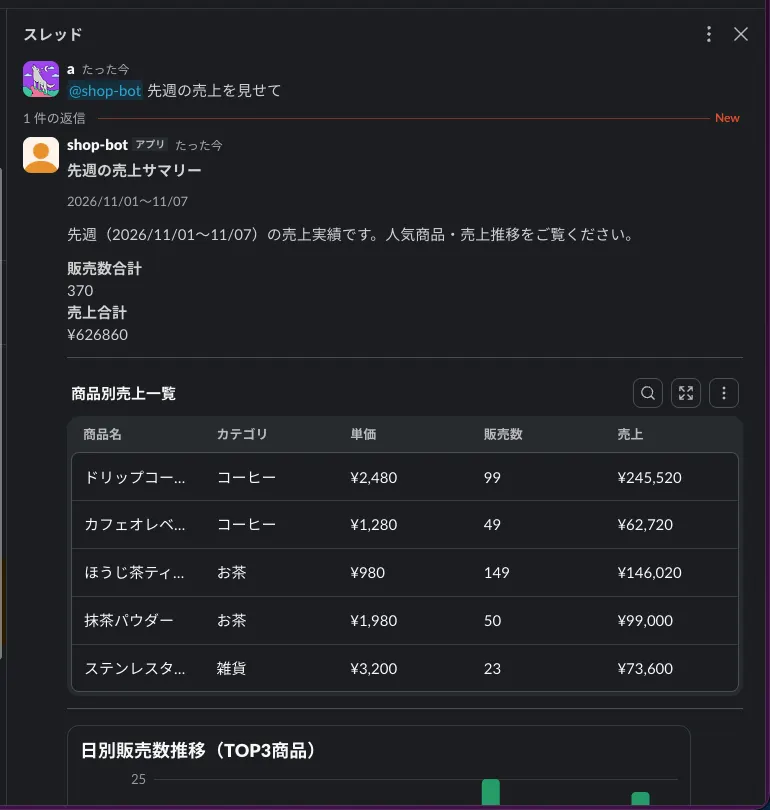
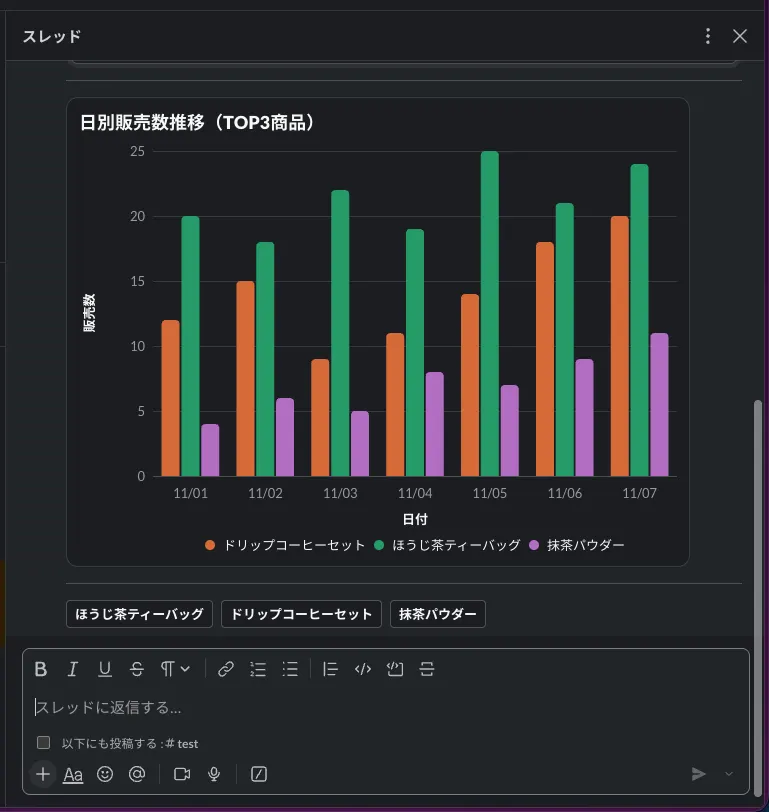
The table is displayed as a Slack data table block, and the chart as a
data visualization block. Both were converted from
Table and Chart by the Chat SDK Slack adapter.
Having the Model Regenerate Specs That Exceed Slack's Limits
There are limits on the tables and charts a single Slack message can contain. The Chat SDK Slack adapter replaces elements matching the following conditions with ASCII tables in code blocks before sending them to Slack:
- The second and subsequent tables
- Tables with 101 or more rows, 21 or more columns, or more than 10,000 characters across all cells
- The third and subsequent charts
- Charts that Slack doesn't accept, such as those with a title longer than 50 characters, a label longer than 20 characters, or too many series or categories
If you mention the bot with "@shop-bot 商品ごとの売上合計のテーブルと、カテゴリごとの売上合計のテーブルを、別々のテーブルで見せて" ("Show me total sales by product and total sales by category as separate tables") to get a response with two tables, you can see that the second table has been replaced with an ASCII table.
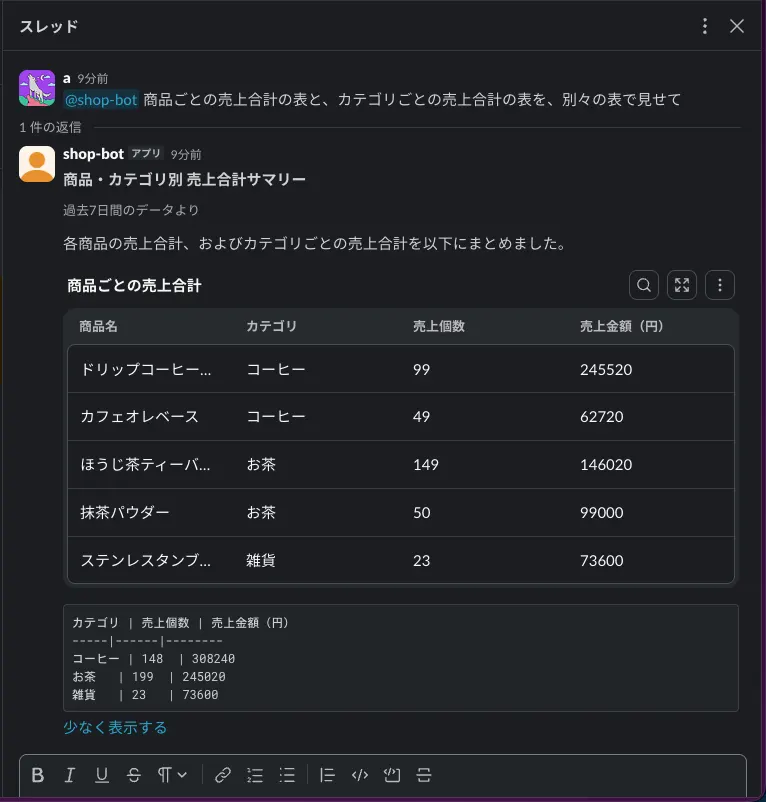
Passing limits to toCard() and streamCard() lets you reject the Spec instead of having elements replaced. When a limit is exceeded, a CardSpecError is thrown, and its issues property holds each problem as a string. For a Spec containing two tables, issues looked like this:
[ 'at most 1 Table per message' ]issues is human-readable, and the documentation intends for
issues to be sent back to the model so it can fix the Spec. Beyond limits, the same CardSpecError is thrown when props don't match the schema or when a component that can't have children has children.
To have the model regenerate messages that exceed the limits, rewrite postGeneratedCard() as follows. It passes limits to streamCard(), and when a CardSpecError occurs, it adds the issues to the prompt, generates again, and edits the same message.
const MAX_ATTEMPTS = 2;

function withIssues(prompt: string, issues: string[]) {
  if (issues.length === 0) return prompt;
  return [
    prompt,
    "",
    "The previous card was rejected for these reasons. Fix every issue and output the whole card again:",
    ...issues.map((issue) => `- ${issue}`),
  ].join("\n");
}

export async function postGeneratedCard(
  thread: Thread<unknown>,
  prompt: string,
) {
  // CardSpecError doesn't carry the posted message, and passing thread directly would post a new message on every retry, so keep the return value of post
  let posted: CardMessage | undefined;
  // From the second generation onward, edit the same message instead of posting a new one
  const target: CardTarget = {
    post: async (card) => {
      if (!posted) return (posted = await thread.post(card));
      await posted.edit(card);
      return posted;
    },
  };

  let issues: string[] = [];
  for (let attempt = 1; attempt <= MAX_ATTEMPTS; attempt++) {
    try {
      await streamCard(target, generate(withIssues(prompt, issues)), {
        components,
        limits: slackLimits,
      });
      return;
    } catch (error) {
      if (!(error instanceof CardSpecError)) throw error;
      console.warn(`CardSpecError (attempt ${attempt}):`, error.issues);
      // Send the issues back to the model so it fixes them in the next generation
      issues = error.issues;
    }
  }

  // If it still couldn't be fixed, replace it with a title-only card
  await target.post(
    toCard({
      root: "card",
      elements: {
        card: {
          type: "Card",
          props: { title: "カードを生成できませんでした" },
          children: [],
        },
      },
    }),
  );
}
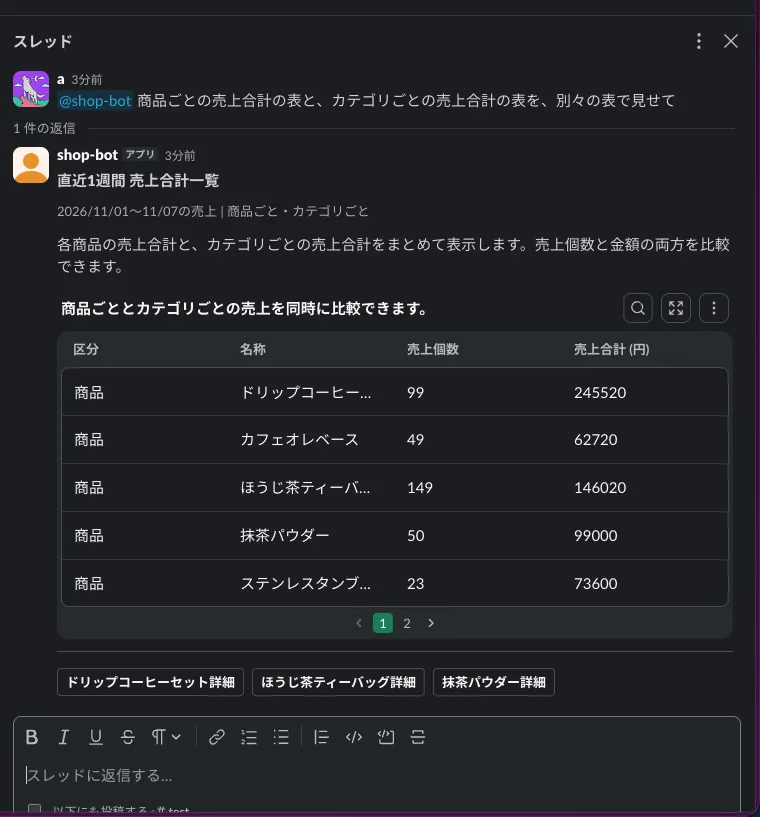
When I mentioned the bot with @shop-bot 商品ごとの売上合計のテーブルと、カテゴリごとの売上合計のテーブルを、別々のテーブルで見せて, the message changed in the following order:
- During generation, a card with two tables is shown, and the second one becomes an ASCII table
- When generation finishes, a
CardSpecErroris thrown. At this point the message doesn't change, and the card with the ASCII table remains - The second generation starts, and when the root
Cardarrives, the same message is overwritten with a title-only card - As generation proceeds, it becomes a card with the tables merged into one
Handling Button Interactions
bot.onAction() in src/index.ts is called when a button on a card is pressed. If you pass an array of id values as the first argument, the handler is called when a button exactly matching any of them is pressed. Here, productActionIds, the same values as the catalog's enum, is passed, so the buttons the model can generate match the buttons the bot can handle.
bot.onAction(productActionIds, async (event) => {
  if (!event.thread) return;
  const productId = event.actionId.replace("show-product:", "");
  await postGeneratedCard(
    event.thread,
    `商品 ${productId} の詳細と、直近 7 日間の売上の推移を見せて`,
  );
});
event.actionId contains the id of the pressed button. event.thread is the thread the card is in, and it is null for interactions that don't belong to a thread, such as buttons on the Home tab. The handler extracts the product ID and generates a new card with a prompt asking for that product's details.
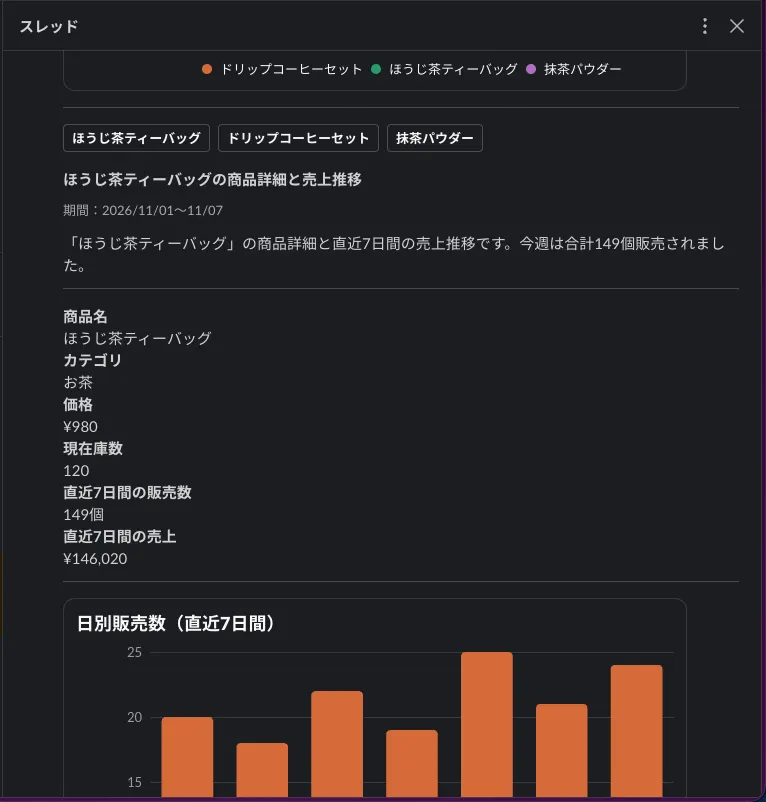
When I pressed the button for "ほうじ茶ティーバッグ" (roasted green tea bags), event.actionId contained show-product:p-003, and a details card was posted in the same thread.
Summary
@json-render/chatconverts a Spec, composed by picking parts from a catalog, into a Chat SDKCardElement, and on Slack the Chat SDK adapter posts it as Block KitstreamCard()posts the message as soon as the rootCardarrives, and as elements arrive, edits the message at an interval of 500 ms by default- The Slack adapter replaces tables and charts that exceed the limits with ASCII tables instead of raising an error, so pass
limitsto reject them with aCardSpecError