
I Tried Building a Workflow: Designing via Hermes Agent and Slack, and Turning Linear Tickets into Draft PRs
Introducing a workflow that connects Hermes Agent with Slack to gather requirements, then automates everything from creating Linear tickets to implementation, verification, and Draft PR creation by a Coding Worker agent.
Now that AI agents writing code has become the norm, the workflow of interacting with a local CLI to generate code has started causing problems it never used to. Running agents for long stretches has become the default assumption, but closing your laptop stops the agent dead. Running multiple agents in parallel can also hog your local machine's resources. And when you don't have your PC with you, you simply can't give the agent any instructions at all. Now that we rarely write code by hand anymore, a smartphone or other mobile device is more than enough for giving instructions, so what's wanted is an environment where you can direct an agent from anywhere.
Given this situation, remote AI agents seem to be gaining attention as an option. A remote agent doesn't tie up your local machine's resources, and you can give it instructions from a smartphone or other mobile device. It can also keep running for extended periods. Beyond that, it opens the door to autonomous behavior that isn't triggered by a human at all — for example, picking up an issue from a project management tool on its own and starting implementation, or automatically reviewing a PR once it's created.
In this article, I'll walk through my attempt at building a workflow that uses Hermes Agent — one example of a remote AI agent — to have a design discussion over Slack, produce a design doc, and register tickets from it.
Hermes Agent is an open-source AI agent developed by Nous Research. Beyond the CLI, you can direct it from multiple chat platforms such as Slack, Discord, and Telegram, and one of its defining features is a self-learning mechanism that improves the agent as you use it — for example, automatically generating new skills from past experience.
Overview of the Workflow
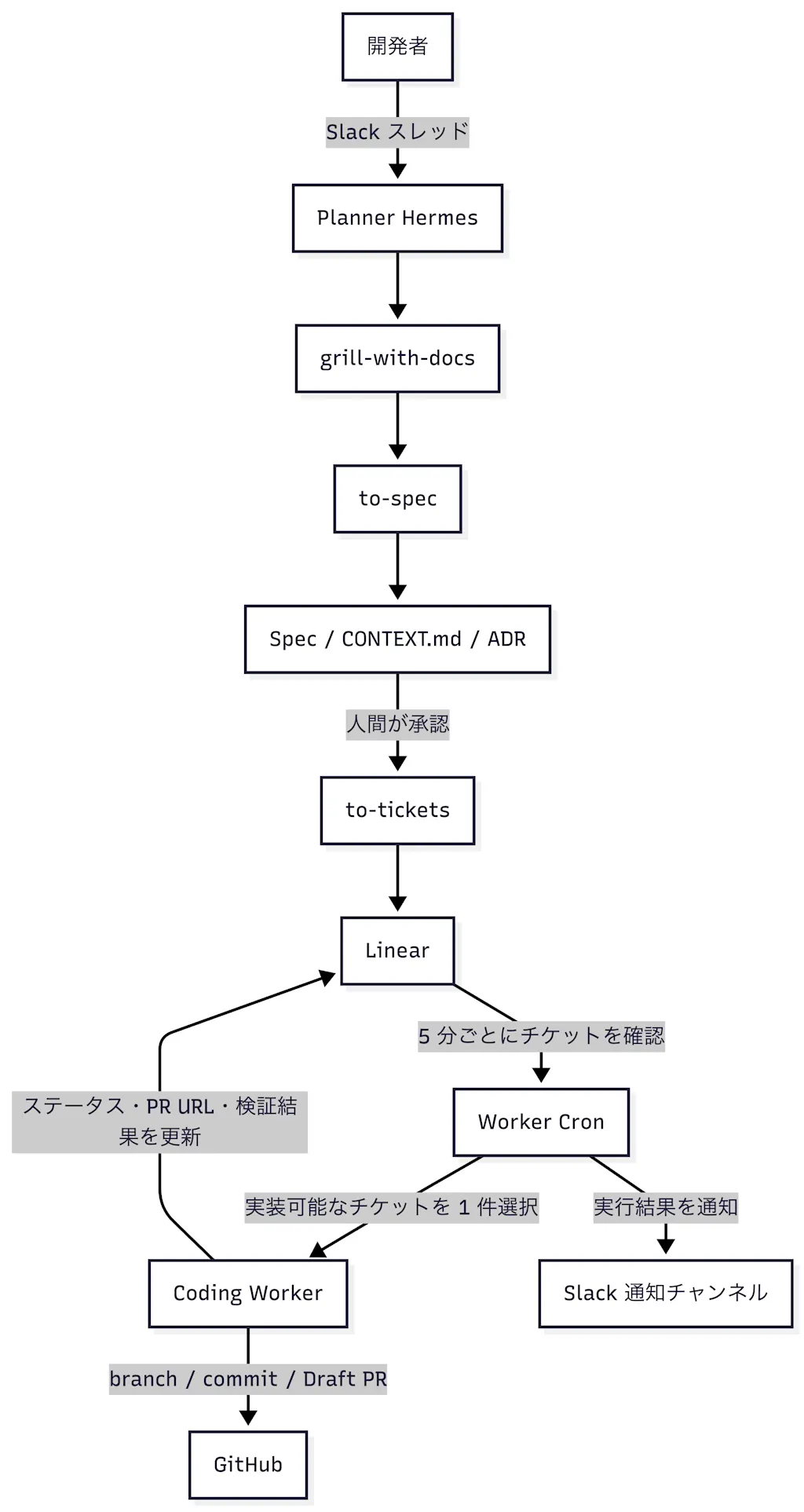
The workflow I'm building here is meant to follow roughly this flow:
- The user enters a requirement on Slack, such as "I want to build a product search feature."
- Based on the requirement, Hermes Agent uses
grill-with-docs to interview the user and hammer out the design.
- Once the resulting design doc is solid enough,
- The design doc is also kept in the repository as a permanent artifact.
- Registering a ticket then triggers Hermes Agent to autonomously write code and open a PR.
To realize this workflow, I set up the following two agents:
- "Planner Hermes," which handles design over Slack
- "Coding Worker," a disposable agent spun up per ticket
Prerequisites
This article assumes the code you're working on already exists as a GitHub repository and has been cloned locally. It also assumes you have the GitHub CLI's
gh command installed and authenticated with an account that can access the target repository, since Coding Worker needs it to commit, push changes, and open a Draft PR.
gh auth status
git remote -v
Planner Hermes
Let's start by creating "Planner Hermes," which handles design over Slack. Rather than jumping straight to running it remotely, I'll first run Hermes Agent locally and have it communicate over Slack.
Setting Up Hermes Agent
Install Hermes Agent locally with the following command.
# macOS / Linux
curl -fsSL https://hermes-agent.nousresearch.com/install.sh | bash
# Windows
iex (irm https://hermes-agent.nousresearch.com/install.ps1)
Once the installation finishes, make sure the hermes command is available.
hermes --version
Hermes Agent v0.19.0 (2026.7.20) · upstream 8fc27820
Run the hermes setup command to configure Hermes Agent for the first time. The first step is choosing an AI model provider; here I chose the OpenAI API. You can decide whether to use an OpenAI API key or a Codex CLI subscription.
Select provider:
  ↑↓ navigate  ENTER/SPACE select  ESC cancel

   (○) Nous Portal (Everything your agent needs, 300+ models with bundled tool use)
   (○) Fireworks AI (OpenAI-compatible direct model API)
   (○) OpenRouter (Pay-per-use API aggregator)
   (○) Mixture of Agents (named presets; aggregator acts after reference models)
   (○) NovitaAI (Cloud: Model API, Agent Sandbox, GPU Cloud)
   (○) LM Studio (Local desktop app with built-in model server)
   (○) Anthropic (Claude models via API key or Claude Code)
 → (●) OpenAI ▸ (Codex CLI or direct OpenAI API)  ← currently active
   (○) Qwen ▸ (Qwen Cloud / DashScope, Coding Plan & Qwen CLI OAuth)
   (○) xAI Grok ▸ (Direct API or SuperGrok / Premium+ OAuth)
The "Select terminal backend" step lets you choose which environment Hermes Agent runs in. I chose "local" (running directly on this machine).
Running Hermes Agent locally carries the risk that it could unintentionally delete important files, or read credentials from the host environment and send them somewhere external. If you're running the agent against anything resembling a production environment, it's best to run it inside a sandboxed environment such as Docker, Modal, or Daytona.
Select terminal backend:
  ↑↓ navigate  ENTER/SPACE select  ESC cancel

   (○) Local - run directly on this machine (default)
   (○) Docker - isolated container with configurable resources
   (○) Modal - serverless cloud sandbox
   (○) SSH - run on a remote machine
   (○) Daytona - persistent cloud development environment
 → (●) Keep current (local)
Next, in "Select platforms to configure," choose "Slack" so you can communicate over Slack.
Select platforms to configure:
  ↑↓ navigate  SPACE toggle  ENTER confirm  ESC cancel

 → [ ] 💬 Mattermost  (not configured)
   [ ] 📡 Signal  (not configured)
   [ ] 💬 Weixin / WeChat  (not configured)
   [ ] 💬 BlueBubbles (iMessage)  (not configured)
   [ ] 🐧 QQ Bot  (not configured)
   [ ] 💎 Yuanbao  (not configured)
   [ ] 🐳 DingTalk  (not configured)
   [ ] 🎮 Discord  (not configured)
   [ ] 📧 Email  (not configured)
   [ ] 🪽 Feishu / Lark  (not configured)
   [ ] 💬 Google Chat  (not configured)
   [ ] 🏠 Home Assistant  (not configured)
   [ ] 💬 IRC  (not configured)
   [ ] 💚 LINE  (not configured)
   [ ] 🔐 Matrix  (not configured)
   [ ] 🔔 ntfy  (not configured)
   [ ] 📱 iMessage via Photon  (not configured)
   [ ] 🔔 Raft  (not configured)
   [ ] 🔒 SimpleX Chat  (not configured)
   [ ] 💼 Slack  (not configured)
   [ ] 📱 SMS (Twilio)  (not configured)
   [ ] 💼 Microsoft Teams  (not configured)
   [ ] ✈️ Telegram  (not configured)
   [ ] 💼 WeCom (Enterprise WeChat)  (not configured)
   [ ] 💼 WeCom Callback (self-built apps)  (not configured)
   [ ] 💬 WhatsApp  (not configured)
For "Select an option," choose "Configure CLI." The next steps configure which CLI tools Hermes Agent is allowed to use.
Select an option:
  ↑↓ navigate  ENTER/SPACE select  ESC cancel

 → (●) Configure 🖥️  CLI  (19/25 enabled)
   (○) Reconfigure an existing tool's provider or API key
   (○) Done
I narrowed the CLI tools down to the bare minimum, selecting the following four:
- Web Search & Scraping: web search, and fetching articles or official docs from a URL
- File Operations: reading, searching, creating, and editing files
- Skills: listing, loading, installing, and managing skills
- Clarifying Questions: presenting the user with choices or confirmation questions
Tools for 🖥️  CLI
  ↑↓ navigate  SPACE toggle  ENTER confirm  ESC cancel

   [✓] 🔍 Web Search & Scraping  (web_search, web_extract)
   [ ] 🌐 Browser Automation  (navigate, click, type, scroll)
   [ ] 💻 Terminal & Processes  (terminal, process)
 → [✓] 📁 File Operations  (read, write, patch, search)
   [ ] ⚡ Code Execution  (execute_code)
   [ ] 👁️  Vision / Image Analysis  (vision_analyze)
   [ ] 🎬 Video Analysis  (video_analyze (requires video-capable model))
   [ ] 🎨 Image Generation  (image_generate)
   [ ] 🎬 Video Generation  (video_generate (text/image/reference))
   [ ] 🐦 X (Twitter) Search  (x_search (requires xAI OAuth or XAI_API_KEY))
   [ ] 🔊 Text-to-Speech  (text_to_speech)
   [✓] 📚 Skills  (list, view, manage)
   [ ] 📋 Task Planning  (todo)
   [ ] 💾 Memory  (persistent memory across sessions)
   [ ] 🧩 Context Engine  (runtime tools from the active context engine)
   [ ] 🔎 Session Search  (search past conversations)
   [✓] ❓ Clarifying Questions  (clarify)
   [ ] 👥 Task Delegation  (delegate_task)
   [ ] ⏰ Cron Jobs  (create/list/update/pause/resume/run, with optional attached skills)
   [ ] 🏠 Home Assistant  (smart home device control)  [no API key]
   [ ] 🎵 Spotify  (playback, search, playlists, library)
   [ ] 🤖 Yuanbao  (group info, member queries, DM)
   [ ] 🖱️  Computer Use (macOS/Windows/Linux)  (background desktop control via cua-driver)
Installing Skills
To have design discussions with Hermes Agent, I'll install the following three skills. All three were created by Matt Pocock, and the flow of being thoroughly grilled with questions to nail down a design has earned high praise from engineers.
- grill-with-docs: a skill that digs into the design one question at a time, repeating questions until it reaches agreement with the user, and organizes project-specific terminology and design decisions into
CONTEXT.mdanddocs/adr/ - to-spec: consolidates the conversation agreed on in grill-with-docs, along with
CONTEXT.mdand the ADRs, into a single implementation spec - to-tickets: splits the spec into small tickets that separate agents can implement independently
To use to-spec and to-tickets together with an issue tracker, the target tracker and its operational rules — teams, statuses, labels, and so on — need to be set up beforehand. In this article, I'll set up the Linear MCP in the "Integrating with Linear" section below so it can fetch and update the necessary information, and only then register tickets.
Use the hermes skills install command to install skills into Hermes Agent. grill-with-docs also depends on the grilling and domain-modeling skills, so install those as well.
for skill in grilling domain-modeling grill-with-docs to-spec to-tickets; do
  hermes skills install "skills-sh/mattpocock/skills/$skill"
doneSkills created by third parties carry the risk of prompt injection or executing malicious scripts. Review the contents carefully before installing any skill.
Installed skills are stored under ~/.hermes/skills/. You can check which skills are installed with the hermes skills list command.
hermes skills list | rg 'grilling|domain-modeling|grill-with-docs|to-spec|to-tickets'

│ domain-modeling               │                      │ skills.sh │ community │ enabled │
│ grill-with-docs               │                      │ skills.sh │ community │ enabled │
│ grilling                      │                      │ skills.sh │ community │ enabled │
│ to-spec                       │                      │ skills.sh │ community │ enabled │
│ to-tickets                    │                      │ skills.sh │ community │ enabled │
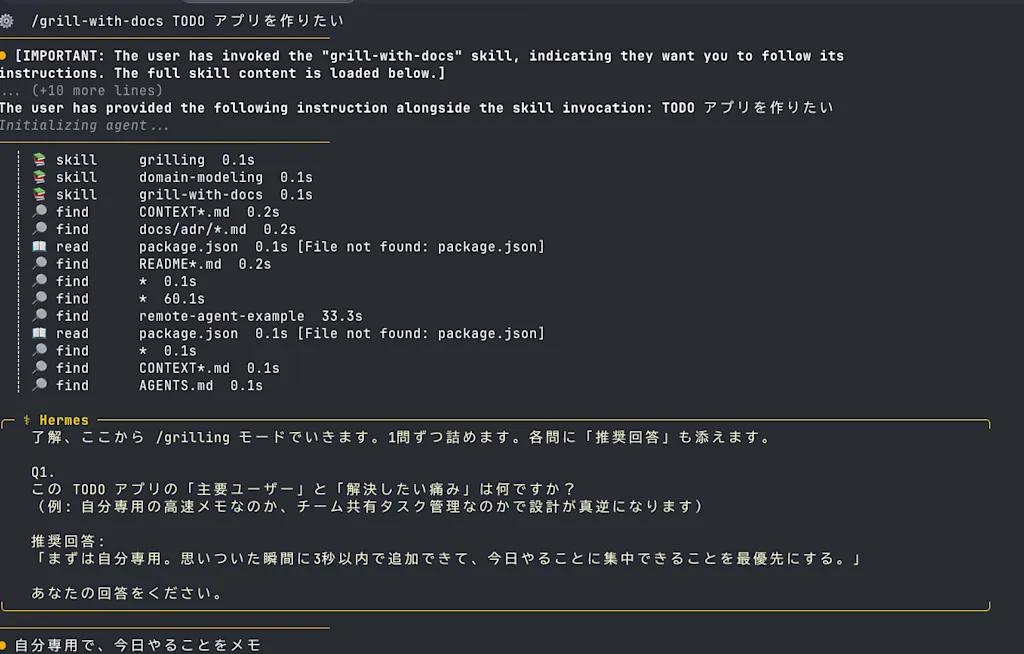
Once you've confirmed the skills installed correctly, launch Hermes Agent and give it a try. The hermes command starts an interactive terminal session.
hermesIf you type a prompt like "/grill-with-docs I want to build a TODO app," Hermes Agent uses the grill-with-docs skill and starts asking a series of questions to work out the design. Answering them lets you flesh out the design step by step.
Integrating with Slack
Next, let's connect Hermes Agent to Slack. You'll need to create a Slack App beforehand and obtain a Bot Token and an App Token. Hermes Agent provides a command for generating the manifest needed to create the Slack App. Creating a Slack App from a manifest lets you configure all the required permissions and events at once.
$ hermes slack manifest --agent-view --write

Slack manifest written to: /Users/asai/.hermes/slack-manifest.json

Next steps:
  1. Open https://api.slack.com/apps and pick your Hermes app
     (or create a new one: Create New App → From an app manifest).
  2. Features → App Manifest → paste the contents of
     /Users/asai/.hermes/slack-manifest.json
  3. Save; Slack will prompt to reinstall the app if scopes or
     slash commands changed.
  4. Make sure Socket Mode is enabled and you have a bot token
     (xoxb-...) and app token (xapp-...) configured via
     `hermes setup`.
I'll also cover how to create a Slack App from scratch. Go to https://api.slack.com/apps and click "Create New App" to create your Slack App. You can get the App Token by opening Socket Mode from the left-hand menu of the Slack App admin screen and enabling Socket Mode. You can get the Bot Token by adding the required permissions under OAuth & Permissions → Scopes → Bot Token Scopes, then clicking "Install to Workspace." The scopes you need are as follows.
chat:write
app_mentions:read
channels:history
channels:read
groups:history
groups:read
im:history
im:read
im:write
mpim:history
mpim:read
users:read
files:read
files:write
Next, configure which Slack events get delivered to Hermes. Open Event Subscriptions and turn on Enable Events. Then add the required events under Subscribe to Bot Events. Don't forget to click "Save Changes." The events you need are as follows.
message.im
message.mpim
message.channels
message.groups
app_mention
Finally, configure Slack to send DM events to Hermes Agent. Open App Home, and under Show Tabs enable the Messages Tab. Check Allow users to send Slash commands and messages from the messages tab.
For more on creating a Slack App and obtaining tokens, refer to the Slack API documentation and
Hermes Agent's Slack integration guide.
Hermes Agent connects to chat tools like Discord, Slack, and Telegram through a mechanism called Gateway. In the Gateway, each chat platform's adapter receives incoming messages, routes them through a per-chat-session store, and then hands them off to the AI model.
The hermes gateway setup command is a convenient way to configure the Gateway; it walks you through the setup interactively.
hermes gateway setupRunning the command shows a list of platforms, so choose Slack. You'll then be prompted to enter the Slack Bot Token, the App Token, the list of user IDs allowed to talk to the agent, and a home channel. You need to specify at least one allowed Slack user; for multiple users, enter them comma-separated. You can get a user's ID from their Slack profile by clicking the "..." menu and selecting "Copy member ID." The home channel is where Hermes Agent sends cron job results and periodic notifications — you don't have to set one.
The settings you entered are saved to ~/.hermes/.env.
# Required
SLACK_BOT_TOKEN=xoxb-your-bot-token-here
SLACK_APP_TOKEN=xapp-your-app-token-here
SLACK_ALLOWED_USERS=U01ABC2DEF3

# Optional
SLACK_HOME_CHANNEL=C01234567890
SLACK_HOME_CHANNEL_NAME=general
Once the Slack setup is done, run the hermes gateway command to start the Gateway in the foreground. If any required permissions are missing, you'll see an error log like this:
API failed. (url: https://slack.com/api/users.conversations, status: 200)
The server responded with: {'ok': False, 'error': 'missing_scope', 'needed': 'groups:read', 'provided': 'chat:write,app_mentions:read,im:write,files:write,channels:history,channels:read,groups:history,im:history,im:read,mpim:history,mpim:read,files:read,users:read'}
If everything's working, you should be able to confirm that Hermes Agent responds when you send it a DM on Slack or mention it in a channel.
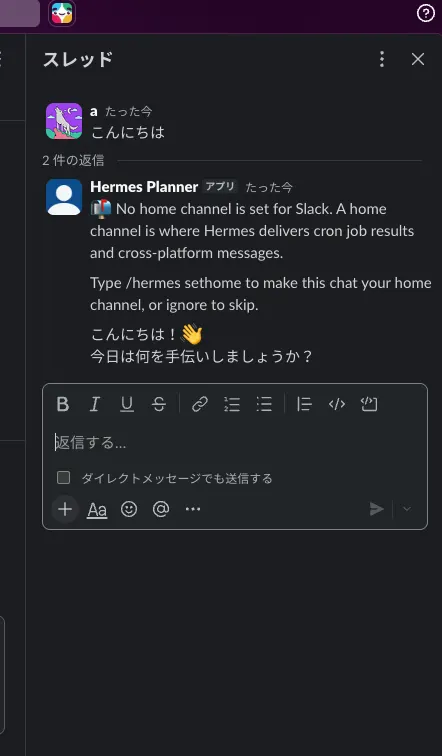
Let's also check that you can trigger a skill by prefixing your message with !grill-with-docs. On Slack, a leading / gets interpreted as a Slack command, so you need to use ! instead.
Once the Slack integration is fully working, configure the Gateway to run in the background. Running the hermes gateway install command registers the Gateway as a Linux user service or a macOS Launchd service. A Launchd service is a service that starts automatically when macOS boots.
hermes gateway installAfter registering it, you can start the Gateway with the hermes gateway start command. You can check its status with hermes gateway status, and stop it with hermes gateway stop.
$ hermes gateway status
Launchd plist: /Users/xxx/Library/LaunchAgents/ai.hermes.gateway.plist
✓ Service definition matches the current Hermes install
✓ Gateway is supervised by launchd (PID 90008)
  Auto-start at login and auto-restart on crash are available.
If you want the Gateway to start from a specific directory, you can set it with the hermes config set terminal.cwd <path> command.
hermes config set terminal.cwd ~/hermes-agent-workflowConfirm that Hermes Agent still responds on Slack while running in the background. Finally, check the list of tools available on Slack to make sure no unnecessary tools are enabled. Running the hermes tools command and selecting Configure Slack shows the list of tools available on Slack.
$ hermes tools

Select an option:
  ↑↓ navigate  ENTER/SPACE select  ESC cancel

   (●) Configure 🖥️  CLI  (6/25 enabled)
 → (○) Configure 💼 Slack  (17/25 enabled)
   (○) Configure all platforms (global)
   (○) Reconfigure an existing tool's provider or API key
   (○) Done
Just as with the CLI, I recommend enabling only the following four tools:
- Web Search & Scraping
- File Operations
- Skills
- Clarifying Questions
Run hermes gateway restart to apply the tool configuration.
$ hermes gateway restart

→ Stopping gateway (PID 90008) — draining in-flight runs (up to 180s)...
✓ Service restarted
Defining Planner Hermes's Persona and Procedures
Editing the SOUL.md file lets you customize Hermes Agent's persona and role. SOUL.md is loaded before the system prompt and defines who the agent is. It should contain information about the agent's persona — tone, communication style, interaction style, and so on. Information like repository conventions and workflow steps is recommended to go in AGENTS.md instead.
Edit ~/.hermes/SOUL.md as follows so the agent behaves like a designer.
You are Hermes Planner.

Communicate concisely and clearly, in English.
For ambiguous requests, organize the points that need to be decided, and ask one question at a time, each with a recommended option attached.
Distinguish between verified facts and assumptions, and be upfront about anything uncertain.
Accurately capture the user's intent, and clearly present design trade-offs and open questions.

Never change the state of an external service, or perform any hard-to-undo action, without the user's explicit approval.
Next, create AGENTS.md at the root of the repository and write the workflow steps into it.
# Planner Agent Context

This repository holds the operating configuration for a Planner agent that handles design discussions over Slack.

## Role

Planner organizes ambiguous requests into an agreed-upon spec and implementation tickets.
It does not implement product code, run tests, or open pull requests.

## Design Workflow

Always proceed in the following order.

1. `grill-with-docs`
   - Nail down requirements, terminology, constraints, and design decisions through dialogue
   - Ask about only one decision at a time
   - Do not move on until agreement is reached

2. `to-spec`
   - Organize the agreed-upon content into an implementation spec
   - Summarize what will be created or updated, and only proceed after the user's explicit approval

3. `to-tickets`
   - Split the approved spec into small, implementable tickets
   - Include the goal, completion criteria, dependencies, and out-of-scope items for each ticket
   - Show the list of tickets to be created in Linear, and create them only after explicit approval

Skipping steps, changing their order, or running them automatically is prohibited.
After each step completes, briefly report the output, open questions, and what approval is needed next, then stop.

## File Operations

Reading is allowed across the entire repository.
The only things that can be created or updated are the following design artifacts:

- `CONTEXT.md`
- `docs/adr/`
- `docs/specs/`

Before changing any of these, summarize the change and get explicit approval.

## External Services

Creating or updating Issues in Linear is only allowed once the user has explicitly approved the target ticket list.
Before approval, only present what would be created.
Restart the Gateway to confirm the change is picked up.
hermes gateway restartIntegrating with Linear
At this point, the Planner agent can hold design discussions with you over Slack. Next, let's implement converting the design doc into tickets and registering them in Linear, the issue tracker. For Hermes Agent to work with Linear, it connects to the Linear MCP. Run the following command to configure the Linear MCP.
hermes mcp install linearRunning the command kicks off the OAuth authentication flow. Linear's authorization screen opens in your browser — click "Approve" to grant Hermes Agent access to Linear.
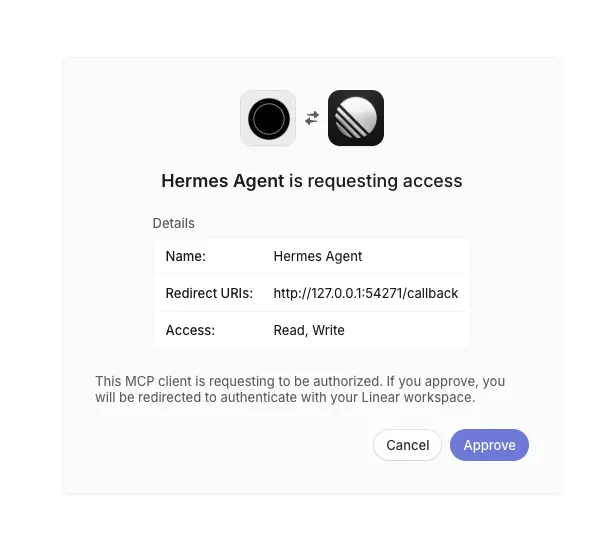
Once the Linear MCP is installed, use the following command to narrow down the Linear tools available to the Planner agent to the bare minimum.
hermes mcp configure linearI recommend enabling only the following tools:
list_teams
get_team
list_issue_statuses
get_issue_status
list_issue_labels
list_issues
get_issue
save_issue
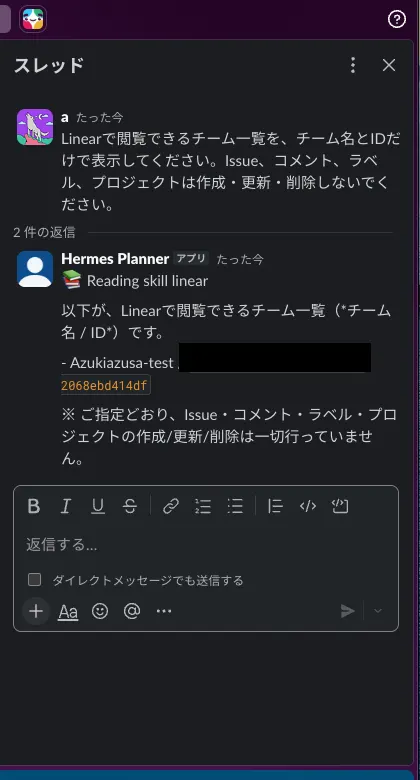
Restart the Gateway with hermes gateway restart and confirm the Linear integration is working. Send a prompt on Slack such as "List the teams visible in Linear, showing just the team names and IDs," and check that a list of Linear teams comes back. Getting a team list back confirms the Linear integration is active.
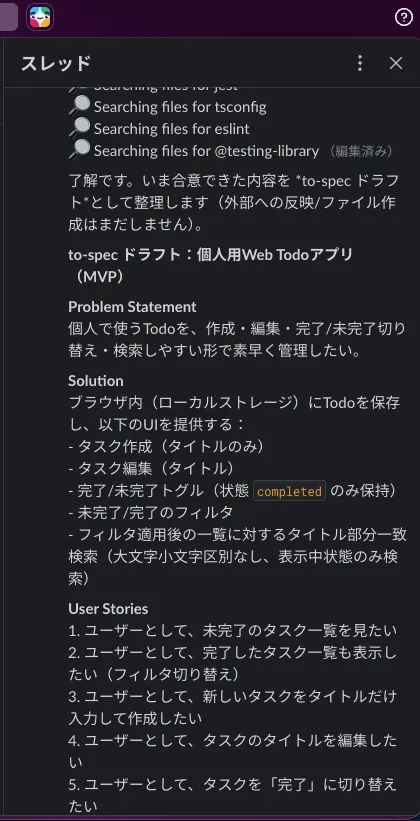
Send an instruction on Slack like "I want to build a personal Web Todo app," and confirm that the design doc gets built in the order grill-with-docs → to-spec → to-tickets, ending with tickets registered in Linear. You can see it first builds the spec based on what was agreed with the user. If the content looks good, approve it, and the design doc gets written to docs/specs/ and CONTEXT.md.
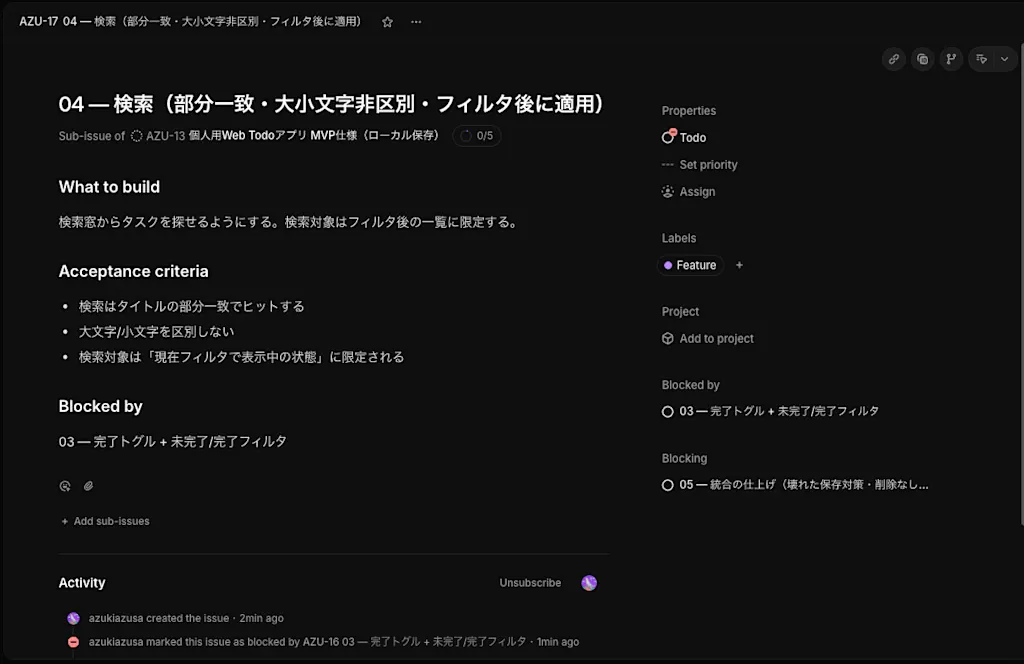
As the final step, a to-tickets split proposal is presented. Review the proposed ticket breakdown, and once you approve it, the tickets get registered in Linear. The tickets also have dependencies set up via "Blocked by," so their order is preserved.
The Coding Worker Agent
Once tickets are registered in Linear, let's implement the part where the Coding Worker agent autonomously writes code and opens a PR. The Coding Worker agent looks through the Todo tickets, reads their dependencies and spec to decide whether one is implementable, and if so, writes the code, runs a self-check, opens a PR, and notifies Slack.
To create an agent that's independent from Planner, I'll create a profile. Creating a profile lets you manage SOUL.md, enabled tools and skills, and credentials independently. Run the hermes profile create command to create a profile for the Coding Worker agent. I named the profile worker.
A profile is a mechanism for separating config files, credentials, memory, sessions, and so on — it is not a sandbox that fully isolates filesystem access. When running on the local backend, the agent may still be able to operate on other directories the executing user can access. Use a dedicated OS user, Docker, or similar as needed to restrict what the agent can reach.
hermes profile create worker --description "A Worker that implements confirmed Linear tickets one at a time, tests them, and opens a Draft PR"This creates the ~/.hermes/profiles/worker directory, where the worker profile's config files live. Run the worker setup command to do the initial configuration, just like you did for the Planner agent. Choosing an AI model provider and setting API keys can also be done independently per profile — for example, using a more capable model for complex tasks like design, and a comparatively cheaper model for code generation.
worker setupNarrow the allowed CLI tools down to the following three:
[✓] 💻 Terminal & Processes
[✓] 📁 File Operations
[✓] 📚 Skills
The difference from the Planner agent is that Terminal & Processes is enabled here, since writing code requires running git commands and tests. On the other hand, since this agent writes code autonomously, it doesn't need the Clarifying Questions tool for asking the user things.
Edit ~/.hermes/profiles/worker/SOUL.md as follows so the agent behaves like a coding agent.
You are Hermes Worker.

Report concisely and clearly, in English.
Your role is to implement exactly one confirmed implementation ticket from Linear, verify it, and open a Draft Pull Request.

You do not do design, requirements definition, spec writing, ticket splitting, or create new labels or statuses.
If a ticket is ambiguous, a dependent ticket is incomplete, or the spec contradicts the code, make no changes and report the reason for stopping and what needs clarifying on Slack.

Before implementing, review the ticket, its parent spec, and the existing code.
After implementing, run the relevant tests, lint, and type checks.
Never open a PR while verification is failing.

Always open the PR as a Draft.
Set the Linear status to `In Progress` only when you start work, and leave it as `In Progress` even after opening the PR.
Only change it to `Done` after a human has merged the PR.

## Automated Execution Rules

Under automated execution, work on only one ticket at a time.
If even one child ticket of the parent Issue `AZU-13` is `In Progress`, do not pick up a new ticket.

From `Todo`, you may only pick a ticket whose dependencies are all `Done`.
If there are multiple candidates, pick just the one with the smallest identifier.

Before implementing, confirm the working tree is clean and `main` is in sync with `origin/main`. If not, make no changes, report it on Slack, and stop.

Set the target ticket to `In Progress` only when you start work on it.
Only commit and push the changes and open a Draft PR once tests, lint, and type checks all succeed.
After opening the PR, comment the PR URL and verification results on the target Linear ticket.

On failure, do not open a PR; leave the target ticket as `In Progress` and comment the failure details.
Never automatically change a ticket to `Done`, mark a PR as ready, merge it, delete it, or edit tickets that aren't the target.
Integrating with Slack and Linear
The Worker agent also sends a Slack notification once it finishes opening a PR, so let's connect it to Slack too. Create a separate Slack App from the Planner agent's, and get a Bot Token and App Token for it.
Run the worker gateway setup command to configure Slack on the Worker agent's side.
worker gateway setupFor the Planner agent, specifying a Slack home channel wasn't necessary, but for Worker, since notifications are sent by the agent on its own initiative, you need to specify a home channel to say which channel they go to. Note down the ID of whichever channel you want to use. You can also set this via SLACK_HOME_CHANNEL in ~/.hermes/profiles/worker/.env.
SLACK_HOME_CHANNEL=<paste the Channel ID you copied here>Start the Gateway with worker gateway start and confirm the Worker agent responds on Slack. Let's also specify the directory the Worker agent operates in.
worker config set terminal.cwd ~/hermes-agent-workflowSo the Worker agent can fetch Linear tickets and update their status, set up the Linear MCP on its side too. Run worker mcp install linear and complete the OAuth authentication flow. Since its profile is separate from the Planner agent's, you need to authenticate again independently.
worker mcp install linearConfigure it to allow only what the Worker agent actually needs: checking the target team, statuses, and tickets, plus updating the status and PR URL of tickets it has picked up.
list_teams
list_issue_statuses
list_issues
get_issue
save_issue
save_comment
Fetching Linear Tickets, Writing Code, and Opening a PR
Once tickets are registered in Linear, let's make sure the Worker agent can pick them up. I'll configure it so it operates autonomously without any human instruction. There are two approaches for triggering the Worker agent when a ticket is registered:
- Detect ticket registration with a
Linear Webhook and trigger the Worker agent
- Use a Hermes Agent Cron job to periodically fetch Linear tickets and trigger the Worker agent
Here I'll cover using a Cron job to periodically fetch Linear tickets. Create the Cron job under the Worker agent's profile with the worker cron create command. The first argument is the job's run interval, and the second is the job's content — a description of the sequence of steps the Worker agent should run. --deliver slack sends the results to the Worker notification channel configured earlier. I'm also telling it to use the built-in github-pr-workflow skill; whatever skill you pass via --skill gets its content added to the context.
worker cron create "every 5m" "If Azukiazusa-test has even one ticket In Progress, make no changes and exit with [SILENT]. Otherwise, look through the child tickets under Todo, find only the ones whose dependencies are all Done, and pick just the one with the smallest identifier. If there are no candidates, make no changes and exit with [SILENT]. Once you've picked a target, review its parent spec and the full ticket text, and only start if the working tree is clean and main is in sync with origin/main. Create a new working branch, update the target ticket to In Progress, and implement it. Run the relevant tests, lint, and type checks, and only commit, push, and open a Draft PR if all of them succeed. Comment the PR URL and verification results on the target Linear ticket. On failure, do not open a PR; leave it as In Progress and comment the failure details. Never change a ticket to Done, mark a PR as ready, merge it, delete it, or modify tickets outside the target." \
  --name "AZU Worker" \
  --deliver slack \
  --skill github-pr-workflow \
  --workdir /absolute/path/to/hermes-agent-workflow
The --workdir option specifies the absolute path to the GitHub repository the Coding Worker operates on. The Cron job uses the given directory as its working directory, reading the AGENTS.md there before performing file operations or running commands.
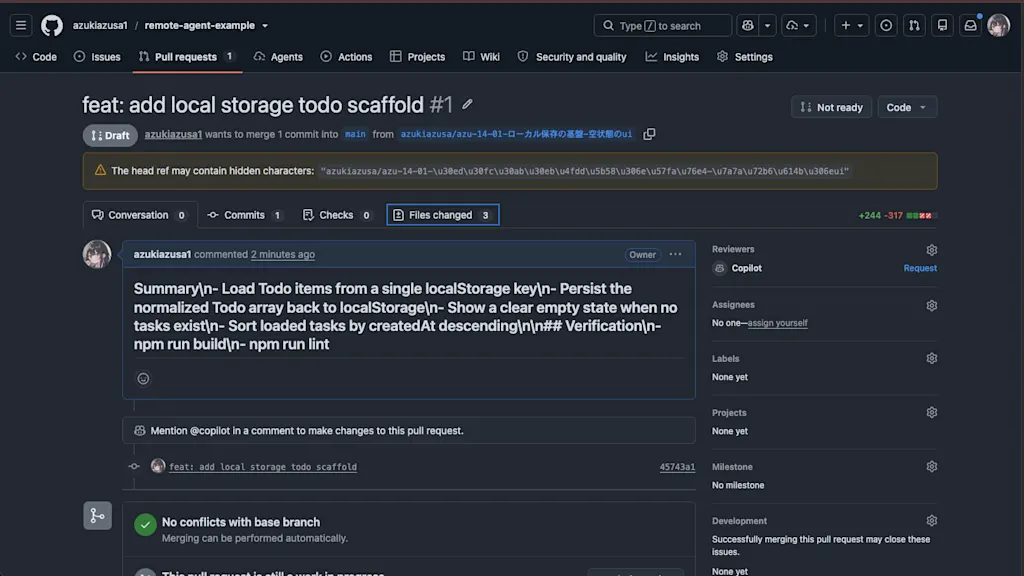
You can see the list of created Cron jobs with worker cron list. Wait a bit and confirm the job runs. The job's execution logs are saved under ~/.hermes/profiles/worker/cron/output/<jobId>/. I could confirm the ticket's status changed to In Progress and a Draft PR was opened. It might be fun to trigger a review agent off the back of a PR being opened, too.
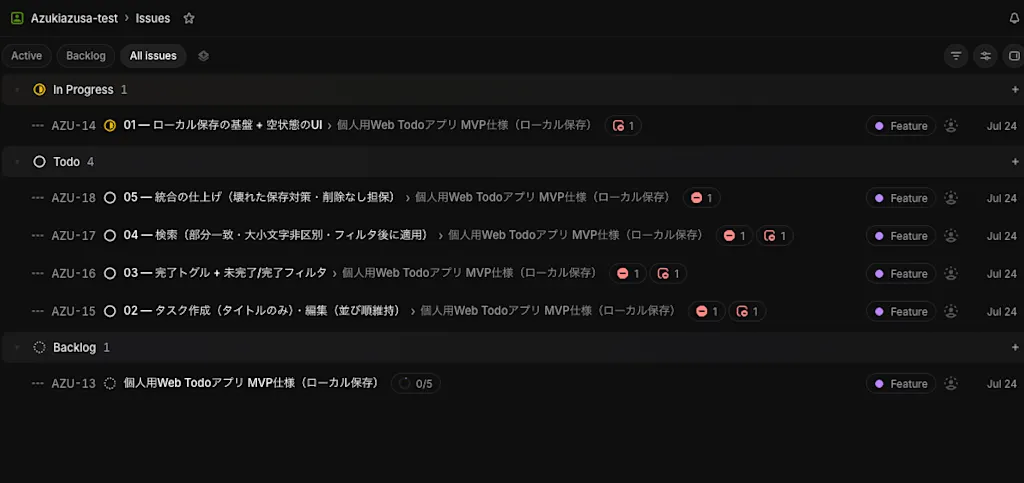
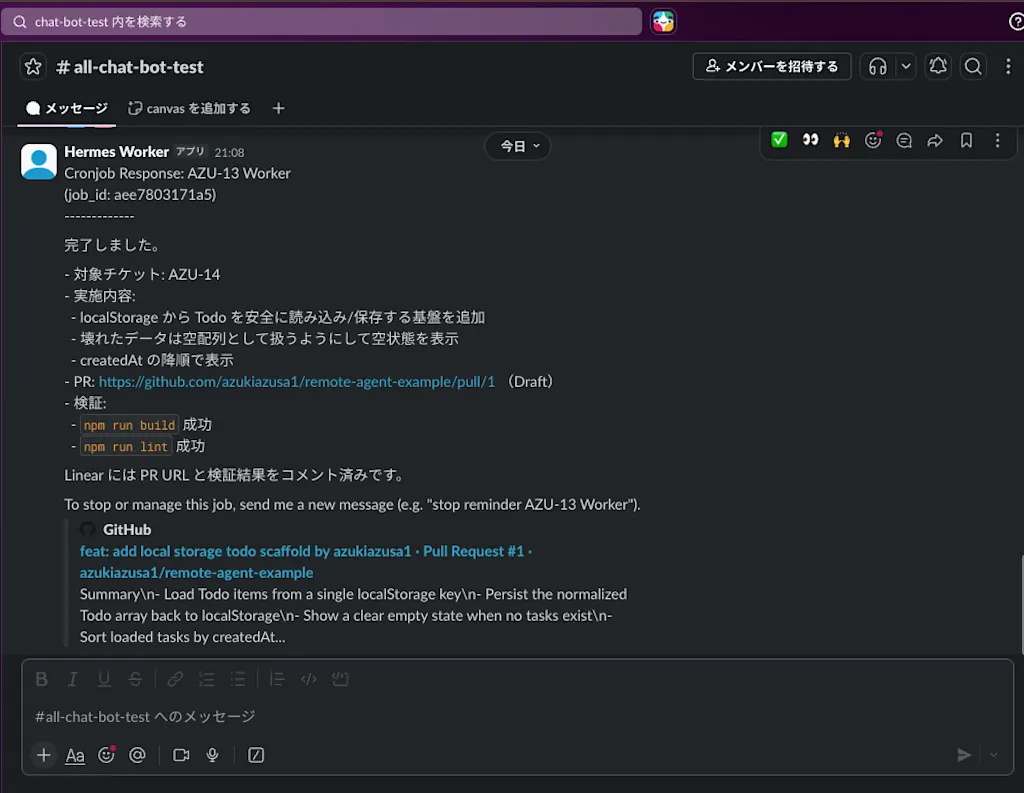
You can also see on Slack that the Worker agent notified everyone it opened a Draft PR.
Running the Planner Agent Remotely
Up to this point, I've been running the Planner agent on my local machine to verify it works, but that means Hermes Agent stops the moment I close my laptop. To run Hermes Agent remotely, you can spin up a cloud VM or VPS and install and run Hermes Agent there. Since Hermes Agent runs in the background, it can stay up continuously.
Here I'll try running Hermes Agent remotely using ConoHa VPS as the VPS provider. Create a ConoHa VPS account beforehand, then spin up an Ubuntu 22.04 LTS VM. For verification purposes, the smallest plan — 1 GB of memory and 1 vCPU — should be plenty. Choosing hourly billing should let you keep the cost to a minimum. Once the VM is created, note down its global IP address.
Connect from your local machine over SSH, install Hermes Agent, and repeat the same Slack and Linear integration steps you did locally.
To connect over SSH, you'll need the VPS's IP address and an SSH key. You can generate an SSH key locally with the ssh-keygen command. Register the resulting public key from the ConoHa VPS admin console so you can connect to the VPS.
ssh root@<VPSのIPアドレス>After that, for security, I recommend creating a regular user and disabling root login. Install whatever dependencies Hermes Agent needs. On Ubuntu 22.04 LTS, you can install the required packages with the following commands.
sudo apt update && apt upgrade -y
sudo apt install -y curl git build-essential
From here, the steps are basically the same as installing Hermes Agent on your local machine, but there are a few differences.
- Run Hermes Agent with Docker: to keep the VPS's OS and Hermes Agent's dependencies separate, run Hermes Agent as a container using Docker —
https://hermes-agent.nousresearch.com/docs/user-guide/docker/
- When authenticating with Linear via OAuth, you can't open a browser on the VPS, so use an SSH tunnel to authenticate from your local machine's browser instead —
Summary
- By connecting Hermes Agent to Slack and using the
grill-with-docs→to-spec→to-ticketsskills, I could go end-to-end from a Slack conversation to a design doc and tickets. - Splitting "Planner Hermes," which handles design, and "Coding Worker," which handles coding, into separate profiles let me scope the tools and permissions available to each role down to the minimum.
- Combining the Linear MCP with a Cron job let me build a system where registering a ticket leads the Worker agent to autonomously implement, verify, and open a Draft PR.
- Deploying Hermes Agent to a VPS let me confirm the Planner agent keeps running continuously even after closing my laptop.