
Cloudflare Temporary Accounts Let You Deploy Instantly
With Cloudflare's Temporary Cloudflare Accounts, an AI agent can deploy to Cloudflare Workers instantly without any human intervention. In this article, I actually try deploying to Cloudflare Workers using Temporary Cloudflare Accounts.
In today's development workflows, a style is becoming increasingly common where an AI agent works autonomously until it achieves its goal, improving the application through feedback. In this kind of workflow, what matters is building out the so-called harness—the guardrails, execution environment, and automated verification tools that let the agent run with as little human intervention as possible. The more often a human has to step in, the more development speed drops.
Against this backdrop, deploying an application has long been one of the tasks where an AI agent inevitably needs a human to step in. Creating an account on some platform, retrieving credentials from a dashboard, and satisfying multi-factor authentication—this whole sequence is not something you can leave entirely to an AI agent. While this work is going on, the AI agent just keeps waiting.
To solve this situation, Cloudflare has started offering a feature called Temporary Cloudflare Accounts. With this feature, an AI agent can deploy instantly to Cloudflare's platforms such as Cloudflare Workers without any preliminary work. A temporarily deployed application is only valid for 60 minutes, but during that window you can claim ownership of the temporary account and keep using it as your own resource permanently. You could interpret this as a shift from "create an account, then deploy" to "deploy, then create an account." In other words, the human has been pushed out of the AI agent's work loop.
In this article, I'll actually try deploying to Cloudflare Workers using Cloudflare's Temporary Cloudflare Accounts.
Creating an application from scratch and deploying it to Cloudflare Workers
As a prerequisite for using Temporary Cloudflare Accounts, you need wrangler CLI version 4.102.0 or later. If it is not installed, install it with the following command.
npm install -g wranglerCheck whether the wrangler command is available.
$ wrangler --version

⛅️ wrangler 4.103.0
Note that if you are already logged in to Cloudflare with the wrangler CLI, you cannot deploy using the --temporary option. If you are logged in, log out with the following command.
wrangler logoutAfter that, just as you normally would, let your AI agent of choice create an application to deploy to Cloudflare Workers, and watch the whole flow unfold. Here, I'll have it create a TODO application with the following prompt.
Create a simple TODO app with React + TypeScript and deploy it to Cloudflare Workers. When deploying, use the `wrangler deploy --temporary` command to deploy without authenticating. After deploying, verify that the application works and fix any issues you find.The Cloudflare Workers documentation states that "when the wrangler deploy command is run without credentials, the message 'To continue without logging in, rerun this command with --temporary.' is displayed, so the AI agent sees this message and reruns the command with the --temporary option." In practice, however, when I gave no instructions at all about how to deploy, many AI agents tried to run the wrangler login command to obtain credentials, so I included an instruction in the prompt to use the --temporary option.
It started by creating a React + Vite project as usual, then built the TODO application. Finally, it ran the wrangler deploy --temporary command and deployed to Cloudflare Workers. On top of that, Codex used Computer Use to actually access the deployed production URL (https://cloudflare-todo-example.mica-larkspur.workers.dev) and verify that the TODO app worked correctly. Up to this point, no human has intervened in the work at all.
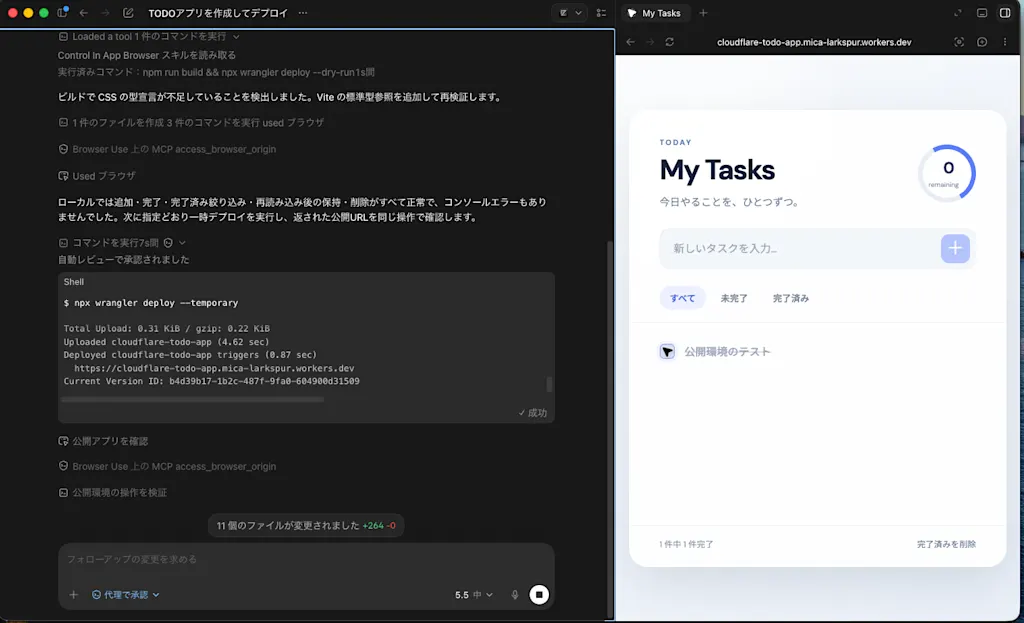
The output of the wrangler deploy --temporary command looks like the following.
- The name of the temporarily created account
- The URL for claiming ownership of the temporary account
- The URL of the deployed application
$ wrangler deploy --temporary

Solving proof-of-work challenge…
Temporary account ready:
  # The name of the temporarily created account
	Account: Mica Larkspur (created)
	Claim within: 60 minutes
	# The URL for claiming ownership of the temporary account
	Claim URL: https://dash.cloudflare.com/claim-preview?claimToken=xxxxx

# ...
✨ Success! Uploaded 4 files (1.30 sec)

Total Upload: 0.31 KiB / gzip: 0.22 KiB
Uploaded cloudflare-todo-example (4.61 sec)
Deployed cloudflare-todo-example triggers (0.66 sec)
  # The URL of the deployed application
  https://cloudflare-todo-example.mica-larkspur.workers.dev
Current Version ID: xxxxThe Solving proof-of-work challenge… shown at the start of the output is the process of solving a computational puzzle called proof of work. Proof of work has the property that "solving it costs a certain amount of computation, but verifying the solution takes only an instant." Because temporary accounts can be created without authentication, without any constraints it would be possible to abuse the feature by automatically generating accounts in bulk. So Cloudflare imposes proof of work before creating an account, raising the cost of bulk creation and preventing abuse.
After that, for 60 minutes you can reuse the temporarily created account "Mica Larkspur" across the session. In other words, even when performing multiple deployments, you can use the same account to deploy as long as it is within 60 minutes.
Note that if you do not claim ownership before the 60 minutes have elapsed, the temporary account and the deployed application associated with it are automatically deleted by Cloudflare. If you want to use it permanently, you need to claim ownership within 60 minutes following the procedure described next.
When you access the Claim URL, a list of the relevant Workers is displayed. Clicking the "Get account" button lets you claim ownership of the displayed account and its associated resources.
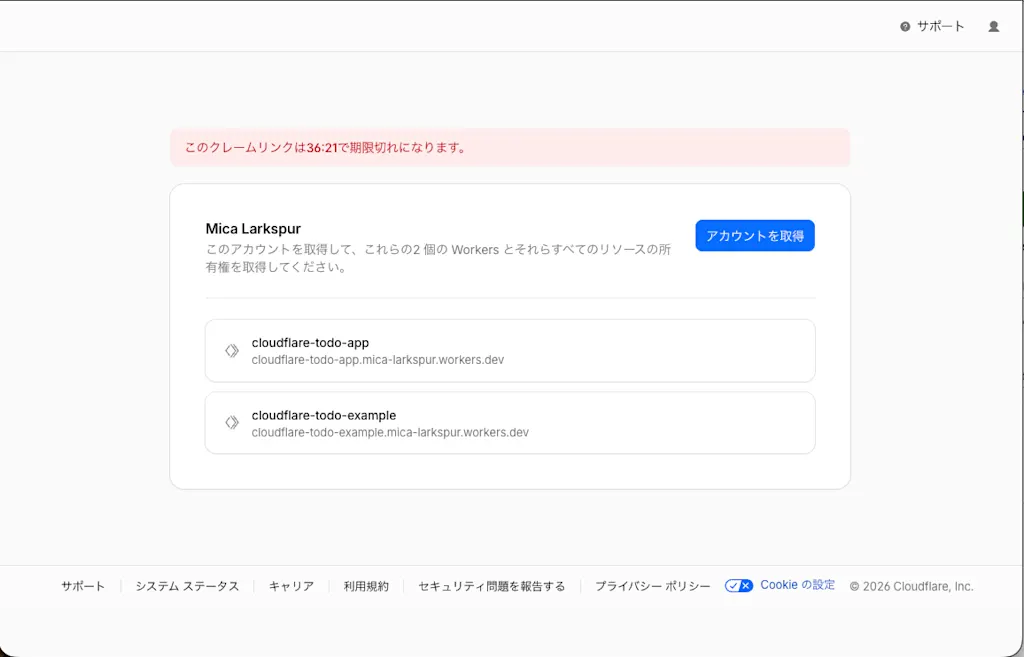
On success, the temporarily created account "Mica Larkspur" becomes your own account, and you can manage the relevant Workers from the Cloudflare Workers dashboard.
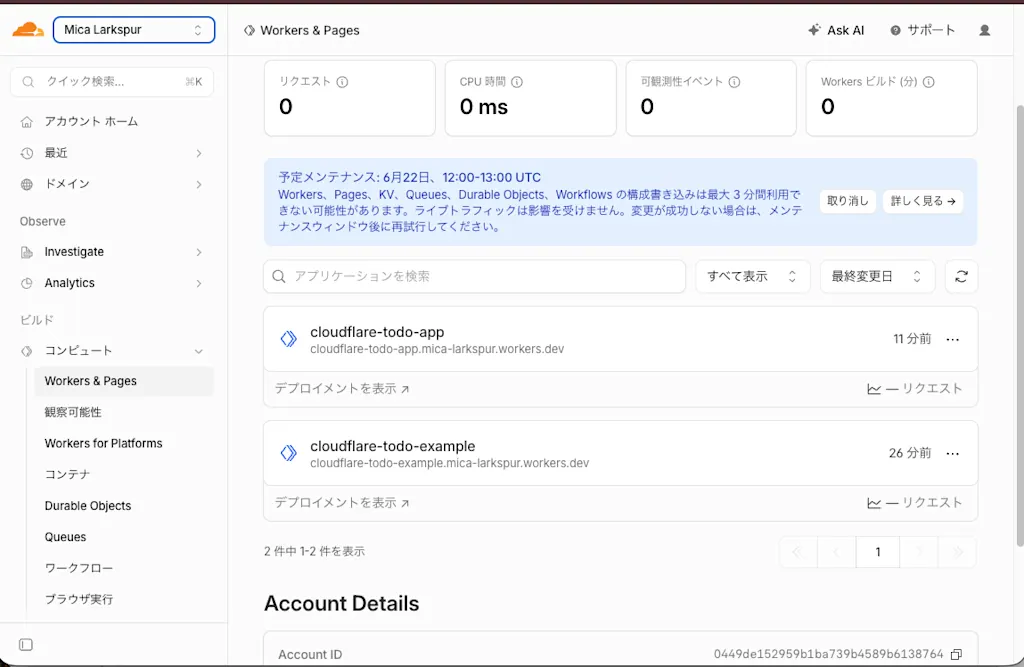
After claiming the temporary account, you can log in with the wrangler login command just like a regular account.
wrangler loginSummary
- Deploying an application has long been one of the tasks where an AI agent needed a human to step in
- With Cloudflare's Temporary Cloudflare Accounts, an AI agent can now deploy instantly to Cloudflare Workers without any human intervention
- A temporarily deployed application is only valid for 60 minutes and is automatically deleted unless you claim ownership, but by claiming ownership of the temporary account within that window you can keep using it as your own resource permanently