
Remotion は React を使ってプログラム的に動画を作成できるフレームワークです。React コンポーネントとして動画を作成することにより、CSS や SVG, Canvas API などのウェブ技術を活用したり、変数や関数、ループ、条件分岐などのプログラミングの概念を利用して動画を生成できます。
この記事では Remotion の基本的な使い方を紹介します。
Remotion のインストール
Remotion を使い始めるには、Node.js と npm がインストールされている必要があります。以下のコマンドで新しい Remotion プロジェクトを作成します。
npx create-video@latestいくつかのテンプレートが表示されるので、ここでは「Hello World」を選択します。
Welcome to Remotion!
? Choose a template: › - Use arrow-keys. Return to submit.                                                  Blank Nothing except an empty canvas
❯   Hello World A playground with a simple animation                                                        Next.js (App dir) SaaS template for video generation apps
    Next.js (App dir + TailwindCSS) SaaS template for video generation apps                                 Next.js (Pages dir) SaaS template for video generation apps
    Recorder A video production tool built entirely in JavaScript                                           Prompt to Motion Graphics SaaS Starter Kit SaaS template for AI-powered code generation with Remotion                                                                                                           Hello World (JavaScript) The default starter template in plain JS
    Render Server An Express.js server for rendering videos with Remotion
    React Router SaaS template for video generation apps
    React Three Fiber Remotion + React Three Fiber Starter Template
    Still images Dynamic PNG/JPEG template with built-in server
    TTS (Azure) Turns text into speech and makes a video
    TTS (Google) Turns text into speech and makes a video
    Audiogram Text and waveform visualization for podcasts
    Music Visualization Text and waveform visualization for podcasts
    Prompt to Video Create a story with images and voiceover from a prompt
    Skia React Native Skia starter
    Overlay Overlays for video editing software
  ↓ Code Hike Beautiful code animations
その他の質問に答えると、Remotion のプロジェクトが作成されます。プロジェクトのディレクトリに移動して依存関係をインストールし、開発サーバーを起動します。
cd my-video
npm install
npm run dev
https://localhost:3000 にアクセスすると
Remotion Studio が表示され、動画のプレビューや Props の編集、フレームの確認などが行えます。
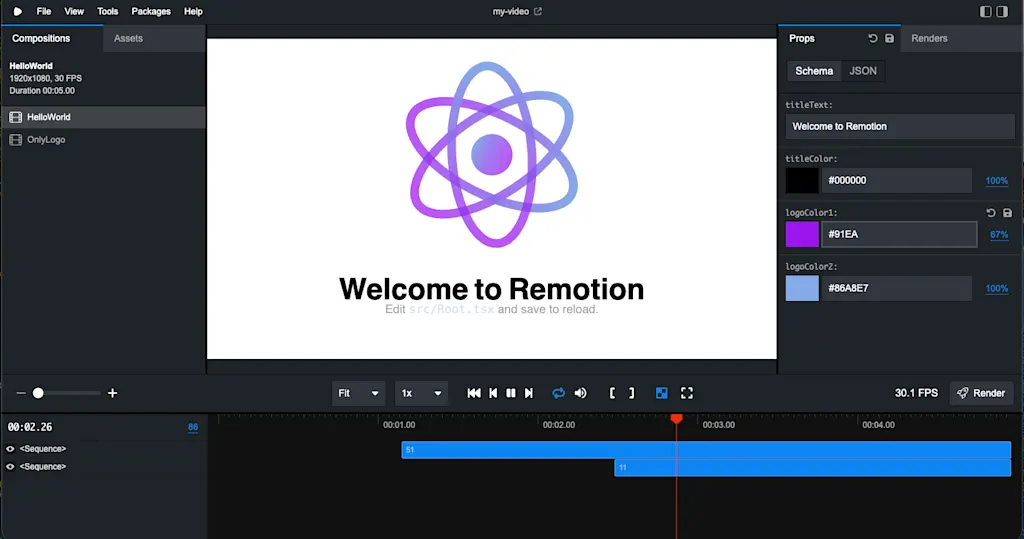
またプロジェクトを作成する際に Skills を有効にすると AI エージェント向けの Remotion のベストプラクティスをまとめたドキュメントも自動で生成されます。人間がドキュメント目的に読む際にも参考になりそうです。
.agents
└── skills
    └── remotion-best-practices
        ├── rules
        │   ├── 3d.md
        │   ├── animations.md
        │   ├── assets
        │   │   ├── charts-bar-chart.tsx
        │   │   ├── text-animations-typewriter.tsx
        │   │   └── text-animations-word-highlight.tsx
        │   ├── assets.md
        │   ├── audio.md
        │   ├── calculate-metadata.md
        │   ├── can-decode.md
        │   ├── charts.md
        │   ├── compositions.md
        │   ├── display-captions.md
        │   ├── extract-frames.md
        │   ├── fonts.md
        │   ├── get-audio-duration.md
        │   ├── get-video-dimensions.md
        │   ├── get-video-duration.md
        │   ├── gifs.md
        │   ├── images.md
        │   ├── import-srt-captions.md
        │   ├── light-leaks.md
        │   ├── lottie.md
        │   ├── maps.md
        │   ├── measuring-dom-nodes.md
        │   ├── measuring-text.md
        │   ├── parameters.md
        │   ├── sequencing.md
        │   ├── subtitles.md
        │   ├── tailwind.md
        │   ├── text-animations.md
        │   ├── timing.md
        │   ├── transcribe-captions.md
        │   ├── transitions.md
        │   ├── transparent-videos.md
        │   ├── trimming.md
        │   └── videos.md
        └── SKILL.md
動画コンポーネントの実装
Remotion では動画は React コンポーネントとして実装されます。Hello World テンプレートの動画がどのように実装されているか見てみましょう。src/HelloWorld.tsx を開きます。
import { spring } from "remotion";
import {
  AbsoluteFill,
  interpolate,
  Sequence,
  useCurrentFrame,
  useVideoConfig,
} from "remotion";
import { Logo } from "./HelloWorld/Logo";
import { Subtitle } from "./HelloWorld/Subtitle";
import { Title } from "./HelloWorld/Title";
import { z } from "zod";
import { zColor } from "@remotion/zod-types";

export const myCompSchema = z.object({
  titleText: z.string(),
  titleColor: zColor(),
  logoColor1: zColor(),
  logoColor2: zColor(),
});

export const HelloWorld: React.FC<z.infer<typeof myCompSchema>> = ({
  titleText: propOne,
  titleColor: propTwo,
  logoColor1,
  logoColor2,
}) => {
  const frame = useCurrentFrame();
  const { durationInFrames, fps } = useVideoConfig();

  // Animate from 0 to 1 after 25 frames
  const logoTranslationProgress = spring({
    frame: frame - 25,
    fps,
    config: {
      damping: 100,
    },
  });

  // Move the logo up by 150 pixels once the transition starts
  const logoTranslation = interpolate(
    logoTranslationProgress,
    [0, 1],
    [0, -150],
  );

  // Fade out the animation at the end
  const opacity = interpolate(
    frame,
    [durationInFrames - 25, durationInFrames - 15],
    [1, 0],
    {
      extrapolateLeft: "clamp",
      extrapolateRight: "clamp",
    },
  );

  // A <AbsoluteFill> is just a absolutely positioned <div>!
  return (
    <AbsoluteFill style={{ backgroundColor: "white" }}>
      <AbsoluteFill style={{ opacity }}>
        <AbsoluteFill style={{ transform: `translateY(${logoTranslation}px)` }}>
          <Logo logoColor1={logoColor1} logoColor2={logoColor2} />
        </AbsoluteFill>
        {/* Sequences can shift the time for its children! */}
        <Sequence from={35}>
          <Title titleText={propOne} titleColor={propTwo} />
        </Sequence>
        {/* The subtitle will only enter on the 75th frame. */}
        <Sequence from={75}>
          <Subtitle />
        </Sequence>
      </AbsoluteFill>
    </AbsoluteFill>
  );
};
順を追って見ていきましょう。React コンポーネントの Props の定義には Zod を使用しています。
myCompSchema で Props のスキーマを定義し、HelloWorld コンポーネントの型引数として z.infer<typeof myCompSchema> を指定しています。TypeScript の Type ではなく Zod のスキーマを使うことで、Remotion Studio 上で Props を視覚的に編集できるようになるという利点があります。ここで定義した myCompSchema は src/Root.tsx の <Composition> コンポーネントに渡されています。これにより、Remotion Studio 上で titleText や titleColor、logoColor1、logoColor2 の値を編集できるようになります。
import "./index.css";
import { Composition } from "remotion";
import { HelloWorld, myCompSchema } from "./HelloWorld";
import { Logo, myCompSchema2 } from "./HelloWorld/Logo";

// Each <Composition> is an entry in the sidebar!

export const RemotionRoot: React.FC = () => {
  return (
    <>
      <Composition
        // You can take the "id" to render a video:
        // npx remotion render HelloWorld
        id="HelloWorld"
        component={HelloWorld}
        durationInFrames={150}
        fps={30}
        width={1920}
        height={1080}
        // You can override these props for each render:
        // https://www.remotion.dev/docs/parametrized-rendering
        schema={myCompSchema}
        defaultProps={{
          titleText: "Welcome to Remotion",
          titleColor: "#000000",
          logoColor1: "#91EAE4",
          logoColor2: "#86A8E7",
        }}
      />
  </>
  );
}
useCurrentFrame フックを使って現在のフレームを取得し、
useVideoConfig フックを使って動画の設定情報(フレーム数やフレームレートなど)を取得しています。フレームごとに React コンポーネントでレンダリングされるコンテンツを変更することでアニメーションを実現します。例えば最も原始的なアニメーションは現在のフレーム数をそのまま表示することです。
export const FrameCounter: React.FC = () => {
  const frame = useCurrentFrame();
  return (
    <div style={{ fontSize: 100, color: "black", backgroundColor: "white" }}>
      {frame}
    </div>
  );
};
ここでは spring 関数と
interpolate 関数を使ってロゴのアニメーションとフェードアウト効果を実装しています。
spring 関数は物理ベースのスプリングアニメーションを生成し、interpolate 関数はある範囲の値を別の範囲に線形補間します。なお CSS トランジションアニメーションを使用するとチラつきが発生する原因となるため必ず useCurrentFrame フックで取得したフレーム数に基づいてアニメーションを実装する必要があります。
const frame = useCurrentFrame();
const { durationInFrames, fps } = useVideoConfig();

// Animate from 0 to 1 after 25 frames
const logoTranslationProgress = spring({
  frame: frame - 25,
  fps,
  config: {
    damping: 100,
  },
});

// Move the logo up by 150 pixels once the transition starts
const logoTranslation = interpolate(
  logoTranslationProgress,
  [0, 1],
  [0, -150],
);

// Fade out the animation at the end
const opacity = interpolate(
  frame,
  [durationInFrames - 25, durationInFrames - 15],
  [1, 0],
  {
    extrapolateLeft: "clamp",
    extrapolateRight: "clamp",
  },
);
最後に現在のフレームに基づいたコンテンツをレンダリングします。普段の React コンポーネントと同じように JSX を使って <div> や <h1> といった HTML 要素をレンダリングし、CSS スタイルを適用します。<AbsoluteFill> コンポーネントは絶対位置に配置された <div> として機能します。このコンポーネントはコンテンツを重ねて表示するのに便利です。
<Sequence> コンポーネントを使うと、コンテンツを絶対配置しつつ、子コンポーネントの表示を特定のフレームから開始できます。例えば <Sequence from={35}> とすると、35 フレーム目から子コンポーネントが表示され始めます。
// A <AbsoluteFill> is just a absolutely positioned <div>!
return (
  <AbsoluteFill style={{ backgroundColor: "white" }}>
    <AbsoluteFill style={{ opacity }}>
      <AbsoluteFill style={{ transform: `translateY(${logoTranslation}px)` }}>
        <Logo logoColor1={logoColor1} logoColor2={logoColor2} />
      </AbsoluteFill>
      {/* Sequences can shift the time for its children! */}
      <Sequence from={35}>
        <Title titleText={propOne} titleColor={propTwo} />
      </Sequence>
      {/* The subtitle will only enter on the 75th frame. */}
      <Sequence from={75}>
        <Subtitle />
      </Sequence>
    </AbsoluteFill>
  </AbsoluteFill>
);
作成した動画コンポーネントをレンダリングし Remotion Studio のサイドバーに表示するのは <Composition> コンポーネントの役割です。id プロパティで動画コンポーネントの識別子を指定し、component プロパティでレンダリングするコンポーネントを指定します。その他に動画のフレーム数やフレームレート、解像度、Props のスキーマやデフォルト値などを指定します。
<Composition
  // You can take the "id" to render a video:
  // npx remotion render HelloWorld
  id="HelloWorld"
  component={HelloWorld}
  durationInFrames={150}
  fps={30}
  width={1920}
  height={1080}
  // You can override these props for each render:
  // https://www.remotion.dev/docs/parametrized-rendering
  schema={myCompSchema}
  defaultProps={{
    titleText: "Welcome to Remotion",
    titleColor: "#000000",
    logoColor1: "#91EAE4",
    logoColor2: "#86A8E7",
  }}
/>
これにより、Remotion Studio のサイドバーに「HelloWorld」という動画コンポーネントが表示され、クリックすると動画を作成できます。動画を .mp4 ファイルとしてエクスポートするには Remotion Studio 上で「Render Video」ボタンをクリックするか、以下のコマンドを実行します。
npx remotion renderエクスポートされた動画は out ディレクトリに保存されます。
トランジション
スライドショーのように複数のシーンを連結して動画を作成する場合、シーン間のトランジション効果を追加するとより滑らかな動画になります。Remotion では <TransitionSeries> を使ってシーン間のトランジションを簡単に実装できます。
トランジションを追加したいシーン全体を <TransitionSeries> コンポーネントでラップし、各シーンを <TransitionSeries.Sequence> コンポーネントで囲みます。各 <TransitionSeries.Sequence> コンポーネントは何フレーム続くかを durationInFrames プロパティで指定します。トランジションアニメーションは <TransitionSeries.Transition> コンポーネントで指定します。アニメーションの種類を presentation プロパティで指定し、アニメーションのタイミングを timing プロパティで指定します。
import { TransitionSeries, linearTiming } from "@remotion/transitions";
import { slide } from "@remotion/transitions/slide";
import { fade } from "@remotion/transitions/fade";
import { TitleScene } from "./scenes/TitleScene";
import { WhatIsScene } from "./scenes/WhatIsScene";
import { SetupScene } from "./scenes/SetupScene";

const TRANSITION_DURATION = 15;
const SCENE_DURATION = 150; // 5 seconds per scene

export const AgentTeamsVideo: React.FC = () => {
  return (
    <TransitionSeries>
      {/* durationInFrames で指定した フレーム数だけタイトルシーンが表示される */}
      <TransitionSeries.Sequence durationInFrames={SCENE_DURATION}>
        <TitleScene />
      </TransitionSeries.Sequence>
      {/* フェードインアウトのトランジションを追加 */}
      <TransitionSeries.Transition
        presentation={fade()}
        timing={linearTiming({ durationInFrames: TRANSITION_DURATION })}
      />

      <TransitionSeries.Sequence durationInFrames={SCENE_DURATION}>
        <WhatIsScene />
      </TransitionSeries.Sequence>
      {/* ここからはスライドインのトランジションになる */}
      <TransitionSeries.Transition
        presentation={slide({ direction: "from-right" })}
        timing={linearTiming({ durationInFrames: TRANSITION_DURATION })}
      />

      <TransitionSeries.Sequence durationInFrames={SCENE_DURATION}>
        <SetupScene />
      </TransitionSeries.Sequence>
      <TransitionSeries.Transition
        presentation={fade()}
        timing={linearTiming({ durationInFrames: TRANSITION_DURATION })}
      />

      {/* 省略... */}
    </TransitionSeries>
  );
};
この動画をレンダリングすると、タイトルシーンから「What is Agent Teams?」シーンへの切り替え時にフェードインアウトのトランジションが適用され、その後のシーン切り替え時には右からスライドインするトランジションが適用されていることがわかります。
音声を追加する
動画に音声を追加するためには <Html5Audio> もしくは <Audio> コンポーネントを使用します。<Audio> コンポーネントは FFmpeg を使用する代わりに MediaBunny を使用して音声を処理しており、クライアントサイドレンダリングでも動作するという違いがあります。
オーディオファイルは /public ディレクトリに配置し、<Html5Audio> コンポーネントの src プロパティで staticFile() 関数を使って参照します。
import {AbsoluteFill, Html5Audio, staticFile} from 'remotion';

export const HelloWorld = () => {
  return (
    <AbsoluteFill>
      <Html5Audio src={staticFile('shining_star.mp3')} />
    </AbsoluteFill>
  );
};
特定の時間のみ音声を再生したい場合には <Html5Audio> コンポーネントの trimBefore と trimAfter プロパティを使用します。以下のコードでは 2 秒目から 4 秒目まで音声が再生されます。
import {AbsoluteFill, Html5Audio, Sequence, staticFile} from 'remotion';

export const HelloWorld = () => {
  const {fps} = useVideoConfig();
  return (
    <AbsoluteFill>
       <Html5Audio src={staticFile('shining_star.mp3')} trimBefore={2 * fps} trimAfter={4 * fps} />
    </AbsoluteFill>
  );
};
もしくは <Sequence> コンポーネントを使って音声の再生開始フレームを指定もできます。
import {AbsoluteFill, Html5Audio, Sequence, staticFile} from 'remotion';

export const HelloWorld = () => {
  return (
    <AbsoluteFill>
      <Sequence from={30}>
        <Html5Audio src={staticFile('shining_star.mp3')} />
      </Sequence>
    </AbsoluteFill>
  );
};
まとめ
- Remotion を使うと React コンポーネントとして動画をプログラム的に作成できる
useCurrentFrameフックとuseVideoConfigフックを使ってフレームごとにコンテンツを変更することでアニメーションを実現できる<AbsoluteFill>コンポーネントを使って絶対配置されたコンテンツを重ねて表示できる<Sequence>コンポーネントを使って特定のフレームからコンテンツを表示できる<Composition>コンポーネントで動画コンポーネントを登録し、Remotion Studio 上でプレビューやレンダリングができるようになる<TransitionSeries>コンポーネントを使ってシーン間のトランジションを簡単に実装できる<Html5Audio>コンポーネントや<Audio>コンポーネントを使って動画に音声を追加できる