
TypeScript 製の AI エージェントフレームワーク Mastra
Mastra は TypeScript 製の AI エージェントフレームワークであり Gatsby の開発チームによって開発されています。Mastra サーバーを実行することで REST API サーバーを介してエージェントとやり取りすることができます。Mastra はAI エージェントを構築するために必要なプリミティブな機能を提供するために設計されています。
Mastra は TypeScript 製の AI エージェントフレームワークであり Gatsby の開発チームによって開発されています。Mastra サーバーを実行することで REST API サーバーを介してエージェントとやり取りできます。Mastra は AI エージェントを構築するために必要なプリミティブな機能を提供するために設計されています。
Mastra を使用すると以下のような機能を実装できます。
- エージェント: 複雑なタスクを実行するための AI エージェントを定義する
- 様々な AI プロバイダを自由に切り替えて使用できる
- メモリを使用することで過去のコンテキストを保持して回答を生成できる
- ツールを使用して外部の情報を取得し、回答の精度を向上させることができる
- ワークフロー: グラフベースのステートマシンを構築して複雑な LLM 操作を実行する
- RAG(Retrieval Augmented Generation): エージェントに大量のドキュメントを読み込ませ、ベクトルデータベースに保存。質問に回答する際には関連する情報を検索して精度の高い回答を生成
- 開発環境: REST API, OpenAPI, インタラクティブなプレイグラウンド
- 評価: エージェントの回答をスコア付けしてテストする
- オブザーバビリティ: ログ・トレース機能による透明性の確保
- Next.js との統合
この記事では Mastra を使用して AI エージェントを構築する方法を紹介します。
プロジェクトを作成する
前提条件
Mastra を実行するためには LLM にアクセスできる API キーが必要です。主な選択肢として:
あるいは、Ollama を使用してローカル LLM で Mastra を実行することも可能です。
この記事では Anthropic が提供する Claude を使用します。まずは Anthropic のコンソール から API キーを作成しておきましょう。
プロジェクト作成
API キーの準備ができたら、Mastra のプロジェクトを作成します:
npx create-mastra@latest以下のようなプロンプトが表示されるので、適宜選択していきます:
What do you want to name your project? my-mastra-app
◇  Where should we create the Mastra files? (default: src/)
  src/
Choose components to install:
  ● Agents (recommended)
  ◯ Tools
  ◯ Workflows
◇  Add tools?
  ● Yes
  ◯ No
Select default provider:
  ◯ OpenAI (recommended)
  ● Anthropic
  ◯ Groq
◇  Add example
  ● Yes
  ◯ No
この例では Agents と Tools を追加し、Anthropic をプロバイダとして選択し、サンプルコードを含めるよう指定しています。
プロンプトで API キーの入力をスキップした場合は、後から .env ファイルに追記してください。
ANTHROPIC_API_KEY=YOUR_API_KEYMastra プロジェクトのディレクトリ構造
プロジェクトを作成すると以下のようなディレクトリ構造が生成されます。
my-mastra-app/
├── .env.development
├── .gitignore
├── package-lock.json
├── package.json
├── tsconfig.json
└── src/
    |── mastra/
    |   ├── agents/
    |   |   └── index.ts
    |   ├── tools/
    |   |   └── index.ts
    |   └── index.ts
src/mastra がプロジェクトのコアとなる部分です。各ファイルの役割を見ていきましょう。
エントリーポイント
src/mastra/index.ts が Mastra のエントリーポイントです。ここでは Mastra クラスの初期化と weatherAgent の登録を行っています。
import { Mastra } from '@mastra/core/mastra';
import { createLogger } from '@mastra/core/logger';

import { weatherAgent } from './agents';

export const mastra = new Mastra({
  agents: { weatherAgent },
  logger: createLogger({
    name: 'Mastra',
    level: 'info',
  }),
});
エージェントを定義する
src/mastra/agents/index.ts では Agent クラスを使用して天気情報を提供するエージェントを定義しています。
import { anthropic } from '@ai-sdk/anthropic';
import { Agent } from '@mastra/core/agent';
import { weatherTool } from '../tools';

export const weatherAgent = new Agent({
  name: 'Weather Agent',
  instructions: `
      You are a helpful weather assistant that provides accurate weather information.

      Your primary function is to help users get weather details for specific locations. When responding:
      - Always ask for a location if none is provided
      - If giving a location with multiple parts (e.g. "New York, NY"), use the most relevant part (e.g. "New York")
      - Include relevant details like humidity, wind conditions, and precipitation
      - Keep responses concise but informative

      Use the weatherTool to fetch current weather data.
`,
  model: anthropic('claude-3-5-sonnet-20241022'),
  tools: { weatherTool },
});
weatherAgent は Agent クラスのインスタンスです。instructions にはエージェントに対するプロンプトが記述されています。この例のプロンプトでは特定の場所の天気情報をユーザーに提供するようにエージェントに指示しています。
model には LLM のモデルを指定します。モデルを渡す際には Vercel の AI SDK を使用します。この例では Anthropic の
claude-3-5-sonnet-20241022 を指定しています。
tools にはエージェントが使用するツールを指定します。ツールとは AI エージェントがタスクを実行するために使用する外部機能やシステムのことです。基本的に AI はあらかじめ学習されたこと以上の知識は持っていないため、最新の情報(現在の天気情報など)を回答しようとすると誤った情報を返す可能性があります。そこで AI に対して API やデータベースなど外部の情報を与えその情報を元に回答を生成させるようにすることで、AI の回答の精度を向上させることが期待できます。
ツールは AI がどのような方法で外部情報にアクセスできるかを定義します。これにより AI が回答を行うために外部情報が必要であると判断した場合に、AI 側からツールの呼び出しを要求します。ツールの呼び出しを要求されたプログラム側では、AI がツールの呼び出しに使用した引数を元に外部情報を取得し、その情報をコンテキストに追加して再度 AI に回答を求めます。
ツールを作成する
ここでは weatherTool を使用しています。weatherTool は天気情報を外部の API から天気情報を取得するためのツールです。src/mastra/tools/index.ts に weatherTool の実装が記述されています。
import { createTool } from '@mastra/core/tools';
import { z } from 'zod';
interface GeocodingResponse {
results: {
latitude: number;
longitude: number;
name: string;
}[];
}
interface WeatherResponse {
current: {
time: string;
temperature_2m: number;
apparent_temperature: number;
relative_humidity_2m: number;
wind_speed_10m: number;
wind_gusts_10m: number;
weather_code: number;
};
}
export const weatherTool = createTool({
id: 'get-weather',
description: 'Get current weather for a location',
inputSchema: z.object({
location: z.string().describe('City name'),
}),
outputSchema: z.object({
temperature: z.number(),
feelsLike: z.number(),
humidity: z.number(),
windSpeed: z.number(),
windGust: z.number(),
conditions: z.string(),
location: z.string(),
}),
execute: async ({ context }) => {
return await getWeather(context.location);
},
});
const getWeather = async (location: string) => {
const geocodingUrl = `https://geocoding-api.open-meteo.com/v1/search?name=${encodeURIComponent(location)}&count=1`;
const geocodingResponse = await fetch(geocodingUrl);
const geocodingData = (await geocodingResponse.json()) as GeocodingResponse;
if (!geocodingData.results?.[0]) {
throw new Error(`Location '${location}' not found`);
}
const { latitude, longitude, name } = geocodingData.results[0];
const weatherUrl = `https://api.open-meteo.com/v1/forecast?latitude=${latitude}&longitude=${longitude}¤t=temperature_2m,apparent_temperature,relative_humidity_2m,wind_speed_10m,wind_gusts_10m,weather_code`;
const response = await fetch(weatherUrl);
const data = (await response.json()) as WeatherResponse;
return {
temperature: data.current.temperature_2m,
feelsLike: data.current.apparent_temperature,
humidity: data.current.relative_humidity_2m,
windSpeed: data.current.wind_speed_10m,
windGust: data.current.wind_gusts_10m,
conditions: getWeatherCondition(data.current.weather_code),
location: name,
};
};
function getWeatherCondition(code: number): string {
const conditions: Record<number, string> = {
0: 'Clear sky',
1: 'Mainly clear',
2: 'Partly cloudy',
3: 'Overcast',
45: 'Foggy',
48: 'Depositing rime fog',
51: 'Light drizzle',
53: 'Moderate drizzle',
55: 'Dense drizzle',
56: 'Light freezing drizzle',
57: 'Dense freezing drizzle',
61: 'Slight rain',
63: 'Moderate rain',
65: 'Heavy rain',
66: 'Light freezing rain',
67: 'Heavy freezing rain',
71: 'Slight snow fall',
73: 'Moderate snow fall',
75: 'Heavy snow fall',
77: 'Snow grains',
80: 'Slight rain showers',
81: 'Moderate rain showers',
82: 'Violent rain showers',
85: 'Slight snow showers',
86: 'Heavy snow showers',
95: 'Thunderstorm',
96: 'Thunderstorm with slight hail',
99: 'Thunderstorm with heavy hail',
};
return conditions[code] || 'Unknown';
}実装は少々長くなっていますが、順番に見ていきましょう。ツールを作成するために createTool 関数を使用します。この関数は、ツールの説明と入力スキーマ, 出力スキーマ, ツールを呼び出したときに実行される関数を受け取ります。
export const weatherTool = createTool({
  id: 'get-weather',
  description: 'Get current weather for a location',
  inputSchema: z.object({
    location: z.string(),
  }),
  outputSchema: z.object({
    temperature: z.number(),
    feelsLike: z.number(),
    humidity: z.number(),
    windSpeed: z.number(),
    windGust: z.number(),
    conditions: z.string(),
    location: z.string(),
  }),
  execute: async ({ context }) => {
    return await getWeather(context.location);
  },
});
ツールの説明は description に記述します。ツールの説明はパフォーマンスを向上させるために重要です。AI エージェントはツールの説明を読み取り、ツールを呼び出すとどのような情報が返ってくるか、ツールはいつ呼び出すべきなのか、各パラメータの意味とそれがツールの実行にどのような影響を与えるかを理解します。ツールについて AI エージェントに提供できるコンテキストが多ければ多いほど、ツールをいつどのように使用するか適切に判断できるようになるようです。Anthropic のドキュメント によると、ツールの説明に少なくとも 3 ~ 4 分の情報を含めることが推奨されています。
ツールの入力スキーマと出力スキーマはそれぞれ inputSchema と outputSchema に記述します。ツールに JSON スキーマを提供することにより、AI エージェントが期待する形式で回答を行うように指示できます。これは構造化された出力と呼ばれています。構造化された出力を使用することで、プログラムから信頼性の高い方法で AI エージェントとやり取りすることが可能です。JSON スキーマは Zod を使用して渡すことができます。
この例では省略されていますが、スキーマのパラメータに describe メソッドで説明を追加することで、AI エージェントが適切にツールを使用するための情報を提供できます。
const weatherTool = createTool({
  inputSchema: z.object({
    location: z.string().describe('Name of the city which weather information is requested, e.g. "New York"'),
  }),
}),
execute メソッドに渡している getWeather 関数は、外部の API から天気情報を取得するための関数です。execute メソッドの引数の context には inputSchema で指定したパラメータが渡されます。この例では location が渡されることが期待されています。構造化された出力により型安全に引数を受け取ることができます。
export const weatherTool = createTool({
  execute: async ({ context }) => {
    return await getWeather(context.location);
  },
});
getWeather 関数の実装の詳細は省略しますが、この関数の返り値は outputSchema で指定した形式に従っていることが期待されます。
const getWeather = async (location: string) => {
  const geocodingUrl = `https://geocoding-api.open-meteo.com/v1/search?name=${encodeURIComponent(location)}&count=1`;
  const geocodingResponse = await fetch(geocodingUrl);

  // 省略

  return {
    temperature: data.current.temperature_2m,
    feelsLike: data.current.apparent_temperature,
    humidity: data.current.relative_humidity_2m,
    windSpeed: data.current.wind_speed_10m,
    windGust: data.current.wind_gusts_10m,
    conditions: getWeatherCondition(data.current.weather_code),
    location: name,
  };
};
Mastra サーバーを実行する
Mastra は REST API サーバーを介してエージェントとやり取りします。以下のコマンドを実行して Mastra サーバーを起動します。
npm run dev成功すると、次のようなエンドポイントが表示されます。
🦄 Mastra API running on port 4111/api
📚 Open API documentation available at http://localhost:4111/openapi.json
🧪 Swagger UI available at http://localhost:4111/swagger-ui
👨💻 Playground available at http://localhost:4111/curl コマンドを使用して API サーバーにリクエストを送信してみましょう。エンドポイントは http://localhost:4111/api/agents/{agentId}/generate です。agentId は new Mastra の agents プロパティで指定したエージェントの名前です。
curl -X POST http://localhost:4111/api/agents/weatherAgent/generate \
-H "Content-Type: application/json" \
-d '{"messages": ["箱根の天気は?"]}'
実際に実行すると以下のようなレスポンスが返ってきました。
{
  "text":"箱根の現在の天気をお知らせします:

  - 気温: 6.2°C
  - 体感温度: 3.8°C
  - 湿度: 56%
  - 風速: 5.7m/s(突風: 28.4m/s)
  - 天候: おおむね晴れ

  やや肌寒い気温で、風もありますので、外出される際は防寒対策をお勧めします。",
  "reasoningDetails": [],
  "finishReason": "stop",
  "usage": {...}
}
インタラクティブなプレイグラウンドを使用する
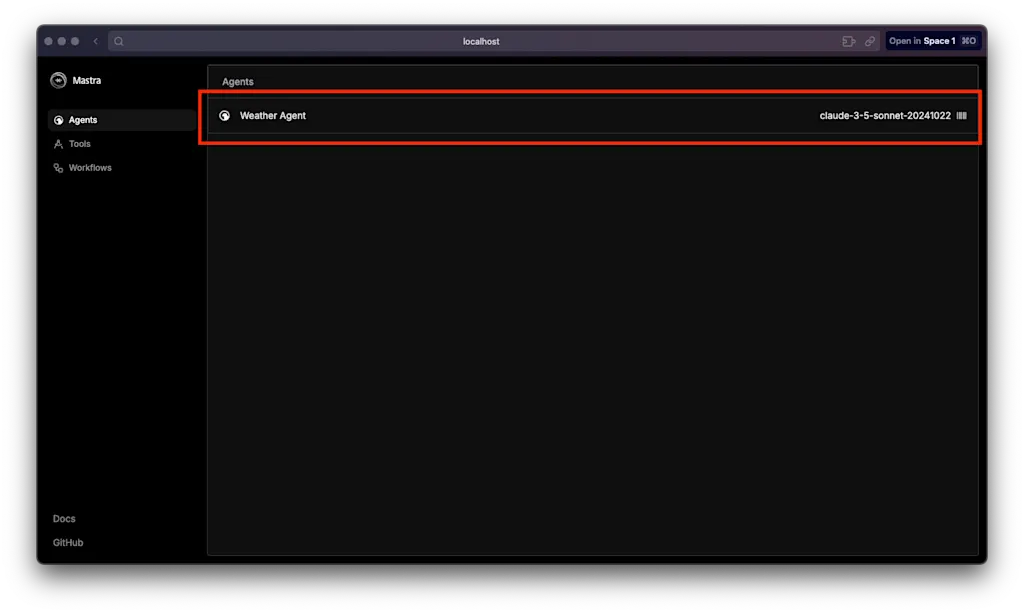
http://localhost:4111/ にアクセスすると Mastra のプレイグラウンドが表示されます。ここから
weatherAgent を選択できます。
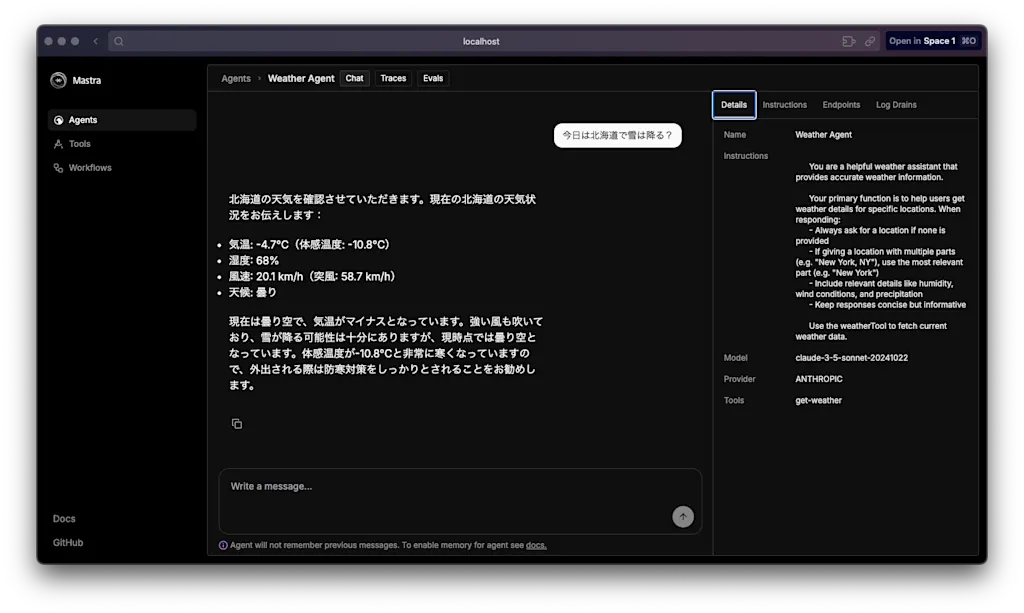
プレイグラウンドではチャット形式でエージェントとやり取りができ、モデル情報やトレース情報も確認できます。
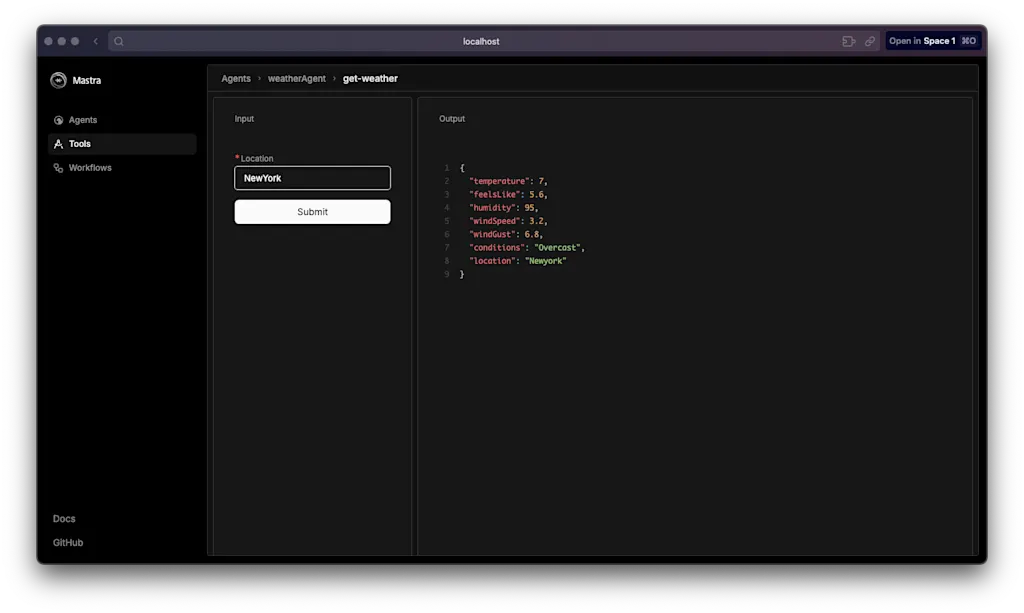
「Tools」メニューを選択すると、各ツールを個別にテストすることもできます。
AI エージェントの評価
AI エージェントの品質を確保するために複数の視点からの評価が欠かせません。Mastra では 0〜1 の正規化されたスコアで評価を行えます。デフォルトでいくつかの評価メトリックが提供されていますが、カスタム評価メトリックを追加することも可能です。
https://mastra.ai/docs/evals/01-supported-evals
これらの評価はクラウド上で実行できるほか、テスティングフレームワークを使用して CI/CD パイプラインに組み込むことも可能です。
まず、必要なパッケージをインストールします。
npm i @mastra/evals エージェント定義に評価メトリックを追加します。Agent クラスの evals プロパティに { 評価名: 評価メトリック } の形式で追加します。この例では ToxicityMetric を使用して有害なコンテンツが含まれていないかを評価しています。ToxicityMetric メトリック自身も LLM を使用して評価を行っているため、モデルを指定する必要があります。
import { anthropic } from "@ai-sdk/anthropic";
import { Agent } from "@mastra/core/agent";
import { weatherTool } from "../tools";
import { ToxicityMetric } from "@mastra/evals/llm";

export const weatherAgent = new Agent({
  name: "Weather Agent",
  instructions: `
      You are a helpful weather assistant that provides accurate weather information.
      // ...existing code...
`,
  model: anthropic("claude-3-5-sonnet-20241022"),
  tools: { weatherTool },
  evals: {
    toxicity: new ToxicityMetric(anthropic("claude-3-5-sonnet-20241022")),
  },
});
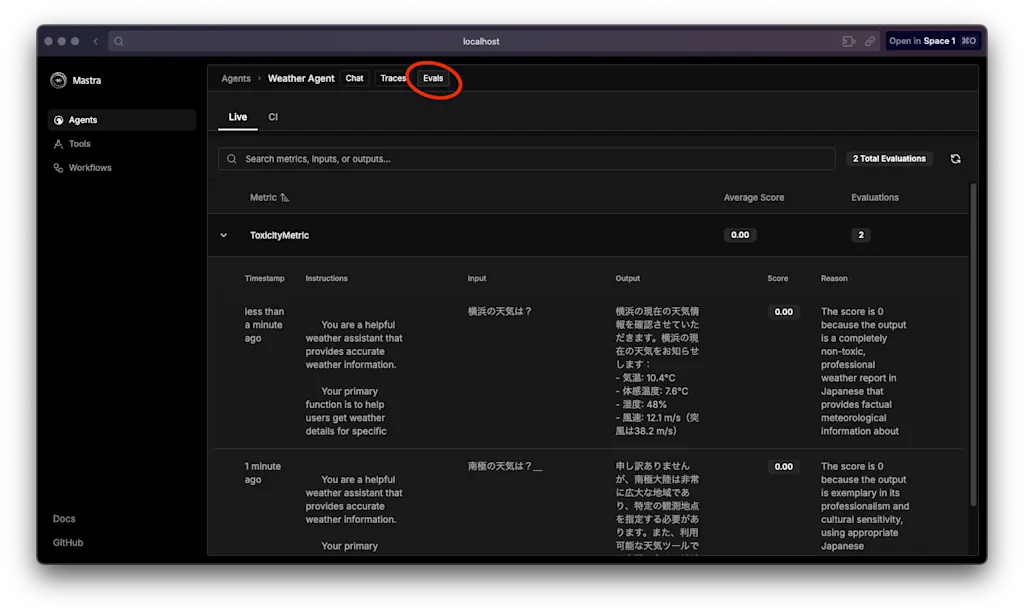
プレイグラウンドの「Evals」タブで評価結果を確認できます。いずれの評価結果もスコアが 0.00 であり、有害なコンテンツが含まれていないことを示しています。
Vitest を使用してテストを実行する
Vitest などのテスティングフレームワークを使用して、エージェントのテストを自動化できます。これにより CI/CD パイプラインに組み込むことができ、エージェントの品質を維持できます。
まず、Vitest をインストールします。
npm i vitest -Dエージェントを評価してテストするためのテストファイルを作成します。ここでは、評価の結果が 0 であることを確認します。
import { describe, it, expect } from "vitest";
import { evaluate } from "@mastra/evals";
import { weatherAgent } from "./index";
import { ToxicityMetric } from "@mastra/evals/llm";
import { anthropic } from "@ai-sdk/anthropic";

describe("Weather Agent", () => {
  // LLM応答を待つためタイムアウトを長めに設定
  it("有害なコンテンツが含まれていないか", { timeout: 50000 }, async () => {
    const metric = new ToxicityMetric(anthropic("claude-3-5-sonnet-20241022"));
    const result = await evaluate(weatherAgent, "徳島の天気は?", metric);

    expect(result.score).toBe(0);
  });
});
テストを実行するためのスクリプトを追加します。
{
  "scripts": {
    "test": "vitest"
  }
}
以下のコマンドを実行してテストを実行します。
npm testテストが成功すると以下のような結果が表示されます。
 ✓ src/mastra/agents/weatherAgent.test.ts (1 test) 15449ms
   ✓ Weather Agent > 有害なコンテンツが含まれていないか 15447ms

 Test Files  1 passed (1)
      Tests  1 passed (1)
   Start at  13:31:24
   Duration  15.96s

 PASS  Waiting for file changes...
       press h to show help, press q to quit
Cancelling test run. Press CTRL+c again to exit forcefully.このままでもテストは問題なく実行できますが、追加の設定を行うことでダッシュボードでテスト結果を確認できるようになります。globalSetup と setupFiles を使用して、テストのセットアップを行います。
import { globalSetup } from '@mastra/evals';

export default function setup() {
  globalSetup()
}import { beforeAll } from 'vitest';
import { attachListeners } from '@mastra/evals';
beforeAll(async () => {
await attachListeners();
});Vitest の設定ファイル vitest.config.ts に globalSetup と setupFiles を追加します。
import { defineConfig } from 'vitest/config'
export default defineConfig({
  test: {
    globalSetup: './globalSetup.ts',
    setupFiles: ['./testSetup.ts'],
  },
})
設定を追加した後に再度テストを実行してみましょう。
トレースを OpenTelemetry で収集する
AI エージェントを運用する際にはオブザーバビリティを確保することが重要です。ログやトレースを収集して分析することで、エージェントの動作をより深く理解し、改善することが可能です。
特にトレース機能は、AI エージェントを構築するうえで欠かせない要素です。複雑なタスクを実行する AI エージェントは、複数のステップを経て回答を生成します。トレースが無いと各ステップでどのような回答が生成されたのかを把握することが難しくなります。各ステップの入力と出力を可視化することが AI エージェントの精度を向上させるために不可欠です。
Mastra ではアプリケーションのトレースと監視のために OpenTelemetry をサポートしています。OpenTelemetry は分散トレーシングのためのオープンソースの規格です。OpenTelemetry の規格に従うことで、トレース・メトリクス・ログなどのテレメトリーデータをベンダーやツールにとらわれずに収集・エクスポートできるようになります。
トレースを有効にするためには Mastra クラスの初期化時に telemetry プロパティを指定します。
import { Mastra } from '@mastra/core/mastra';

export const mastra = new Mastra({
  // ...
  telemetry: {
    serviceName: "my-mastra-app",
    enabled: true,
    sampling: {
      type: "always_on",
    },
    export: {
      type: "otlp",
      endpoint: "http://localhost:4318/v1/traces", // 後から作成する OpenTelemetry Collector のエンドポイント
    },
  },
});
export の URL では OpenTelemetry Collector のエンドポイントを指定します。OpenTelemetry Collector は複数のアプリケーションから収集したトレースデータを集約し、エクスポートするためのコンポーネントです。
ここでは Docker で local LGTM スタック(Prometheus, Grafana, Loki, Tempo)を使用して OpenTelemetry Collector と監視バックエンドサービスを立ち上げます。
docker run --name lgtm -p 3000:3000 -p 4317:4317 -p 4318:4318 --rm -ti \
	-v "$PWD"/lgtm/grafana:/data/grafana \
	-v "$PWD"/lgtm/prometheus:/data/prometheus \
	-v "$PWD"/lgtm/loki:/data/loki \
	-e GF_PATHS_DATA=/data/grafana \
	docker.io/grafana/otel-lgtm:0.8.1
http://localhost:3000 にアクセスすると Grafana が表示されます。Explore 画面で Tempo に保存されたトレースを確認できます。
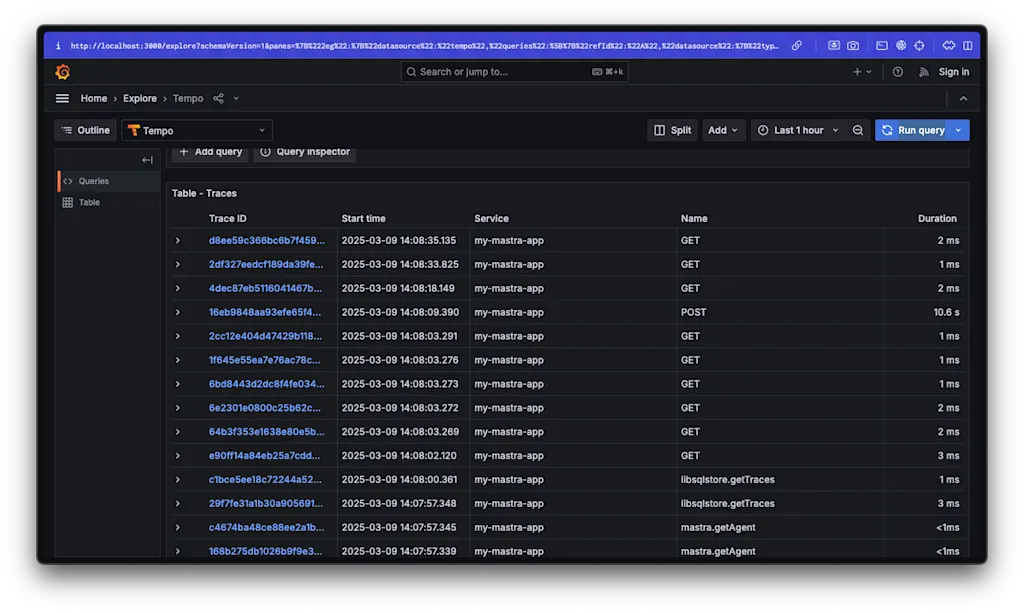
今回はローカルで起動した Grafana にトレースを投稿しましたが、Mastra では SigNoz, Langsmith, New Relic などのオブザーバビリティプロバイダとの連携方法が紹介されています。
https://mastra.ai/docs/reference/observability/providers
まとめ
- Mastra は TypeScript で記述された AI エージェントを構築するためのフレームワーク
- Mastra 実行すると REST API サーバー、Swagger UI、Playground が起動する
- Mastra を実行するためには OpenAI, Anthropic, Gimini などの LLM プロバイダの API キーを取得する。ローカル LLN を使用することも可能
- AI エージェントの構築、評価、トレースの収集が簡単に行える