
Pencil is a UI design tool with a Figma-like feel. By using the Pencil MCP server, it can work bidirectionally with AI coding tools, exporting code from designs and generating designs from prompts. It uses the open
.pen file format, so you can inspect the contents in a text editor or manage the files in a version control system. It also supports importing from Figma.
In this article, I will share my impressions after actually trying Pencil.
Installation and Setup
You can download Pencil from the link below. At the moment, it only supports macOS and Linux.

Pencil is free to use for now, but paid plans are expected to be introduced in the future.
After installation, launch the application and enter your email address when prompted. A verification code will be sent to the registered address, and you can activate the app by entering that code.
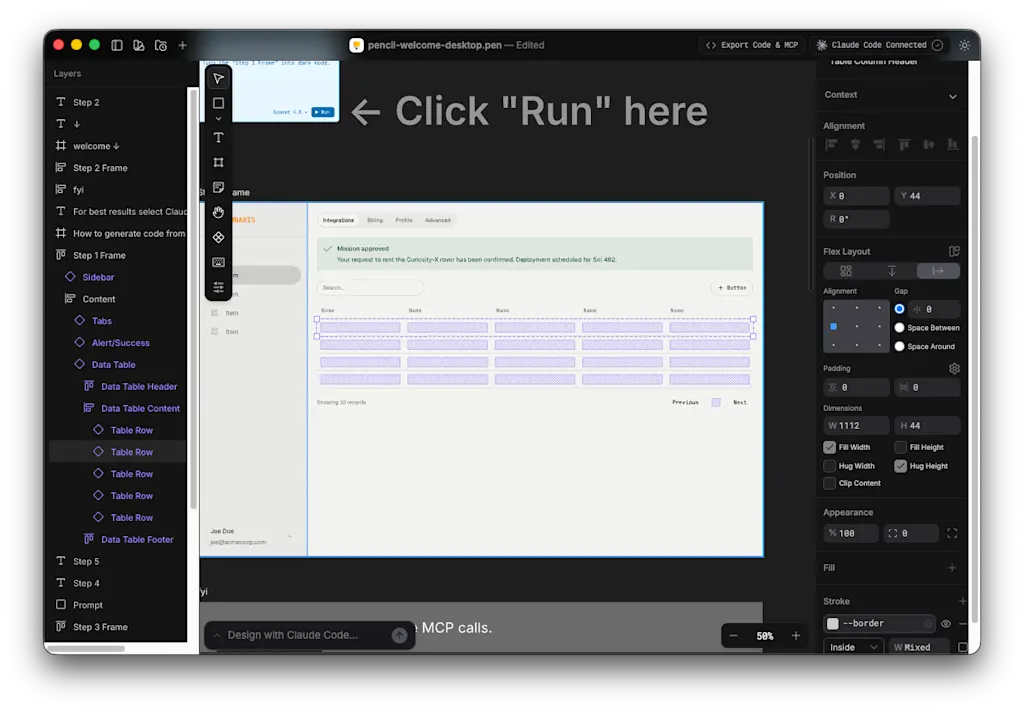
The canvas feels very similar to Figma. The toolbar on the left shows the list of layers, while the property panel on the right lets you configure the selected object in detail. It includes the standard set of features such as components, design themes and variables, and Flex Layout.
Generate Designs from Prompts
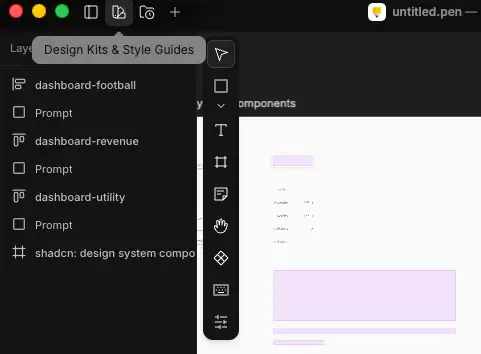
Let's try generating a design with AI. First, create a new .pen file. You could start with an empty file, but here I will use one of the prepared design system components. Click the second icon from the left in the top toolbar, labeled "Design Kits & Style Guides."
The dialog displays the available component kits. Here, I chose "Shadcn UI."
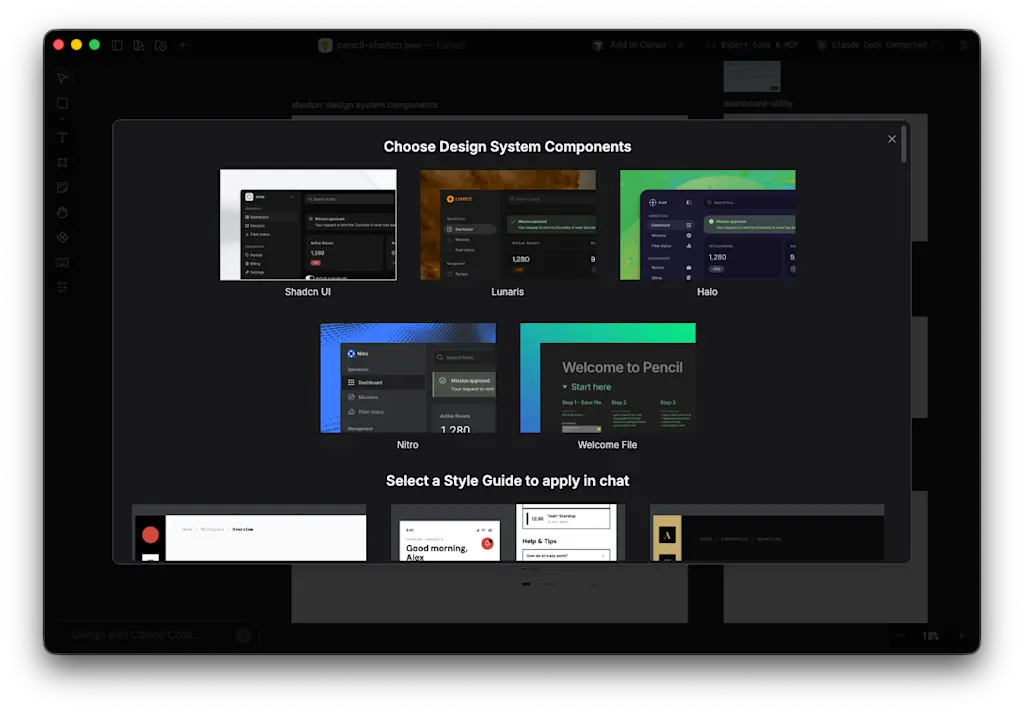
The Shadcn UI components were added to the canvas.
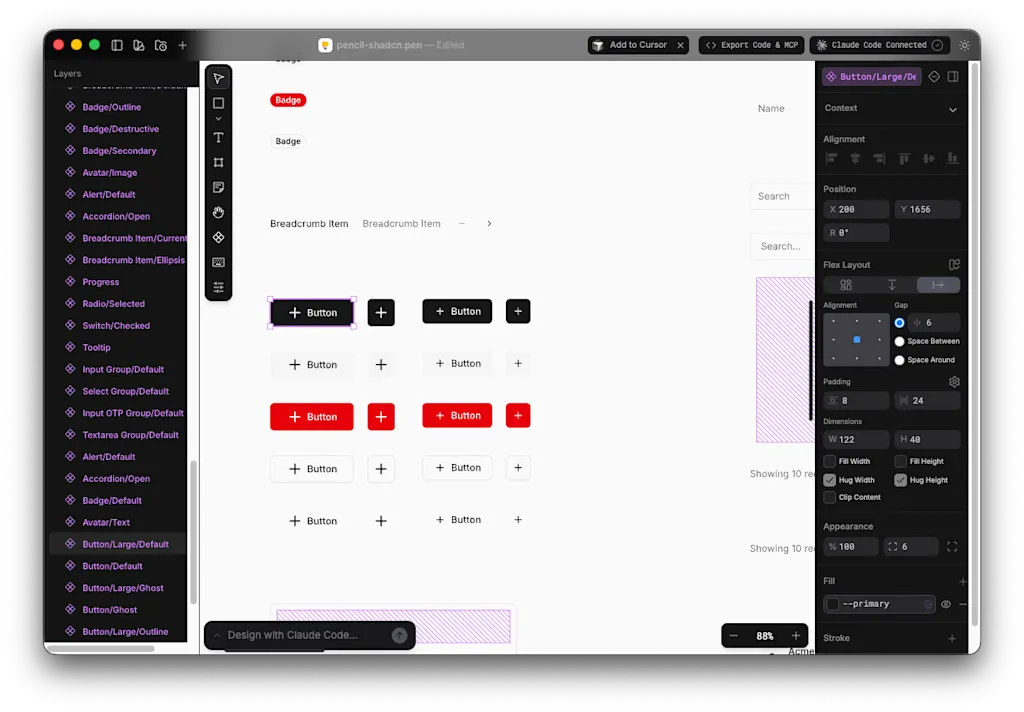
The file you create is saved locally as a .pen file. Since .pen files are stored in JSON format, you can also open them in a text editor and inspect their contents.
{
  "version": "2.6",
  "children": [
    {
      "type": "frame",
      "id": "MzSDs",
      "x": 0,
      "y": 0,
      "name": "shadcn: design system components",
      "theme": {
        "Mode": "Light",
        "Base": "Neutral",
        "Accent": "Default"
      },
      "clip": true,
      "width": 2800,
      "height": 3586,
      "fill": "$--background",
      "layout": "none",
      "children": [
        /* ... */
      ]
    }
  ],
}
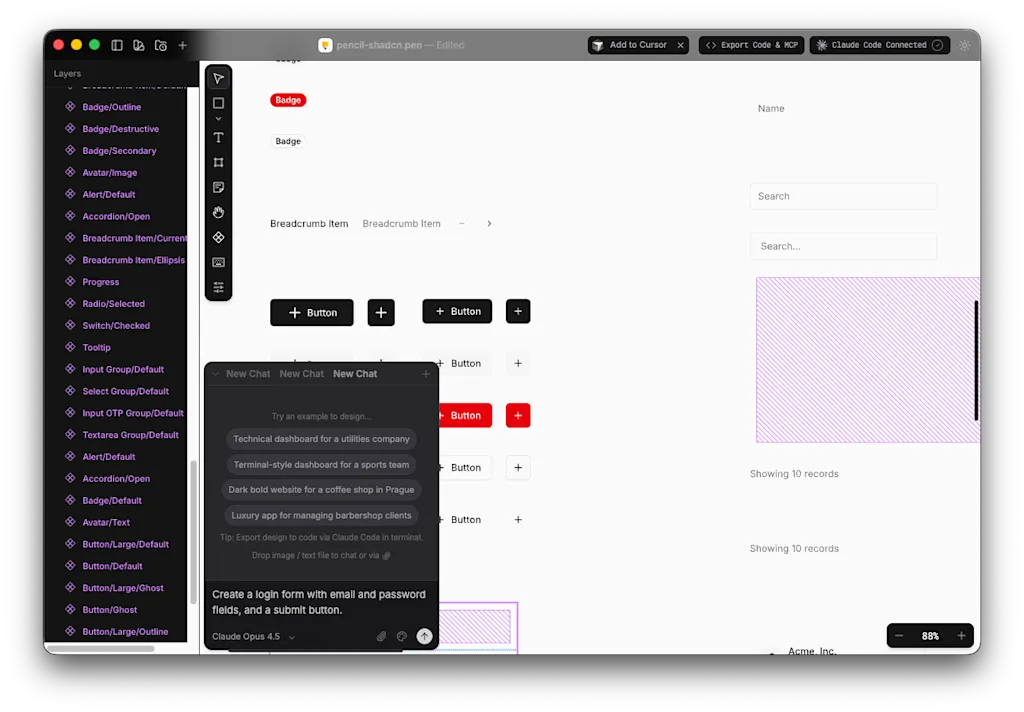
There is a chat panel labeled "Design with Claude Code" in the lower-left corner of the canvas, so try entering a design instruction there. It appears that installing Pencil automatically integrates it with Claude Code, and this chat panel uses Claude Code to generate designs. For example, type "Create a login form with email and password fields, and a submit button." and press Enter.
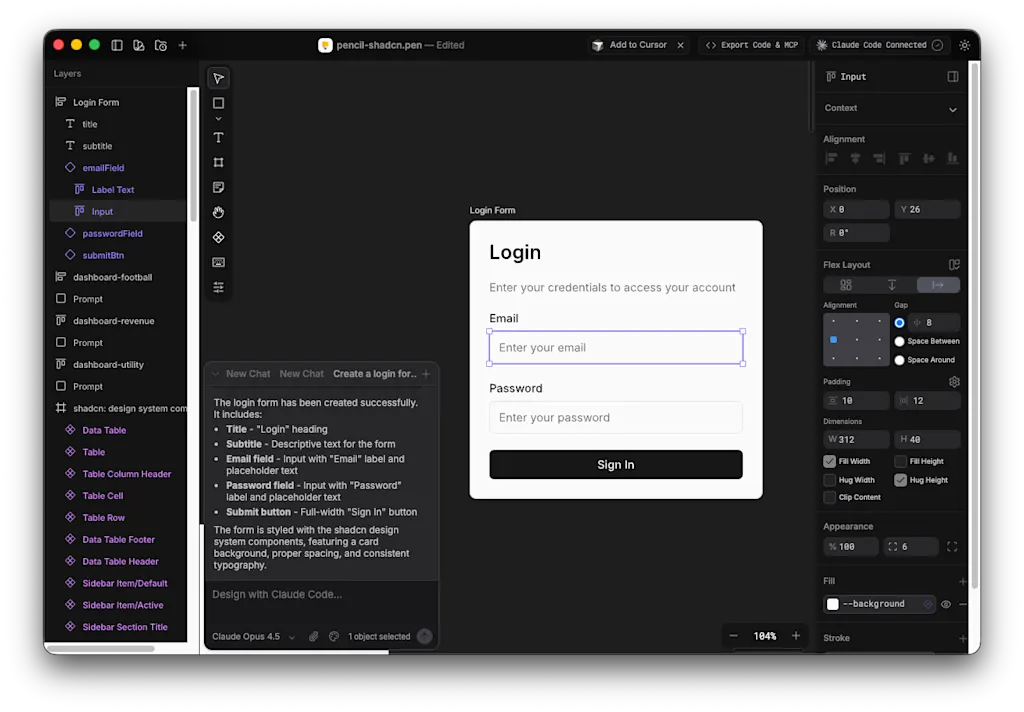
After checking the design guidelines and the list of available components, a login form was generated in an empty area on the canvas.
You can see that the generated login form was indeed built using the existing components.
Export Code with Pencil MCP
By using Pencil MCP together with an AI coding tool, you can export code from a design. First, prepare a project created with Next.js and install the Shadcn UI components.
npx create-next-app@latest my-penciled-app
cd my-penciled-app
npx shadcn@latest add button
npx shadcn@latest add input
npx shadcn@latest add label
It seems Pencil MCP is automatically added to Claude Code when you install Pencil. The following configuration had been added to the ~/.claude.json file.
{
  "mcpServers": {
    "pencil": {
      "command": "/Applications/Pencil.app/Contents/Resources/app.asar.unpacked/out/mcp-server-darwin-arm64",
      "args": [
        "--ws-port",
        "52036"
      ],
      "env": {},
      "type": "stdio"
    }
  }
}
Start Claude Code and run the /mcp command to confirm that Pencil MCP is available.
/mcpThe main tools are listed below.
| Tool name | Description |
|---|---|
get_editor_state |
Retrieves the current editor state, selected elements, and available components |
open_document |
Creates a new document or opens an existing .pen file |
get_guidelines |
Retrieves the design guidelines |
get_style_guide_tags |
Retrieves the list of style guide tags |
get_style_guide |
Retrieves the style guide based on tags |
batch_get |
Searches for and reads nodes |
batch_design |
Performs bulk insert/copy/update/replace/move/delete/image operations |
snapshot_layout |
Inspects the layout structure |
get_screenshot |
Retrieves a screenshot of a node |
get_variables |
Retrieves variables and themes |
set_variables |
Adds or updates variables |
find_empty_space_on_canvas |
Searches for empty space on the canvas |
search_all_unique_properties |
Searches for unique property values |
replace_all_matching_properties |
Replaces matching properties in bulk |
Enter a prompt like the following to export the login form code using Pencil MCP.
Using Pencil MCP, export the login form from the current design to `/app/login/page.tsx` using Shadcn UI.First, the get_editor_state tool is called to retrieve the current editor state. At this point, make sure the login form layer is selected in Pencil. Then the batch_get tool retrieves the details of the selected node, and the get_guidelines tool fetches the Shadcn UI style guide.
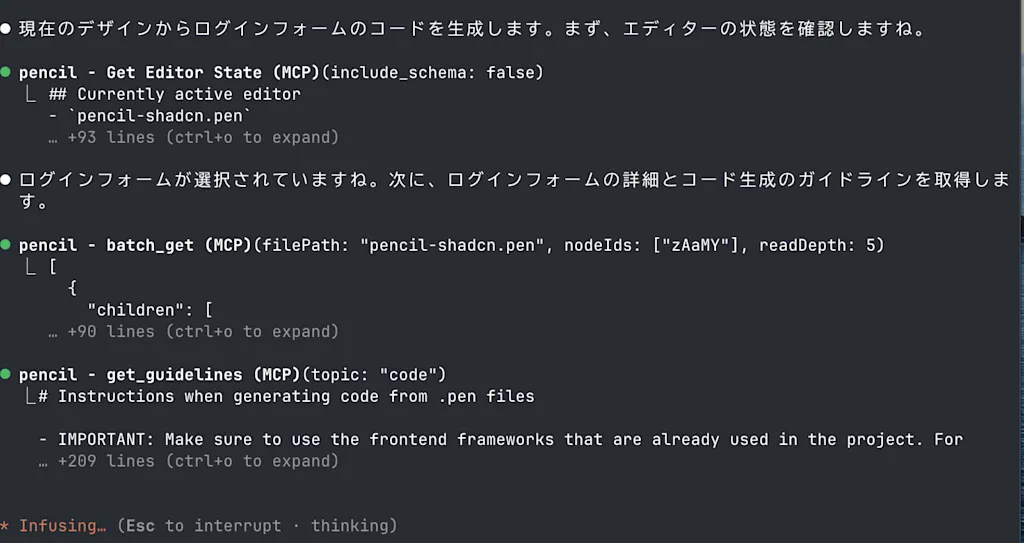
It looks like the design specification was parsed correctly. Based on that information, it started generating the login form.
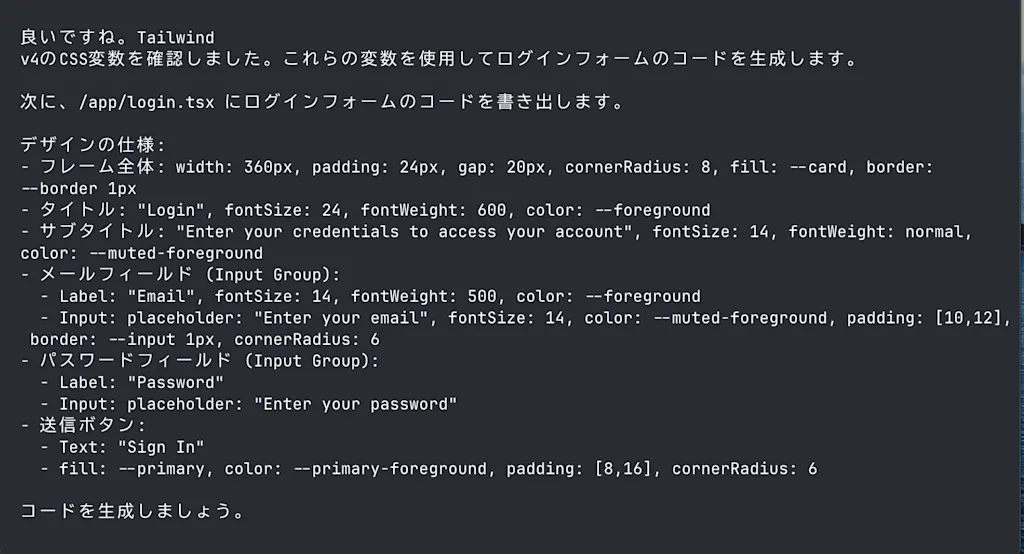
Once the implementation is complete, the get_screenshot tool retrieves a screenshot from Pencil and compares it with the code. Here it is adjusting the structure of the title and subtitle.
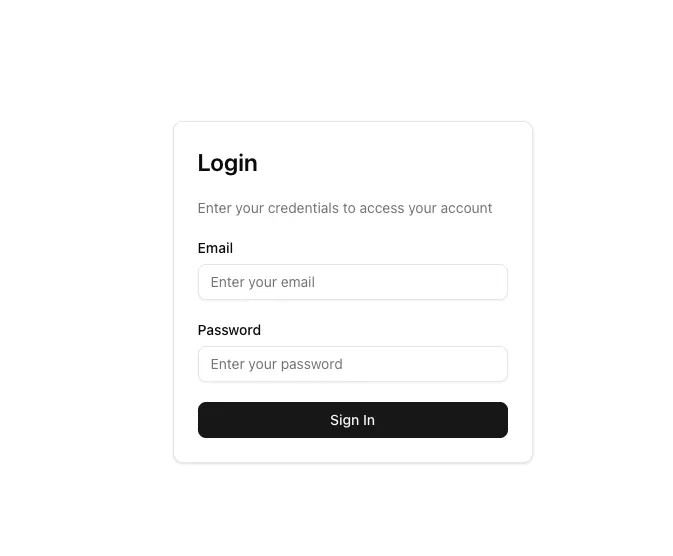
If you actually visit http://localhost:3000/login, you can see that the login form is displayed with almost the same appearance as the design in Pencil.
Use It from the Terminal and Combine It with MCP Tools
Because Pencil works together with a locally installed Claude Code, you can register MCP servers in Claude Code ahead of time and then use those servers to bring designs into Pencil.
For example, if you register the Playwright MCP server, you can capture a screenshot of a specific website and import that design into Pencil. Register the Playwright MCP server in Claude Code with the following command.
claude mcp add playwright npx @playwright/mcp@latestIt did not look like MCP servers could be used from the chat panel inside Pencil, so let's launch Claude Code from the terminal and ask it to create a design with Pencil MCP.
claude "Using Playwright MCP, capture the design of azukiazusa.dev and import it into Pencil."The take_screenshot tool in Playwright MCP is called to capture a screenshot of the specified website. Then the batch_design tool creates a design on the currently open Pencil canvas. The fidelity of the generated design is not very high, but it is interesting that you can combine different tools from the terminal like this.
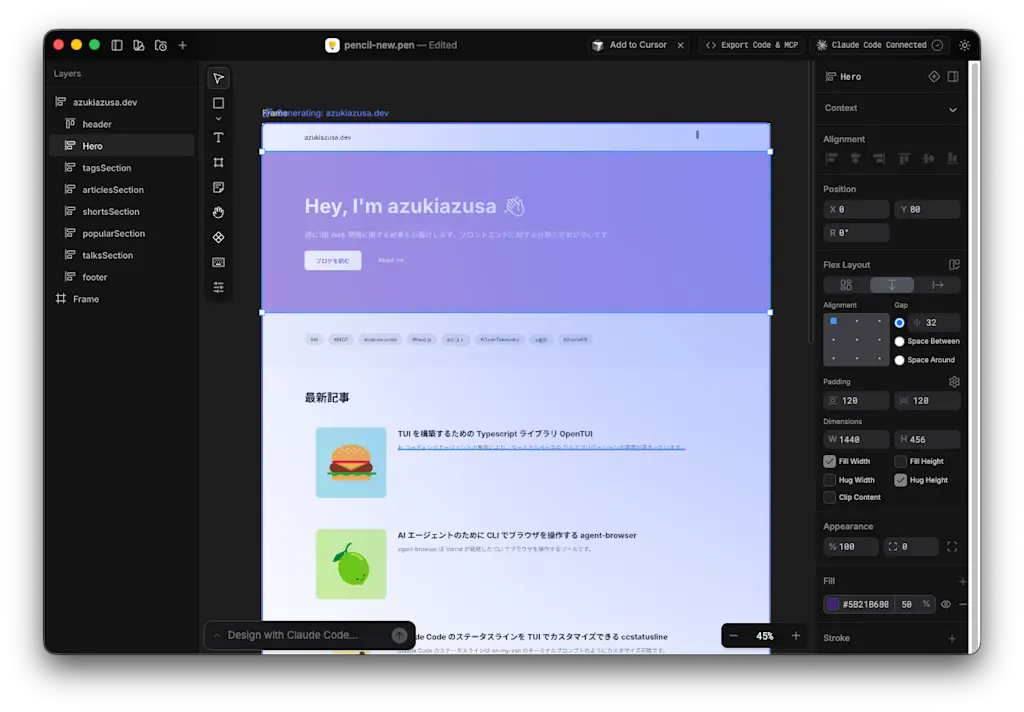
You could also imagine other workflows, such as analyzing code in a repository and importing the resulting design. For example, prompts like the following:
claude "Using Pencil MCP, analyze the code in the app/ directory and recreate the design of the top page in Pencil."claude "Using Pencil MCP, analyze the code for the Button component in the components/ directory and import it as a Pencil component."Because you can build designs with Claude Code using the same workflow as AI coding, I found it particularly appealing that you can directly reuse the know-how you have built up from AI coding. This time I did not get especially good output when trying to turn a screenshot directly into a design, but I think better results could come from using Plan mode and designing interactively with AI, just as you would in regular AI coding.
Summary
- Pencil is a UI design tool with a Figma-like feel. It can run AI in parallel on the canvas to generate designs, and it can also work with AI coding tools such as Claude Code and Cursor to export code.
- By using Pencil MCP with Claude Code, it is possible to export code from a design. It was able to analyze the selected node in Pencil and generate code using Shadcn UI components.
- You can also launch Claude Code from the terminal and combine Pencil MCP with other MCP servers. I tried using Playwright MCP to capture the design of a website and reproduce it in Pencil.