
MCP UI は
Model Context Protocol (MCP) を拡張して、AI エージェントがインタラクティブな UI コンポーネントを返すことを可能にする仕組みです。MCP UI を使用することで、AI エージェントとのチャットの返答としてグラフを表示したり、商品の画像ギャラリーや購入フォームを表示することが可能になります。従来のテキストベースの応答に加えて、ユーザーは AI エージェントとの対話をよりリッチでインタラクティブなものにできます。
この記事では MCP UI の SDK を利用して、AI エージェントがインタラクティブな UI コンポーネントを返す方法を試してみます。この記事で書いたコードのサンプルは以下のリポジトリで公開しています。
TypeScript SDK を使用して MCP UI を実装する
MCP UI では TypeScript と Ruby の SDK が提供されています。ここでは TypeScript SDK を使用します。サーバー向けの SDK とブラウザ向けの SDK がそれぞれ提供されています。
@mcp-ui/server - npm: MCP の
Resource を実装するためのヘルパー関数を提供する
まずはサーバー側の実装から始めましょう。MCP サーバーの実装として Cloudflare が提供する agents パッケージを使用します。
agents パッケージは Streamable HTTP を使用したリモート MCP サーバーの実装を簡単に行うことができます。
Cloudflare Workers のプロジェクトを作成しましょう。
npm create cloudflare@latest my-mcp-ui-server続いて以下のパッケージをインストールします。
npm install agents @modelcontextprotocol/sdk zod @mcp-ui/serverMCP ツールを実装する
MCP UI では MCP の Resource としてインタラクティブな UI コンポーネントを提供します。Resource は
Resource Link もしくは
Embedded Resource としてツールの応答に含めることができます。
agents パッケージでは McpAgent クラスを継承して MCP サーバーを実装します。init メソッド内で this.server.tool() を呼び出すことで MCP ツールを定義できます。以下のコードはサイコロの目を振るツールを実装した例です。
import { McpAgent } from 'agents/mcp';
import { McpServer } from '@modelcontextprotocol/sdk/server/mcp.js';
import { z } from 'zod';
import { createUIResource } from '@mcp-ui/server';

export class MyMCP extends McpAgent {
	server = new McpServer({
		name: 'MyMCP Server',
		version: '0.1.0',
	});

	async init() {
		this.server.tool(
			// ツールの名前
			'dice_roll',
			// ツールの説明
			'サイコロを降った結果を返します',
			// ツールの引数のスキーマ
			{ sides: z.number().min(1).max(100).default(6).describe('サイコロの面の数') },
			// ツールの実行関数
			async ({ sides }) => {
				// サイコロを振る
				const result = Math.floor(Math.random() * sides) + 1;
				// サイコロの目を元に UI コンポーネントを作成する
				const resourceBlock = createUIResource({
          // URI スキーマ
					uri: `ui://dice_roll/${result}`,
          // HTML 文字列もしくはリモートの URL を指定
					content: {
            // rawHtml | externalUrl | remoteDom
						type: 'rawHtml',
						htmlString: `
            <div>
              <p style="color: ${result === 1 ? 'red' : 'black'}; font-size: 24px;">サイコロの目: ${result}</p>
            </div>`,
					},
          // text | blob
					encoding: 'text',
				});

				return {
					content: [resourceBlock],
				};
			}
		);
	}
}
MCP の Resource を作成するために @mcp-ui/server パッケージの createUIResource 関数を使用します。この関数は以下の引数を受け取ります。
uri: 一意な Resource の URI。ui://スキーマを使用する。クライアント側の実装ではスキーマがui://で始まるかどうかを確認して、MCP UI として Resource を検出するcontent: Resource の内容。HTML 文字列もしくはリモートの URL を指定するtype:rawHtml、externalUrl、remoteDomのいずれかを指定。rawHtmlは HTML 文字列を直接指定する。externalUrlは iframe の URL を指定する。remoteDomは React もしくは Web コンポーネントでレンダリングされる script を指定する
encoding:textもしくはblobを指定
作成した Resource は { content: [resourceBlock] } のようにツールの応答に含めます。これでサイコロの目に応じて異なる色のテキストを表示する UI コンポーネントが作成されます。
作成した MyMCP クラスを Cloudflare Workers のエントリポイントである fetch ハンドラで使用します。
export default {
	fetch(request: Request, env: Env, ctx: ExecutionContext) {
  // CORS ヘッダーを設定
		if (request.method === 'OPTIONS') {
			return new Response(null, {
				headers: {
					'Access-Control-Allow-Origin': '*',
					'Access-Control-Allow-Methods': 'GET,HEAD,OPTIONS',
					'Access-Control-Allow-Headers': '*',
				},
			});
		}
		const url = new URL(request.url);

		// /sse エンドポイントの場合は SSE で応答する
		if (url.pathname === '/sse' || url.pathname === '/sse/message') {
			// @ts-ignore
			return MyMCP.serveSSE('/sse').fetch(request, env, ctx);
		}

		// /mcp エンドポイントの場合は Streamable HTTP で応答する
		if (url.pathname === '/mcp') {
			// @ts-ignore
			return MyMCP.serve('/mcp').fetch(request, env, ctx);
		}

		return new Response('Not found', { status: 404 });
	},
};
最後に Durable Objects を使用するために wrangler.jsonc を編集します。McpAgent クラスを使用する場合には、MCP_OBJECT という名前を指定する必要があります。
{
  "migrations": [
		{
			"new_sqlite_classes": [
				"MyMCP"
			],
			"tag": "v1"
		}
	],
	"durable_objects": {
		"bindings": [
			{
				"class_name": "MyMCP",
				"name": "MCP_OBJECT"
			}
		]
	},
}
MCP サーバーをテストする
以下のコマンドで Cloudflare Workers のローカルサーバーを起動します。
npm run dev正しく MCP サーバーを構築できているか確認するために MCP Inspector を使用しましょう。これは GUI ベースで MCP サーバーのデバッグを行うためのツールです。
npx @modelcontextprotocol/inspectorhttp://127.0.0.1:6274 にアクセスして MCP Inspector を開きます。「Transport Type」で「Streamable HTTP」を選択し、URL 欄に
http://localhost:8787/mcp を入力して「Connect」ボタンをクリックします。「List Tools」ボタンをクリックすると、実装した dice_roll ツールが表示されます。「Run Tool」ボタンをクリックすると、ツールを実行できます。結果が表示されていることを確認してください。
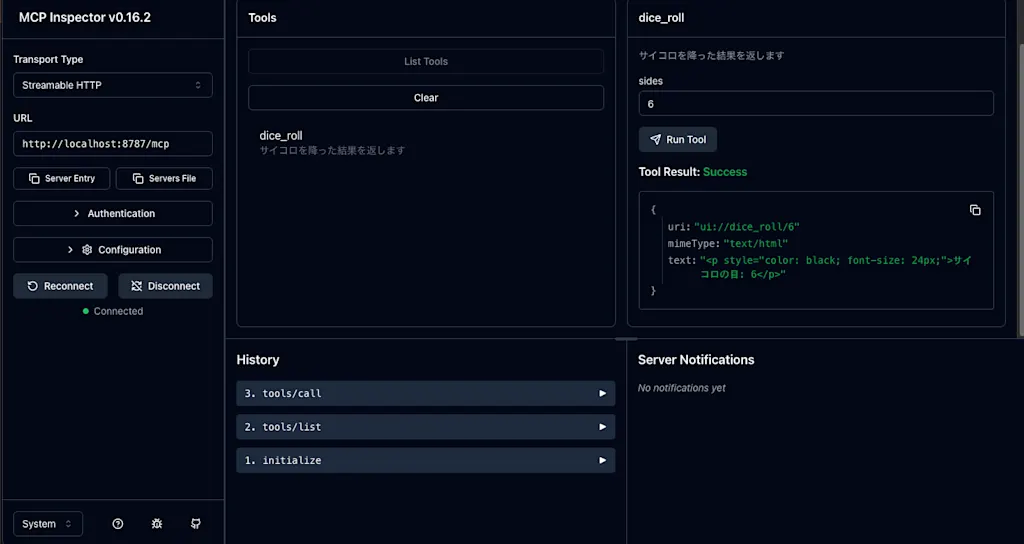
ツールの結果として以下の JSON が返されます。
{
  "uri": "ui://dice_roll/6",
  "mimeType": "text/html",
  "text": "<p style=\"color: black; font-size: 24px;\">サイコロの目: 6</p>"
}
MCP UI のクライアントを実装する
続いてクライアント側を実装します。MCP UI のクライアントは React コンポーネントと Web コンポーネントの両方が提供されています。メインのコンポーネントは <UIResourceRenderer /> です。これは MCP サーバーからの応答を受け取り、リソースの種類を検出して適切なコンポーネントをレンダリングします。サーバーから受け取った HTML とスクリプトはサンドボックス化された iframe 内で実行されるため、セキュリティ上の問題を回避できます。
ここでは React コンポーネントを使用します。React アプリケーションを作成しましょう。
npm create vite@latest my-mcp-ui-client -- --template react-ts以下のパッケージをインストールします。
npm install @mcp-ui/client @modelcontextprotocol/sdksrc/App.tsx を以下のように編集します。
import React, { useState } from "react";
import { UIResourceRenderer } from "@mcp-ui/client";
import { Client } from "@modelcontextprotocol/sdk/client/index.js";
import { StreamableHTTPClientTransport } from "@modelcontextprotocol/sdk/client/streamableHttp.js";
import type {
  ContentBlock,
  Resource,
} from "@modelcontextprotocol/sdk/types.js";

// MCP Client を使用してツールを呼び出す関数
const fetchMcpResource = async (toolName: string): Promise<ContentBlock> => {
  const client = new Client({
    name: "streamable-http-client",
    version: "1.0.0",
  });

  // Streamable HTTP を使用して接続
  const transport = new StreamableHTTPClientTransport(
    new URL("http://localhost:8787/mcp")
  );
  await client.connect(transport);
  let result;
  // ツール名に応じて呼び出す
  // server で実装した dice_roll ツールを呼び出す
  if (toolName === "dice_roll") {
    result = await client.callTool({
      name: toolName,
      arguments: {
        sides: 6,
      },
    });
  } else {
    throw new Error(`Unknown tool: ${toolName}`);
  }

  return (result?.content as ContentBlock[])[0];
};

const App: React.FC = () => {
  const [uiResource, setUIResource] = useState<Resource | null>(null);
  const [loading, setLoading] = useState(false);
  const [error, setError] = useState<string | null>(null);

  const loadResource = async (toolName: string) => {
    setLoading(true);
    setError(null);
    setUIResource(null);
    try {
      const block = await fetchMcpResource(toolName);
      setUIResource(block.resource as Resource);
    } catch (e: any) {
      setError(e.message);
    }
    setLoading(false);
  };

  return (
    <div>
      <h1>MCP-UI Client Demo</h1>
      <button onClick={() => loadResource("dice_roll")}>Dice Roll</button>

      {loading && <p>Loading resource...</p>}
      {error && <p style={{ color: "red" }}>Error: {error}</p>}

      {uiResource && (
        <div style={{ marginTop: 20, border: "2px solid blue", padding: 10 }}>
          <h2>Rendering Resource: {uiResource.uri}</h2>
          <UIResourceRenderer
            resource={uiResource}
            onUIAction={async (result) => {
              alert("UI Action Result:", result);
            }}
          />
        </div>
      )}
    </div>
  );
};

export default App;
ここでは AI エージェントとのやり取りは省略して fetchMcpResource 関数を使用して MCP サーバーから直接ツールを呼び出しています。client.callTool メソッドを使用して、先ほどサーバー側で実装した dice_roll ツールを呼び出します。ツールの結果として返される Resource を UIResourceRenderer コンポーネントに渡してレンダリングします。
<UIResourceRenderer resource={uiResource} />UIResourceRenderer コンポーネントはリソースのタイプに応じて HTMLResourceRenderer もしくは RemoteDOMResourceRenderer を出し分けてレンダリングします。
リソースのタイプの検出は以下のように行われます。
resource.contentTypeが明示的に指定されている場合、そのタイプに応じたレンダラーを使用- MIME タイプに基づいて選択
text/html:rawHtmltext/uri-list:externalUrlapplication/vnd.mcp-ui.remote-dom+javascript:remoteDom
- サポートされていないリソースタイプの場合はエラーを表示
supportedContentTypes Props を使用して特定のリソースタイプのみに制限することも可能です。
<UIResourceRenderer
  resource={uiResource}
  supportedContentTypes={["rawHtml"]}
/>
実際にブラウザでアプリケーションを起動して、ボタンをクリックするとサイコロの目が表示されるはずです。
npm run dev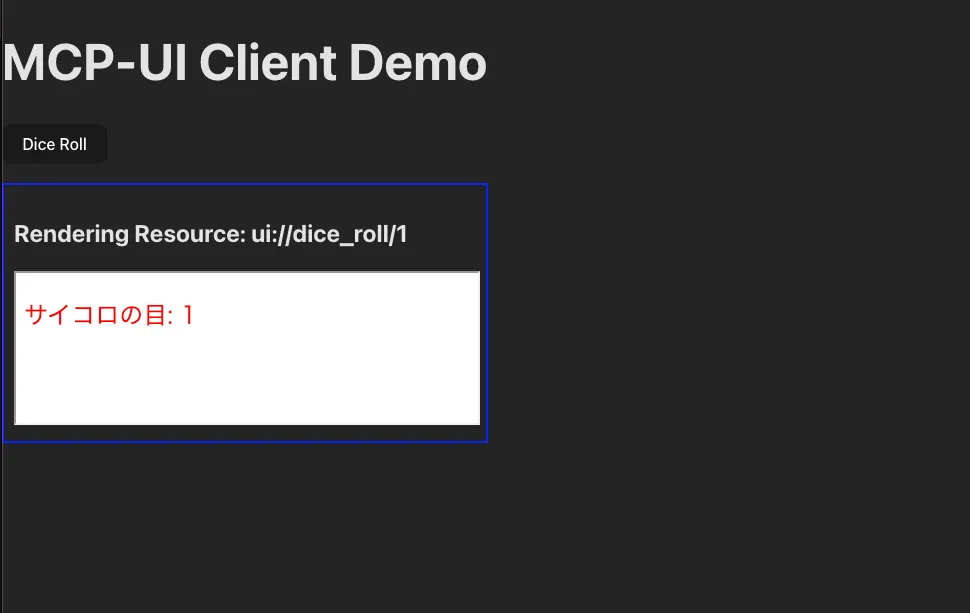
インタラクティブな UI アクションを処理する
リソースのコンテンツとして script を含めることで、インタラクティブな UI コンポーネントを実装できます。クライアントとやり取りするために、window.parent.postMessage を使用してメッセージを送信します。
ここではリソースタイプとして remoteDom を使用します。これは React コンポーネントや Web コンポーネントを使用してレンダリングされるスクリプトを指定するためのタイプです。
MCP UI のサーバー側の実装でインタラクティブなボタン要素を返す action_button ツールを追加してみましょう。
export class MyMCP extends McpAgent {
  init() {
    // 既存のツール定義...

    this.server.tool(
      'action_button',
      'インタラクティブなボタンを返します',
      {},
      async () => {
        const resourceBlock = createUIResource({
          uri: 'ui://action_button',
          content: {
            type: 'remoteDom',
            script: `
              // ui-button は MCP UI のクライアントが提供するカスタム要素
              const button = document.createElement('ui-button');
              button.textContent = 'Click Me!';
              button.addEventListener('press', () => {
                // ボタンがクリックされたときのアクション
                window.parent.postMessage({
                  type: 'tool',
                  payload: {
                    toolName: 'action_from_button',
                    params: {
                      data: 'Button clicked!',
                      timestamp: ${Date.now()}
                    },
                  }
                }, '*');
              });

              root.appendChild(button);
            `,
            framework: 'react',
          },
          encoding: 'text',
        });

        return {
          content: [resourceBlock],
        };
      }
    );
  }
}
この script では、ui-button というカスタム要素を作成し、クリックイベント(ここでは press)を購読しています。ui-button は MCP UI のクライアントが提供する basicComponentLibrary の一部です。ボタンがクリックされると、親ウィンドウに postMessage を使用してメッセージを送信します。このメッセージには type と payload が含まれています。type は以下の値を指定できます。
toolpromptlinkintentnotify
クライアントの実装では、UIResourceRenderer コンポーネントの onUIAction プロパティを使用して、ボタンがクリックされたときのアクションを処理します。また remoteDom タイプのリソースをレンダリングする方法を指定する remoteDomProps.library と remoteDomProps.remoteElements を設定する必要があります。ここでは @mcp-ui/client パッケージが提供する basicComponentLibrary を使用します。
import {
  basicComponentLibrary,
  remoteButtonDefinition,
  remoteTextDefinition,
  UIResourceRenderer,
  type UIActionResult,
} from "@mcp-ui/client";

const fetchMcpResource = async (toolName: string): Promise<ContentBlock> => {
  // 省略...
 if (toolName === "dice_roll") {
    result = await client.callTool({
      name: toolName,
      arguments: {
        sides: 6,
      },
    });
  } else if (toolName === "action_button") {
    result = await client.callTool({
      name: toolName,
      arguments: {
        label: "Click Me!",
        action: {
          type: "tool",
          toolName: "dice_roll",
          params: {},
        },
      },
    });
  } else {
    throw new Error(`Unknown tool: ${toolName}`);
  }

  return (result?.content as ContentBlock[])[0];
};

const App: React.FC = () => {
  // 省略...
  const handleGenericMcpAction = async (result: UIActionResult) => {
    if (result.type === "tool") {
      alert(
        `Action received in host app - Tool: ${result.payload.toolName}, Params: ${result.payload.params.data}, Timestamp: ${result.payload.params.timestamp}`
      );
    } else if (result.type === "prompt") {
      alert(`Prompt received in host app: ${result.payload.prompt}`);
    } else if (result.type === "link") {
      alert(`Link received in host app: ${result.payload.url}`);
    } else if (result.type === "intent") {
      alert(`Intent received in host app: ${result.payload.intent}`);
    } else if (result.type === "notify") {
      alert(`Notification received in host app: ${result.payload.message}`);
    }
    return {
      status: "Action handled by host application",
    };
  };

  return (
    <div>
      {/* 省略 */}
      <button onClick={() => loadResource("action_button")}>Action Button</button>

      <UIResourceRenderer
        resource={uiResource}
        onUIAction={handleGenericMcpAction}
        remoteDomProps={{
          library: basicComponentLibrary,
          remoteElements: [remoteButtonDefinition, remoteTextDefinition],
        }}
      />
    </div>
  );
};
ブラウザで「Action Button」ボタンをクリックすると、「Click Me!」というボタンが表示されます。このボタンをクリックすると、handleGenericMcpAction 関数が呼び出され、アラートが表示されます。
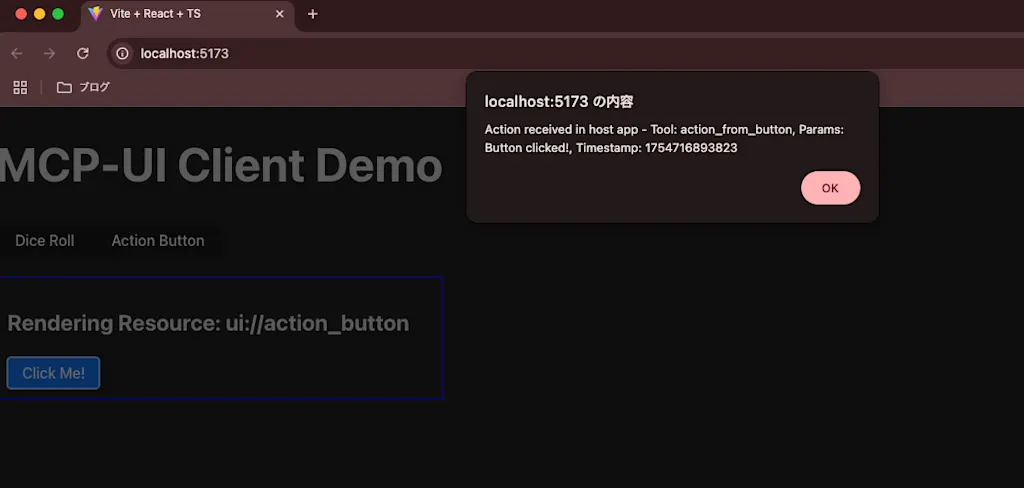
非同期でメッセージをやり取りする
messageId フィールドを使用することで UI リソースとクライアントの双方向のメッセージングを非同期で行うことができます。サーバー側の実装では window.addEventListener('message', (event) => { ... }) を使用してクライアントからのメッセージを受信します。
this.server.tool('async_message_test', '非同期メッセージのテスト', {}, async () => {
  const resourceBlock = createUIResource({
    uri: 'ui://async_message_test',
    content: {
      type: 'rawHtml',
      htmlString: `
      <p id="status">メッセージを送信してください</p>
      <button id="send-message">Send Message</button>
      <script>
        // 待機中のメッセージを格納する Map
        const pendingMessages = new Map();

        const statusElement = document.getElementById('status');
        const sendButton = document.getElementById('send-message');

        sendButton.addEventListener('click', () => {
          const messageId = Math.random().toString(36).substring(2, 15);

          pendingMessages.set(messageId, 'sending');
          statusElement.textContent = 'Sending message...';

          window.parent.postMessage(
            {
              type: 'tool',
              messageId,
              payload: {
                toolName: 'processData',
                params: {
                  data: 'Hello from MCP UI!',
                  timestamp: ${Date.now()},
                },
              },
            },
            '*'
          );
        });

        window.addEventListener('message', (event) => {
          const message = event.data;
          if (!message.messageId || !pendingMessages.has(message.messageId)) {
            return;
          }

          switch (message.type) {
            case 'ui-message-received':
              statusElement.textContent = 'Message received';
              pendingMessages.set(message.messageId, 'pending');
              break;
            case 'ui-message-response':
              if (message.payload.error) {
                statusElement.textContent = 'Error: ' + message.payload.error;
                pendingMessages.delete(message.messageId);
                return;
              }
              statusElement.textContent = 'Message response: ' + message.payload.response.processedData;
              pendingMessages.delete(message.messageId);
              break;
          }
        });
      </script>
      `,
    },
    encoding: 'text',
  });
  return {
    content: [resourceBlock],
  };
});
ボタンがクリックされた時に postMessage でメッセージを送信する際に、messageId を生成して送信します。クライアント側では messageId を使用してメッセージの状態を管理します。サーバー側では messageId を使用して応答を返すことができます。この messageId はメッセージの競合を避けるために一意である必要があります。生成した messageId は pendingMessages という Map に格納され、メッセージの状態を追跡します。
const messageId = Math.random().toString(36).substring(2, 15);

pendingMessages.set(messageId, 'sending');

window.parent.postMessage(
  {
    type: 'tool',
    messageId,
    payload: {
      toolName: 'processData',
      params: {
        data: 'Hello from MCP UI!',
        timestamp: Date.now(),
      },
    },
  },
  '*'
);
クライアントからの応答メッセージを window.addEventListener('message', (event) => { ... }) で受信します。始めに event.data.messageId を確認して、pendingMessages に存在するかどうかをチェックします。存在する場合はメッセージの状態を更新し、応答を処理します。メッセージの種類には以下のものがあります。
'ui-message-received'ui-message-response
クライアント側の実装は大きく変更はありません。onUIAction ハンドラで返したオブジェクトの値が message.payload.response として送信されます。メッセージに messageId を含めたり、メッセージタイプの指定はクライアントのライブラリによって処理されます。
  const handleGenericMcpAction = async (result: UIActionResult) => {
    if (result.type === "tool") {
      if (result.payload.toolName === "processData") {
        // 人工的な遅延を追加
        await new Promise((resolve) => setTimeout(resolve, 1000));
        return {
          status: "success",
          processedData: `Processed: ${result.payload.params.data}`,
          timestamp: new Date().toISOString(),
        };
      }

      alert(
        `Action received in host app - Tool: ${result.payload.toolName}, Params: ${result.payload.params.data}, Timestamp: ${result.payload.params.timestamp}`
      );

    }
    // 他のアクションタイプの処理...
    return {
      status: "Action handled by host application",
    };
  };
ブラウザで実行してみると、ボタンをクリックした後に「Sending message...」と表示され、1 秒後に「Message response: Processed: Hello from MCP UI!」と表示されることが確認できます。
外部の URL を使用する
リソースタイプとして externalUrl を使用することで、iframe 内に外部の URL を表示することも可能です。記事の slug を引数に受け取り、該当の記事を表示するツールを実装してみましょう。
this.server.tool(
  'show_article',
  '指定された記事を表示します',
  { slug: z.string().describe('記事のスラッグ') },
  async ({ slug }) => {
    const resourceBlock = createUIResource({
      uri: `ui://article/${slug}`,
      content: {
        type: 'externalUrl',
        iframeUrl: `https://azukiazusa.dev/blog/${slug}`,
      },
      encoding: 'text',
    });

    return {
      content: [resourceBlock],
    };
  }
);クライアント側では、show_article ツールを呼び出して記事を表示するボタンを追加します。
const fetchMcpResource = async (toolName: string): Promise<ContentBlock> => {
  // 省略...
  if (toolName === "show_article") {
    result = await client.callTool({
      name: toolName,
      arguments: {
        slug: "serena-coding-agent",
      },
    });
  } else {
    throw new Error(`Unknown tool: ${toolName}`);
  }

  return (result?.content as ContentBlock[])[0];
};

const App: React.FC = () => {
  // 省略...
  return (
    <div>
      {/* 省略 */}
      <button onClick={() => loadResource("show_article")}>Show Article</button>

      {uiResource && (
        <div style={{ marginTop: 20, border: "2px solid blue", padding: 10 }}>
          <h2>Rendering Resource: {uiResource.uri}</h2>
          <UIResourceRenderer
            resource={uiResource}
            onUIAction={handleGenericMcpAction}
            remoteDomProps={{
              library: basicComponentLibrary,
              remoteElements: [remoteButtonDefinition, remoteTextDefinition],
            }}
          />
        </div>
      )}
    </div>
  );
};
ブラウザで「Show Article」ボタンをクリックすると、指定した記事が iframe 内に表示されます。
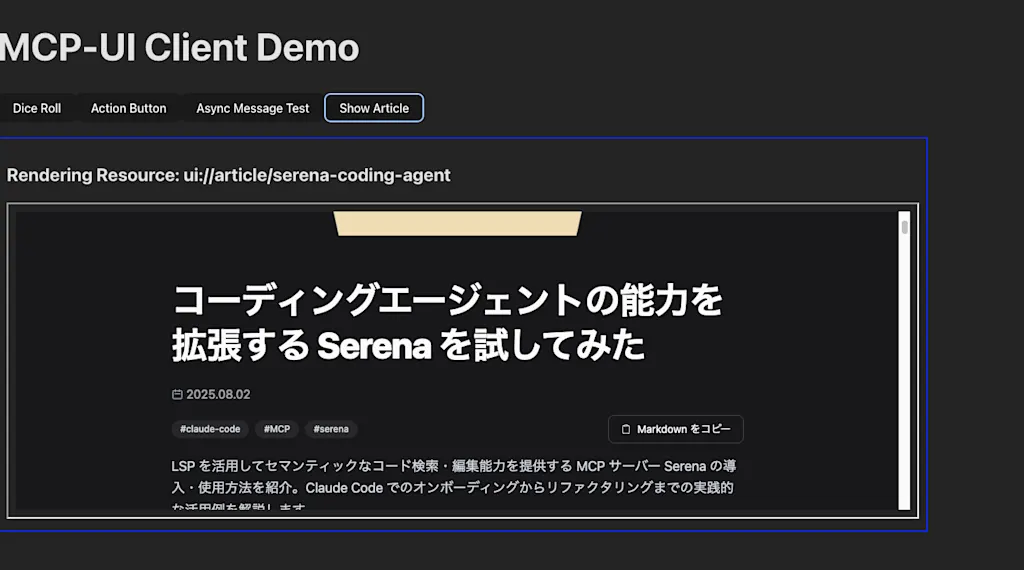
まとめ
- MCP UI は Model Context Protocol (MCP) を拡張して、AI エージェントがインタラクティブな UI コンポーネントを返すことを可能にする
- MCP UI のサーバー側の実装では
@mcp-ui/serverパッケージを使用して MCP の Resource を定義する。作成された Resource は MCP のツールの応答として返される - Resource は
ui://スキーマを使用して識別され、HTML 文字列やリモートの URL を指定できる - Resource の内容は
rawHtml、externalUrl、remoteDomのいずれかのタイプで指定される - MCP UI のクライアント側の実装では
@mcp-ui/clientパッケージを使用して Resource をレンダリングする。UIResourceRendererコンポーネントを使用して、MCP サーバーからの応答をレンダリングする - インタラクティブな UI コンポーネントを作成するために
window.parent.postMessageを使用してクライアントとサーバー間でメッセージをやり取りする postMessageのパラメータにはmessageIdを含めることで、非同期のメッセージングを実現する。クライアントからの応答はwindow.addEventListener('message', (event) => { ... })で受信するexternalUrlタイプを使用することで、iframe 内に外部の URL を表示することも可能
 MCP UI: Breaking the text wall with interactive components (2025) - Shopify
 Agentic commerce has arrived