
The emergence of AI agents has sparked a democratization-of-coding movement. Because AI agents can write code from natural-language instructions alone, people who previously had no access to programming can now bring their ideas to life. I have a background in web development but almost no experience with iOS app development. I wanted to see how far I could get building an iOS app using Codex, an AI coding agent. Rather than simply letting the agent build something without looking inside — what you might call "vibe coding" — I focused primarily on a learning-oriented approach: asking questions like "Why is this code necessary?" and "Could we design this better?" as we went along. This article documents that experiment.
The Codex use-cases page includes an iOS app development example, so I used that as a reference while trying things out.
Creating a SwiftUI Project
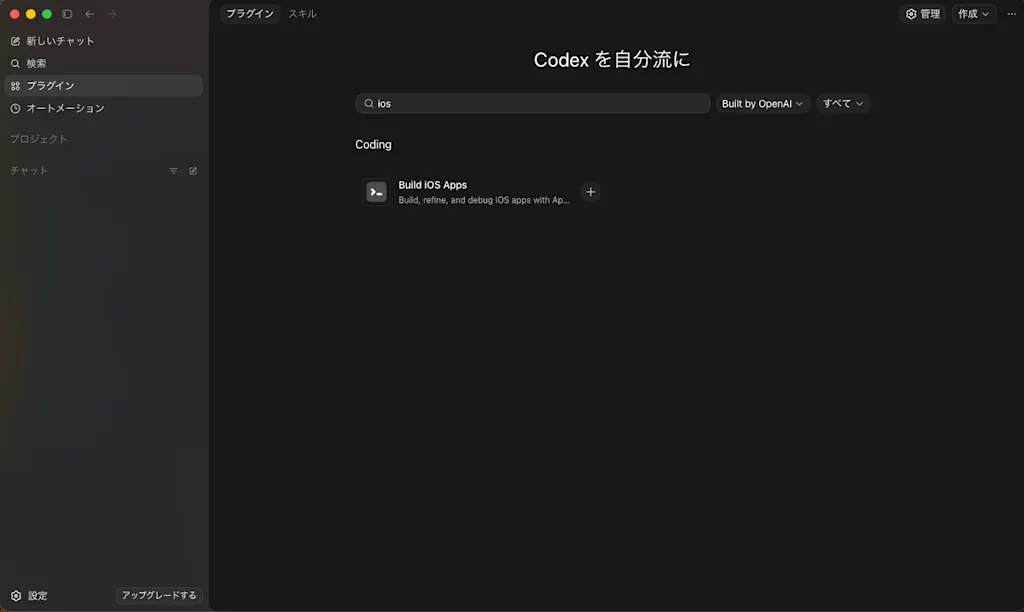
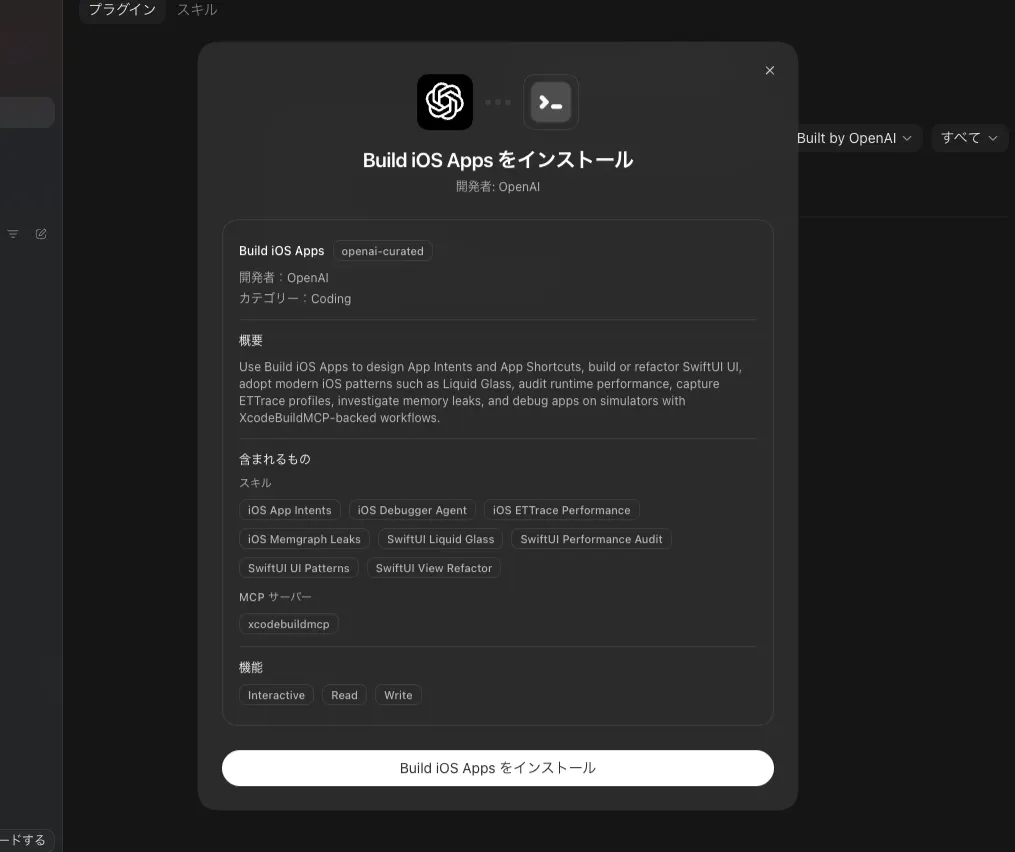
Let's start by creating a SwiftUI project together with Codex. To develop with SwiftUI, install the build-ios-apps plugin beforehand. This plugin provides the following skills:
ios-debugger-agent: A skill for building, launching, performing UI operations, taking screenshots, retrieving logs, and debugging on the iOS Simulator usingXcodeBuildMCPios-ettrace-performance: A skill for analyzing app performance on the iOS Simulator usingettraceios-memgraph-leaks: A skill for analyzing memory leaks on the iOS Simulator usingmemgraphios-app-intents: A skill for exposing app functionality to Siri and Shortcuts using App Intentsswiftui-liquid-glass: A skill for applying the Liquid Glass API to SwiftUI UIsswiftui-performance-audit: A skill for auditing SwiftUI UI performanceswiftui-ui-patterns: Best-practice design patterns for SwiftUI UIsswiftui-view-refactor: A skill for supporting SwiftUI View refactoring
In the Codex app, click "Plugins" in the left sidebar, type "build-ios-apps" in the search bar, select the plugin, and click "+" to install it.
The Codex use-cases page provides a starter prompt, so I used it as a reference:
Scaffold a SwiftUI starter app and add build and launch scripts that can connect to the `Build` action in the local environment.

Constraints:
- Prefer the CLI. Prefer Apple's `xcodebuild`. You may use Tuist if a cleaner setup would help.
- If this repository contains a full Xcode project, use XcodeBuildMCP to list targets, select the appropriate scheme, build, launch, and capture screenshots during iteration.
- Reuse existing models, navigation patterns, and shared utilities if they already exist.
- Unless cross-Apple-platform support is explicitly requested, target iPhone and iPad only.
- For each change, use a small, reliable validation loop and only expand to broader builds once narrower checks pass.
- Tell me whether you treated this as new scaffolding or as a modification to an existing project. Deliverables:
  - App scaffold or requested feature slice
  - Small build and launch scripts with exact commands
  - Minimal relevant validation steps you performed
  - The exact scheme, simulator, and checks you used
When I gave this prompt to Codex, it created the following project structure:
ios-app-example
├── README.md
├── scripts
│   ├── build.sh
│   ├── run.sh
│   └── screenshot.sh
├── StarterApp
│   ├── Assets.xcassets
│   │   ├── AppIcon.appiconset
│   │   │   └── Contents.json
│   │   └── Contents.json
│   ├── ContentView.swift
│   └── StarterApp.swift
└── StarterApp.xcodeproj
    ├── project.pbxproj
    └── xcshareddata
        └── xcschemes
            └── StarterApp.xcscheme

8 directories, 10 files
Project Structure
Because I didn't understand which file played what role in the project, I asked Codex: "Could you briefly explain the project structure?" Using Codex's explanation as a guide, let's walk through the key files one by one.
StarterApp.xcodeproj is the Xcode project file, containing the project configuration and build settings. project.pbxproj holds the project configuration and build settings, and the xcschemes directory contains XML files describing build and launch schemes.
StarterApp.swift is the app's entry point, defining a StarterApp struct annotated with @main.
import SwiftUI

@main
struct StarterApp: App {
    var body: some Scene {
        WindowGroup {
            ContentView()
        }
    }
}
The var body property defines what to display on screen. Its return type is declared as some Scene, meaning it returns some type that conforms to Scene. A Scene represents a unit of display in an app; on iOS, WindowGroup is typically used. WindowGroup is a container for managing multiple windows, and here it is configured to display ContentView.
ContentView is defined in ContentView.swift in the same directory and specifies what to show on screen.
import SwiftUI

struct ContentView: View {
    var body: some View {
        NavigationStack {
            List {
                Section {
                    Label("SwiftUI starter is ready", systemImage: "sparkles")
                    Label("Configured for iPhone and iPad", systemImage: "iphone.gen3")
                    Label("Builds with xcodebuild", systemImage: "hammer")
                }
            }
            .navigationTitle("StarterApp")
        }
    }
}

#Preview {
    ContentView()
}
The ContentView struct also has a var body property. Here it defines a simple screen that displays a few labels using NavigationStack and List. Navigation is not yet implemented, so tapping does nothing. To implement navigation, you would use NavigationLink to define a destination view.
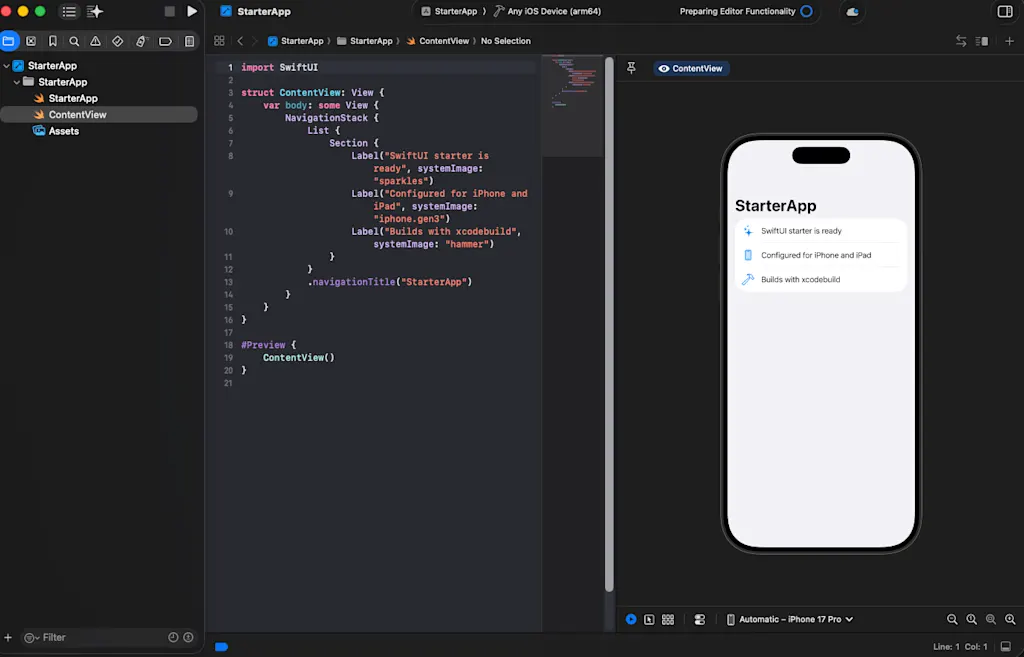
#Preview is the syntax for displaying a preview in Xcode's Canvas, letting you check the appearance of ContentView without building the entire app. The leading # indicates this is a macro — a directive for the compiler to process the code in a special way. #Preview { ContentView() } expands into code that Xcode's preview engine can read. The #Preview macro was introduced in Xcode 15. Before that, you had to use the PreviewProvider protocol as shown below. Please treat this as a conceptual illustration only:
// Pre-Xcode 15 syntax (conceptual illustration)
struct ContentView_Previews: PreviewProvider {
    static var previews: some View {
        ContentView()
    }
}
The StarterApp/Assets.xcassets directory stores assets such as images and icons used by the app. For now it contains only an empty App Icon definition. "idiom" : "universal" means this icon is not device-specific but is shared across all devices. In the early days of iOS development you had to prepare separate icons for iPhone, iPad, Apple Watch, and so on, but in modern iOS a single universal icon works on all devices.
{
  "images" : [
    {
      "idiom" : "universal",
      "platform" : "ios",
      "size" : "1024x1024"
    }
  ],
  "info" : {
    "author" : "xcode",
    "version" : 1
  }
}
scripts/build.sh builds the app, scripts/run.sh launches it, and scripts/screenshot.sh captures a screenshot. These scripts use the xcodebuild command to build and launch the app.
#!/usr/bin/env bash
set -euo pipefail

ROOT_DIR="$(cd "$(dirname "${BASH_SOURCE[0]}")/.." && pwd)"
PROJECT="${PROJECT:-$ROOT_DIR/StarterApp.xcodeproj}"
SCHEME="${SCHEME:-StarterApp}"
CONFIGURATION="${CONFIGURATION:-Debug}"
SIMULATOR="${SIMULATOR:-iPhone 16}"
DERIVED_DATA="${DERIVED_DATA:-$ROOT_DIR/.build/DerivedData}"

xcodebuild \
  -project "$PROJECT" \
  -scheme "$SCHEME" \
  -configuration "$CONFIGURATION" \
  -destination "platform=iOS Simulator,name=$SIMULATOR" \
  -derivedDataPath "$DERIVED_DATA" \
  build
xcodebuild is a command-line tool for building, testing, and archiving Xcode projects. It lets you perform operations that you would normally do inside Xcode from the command line, making it a staple in CI/CD environments.
Installing Xcode and Configuring xcode-select
Because I hadn't installed Xcode on my machine, Codex couldn't use xcodebuild to build or launch anything. When I asked, "How do I install Xcode and point xcode-select at it?", Codex explained how to install Xcode from the App Store or download it from the Apple Developer site. After installing Xcode, run the following commands to point xcode-select at it:
sudo xcode-select -s /Applications/Xcode.app/Contents/Developer
sudo xcodebuild -runFirstLaunch
xcodebuild -version
xcrun simctl list devices available
Launching the Simulator and Checking the Display
Now that xcodebuild is available, let's try launching the simulator. When I asked, "How do I launch the simulator?", Codex told me to run scripts/run.sh.
./scripts/screenshot.shRunning this command produced the output No devices are booted. I suspected the simulator wasn't installed and couldn't be started, so I passed that message to Codex and asked for a solution. The answer was a command to boot the simulator:
xcrun simctl boot "iPhone 16"However, this returned the error Invalid device or device pair: iPhone 16. The simulator name might be wrong, so I asked how to list the available simulators. You can get that list with:
xcrun simctl list devices availableThe result was empty. After more investigation, it turned out the iOS Simulator Runtime wasn't installed at all. Codex suggested installing it from inside Xcode, so I opened the project in Xcode. A prompt to install the iOS Simulator Runtime appeared in the top bar; I clicked it and let it install. After the installation completed, running xcrun simctl list runtimes now showed the available runtimes:
xcrun simctl list runtimes

== Runtimes ==
iOS 26.4 (26.4.1 - 23E254a) - com.apple.CoreSimulator.SimRuntime.iOS-26-4
The simulator list was also populated:
xcrun simctl list devices available

== Devices ==
-- iOS 26.4 --
    iPhone 17 Pro (72C743B5-0CB9-4409-A216-99BDE91FB8D0) (Shutdown)
    iPhone 17 Pro Max (BD4FE420-5126-4E07-B466-8BF999043A75) (Shutdown)
    iPhone 17e (30A67785-9E82-4716-BAEF-9195220F1339) (Shutdown)
    iPhone Air (A69EE615-67A4-405E-8252-F44EFD21395B) (Shutdown)
    iPhone 17 (94AF3B02-0BF4-4208-9D8B-A685BDF826C3) (Shutdown)
    iPad Pro 13-inch (M5) (65AC1C77-C683-4A8D-AE5A-79922CBF60E5) (Shutdown)
    iPad Pro 11-inch (M5) (53B29E6F-F194-4E31-A834-343A49F13DF4) (Shutdown)
    iPad mini (A17 Pro) (5A9DA769-10CE-4B75-B48C-42C8B6FA1E5D) (Shutdown)
    iPad Air 13-inch (M4) (D0AEAC7A-3CA2-4DB5-B895-D3FA81EE52A3) (Shutdown)
    iPad Air 11-inch (M4) (51078F7F-D1F6-4325-A8CD-8CE33D82345C) (Shutdown)
    iPad (A16) (B5BC4B45-01BE-4A2D-A911-317D391360C8) (Shutdown)
The available simulator is iPhone 17, so I need to update the SIMULATOR value in scripts/run.sh and scripts/build.sh:
  #!/usr/bin/env bash
  set -euo pipefail

  ROOT_DIR="$(cd "$(dirname "${BASH_SOURCE[0]}")/.." && pwd)"
  CONFIGURATION="${CONFIGURATION:-Debug}"
- SIMULATOR="${SIMULATOR:-iPhone 16}"
+ SIMULATOR="${SIMULATOR:-iPhone 17}"
  DERIVED_DATA="${DERIVED_DATA:-$ROOT_DIR/.build/DerivedData}"
  BUNDLE_ID="${BUNDLE_ID:-com.example.StarterApp}"
  APP_PATH="$DERIVED_DATA/Build/Products/$CONFIGURATION-iphonesimulator/StarterApp.app"
With that change in place, I ran ./scripts/run.sh again. Once ** BUILD SUCCEEDED ** appeared, I ran ./scripts/screenshot.sh to capture a screenshot. That script uses xcrun simctl io booted screenshot ${OUTPUT_PATH} to capture the simulator's screen.
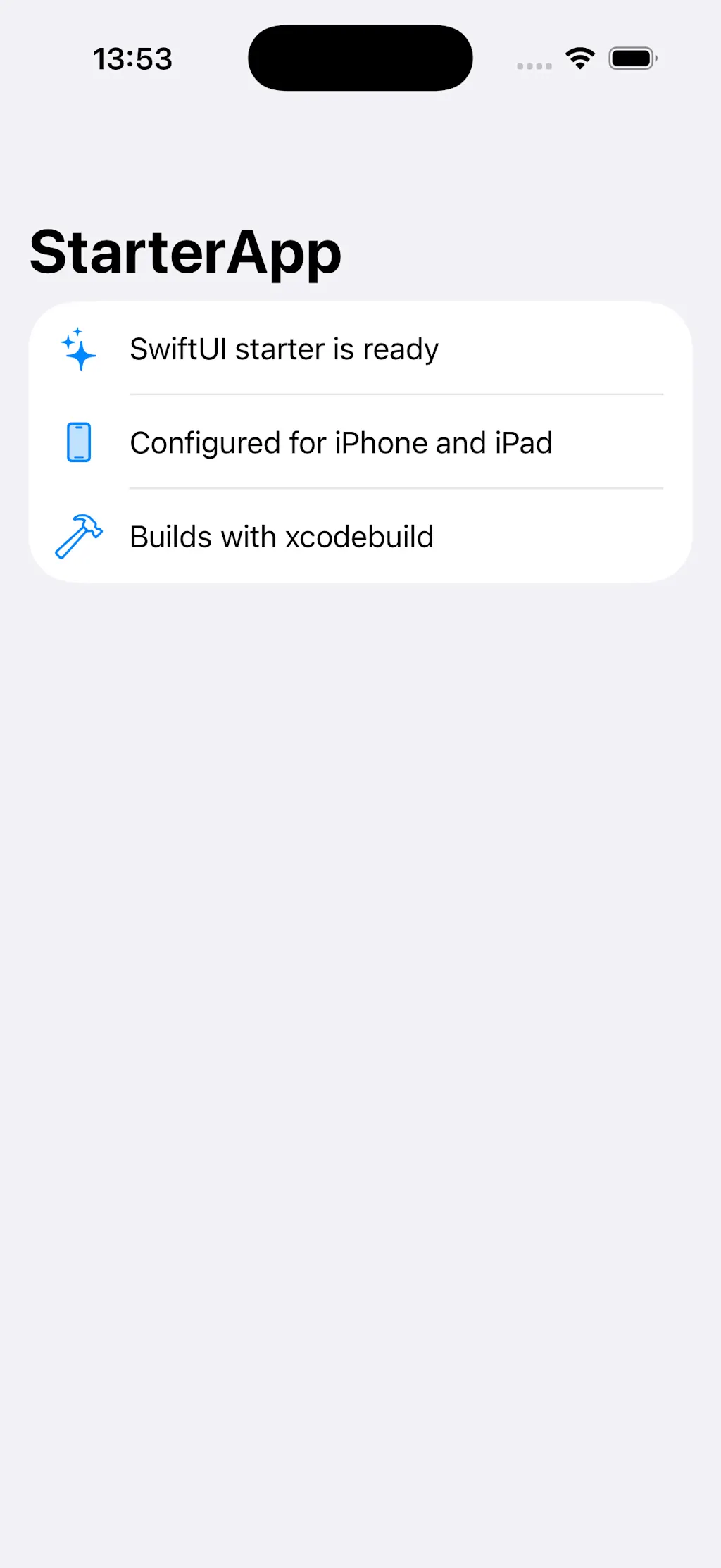
In addition to capturing a screenshot from the simulator, you can also check the preview in Xcode's Canvas.
Building the TODO Application
Now that I understand the project structure and how to build and launch it, let's create a simple TODO application. I started a new session and gave Codex a prompt based on the one featured on the Codex use-cases page. It's designed to let Codex run its own feedback loop using XcodeBuildMCP and CLI tools.
Add TODO list functionality to this SwiftUI app.

## Requirements

- Add a text field and button for adding TODO items.
- Display TODO items in a list. Show completed items at the bottom of the list.
- Tapping a TODO item should toggle its completion state.
- Swiping left on a TODO item should delete it.
- Persist data locally so TODO items are retained after the app is restarted.

## Constraints

- Use XcodeBuildMCP to list the appropriate target or scheme, build and launch the app, and capture screenshots when visual verification is needed.
- Unless cross-iOS/macOS abstraction is explicitly requested, limit the implementation to iPhone and iPad.
- Tell me the exact scheme, simulator, and checks you used. Implement the slice, verify it with the minimal relevant build or run loop, and summarize the changes.
First I had Codex work in plan mode. Referencing the build-ios-apps:swiftui-ui-patterns and build-ios-apps:ios-debugger-agent skills, it split the TODO app implementation into several tasks. It was planning to put everything into ContentView, which even to my untrained eye didn't seem like a great design — but I wanted to try the refactoring skill later, so I let it proceed as planned.
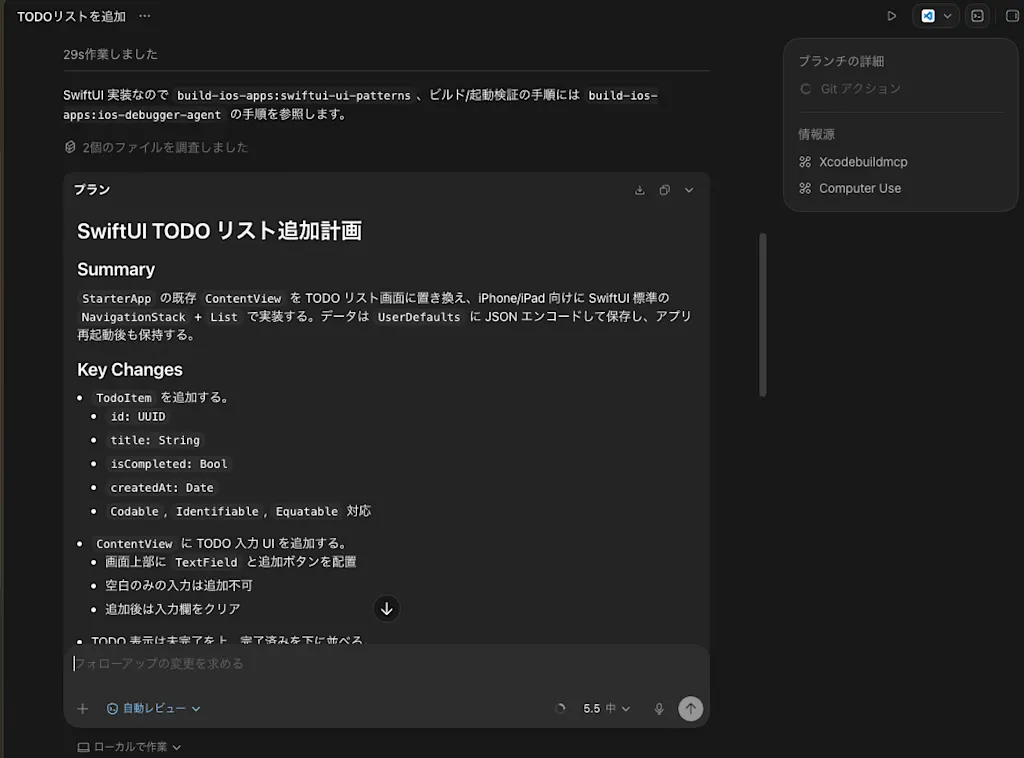
The actual coding finished quickly; most of the time was spent on verification. Verification was primarily done using XcodeBuildMCP. The main tools it used were:
mcp__xcodebuildmcp__.list_schemes: Gets a list of available schemes. A scheme bundles build and launch settings — which target to build, which simulator to run on, and so on.mcp__xcodebuildmcp__.build_run_sim: Builds the app and launches it in the simulator.mcp__xcodebuildmcp__.screenshot: Captures a screenshot.
For UI interactions, Codex used the Computer Use tool, which lets Codex observe the macOS GUI and perform clicks, text input, and screen navigation. Using Computer Use requires granting Accessibility, Screen Recording, and Microphone permissions. You can configure these in System Settings → Privacy & Security.
Let's ask Codex some questions about the code it implemented to deepen our understanding of SwiftUI. When asking questions about the code, it helps to include context like: "I usually work in web development and am most familiar with React, but I have almost no iOS development experience. Please explain any iOS-specific concepts in more detail, and where possible, draw analogies to the equivalent concepts in React."
The TodoItem Struct, and the Difference Between let and var
Let's start with the Codable, Equatable, Identifiable part of struct TodoItem, and the difference between let and var.
struct TodoItem: Codable, Equatable, Identifiable {
    let id: UUID
    var title: String
    var isCompleted: Bool
    let createdAt: Date
}
I usually work in web development and am most familiar with React, but I have almost no iOS development experience. Please explain any iOS-specific concepts in more detail and, where possible, add an analogy to the equivalent concept in React.
What does `Codable, Equatable, Identifiable` in `struct TodoItem` mean? Also, please explain the difference between `let` and `var`.Codex first explained what a struct is, using TypeScript as an analogy. A struct is conceptually similar to a TypeScript type — it defines the structure of data. The difference is that a Swift struct can also have methods and computed properties.
type TodoItem = {
  id: string;
  title: string;
  isCompleted: boolean;
  createdAt: Date;
};
let declares a constant that cannot be reassigned, while var declares a variable that can be. For example, title is declared with var because it holds a value the user can update, whereas id is declared with let because once generated it never changes. The idea of using let for values that won't need to change in the future is a concept shared across languages.
let id = UUID()
var title = "Buy milk"

title = "Buy oat milk" // OK
id = UUID() // NGCodable, Equatable, and Identifiable are collectively called protocols. Writing struct TodoItem: Codable, Equatable, Identifiable means that TodoItem conforms to the Codable, Equatable, and Identifiable protocols. A protocol specifies that a type must have certain methods or properties; conforming to one enables certain functionality. In this code, the protocol implementations aren't written out explicitly — the Swift compiler generates them automatically.
Here is what each protocol means:
Codable: Conforming to this protocol allowsTodoItemto be encoded to formats like JSON and decoded back. Required for saving Todo items locally.Equatable: Conforming to this protocol allows twoTodoIteminstances to be compared with the==operator.Identifiable: Conforming to this protocol signals thatTodoItemcan be uniquely identified. Required for SwiftUI components likeListto identify items — similar in concept to React'skeyprop.
Application State Management and @State
Let's look at how the app manages state. Some properties of the ContentView struct are annotated with @State; these manage the state of the application. @State tells SwiftUI that a property represents view state, allowing SwiftUI to recognize when it needs to re-render the view after the property changes. It plays a role similar to the useState hook in React.
struct ContentView: View {
    @State private var newTodoTitle = ""
    @State private var todos: [TodoItem]

    var body: some View {
        // ...
    }
}
You can see that newTodoTitle is bound to a text field. Prefixing it with $ passes it not as a String value but as a Binding<String>. Binding enables two-way data flow: when the text field's value changes, newTodoTitle is updated as well.
TextField("New TODO", text: $newTodoTitle)We also need to load any previously saved Todo items when the app initializes. A storage property is defined, and the init() method loads the persisted data. While @State properties are normally initialized with a default value at the declaration site (e.g., = []), when you want to initialize with a value loaded dynamically from storage you need to do so inside init(). The _todos = State(initialValue: ...) syntax sets the value directly into the storage of the @State wrapper.
struct ContentView: View {
    private let storage = TodoStorage()

    init() {
        _todos = State(initialValue: storage.load())
    }
    // ...
}
TodoStorage is a class for persisting data locally; it has save and load methods. These methods serialize and deserialize an array of TodoItem values conforming to the Codable protocol using JSONEncoder and JSONDecoder respectively.
UserDefaults is used as the backing store. UserDefaults is iOS's built-in mechanism for easily persisting key-value pairs — conceptually close to localStorage in the browser.
private struct TodoStorage {
    private let key = "savedTodos"
    private let defaults: UserDefaults

    init(defaults: UserDefaults = .standard) {
        self.defaults = defaults
    }

    func load() -> [TodoItem] {
        guard let data = defaults.data(forKey: key) else {
            return []
        }

        do {
            return try JSONDecoder().decode([TodoItem].self, from: data)
        } catch {
            return []
        }
    }

    func save(_ todos: [TodoItem]) {
        do {
            let data = try JSONEncoder().encode(todos)
            defaults.set(data, forKey: key)
        } catch {
            defaults.removeObject(forKey: key)
        }
    }
}
The code uses guard and do-catch. guard is a syntax for early return when a condition is not met. If reading the data from UserDefaults for the given key succeeds, the data is stored in the data constant and execution continues; if it fails, the else block runs and an empty array is returned.
The return type of defaults.data(forKey: key) is an optional: it returns nil when no data exists for the key, so guard is used to check for its presence.
guard let data = defaults.data(forKey: key) else {
    return []
}
do-catch wraps code that may throw an error. JSONDecoder().decode() can fail, making it a throwing function. A throwing function must be called with the try keyword; omitting it causes a compile error.
do {
    return try JSONDecoder().decode([TodoItem].self, from: data)
} catch {
    return []
}
There is also try?. Using try? causes the expression to return nil if an error occurs. It is useful when you don't need to know the specific error, or when an error is not a problem.
return try? JSONDecoder().decode([TodoItem].self, from: data) ?? []There is also try!. Using try! causes the app to crash if an error occurs, so it should only be used when you are absolutely certain no error will be thrown.
return try! JSONDecoder().decode([TodoItem].self, from: data)Screen Layout and SwiftUI Components
The body property of ContentView defines the screen layout. In SwiftUI, you define what to display on screen as View types. Here, NavigationStack and List are used to display a list of TODO items. List is the component for list displays — conceptually similar to ul or ol in React, but optimized for the iOS platform with built-in features like swipe actions and section dividers.
var body: some View {
    NavigationStack {
        List {
            ...
        }
        .navigationTitle("TODOs")
    }
}
Section is the component for defining sections within a list; you can set a header or footer for each section. Here, three sections are defined: one for the input form, one for the pending TODO items, and one for the completed TODO items.
The latter two sections are conditional on if !pendingTodos.isEmpty and if !completedTodos.isEmpty, so they are hidden when there are no items.
NavigationStack {
  List {
      Section {
          ...
      }

      if !pendingTodos.isEmpty {
          Section("TODO") {
            ...
          }
      }

      if !completedTodos.isEmpty {
          Section("Completed") {
            ...
          }
      }
  }
  .navigationTitle("TODOs")
}
Displaying the Input Form
Let's start with the input form. HStack is a component for laying out views horizontally. spacing: 12 means there will be 12 points of space between child views — analogous to display: flex; flex-direction: row; gap: 12px; in CSS. You can see that TextField and Button are arranged side by side.
Section {
    HStack(spacing: 12) {
        TextField("New TODO", text: $newTodoTitle)
            .textInputAutocapitalization(.sentences)
            .submitLabel(.done)
            .onSubmit(addTodo)

        Button(action: addTodo) {
            Image(systemName: "plus.circle.fill")
                .imageScale(.large)
        }
        .buttonStyle(.borderless)
        .disabled(trimmedTitle.isEmpty)
        .accessibilityLabel("Add TODO")
    }
}
Several modifiers are used to change the styling of components. They are similar to React component props, but modifiers are functions that return a view, and they can be chained. For example, calling .buttonStyle(.borderless) on a Button changes its style. .disabled(trimmedTitle.isEmpty) disables the button when trimmedTitle (the title with leading/trailing whitespace stripped) is empty.
.borderless is specified with a leading dot — SwiftUI's shorthand for when the type can be inferred from context, allowing you to omit the type name and write just the member. Written without the shorthand, this would be buttonStyle(BorderlessButtonStyle()).
Image(systemName: "plus.circle.fill") is used inside the Button's closure. This displays an icon from SF Symbols, Apple's system icon set. The icon corresponding to the name given to systemName is displayed. SF Symbols contains thousands of icons and is widely used in iOS development. This particular icon shows a plus sign on a circular background, commonly used as an "add" icon. .imageScale(.large) is a modifier that increases the icon's size. You can browse the available icons at SF Symbols.
Image(systemName: "plus.circle.fill") should technically be passed as the label argument to Button, but SwiftUI's trailing closure syntax lets you write it as a closure body instead of an argument. In SwiftUI, when the last argument is a closure, you can move it outside the argument list. This makes the code more readable. Conceptually, Button has the following interface:
Button(
    action: () -> Void,
    label: () -> some View
)
Written naively, it would look like this:
Button(action: addTodo, label: {
    Image(systemName: "plus.circle.fill")
        .imageScale(.large)
})
Because the last argument label is a closure, you can use trailing closure syntax to move it outside the argument list:
Button(action: addTodo) {
    Image(systemName: "plus.circle.fill")
        .imageScale(.large)
}
When there are multiple closures, only the last one can be moved outside. This pattern is very common in SwiftUI, so it's worth getting comfortable with it.
Section {
    // content
} header: {
    Text("TODO")
} footer: {
    Text("Footer")
}
The action argument specifies the closure to execute when the button is tapped; here it is the addTodo function. addTodo creates a new TODO item from the title entered in the text field and appends it to the list.
private func addTodo() {
    let title = trimmedTitle

    guard !title.isEmpty else {
        return
    }

    todos.append(
        TodoItem(
            id: UUID(),
            title: title,
            isCompleted: false,
            createdAt: Date()
        )
    )
    newTodoTitle = ""
    saveTodos()
}
trimmedTitle is a computed property that returns the title with leading and trailing whitespace removed. A computed property has no backing storage — it calculates and returns a value.
Here, trimmingCharacters(in: .whitespaces) is used to calculate and return a new string with whitespace stripped from both ends.
private var trimmedTitle: String {
    newTodoTitle.trimmingCharacters(in: .whitespacesAndNewlines)
}
Displaying the TODO Item List
The TODO item list is displayed using the List component. ForEach generates a view for each element of a collection — conceptually similar to map in React. The collection passed to ForEach must be identifiable, meaning each element must be uniquely identifiable, which requires conformance to the Identifiable protocol.
A computed property pendingTodos is defined to filter and sort the TODO items to return only those that are not yet completed.
if !pendingTodos.isEmpty {
    Section("TODO") {
        ForEach(pendingTodos) { todo in
            TodoRow(todo: todo)
                .contentShape(Rectangle())
                .onTapGesture {
                    toggleTodo(todo)
                }
                .swipeActions {
                    deleteButton(for: todo)
                }
        }
    }
}

private var pendingTodos: [TodoItem] {
    todos
        .filter { !$0.isCompleted }
        .sorted { $0.createdAt < $1.createdAt }
}
Inside the .filter and .sorted closures, $0 and $1 are used. These are implicit shorthand arguments that Swift provides automatically when argument names are omitted. Written explicitly, it would look like this:
private var pendingTodos: [TodoItem] {
    todos
        .filter { todo in
            return !todo.isCompleted
        }
        .sorted { todo1, todo2 in
            return todo1.createdAt < todo2.createdAt
        }
}
Each TODO item is displayed using a custom view called TodoRow. contentShape(Rectangle()) is a modifier that extends the tap gesture's active area to the entire view. Without it, only the text portion of the row is tappable. By using contentShape(Rectangle()), the full rectangular area of the TODO item row becomes tappable.
onTapGesture specifies a closure to run when a tap gesture occurs. Here, the toggleTodo function is specified, which toggles the completion state of a TODO item.
private func toggleTodo(_ todo: TodoItem) {
    guard let index = todos.firstIndex(where: { $0.id == todo.id }) else {
        return
    }

    todos[index].isCompleted.toggle()
    saveTodos()
}
swipeActions defines actions for swipe gestures on list items. Here, a delete action appears on a left swipe. deleteButton(for: todo) is a function that generates the delete button, using the Button component to define the delete action.
@ViewBuilder is an attribute that allows a function to return multiple views, needed when building views using SwiftUI's builder pattern. Without @ViewBuilder, returning different types in different branches of a regular Swift function can be difficult. Although the deleteButton function always returns the same view type and doesn't strictly need @ViewBuilder, it is common practice to use @ViewBuilder when defining View helper functions.
@ViewBuilder
private func deleteButton(for todo: TodoItem) -> some View {
    Button(role: .destructive) {
        deleteTodo(todo)
    } label: {
        Label("Delete", systemImage: "trash")
    }
}
role: .destructive on a Button signals that this button performs a destructive action. iOS then applies a style that visually communicates to the user that the action — such as deleting data — is irreversible. For example, the delete button will be displayed in red. Correctly setting a Button's role is also important for accessibility: assistive technologies like screen readers can provide users with appropriate information.
Refactoring the Application
At this point, all the code lives in ContentView, leaving the structure less than ideal. Let's ask Codex to refactor it. I started a new session and gave it the following prompt, based on the Refactor SwiftUI screens use case. The goal is to split the code into multiple files and improve the overall structure.
Use the Build iOS Apps plugin and its SwiftUI view refactoring skill to refactor the code in ContentView.swift without changing the screen's behavior or appearance.

Constraints:
- Preserve behavior, layout, navigation, and business logic unless you find a bug that needs to be reported separately.
- Default to MV, not MVVM. Prefer @State, @Environment, @Query, .task, .task(id:), and onChange before introducing a new view model; retain a view model only if it is clearly necessary for this feature.
- Reorder views so that stored properties, computed state, init, body, view helpers, and helper methods are easy to scan from top to bottom.
- Extract meaningful sections into dedicated View types with small explicit inputs, @Binding, and callbacks. Do not replace one massive body with large computed some View properties.
- Move complex button logic and side effects out of body into small methods; move actual business logic to services or models.
- Stabilize the root view tree. Avoid top-level if/else branches that swap entirely different screens when a localized conditional section or modifier would suffice.
- Fix Observation ownership during refactoring. On iOS 17+, use @State for root @Observable models; avoid optional or lazily initialized view models unless the view truly requires that state shape.
- After each extraction, run the minimum useful build or test check to prove the screen behaves the same as before.

Deliver:
- Refactored screen and extracted subviews
- A brief description of the new subview boundaries and data flow
- Where you intentionally retained a view model and why
- The verification checks you ran to prove behavior was preserved
Codex proposed splitting the code into three directories: Views/, Models/, and Services/. After refactoring, the structure looks like this. Views/ContentView.swift becomes a simple structure that only holds the screen's state and actions.
StarterApp/
  StarterApp.swift

  Views/
    ContentView.swift
    TodoEntrySection.swift
    TodoListSection.swift
    TodoRow.swift

  Models/
    TodoItem.swift

  Services/
    TodoStorage.swift

  Assets.xcassets/
This is one approach — organizing by responsibility — but you could also organize by feature. This mirrors a debate that comes up frequently in React codebases too. A feature-based structure would look like this:
StarterApp/
  App/
    StarterApp.swift

  Features/
    Todos/
      Views/
        ContentView.swift
        TodoEntrySection.swift
        TodoListSection.swift
        TodoRow.swift
      Models/
        TodoItem.swift
      Services/
        TodoStorage.swift

  Shared/
    Components/
    Services/
    Extensions/

  Resources/
    Assets.xcassets
After the refactoring was applied, we ran a build and verified the behavior in the simulator, confirming that everything worked the same as before.
Summary
- Implemented an iOS application with a TODO list feature using SwiftUI.
- Used the
build-ios-appsplugin's skills to have Codex drive its own feedback loop — building the app and verifying behavior in the simulator. For UI interactions, theComputer Usetool allowed Codex to observe the macOS GUI and perform clicks, text input, and screen navigation. - Used prompts from OpenAI's use-case examples to scaffold the project and refactor the code.
- Deepened understanding of the code by asking questions about each part, receiving explanations of SwiftUI's structure and Swift language features. Providing context — that I'm familiar with React but have almost no iOS experience — prompted Codex to draw analogies to the equivalent React concepts.
References
Native development – Codex | OpenAI Developers
getsentry/XcodeBuildMCP: A Model Context Protocol (MCP) server and CLI that provides tools for agent use when working on iOS and macOS projects.