
HTML in Canvas API is an experimental API proposed at WICG that enables rendering HTML directly inside a canvas. Today's <canvas> element has no standard way to render rich text or HTML content, which creates a real limitation. The fillText() method provides basic text rendering, but layout and styling control are limited, so developers have had to rely on third-party libraries or custom implementations to build more complex text rendering. As a result, accessibility issues and performance drawbacks can arise.
For reference, a simple example of drawing text with fillText() looks like this:
const canvas = document.getElementById("canvas");
const ctx = canvas.getContext("2d");
ctx.font = "16px sans-serif";
ctx.fillStyle = "#333";
// The second argument specifies the x coordinate, and the third specifies the y coordinate
// To render practical text, you need to measure text width and implement line wrapping yourself
ctx.fillText("こんにちは", 10, 30);
When you use fillText() to draw text like this, line breaks are not handled automatically, so you cannot apply inline styling such as bolding part of the text, and you need to implement text wrapping and layout control yourself. It also raises accessibility concerns. Because the text is not included in the accessibility tree, assistive technologies such as screen readers cannot recognize it. In addition, users cannot select or copy the text, which can hurt the user experience.
With HTML in Canvas API, the browser's layout engine can lay out and render HTML, then transfer it into the canvas like an image, addressing these problems. Example use cases include chart labels and legends, in-game UI text, and interactive content.
This article explains how to use the HTML in Canvas API.
HTML in Canvas API is an experimental API still at the WICG proposal stage. At the moment, you can use it by enabling the chrome://flags/#canvas-draw-element flag in Chrome Canary.
How to Use the HTML in Canvas API
HTML in Canvas API consists of the following three pieces:
- The
layoutsubtreeattribute - The
drawElementImage()method - The
paintevent
By adding the layoutsubtree attribute to a canvas element, you can define the HTML you want to render inside the canvas. At this stage, nothing is drawn into the canvas yet.
<canvas id="canvas" width="400" height="300" layoutsubtree>
  <div id="content">
    <h2>こんにちは</h2>
    <p>Canvas 内の HTML です</p>

    <input type="text" placeholder="入力もできます" />
  </div>
</canvas>
Next, you can call the drawElementImage() method to draw the canvas element's children. Its usage is similar to drawImage(). You can use the returned DOMMatrix object to get the position and size of the rendered HTML. You can also apply that return value as a transform so that the DOM position matches the rendered position. This is important for solving hit testing and accessibility issues.
const canvas = document.getElementById("canvas");
const content = document.getElementById("content");
const ctx = canvas.getContext("2d");

// Draw the content element at coordinates (100, 0)
const transform = ctx.drawElementImage(content, 100, 0);
// Apply the transform so the DOM position matches the rendered position
content.style.transform = transform.toString();
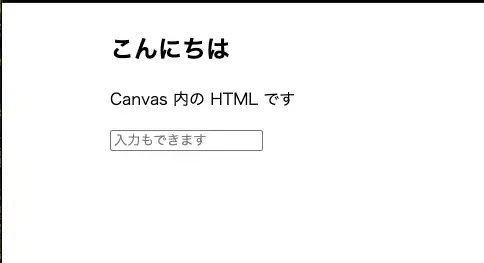
If you run the code above, you can confirm that the HTML is rendered as shown below. Interactions such as typing into the <input> element also work.
When the rendering of a canvas child element changes, the paint event fires. By subscribing to this event, you can redraw the HTML in the canvas when it changes. For example, suppose you have code like the following that changes text inside the canvas when a button is clicked.
<canvas id="canvas" width="400" height="300" layoutsubtree>
  <div id="content">
    <h2>こんにちは</h2>
    <p>Canvas 内の HTML です</p>
  </div>
</canvas>

<button id="button">テキストを変更</button>

<script>
  const content = document.getElementById("content");
  const button = document.getElementById("button");
  button.addEventListener("click", () => {
    content.querySelector("h2").textContent = "こんにちは、世界!";
  });
</script>
As written, the change will not be reflected even if the text inside the canvas changes, because canvas does not automatically stay in sync with DOM re-rendering. Subscribe to the paint event so the canvas redraws when the HTML inside it changes. The changed elements are passed in event.changedElements, which you can then pass to drawElementImage().
const canvas = document.getElementById("canvas");
const ctx = canvas.getContext("2d");

canvas.addEventListener("paint", (event) => {
  ctx.reset();

  ctx.drawElementImage(event.changedElements[0], 100, 0);
});For use cases such as games that need to redraw every frame, you can use requestPaint() to trigger a paint event on the next frame. This makes it possible to redraw the HTML inside the canvas every frame when needed.
let t = 0;
function gameLoop() {
  t += 0.01;
  canvas.requestPaint();
  requestAnimationFrame(gameLoop);
}
Combining It with WebGL
If you are using a WebGL context, you can also render HTML in 3D space. In that case, you use the texElementImage2D() method instead of drawElementImage(). Its usage is similar to texImage2D(). Unlike drawElementImage(), texElementImage2D() does not return a value for obtaining the position and size of the rendered HTML. Because of that, if you want the rendered HTML position to match the DOM position, you need to separately obtain a transform with canvas.getElementTransform().
const canvas = document.getElementById("c");
const el = document.getElementById("el");
const gl = canvas.getContext("webgl");

canvas.onpaint = () => {
  gl.texElementImage2D(
    gl.TEXTURE_2D,
    0,
    gl.RGBA,
    gl.RGBA,
    gl.UNSIGNED_BYTE,
    el,
  );

  // Reproduce the same rotation as the shader with DOMMatrix
  const drawTransform = new DOMMatrix([
    // ...
  ]);

  const cssTransform = canvas.getElementTransform(el, drawTransform);
  el.style.transform = cssTransform.toString();
};
Main Use Cases
Here are a few examples that use HTML in Canvas. The examples shown here were created for me by Codex.
The first sample applies a fog-like effect over an entire block of HTML content. When you hover with the mouse, it redraws the HTML only inside the circle so that the content appears through the fog. Because the content itself is still normal HTML, users can still select text and click links. Doing this with ordinary HTML/CSS alone makes partial redraw-style effects across the whole content difficult, while Canvas alone cannot preserve text selection or link interaction. HTML in Canvas makes it possible to combine visual effects with normal HTML interaction.
The second sample applies a wave-like effect when switching between light mode and dark mode. The UI itself remains normal HTML, while only the animation effect is delegated to canvas, which makes more complex animation effects possible. Theme switching can be implemented with ordinary CSS animation too, but effects that distort the whole screen are much harder to achieve. On the other hand, if you render the whole UI with Canvas alone, you need to implement things like forms and focus management yourself. HTML in Canvas lets you keep the UI as HTML while adding flexible transition effects.
The final sample is a game implemented on canvas. The game logic itself stays inside the canvas, while the name input form is implemented in HTML so you can take advantage of both the game UI and HTML. If you implement the input form with Canvas alone, you have to build things like Japanese text input, focus control, and accessibility support yourself. With HTML in Canvas, you can leave game rendering to Canvas while using standard HTML features for the input UI as-is.
Summary
- HTML in Canvas API makes it possible to render HTML directly inside a canvas
- This removes the need to rely on third-party libraries or custom implementations just to place text inside a canvas, which can improve accessibility and performance
- HTML in Canvas API consists of three pieces: the
layoutsubtreeattribute, thedrawElementImage()method, and thepaintevent - When using a WebGL context, you can render HTML in 3D space with the
texElementImage2D()method - HTML in Canvas API can be used to apply effects to an entire block of HTML content
- It can also be used for wave-like transitions between light and dark mode, or to implement HTML-based UI inside a canvas game