
Document Picture in Picture で任意の要素を Picture in Picture する
Document Picture-in-Picture は、`<video>` 要素に限らず任意の要素を PiP できるようにする提案です。これにより、動画以外の要素を PiP できるようになります。主なユースケースとして、カスタムのメディア・コントロールを使用したり、プレイリストとともに動画を PiP することが挙げられます。
Picture-in-Picture(PiP)とは、動画を別ウィンドウで表示する機能です。PiP により別ウィンドウに表示される動画は常に最前面に表示されるため、例えば動画を見ながら他の作業をするのに便利です。PiP は現在 <video> 要素のみに有効です。そのためメディア・コントロール(再生・停止)や字幕を使用する場合には <video> 要素により提供されているものを使用しなければいけないという制約があります。
Document Picture-in-Picture は、<video> 要素に限らず任意の要素を PiP できるようにする提案です。これにより、動画以外の要素を PiP できるようになります。主なユースケースとして、カスタムのメディア・コントロールを使用したり、プレイリストとともに動画を PiP することが挙げられます。
他にも Google Meet の Picture-in-Picture ではビデオだけでなく Picture-in-Picture のウィンドウで挙手やミーティングチャットが利用できるようになっています。
Googleが「Google Meet」のピクチャーインピクチャー機能を強化
使い方
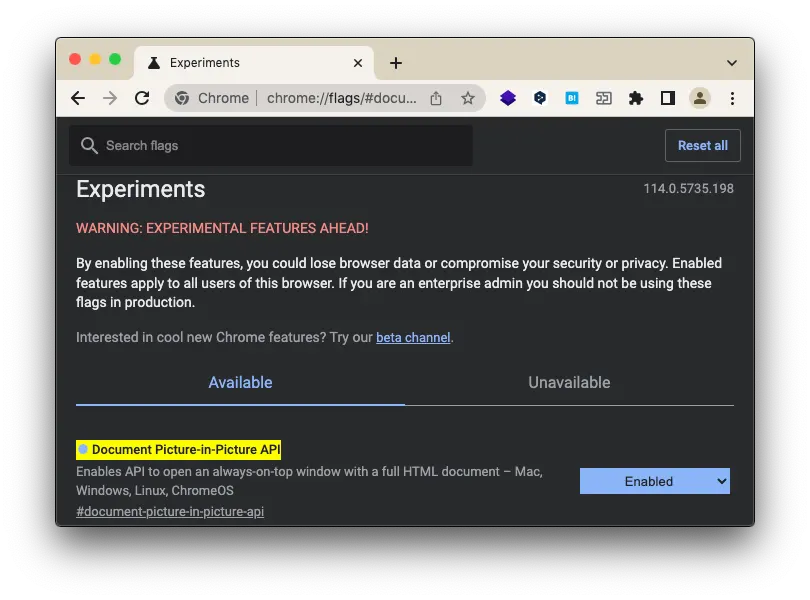
まずは最も簡単な使い方を見てみましょう。2023 年 7 月 16 日現在、Document Picture-in-Picture は Google Chrome の origin trial で提供されています。ローカル環境で実験したい場合には、chrome://flags/#document-picture-in-picture-api を有効にすることで Document Picture-in-Picture を使用できます。
以下のようなコードで任意の要素を PiP できます。
<button id="pip-button">
  PiP
</button>

<div id="content">
  この要素が PiP されます。
</div>

<script>
  const pipButton = document.getElementById('pip-button')
  pipButton.addEventListener('click', async () => {
    const content = document.getElementById('content')

    // Picture-in-Picture Window を開く
    const pipWindow = await documentPictureInPicture.requestWindow();

    // 任意の要素を Picture-in-Picture Window に追加する
    pipWindow.document.body.append(content);
  });
</script>
documentPictureInPicture.requestWindow() を呼び出すことで Picture-in-Picture のウインドウを開きます。documentPictureInPicture.requestWindow() はボタンクリックなどユーザーの操作以外の方法で呼び出された場合は reject されます。
Picture-in-Picture のウインドウを開いただけではまだ何も表示されていません。pipWindow.document.body.append(content) で任意の要素追加することで、Picture-in-Picture のウインドウに任意の要素を表示できます。
documentPictureInPicture.requestWindow()
documentPictureInPicture.requestWindow() には以下のオプションを指定できます。
width:Picture-in-Picture のウインドウの幅の初期値height:Picture-in-Picture のウインドウの高さの初期値
古いバージョンの仕様では copyStyleSheets というオプションがありましたが、現在は削除されています。Remove copyStyleSheets
### `documentPictureInPicture.onenter`

`documentPictureInPicture.onenter` は Picture-in-Picture の ウインドウ が開かれたときに呼び出されるコールバック関数です。

```js
documentPictureInPicture.onenter = () => {
  console.log('Picture-in-Picture の ウインドウ が開かれました。')
}
Picture-in-Picture が閉じられたときに要素をもとに戻す
Picture-in-Picture のウィンドウが閉じられたとき、Picture-in-Picture のウィンドウに append された要素が自動的にもとの場所に戻りません。そのため、Picture-in-Picture のウィンドウが閉じられたイベントを購読して、append した要素をもとの場所に戻す必要があります。
"pagehide" イベントを購読することで、Picture-in-Picture のウィンドウが閉じられたときにコールバック関数を呼び出すことができます。
<button id="pip-button">
  PiP
</button>

<div id="container">
  <div id="content">
    この要素が PiP されます。
  </div>
</div>

<script>
  const pipButton = document.getElementById('pip-button')
  pipButton.addEventListener('click', async () => {
    const content = document.getElementById('content')

    const pipWindow = await documentPictureInPicture.requestWindow();
    pipWindow.document.body.append(content);

    // Picture-in-Picture のウィンドウが閉じられたときに呼び出されるコールバック関数
    pipWindow.addEventListener("pagehide", (event) => {
      console.log("PiP window closed.")
      const container = document.getElementById("container");
      // Picture-in-Picture のウィンドウ内の要素を取得する
      const pipContent = event.target.getElementById("content");
      // Picture-in-Picture のウィンドウ内の要素をもとの場所に戻す
      container.append(pipContent);
    });
  });
</script>
使用例(カスタムの再生ボタン)
<button id="pip-button">
  PiP
</button>

<div id="container">
  <video
    id="player"
    controls
    src="https://archive.org/download/BigBuckBunny_124/Content/big_buck_bunny_720p_surround.mp4"
    width="640"
    height="360"
  >
  </div>
</div>

<script>
  const pipButton = document.getElementById('pip-button')
  // ユーザーがボタンクリックしたときに Picture-in-Picture のウィンドウ を開く
  pipButton.addEventListener('click', async () => {
    // Picture-in-Picture させたい要素を取得
    const player = document.getElementById('player')
    // Picture-in-Picture ではメディア・コントロールを使用しないため、コントロールを非表示にする
    player.controls = false;

    // Picture-in-Picture Window を開く
    // ウィンドウを開くときに width と heigth のサイズを合わせる
    const pipWindow = await documentPictureInPicture.requestWindow({
      width: player.width,
      height: player.height,
    });
    // Picture-in-Picture のウィンドウ に要素を追加する
    pipWindow.document.body.append(player);

    // Picture-in-Picture のウィンドウ 内の video 要素を取得する
    const video = pipWindow.document.querySelector("video");
    // 再生ボタンを作成する
    const playButton = pipWindow.document.createElement("button");
    playButton.textContent = "Play";

    // 再生ボタンをクリックしたときに再生・停止を切り替える
    playButton.addEventListener("click", () => {
      if (video.paused) {
        video.play();
        playButton.textContent = "Pause";
      } else {
        video.pause();
        playButton.textContent = "Play";
      }
    });
    // 再生ボタンを Picture-in-Picture のウィンドウ に追加する
    pipWindow.document.body.append(playButton);

    // Picture-in-Picture のウィンドウ内ののスタイルを設定する
    const style = pipWindow.document.createElement("style");
    style.textContent = `
      body {
        margin: 0;
        padding: 0;
      }
      video {
        width: 100%;
        height: 100%;
      }
      button {
        position: absolute;
        top: 50%;
        left: 50%;
        transform: translate(-50%, -50%);
      }
    `;
    pipWindow.document.head.append(style);

    // Picture-in-Picture のウィンドウが閉じられたときに呼び出されるコールバック関数
    pipWindow.addEventListener("pagehide", (event) => {
      const container = document.getElementById("container");
      const player = event.target.getElementById("player");
      // 元のウィンドではコントロールを表示する
      player.controls = true;
      container.append(player);
    });
  });
</script>