# ワークフローを再利用可能なスキルに変換する Record & Replay を試してみた
Codex の Record & Replay は macOS 上でのユーザーの操作を実演することで再利用可能なスキルに変換する機能です。Record & Replay が効果的な場面は、ワークフローが定型的なものでユーザーが頻繁に繰り返す場合や、プロンプトで説明するよりも実際の操作を見せる方が理解しやすい場合です。例えば経費精算の提出や勤怠アプリへの打刻や工数入力、定期的なレポートの作成などが挙げられます。このような操作をスキルとして記録し、[Computer Use](https://developers.openai.com/codex/app/computer-use) と組み合わせて利用することで、煩雑な定型業務を AI に任せることが期待できます。Record & Replay 機能は手順が安定していて、成功基準が明確なワークフローに特に適しています。
この記事では、Record & Replay を実際に試してみた様子を紹介します。今回は、ローカルで動かしている架空の勤怠アプリ「TimePort」を使用して、打刻や工数入力のワークフローを記録し、スキルとして再利用する例を示します。
## Record & Replay をはじめる
Record & Replay を使用する前提条件として、Codex App(デスクトップアプリ)が必要です。また現時点では macOS 上でのみ利用可能です。以下のリンクから Codex App をインストールしてください。
https://developers.openai.com/codex/app
Codex App をインストールしたら、サイドバーから「プラグイン」を選択します。プラグインの一覧の検索ボックスに「Record」と入力すると、Record & Replay プラグインが表示されます。「プラグインを追加」をクリックして Record & Replay プラグインを追加します。
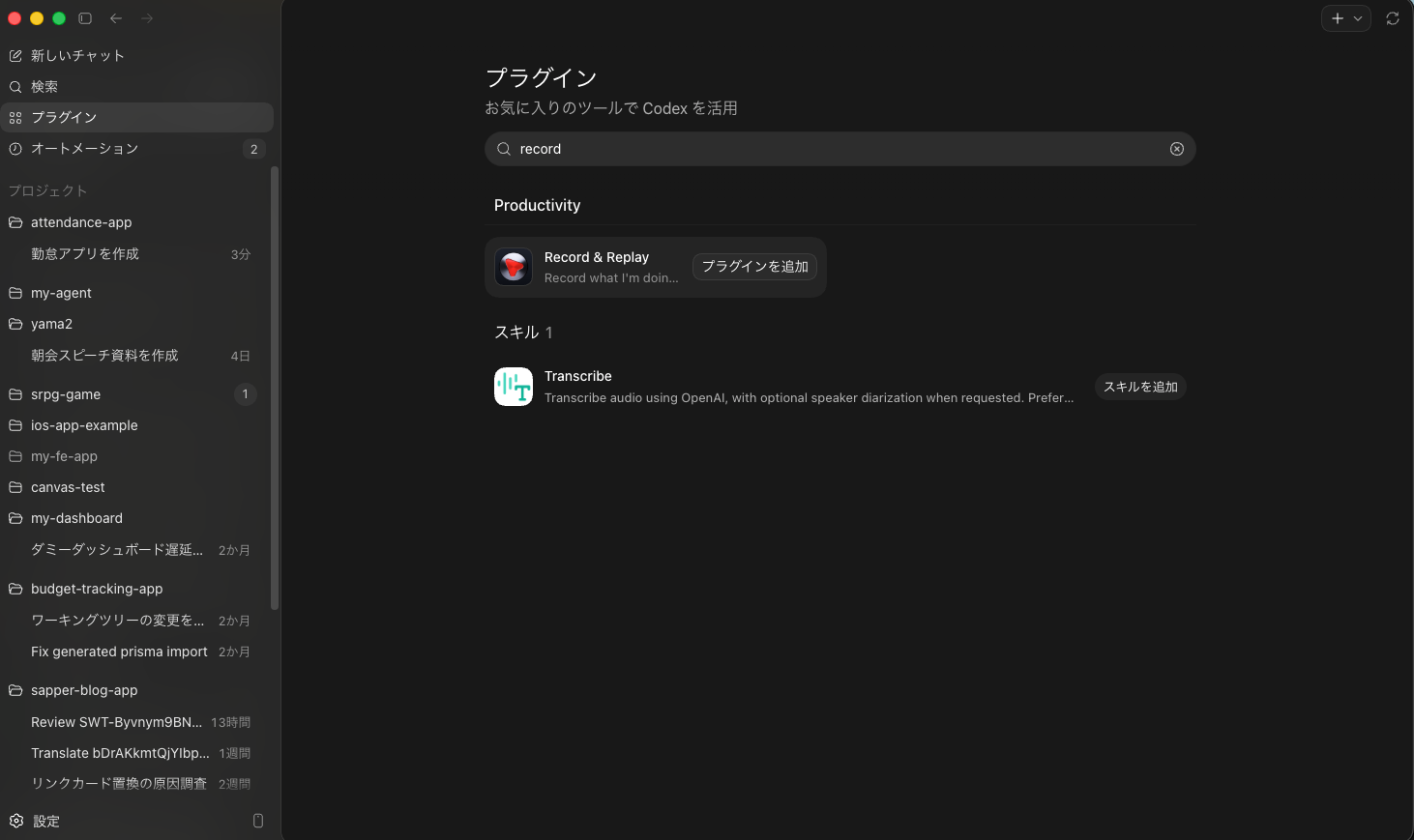
プラグインは以下の 2 つの要素から構成されています。
- `event-stream` MCP サーバー
- `record-and-replay` スキル
`event-stream` MCP サーバーはユーザーが行った操作を記録して JSON ファイルとして保存するツールを提供します。`record-and-replay` スキルは実際に `event-stream` MCP サーバーを呼び出してユーザーの操作を記録し、記録された内容をもとにスキルを作成するための手順を提供するという構成になっています。
`event-stream` MCP サーバーは、macOS のアクセシビリティ API と入力イベントの監視を組み合わせてユーザーの操作を記録します。この記録の開始・状態確認・終了という一連のライフサイクルを、以下の主要な 3 つのツールとして公開しています。操作の記録は Computer Use の仕組みの上に成り立っており、記録には Computer Use と同様にアクセシビリティと画面収録の権限が必要になります。
- `event_stream_start`: ユーザーの操作の記録を開始する。ユーザーの操作を記録する前に確認が求められる。記録が開始されたら、ユーザーが記録を終了したと知らせるまで待機する。最長 30 分まで記録できる
- `event_stream_status`: 記録の状態や生成されたメタデータ・イベントファイルのパスを確認する
- `event_stream_stop`: ユーザーの操作の記録を終了し、保存先などの結果を返す
記録される操作は以下のようなものがあります。
- 使用したアプリやウィンドウの情報
- マウス・キーボード操作と対象要素
- フォーカスされた UI 要素
- 選択されたテキスト
- アクセシビリティツリーとその変化
操作記録そのものは MCP のレスポンスとして直接返されるわけではなく、以下のファイルとして保存されます。ユーザーの操作が終了した時に `event_stream_stop` を呼び出すと、保存先のパスが返されるため、Codex はそのファイルを読み取って内容を確認します。
- `session.json`: 記録時間や終了理由など
- `events.jsonl`: 実際の操作イベント
実際に勤怠アプリの操作を記録した `events.jsonl` の内容は以下のようになっています。
```json
{"timestamp":"2026-06-21T02:04:08Z","kind":"mouse.click","app":{"name":"Google Chrome"},"window":{"title":"TimePort | 勤怠管理","url":"http://localhost:5173/"},"mouse":{"button":"left","target":{"role":"AXButton","title":"月次工数"}}}
{"timestamp":"2026-06-21T02:04:14Z","kind":"mouse.click","app":{"name":"Google Chrome"},"window":{"title":"TimePort | 勤怠管理","url":"http://localhost:5173/"},"mouse":{"button":"left","target":{"description":"6/15(月)の工数を入力","role":"AXCheckBox","subrole":"AXToggleButton"}}}
{"timestamp":"2026-06-21T02:04:15Z","kind":"selection.changed","app":{"name":"Google Chrome"},"window":{"title":"TimePort | 勤怠管理","url":"http://localhost:5173/"},"selection":{"selectedItems":[{"role":"AXMenuItem","title":"社内業務"}],"target":{"role":"AXMenu"}}}
{"timestamp":"2026-06-21T02:04:16Z","kind":"selection.changed","app":{"name":"Google Chrome"},"window":{"title":"TimePort | 勤怠管理","url":"http://localhost:5173/"},"selection":{"selectedItems":[{"role":"AXMenuItem","title":"Web刷新"}],"target":{"role":"AXMenu"}}}
{"timestamp":"2026-06-21T02:04:20Z","kind":"keyboard.text_input","app":{"name":"Google Chrome"},"window":{"title":"TimePort | 勤怠管理","url":"http://localhost:5173/"},"keyboard":{"target":{"role":"AXTextArea","title":"作業内容","value":"画面実装"}}}
{"timestamp":"2026-06-21T02:04:24Z","kind":"keyboard.text_input","app":{"name":"Google Chrome"},"window":{"title":"TimePort | 勤怠管理","url":"http://localhost:5173/"},"keyboard":{"target":{"role":"AXIncrementor","title":"時間(0.25時間単位)","value":"5"}}}
{"timestamp":"2026-06-21T02:04:24Z","kind":"mouse.click","app":{"name":"Google Chrome"},"window":{"title":"TimePort | 勤怠管理","url":"http://localhost:5173/"},"mouse":{"button":"left","target":{"role":"AXButton","title":"保存する"}}}
{"timestamp":"2026-06-21T02:04:27Z","kind":"selection.changed","app":{"name":"Google Chrome"},"window":{"title":"TimePort | 勤怠管理","url":"http://localhost:5173/"},"selection":{"selectedItems":[{"role":"AXMenuItem","title":"顧客サポート"}],"target":{"role":"AXMenu"}}}
{"timestamp":"2026-06-21T02:04:32Z","kind":"keyboard.text_input","app":{"name":"Google Chrome"},"window":{"title":"TimePort | 勤怠管理","url":"http://localhost:5173/"},"keyboard":{"target":{"role":"AXTextArea","title":"作業内容","value":"問い合わせ調査"}}}
{"timestamp":"2026-06-21T02:04:38Z","kind":"keyboard.text_input","app":{"name":"Google Chrome"},"window":{"title":"TimePort | 勤怠管理","url":"http://localhost:5173/"},"keyboard":{"target":{"role":"AXIncrementor","title":"時間(0.25時間単位)","value":"3"}}}
{"timestamp":"2026-06-21T02:04:38Z","kind":"mouse.click","app":{"name":"Google Chrome"},"window":{"title":"TimePort | 勤怠管理","url":"http://localhost:5173/"},"mouse":{"button":"left","target":{"role":"AXButton","title":"保存する"}}}
```
例として工数の日付を選択したイベントを見てみましょう。
```json
{
"timestamp": "2026-06-21T02:04:14Z",
"kind": "mouse.click",
"app": {
"name": "Google Chrome"
},
"window": {
"title": "TimePort | 勤怠管理",
"url": "http://localhost:5173/"
},
"mouse": {
"button": "left",
"target": {
"description": "6/15(月)の工数を入力",
"role": "AXCheckBox",
"subrole": "AXToggleButton"
}
}
}
```
`kind` が `mouse.click` となっており、マウスのクリックとして記録されたイベントであることがわかります。`app.name` が `Google Chrome`、`window.title` が `TimePort | 勤怠管理` となっていることから、どのアプリのどのウィンドウで操作が行われたかがわかります。`mouse.target` の `description` の「6/15(月)の工数を入力」はクリックの目的を示しています。`role` の `AXCheckBox`、`subrole` の `AXToggleButton` は macOS のアクセシビリティ API での UI 要素の種類を示しています。画面操作を座標として保存するのではなく、アクセシビリティ API で取得できる UI 要素の情報として保存されているため、画面の配置が変わったとしても、操作の意図を理解して再現することが可能です。
`record-and-replay` スキルにはこのような記録されたイベントをもとに、ワークフローを再現するためのスキルを作成する手順が提供されています。スキルの全文は以下のようになっています。
`record-and-replay` スキルの内容
````markdown
---
name: record-and-replay
description: Record the user's actions on their Mac with Record & Replay, and turn it into a reusable Codex skill from the captured event stream.
---
# Record & Replay
Record & Replay lets Codex learn a user-demonstrated macOS workflow and turn it into a reusable skill. Use it when the user asks you to watch them perform a task, record a workflow, or create or refine a skill from their demonstration.
## Recording Workflow
- Use `event_stream_start` only when the user is ready to begin recording.
- Starting asks the user to confirm before capture begins.
- After `event_stream_start` succeeds, do not sleep, poll, or wait in a loop for the user to finish. End your turn and ask the user to tell you when they are done recording and tell them what the time limit is on recording.
- Use `event_stream_status` only when the user asks for status or returns after recording; do not use it to poll while waiting.
- Use `event_stream_stop` when recording is complete.
- When the user says they are done recording, read the returned `metadataPath` and `eventsPath` from disk with normal filesystem tools and inspect the captured events before responding.
- When the user says they cancelled recording, do not call `event_stream_stop` again or attempt to use the event stream. You may read `session.json` if needed to confirm that its `endReason` is `recording_controls_cancelled`; acknowledge the cancellation without creating or updating a skill.
- If the recording contains enough information to identify a reusable workflow, create or refine a skill for that workflow. Do this by default even if the user did not explicitly ask for a skill, and do not stop after providing a summary, replay plan, runbook, or suggestion to create one.
- If the recording does not contain enough information to identify the reusable workflow or create a useful skill, do not guess. Explain what is unclear and ask the user for the missing information needed to create the skill.
- The MCP server does not expose event-stream contents directly.
## Concurrent Recording
Record & Replay supports one active recording at a time. If `event_stream_start` reports an active recording, do not restart it. Explain that another recording is already in progress and ask whether the user wants to use that active recording or wait until it is stopped.
## Interpreting Events
- Treat `events.jsonl` as the primary evidence. `session.json` gives paths and session timing only.
- Each event has app/window attribution when available. Use those fields to understand where the event happened; AX payloads may be full trees or diffs for the relevant window.
- AX diff payloads use compact render syntax with ~, +, and - representing changed, added, and removed elements, respectively.
- Pay special attention to selection events, selected text, focused elements, and mouse & keyboard targets. If the user asks a question or refers to the content they are looking at on-screen, selected/focused/targeted content is often the best clue, though visible surrounding UI can also matter.
- Do not include sensitive information from recorded events in summaries or generated skills. Treat passwords, OTPs, API keys, SSNs/passports, financial account/card numbers, and private personal, medical, legal, or HR details as sensitive; use placeholders or generic descriptions when the workflow shape needs to mention them.
## Creating Skills
Before creating or refining a skill, read and follow the `skill-creator` skill for guidance on structure, reusable resources, and validation.
Create or refine an actual discoverable skill, not only a standalone Markdown runbook or replay-plan draft. Complete the skill-creator workflow, including validation, before reporting that the skill was created.
When creating a skill from a recording, treat the recording as evidence of the user's intended outcome, not a requirement to reproduce every UI action. Check whether an available connector or dedicated tool supports the task; prefer it for stable semantic operations such as creating a Google Doc or calendar event. Use Computer Use for unsupported UI interactions, visually dependent verification, or when manipulating the interface is itself the task. A skill may combine connectors and Computer Use. When using Computer Use, name it explicitly, describe stable app/window/control targets and interactions, include verification steps, and avoid coordinate-only replay unless the event stream gives no better target.
````
日本語に翻訳して内容を要約すると、以下のような内容になっています。
**記録の進め方(Recording Workflow)**
- ユーザーが準備できたときに `event_stream_start` を使用して記録を開始する。記録が開始されたら、ポーリングや待機ループはせず、ユーザーが終了を知らせるまで待つ
- 記録が完了したら `event_stream_stop` を使用して記録を終了し、返された `metadataPath` と `eventsPath` を読み取って記録されたイベントを確認する
**同時記録の制限(Concurrent Recording)**
- 同時に実行できる記録は 1 つだけ。すでに記録中の場合は再開始せず、その記録を使うか終了を待つかをユーザーに確認する
**イベントの解釈(Interpreting Events)**
- `events.jsonl` を主要な証拠として扱い、`session.json` はパスとセッションのタイミングのみを提供する
- 選択・フォーカス・マウス/キーボードの対象要素に注目する。パスワードや API キーなどの機微な情報は要約や生成するスキルに含めない
**スキルの作成(Creating Skills)**
- 再利用可能なワークフローを特定できる場合は、ユーザーが明示的に要求していなくてもデフォルトでスキルを作成する。特定できない場合は推測せず、不足している情報をユーザーに尋ねる
- スキルを作成する際は `skill-creator` スキルの手順に従い、スキルの構造・再利用可能なリソース・検証まで完了させる
## ワークフローを記録してスキルに変換する
プラグインの内容を確認したところで、実際にどのように動作するのか試してみましょう。新しいセッションを開き、「+」アイコンをクリックして Record & Replay プラグインを選択します。
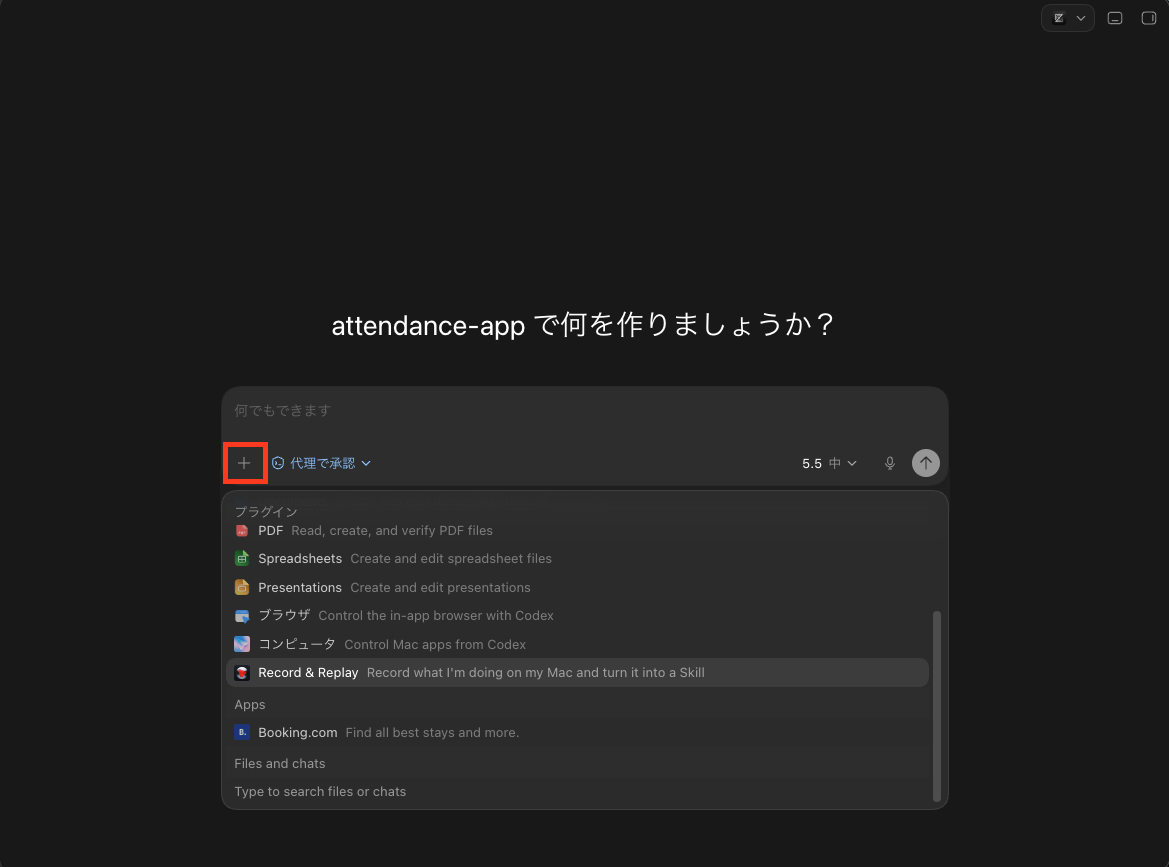
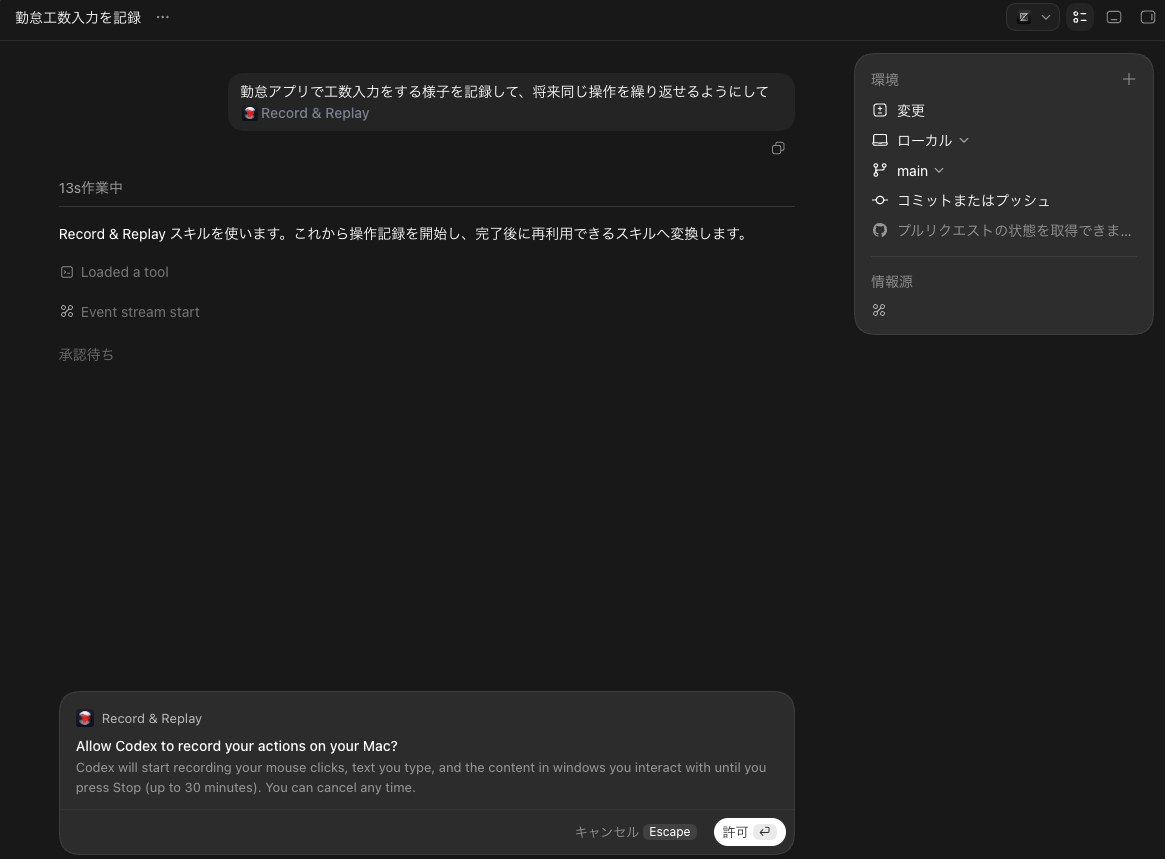
プラグインを選択した状態でプロンプトを入力すると、ワークフローの記録が開始されます。ここではプロンプトとして「勤怠アプリで工数入力をする様子を記録して、将来同じ操作を繰り返せるようにして」と入力してみます。すると Record & Replay がユーザーの操作を記録する承認を求めてきますので「許可」をクリックします。クリックした瞬間からユーザーの操作が記録されるようになります。なお、Computer Use を使用してユーザーの操作を記録するので、Computer Use が使用可能であることが前提となります。
実際に勤怠アプリで工数を入力する操作を行います。アプリを開き、日付を選択して工数を入力し、保存するまでの一連の操作を行います。操作が完了したら、Record & Replay のセッションに戻り、「完了しました」のようなプロンプトを入力して記録を終了します。
記録が完了したら [skill-creator](https://github.com/openai/skills/blob/main/skills/.system/skill-creator/SKILL.md) スキルを使用して、記録したワークフローをスキルに変換します。スキルの保存先(デフォルトは `~/.codex/skills`)を問われるので、任意の場所を指定します。ここからは `skill-creator` スキルの手順通りにスキルの計画・作成・検証が進んでいきます。
スキルは `enter-timeport-work-hours` として保存されました。内容は以下のようになっています。
`enter-timeport-work-hours` スキルの内容
````markdown
---
name: enter-timeport-work-hours
description: Enter one or more daily work-effort records in the local TimePort attendance application, including date, project or work category, task description, and time in 0.25-hour increments. Use when the user asks to enter, register, repeat, or correct monthly work hours or effort records in TimePort.
---
# Enter TimePort Work Hours
Enter work-effort rows in TimePort through its UI. Treat the recorded values as examples, not defaults.
## Collect Inputs
Obtain these values for every row before making changes:
- Target date
- Project or work category
- Task description
- Hours, in 0.25-hour increments
Ask only for values that are missing or ambiguous. Never infer a date, project, description, or duration from the recorded demonstration.
## Open TimePort
1. Prefer browser automation that can use the user's existing Chrome state when available. Otherwise use Computer Use explicitly.
2. Open the existing TimePort tab or navigate to `http://localhost:5173/`.
3. Confirm the page title is `TimePort | 勤怠管理` before editing data.
4. Select the `月次工数` view.
If the app is unavailable, stop and report the connection problem. Do not substitute another attendance system.
## Enter Rows
For each requested row:
1. Find the target date by its visible date label and activate the control whose accessible description identifies that date's work-effort entry, such as `6/15(月)の工数を入力`.
2. Select the requested project or work category by its visible option text.
3. Enter the task description in the `作業内容` text area.
4. Replace the value in `時間(0.25時間単位)` with the requested hours. Select all or otherwise clear the existing value before typing to avoid concatenating digits.
5. Confirm the displayed values match the request.
6. Activate `保存する` once.
7. Wait for the form or list to settle before entering another row.
Use accessible labels, roles, and visible text instead of screen coordinates. Refresh the UI state after navigation, dialog changes, or saving a row.
## Verify
After each save, confirm the target date shows a row with the requested project or category, task description, and hours. After all rows are saved, confirm the visible daily or monthly total changed consistently with the sum of the entered hours.
If validation fails or the UI shows an error, stop before retrying a save to avoid duplicate entries. Report which row is uncertain and what the UI currently shows.
## Safety
- Do not modify attendance times, leave requests, or unrelated work-effort rows.
- Do not delete or overwrite an existing row unless the user explicitly requested a correction.
- Never expose credentials or private personnel data in the response.
- Summarize only the dates, work categories, descriptions, and hours that were intentionally entered.
````
日本語に翻訳して内容を要約すると、以下のようなスキルになっています。
1. 工数の入力内容について確認する(対象日・案件・作業内容・作業時間)
2. 勤怠アプリを開き「月次工数」画面を表示する。Chrome セッションを利用できる場合はそれを優先し、利用できない場合は Computer Use で操作
3. 指定された工数ごとに、次の操作を行う
- 表示されている日付から対象日を探す
- 「○/○の工数を入力」を選択
- 指定された案件・業務区分を選択
- `作業内容` に説明を入力
- `時間(0.25時間単位)` を指定値に置き換える
- 入力内容を確認して `保存する` を 1 回だけ実行
4. 保存結果を検証。対象日の一覧に案件・作業内容・時間が正しく表示されているか確認。すべての入力後、日次または月次の合計時間が入力分だけ増えていることも確認する
5. 安全性の考慮事項として、勤怠時間や休暇申請、関連のない工数行を変更しないこと、既存の行を削除・上書きしないこと(ユーザーが明示的に修正を要求した場合を除く)、レスポンスに資格情報や個人データを含めないこと、意図的に入力された日付・案件・作業内容・時間のみを要約することが挙げられている
スキルを呼び出すときには、以下のようなプロンプトを使用します。
```txt
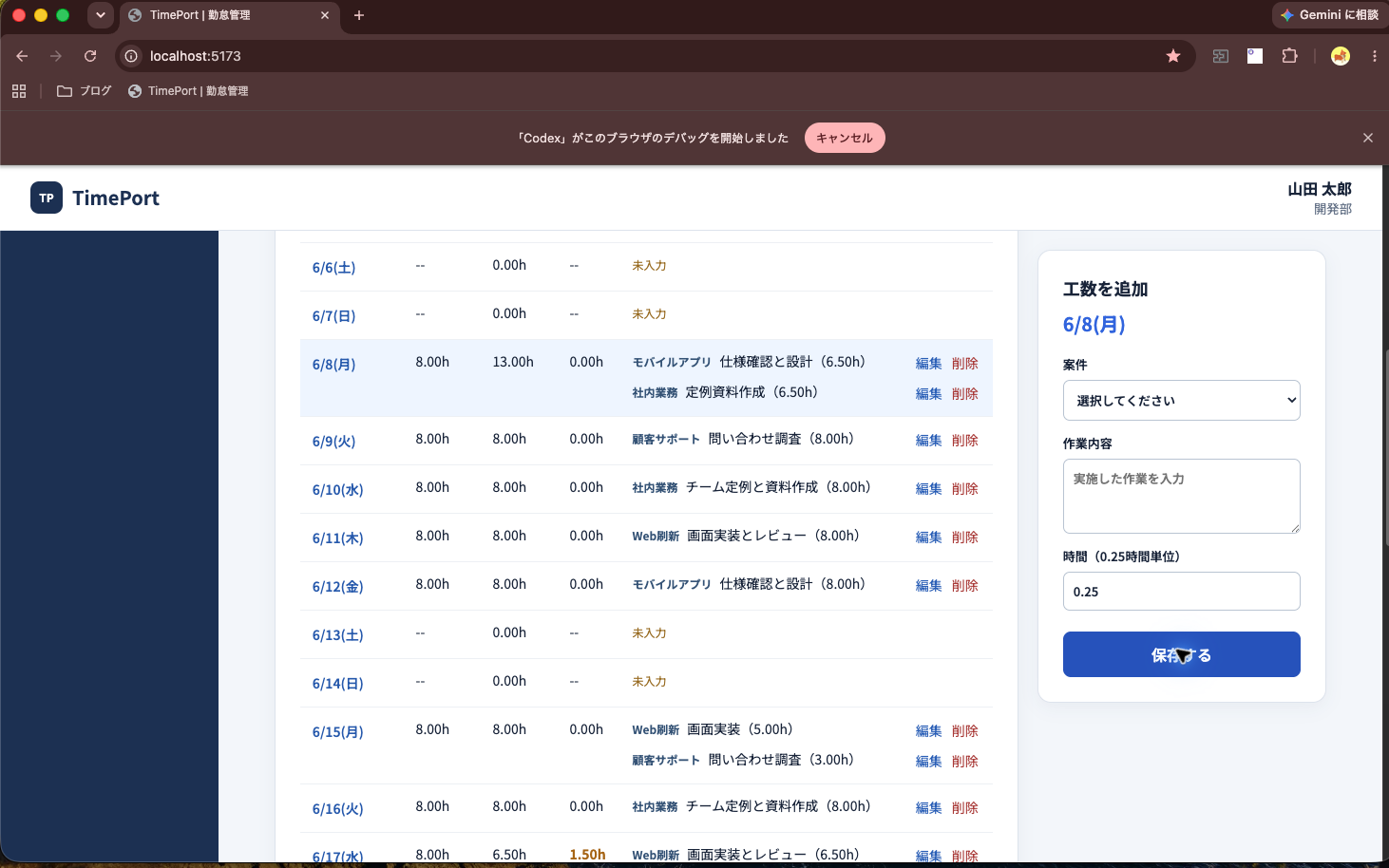
TimePort 工数入力 を使って、6月8日に「社内業務/定例資料作成」を6.5時間で登録して。
```
スキルを呼び出してみると、確かに工数入力のワークフローが実行され、指定した内容で勤怠アプリに工数が登録されました。
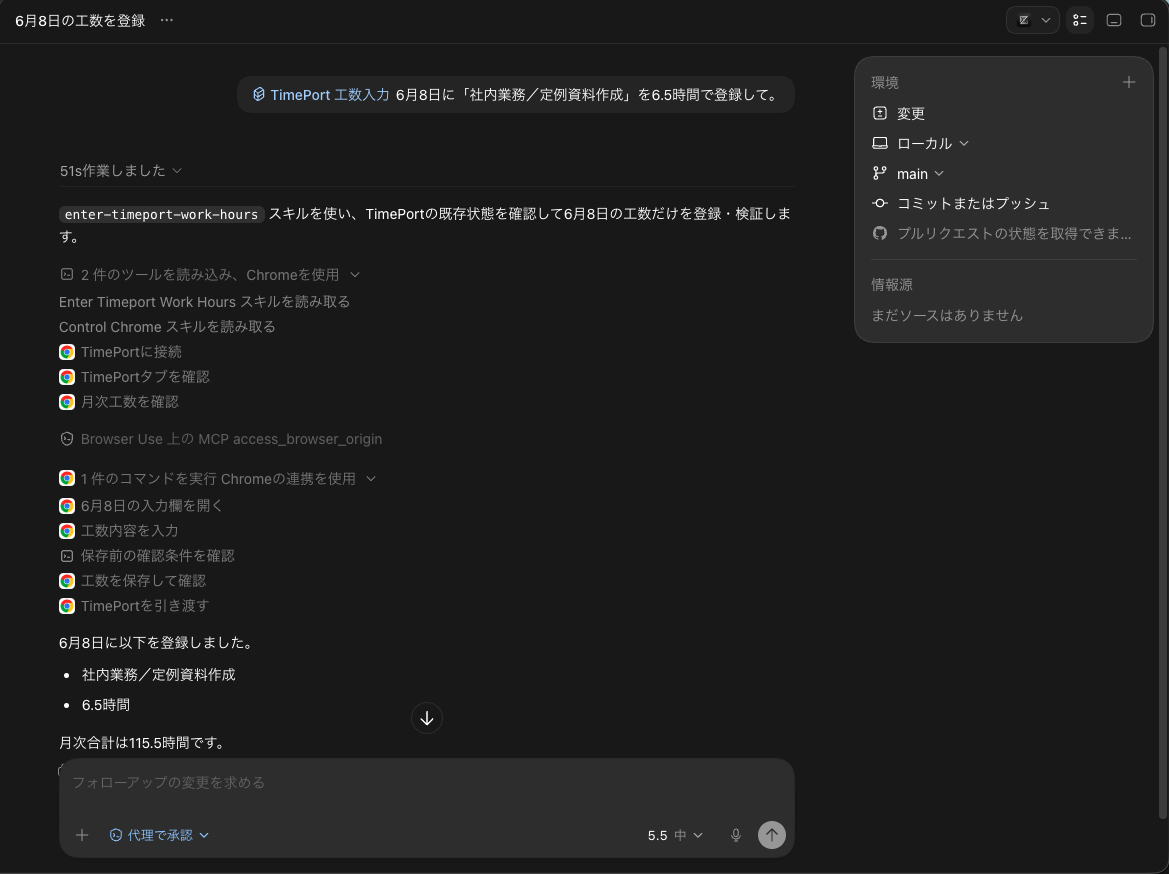
Chrome ブラウザを開くとリアルタイムで操作が行われている様子がわかります。
## まとめ
- Record & Replay は macOS 上でのユーザーの操作を記録し、再利用可能なスキルに変換する Codex の機能です
- プラグインは操作を記録する `event-stream` MCP サーバーと、記録内容からスキルを作成する `record-and-replay` スキルの 2 つで構成されています
- 操作は画面座標ではなくアクセシビリティ API の情報として記録されるため、画面の配置が変わっても操作の意図を保ったまま再現できます
- 作成したスキルは Computer Use と組み合わせて実行され、勤怠アプリへの工数入力のような定型業務を自然言語のプロンプトから再現できました
- 手順が安定していて成功基準が明確なワークフローほど効果を発揮するため、繰り返しの多い定型業務の自動化に適しています
## 参考
- [Record & Replay](https://developers.openai.com/codex/record-and-replay)