# Webpack5 Module Federation ではじめるマイクロフロントエンド
## Module Feaderation とは
Module Feaderation は Webpack 5 からコア機能として導入されました。
https://webpack.js.org/concepts/module-federation/
Module Feaderation を使用すると、異なる JavaScript アプリケーションから動的にコードをロードできます。これは複数の個別のビルドによって単一のアプリケーションを構築する手段を目的としています。
これは**マイクロフロントエンド**という言葉でよく知られていると思いますが Module Federation の目的としてはそれに限定されません。
## マイクロフロントエンドとは?
マイクロフロントエンドについてうまく説明できる自信はないので説明は委ねます。
https://micro-frontends.org/
## マイクロフロントエンドアプリケーションを作成する
それでは、実際に Module Feaderation を使ってアプリケーションを作成してみましょう。
例として、以下の 3 つのフロントエンドチームが存在すると仮定しましょう。
- ヘッダーチーム:ヘッダー部分を作成するチーム。React
- フッターチーム:フッター部分を作成するチーム。Vue.js
- メインコンテンツチーム:ヘッダーチームとフッターチームの作成したコンポーネントを使用してメインコンテンツを作成するチーム。React
### ヘッダーチームのコンポーネントの作成
まずはアプリケーションのヘッダー部分を作成しましょう。
初めはいつもと同じように React アプリケーションを作成します。
```sh
npm create-react-app header-app
```
次に `Header` コンポーネントを作成して `App.js` で読み込んで表示させてみます。ここも通常の流れとかわりありません。
- `header-app/src/components/Header.js`
```js
const Header = () => {
return (
This is excellent header!
);
};
export default Header;
```
- `header-app/src/App.js`
```js
import "./App.css";
import Header from "./components/Header";
function App() {
return (
);
}
export default App;
```
アプリケーションを起動します。ヘッダーチームの作成した素晴らしいヘッダーが表示されています。
```sh
cd header-app
yarn start
```

### Module Federation の設定
ここまでは通常通りの React アプリケーションの作成であり、あまり面白みのないセクションです。ここでは作成したヘッダーコンポーネントを異なるアプリケーションから使用できるように Wepback の設定を行います。
初めに `create-react-app` で作成した wepback の設定を上書き必要があるのでその作業を行います。
```sh
yarn add -D webpack webpack-cli webpack-dev-server html-webpack-plugin serve
yarn add -D babel-loader @babel/core @babel/preset-env @babel/preset-react
yarn add -D css-loader style-loader @svgr/webpack style-loader url-loader
```
`webpack.config.js` ファイルを作成しましょう。
```js
const path = require("path");
const HtmlWebpackPlugin = require("html-webpack-plugin");
const PORT = 3001;
module.exports = {
entry: path.resolve(__dirname, "./src/index.js"),
devServer: {
port: PORT,
},
output: {
publicPath: "auto",
},
resolve: {
extensions: [".js", ".jsx"],
},
module: {
rules: [
{
test: /\.css$/i,
use: ["style-loader", "css-loader"],
},
{
test: /\.svg$/,
use: ['@svgr/webpack', 'url-loader'],
},
{
test: /\.(js|jsx)$/,
exclude: /node_modules/,
use: ["babel-loader"],
},
],
},
plugins: [
new HtmlWebpackPlugin({
manifest: "./public/manifest.json",
favicon: "./public/favicon.ico",
template: "./public/index.html",
}),
],
};
```
続いて Module Federation の設定を記述します。引き続き `webpack.config.js` ファイルを編集します。
- `header-app/webpack.config.js`
```js
const HtmlWebpackPlugin = require("html-webpack-plugin");
const ModuleFederationPlugin = require("webpack/lib/container/ModuleFederationPlugin");
module.exports = {
// other webpack configs...
plugins: [
new ModuleFederationPlugin({
name: "header_app",
filename: "remoteEntry.js",
exposes: {
"./Header": "./src/components/Header.js",
},
}),
]
}
```
Module Federation を使用するには `ModuleFederationPlugin` というプラグインが必要になるので、初めにこれをインポートします。
```js
const ModuleFederationPlugin = require("webpack/lib/container/ModuleFederationPlugin");
```
`plugins` の配列に `new ModuleFederationPlugin({})` を追加してプラグインとして追加します。`ModuleFederationPlugin` の各プロパティを次のように設定します。
- `name`
- exporse するモジュールの名前。例えば `header_app` という名前で expose すると別のアプリケーションからで指定するとき `header_app@${URL}` のような名前を使うことになる。`exposes` を指定するときには必須になる。
- `filename`
- 出力されるファイル名
- `exposes`
- モジュールとして公開したいファイルをオブジェクト形式で指定する。キーが公開される際に使われるパス名で、値がこのアプリケーションからの相対パス。
次に `babel.config.json` ファイルを作成します。
- `header-app/babel.config.json`
```json
{
"presets": ["@babel/preset-env", ["@babel/preset-react", {
"runtime": "automatic"
}]]
}
```
最後に `package.json` の `scripts` を `webpack` を使用するように修正しましょう。
- `header-app/package.json
```json
"scripts": {
"start": "webpack serve --open --mode development",
"build": "webpack --mode production"
},
```
ここまで完了したら、アプリケーションを再起動する必要があります。
```js
yarn start
```
うまく設定の修正が完了していたら変わらずヘッダーコンポーネントが表示されているはずです。
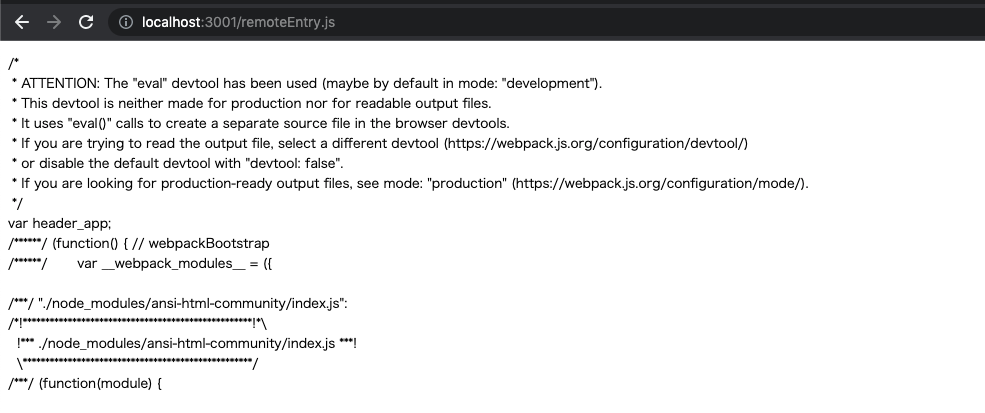
ここで http://localhost:3001/remoteEntry.js にアクセスしてみてください。 Module Federation の設定がうまくできていた場合は、次のようにファイルが出力されています。
## メインコンテンツチーム
続いて、メインコンテンツチームのアプリケーションを作成しましょう。ヘッダーチームが expose したヘッダーコンポーネントをアプリケーション内に取り込みます。
ヘッダーアプリケーションを作成したときと同じく `create-react-app` で React アプリケーションを作成して webpack の設定を上書きしましょう。
```sh
npx create-react-app main-contents
```
```sh
yarn add -D webpack webpack-cli webpack-dev-server html-webpack-plugin serve
yarn add -D babel-loader @babel/core @babel/preset-env @babel/preset-react
yarn add -D css-loader style-loader @svgr/webpack style-loader url-loader
```
- `main-contents/webpack.config.js`
```js
const path = require("path");
const HtmlWebpackPlugin = require("html-webpack-plugin");
const PORT = 3000; // ヘッダーアプリケーションとは port 番号を変更する必要がある
module.exports = {
entry: path.resolve(__dirname, "./src/index.js"),
devServer: {
port: PORT,
},
output: {
publicPath: "auto",
},
resolve: {
extensions: [".js", ".jsx"],
},
module: {
rules: [
{
test: /\.css$/i,
use: ["style-loader", "css-loader"],
},
{
test: /\.svg$/,
use: ['@svgr/webpack', 'url-loader'],
},
{
test: /\.(js|jsx)$/,
exclude: /node_modules/,
use: ["babel-loader"],
},
],
},
plugins: [
new HtmlWebpackPlugin({
manifest: "./public/manifest.json",
favicon: "./public/favicon.ico",
template: "./public/index.html",
}),
],
};
```
- `webpack.config.js`
```json
{
"presets": ["@babel/preset-env", ["@babel/preset-react", {
"runtime": "automatic"
}]]
}
```
- package.json
```json
"scripts": {
"start": "webpack serve --open --mode development",
"build": "webpack --mode production"
},
```
次に `webpack.config.js` に Module Federation の設定を追加しましょう。
```js
const ModuleFederationPlugin = require("webpack/lib/container/ModuleFederationPlugin");
module.exports = {
// other webpack configs...
plugins: [
new ModuleFederationPlugin({
name: "main_contents",
filename: "remoteEntry.js",
remotes: {
header_app: "header_app@http://localhost:3001/remoteEntry.js",
}
}),
]
}
```
ヘッダーアプリケーションの時とは設定に変更点があります。メインコンテンツアプリケーションではモジュールを公開しないので `expose` の設定は記載しておりません。その代わりに異なるアプリケーションからもモジュールをローカルで使用できるようにするために `remotes` プロパティを指定しています。
`remote` プロパティはオブジェクト形式で指定し、取り込みたい名前をキーとし Module Federation によって出力したファイルを値に設定します。
もう 1 つ変更する点があります。`src/index.js` ファイルの内容をそのまま `src/bootstrap.js` ファイルを作成してペーストします。
- `main-contents/src/bootstrap.js`
```js
import React from "react";
import ReactDOM from "react-dom";
import "./index.css";
import App from "./App";
import reportWebVitals from "./reportWebVitals";
ReactDOM.render(
,
document.getElementById("root")
);
// If you want to start measuring performance in your app, pass a function
// to log results (for example: reportWebVitals(console.log))
// or send to an analytics endpoint. Learn more: https://bit.ly/CRA-vitals
reportWebVitals();
```
`src/index.js` ファイルは `src/bootstrap.js` ファイルを import するように修正します。
- `main-contents/src/index.js
```js
import('./bootstrap.js')
```
これは `bootstrap.js` ファイルの処理を非同期実行するようにするためです。Webpack が `header_app` のファイルをフェッチしてくるまで待つ必要があります。
この設定によってヘッダーアプリケーションからヘッダーコンポーネントを import することが可能です。`App.js` ファイルを編集しましょう。
- `main-contents/src/App.js
```js
import Header from "header_app/Header";
function App() {
return (
Main contents
);
}
export default App;
```
**ヘッダーアプリケーションを起動したまま**メインコンテンツアプリケーションを起動してください。
```sh
cd main_contents
yarn start
```
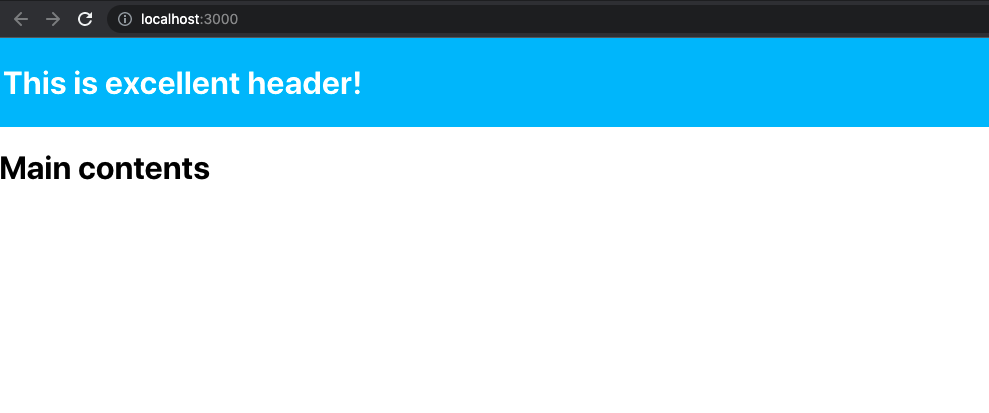
http://localhost:3000 を見てください!ヘッダーチームが作成したコンポーネントがしっかりと表示されています!
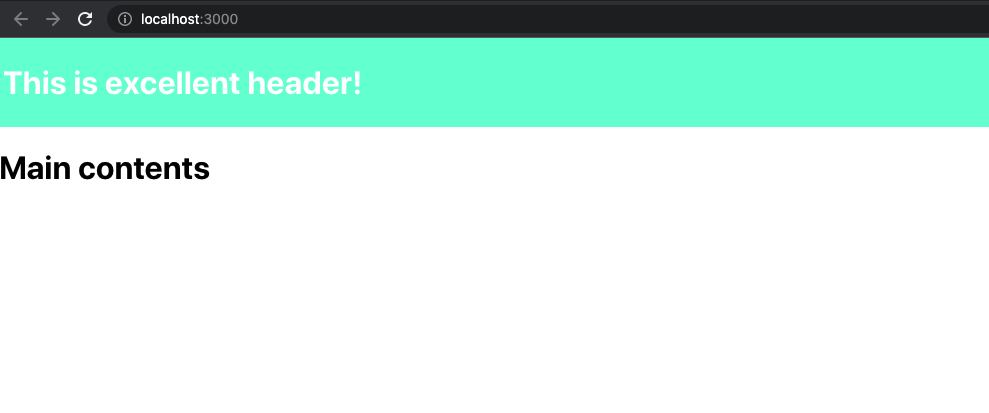
さらに、ヘッダーコンポーネントを編集してみましょう。
- `header-app/src/components/Header.js`
```diff js
const Header = () => {
return (
This is excellent header!
);
};
export default Header;
```
メインコンテンツ側ではホットリロードは効かないのでブラウザを更新する必要があります。さきほどヘッダーコンポーネントで行った変更が反映されているはずです!
## 依存関係の共有
メインコンテンツアプリケーションとヘッダーアプリケーションは互いに React に依存していますが、どちらのアプリケーションでも React のソースコードを読み込んでしまうので結果的にファイルサイズが大きくなってしまいます。
`shared` というプロパティを設定することで依存関係を共有できます。このオプションを設定するとヘッダーアプリケーションはメインコンテンツアプリケーションの依存関係を優先的に参照します。メインコンテンツアプリケーション依存関係が存在しない場合には、ヘッダーアプリケーションが独自にソースコードのダウンロードを行います。
メインコンテンツアプリケーションとヘッダーアプリケーションのどちらにも以下のコードを追加します。
- `webpack.config.js`
```js
const deps = require("./package.json").dependencies;
module.exports = {
plugins: [
new ModuleFederationPlugin({
shared: {
react: {
requiredVersion: deps.react,
singleton: true
},
"react-dom": {
requiredVersion: deps["react-dom"],
singleton: true
},
},
}),
],
};
```
`shared` は配列形式またはオブジェクト形式で指定します。キーには `package.json` の `dependencies` または `devDependencies` に指定しているライブラリ名を記述します。
値にはオプションを設定できます。
- `requiredVersion`
- 実際に依存しているライブラリのバージョンを記載しています。
- `singleton`
- `true` にすると 1 つのバージョンのみのライブラリをシェアするように強制できます。例としては `react` や `react-dom` などのグルーバルな内部状態を持つライブラリはこのオプションを指定するべきです。
また `shared` を設定した場合ヘッダーアプリケーションも `bootstrap.js` を作成してアプリケーションが非同期に開始するようにする必要があります。
- `header-app/src/index.js`
```js
import('./bootstrap')
```
## フッターチームのコンポーネントの作成
最後にフッターコンポーネントを作成してメインコンテンツアプリケーションから呼び出すようにしましょう。
フッターチームは長年 Vue.js の経験があるので Vue.js を使用してアプリケーションを作成することに決めました。
今回は Webpack の設定を楽に行うために [create-mf-app](https://github.com/jherr/create-mf-app) を使用してアプリケーションを作成します。
```sh
npx create-mf-app
? Pick the name of your app: (host) footer-app # アプリケーションの名前
? Project Type: (Use arrow keys) # Application を選択
❯ Application
API Server
Library
? Port number: (8080) # ポート番号はそのまま
? Framework: # フレームワークは vue3 を選択
svelte
vanilla
vue2
❯ vue3
inferno
lit-html
mithril
? Language: (Use arrow keys) # 言語は javascript
typescript
❯ javascript
? CSS: (Use arrow keys) # 普通の CSS を選択
❯ CSS
Tailwind
```
セットアップが完了したら通常通り Vue.js のコンポーネントを作成します。少し違うのは後ほど Vue.js のコンポーネントを Web Components に変換する必要があるのでファイル名の最後を `.ce.vue` にする必要があります。
- `footer-app/src/components/TheFooter.ce.vue`
```vue
```
Vue.js のコンポーネントは React アプリケーションでそのまま使用できないので Web Components に変換する必要があります。同ディレクトリ内に `TheFooter.js` ファイルを作成します。
- `footer-app/src/components/TheFooter.js`
```js
import { defineCustomElement } from "vue";
import TheFooter from "./TheFooter.ce.vue";
const TheFooterElement = defineCustomElement(TheFooter);
customElements.define("the-footer", TheFooterElement);
```
Vue.js の `defineCustomElement` を呼び出せば Vue.js コンポーネントを Web Components に変換できます。 Web Components に変換した要素を `customElements.define` で登録して使用できるようにしています。Vue.js と Web Components の関係についてもう少し詳しく知りたい場合には以下を参照してください。
https://v3.ja.vuejs.org/guide/web-components.html
`webpack.config.js` を編集して作成したフッターコンポーネントを expose します。
```diff js
plugins: [
new VueLoaderPlugin(),
new ModuleFederationPlugin({
name: "footer_app",
filename: "remoteEntry.js",
- exposes: {},
+ exposes: {
+ "./TheFooter": "./src/components/TheFooter.js",
+ },
shared: require("./package.json").dependencies,
}),
```
これで準備は完了したのでフッターアプリケーションを起動しましょう。
```sh
cd footer-app
npm i
npm start
```
続いてメインコンテンツアプリケーションを編集してフッターアプリケーションの提供するコンポーネントを使用できるようにします。
`webpack.config.js` を編集して `footer_app` を追加します。
- `main-contents/webpack.config.js`
```diff js
remotes: {
header_app: "header_app@http://localhost:3001/remoteEntry.js",
+ footer_app: "footer_app@http://localhost:8080/remoteEntry.js",
},
```
`App.js` でフッターコンポーネントを import しましょう。(インターフェイスが異なるのが微妙なのでもう少し工夫したほうが良いかもしれません)
- `main-contents/src/App.js`
```diff js
import Header from "header_app/Header";
+ import "footer_app/TheFooter";
function App() {
return (
Main contents
+
);
}
export default App;
```
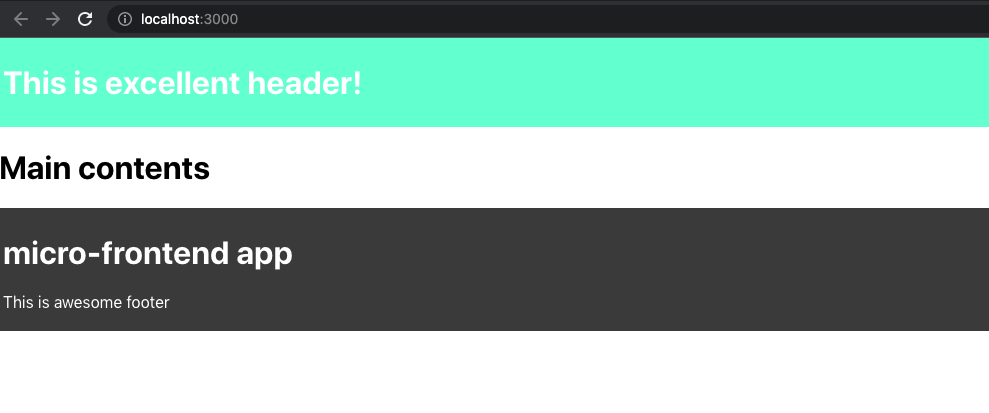
メインコンテンツアプリケーションを再起動してみてください。望み通り、フッターコンポーネントが表示されているはずです!
今回作成したアプリケーションは以下のレポジトリから確認できます。
https://github.com/azukiazusa1/sample-micro-frontend
## 参考
- https://webpack.js.org/concepts/module-federation/
- https://webpack.js.org/plugins/module-federation-plugin/
- https://medium.com/swlh/webpack-5-module-federation-a-game-changer-to-javascript-architecture-bcdd30e02669
- https://blog.hiroppy.me/entry/module-federation
- https://www.youtube.com/watch?v=lKKsjpH09dU